This article explains how to integrate SurveySparrow with SparrowDesk to automatically send surveys to customers based on conversation activity.
What you can do with this integration
Once connected, you can:
- Automatically send surveys (such as CSAT) when conversations meet specific conditions
- Control when a survey is sent using conversation or contact properties
- Choose which survey to send and how it is delivered
- Pass conversation details into the survey using variables
Prerequisites
Before setting up the integration, make sure:
- You have an active SurveySparrow account
- You have a valid SurveySparrow API key
Connect SurveySparrow to SparrowDesk
- In SparrowDesk, go to Settings → Apps store
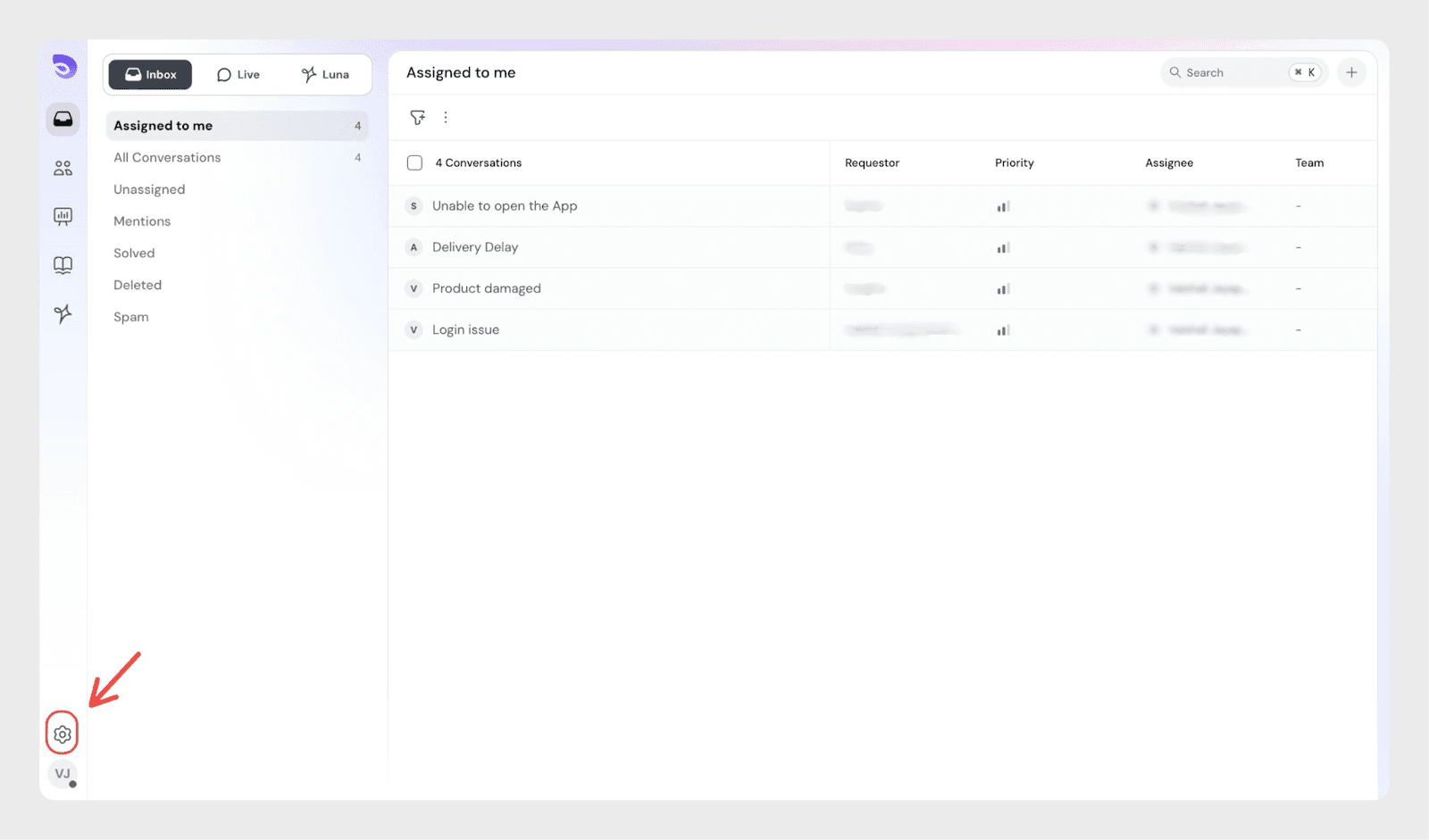
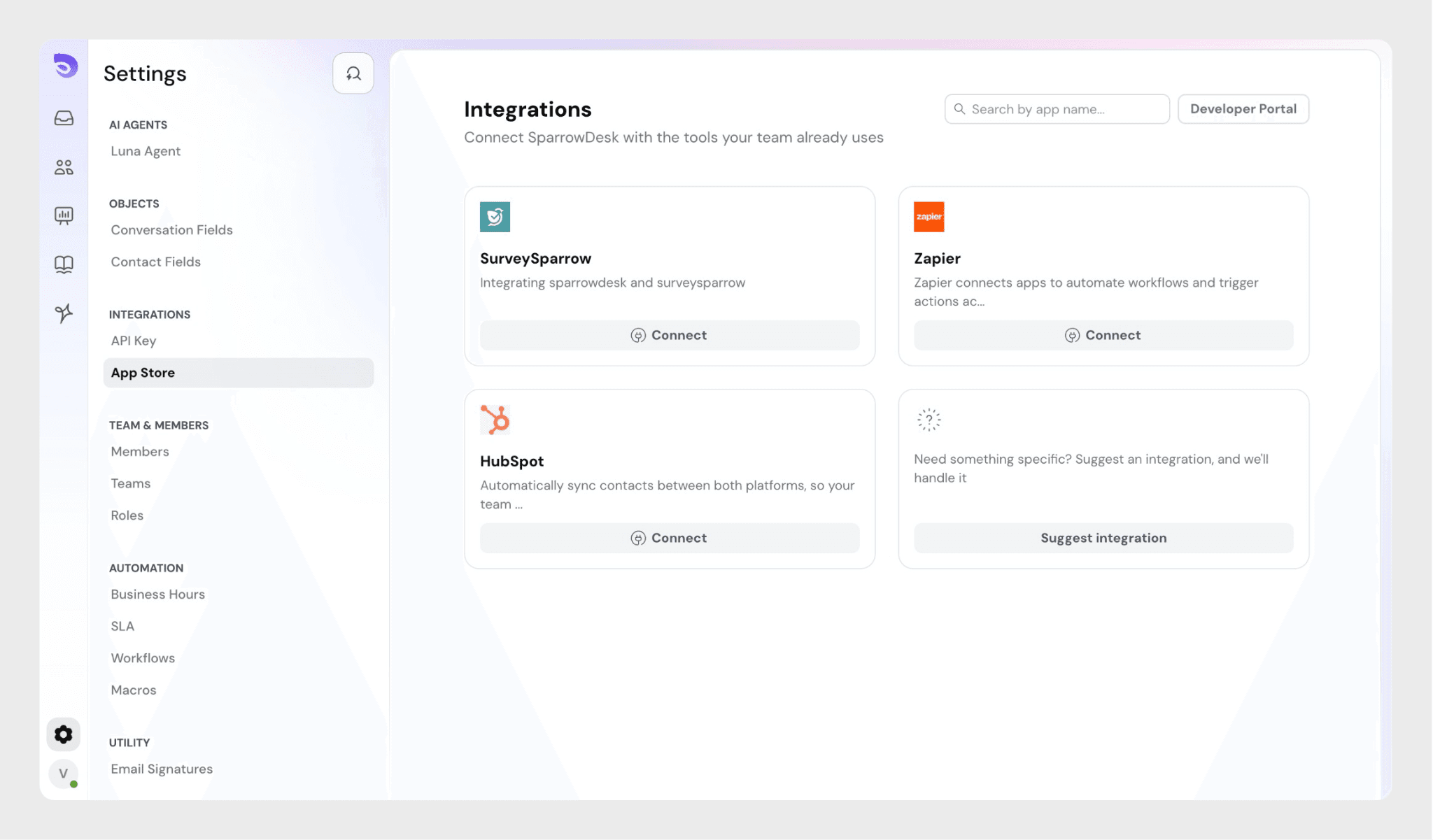
- Locate SurveySparrow and click Connect
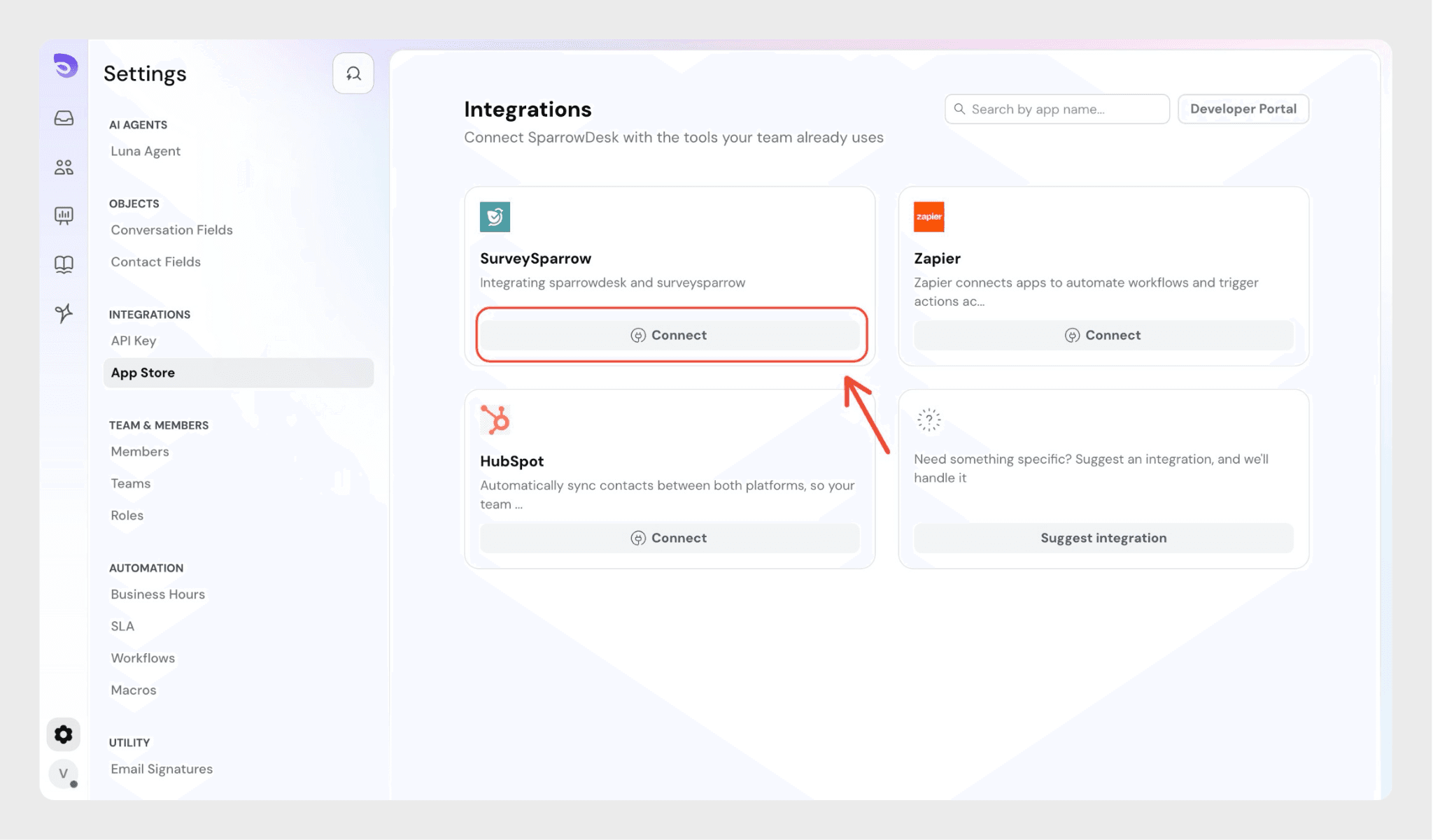
- When prompted, sign in to your SurveySparrow account.
Enter your SurveySparrow credentials or choose a supported sign-in method to authenticate.
After signing in, your SurveySparrow account will be connected to SparrowDesk.
Create a trigger
- After connecting SurveySparrow, click Create Trigger.
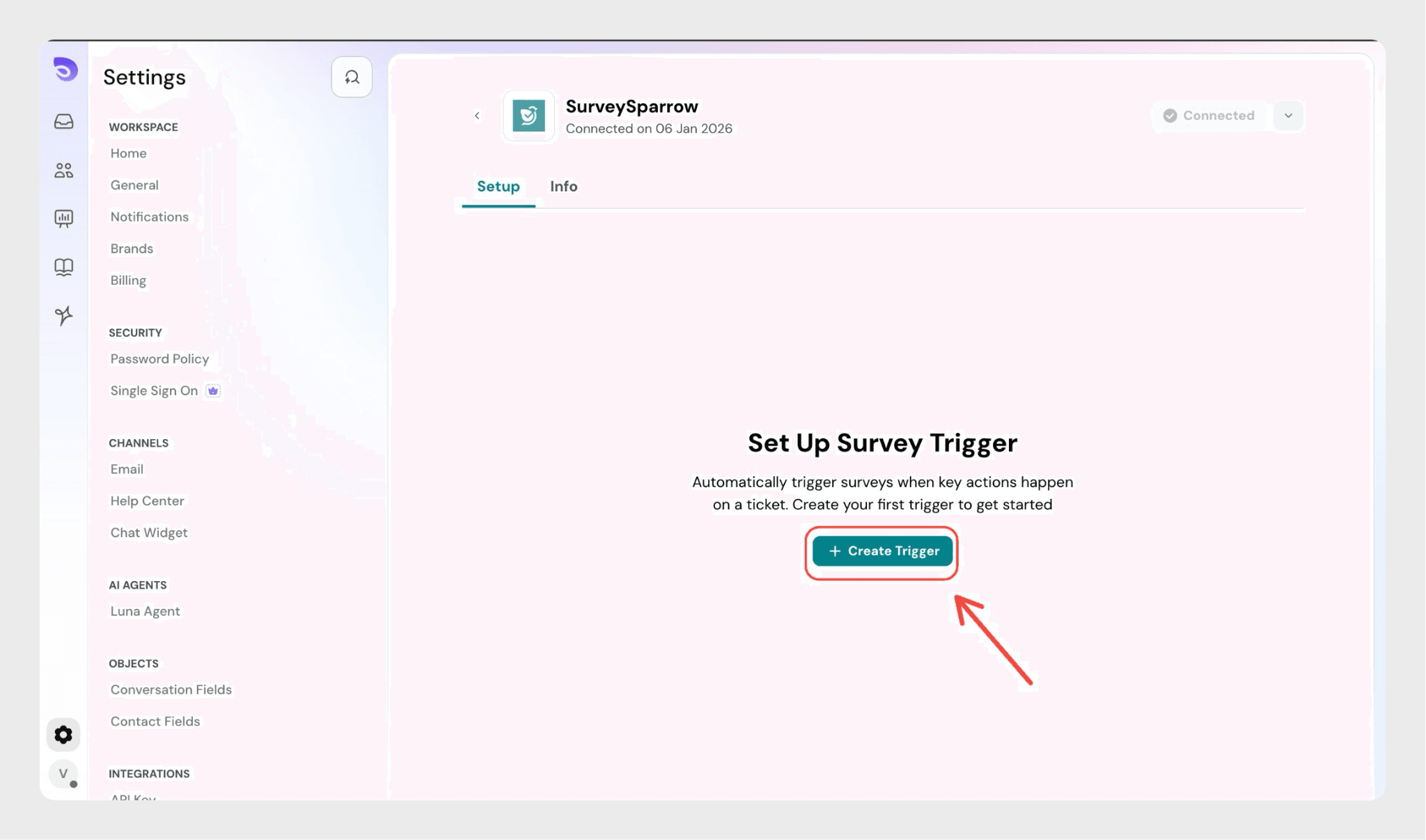
Triggers define when a survey should be sent to customers.
Define when the trigger should run
Under Include conversations that meet, choose how the conditions should be evaluated with the dropdown:
- All – the trigger runs only if all conditions are met
- Any – the trigger runs if at least one condition is met
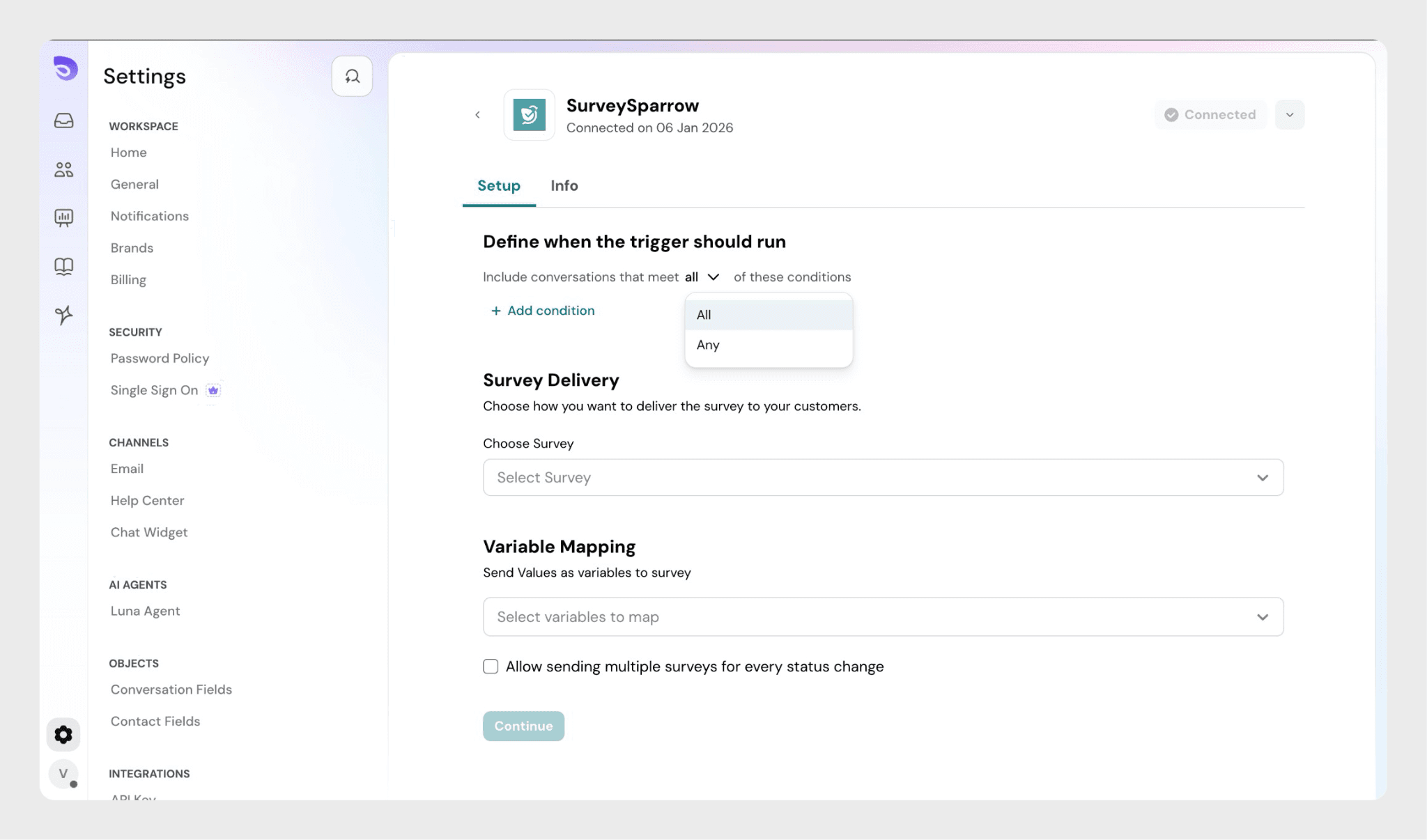
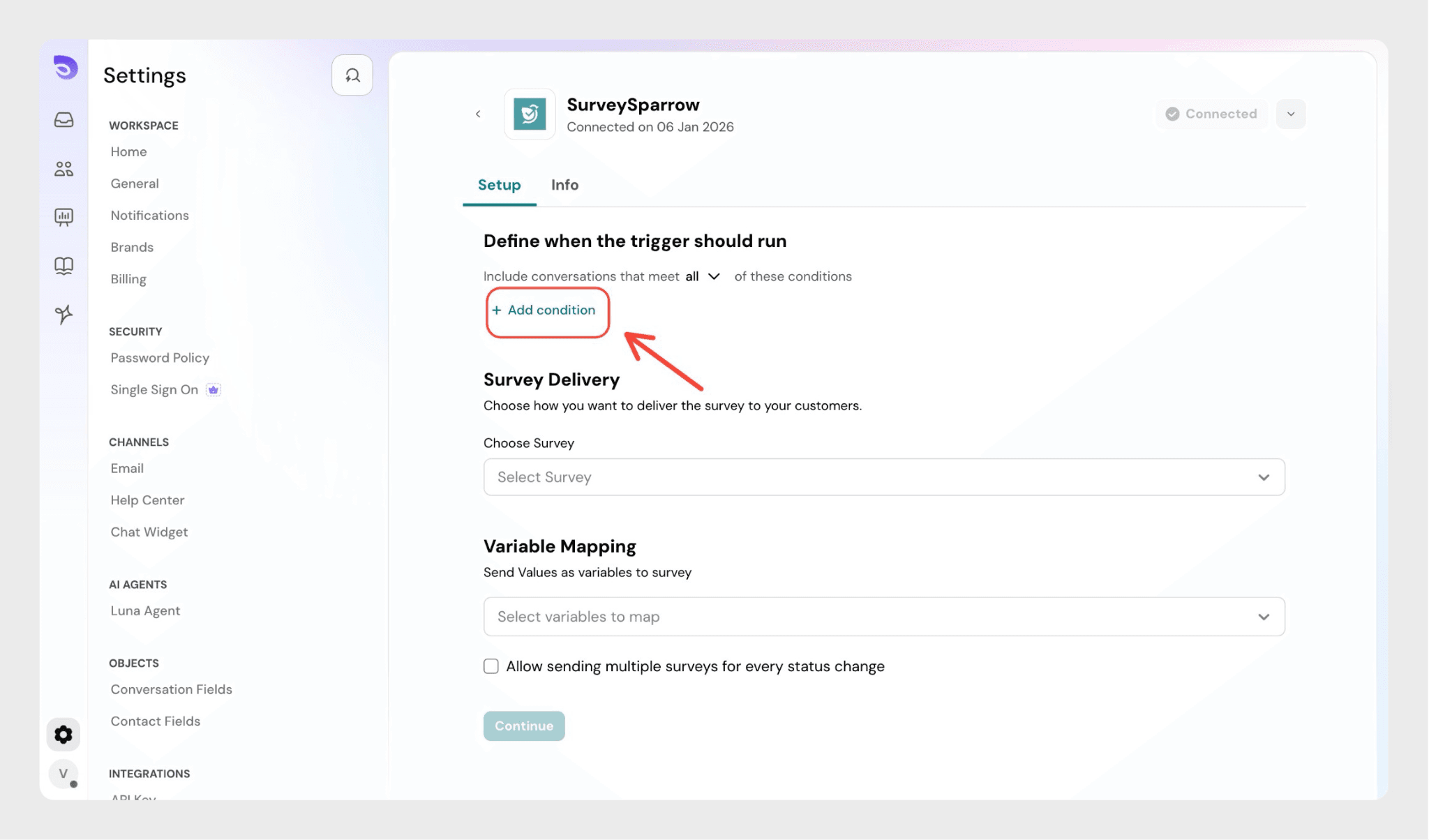
You can add one or more conditions based on:
- Conversation properties
- Contact properties
Example
You can set a condition like:
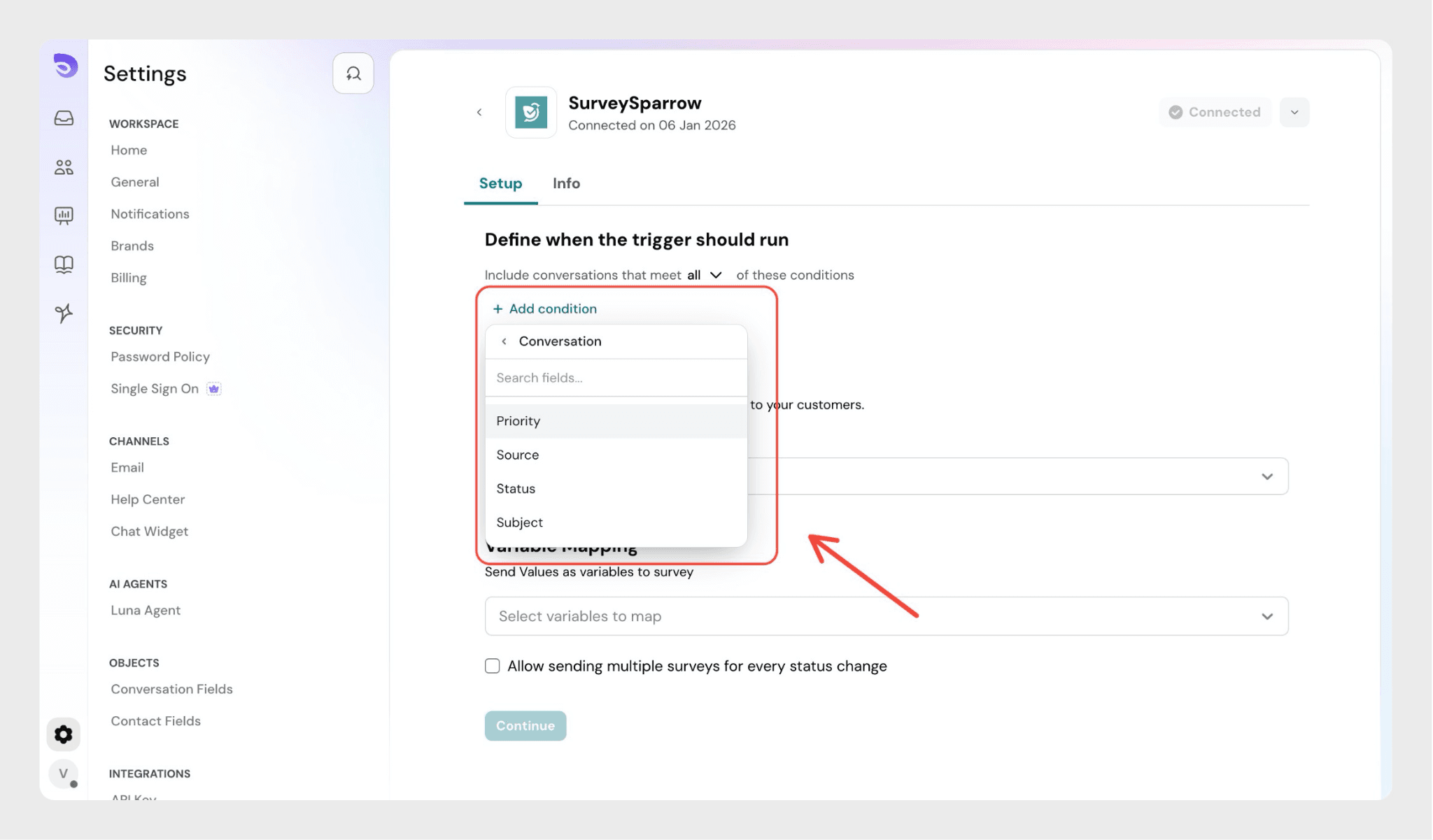
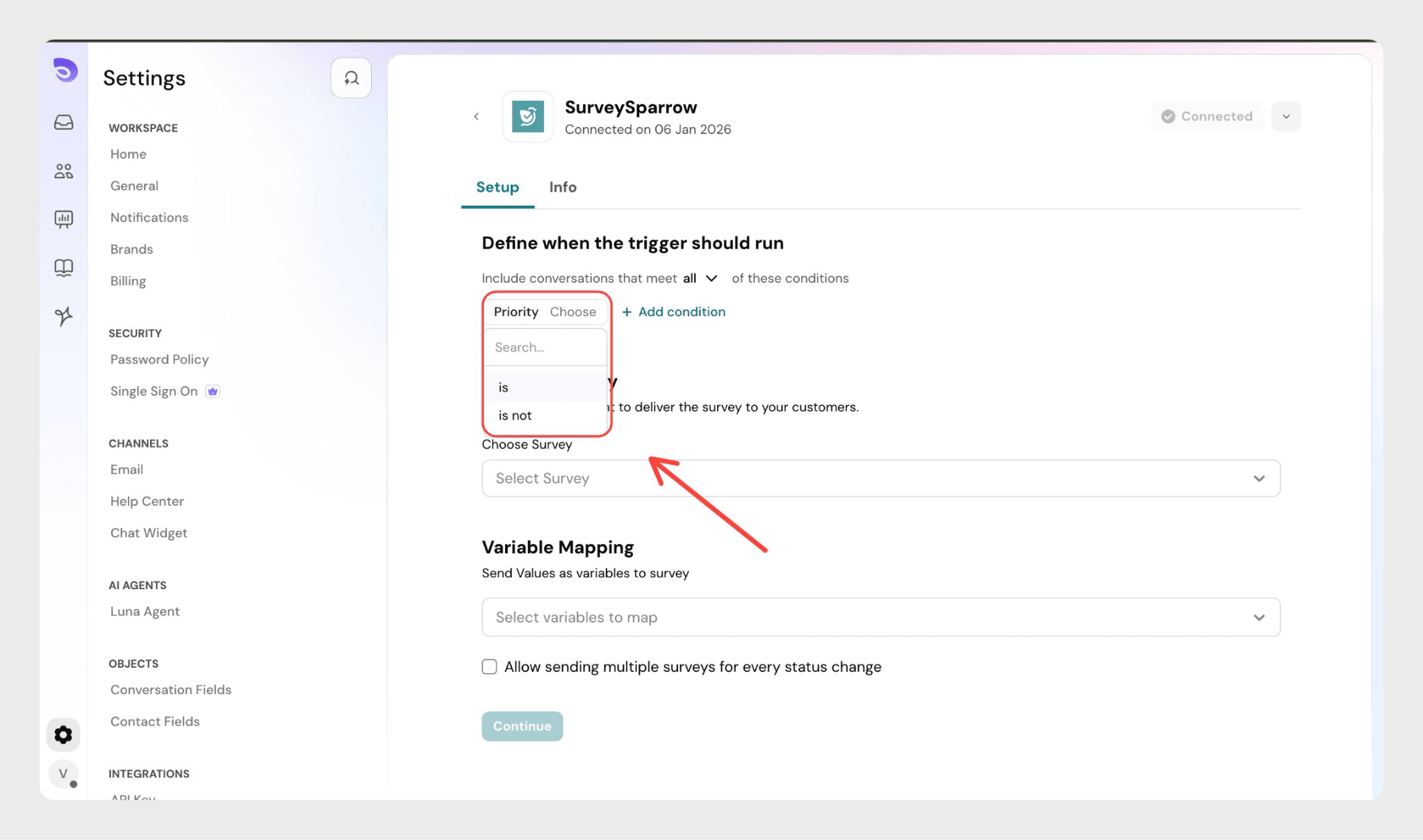
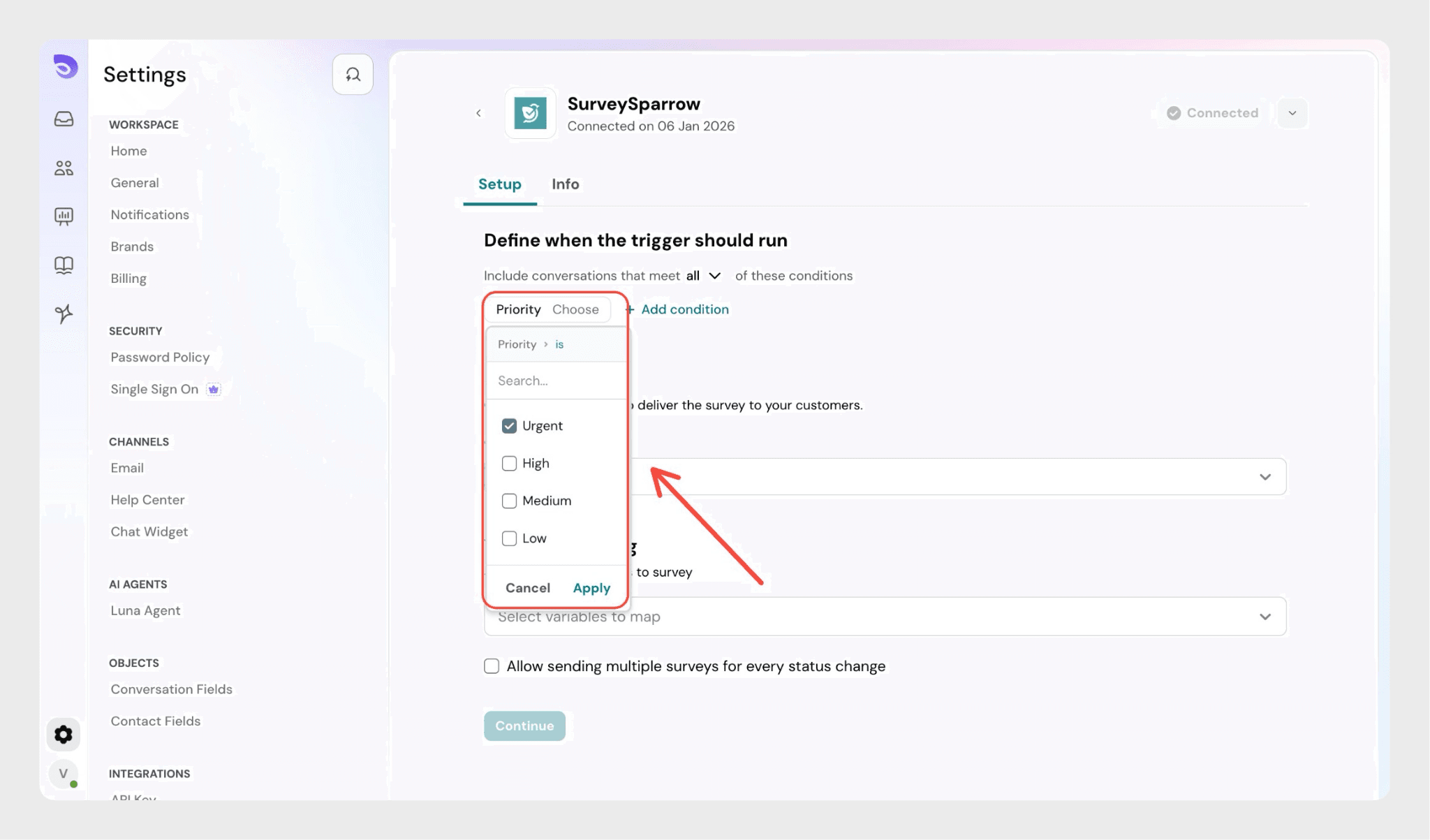
Once selected, click apply to set the condition.
You can also add additional conditions, according to your requirement.
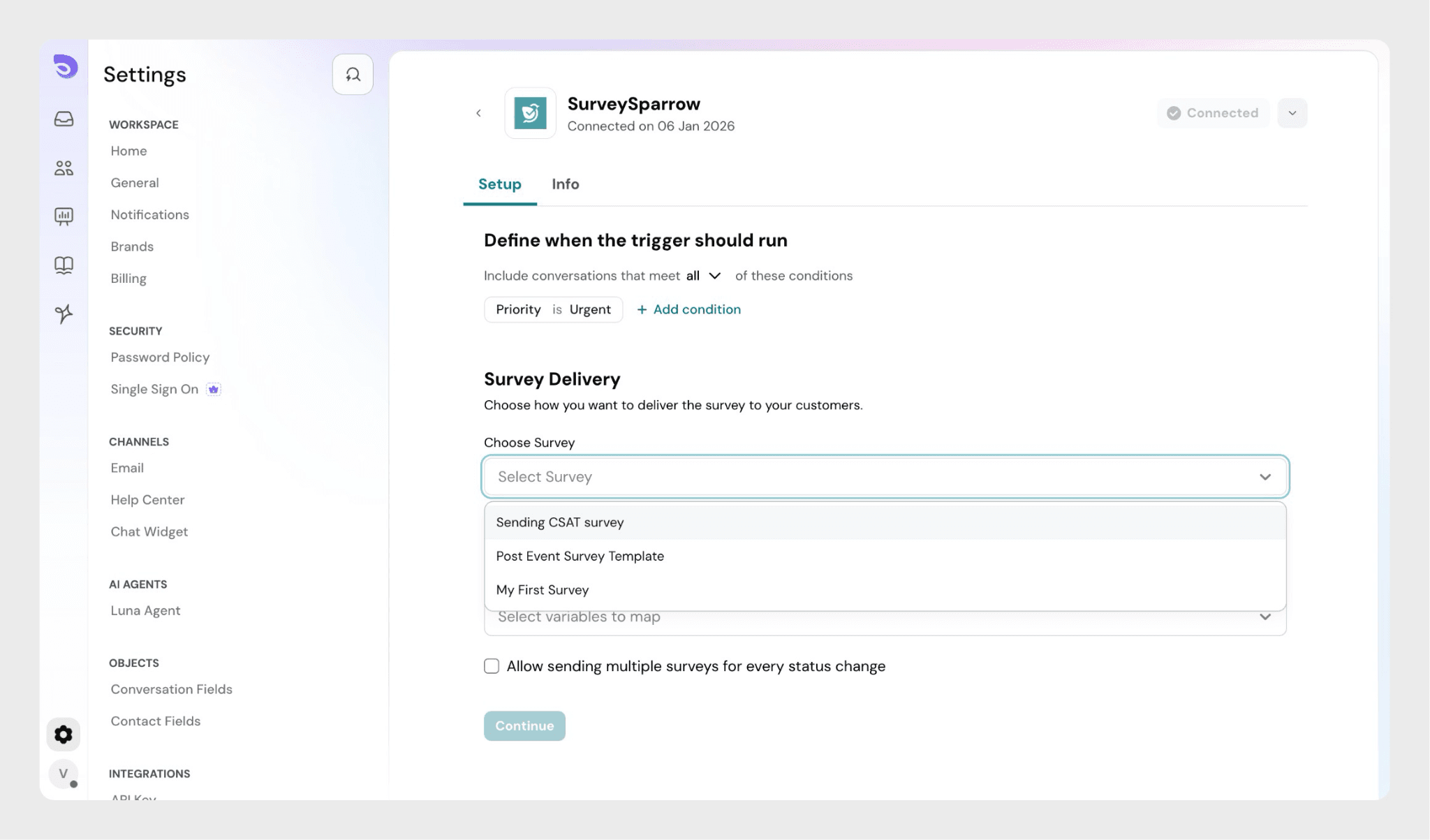
In the Survey Delivery section, choose how the survey should be sent.
Choose survey
- Select the survey you want to send from the dropdown
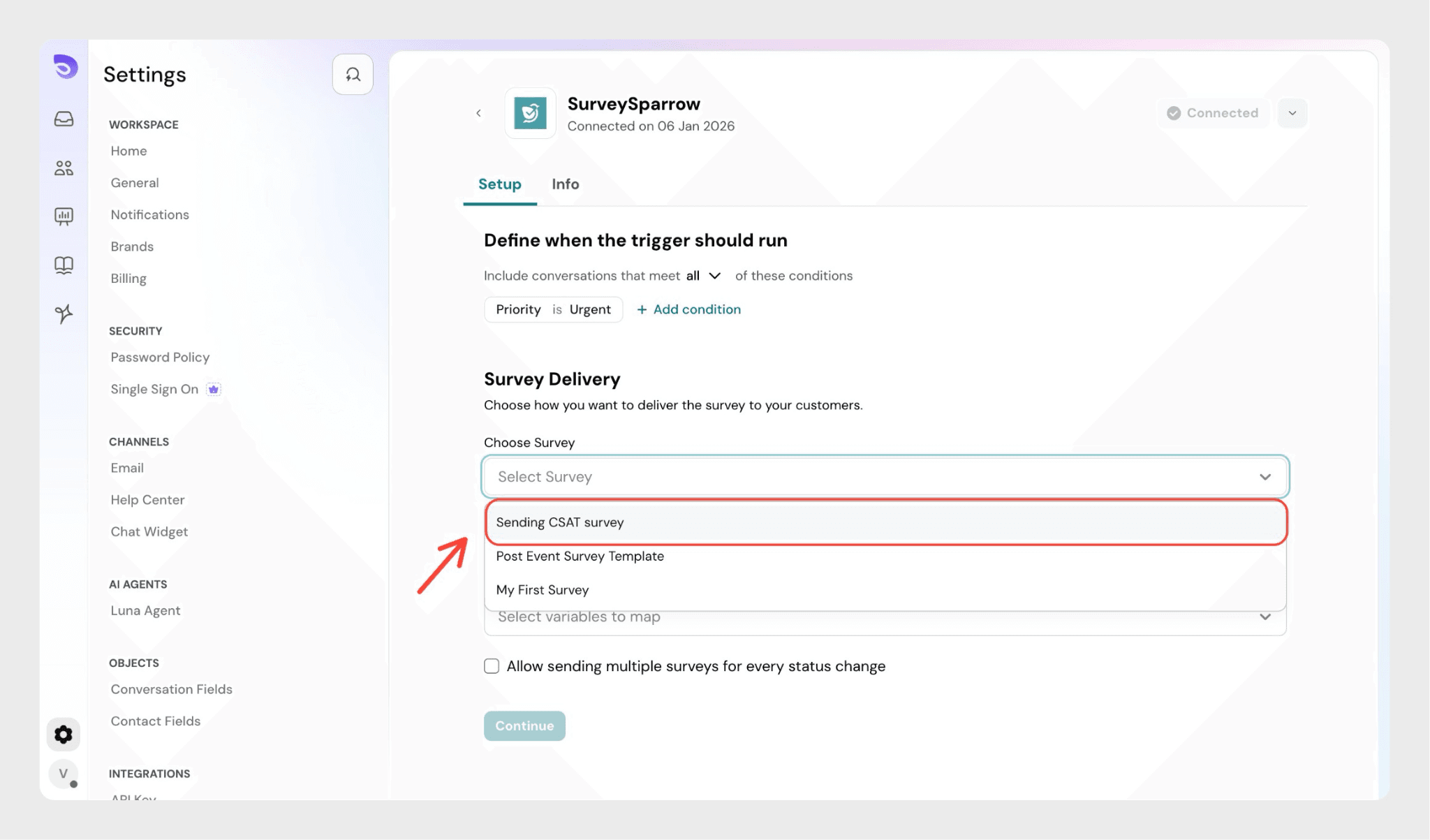
Example
You can send a CSAT Survey.
Choose share channel
- Select the share channel configured in SurveySparrow
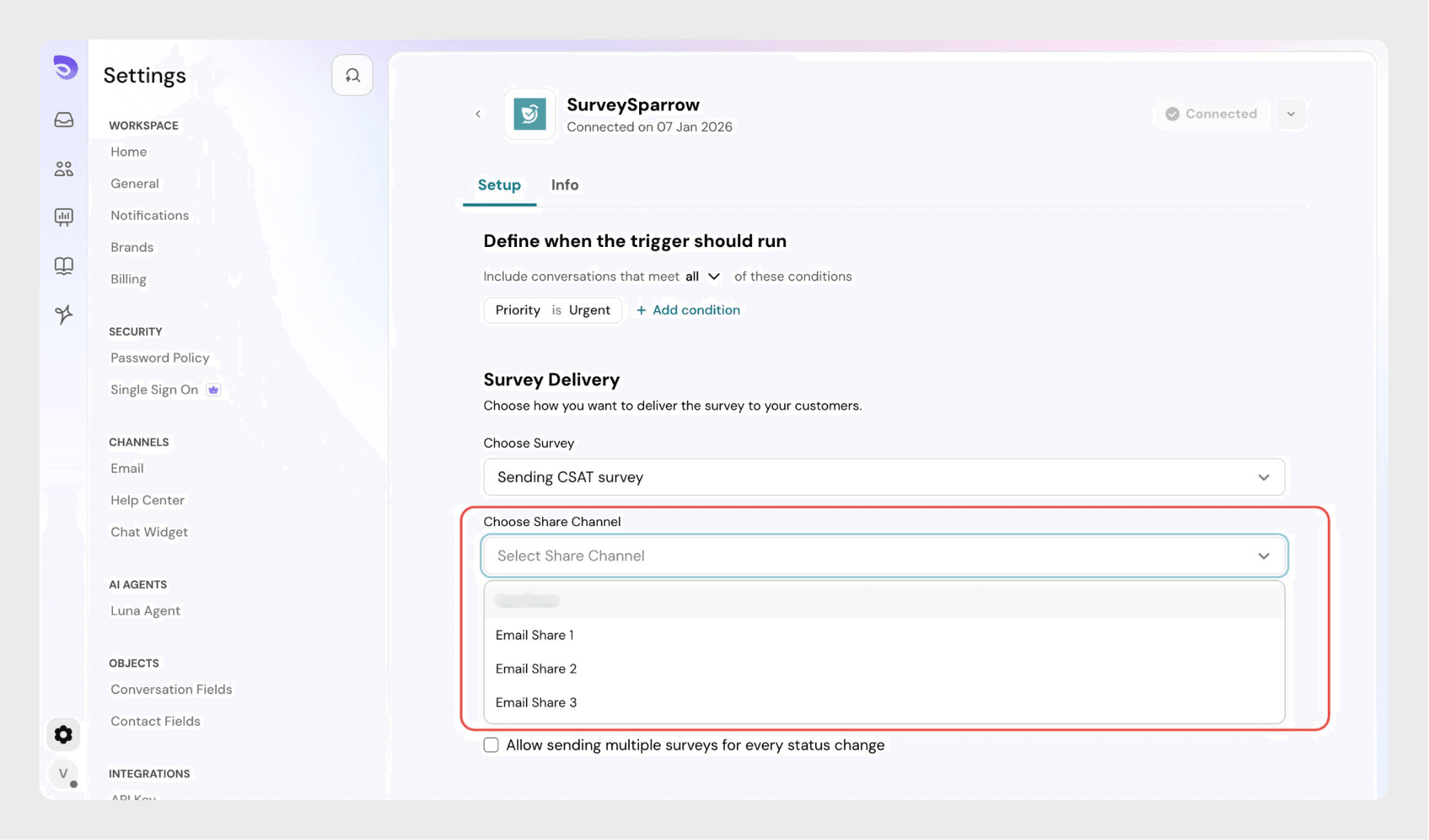
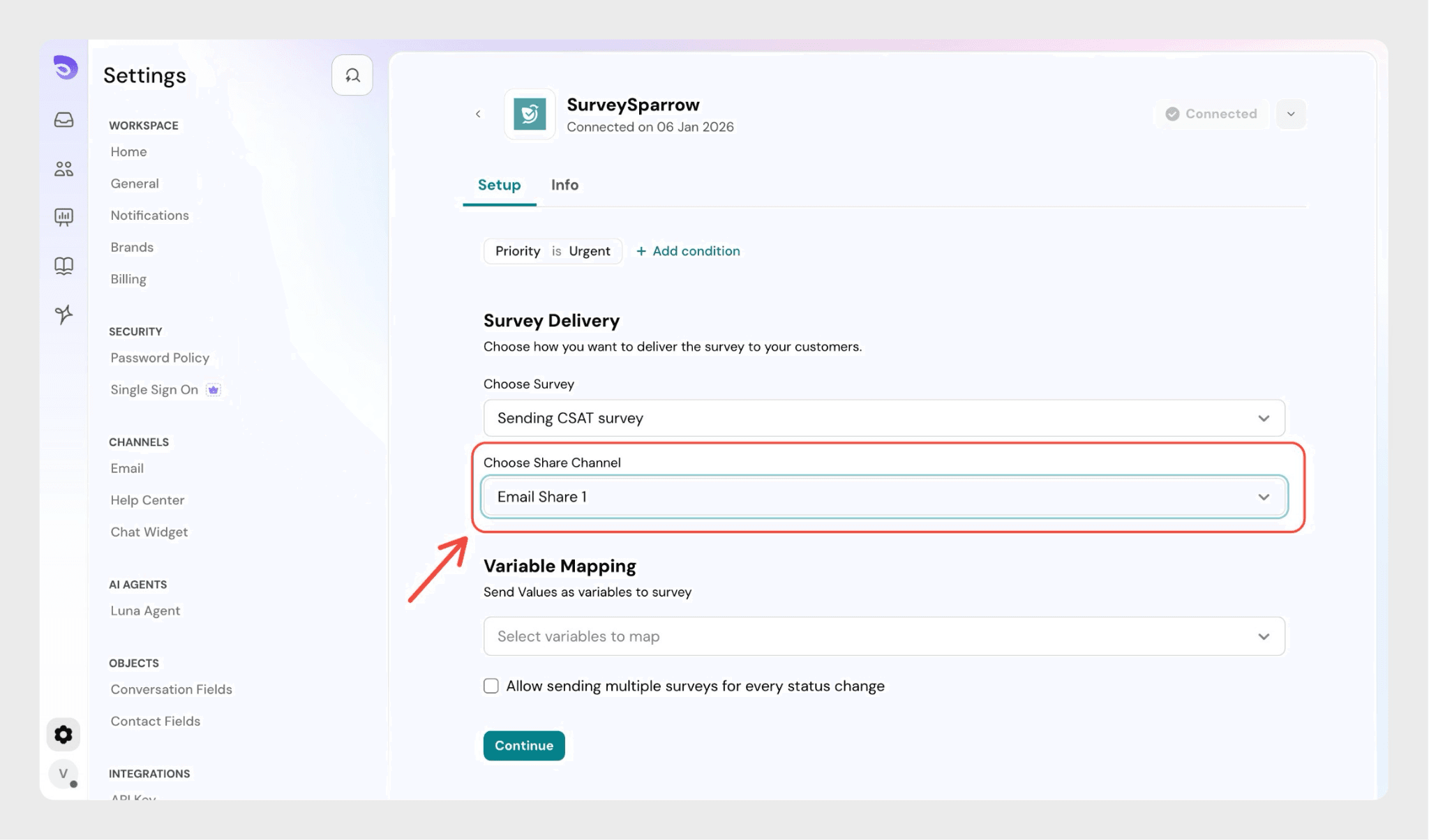
- This determines which email template or delivery method is used
Set up variable mapping
Variable mapping allows you to send conversation details from SparrowDesk into your survey.
- Under Variable Mapping, select values from the dropdown
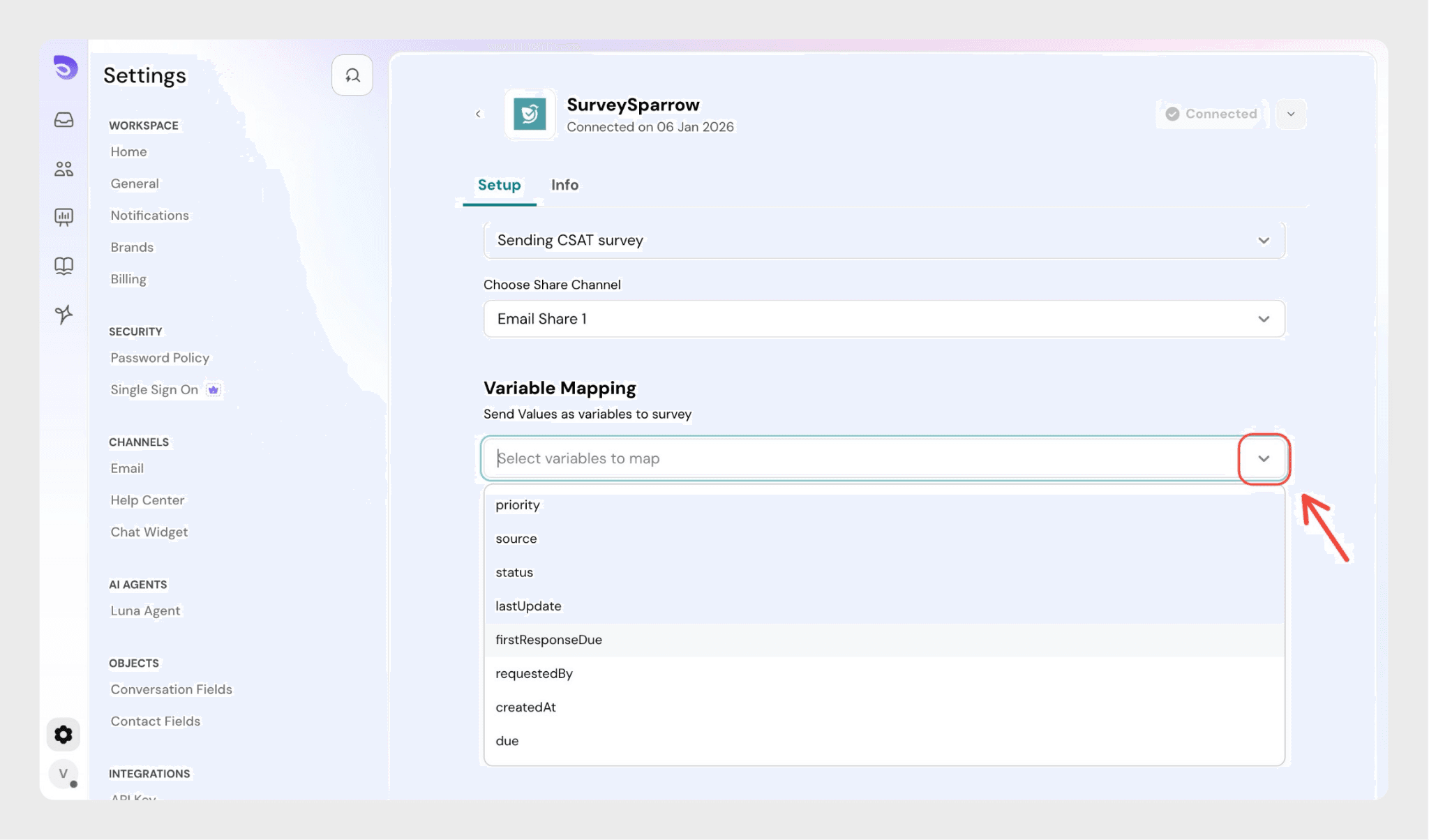
Example
You can select Priority and Source.
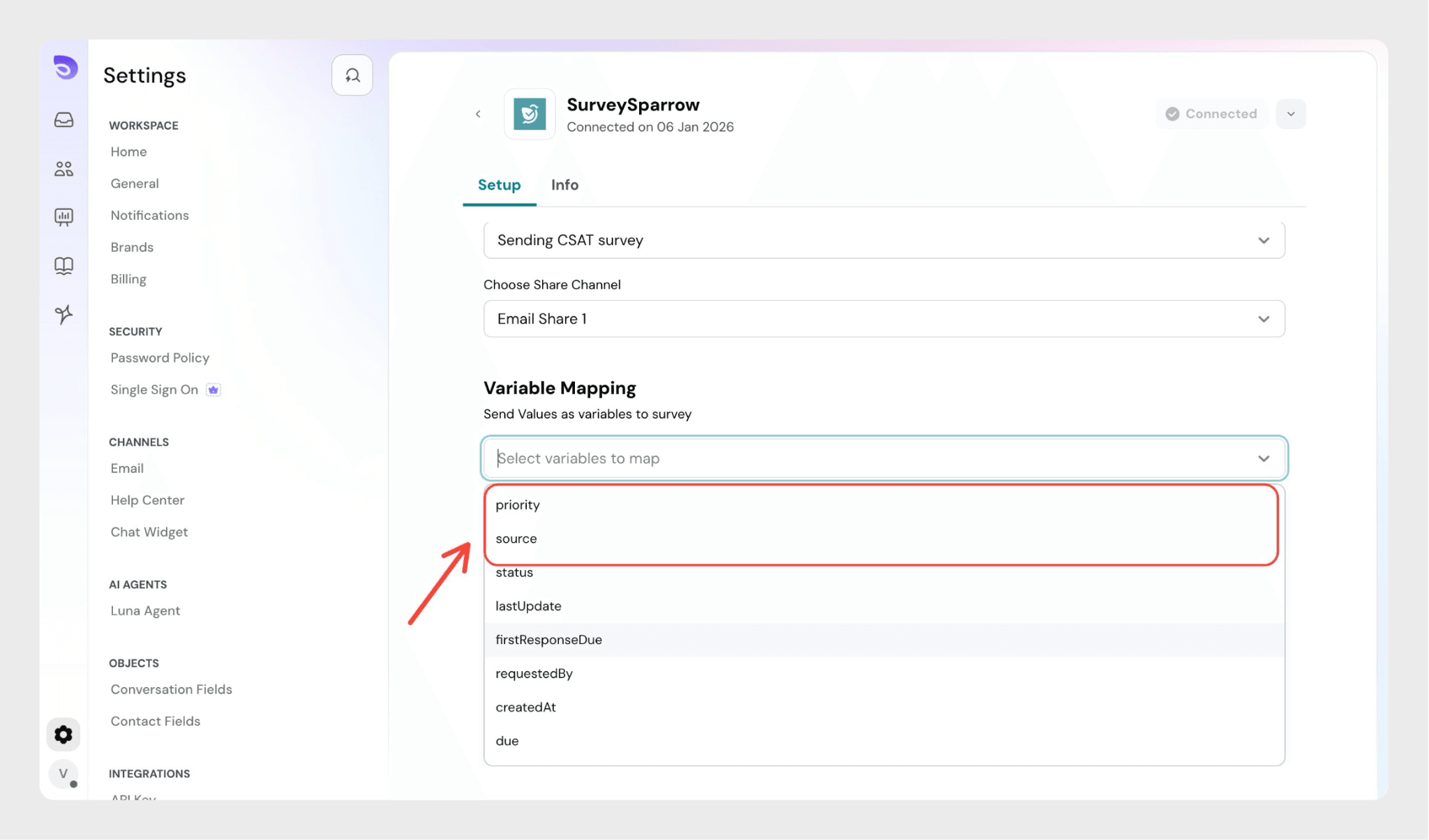
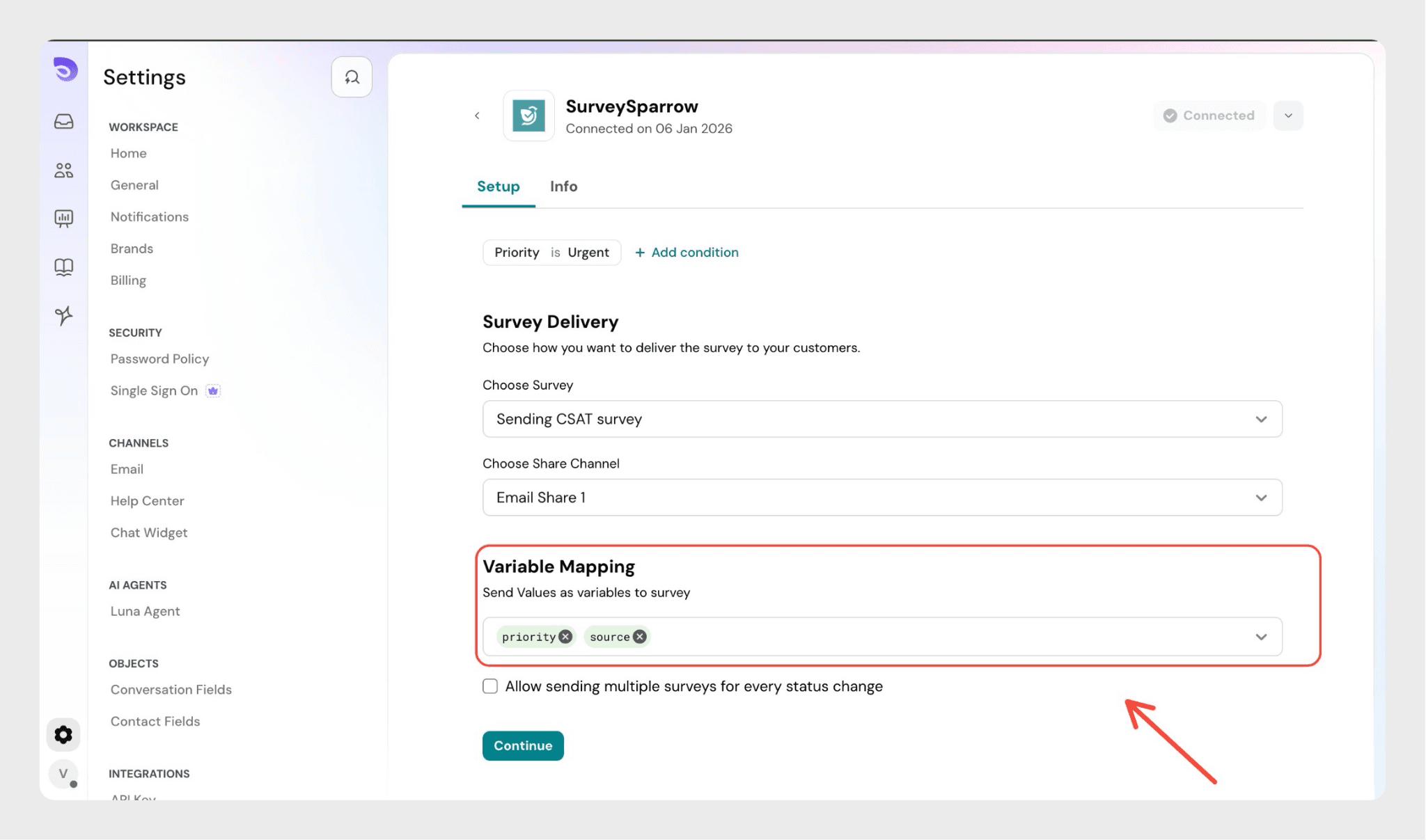
- These values will be sent as variables to SurveySparrow
- Make sure the variables selected here match the variables used in your survey questions
Allow sending multiple surveys (optional)
Enable Allow sending multiple surveys for every status change if you want surveys to be sent more than once.

When this option is enabled:
- A survey is sent when a conversation is resolved
- If the conversation is reopened and resolved again, the survey is sent again
Click continue.
Name and save the trigger
- Enter a Trigger name
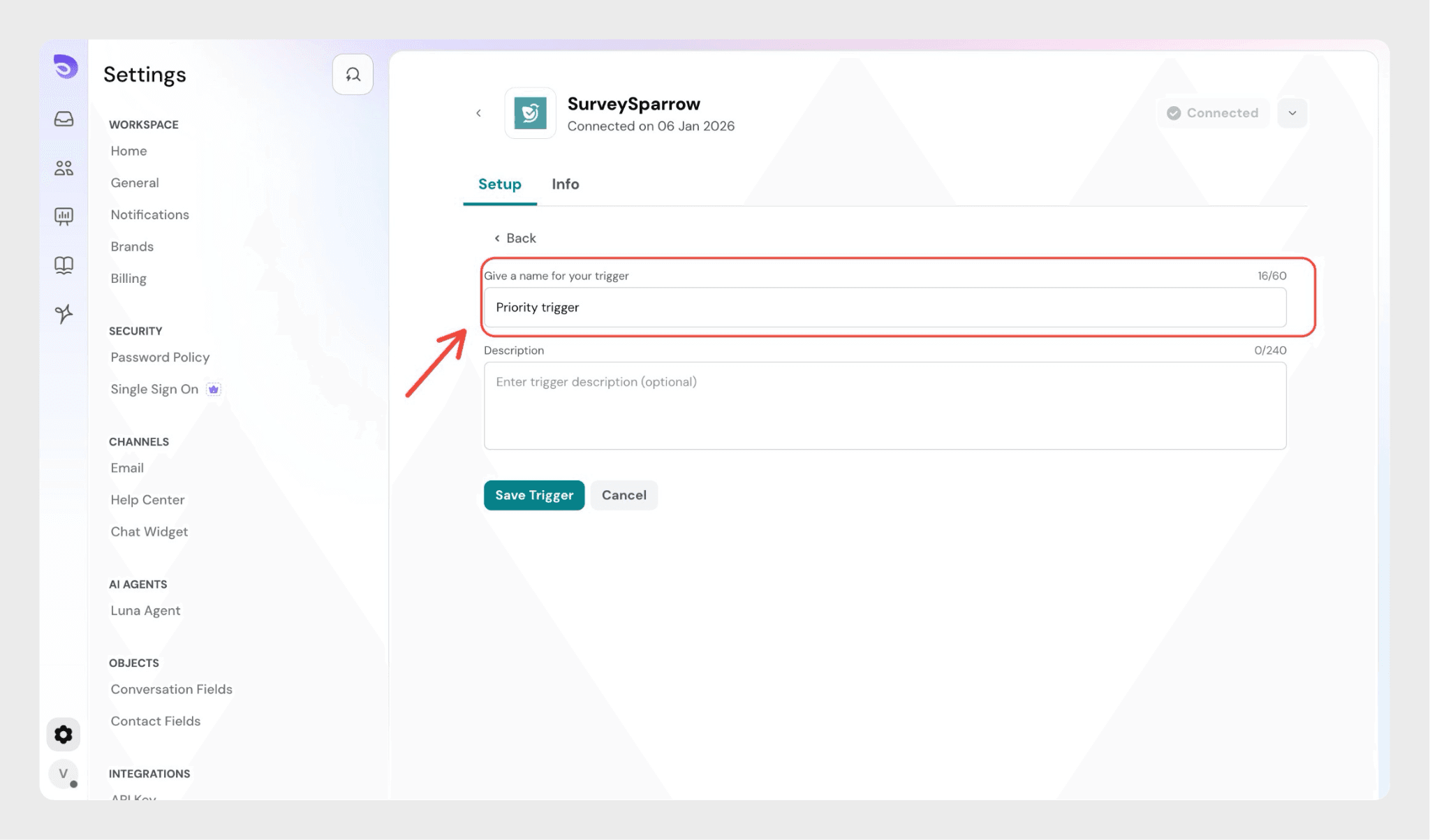
- Add a Description (optional)
- Click Save
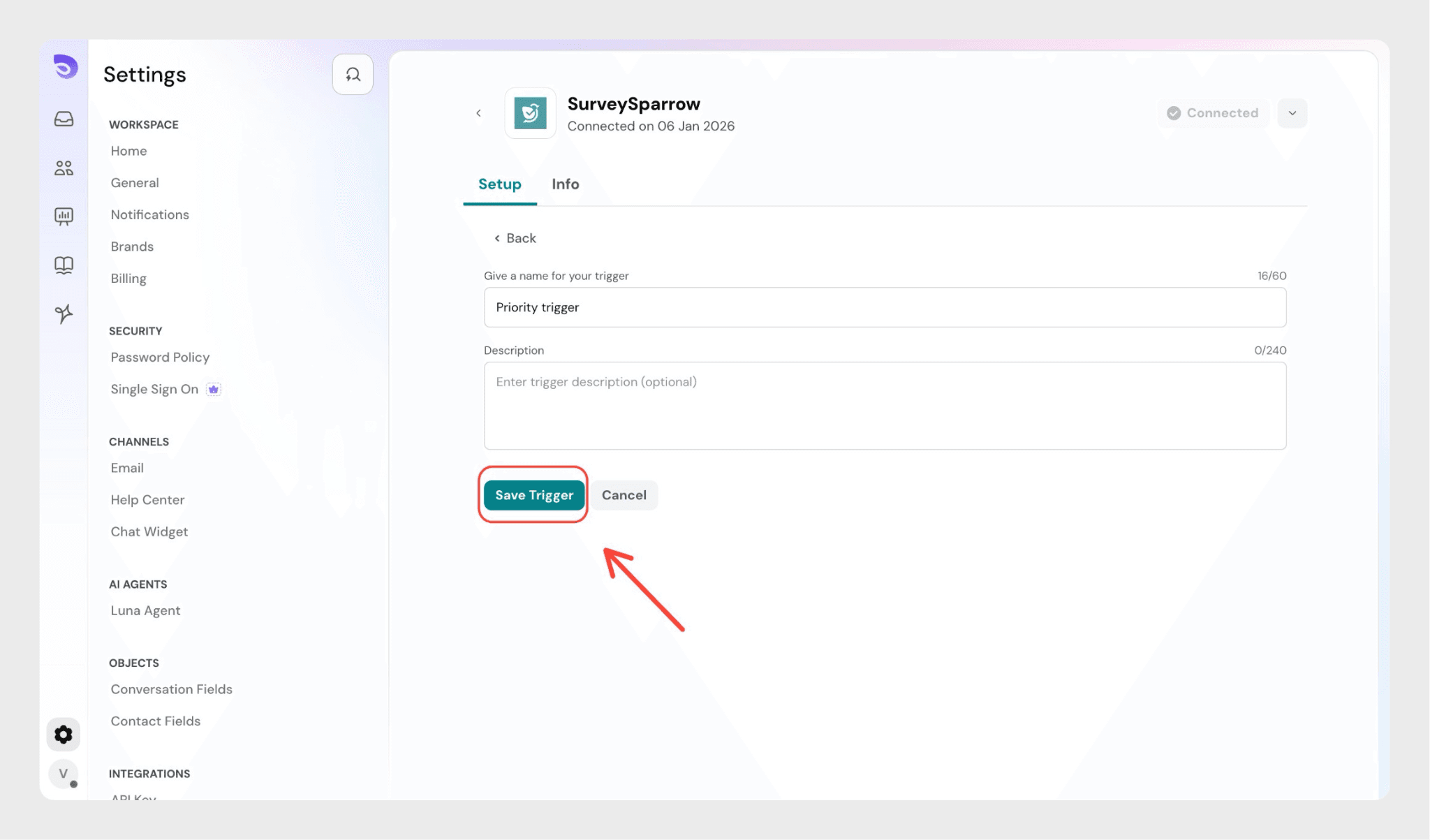
The trigger is now active and surveys will be sent automatically when the conditions are met.
Disconnecting SurveySparrow from SparrowDesk
To disconnect the integration:
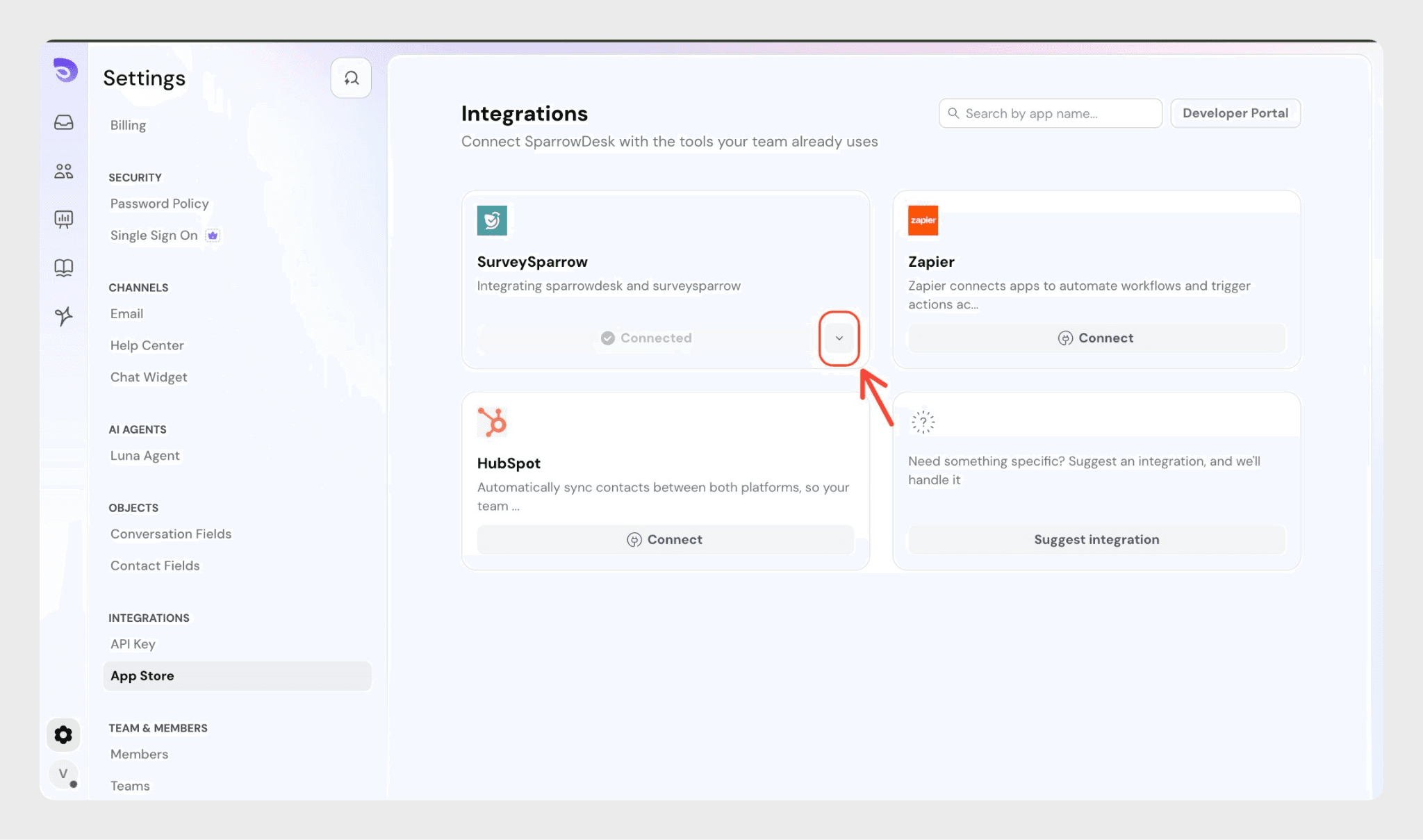
- Go to Settings → Apps store
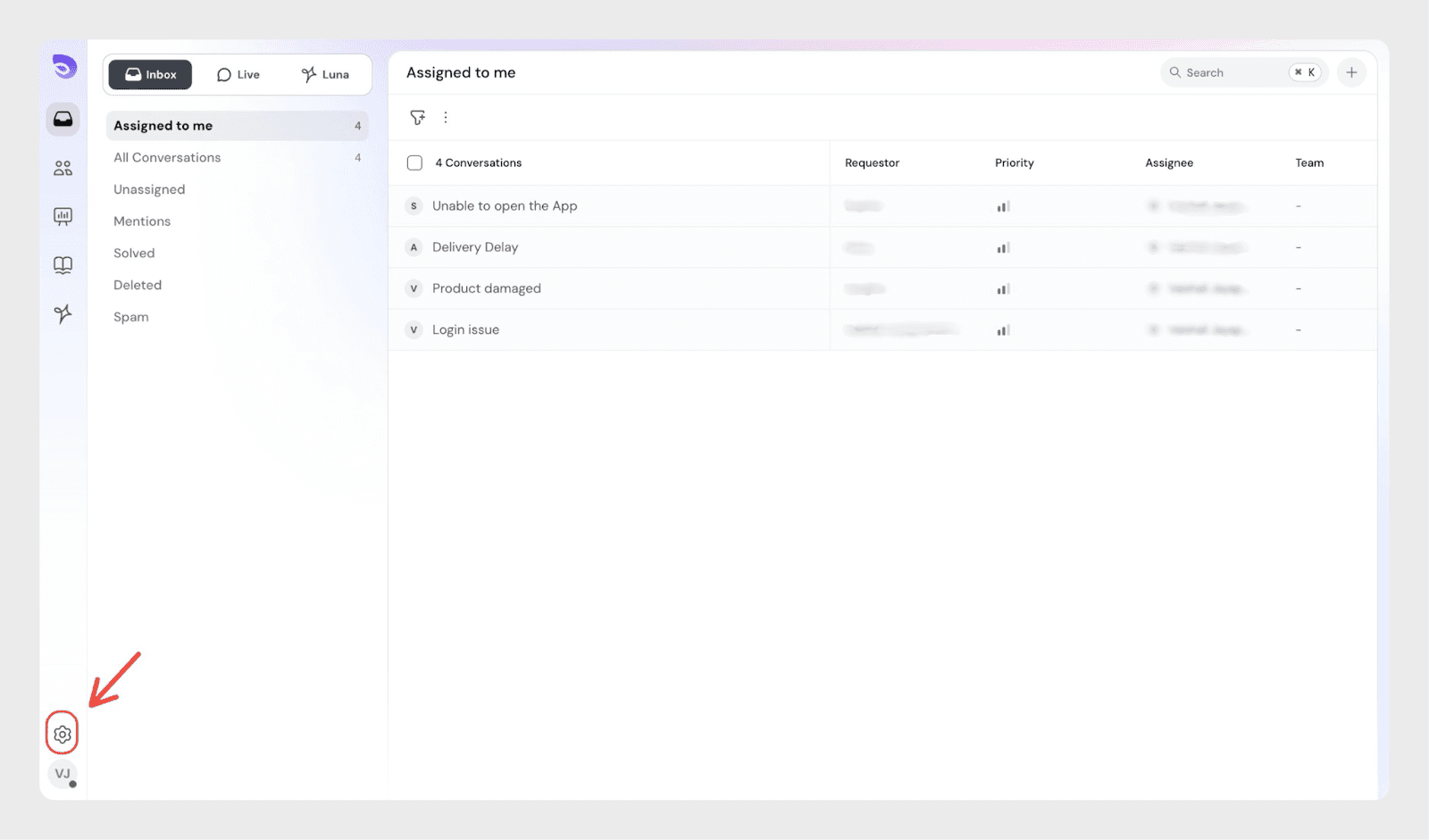
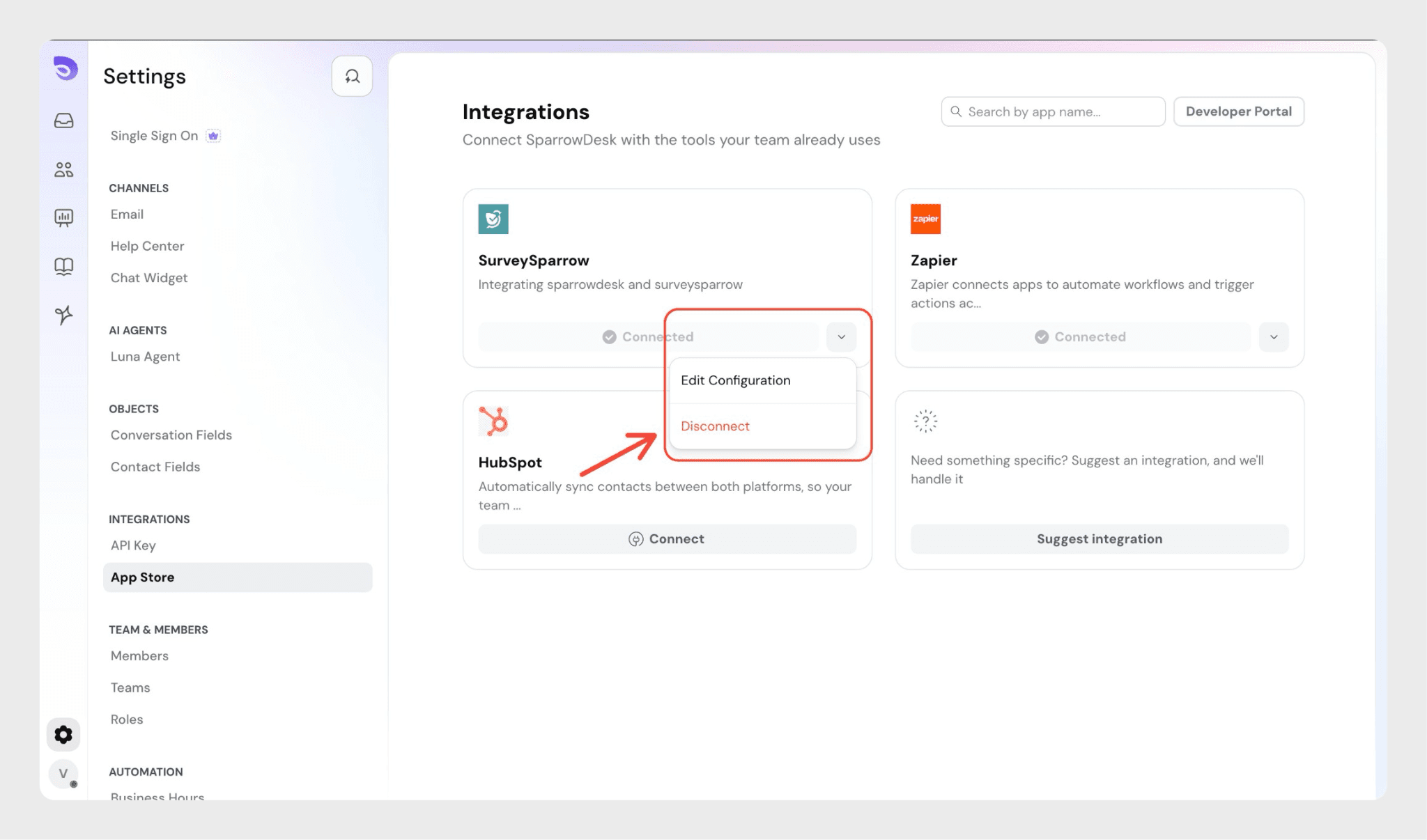
- Click the SurveySparrow dropdown
- Select Disconnect
- In the confirmation modal, click Uninstall
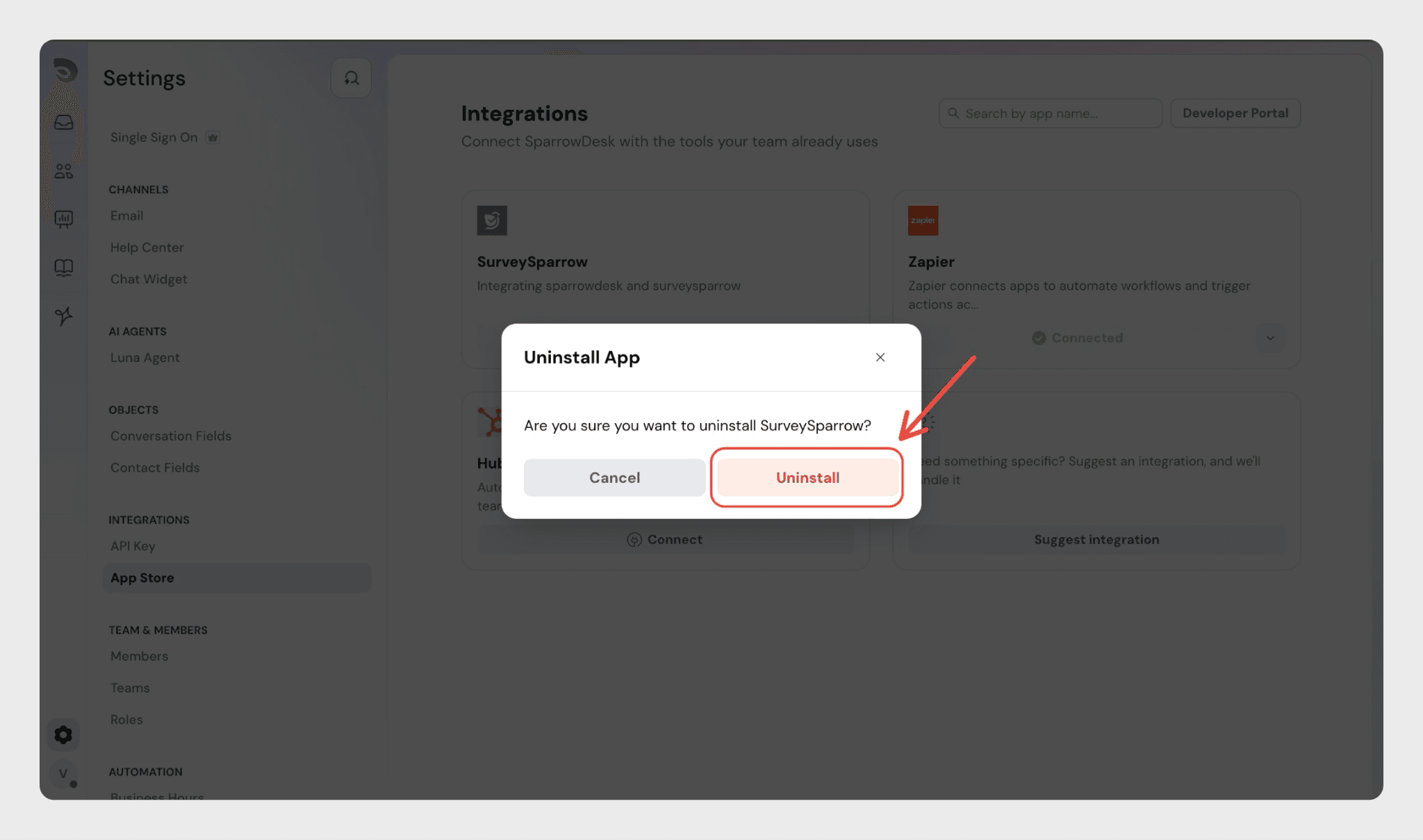
Your SurveySparrow account will be disconnected from SparrowDesk.
Notes
- This integration can be used to send surveys automatically.
- Survey selection, delivery method, and variables are fully configurable using triggers.