Zapier allows you to connect SparrowDesk with thousands of third-party applications and automate routine tasks. With this integration, actions in other tools can automatically create data inside SparrowDesk, helping teams reduce manual work and keep support information in sync
Prerequisites
Before you begin, ensure that you have:
An active SparrowDesk account
An active Zapier account
Access to the third-party application you want to connect with SparrowDesk
Zapier configuration steps
The steps below walk through one example Zap: creating a contact in SparrowDesk when a new contact is added to Google Sheets. You can follow the same steps to set up other workflows by choosing different trigger apps in Zapier and performing actions in SparrowDesk.
Step 1: Sign in to Zapier
Sign in to your Zapier account.
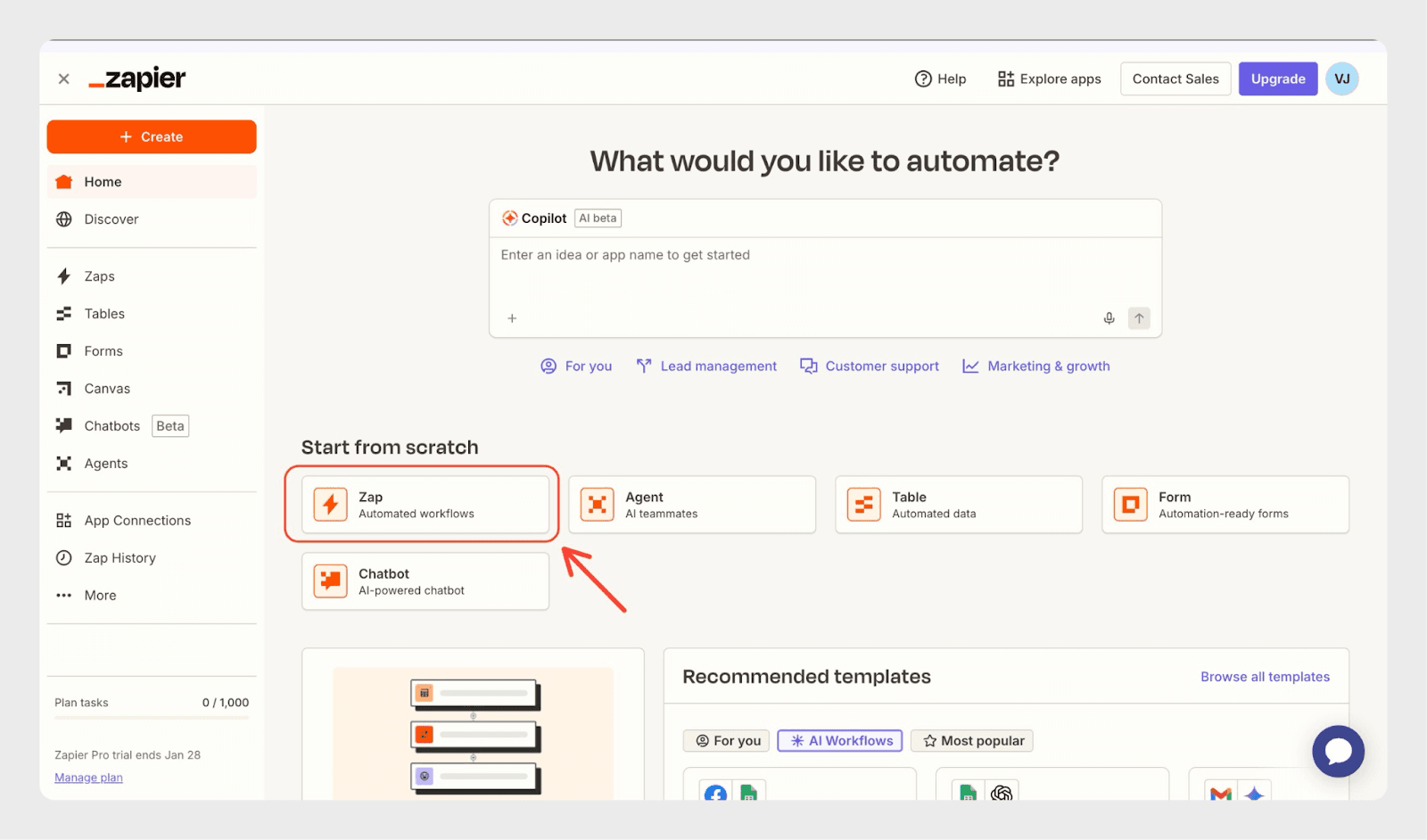
From the Zapier dashboard, click Create Zap.
Step 2: Configure Google Sheets as the Trigger
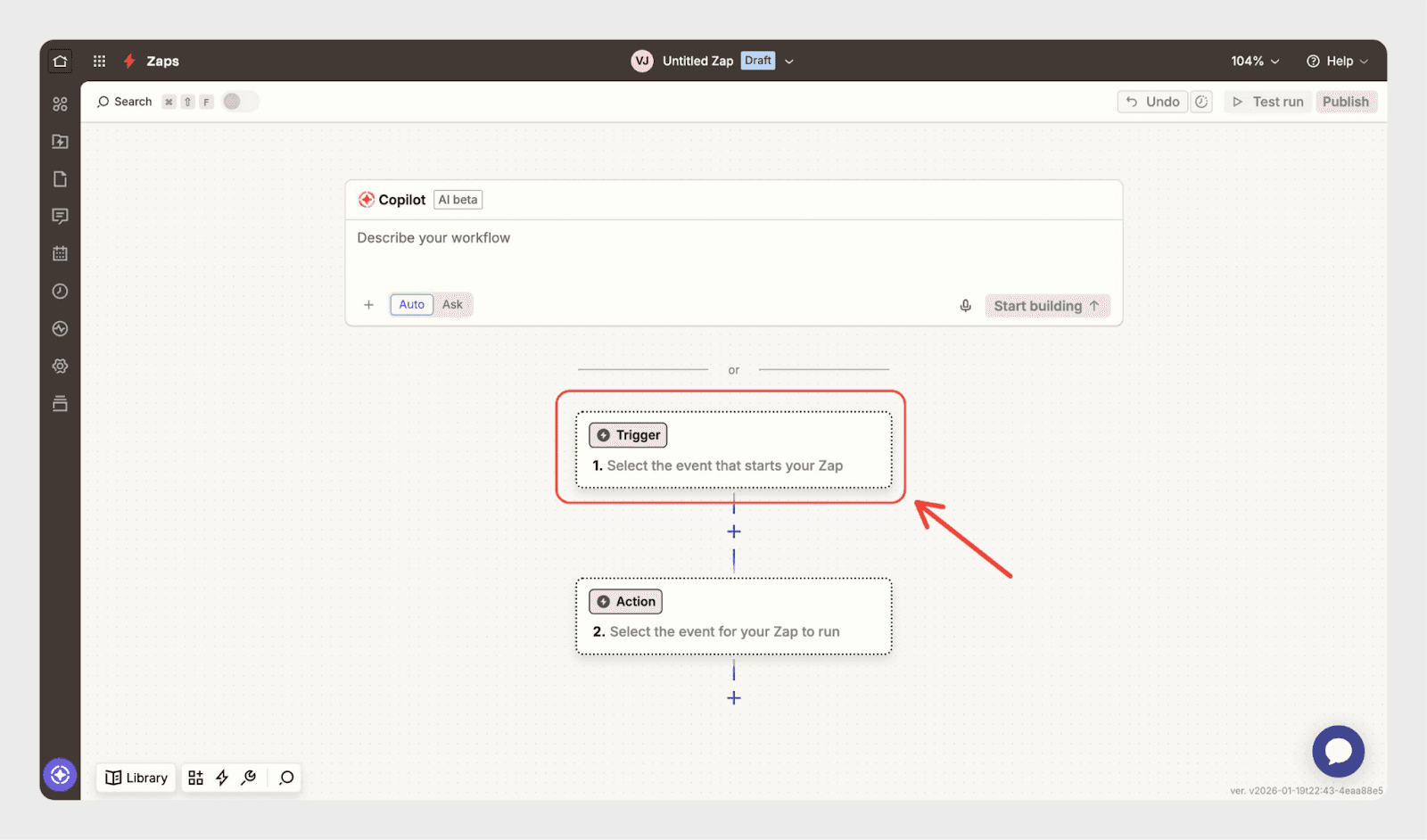
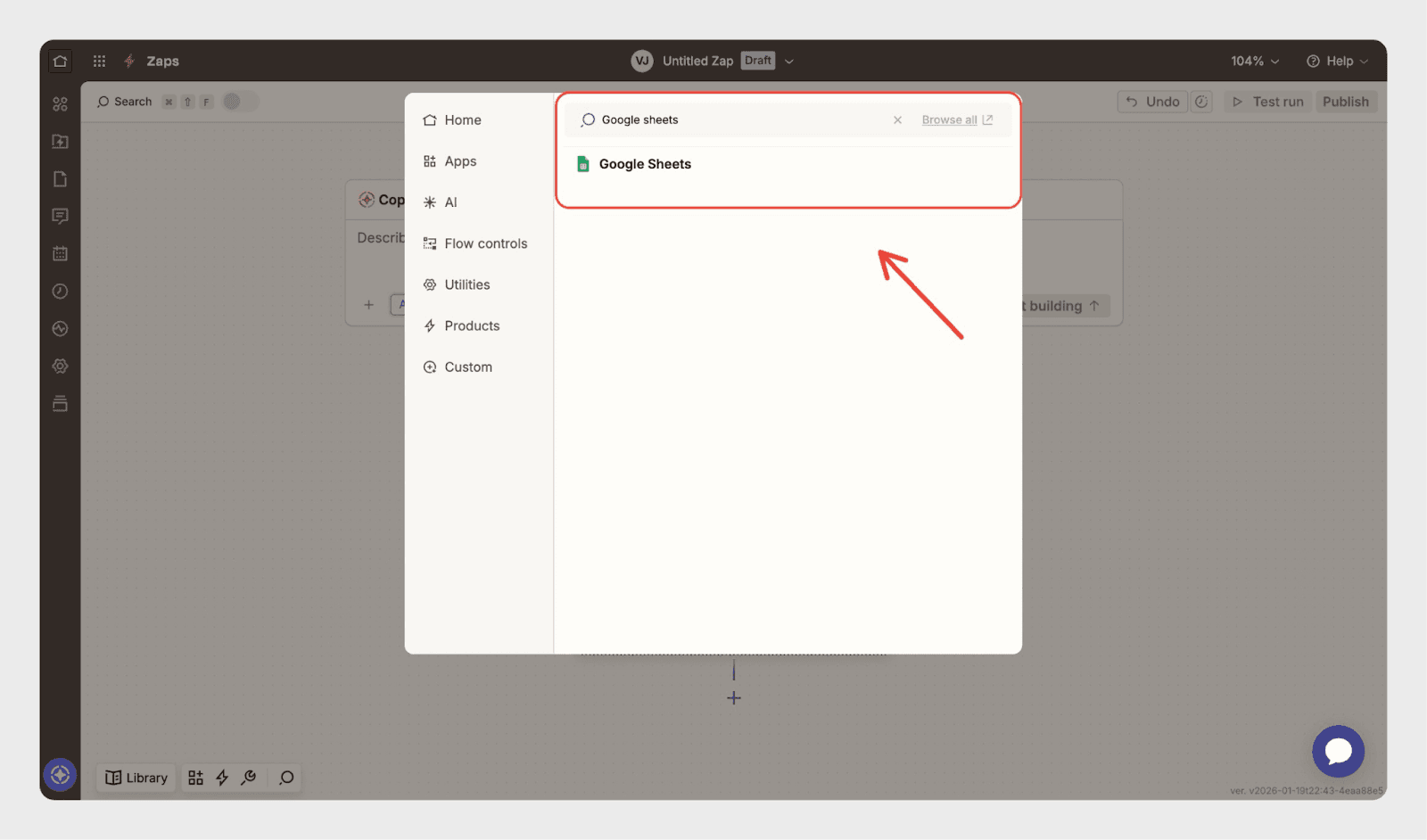
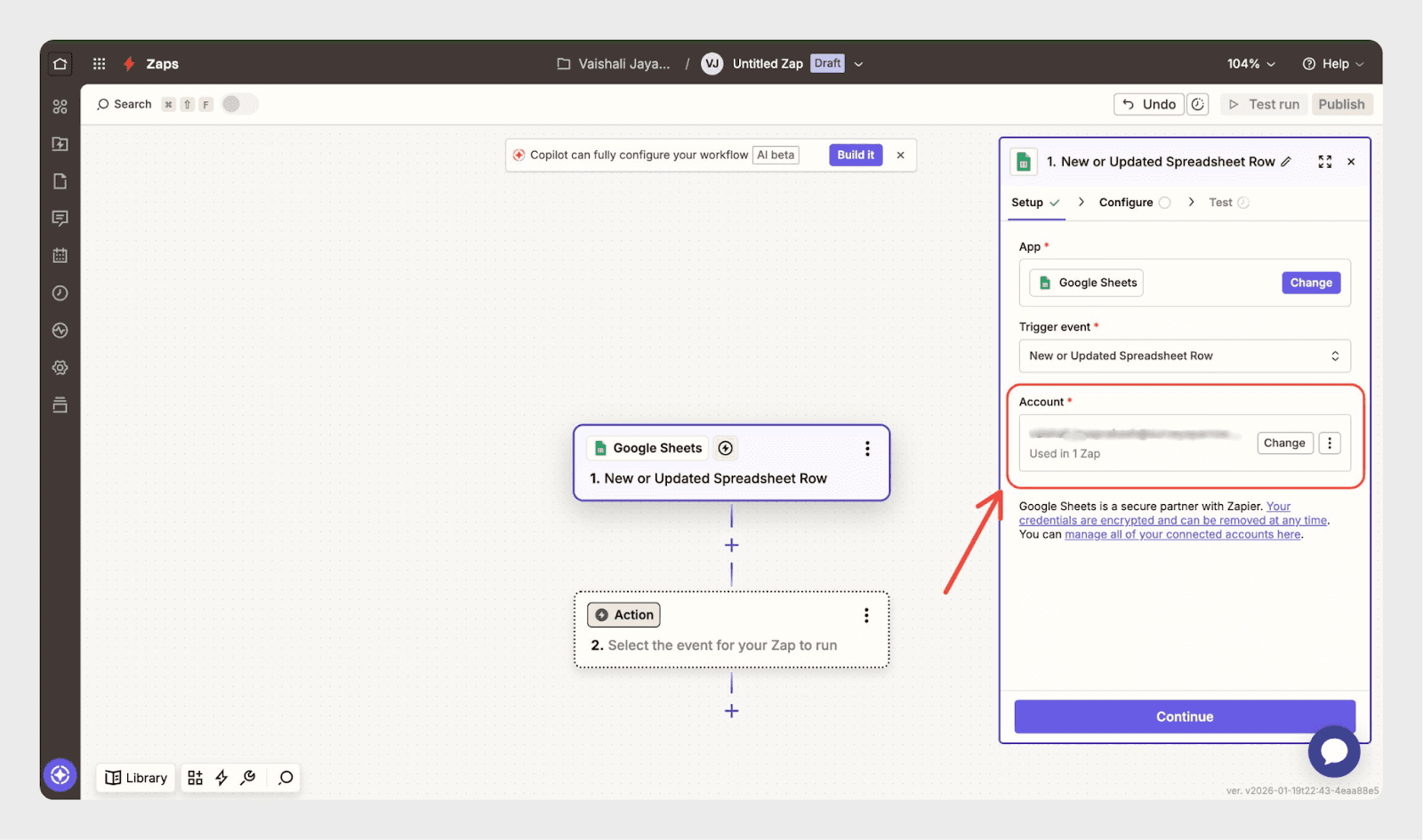
In the Trigger section, search for Google Sheets.
Select Google Sheets as the trigger app.
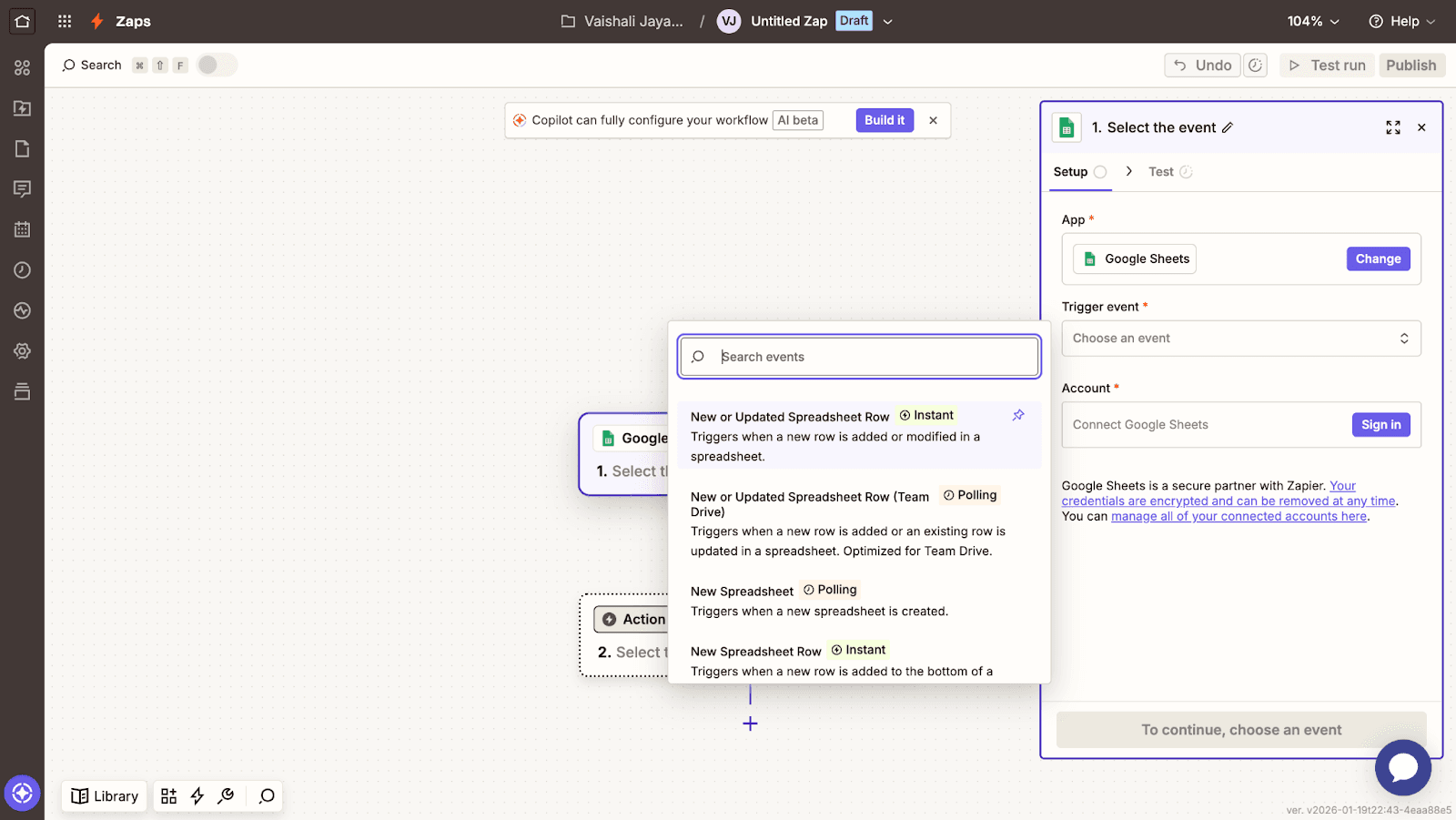
Choose the trigger event New Spreadsheet Row.
Step 3: Connect and Set Up Google Sheets
Connect your Google account when prompted.
After connecting your Google account, configure the Google Sheets trigger:
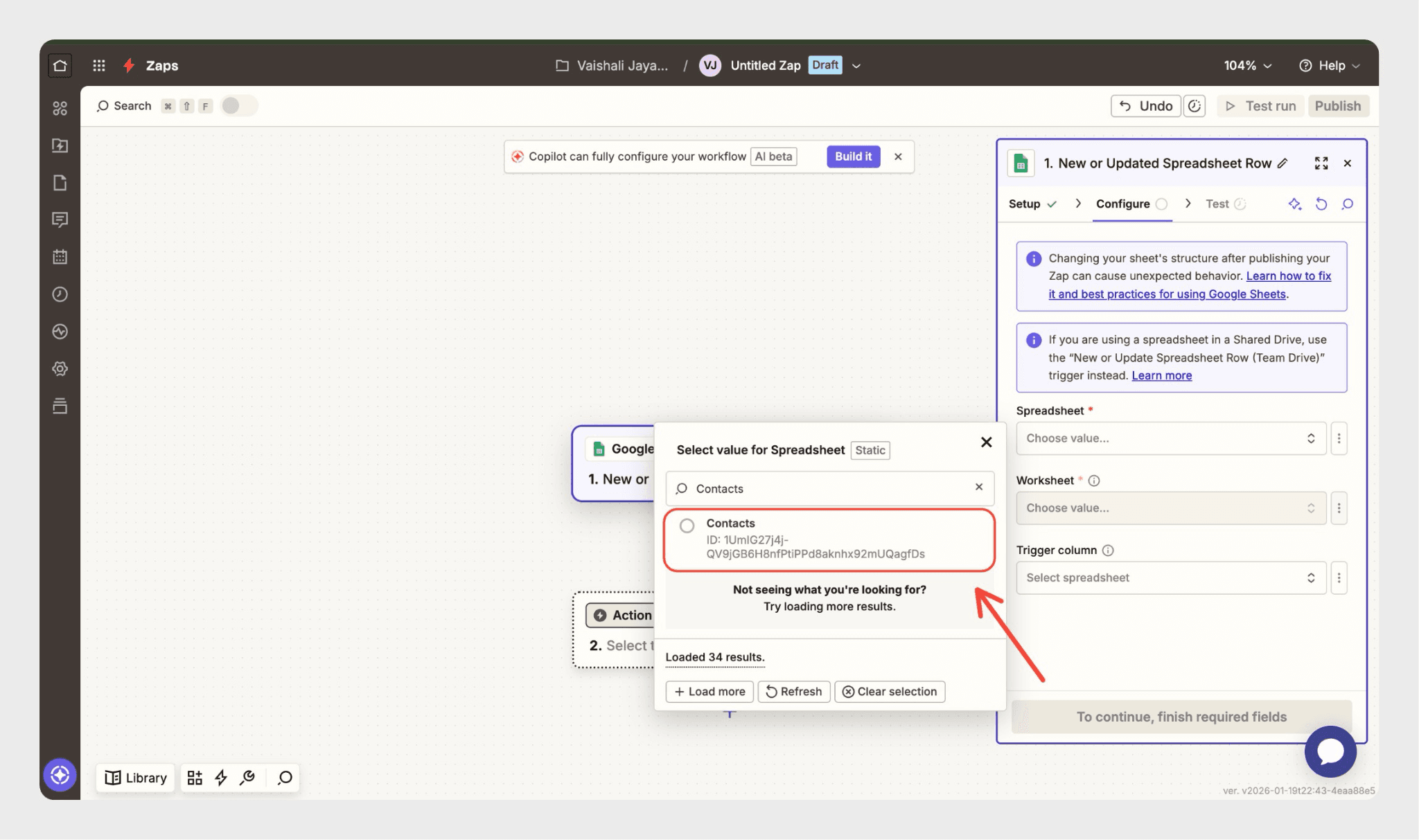
Select the Spreadsheet that contains your contact data.
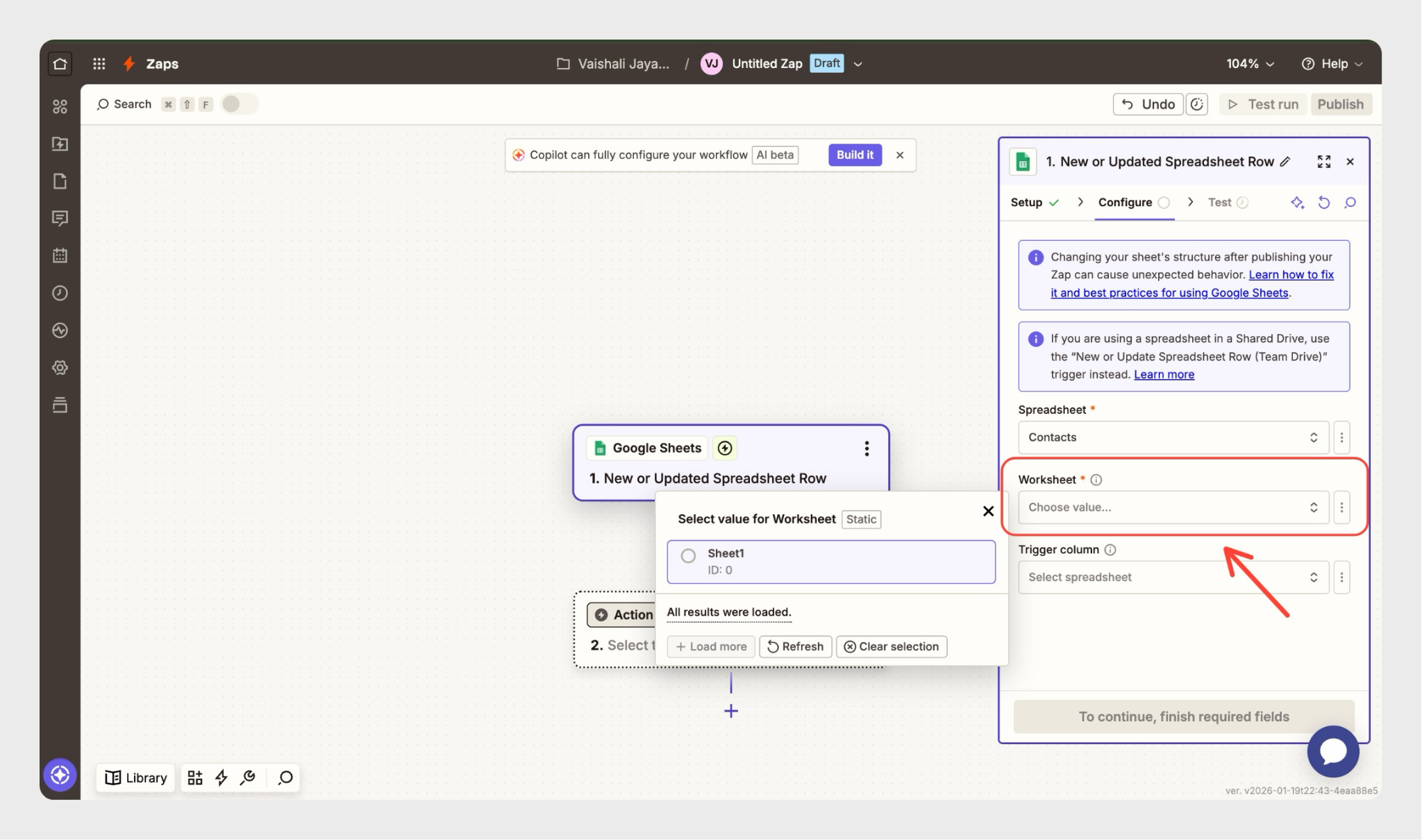
Choose the Worksheet where new rows will be added.
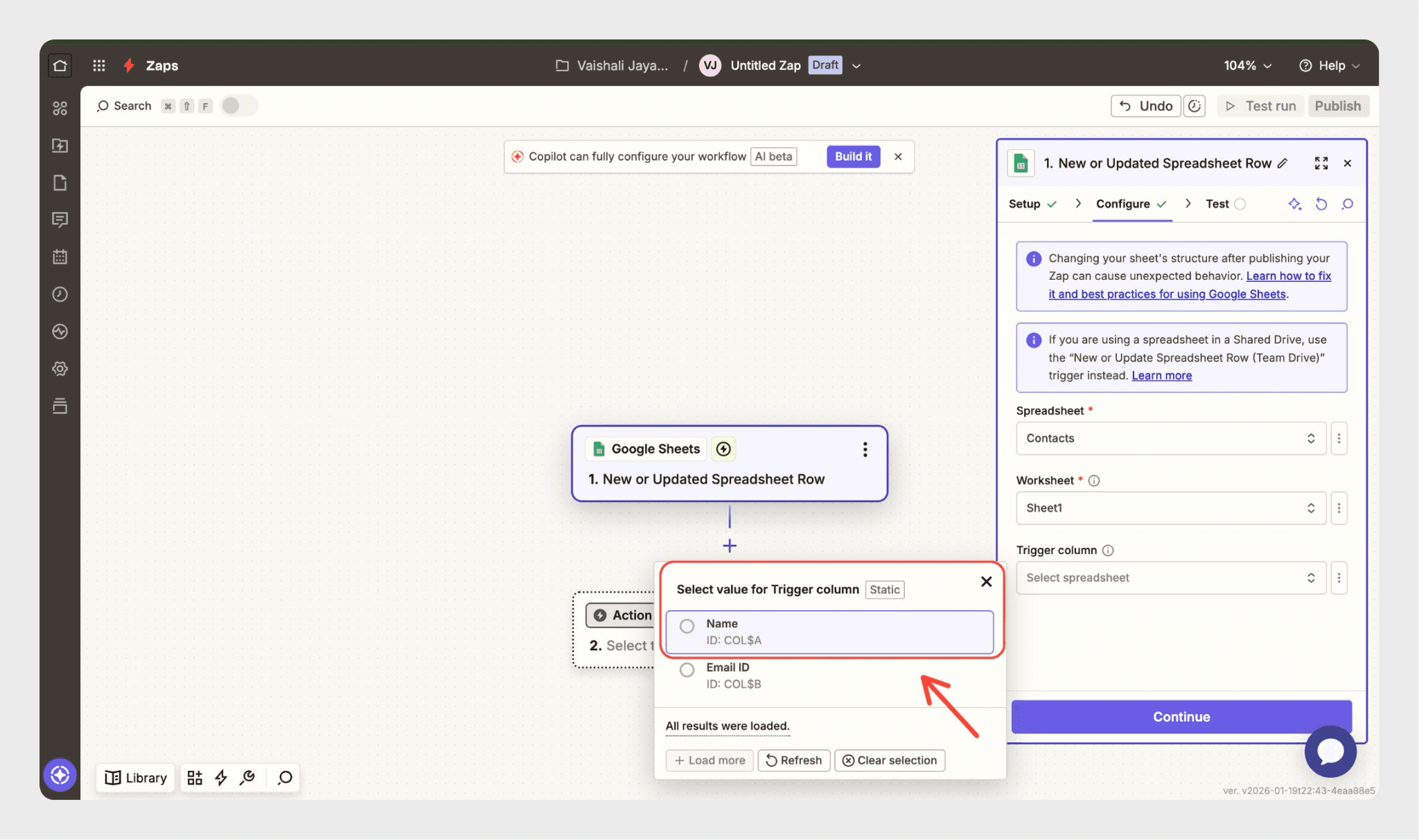
Ensure the first row of the sheet contains column headers (for example, Name, Email, Phone).
Step 4: Add SparrowDesk as the Action App
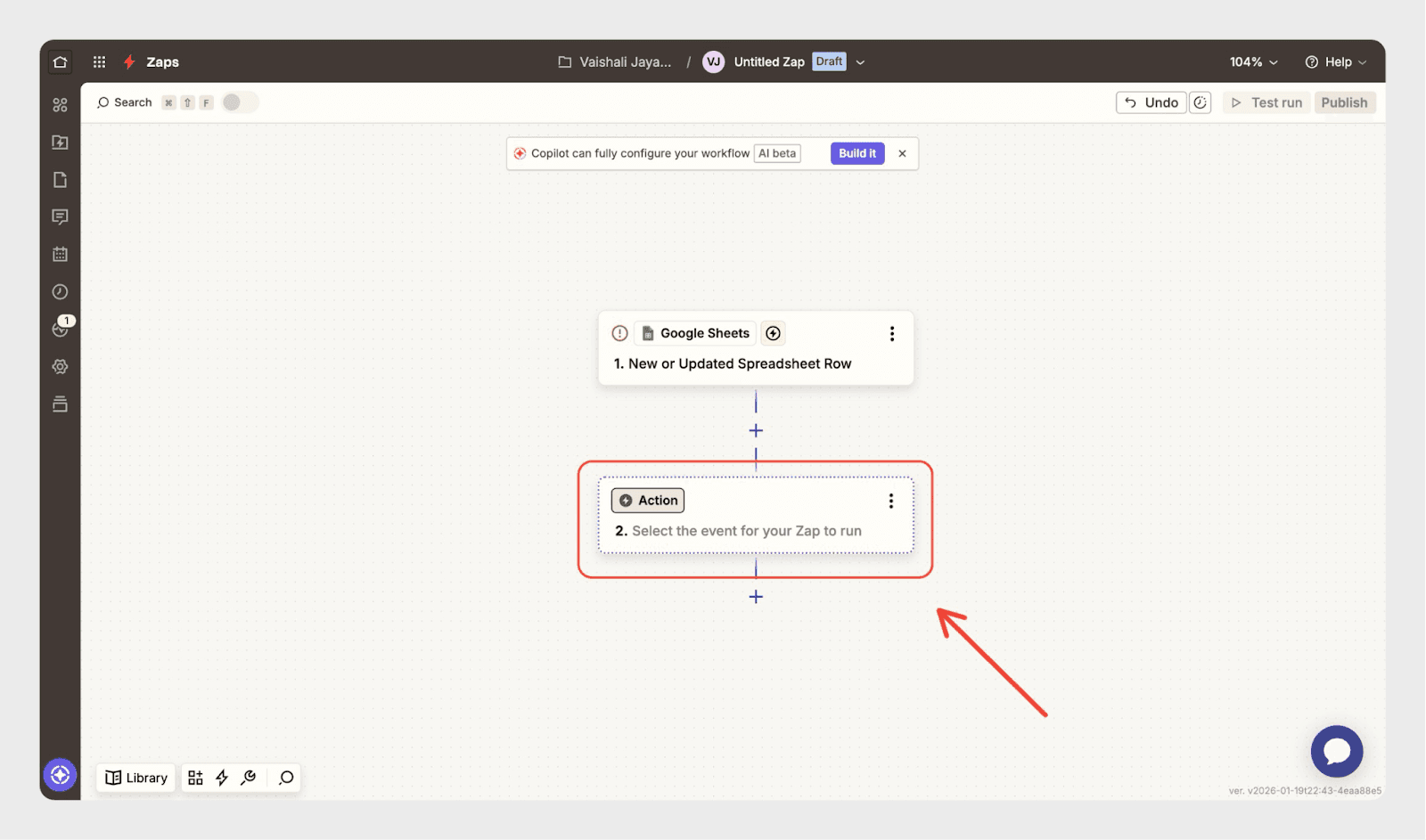
Click + Add action.
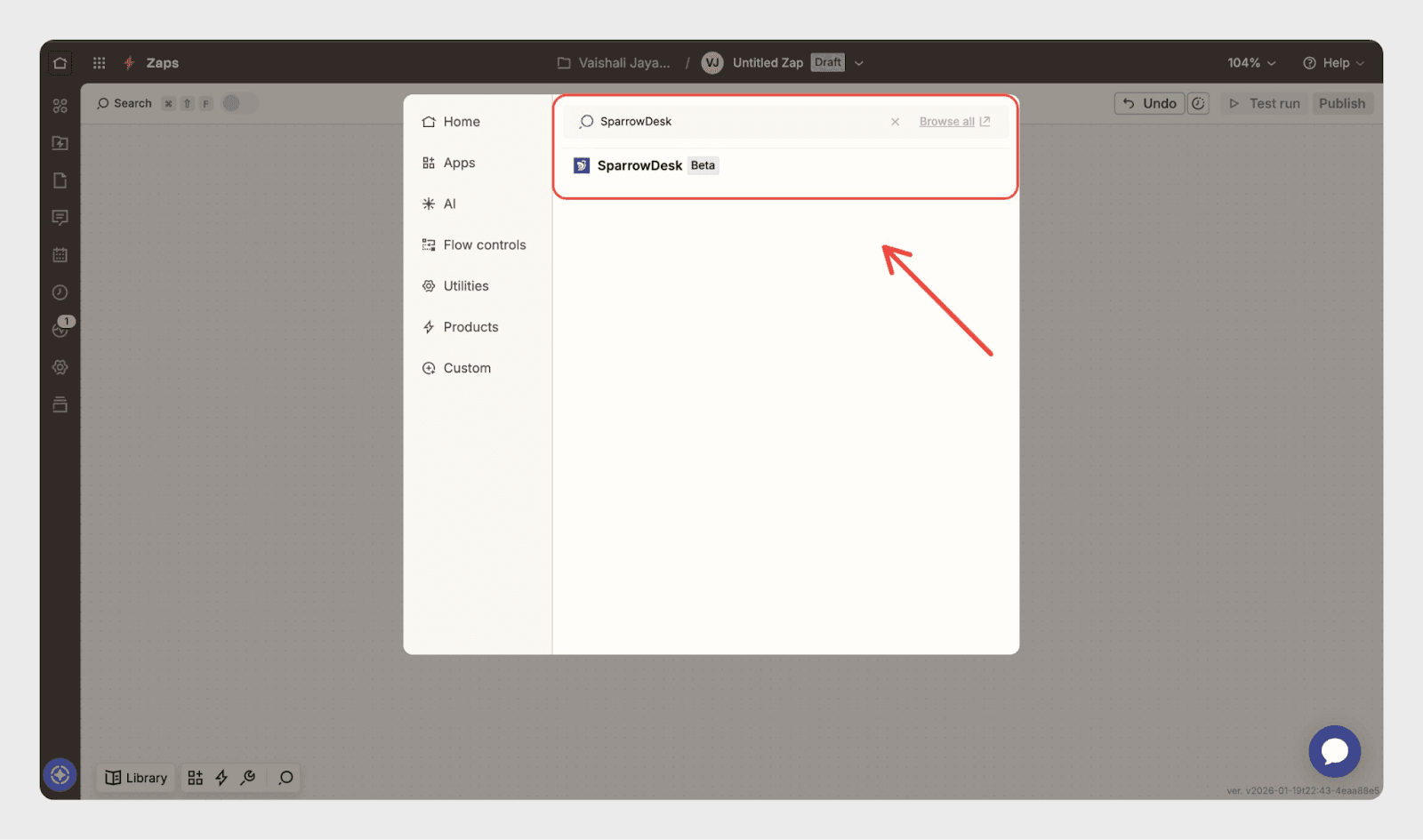
Search for SparrowDesk.
Select SparrowDesk from the list.
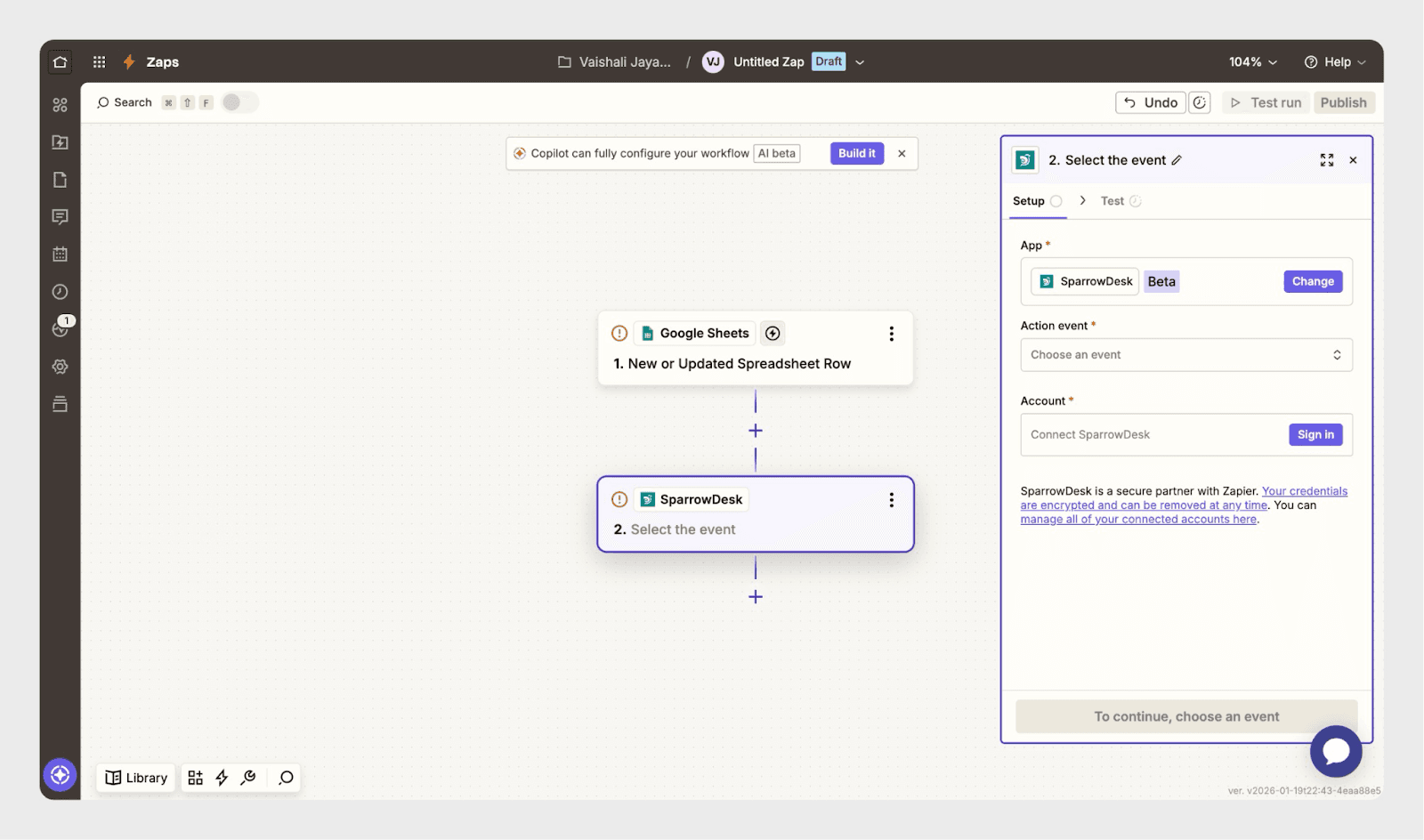
Step 5: Choose the Action Event
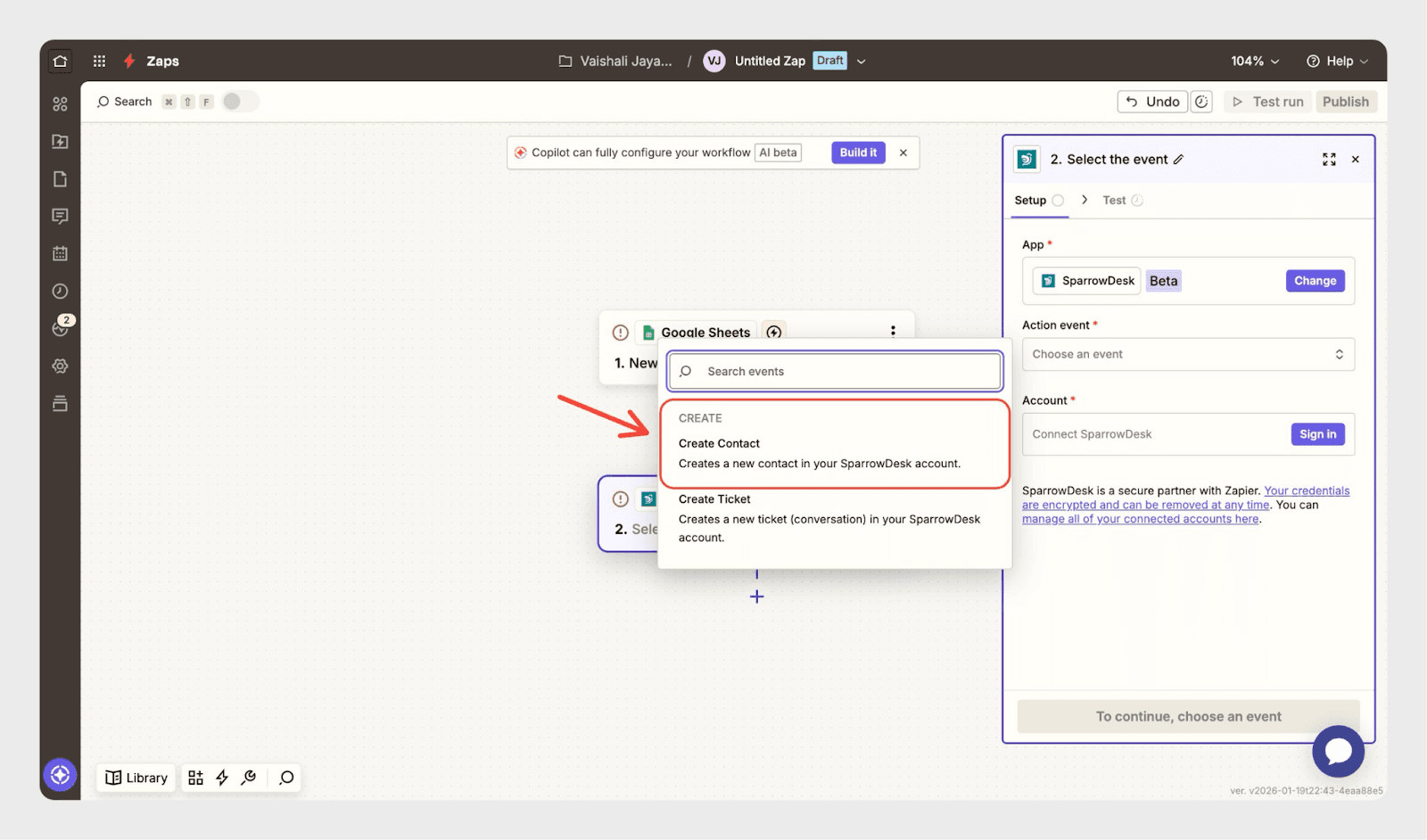
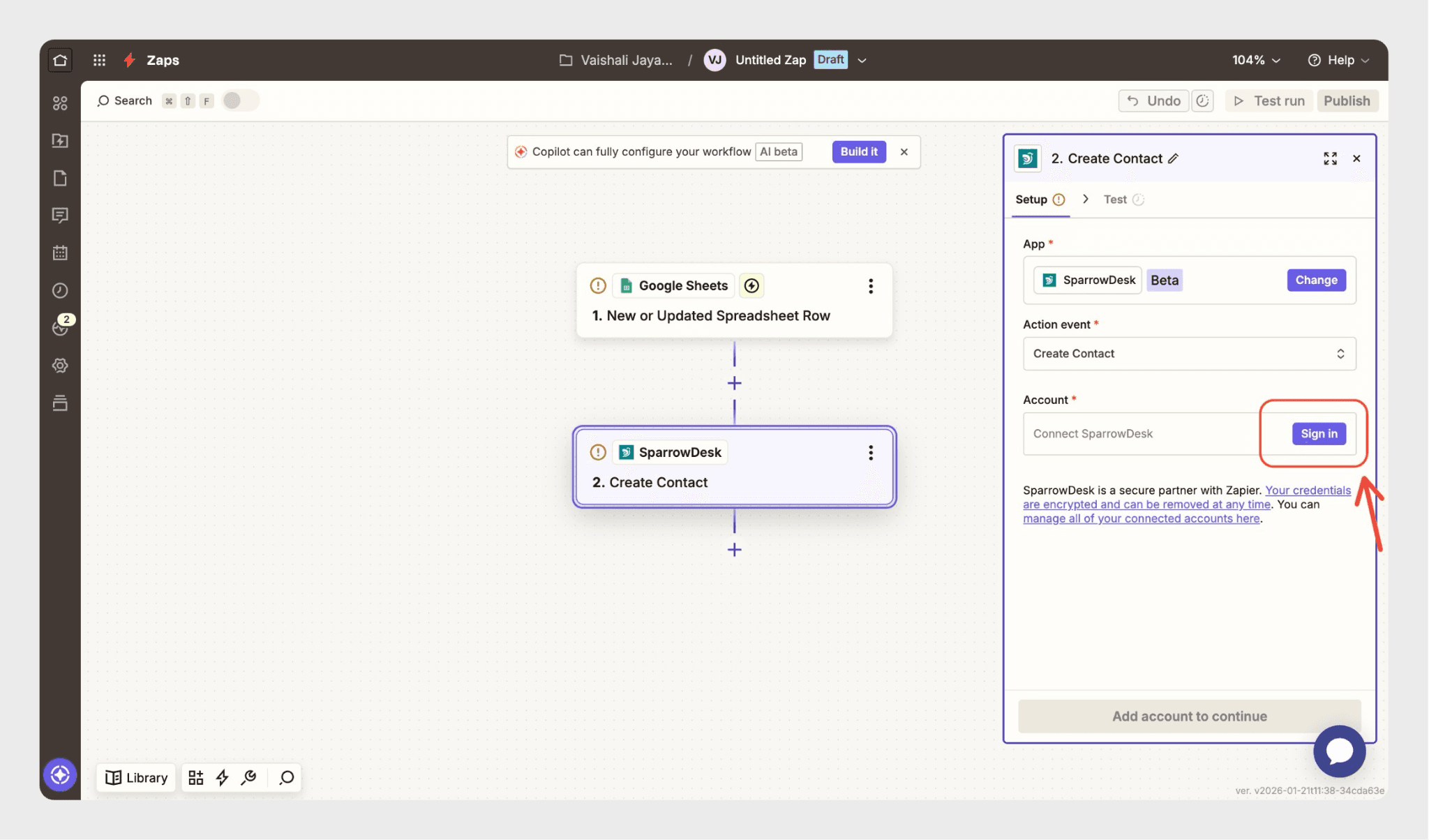
From the Action Event dropdown, select Create Contact, as we want to add the contacts from sheets, according to the example.
Step 6: Connect Your SparrowDesk Account
Click Sign in to connect your SparrowDesk account.
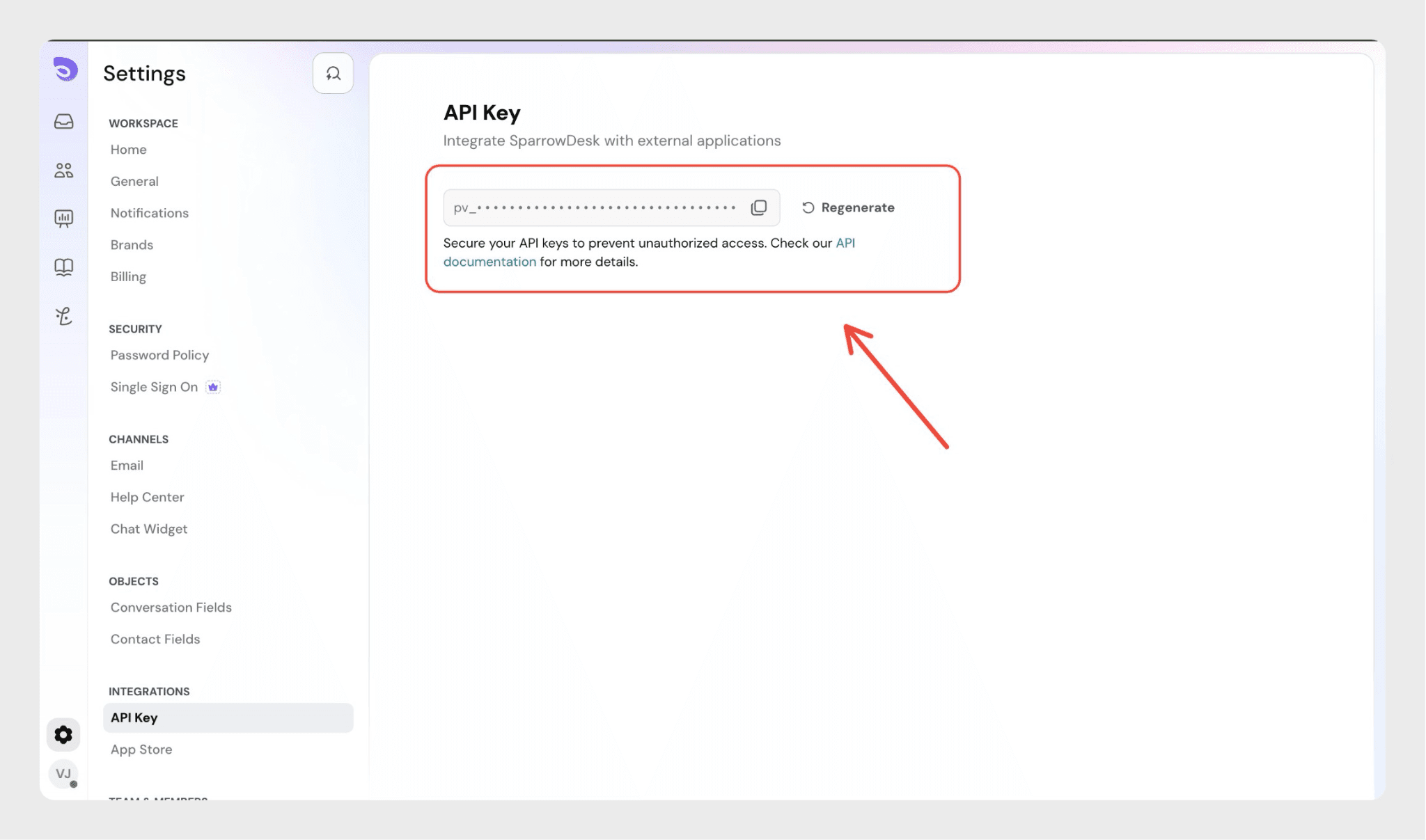
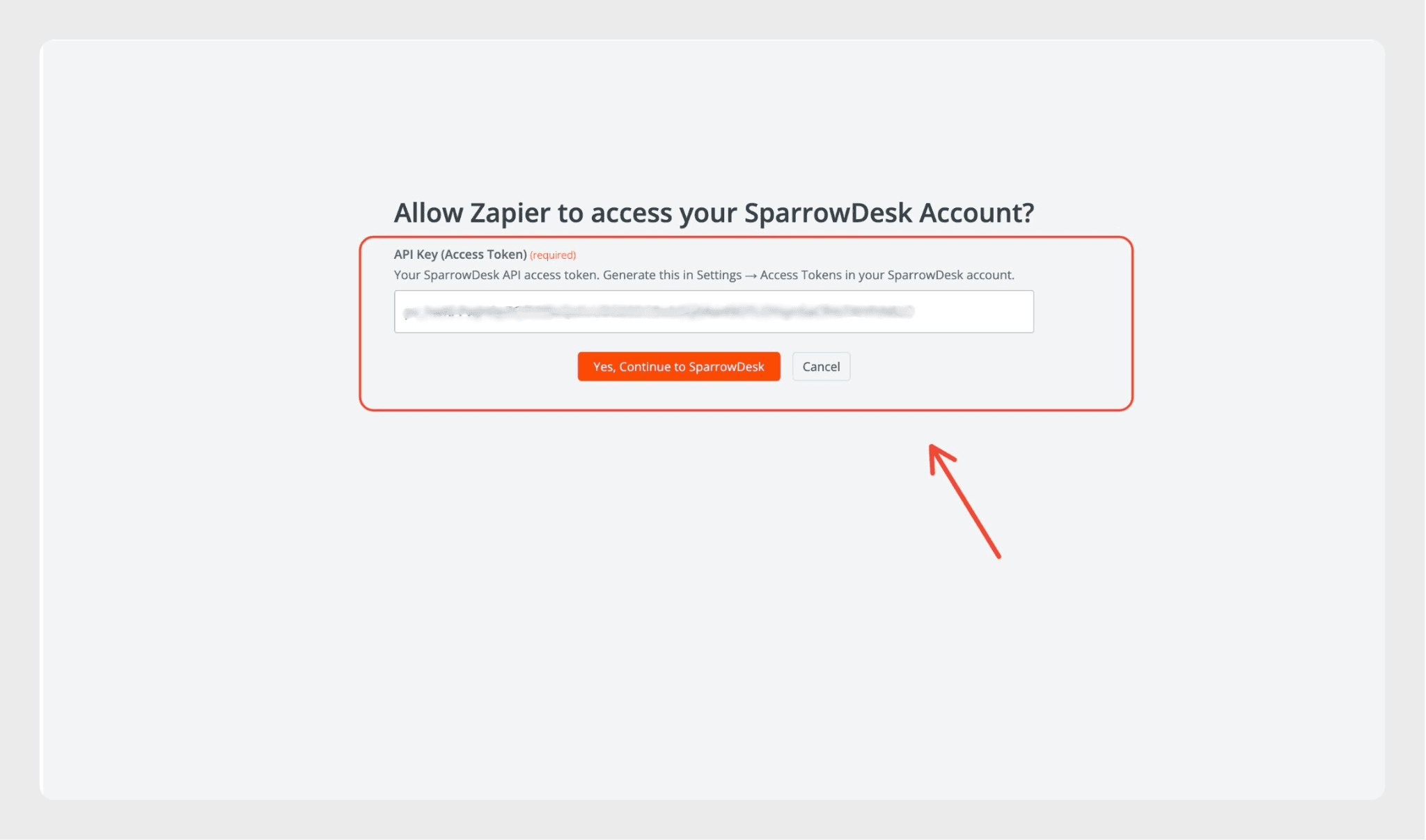
Authorize Zapier to access SparrowDesk Copy your API key from Settings → Integrations → API Key in SparrowDesk and paste it into the Zapier authorization window.
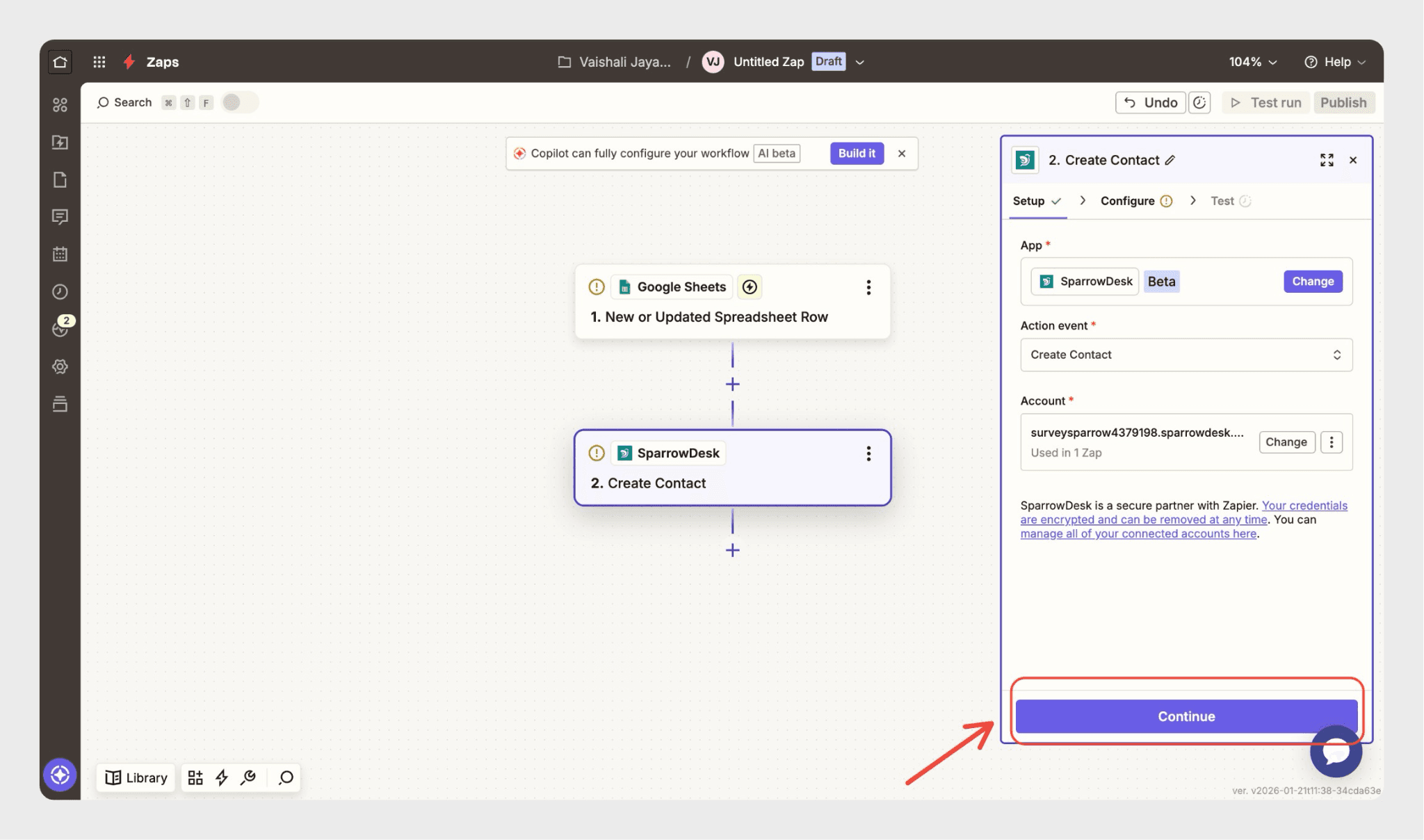
Once the account is connected, click Continue.
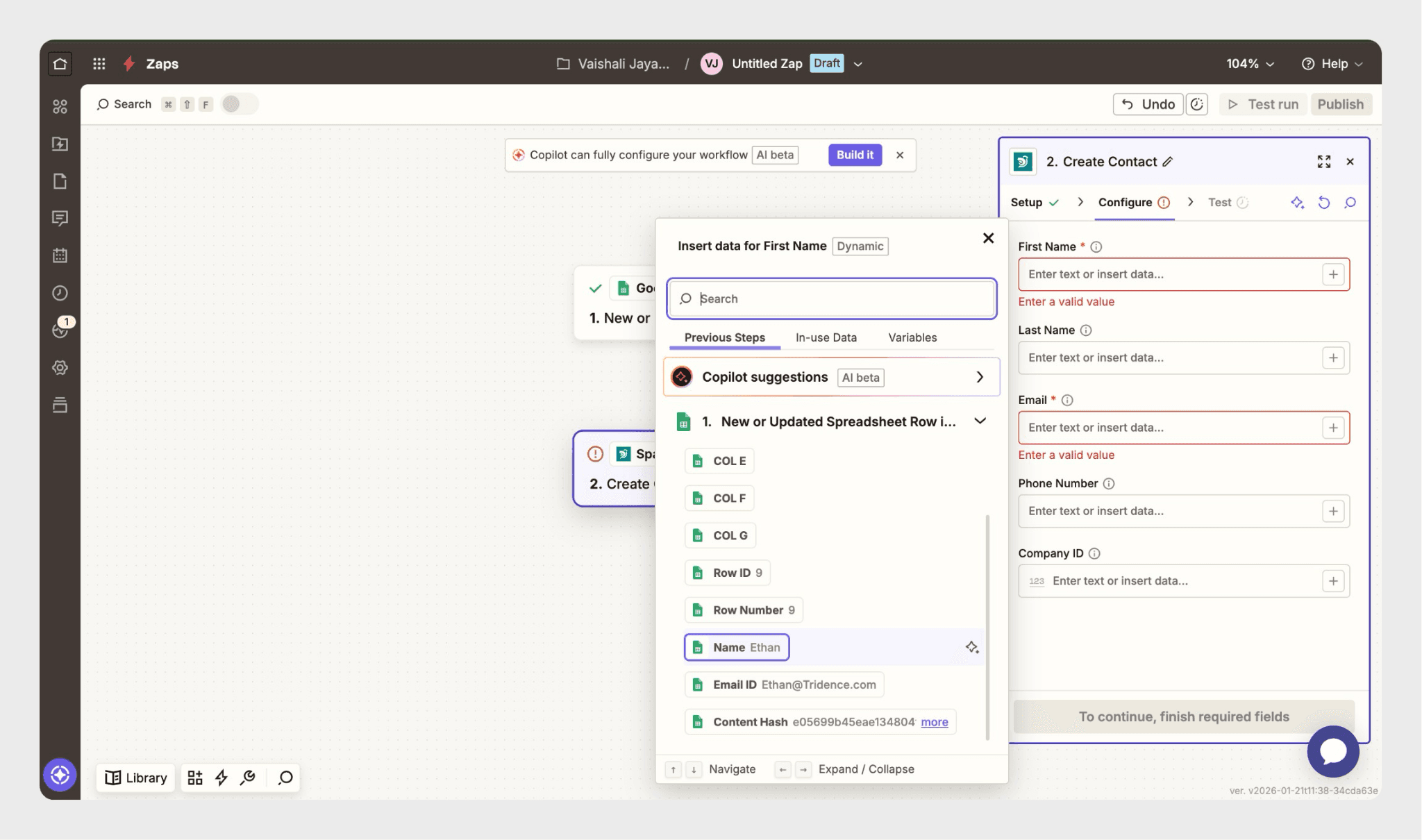
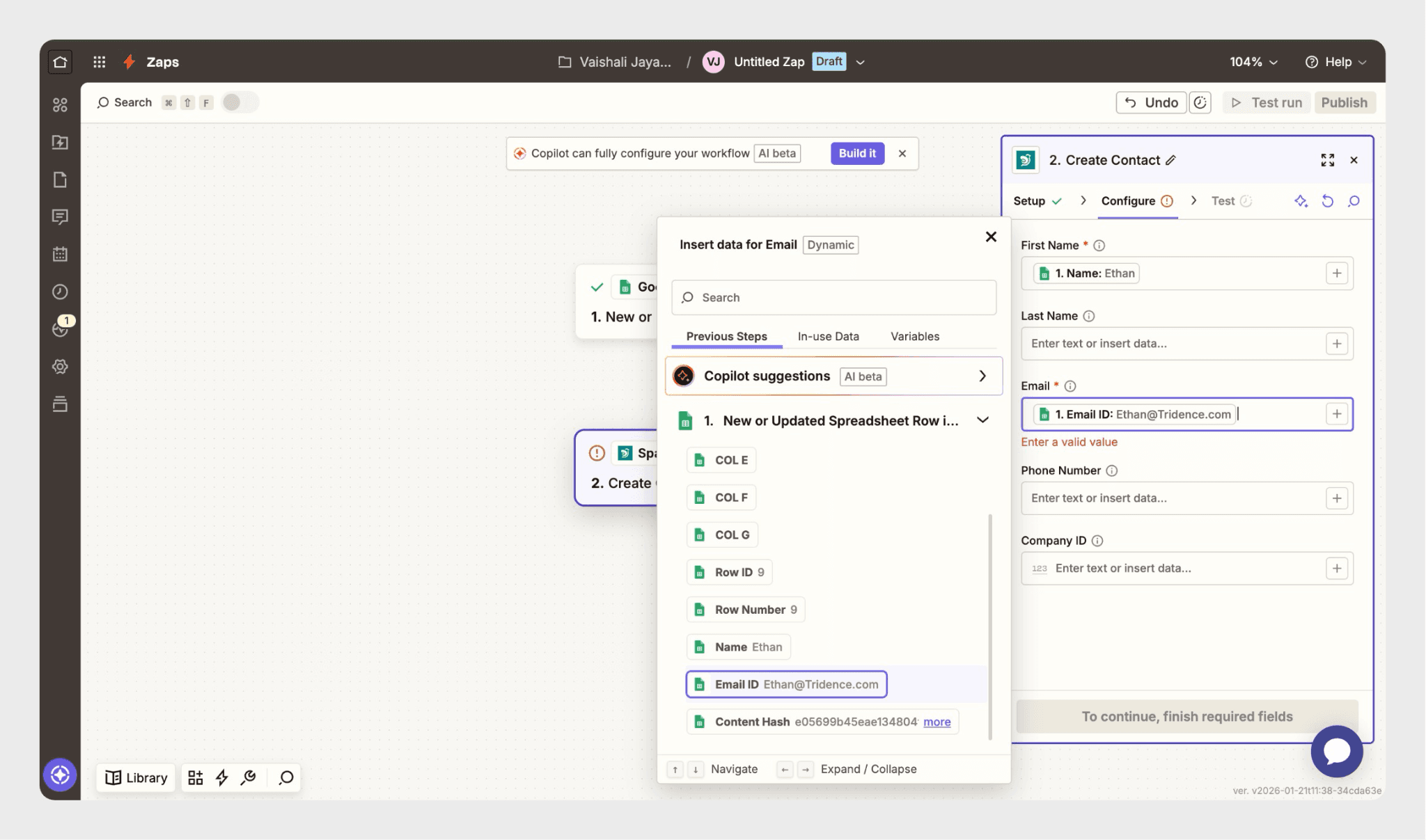
Step 7: Map Contact Details
Map the fields from Google Sheets to SparrowDesk contact fields, such as:
Name
Email
Review the mappings and click Continue.
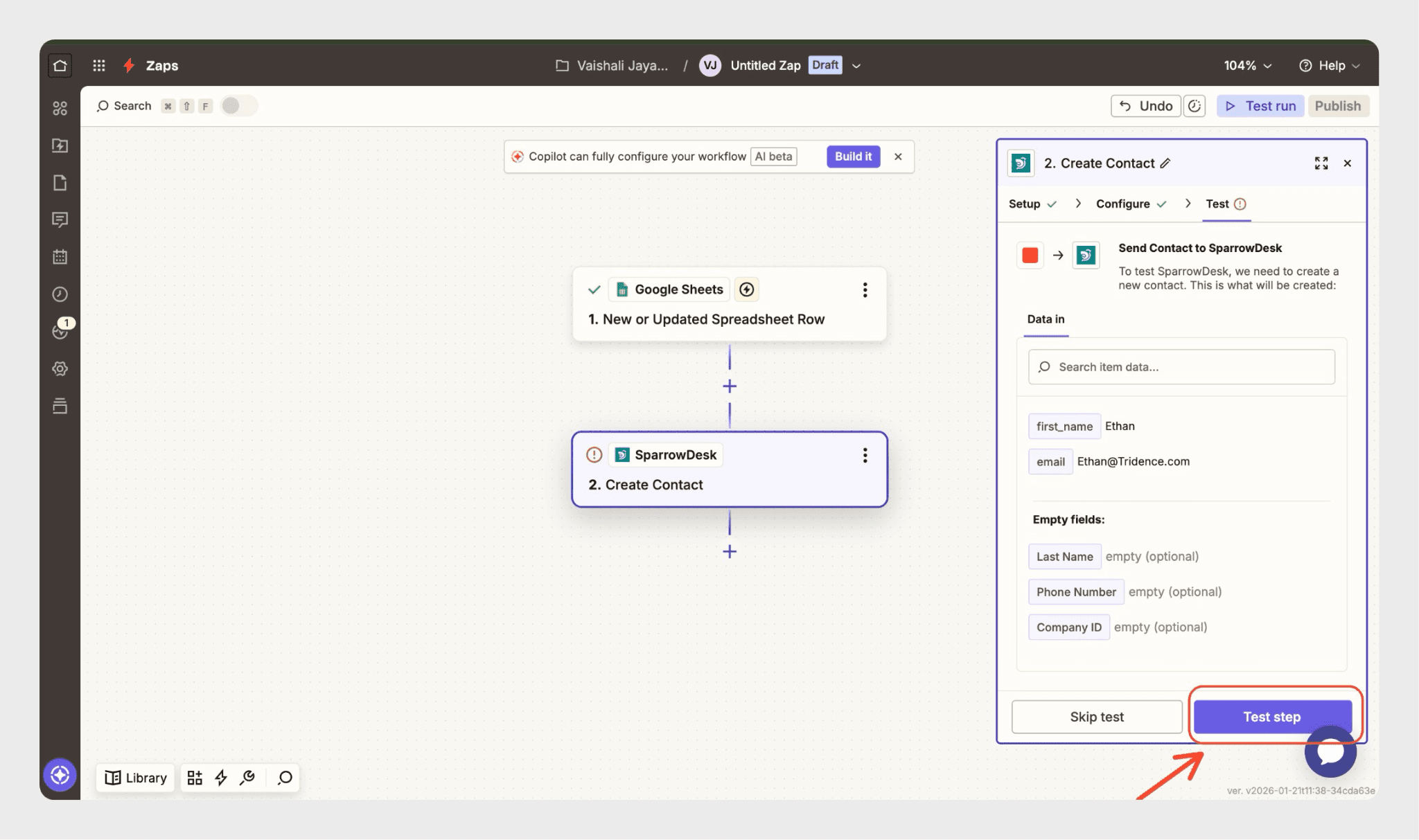
Step 8: Test the Action
Click Test action.
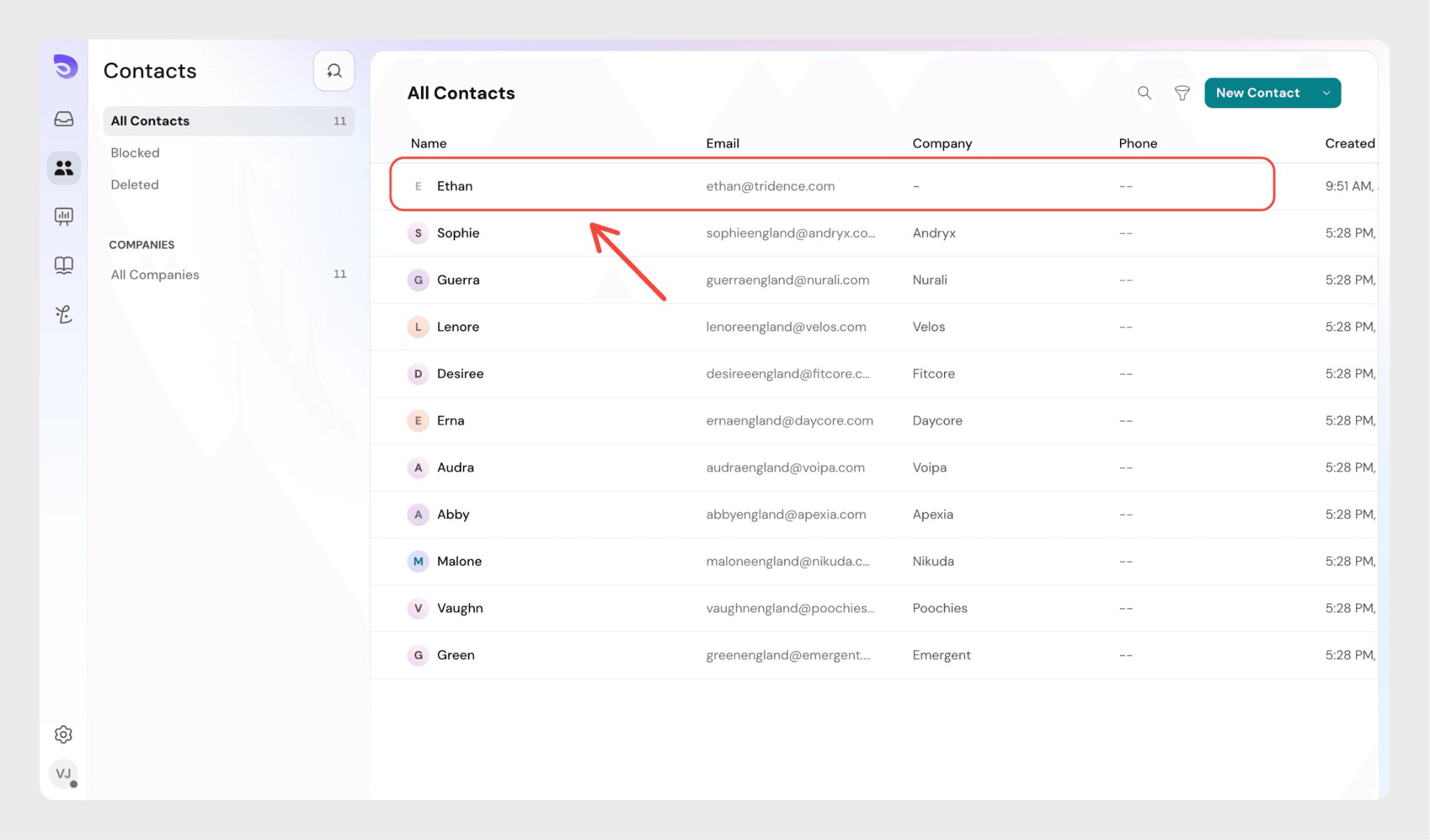
Verify that a new contact is created in SparrowDesk.
Step 9: Turn On the Zap
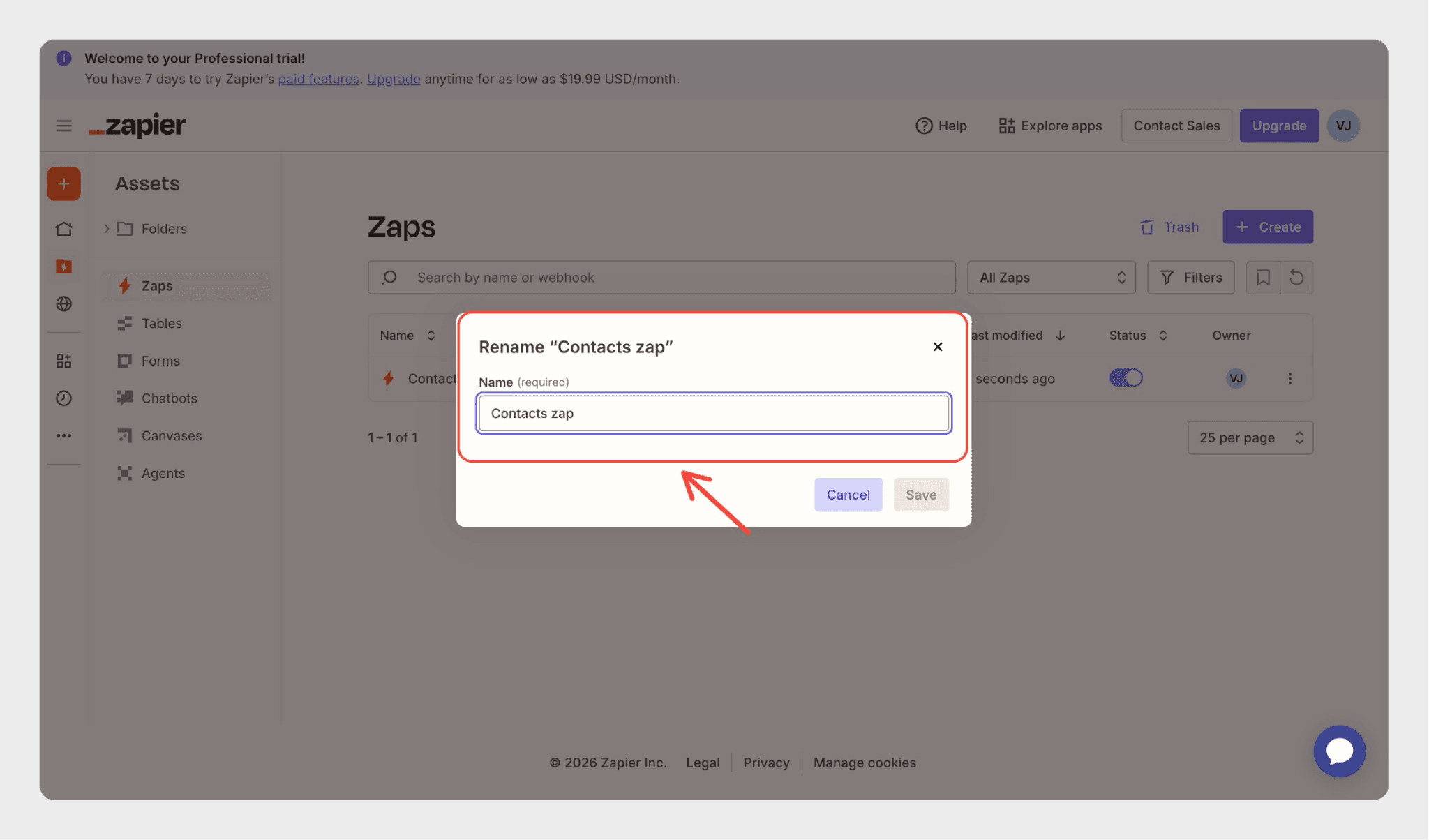
Give your Zap a name.
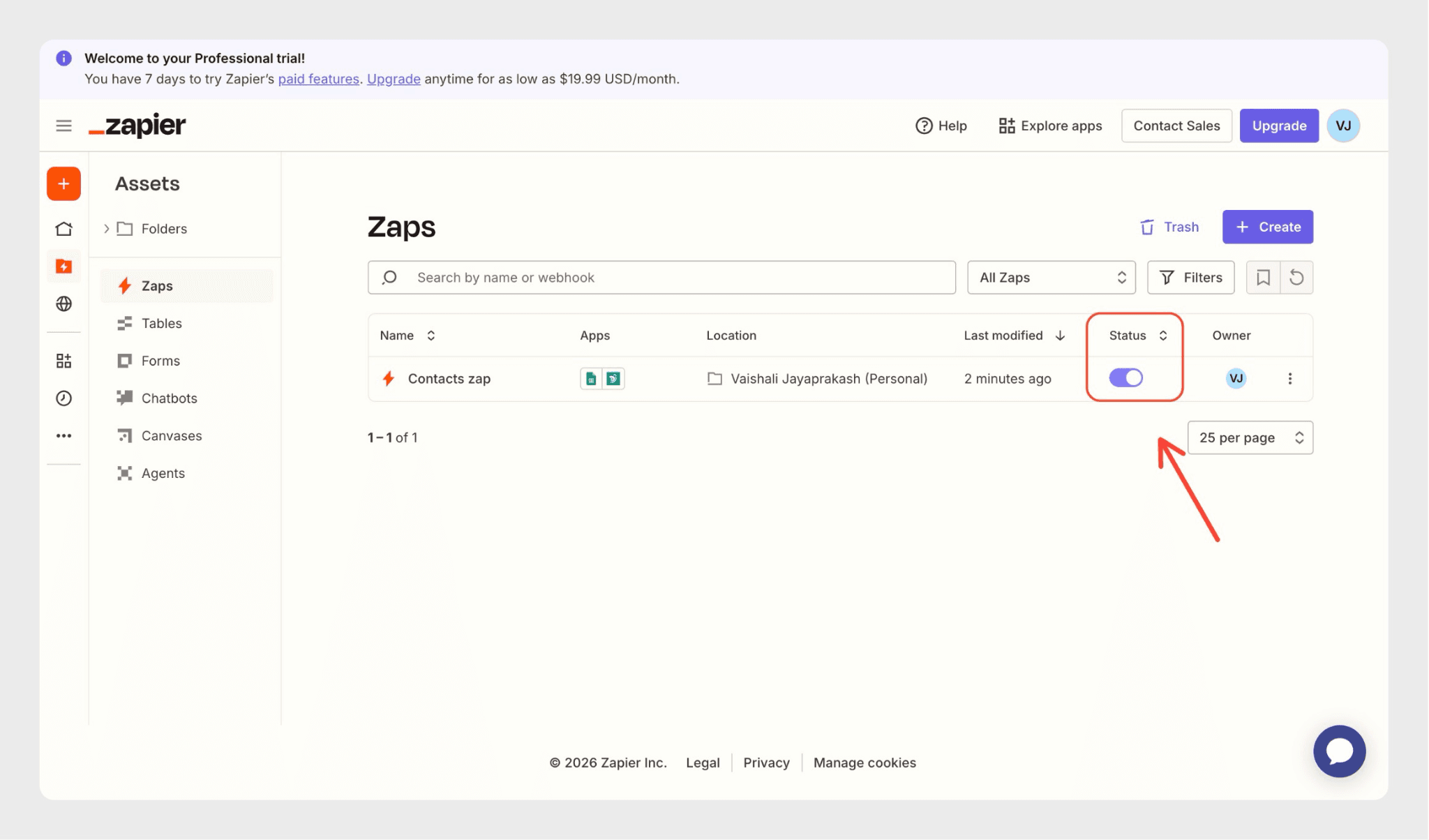
Toggle the Zap ON to activate the automation.
Result
Whenever a new row is added to the selected Google Sheet, a corresponding contact is automatically created in SparrowDesk.
What this setup does Zapier helps automate how data flows into SparrowDesk by performing supported actions based on events in other apps. Once set up, these workflows run automatically and keep your support system in sync with the tools your team uses.
Frequently Asked Questions
1. Can SparrowDesk be used as a trigger in Zapier?
No. For now, SparrowDesk is available as an action app in Zapier.
2. What actions can be performed in SparrowDesk using Zapier?
Zapier can be used to perform ticket and contact creation in SparrowDesk based on events from other apps.
3. Is Google Sheets the only trigger app I can use?
No. Google Sheets is used only as an example in this article. Any Zapier-supported app can be used as a trigger.
4. Do automations run automatically after setup?
Yes. Once a Zap is turned on, it runs automatically in the background.