Most support teams don’t work around the clock. Setting business hours in SparrowDesk helps you:
Keep customers informed – If someone messages you at 10 PM, the widget will let them know when you’ll be back.
Track SLAs fairly – First Response and Resolution SLAs will only count during your defined working hours. Without this, a ticket created at midnight might look overdue by morning even though your team wasn’t expected to reply.
How Business Hours affect SLAs
Your team works 9 AM – 6 PM.
A ticket comes in at 11 PM.
SLA timers (like First Response Due) won’t start until 9 AM the next morning.
This ensures SLA tracking is accurate and fair to your team.
Add your Business Hours
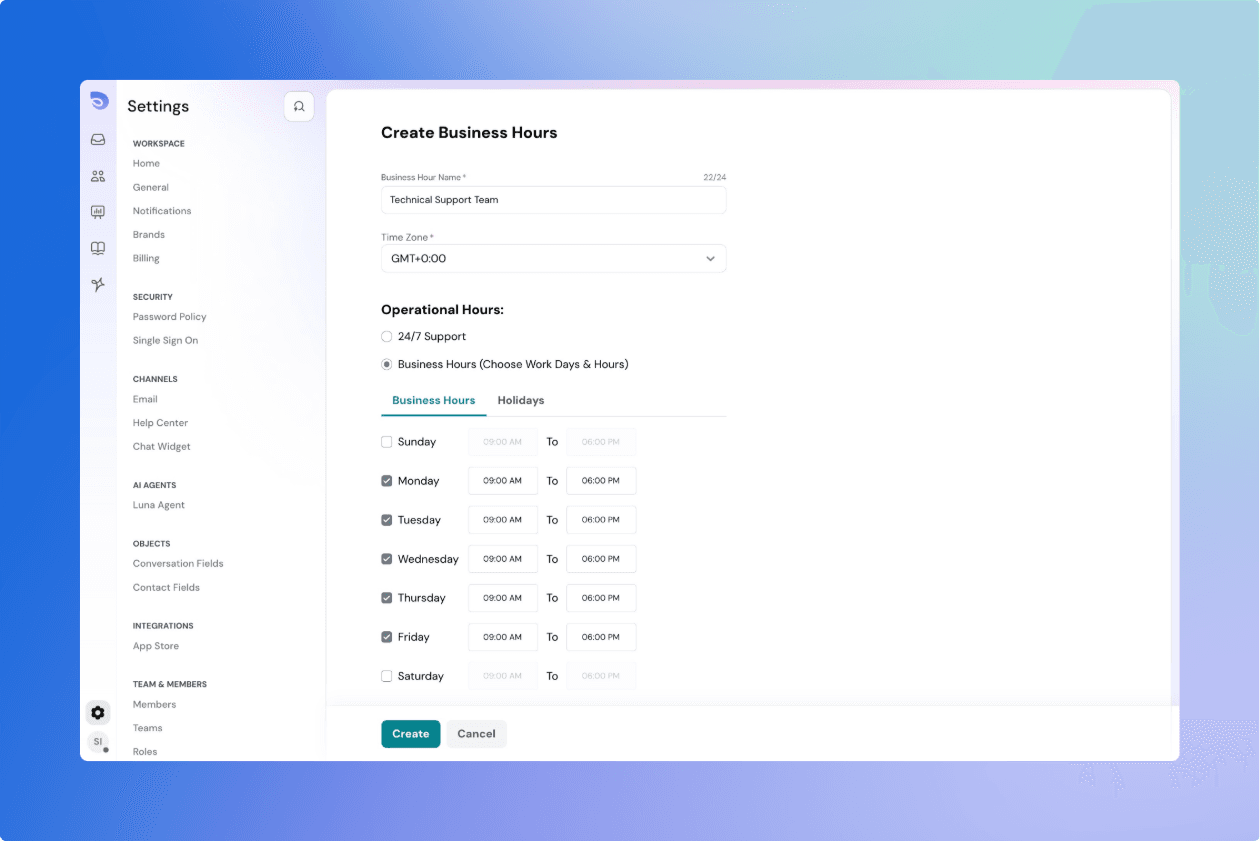
By default, SparrowDesk assumes 24/7 availability. You can change this from:
Settings → Business Hours
Select 24/7 Support if your team is always available.
Or choose Business Hours to set specific working hours for each day of the week.
Note: You can set different hours for weekdays and weekends.
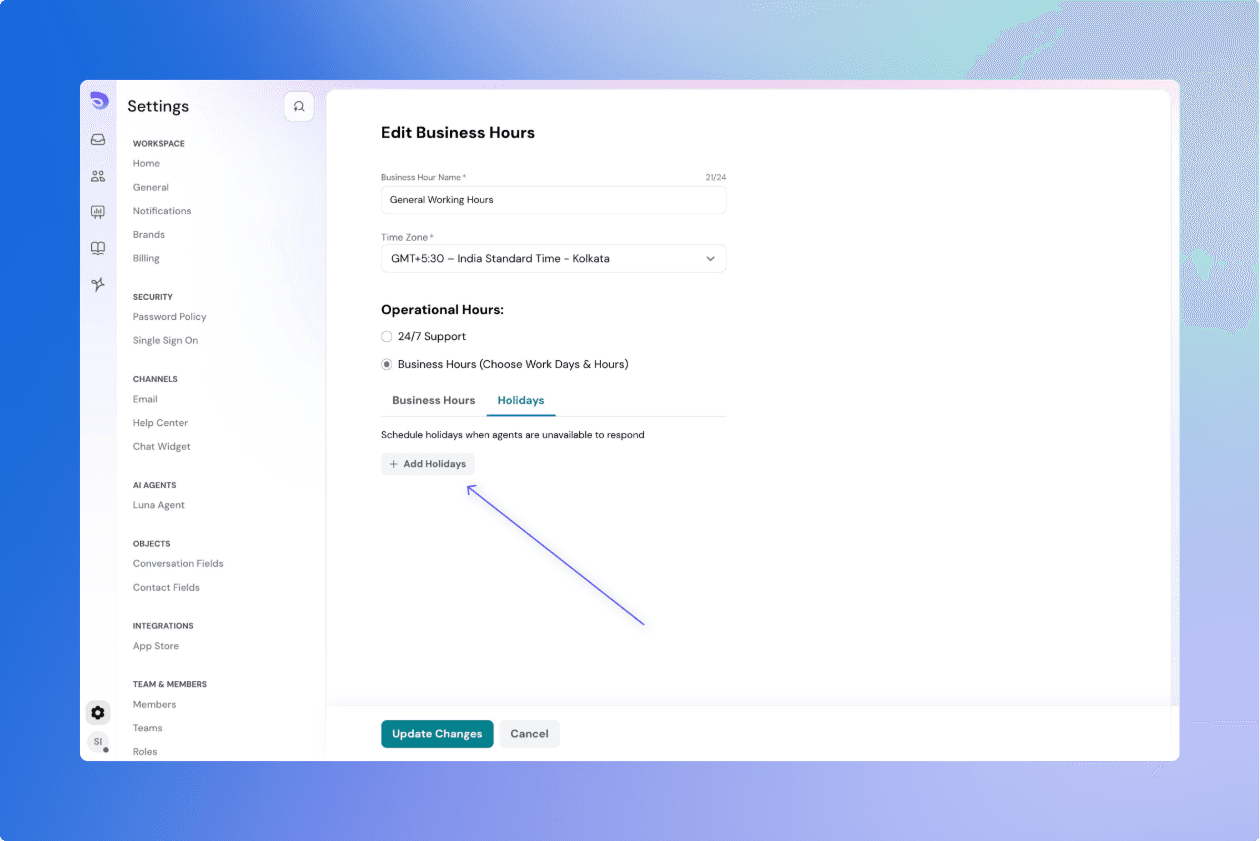
Add Holidays
If your team is unavailable on certain dates (like public holidays), you can mark them so SLAs pause automatically.
Go to Settings → Business Hours → Holidays.
Click Add Holiday.
Enter a descriptive name (e.g. Independence Day).
Choose the start and end dates.
For a single day, select the same date twice.
For a range (e.g. Dec 24–26), pick start and end dates.
(Optional) Add times for partial days (e.g. half-day from 9:00–13:00).
Tip: You can also import national or regional holiday lists based on your team’s location to save time.