Merging helps agents bring related customer conversations together so they can work from a single, complete ticket. This reduces duplicate work and ensures that all customer details, updates, and replies are managed in one place.
When you merge conversations, SparrowDesk keeps one conversation open as the main thread and closes the others, while preserving their history inside the main ticket. This allows agents to continue assisting the customer without losing context.
How merging works
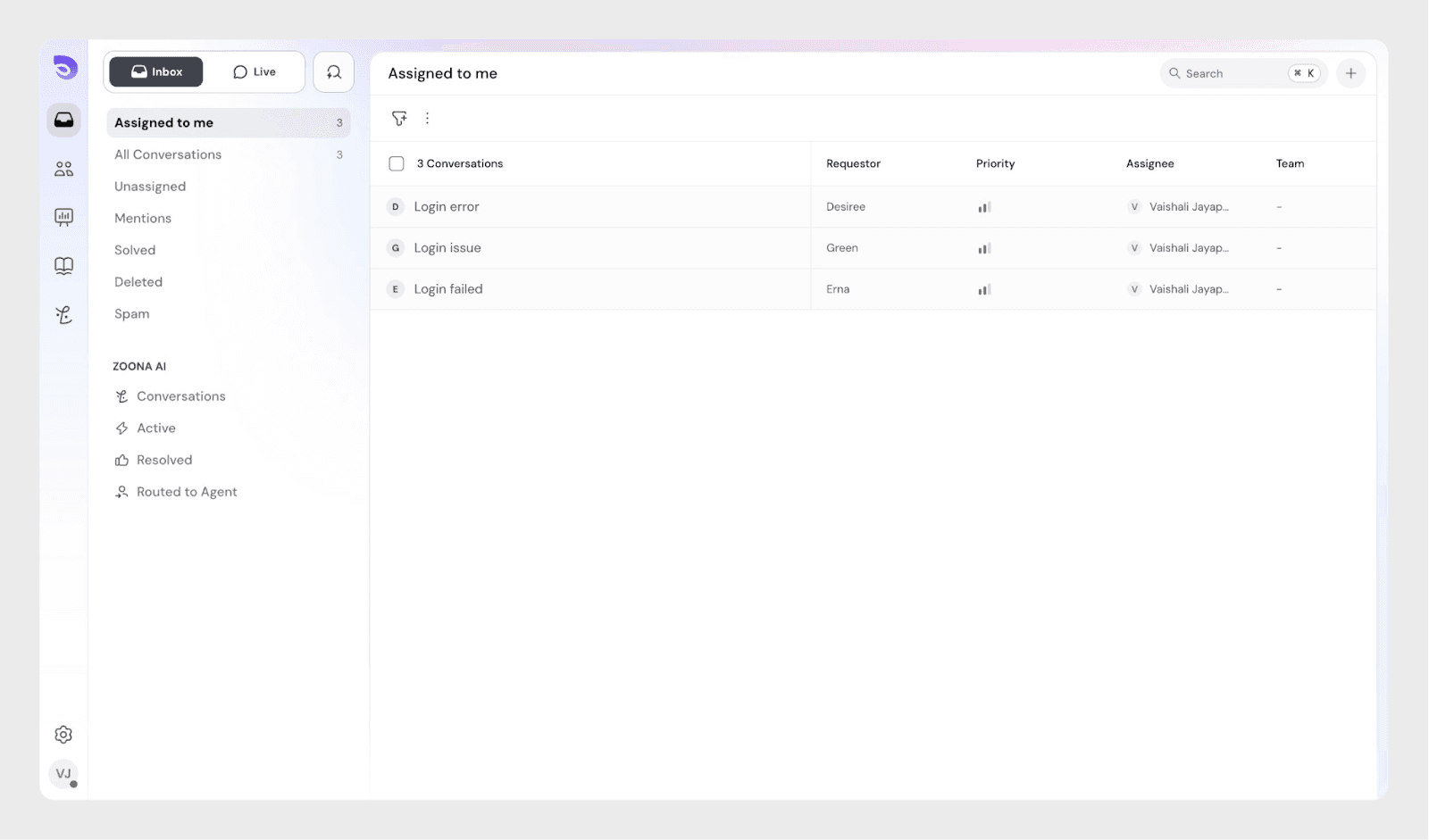
Let’s understand this with the same login issue example shown.
A customer has raised three conversations:
- Conversation #1 – Login failed
- Conversation #2 – Login issue
- Conversation #3 – Login error
Agents merge conversations to bring all related customer messages into one place. This helps reduce duplicate work, keeps the full issue history together, and ensures customers receive consistent updates from a single ticket.
Before you merge
To merge tickets, make sure:
- The ticket has an email or phone number
- The ticket is not already solved
- You have permission to edit the ticket conversation
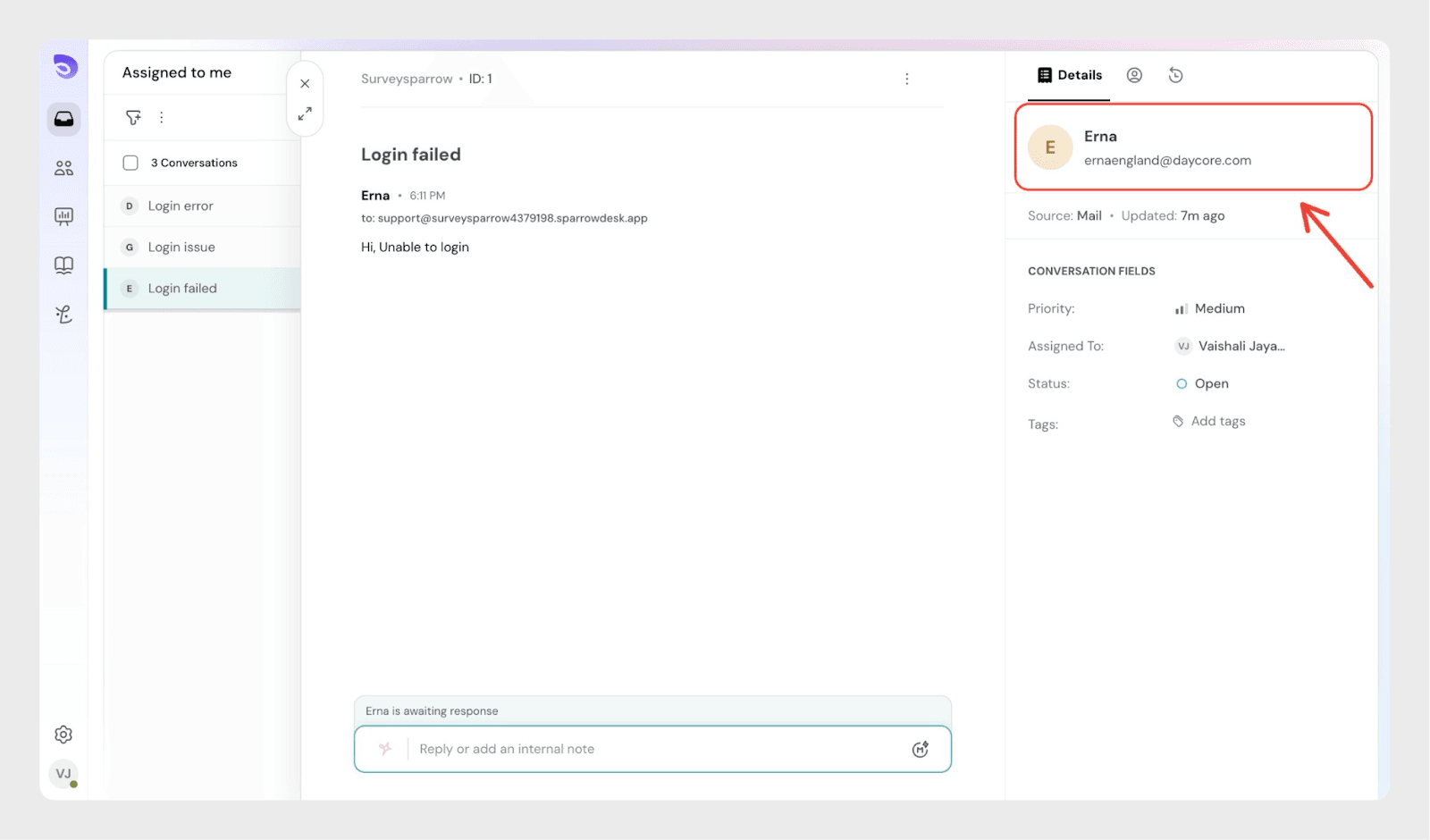
Merge Conversation #1 into Conversation #2
- Open Conversation #1
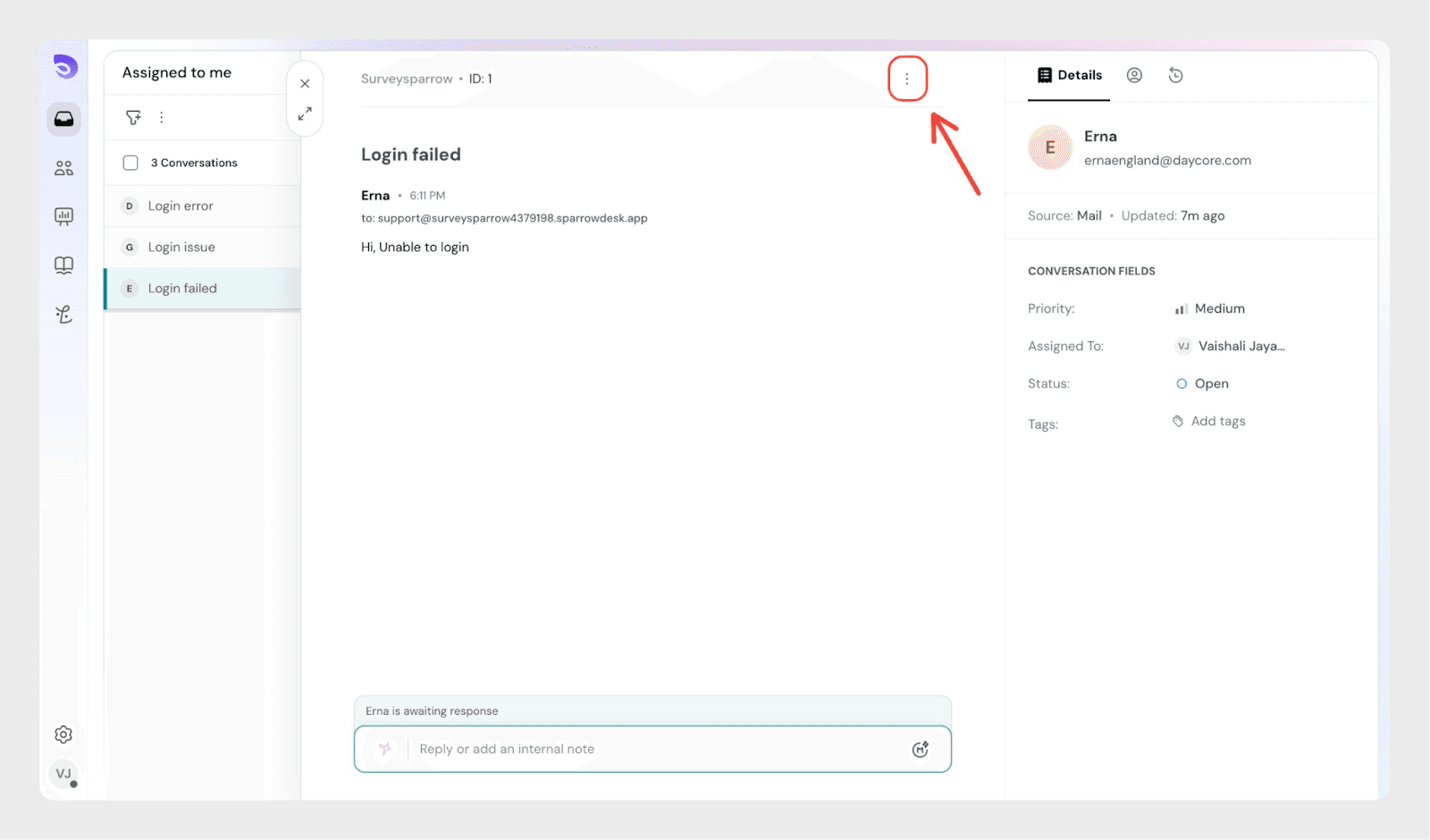
- Click the three-dot menu
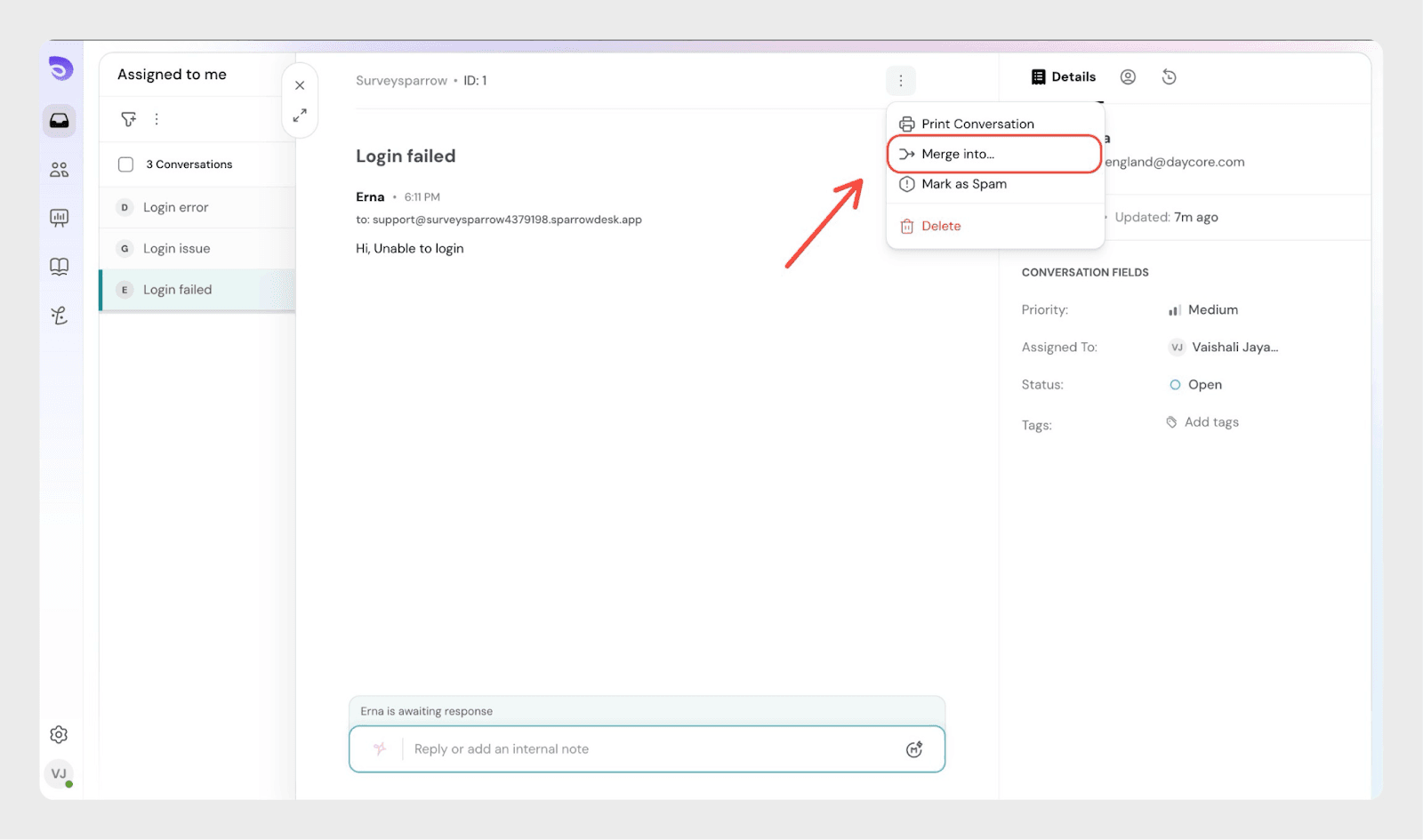
- Select Merge into
- Choose Conversation #2
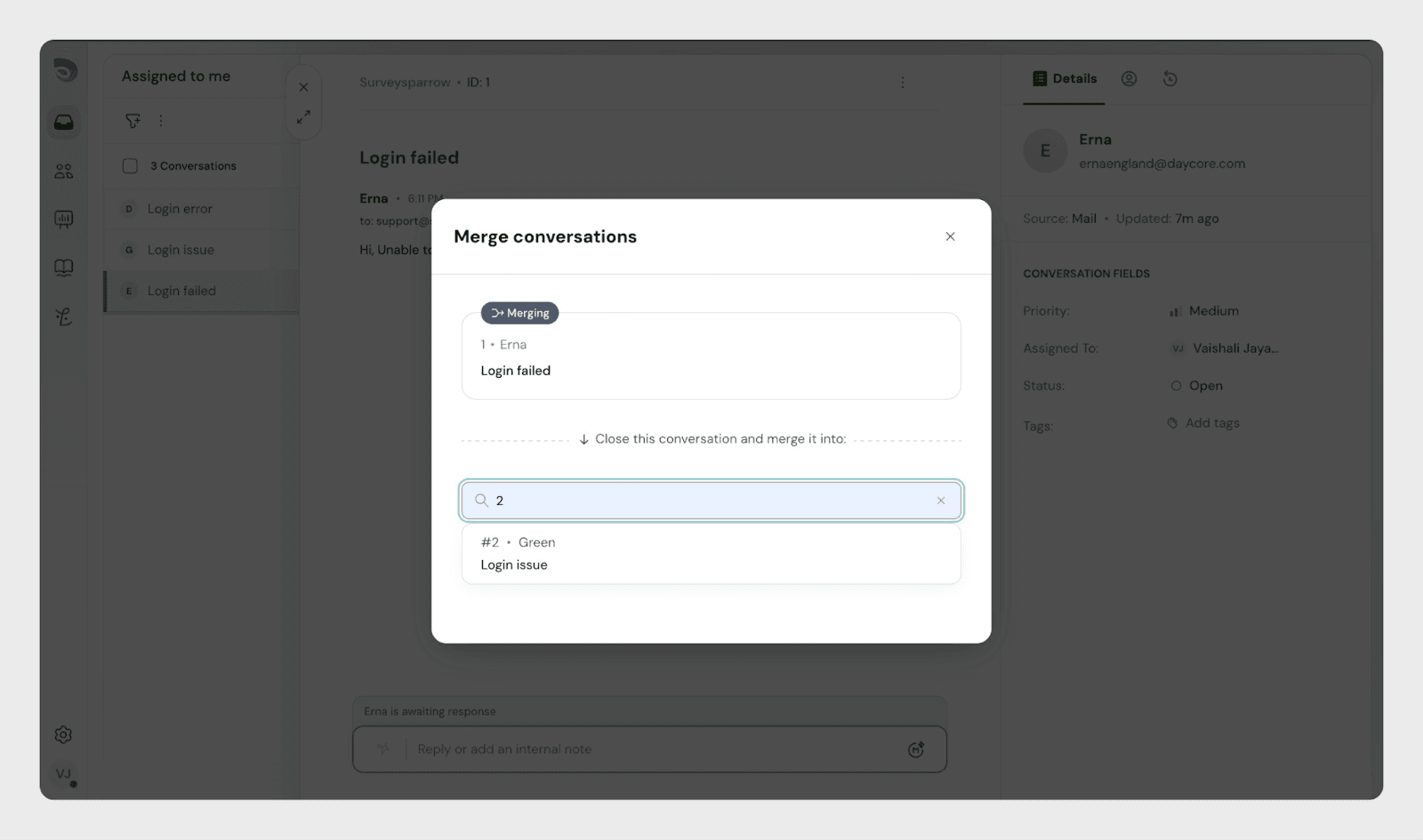
Choose how the merged information is shared
Before you confirm the merge, you can decide who can see the merged conversation summary.
You will see a Public Reply toggle in the merge panel.
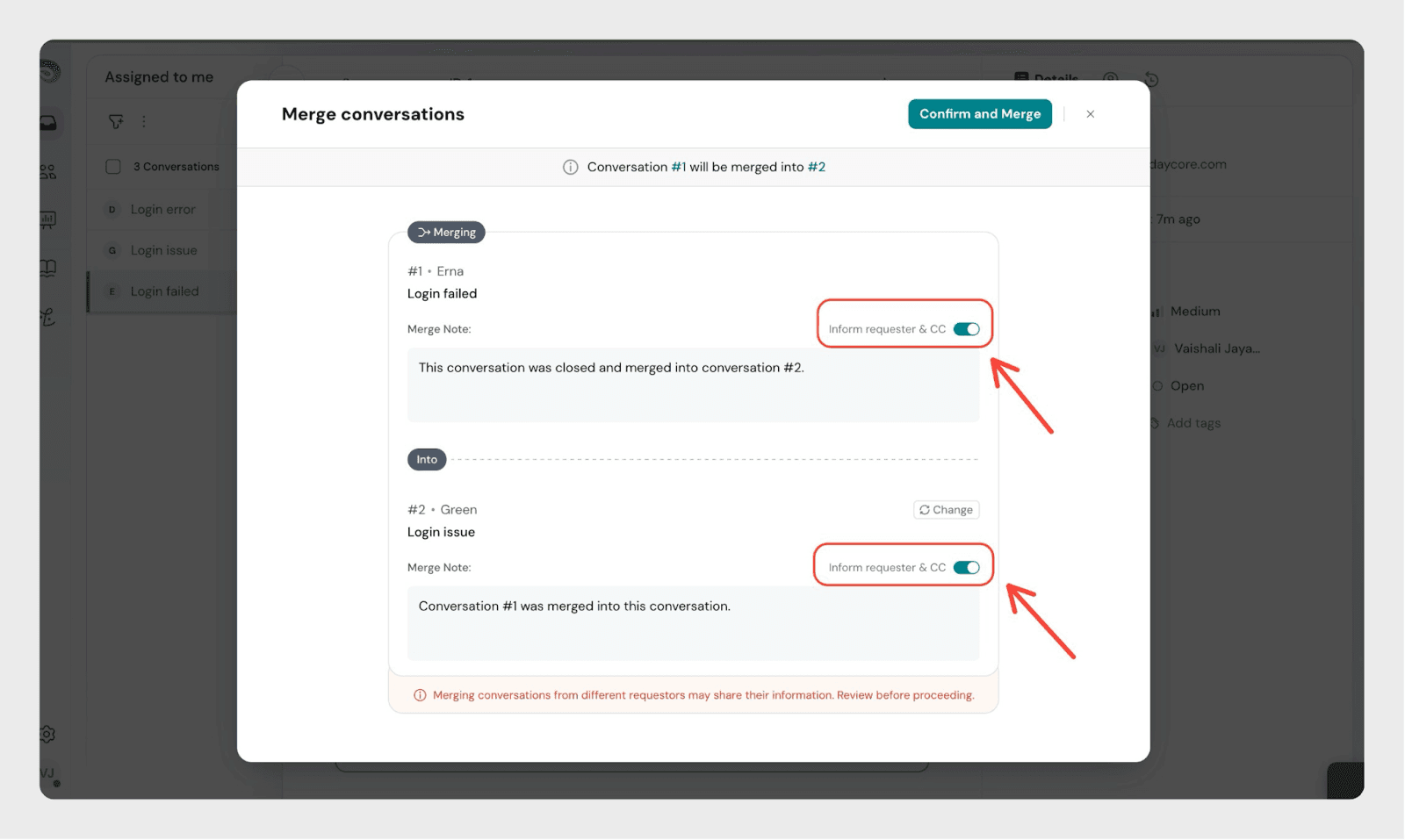
If the toggle is ON
- The merge note is added as a public reply, you can type in the merge note.
- The customer and all CC’d contacts will see it
- This is useful when you want to keep the customer informed that their tickets were combined
If the toggle is OFF
- The merge note is saved as an internal note,you can type your inputs here as well.
- Only agents will see it inside the conversation
- The customer will not be notified
After choosing the right option, you can proceed to confirm the merge.
- Confirm the merge
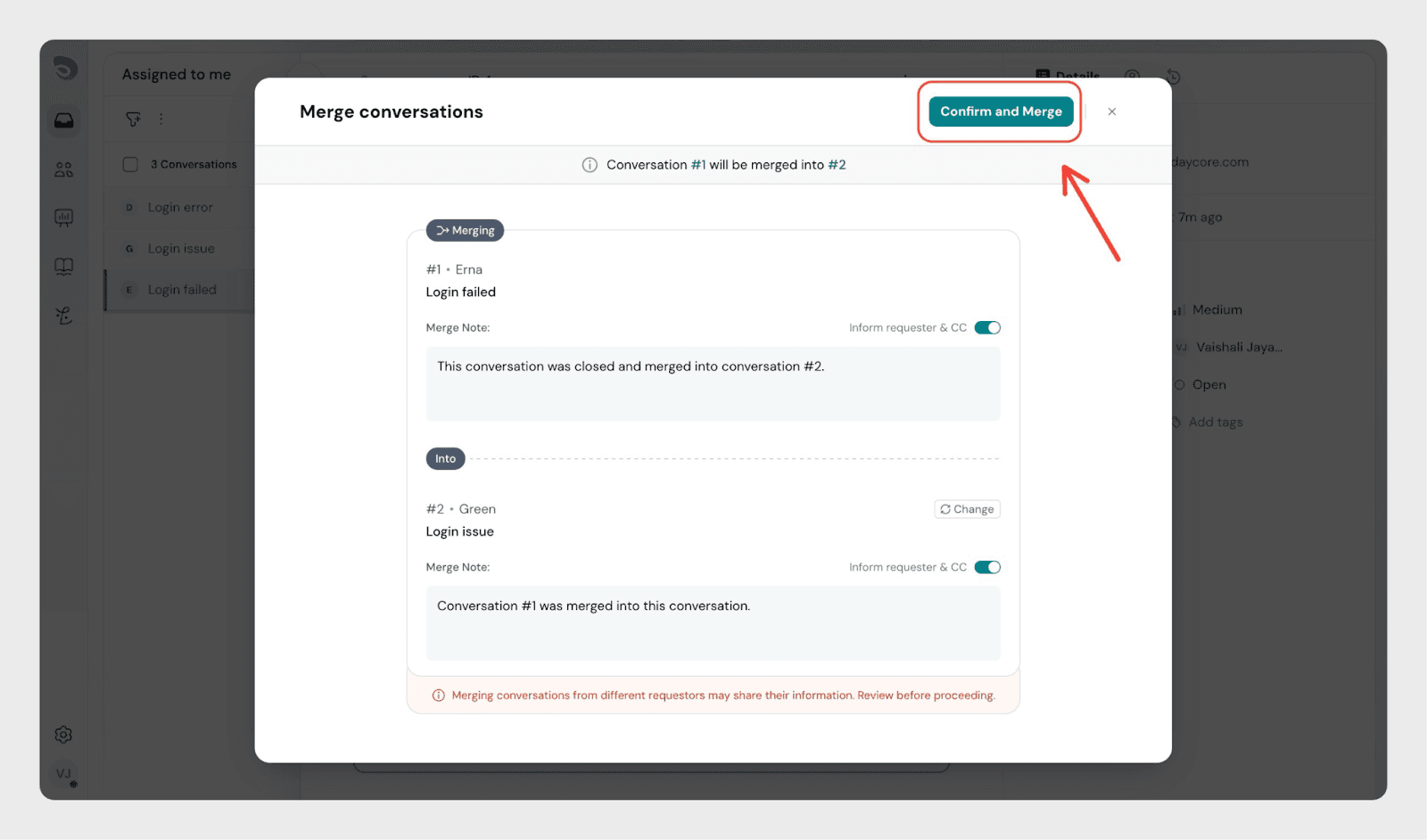
After this:
- Conversation #1 is closed
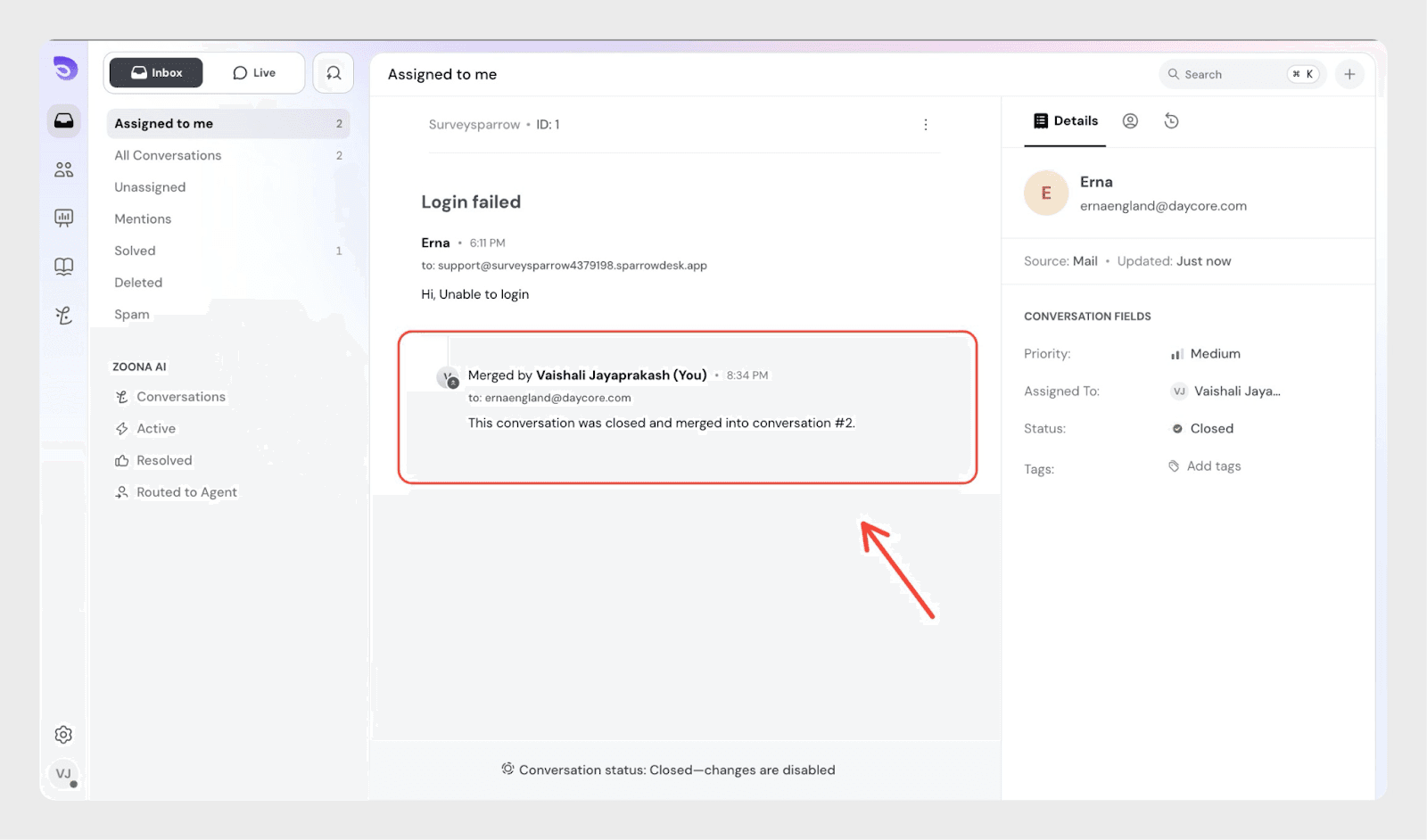
- Conversation #2 remains open
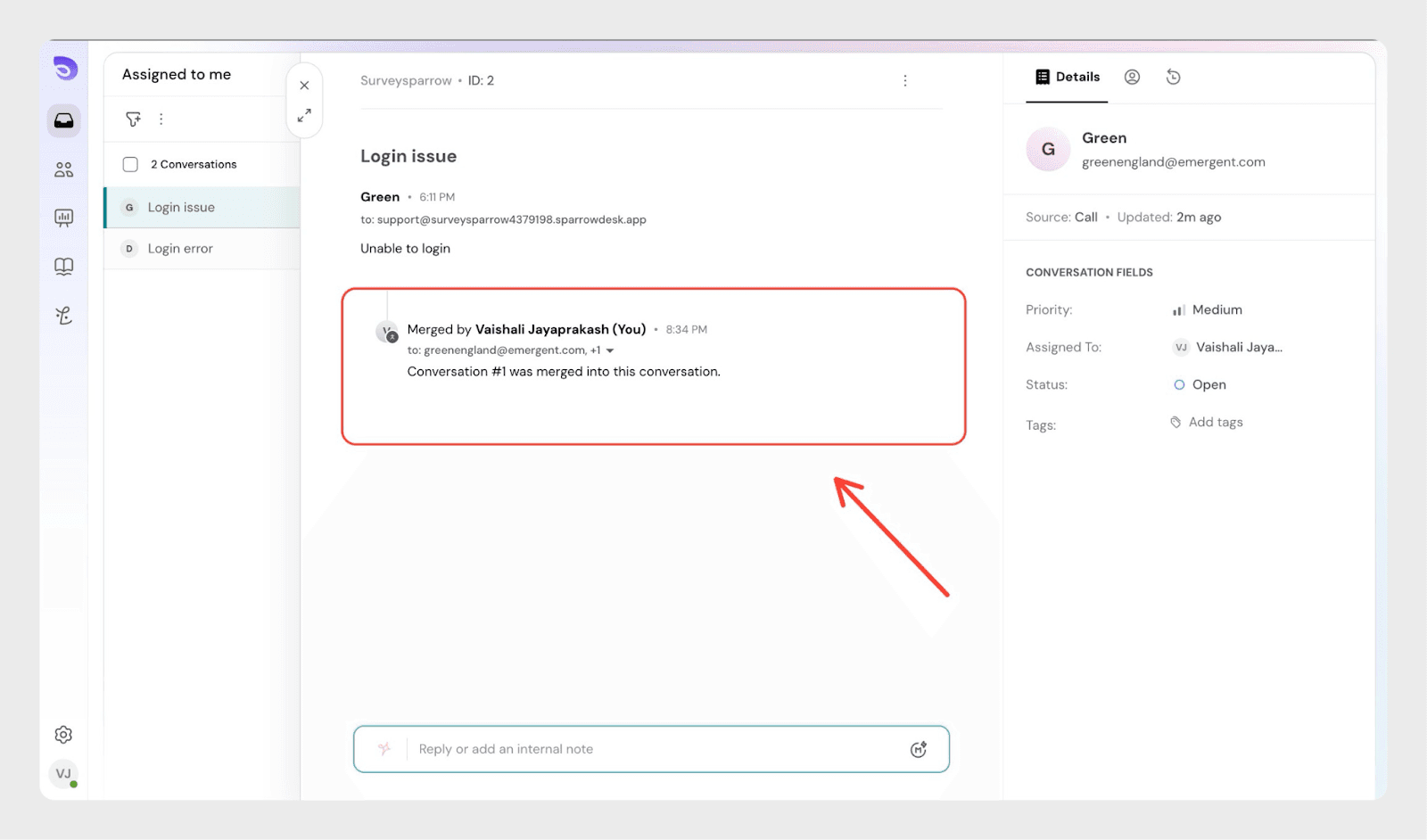
- A system note appears in Conversation #2 showing the merge
- The customer and all CC’d users from Conversation #1 are added as CCs in Conversation #2
Merge Conversation #3 into the updated Conversation #2
Now that Conversation #2 already contains Conversation #1’s history:
- Open the updated Conversation #2
- Click the three-dot menu
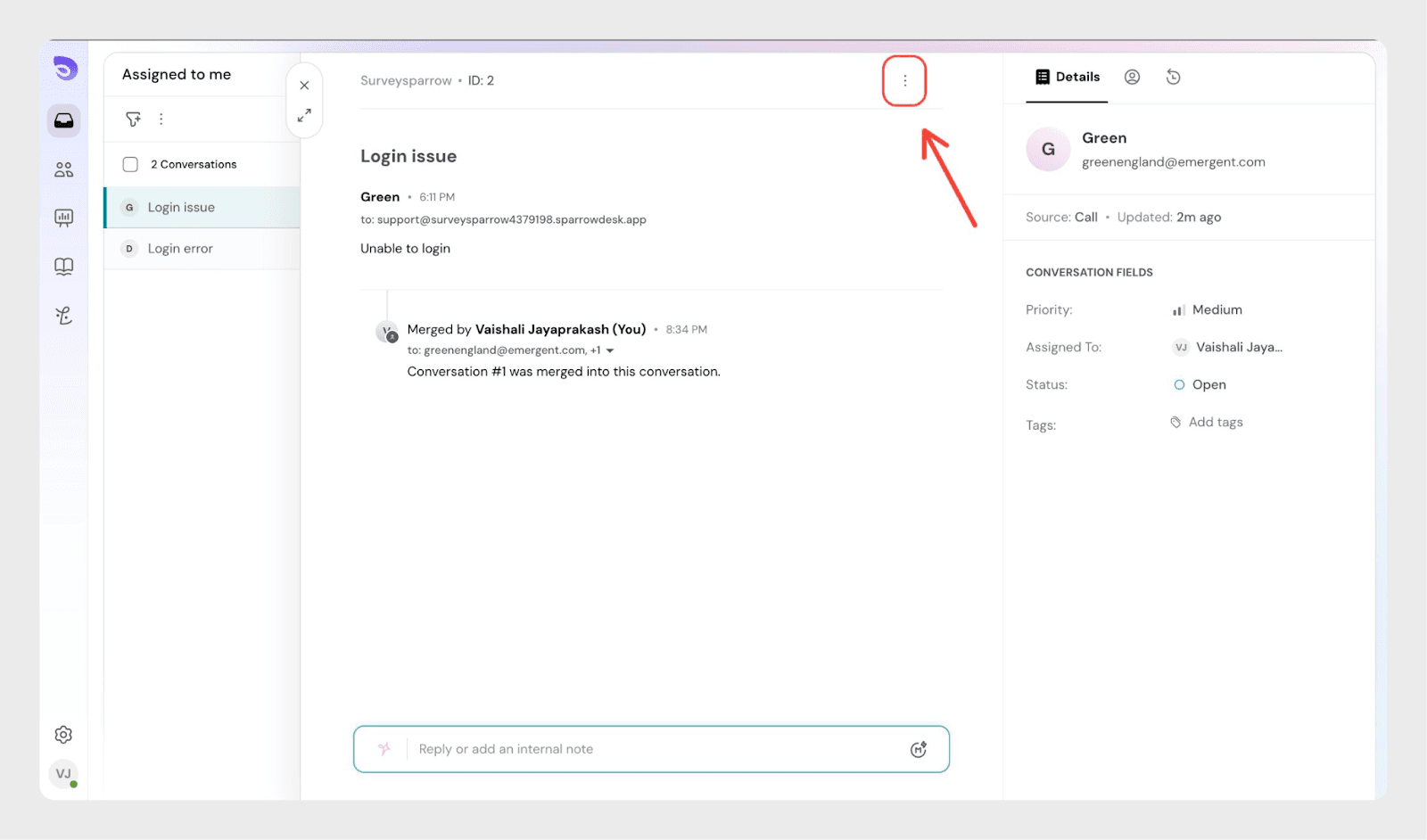
- Select Merge into
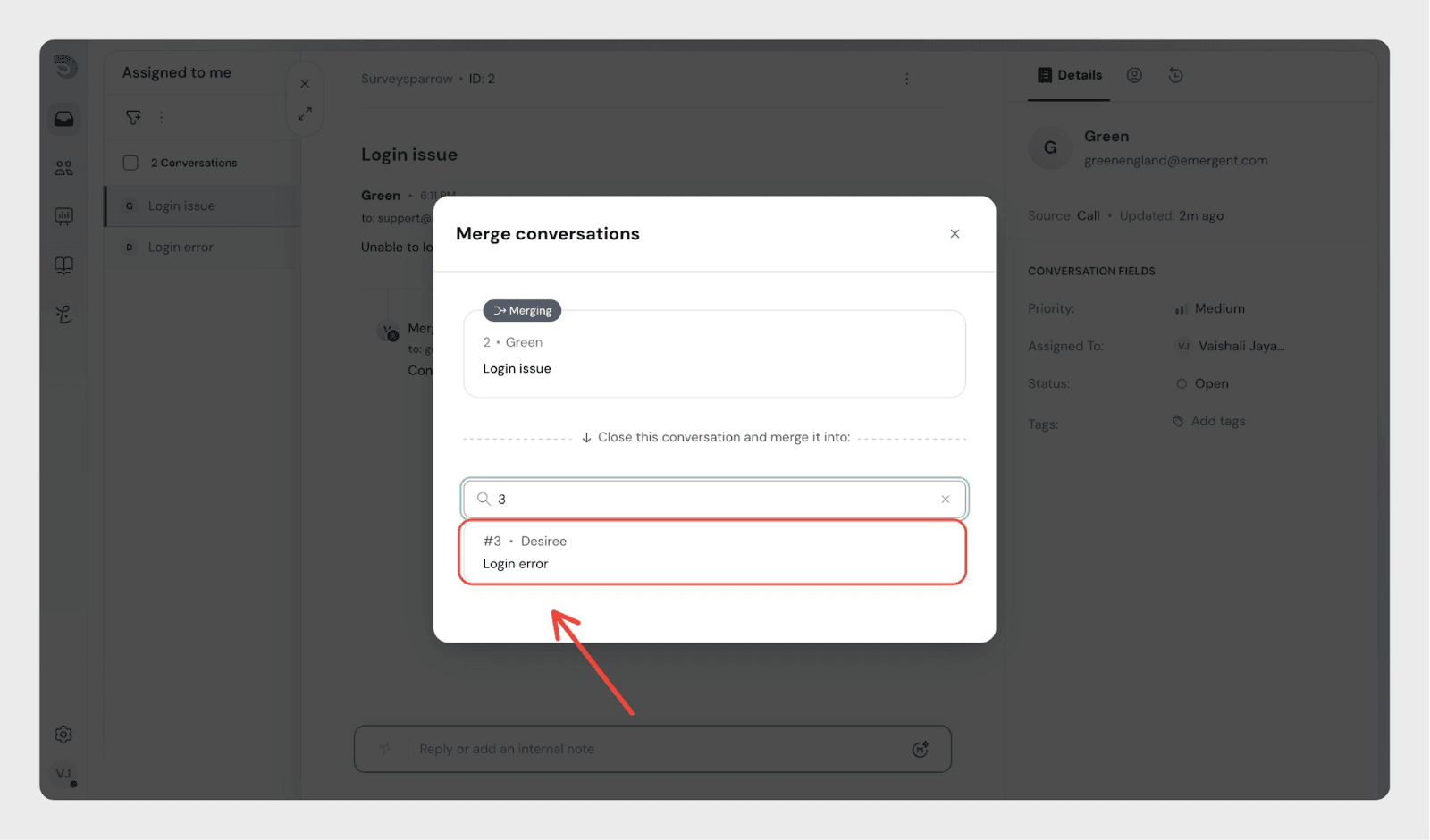
- Choose Conversation #3
- Confirm the merge
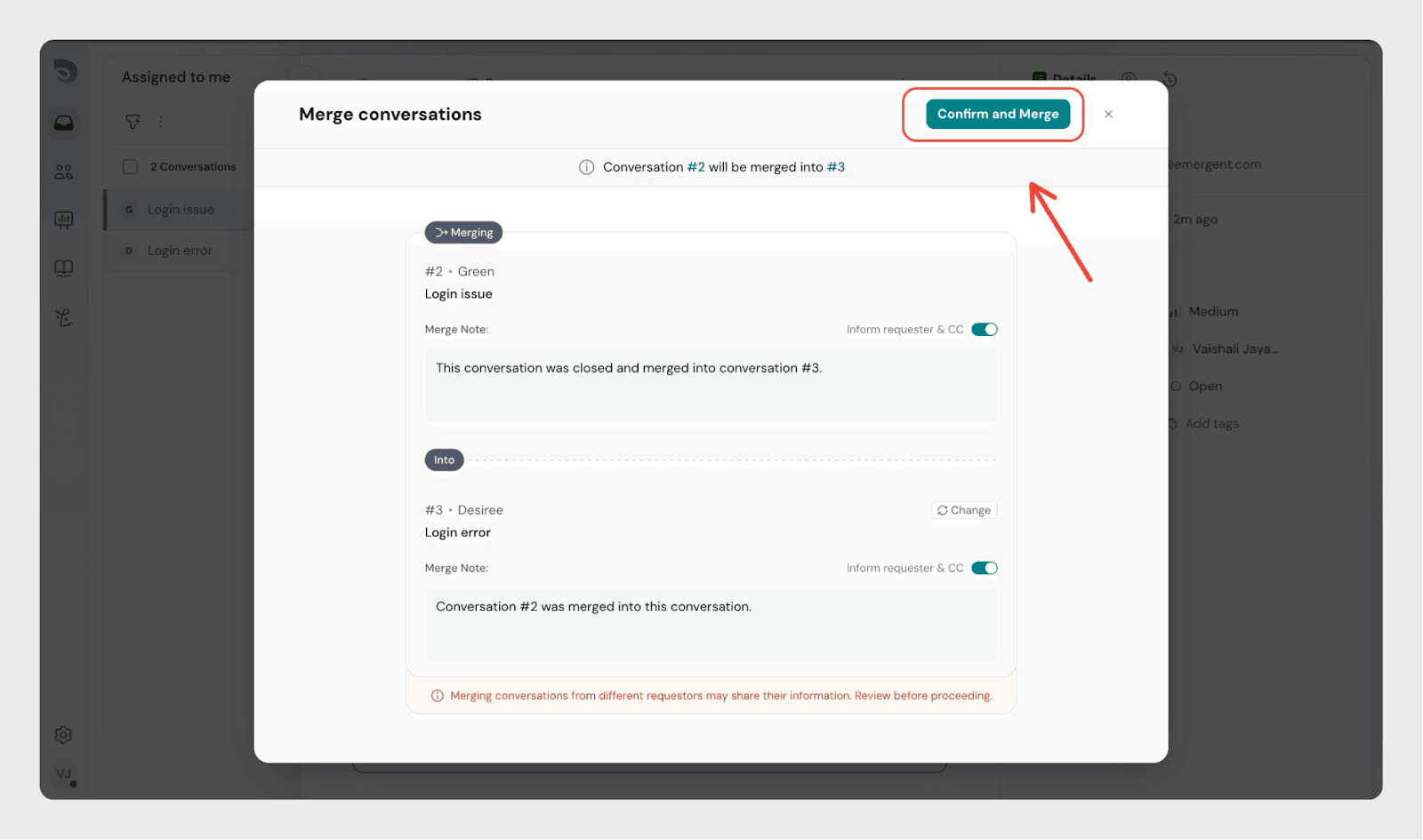
After this:
- Conversation #2 stays open
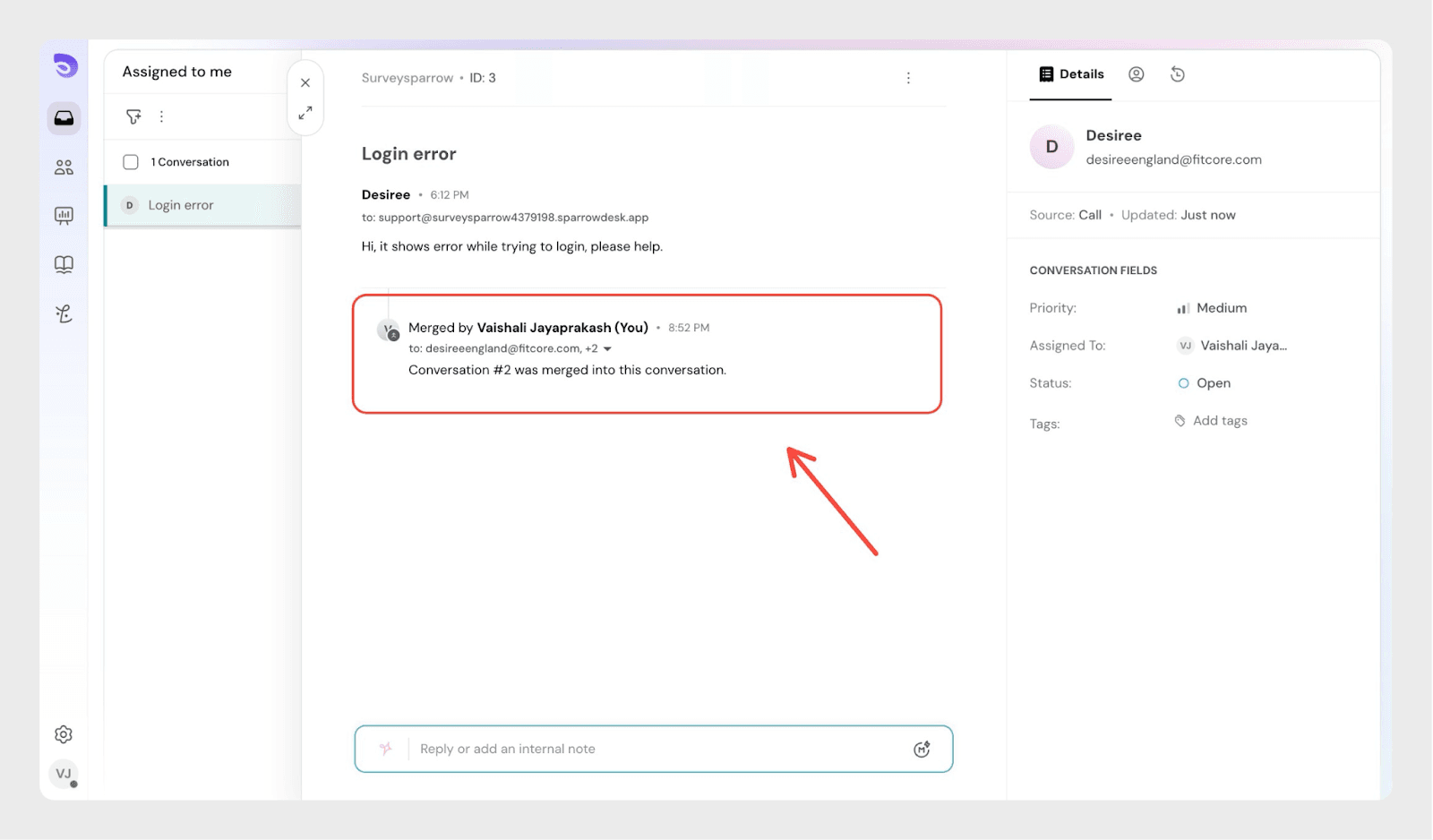
- Conversation #3 is closed
- All CC’d contacts from all merged conversations are added to Conversation #2
- Agents continue working from Conversation #2
Now that tickets are merged, it’s important to understand how future customer replies are handled.
Normal closed tickets – What happens on reply
In SparrowDesk, when a ticket is closed and the customer replies again:
- The system does not reopen the original ticket.
- Instead, it creates a new ticket with:
- A new ticket ID
- A reference to the original ticket (for example, RE: [Original Ticket ID]) in the subject
- The customer’s new message logged as the first message in the new ticket
Example:
- Subject: /Re-Opened #[{ticket-id}] : {original subject}
- Description: {body of the customer’s email}
This ensures a clear, chronological separation between resolved conversations and new follow-ups.
Merged tickets – How replies are handled
When tickets are merged, SparrowDesk handles future replies differently.
Instead of creating a new ticket, all future replies from the customer are added to the destination ticket (the merged conversation that remains open).
That means:
- The conversation stays in one unified thread
- The customer’s latest message appears inside the destination (merged) ticket
- No new ticket is created, even if the original tickets were closed during the merge
In a merge scenario, the customer’s reply is not cloned into a new ticket, and no new ticket ID is generated. All messages remain within the destination ticket’s conversation history.
This keeps related conversations together, which is especially useful when multiple tickets relate to the same issue.
When you merge tickets, all related customer replies — even if received after closing — stay within the merged conversation. This prevents duplicate tickets and keeps agent context centralized.
Important notes
- A conversation must have an email or phone number to be merged
- You cannot merge a ticket that is already Solved or Closed
- Agents must have Edit All Conversations permission
- The destination ticket stays open
How merged tickets appear in reports
SparrowDesk keeps track of all merged tickets so your reports always stay clean and accurate.
Each ticket has a Merged status, which can be:
- True → The ticket was merged and closed
- False → The ticket is still active and not part of any merge
You can easily check this using the Reports filter.
How to check merged tickets
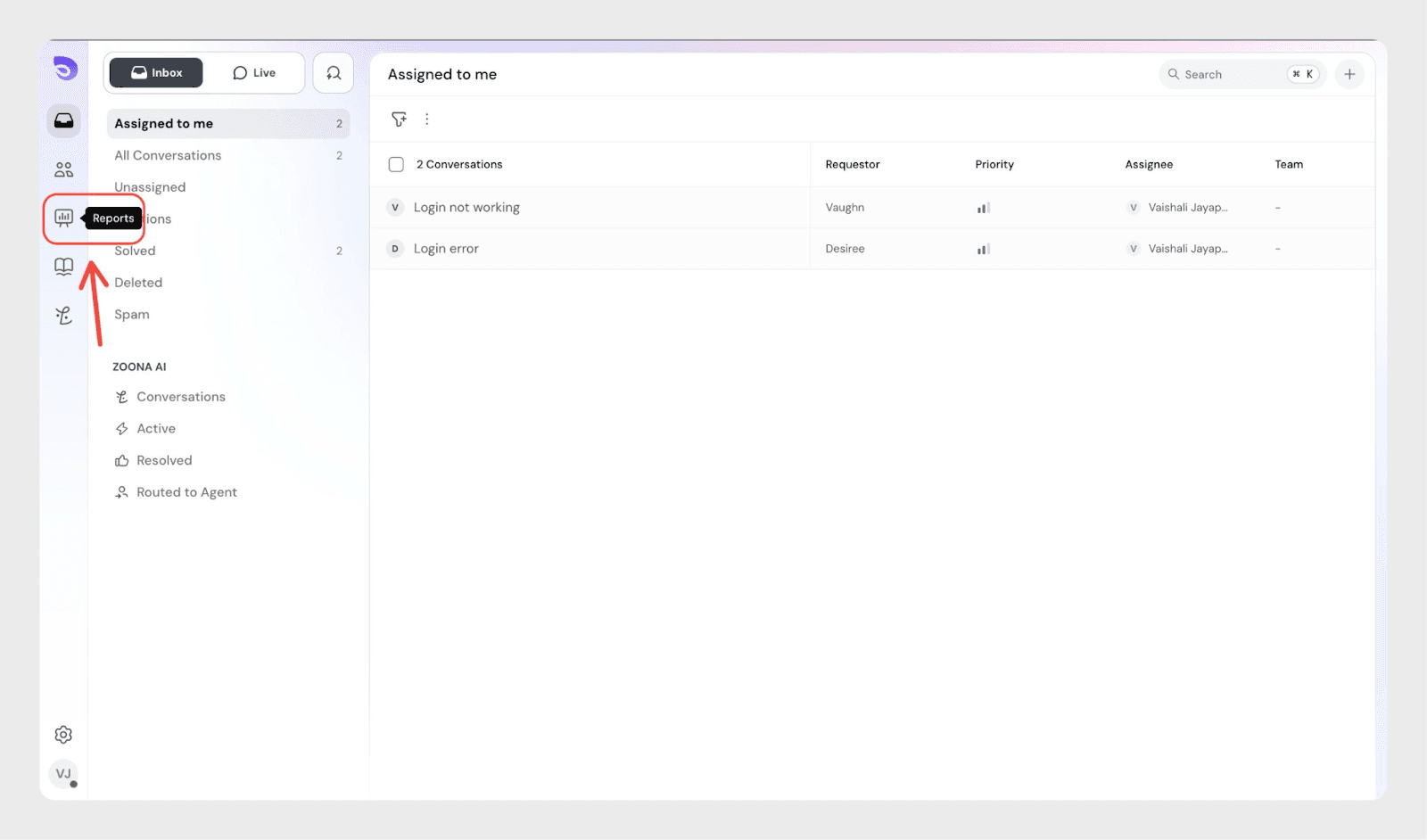
- Go to the Reports section
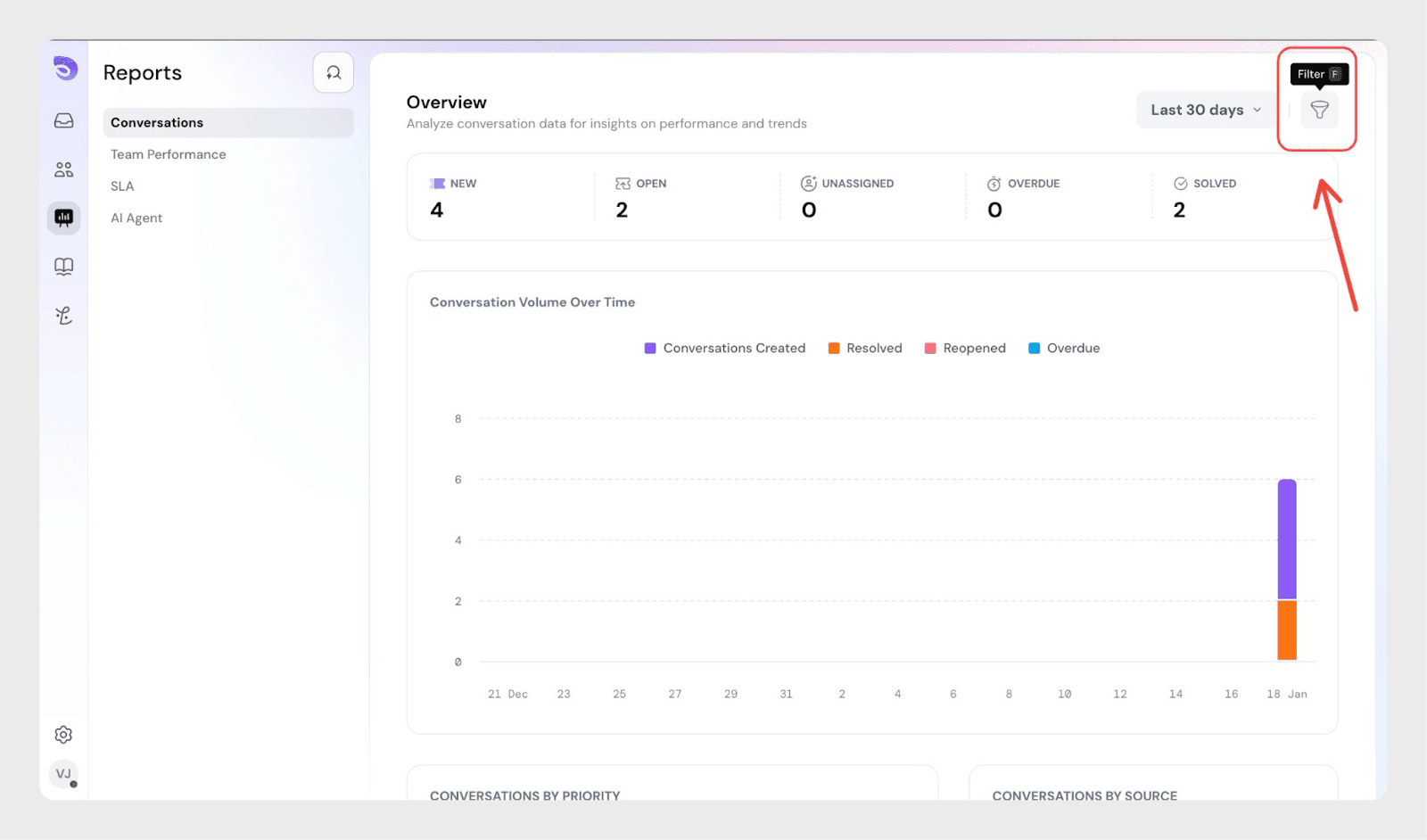
- Click the Filter option
- Choose Merged
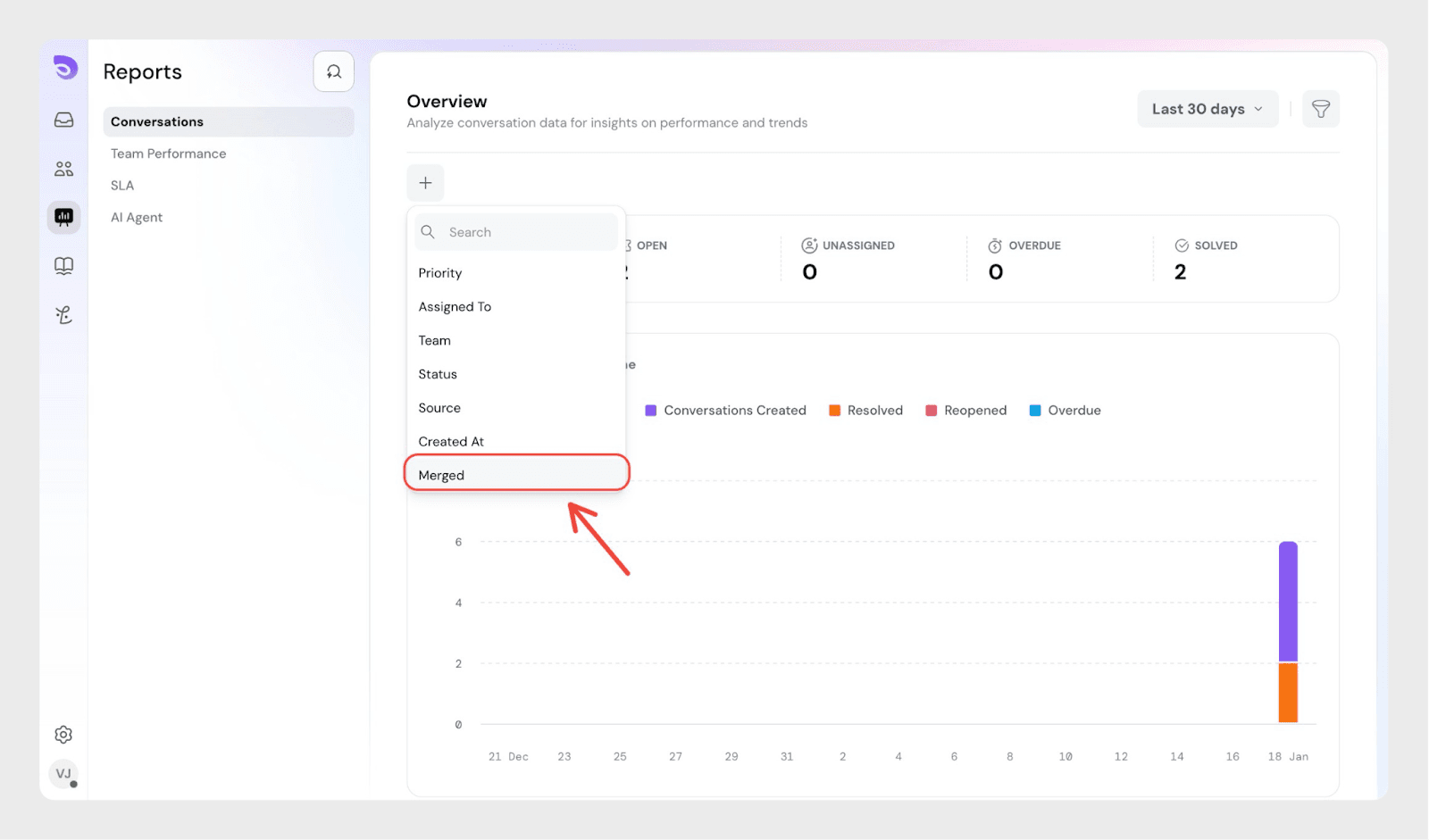
- Select Is → True to see all tickets that were merged
- Select Is → False to see all tickets that are still pending or handled normally
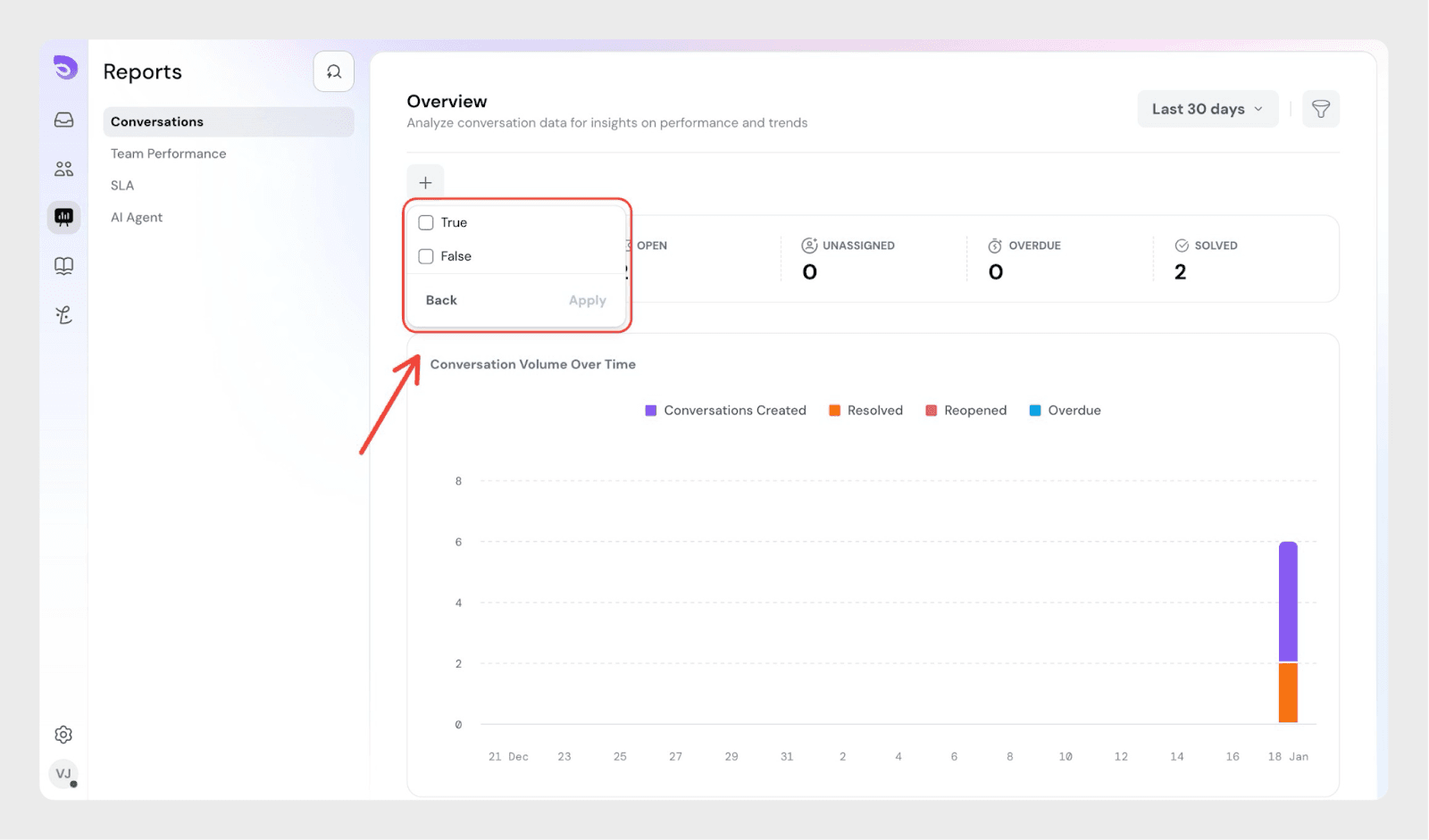
What the filter means
Merged = True
- These tickets were merged into another ticket
- They are automatically closed after merging
- They are counted in reports as resolved through merging
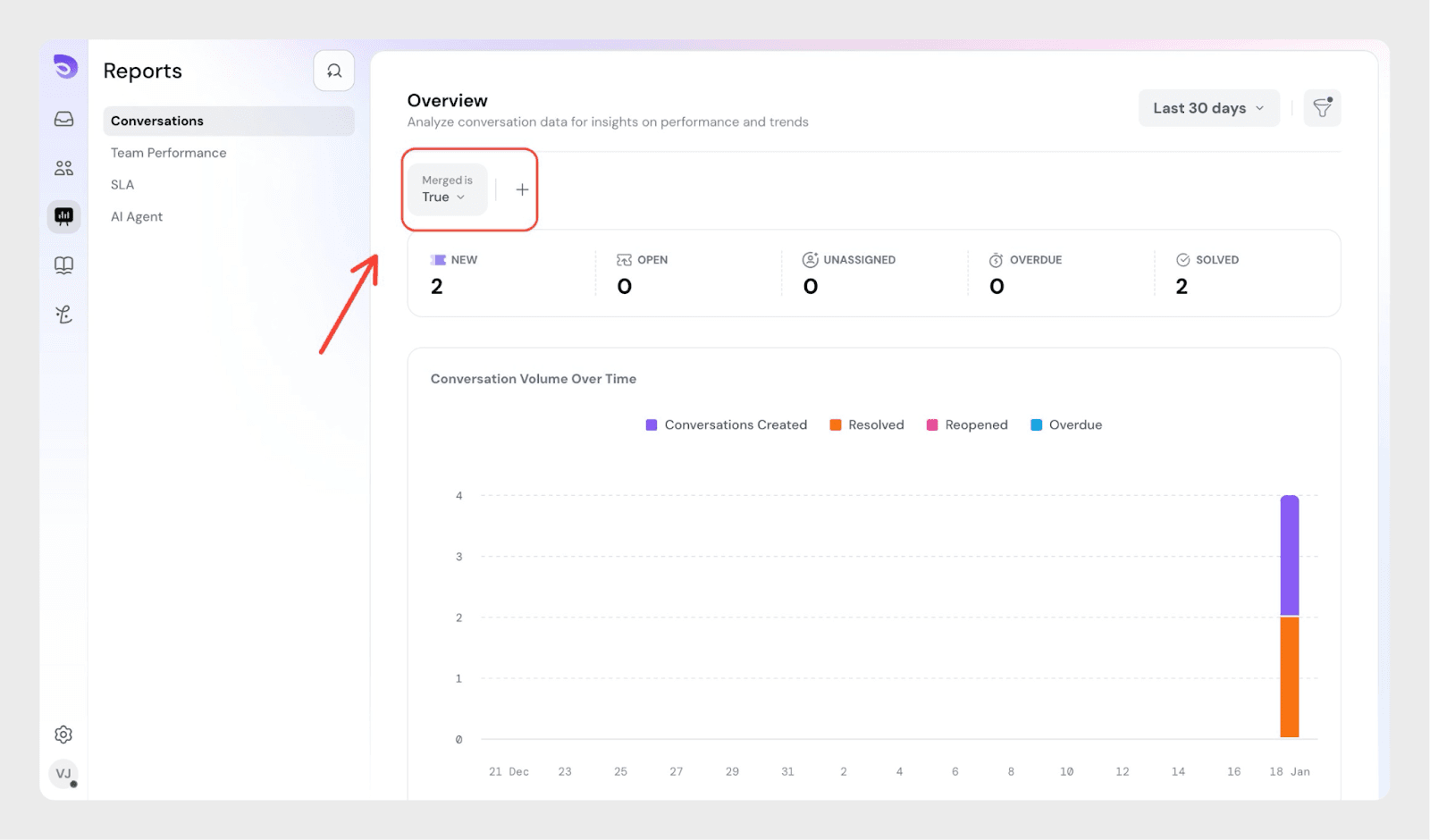
Merged = False
- These tickets are not merged
- They remain open or pending
- Agents should continue working on them

Best Practices
- Merge only related conversations
Only combine tickets that refer to the same customer issue. This keeps the conversation clear and easy to manage. - Check ticket details before merging
Review the status, subject, and requester so you don’t accidentally merge the wrong conversations. - Use internal notes when customers don’t need updates
If the merge is only for internal organization, keep the Public Reply toggle OFF. - Notify customers when it improves clarity
If merging helps the customer understand that their requests are now handled in one place, turn the Public Reply toggle ON. - Merge step-by-step for multiple tickets
For example, first merge Ticket #1 into Ticket #2, then merge the next ticket into the updated Ticket #2. - Always keep the most complete ticket as the destination
Choose the ticket that already has the best context or the latest activity.
Frequently Asked Questions
- Can I undo a merge if I made a mistake?
No. Once merged, tickets are closed and merging cannot be reversed due to how ticket closures work.
- Does merging change ticket priority or assignee?
No, only the destination ticket’s existing properties remain.
- Will customers be notified?
Yes. When a ticket is closed after merging with toggle on, the customer receives a closure email explaining that the ticket was merged with another.
- What if merged tickets contain different priorities?
For now, the destination ticket’s details take priority. In future updates, this may be expanded.