Creating a Ticket Form

MP

Madumitha

January 26, 2026

Ticket Forms help agents collect the right information before a ticket is created.
Customers fill out a structured form with the details your team needs to get started. This reduces follow-ups and speeds up resolution.

Why use ticket forms?

When customers describe issues , important details are often missing. Agents then have to ask follow-up questions just to get the right information to start working on the ticket, slowing down the entire process.

Ticket Forms solve this by:

  • Collecting the key details for every request
  • Reducing back-and-forth with customers
  • Helping agents respond faster
  • Improving SLA adherence with better upfront context

What does a ticket form include?

Ticket Forms are built using conversation fields.
You can create multiple forms, each tailored to a specific type of request, such as:

  • Reporting a bug
  • Requesting a refund
  • Submitting a feature request

This ensures customers see only the fields relevant to their issue.

Where do ticket forms appear?

Ticket Forms are available to customers through the Customer Portal in the Help Center.

  • Customers access forms using a ticket submission button
  • The label of the button can be customised by the Admin
  • If multiple forms are published, customers select the appropriate form before submitting their request

Who can create and manage ticket forms?

Only users with the Manage Forms permission can create or edit ticket forms.

  • Available to Admins by default
  • Can be assigned to custom roles

Learn more: Roles and permissions

Creating a ticket form

  • Go to Settings in SparrowDesk
  • Select Ticket Forms under Utilities
  • Click + New Form

Default Fields

Every new form includes the following fields by default:

  • Requested by
  • Subject
  • Description

These fields cannot be removed, but you can customize their display names and helper text.

Adding and configuring fields
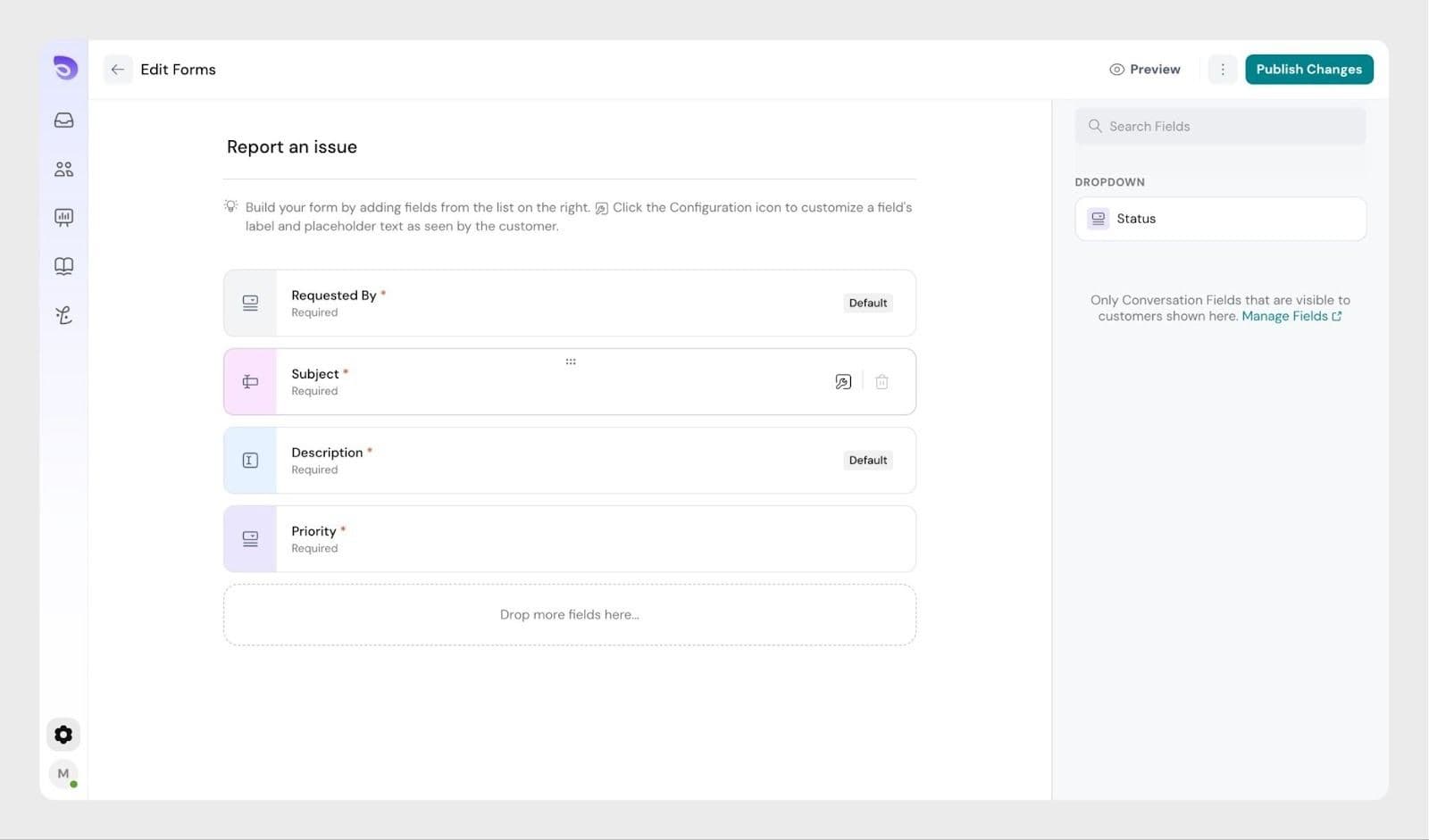
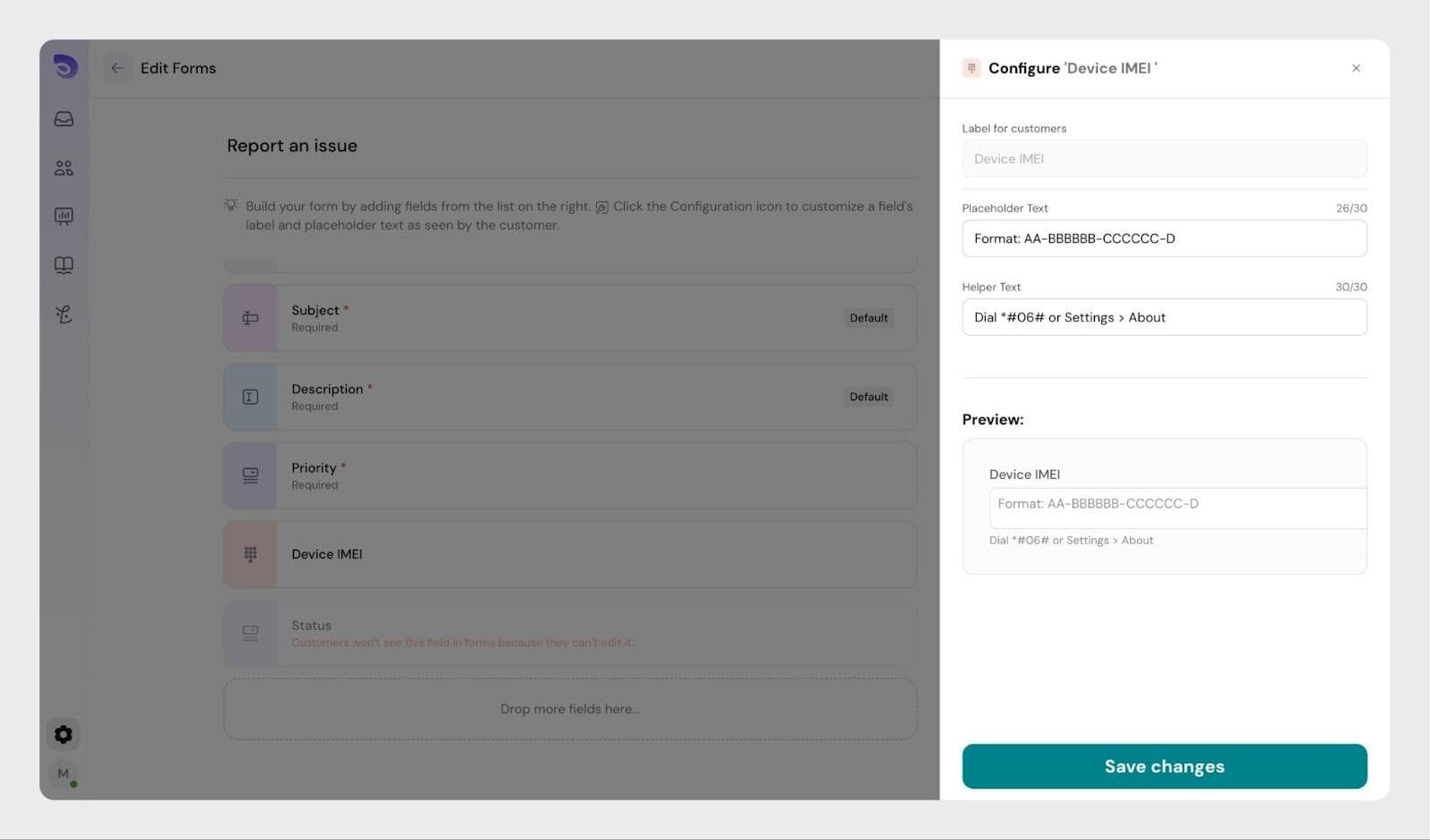
  • Use the left panel to view available fields, including custom conversation fields
  • Drag and drop fields into the form
  • Reorder fields as neededImage
  • Click Configure on a field to add placeholder text or helper descriptionsImage

Finalizing the form

  • Give the form a clear, descriptive name
  • Use Preview (top-right) to see how it appears in the Help Center
  • Click Publish
  • Select the Help Center(s) where the form should be available (if you manage multiple)

Publishing tickets in the help center

Publishing a form makes it available to customers—but only if the Customer Portal is enabled.

To enable the Customer Portal, refer to this article.

Help Center visibility behaviour

  • The Forms appears only when at least one form is connected to the Help Center
  • If no forms are connected, the section is hidden from customers
  • Only conversation fields with Customer can edit permission are shown in forms

Submitting tickets as an agent

Agents can also submit tickets using ticket forms from the Customer Portal.

This is useful when:

  • Creating tickets on behalf of customers
  • Ensuring the right form and fields are used for internal submissions


FAQs

I created a ticket form, but it is not showing in the Help Center

A ticket form appears in the Help Center only after it is published and the Customer Portal is enabled.

I added a field to the form, but customers cannot see it

Customers can see only fields that are allowed for customer input. If a field is missing, check that the Customers can edit permission is enabled for that field.

I am an agent. Can I use a ticket form to create a ticket?

Yes. Agents can use ticket forms to create tickets from the customer portal. This is useful when creating tickets on behalf of customers.

Powered By SparrowDesk