
Creating a Ticket Form

Ticket Forms help agents collect the right information before a ticket is created.
Customers fill out a structured form with the details your team needs to get started. This reduces follow-ups and speeds up resolution.
Why use ticket forms?
When customers describe issues , important details are often missing. Agents then have to ask follow-up questions just to get the right information to start working on the ticket, slowing down the entire process.
Ticket Forms solve this by:
- Collecting the key details for every request
- Reducing back-and-forth with customers
- Helping agents respond faster
- Improving SLA adherence with better upfront context
What does a ticket form include?
Ticket Forms are built using conversation fields.
You can create multiple forms, each tailored to a specific type of request, such as:
- Reporting a bug
- Requesting a refund
- Submitting a feature request
You can also add conditions to fields so they appear based on a customer's previous selection. This lets you ask different follow-up questions within the same form.
Where do ticket forms appear?
Ticket Forms are available to customers through the Customer Portal in the Help Center.
- Customers access forms using a ticket submission button
- The label of the button can be customised by the Admin
- If multiple forms are published, customers select the appropriate form before submitting their request
Who can create and manage ticket forms?
Only users with the Manage Forms permission can create or edit ticket forms.
- Available to Admins by default
- Can be assigned to custom roles
Learn more: Roles and permissions
Creating a ticket form
- Go to Settings in SparrowDesk
- Select Ticket Forms under Utilities
- Click + New Form
Default Fields
Every new form includes the following fields by default:
- Requested by
- Subject
- Description
These fields cannot be removed, but you can customize their display names and helper text.
Note: If a customer leaves Subject blank, SparrowDesk fills it in automatically using the format Form name | Requestor name.
Adding and configuring fields
- Use the left panel to view available fields, including custom conversation fields
- Drag and drop fields into the form
- Reorder fields as needed
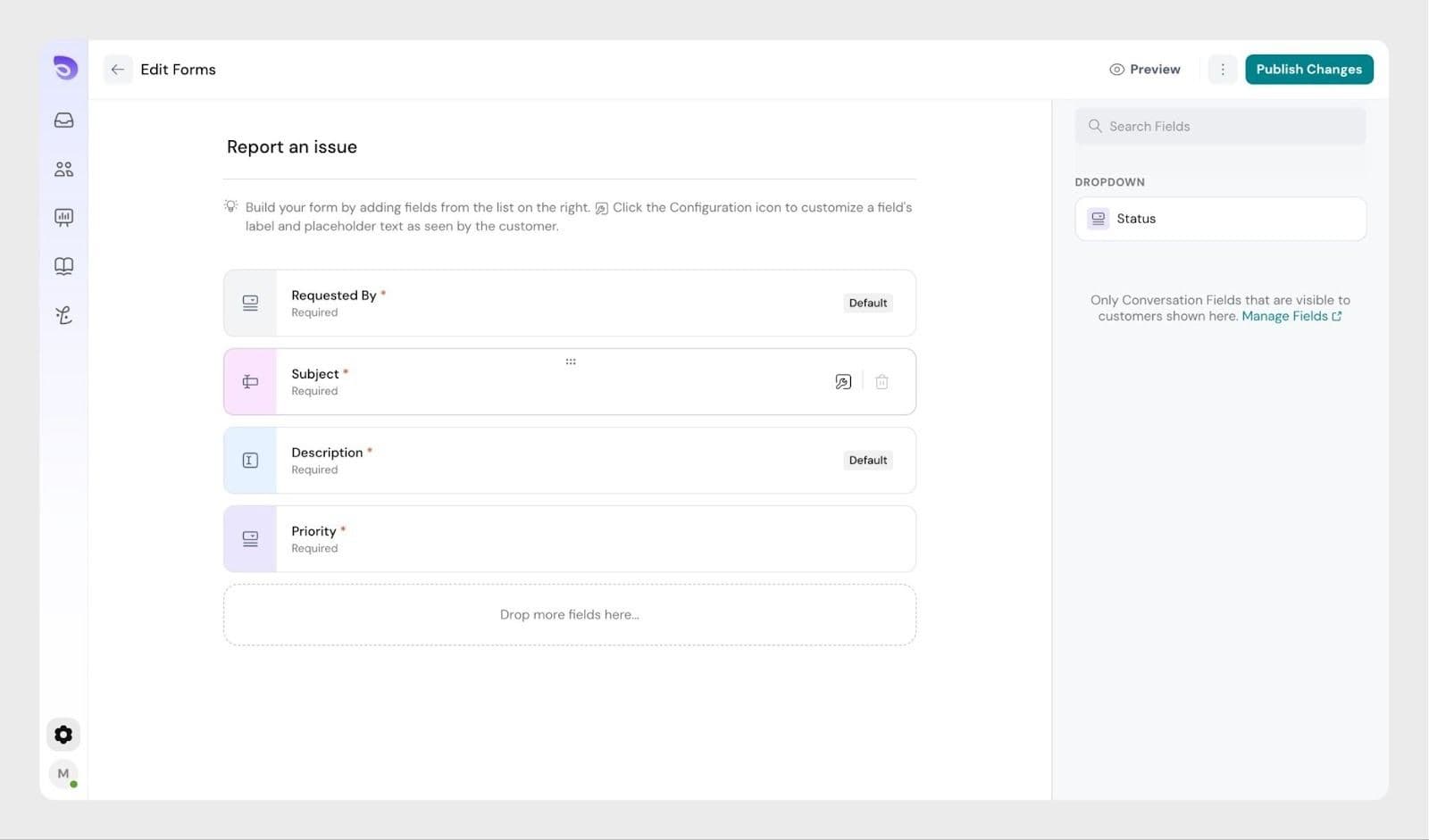
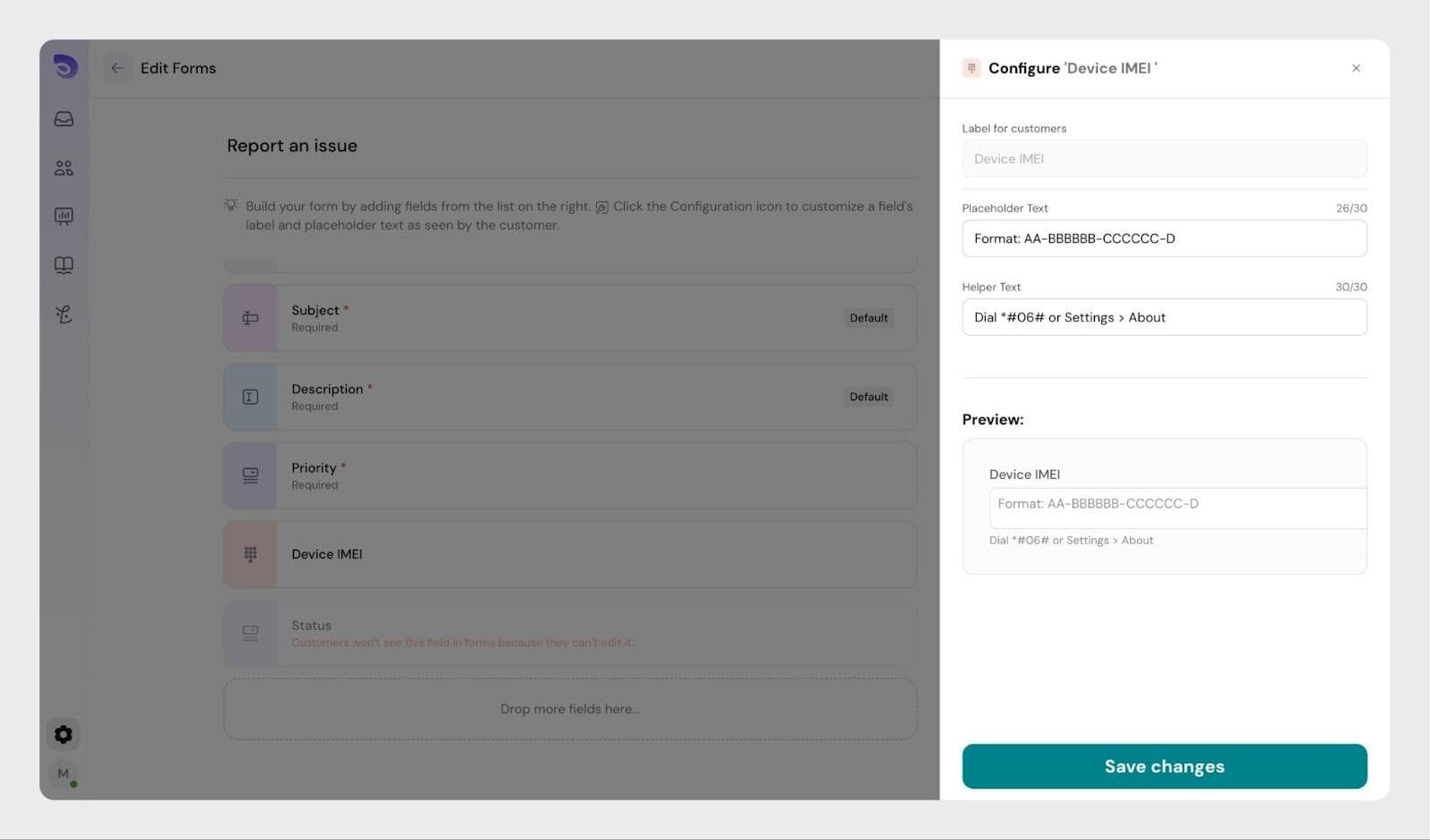
- Click Configure on a field to add placeholder text or helper descriptions
Conditional fields
You can use conditional fields to show follow-up questions based on what a customer selects in the form.
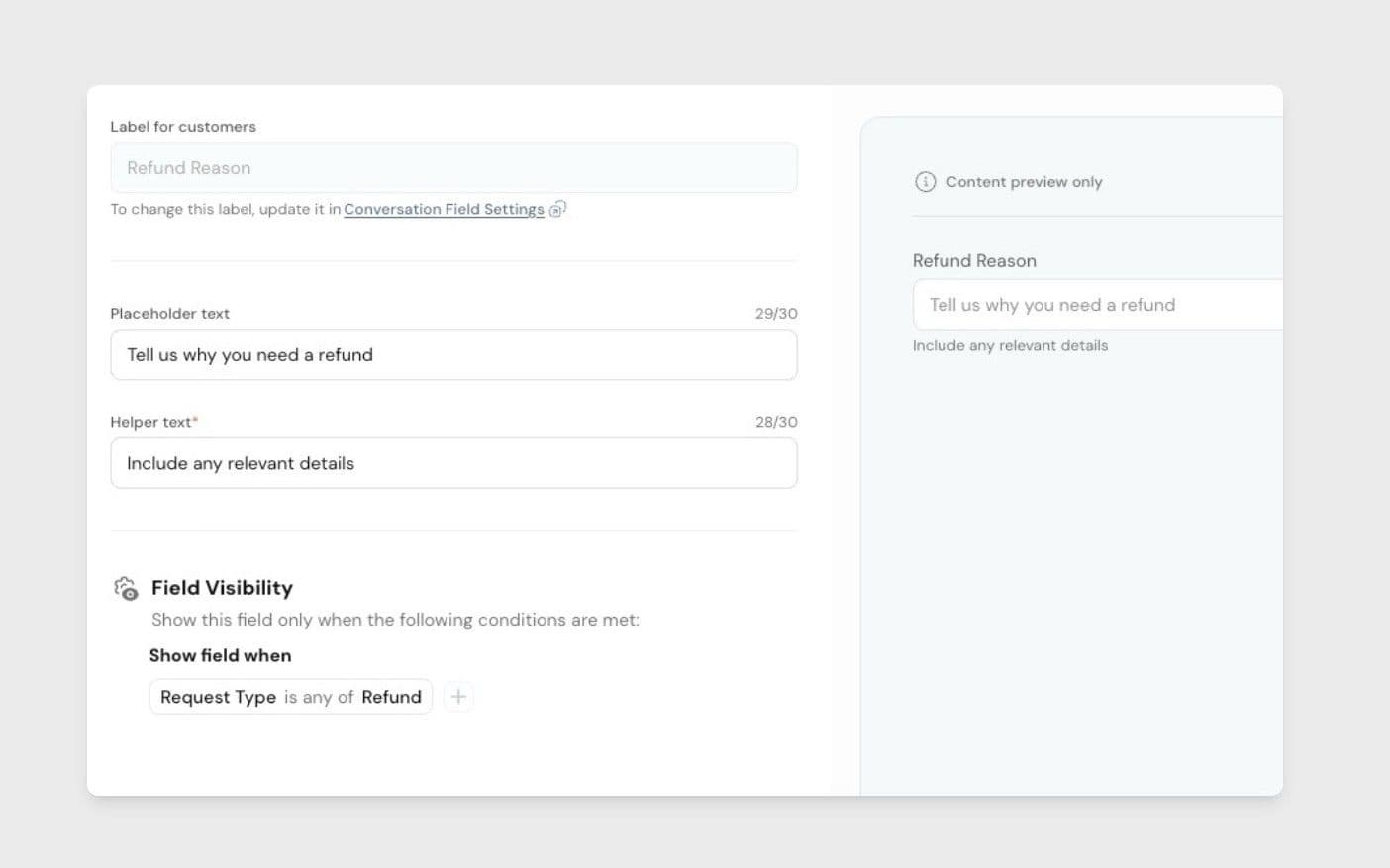
For example, if a customer chooses Refund as the request type, you can show fields such as Order ID and Refund Reason. Customers only see the fields relevant to their request, while other fields remain hidden until they are needed.
Finalizing the form
- Give the form a clear, descriptive name
- Use Preview (top-right) to see how it appears in the Help Center
- Click Publish
- Select the Help Center(s) where the form should be available (if you manage multiple)
Publishing tickets in the help center
Publishing a form makes it available to customers—but only if the Customer Portal is enabled.
To enable the Customer Portal, refer to this article.
Help Center visibility behaviour
- The Forms appears only when at least one form is connected to the Help Center
- If no forms are connected, the section is hidden from customers
- Only conversation fields with Customer can edit permission are shown in forms
Submitting tickets as an agent
Agents can also submit tickets using ticket forms from the Customer Portal.
This is useful when:
- Creating tickets on behalf of customers
- Ensuring the right form and fields are used for internal submissions
Once a customer submits a ticket through a form, you can filter the Inbox by Form and use it as a workflow condition to route or update those tickets automatically.
FAQs
I created a ticket form, but it is not showing in the Help Center
A ticket form appears in the Help Center only after it is published and the Customer Portal is enabled.
I added a field to the form, but customers cannot see it
Customers can see only fields that are allowed for customer input. If a field is missing, check that the Customers can edit permission is enabled for that field.
I am an agent. Can I use a ticket form to create a ticket?
Yes. Agents can use ticket forms to create tickets from the customer portal. This is useful when creating tickets on behalf of customers.
Can I show a field only when a customer picks a certain option?
Yes. Add it as a conditional field, so it appears only after the customer selects the answer you choose earlier in the form. For example, show Order ID only when the request type is Refund.