
Roles and Permissions

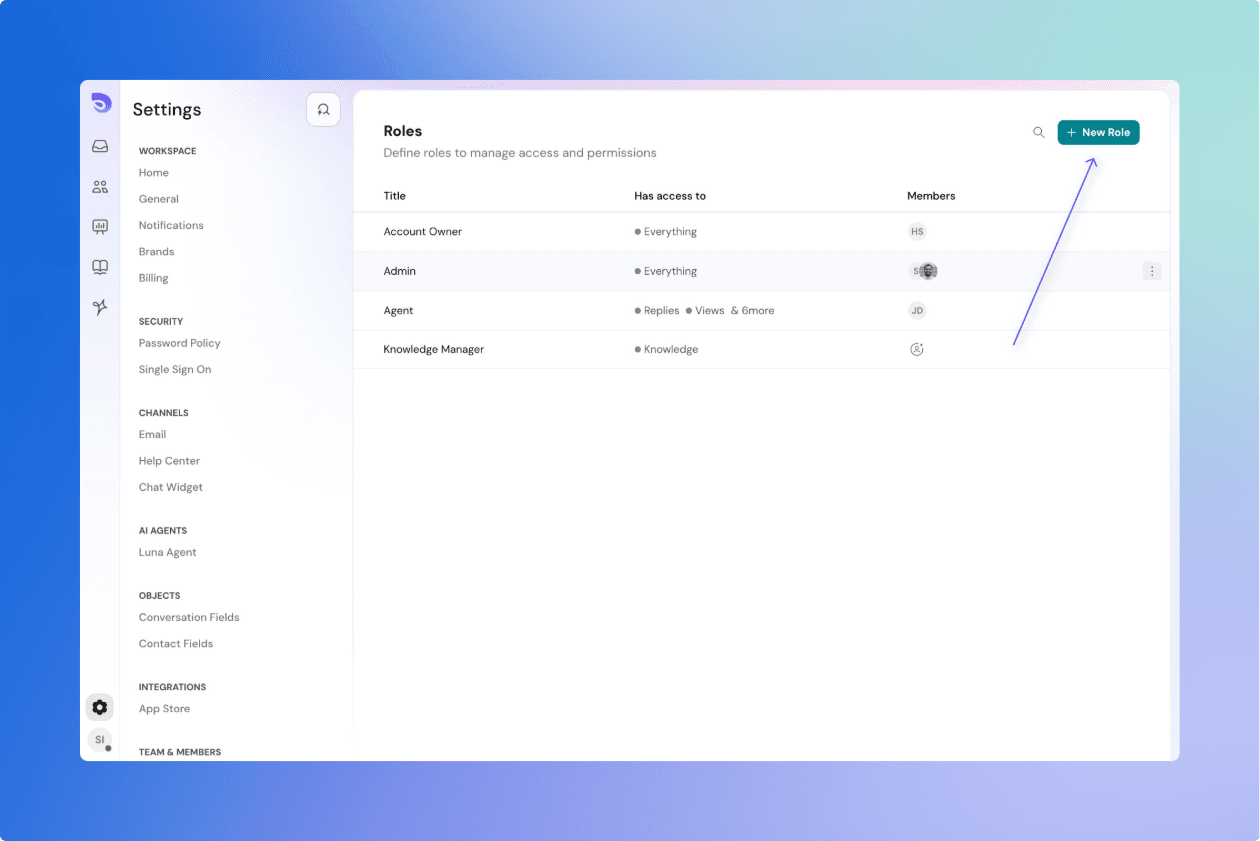
Roles and permissions let you control what each teammate can see and do in SparrowDesk. This keeps sensitive settings safe, while giving everyone the access they need to get their work done.
Every SparrowDesk account comes with these roles:
- Account Owner and Admin: Has full access to everything in SparrowDesk, including account settings, billing, security, and workflows. Only this role can configure account-level settings.
- Agent: Handles customer conversations. Agents can view and reply to their own or team conversations, use macros, create personal views, and contribute to the Help Center. They don’t have access to account-wide settings like billing or automations.
- Knowledge Manager: Focused on Help Center content. They can write and publish articles but cannot access conversations or system settings.
- Lite User: Has limited access for visibility and collaboration. Lite users can view relevant conversations and add internal notes but cannot reply to customers.
How Do I Create a Custom Role
If you need more control, you can create custom roles. For example:
- Give your Billing Person access only to subscription and invoice settings.
- Create a Analyst role that can only view dashboards.
When creating a custom role, you can choose from almost all available permissions.
Note:
- Account Settings are reserved for Account Owner and Admin only and will not appear when creating a custom role.
- Default roles cannot be changed.
Modifying and Deleting Roles
- Default roles cannot be modified or deleted.
- Custom roles can be edited. You can adjust their permissions at any time.
- Deleting a custom role: If you delete a role, any members in that role will automatically be moved to the Agent role.
Adding Members to Roles
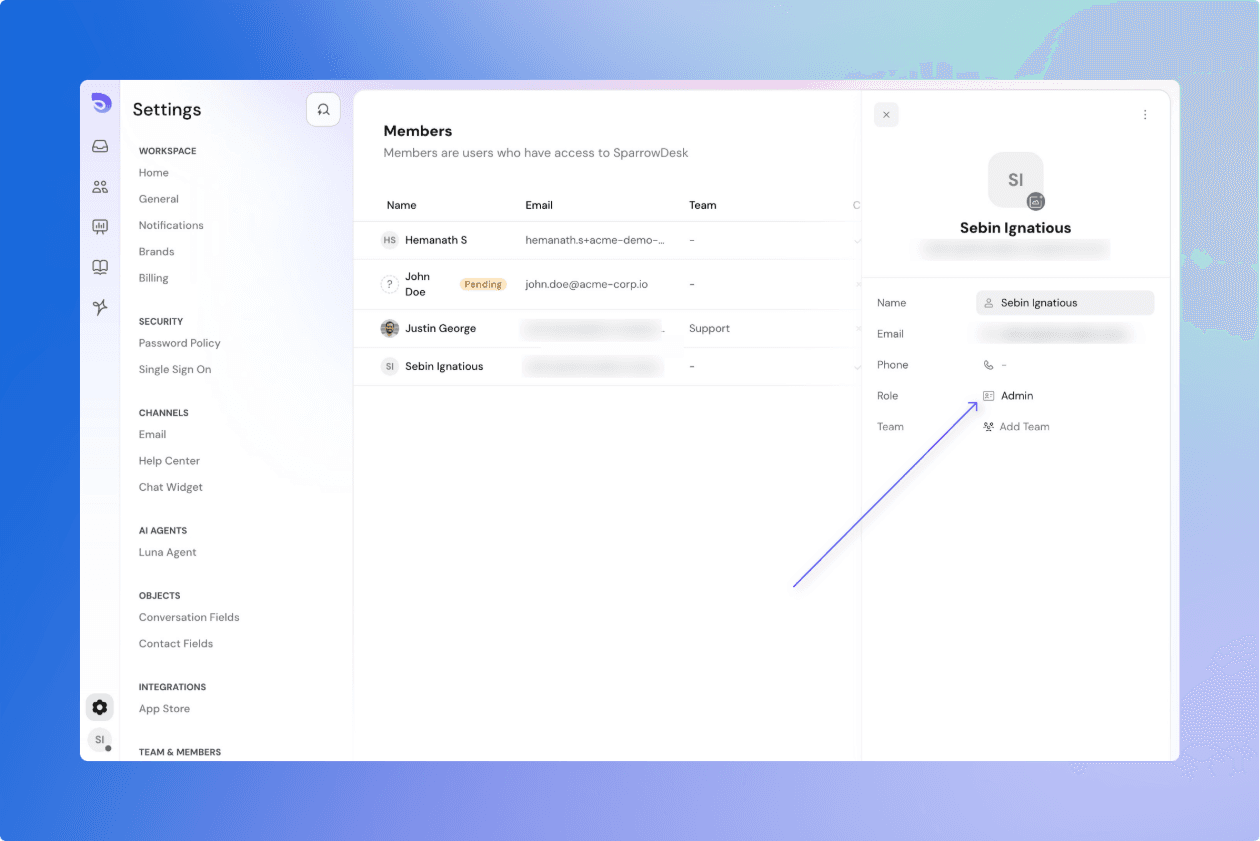
- You can assign roles when inviting a new member or by editing an existing member from Settings → Team & Members.
- When you move someone to a new role, their old permissions are stripped and replaced by the new role’s permissions.
- Example: If John is an Agent and you make him an Admin, he will lose Agent-level restrictions and get full Admin access.
Permissions Explained
When creating or editing a role, you’ll see permissions grouped by modules. Here’s what each group means, with examples of how they’re used:
Conversations
Control how teammates access and manage tickets.
- View Own Conversations – Teammates only see tickets assigned to them.
- View Team Conversations – Teammates see tickets assigned to their team.
- View All Conversations – Teammates see every ticket in the workspace.
- Edit Conversations – Update fields like status, priority, or assignee.
- Delete Conversations – Permanently remove a ticket.
- Reply to Customers – Send replies directly to end users.
- Add Internal Notes – Leave private notes visible only to teammates.
Macros
Macros save time by applying actions or sending canned responses in one click.
- Use Macros – Apply existing macros.
- Create Personal Macros – Build macros that only you can use.
- Create Team Macros – Build macros shared with your team.
- Create Global Macros – Build macros available to everyone in the workspace.
Custom Views
Custom Views are filters that organize tickets.
- Personal Views – Create and save your own ticket views.
- Team Views – Share views with your team.
- Global Views – Create views visible to everyone in the workspace.
Contacts
Manage customer and company information.
- View Contacts – See customer profiles.
- Manage Contacts – Edit details, add notes, or merge contacts.
- View Companies – See company profiles linked to customers.
Teams & Members
Control access to your team directory.
- View Teams – See a list of teams.
- View Members – See who’s in each team.
- View Roles – See which role each member has.
- Manage Teams & Members – Add, remove, or change roles of teammates.
Reports
- View dashboards, charts, and performance metrics.
- Useful for team leads and managers who need to track SLA compliance, CSAT, or ticket volume.
Automations
- Manage SLA – Create and edit Service Level Agreements.
- Manage Business Hours – Define when your team is available.
- Manage Workflows – Build automations to assign, tag, or close tickets.
Knowledge
- View Articles – Read published content.
- Write Articles – Draft new content.
- Publish Articles – Approve and make content live.
Channels
- Configure Email – Set up support addresses, forwarding, and SMTP/IMAP.
- Configure Chat Widget – Customize your website chat widget.
- Configure Help Center – Adjust branding and visibility of your Help Center.
Billing
- Update subscription plans, add seats, and download invoices.
- Typically limited to finance teams or account owners.
Security
- Password Policy – Set minimum length, complexity, and expiry rules.
- SSO – Set up Single Sign-On for secure access.
Zoona AI
- Configure AI-powered features like automated replies, ticket summarization, or sentiment analysis.
Account Settings (restricted)
- Reserved for Account Owner or Admin only.
- Covers workspace setup, brand creation, and other critical system-wide settings.
- Not available for custom roles.
Best Practices
- Start with the default roles for common responsibilities.
- Use custom roles for specialized needs (e.g. Billing-only, Reporting-only).
- Limit the number of Admins to reduce risks.
- Give teammates only the permissions they need — this is called the principle of least privilege.