
Search
Support and operations teams often need visibility into tickets even when they’re not the assignee or owner. Watchers ensure the right people stay informed without interrupting the conversation flow.
Anyone added as a watcher receives updates on ticket activity, including customer replies and internal discussions, allowing them to stay in the loop or silently monitor sensitive or high-priority tickets when needed.
Who can be added as a watcher
Only agents can be added as watchers. Customers or contacts cannot be added as watchers. If a customer needs to be included in a conversation, use CC instead.
Watchers receive email notifications for ticket updates, similar to assigned agents.
Add a watcher
Any agent with access to a ticket can choose to watch it and receive updates.
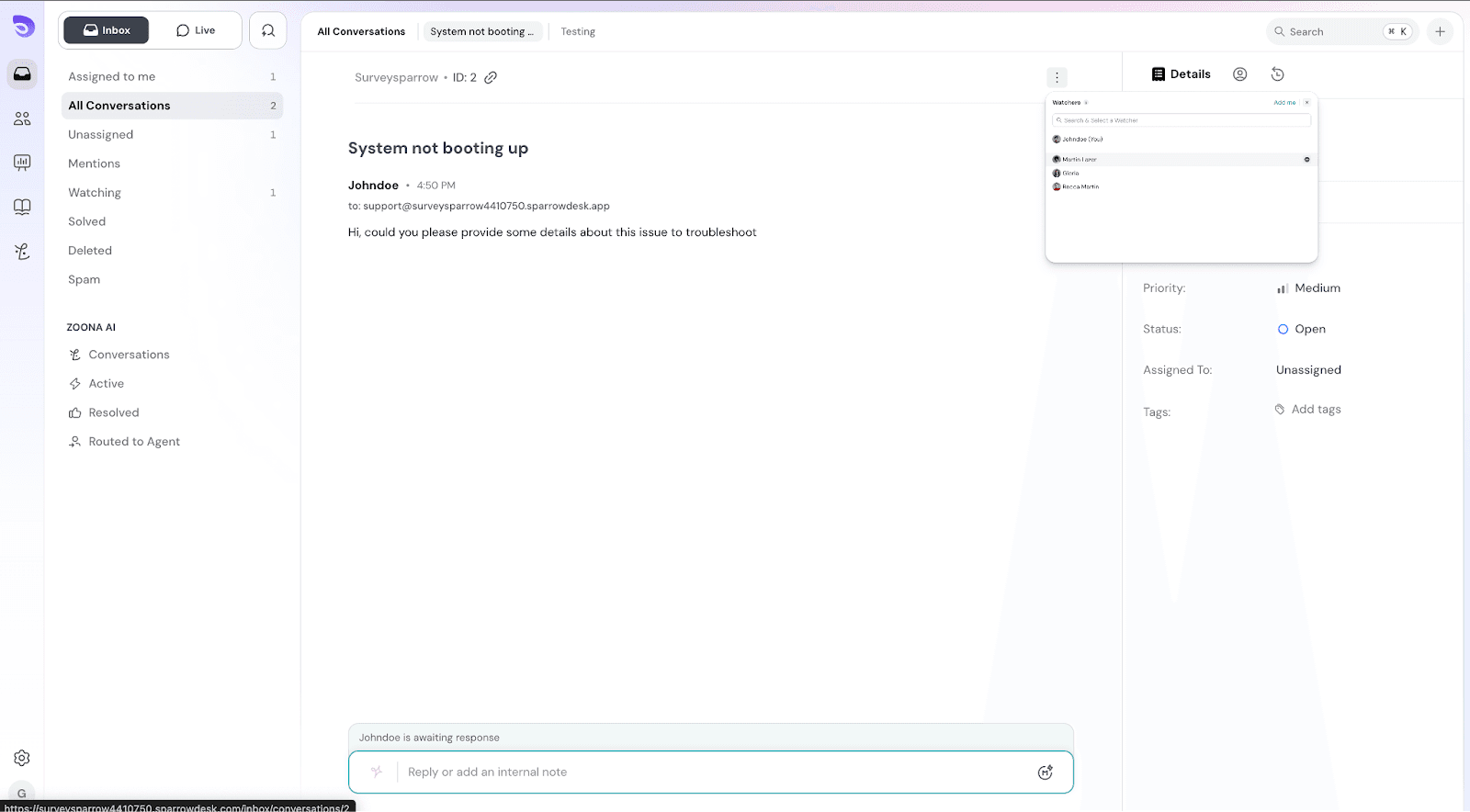 Adding and removing watchers
You can quickly add yourself using the Add me option in the watcher list.
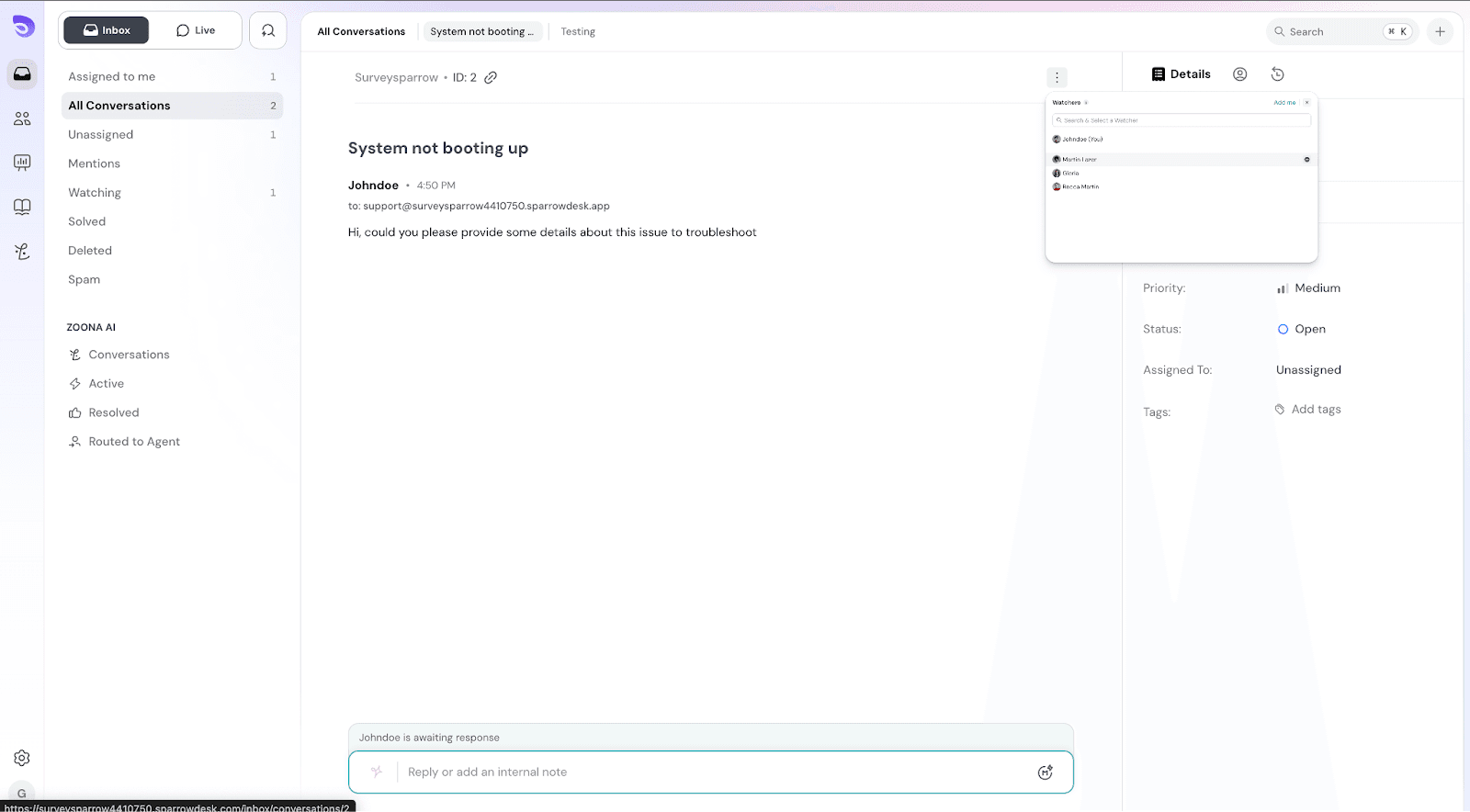
To stop watching, select Remove me.
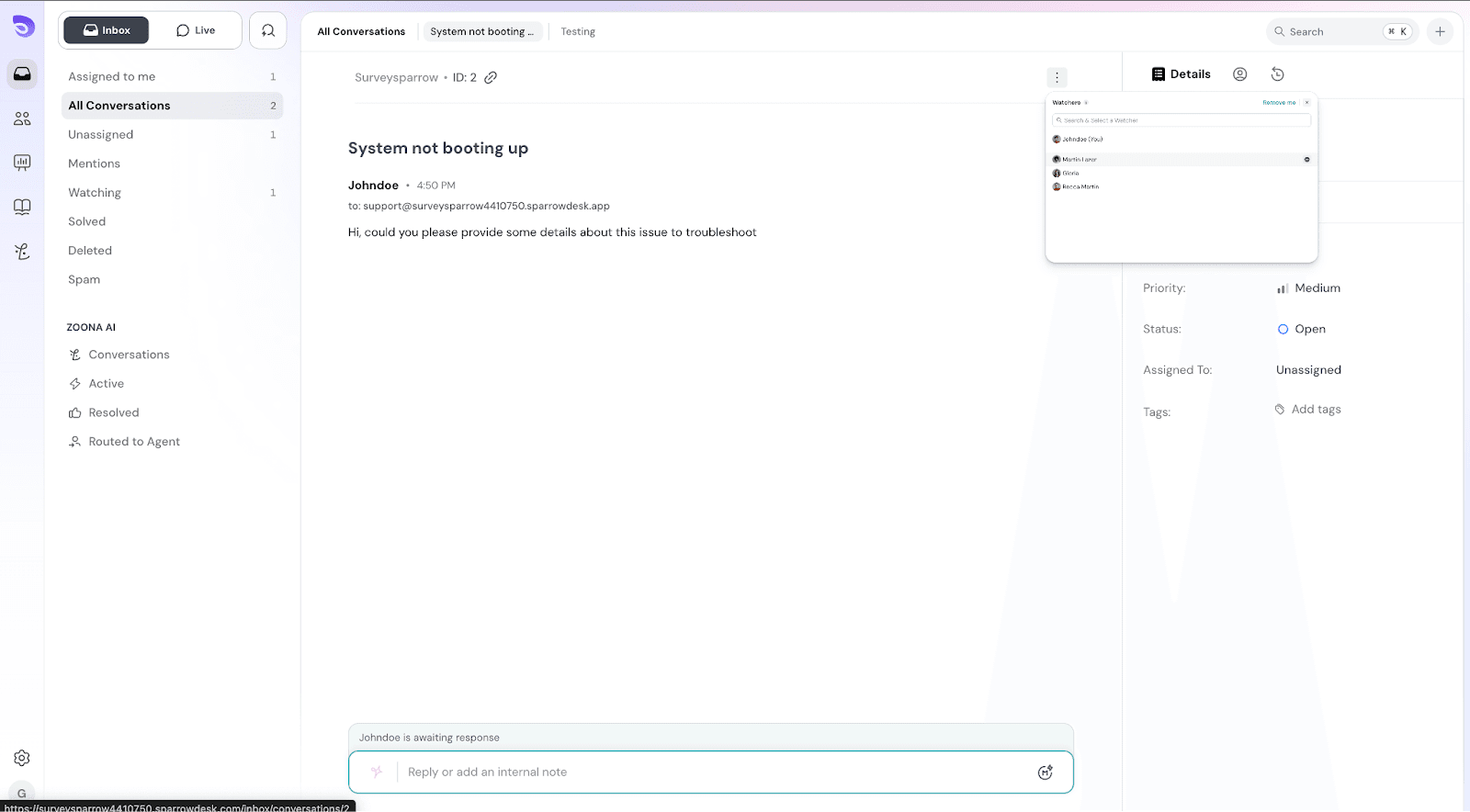
A default Watching view is available in the inbox that displays all tickets you’re currently watching. This helps you quickly track conversations you’re monitoring. This view appears only when you’re watching at least one ticket.
Admins can automatically add watchers when certain conditions are met. Watchers added through workflows will begin receiving ticket updates automatically.
For example:
In Workflow Builder:
Watchers cannot be removed from the workflows.
Eye icon indicates you’re watching the ticket
Watchers receive email notifications whenever there is activity on the ticket, including:
For chats, only status change or any internal notes notifications will be sent.
These notifications help watchers stay informed without needing to open the ticket each time. All updates related to a ticket are grouped into a single email thread, making it easy to follow the entire conversation over time.
Q. What happens if I reply to a watcher notification email?
If you reply to a watcher notification email, your response will be added to the ticket as an internal note.
Q. Why didn’t I receive a watcher notification after making changes to a ticket?
If you are a watcher and make changes to the ticket yourself, such as adding an internal note or replying via email, you will not receive a watcher notification for that action. This is because the system automatically suppresses notifications triggered by your own activity to prevent duplicate updates.
Powered By SparrowDesk