sparrowdesk-logo-transparent-1.png
Go to sparrowdesk.com
Home
SparrowDesk Overview
  • Overview of SparrowDesk
  • Feature Overview in SparrowDesk
  • SparrowDesk Glossary
Getting Started
  • Setting Up Account Details
  • Default Business Hours
  • Understanding and Creating Teams
  • Inviting Members to the Platform
  • Roles and Permissions
  • Single Sign-On
  • Brands in SparrowDesk
  • Getting Started FAQs
  • Use a custom domain for your support portal
Inbox
  • Understanding the Inbox in SparrowDesk
  • Managing Custom Views in Inbox
  • Live Chats in Inbox
  • Staying on Top of New Messages from Customers
  • Conversation Fields in SparrowDesk
  • Merging Conversations in SparrowDesk
  • Adding Watchers to a conversation
  • Round Robin assignment explained
  • Export Conversations as CSV
  • Bulk update fields
  • Forward a Conversation to an External Contact
  • Common Email Delivery Errors
Channels
  • Setting Up Email as a Support ChannelConnect your custom email address How do I send and receive emails via SMTP and IMAP ? How do I find my SMTP/IMAP server address and port number? Common Errors while Connecting through SMTP/IMAPHow to Prevent Emails From Going to Spam Email Signatures
  • Installing Chat Widget Chat Widget Installation on WordPressInstall the Chat Widget on ShopifyCustomising Chat WidgetEmbedding and Configuring the SparrowDesk Chat WidgetChat Widget SettingsWhy End Users Don’t Always See Their Chat HistoryTrack page visits in SparrowDesk
Contacts
  • Contacts in SparrowDesk
  • How to manage contact segments
  • Deleting and Blocking Contacts in SparrowDesk
  • Contact Fields in SparrowDesk
Reports
  • Conversation Report
  • Team Performance Report
  • Understanding the AI Agent Report in SparrowDesk
  • Viewing CSAT reports in SparrowDesk
  • Reports FAQ
  • Exporting Reports as PDF
Automation
  • Macros
  • Business Hours
  • Service-Level Agreements (SLAs)
  • Setting up CSAT (Customer Satisfaction) in SparrowDesk
Zoona AI
  • AI Suggested replies in your Inbox
  • AI-Generated Chat Subjects
  • Zoona AI Knowledge Improvements
  • Introduction to AI AgentAI Agent - Configure PersonaTraining your AI AgentZoona AI Agent CommandsAI Agent - Deploying on chatAI Agent - Deploying on EmailHow to Create a Command Zoona AI Agent - FAQUnderstanding AI resolutions in SparrowDesk
Workflows
  • Automate repetitive tasks through Workflows
  • How to Create a Workflow
  • Workflow Blocks Library
Help Centre
  • Write Knowledge Articles for your Help Centre and AI Agents
  • Setting Up and Customizing Your Help Center
  • Use a Custom Domain for Your Help Center
  • Make Your Help Centre Discoverable in Search results
  • Adding Google Tag Manager to your Help Center
  • Creating a Ticket Form Setting up Customer Portal
Billing
  • How does SparrowDesk pricing work?
  • What is Seat ?
  • Manage your Billing and Invoices
  • About Sales Tax
  • How to cancel your subscription
  • Frequently Asked Questions
  • AI Co-pilot and AI Resolution billing
  • SparrowDesk Startup Program
Apps and Integrations
  • Okta Single Sign on setup for SparrowDesk
  • Integrating HubSpot with SparrowDesk
  • Integrating SurveySparrow with SparrowDesk
  • Integrating SparrowDesk with Zapier
  • Connecting SparrowDesk with Attio
  • Connecting SparrowDesk with Linear
  • Integrating SparrowDesk with Jira
  • Connecting SparrowDesk for Gmail
  • Integrating SparrowDesk with Notion
  • Integrating SparrowDesk with Slack
  • Integrating SparrowDesk with Shopify
  • Connect WhatsApp to SparrowDesk

Adding Watchers to a conversation

Timer3 min read
A
Arati

Support and operations teams often need visibility into tickets even when they’re not the assignee or owner. Watchers ensure the right people stay informed without interrupting the conversation flow.

Anyone added as a watcher receives updates on ticket activity, including customer replies and internal discussions, allowing them to stay in the loop or silently monitor sensitive or high-priority tickets when needed.

Who can be added as a watcher

Only agents can be added as watchers. Customers or contacts cannot be added as watchers. If a customer needs to be included in a conversation, use CC instead.

Watchers receive email notifications for ticket updates, similar to assigned agents.

Adding and removing watchers

Add a watcher

​​Any agent with access to a ticket can choose to watch it and receive updates.
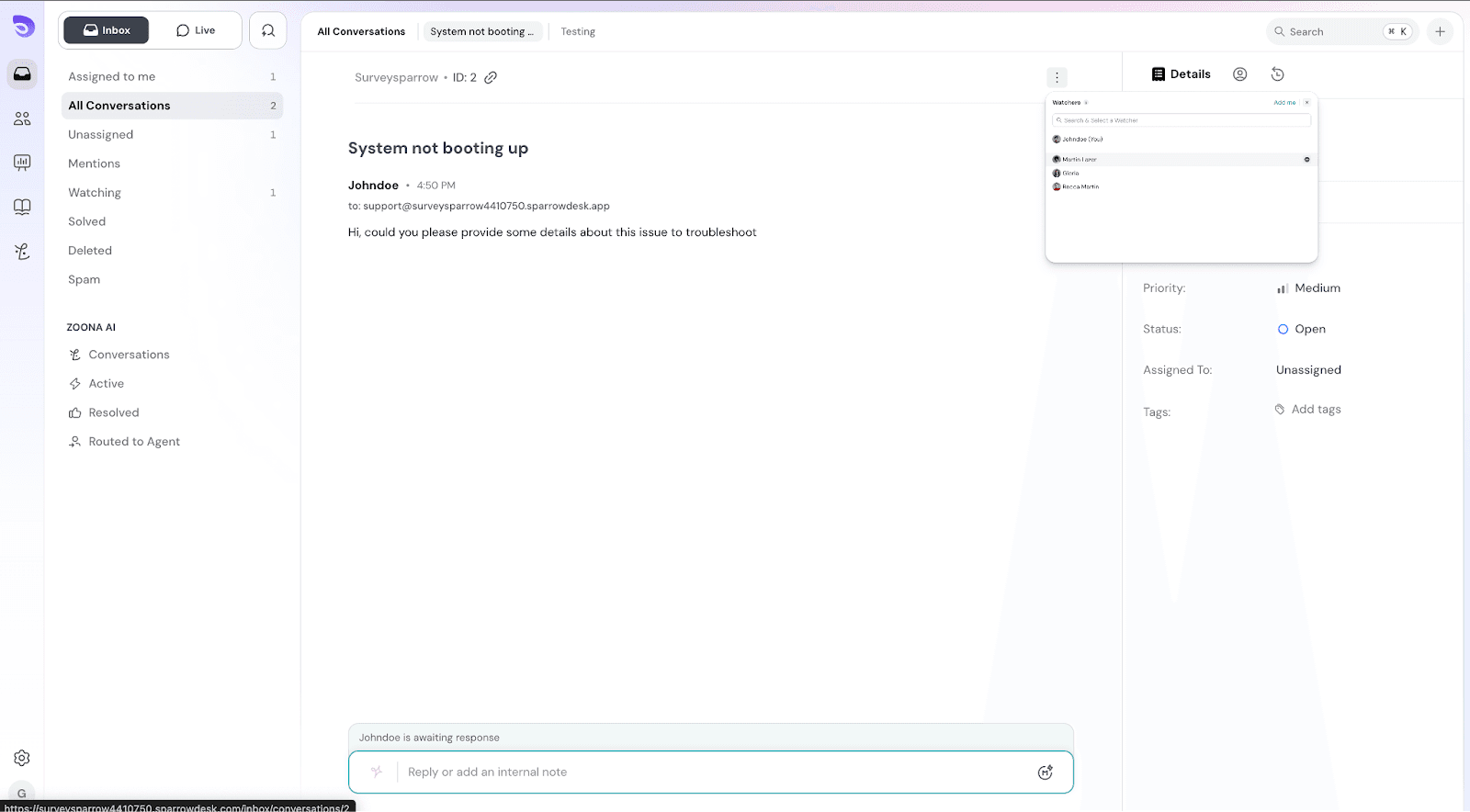
  1. Open the ticket
  2. Click on the  ⋮  option to add watchers.  
  3. Add a Watcher by searching for a name. The selected names will be added as watchers for the ticket

Image
Adding and removing watchers

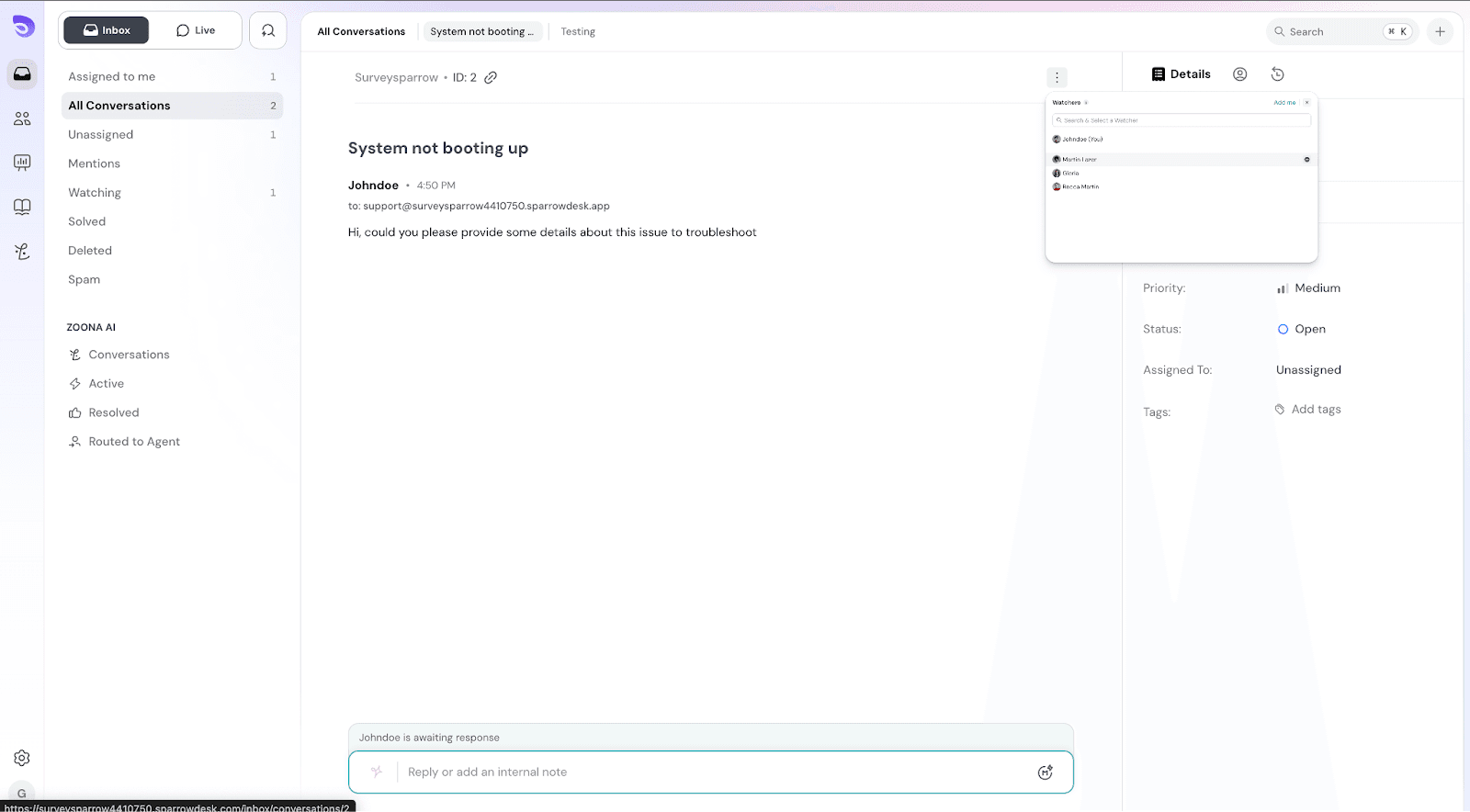
Add yourself a watcher

You can quickly add yourself using the Add me option in the watcher list.
Image

To stop watching, select Remove me.

Image

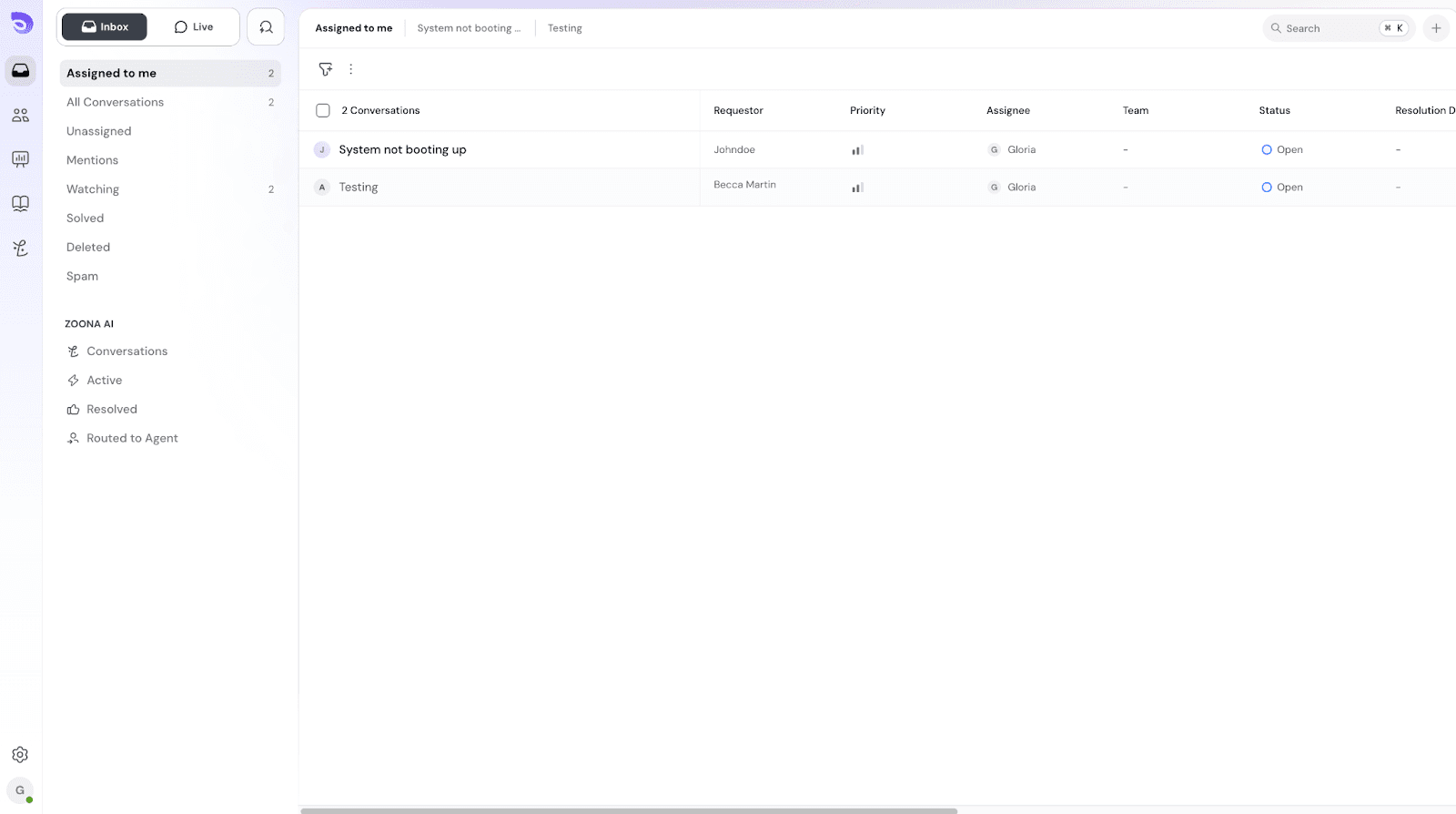
A default Watching view is available in the inbox that displays all tickets you’re currently watching. This helps you quickly track conversations you’re monitoring. This view appears only when you’re watching at least one ticket.
Image

Automatically adding watchers using workflows

Admins can automatically add watchers when certain conditions are met. Watchers added through workflows will begin receiving ticket updates automatically. 

For example:

  • Add a billing manager when a billing ticket is created
  • Add a team lead for high-priority tickets

How to add watchers via workflow

In Workflow Builder:

  1. Go to Actions → Update fields
  2. Select Conversation → Watchers
  3. Choose the agents to add

Watchers cannot be removed from the workflows.

Enabling ‘Watcher’ notifications

Eye icon indicates you’re watching the ticket

Watchers receive email notifications whenever there is activity on the ticket, including:

  • When watchers are added by workflows can get an email saying conversation is created and you’re being added as a watcher.
  • When an agent or requester replies to the ticket
  • When the agent adds Internal notes
  • When there is a Ticket status changes

For chats, only status change or any internal notes notifications will be sent.

These notifications help watchers stay informed without needing to open the ticket each time. All updates related to a ticket are grouped into a single email thread, making it easy to follow the entire conversation over time.

FAQs

Q. What happens if I reply to a watcher notification email?
If you reply to a watcher notification email, your response will be added to the ticket as an internal note.

Q. Why didn’t I receive a watcher notification after making changes to a ticket?
If you are a watcher and make changes to the ticket yourself, such as adding an internal note or replying via email, you will not receive a watcher notification for that action. This is because the system automatically suppresses notifications triggered by your own activity to prevent duplicate updates.


Powered By SparrowDesk

Table of ContentsOn this page