
Forward a Conversation to an External Contact

Forwarding lets you send a ticket or a single message to someone outside your team, such as a vendor, partner, or third-party service.
Forward an Entire Conversation
- Open the ticket in your Inbox.
- Click the Forward button at the top of the conversation.
- Enter one or more email addresses in the To field.
- Add CC or BCC recipients if needed.
- Edit the pre-filled message in the body to add any context for the recipient.
- Toggle Include attachments on or off. By default, the most recent attachment is included.
- Click Send.
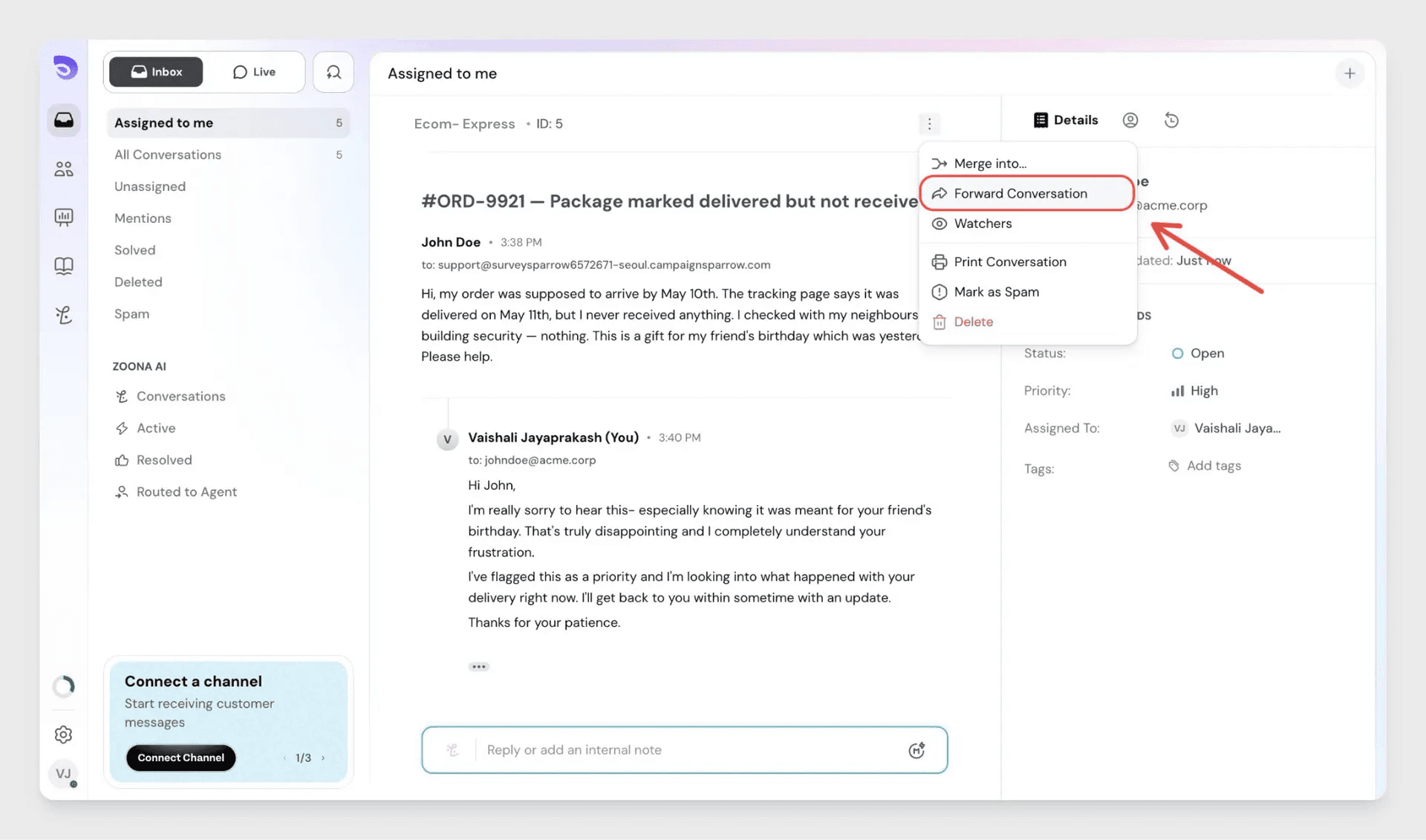
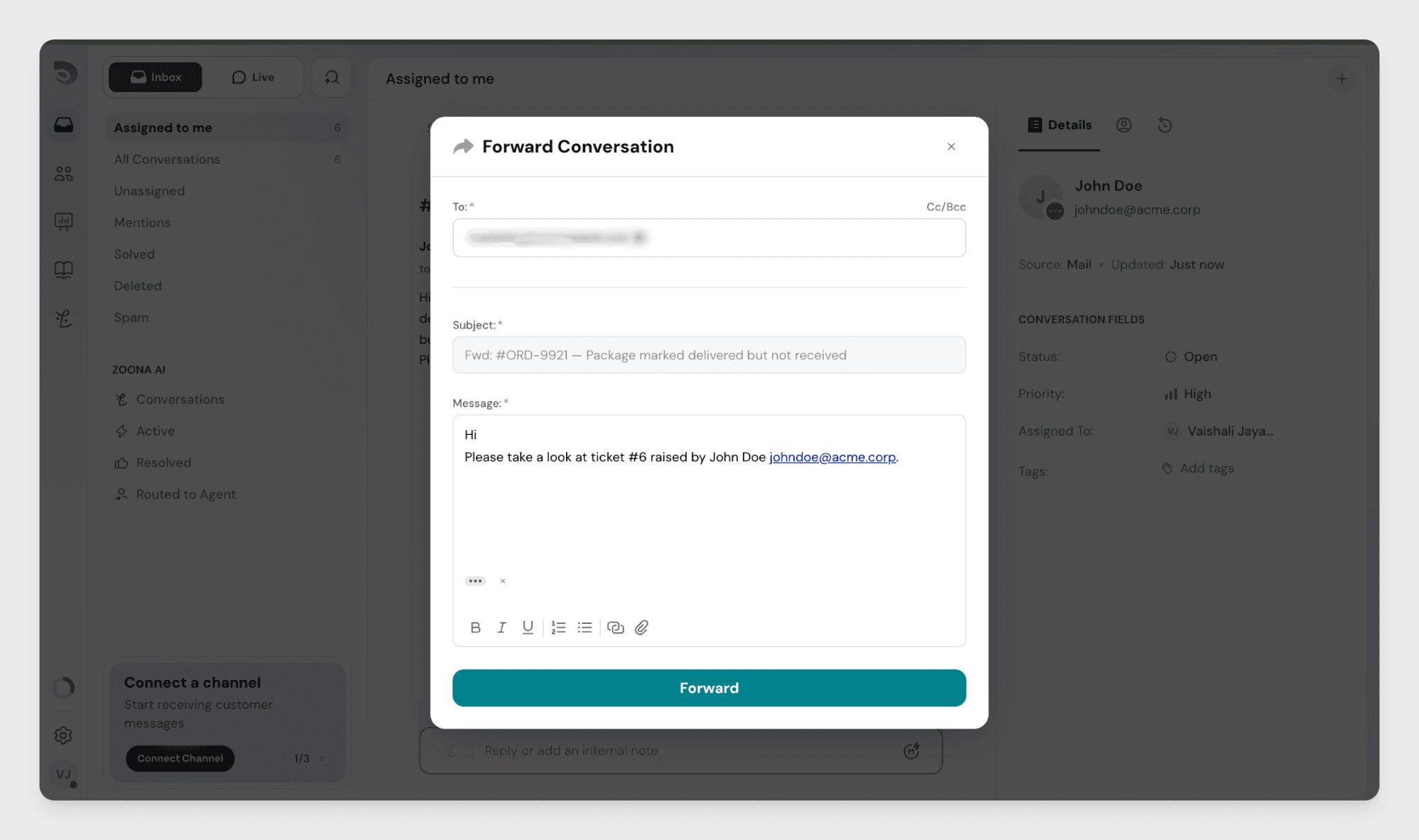
The full conversation history appears as quoted text in the email the recipient receives.
Forward a Single Message
- Hover over the message you want to forward.
- Click the Forward icon that appears.
- Fill in the To, CC, and BCC fields.
- Edit the message body if needed, then click Send.
Only the selected message appears in the quoted section- not the full conversation history.
What Gets Sent
- The subject line is automatically set to the original ticket subject. It cannot be changed.
- The recipient receives a clean, standard email- internal notes, mentions, and CC metadata from your team are never included.
- If the total attachment size exceeds 20 MB, SparrowDesk will ask if you want to send without attachments.
What Happens After You Forward
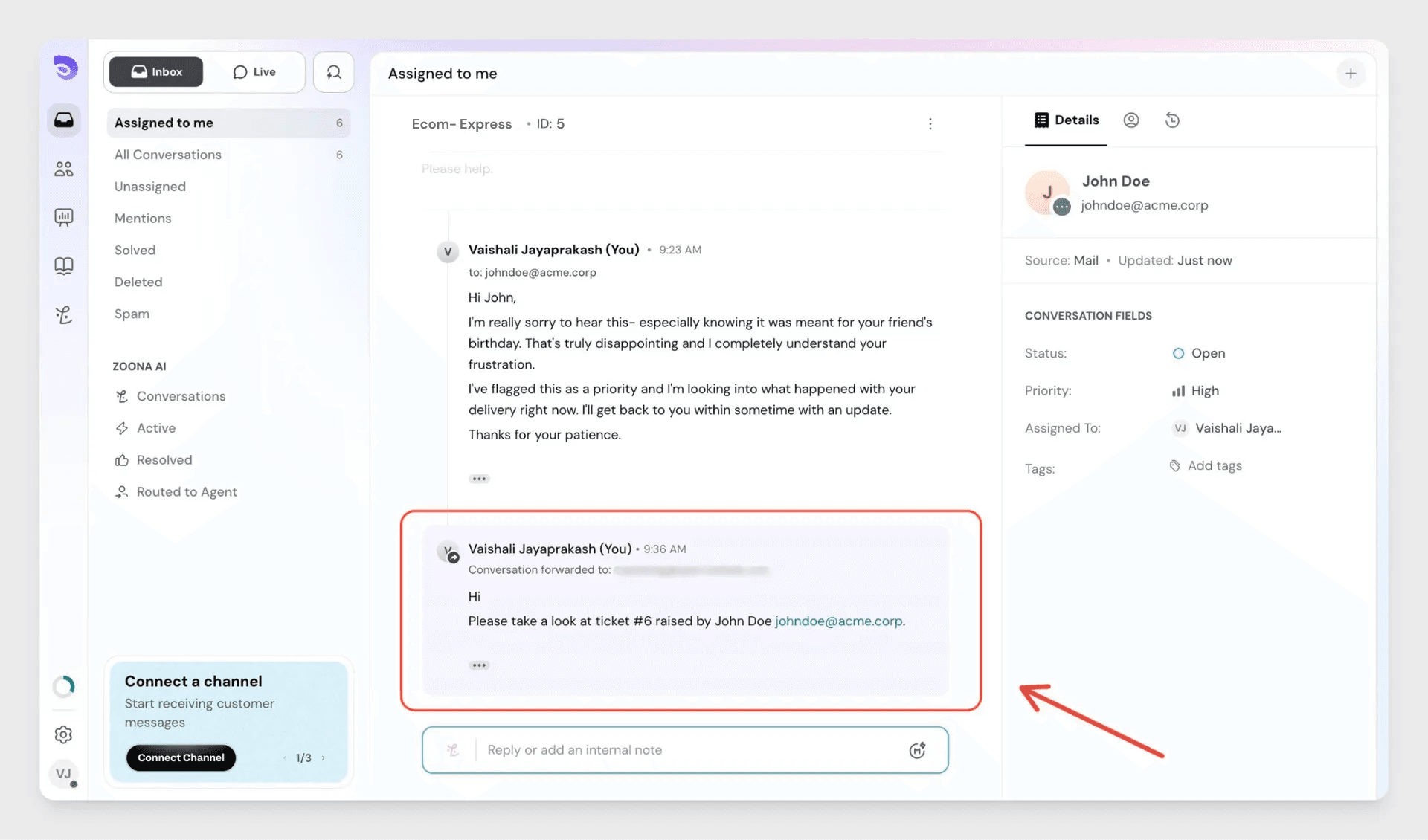
- A record is added to the ticket activity: who forwarded it and to which address.
- The message you wrote during forwarding is saved as an internal note on the ticket.
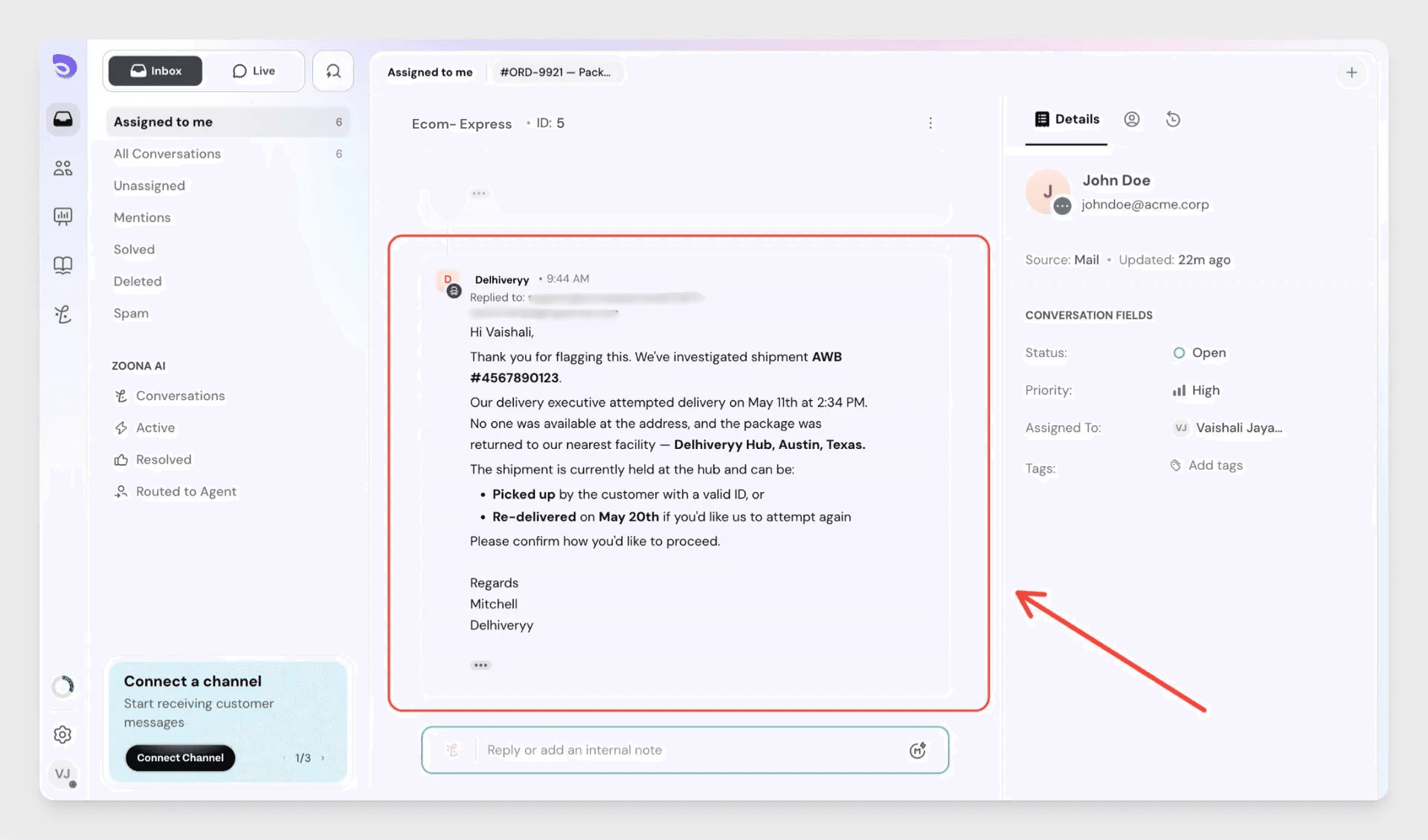
- When the external recipient replies, their response is captured as an internal note — your customer never sees it.
Replying to a Third-Party Response
When an external recipient replies to your forward, you can respond directly to them from inside the ticket.
- Find the third-party reply in the conversation.
- Click the Reply icon on that message.
- The reply area opens with the recipient's address pre-filled, along with CC/BCC fields.
- A notice in the reply bar confirms you are replying to the third party, not the original customer.
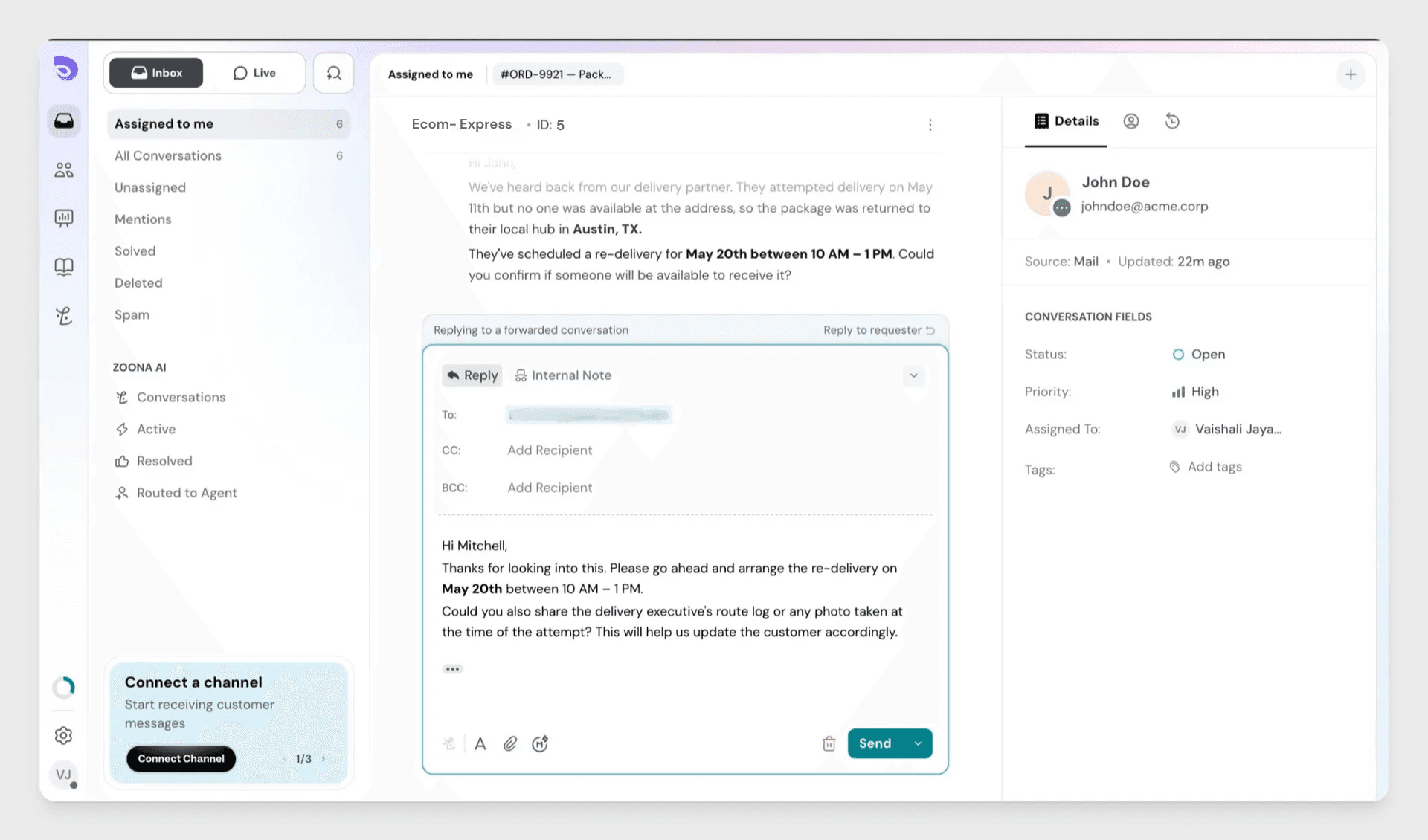
If the ticket was forwarded to multiple recipients and only one replies, your response goes only to that person- not everyone on the original forward.
To switch back to replying to your customer, click Reply to Requestor in the reply bar. This clears the third-party address and any draft content.
Note: Forwarding is available for tickets only, not chat conversations.
FAQ
- What happens if I forward to someone not in my contacts?
SparrowDesk automatically adds them as a new contact. You do not need to create a contact record before forwarding. - Does forwarding a ticket change its status or pause the SLA?
No. Forwarding does not affect ticket status, SLA timers, or any assignment. The ticket continues as normal. - Can the external recipient see my internal notes?
No. Internal notes, agent mentions, and any CC metadata within your team are stripped from the forwarded email. The recipient only sees the message content and quoted conversation history you choose to include. - Will my customer see replies from the external recipient?
No. All third-party replies are captured as internal notes and are only visible to your team inside SparrowDesk. - Who gets notified when a third-party replies?
The assigned agent and any watchers on the ticket receive a notification. These notifications follow the same format as customer reply notifications. - Can I forward a reply I received from a third party?
If you want to forward a reply you received from a third party, start a new forward from the ticket.