
Add Watchers to a Conversation

Watchers receive updates on a conversation without being assigned to it- useful for keeping managers, team leads, or cross-functional colleagues in the loop.
Who Can Be Added as a Watcher
Only agents can be added as watchers. Customers and contacts cannot be added. If you need a customer to receive a copy of a message, use CC instead.
Add a Watcher
- Open the conversation in your Inbox.
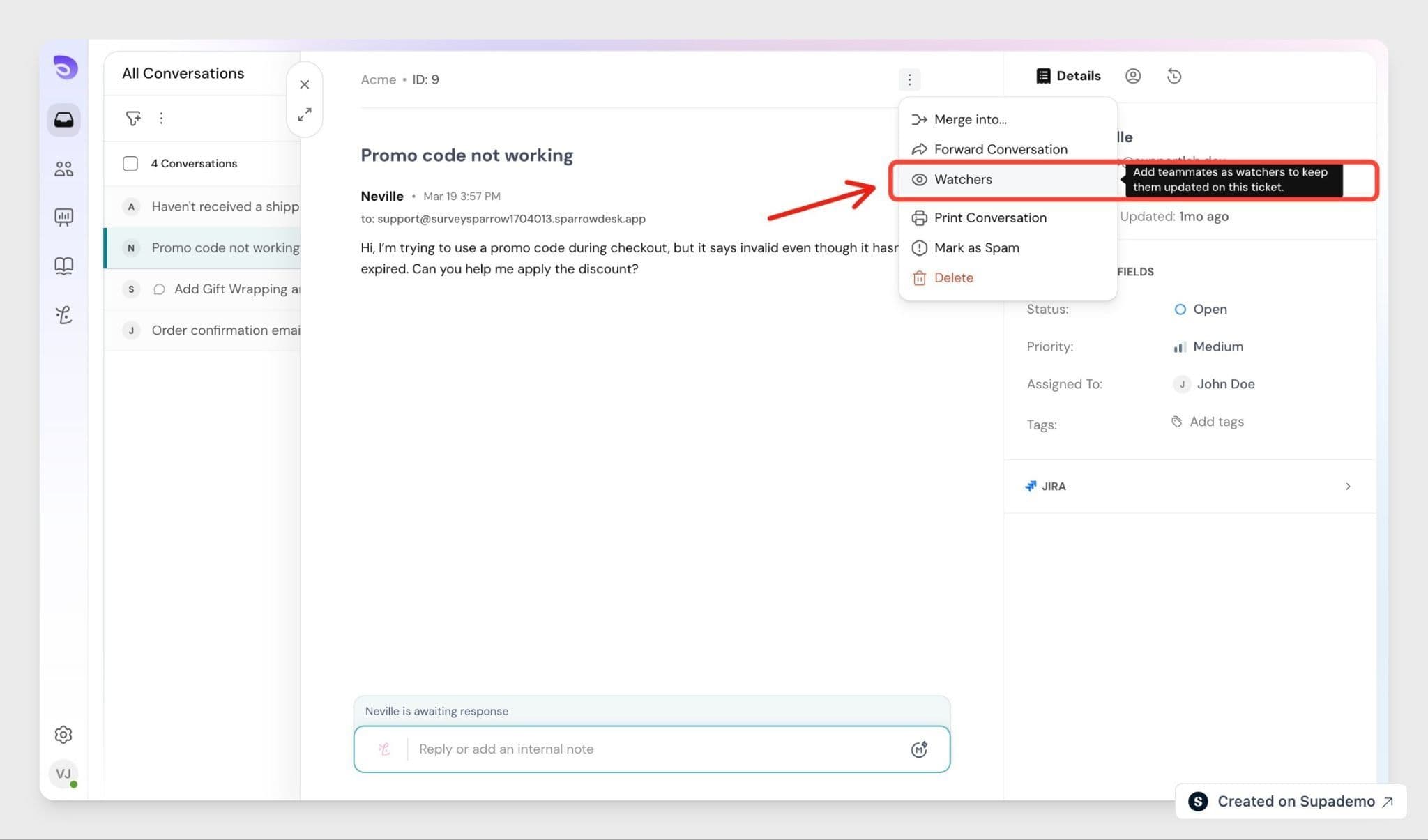
- Click the ⋮ (more options) icon in the conversation panel.
- Select Add Watcher.
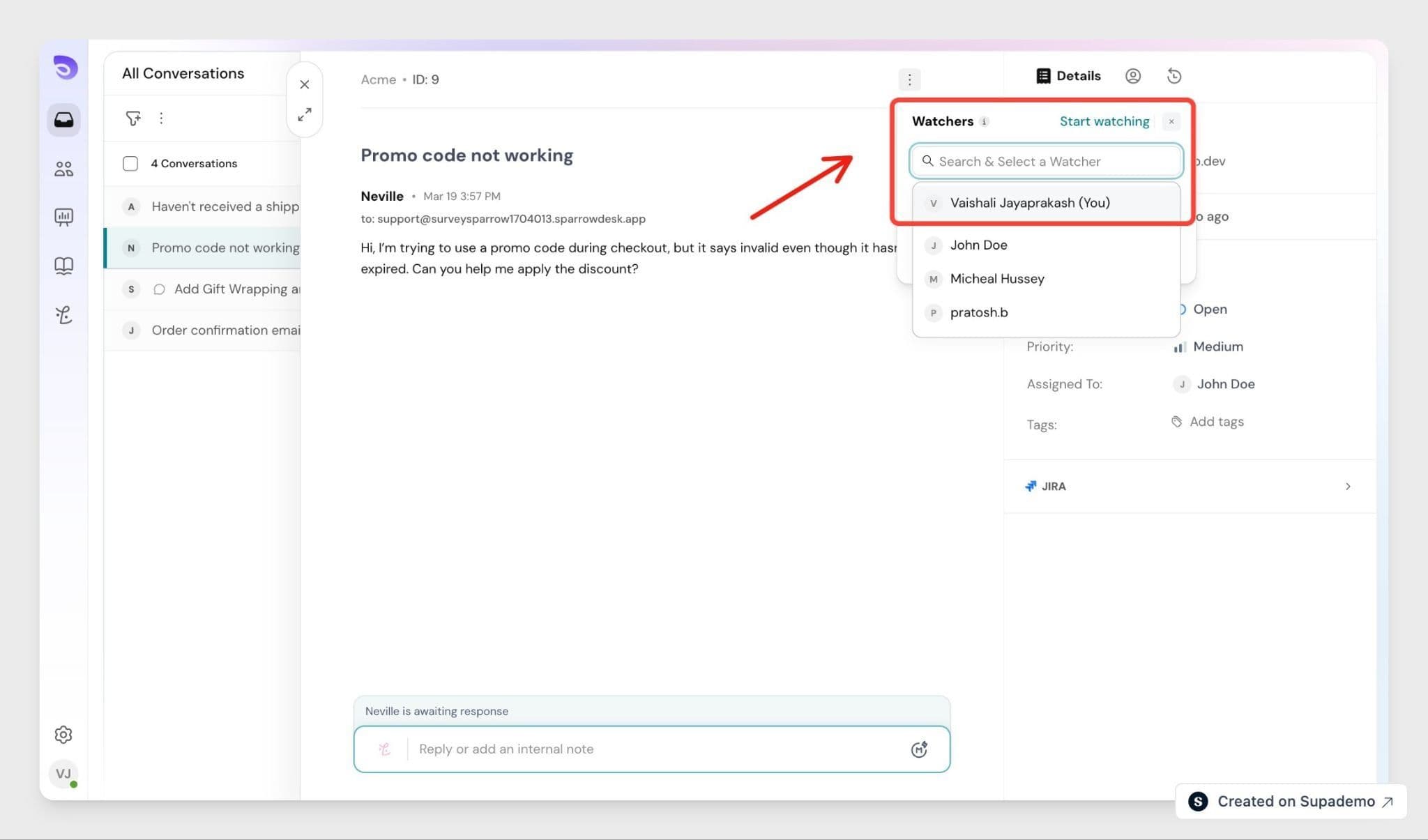
- Search for a teammate by name and select them. They are added immediately.
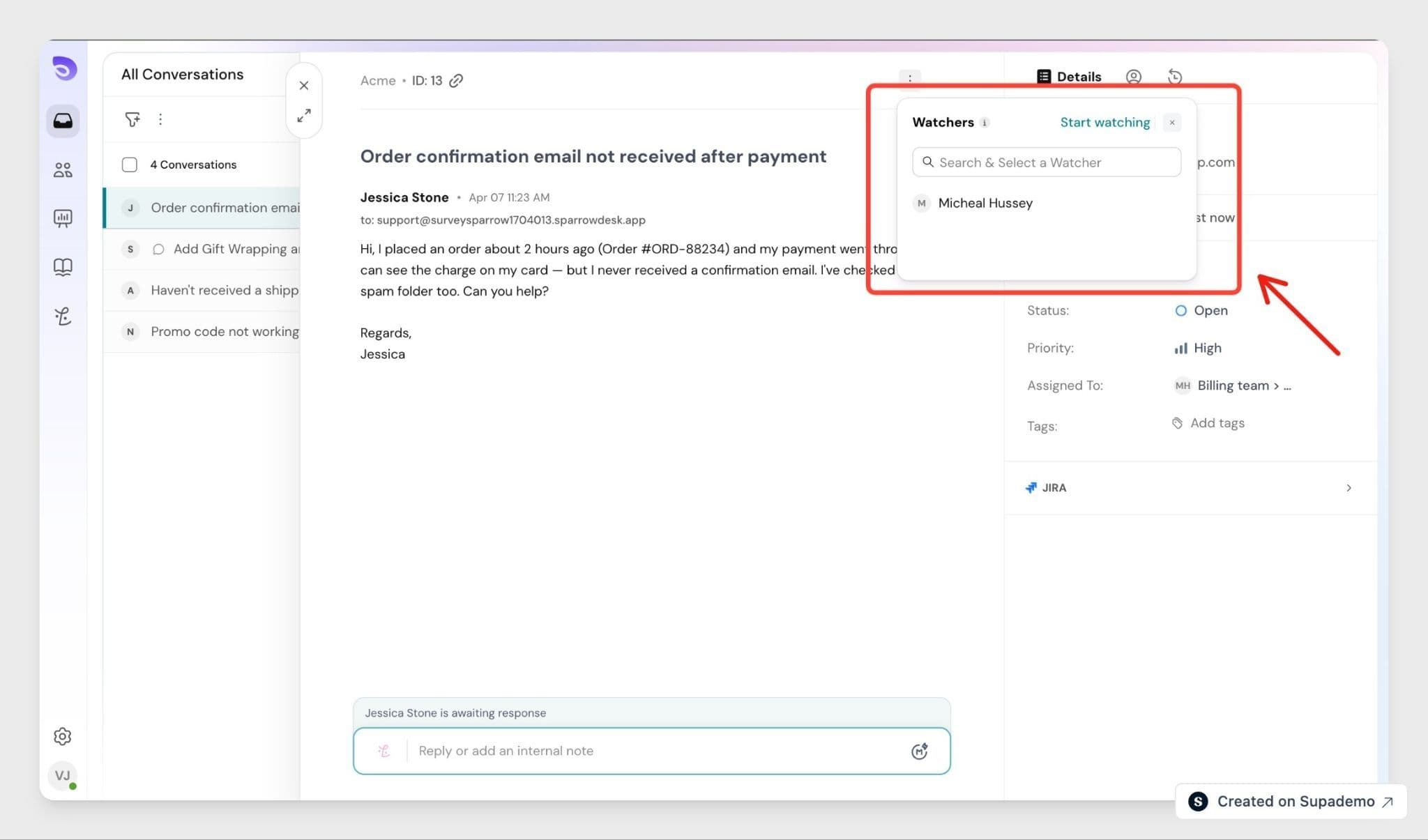
The watcher receives email notifications for new replies, internal notes, and status changes on the conversation.
Add or Remove Yourself as a Watcher
To watch a conversation, click start watching or your name in the Watchers section.
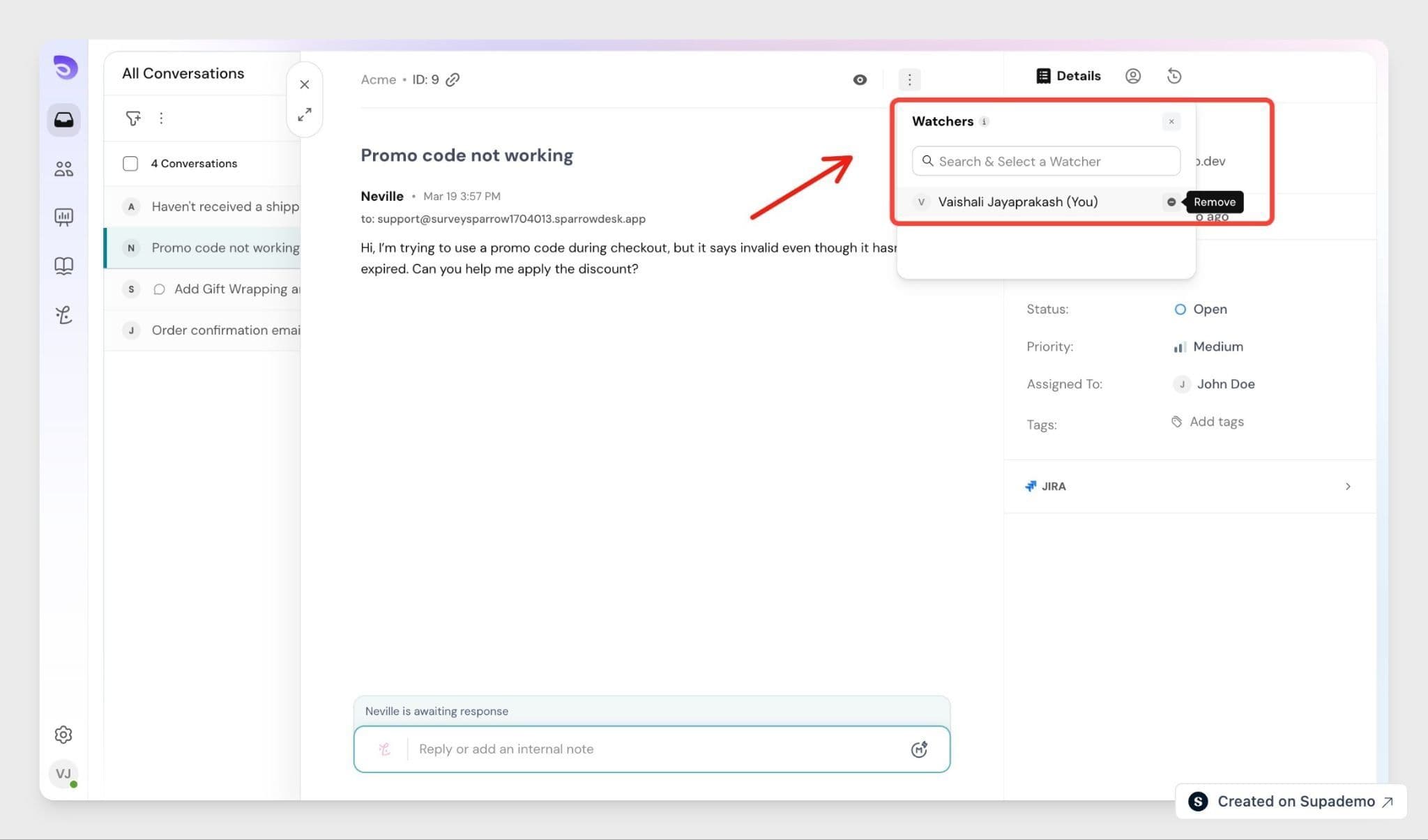
To stop watching, click Remove in the same panel.
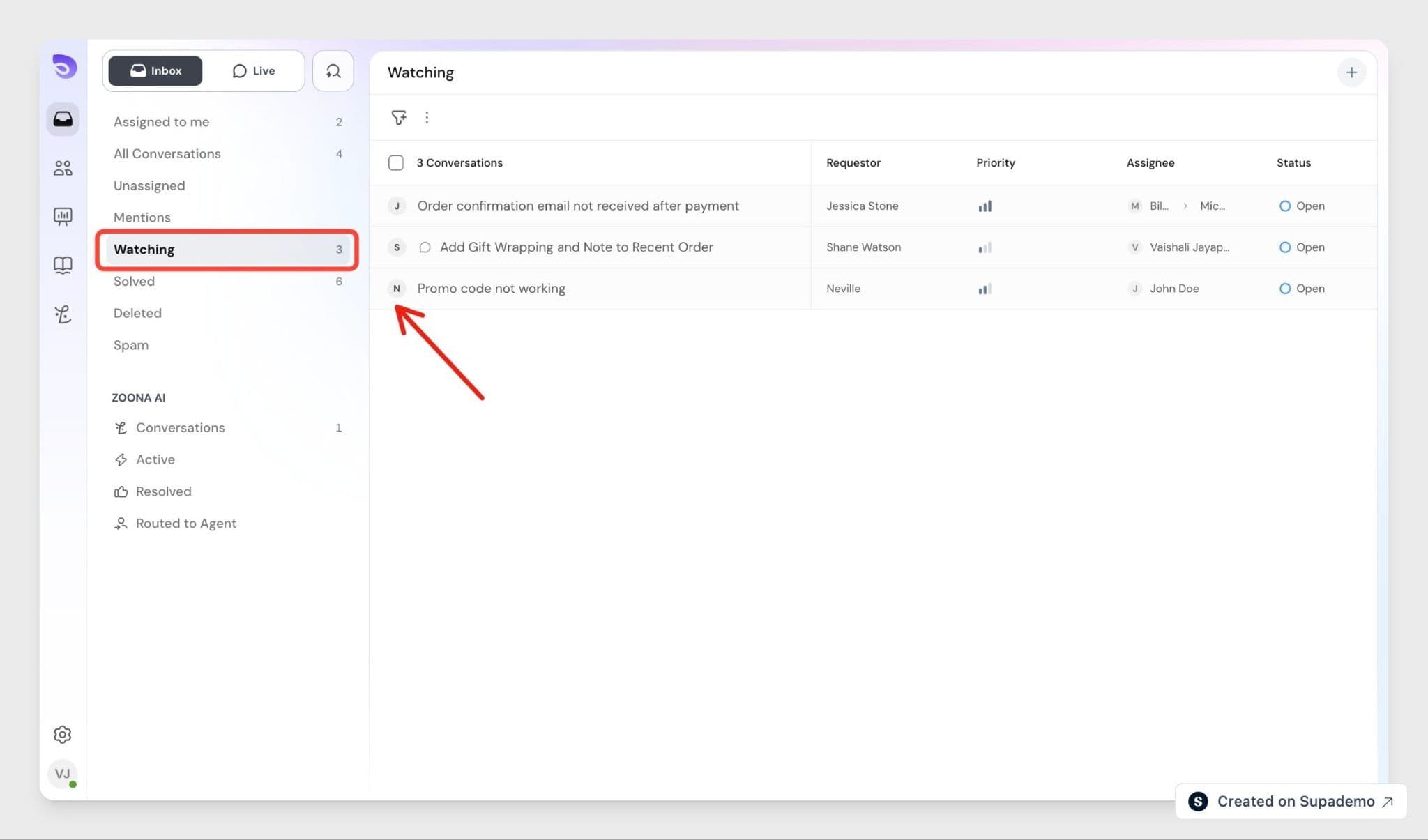
Tip: A Watching view in your Inbox shows all conversations you're currently watching. This view only appears when you're watching at least one conversation.
Add Watchers Automatically with Workflows
Admins can use Workflows to add watchers automatically when certain conditions are met.
Examples:
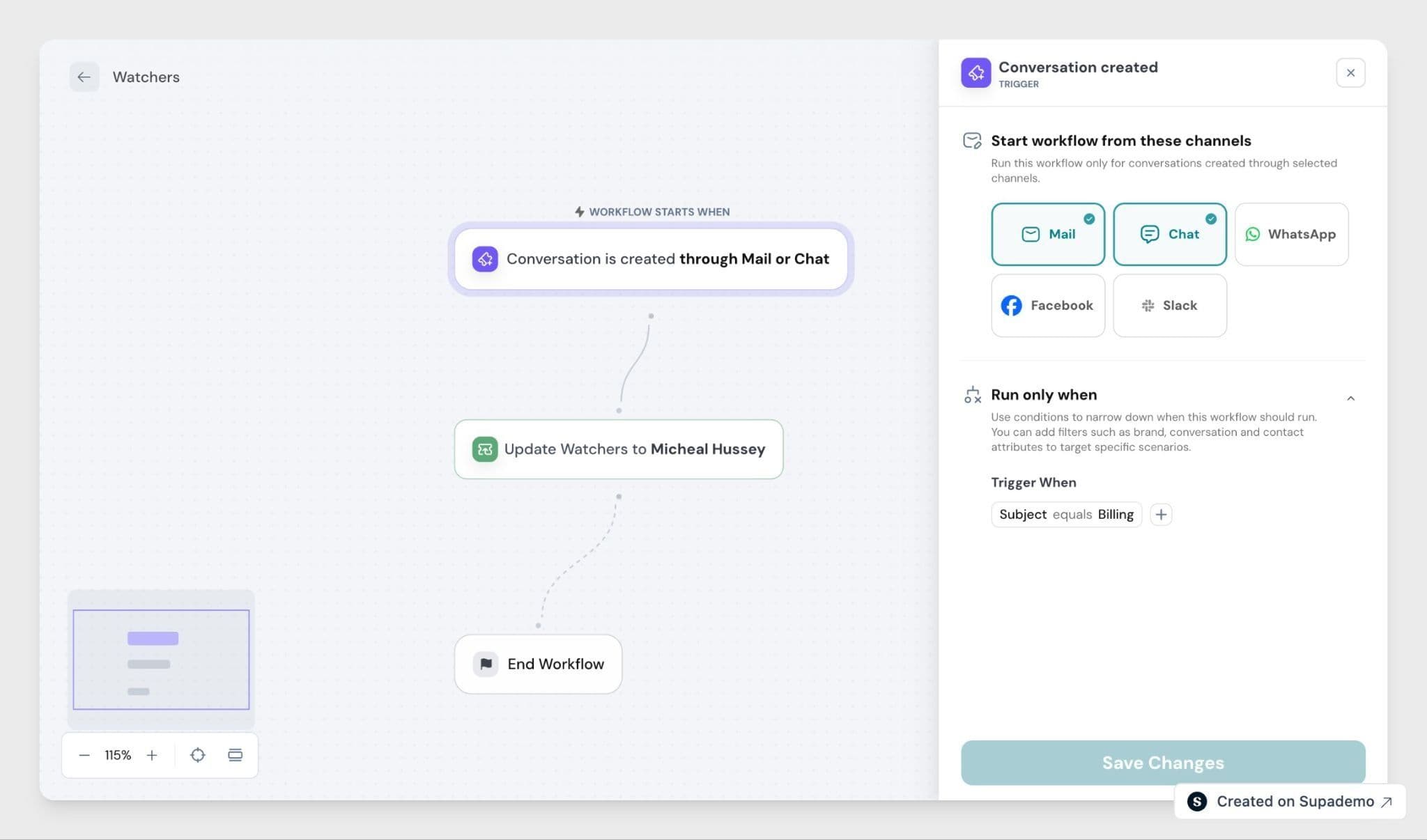
- Add a billing manager whenever a billing-related ticket is created
- Add a team lead when a ticket is marked high priority
To set this up:
- Go to Workflows and open or create a workflow.
- Under Actions, select Update fields.
- Choose Conversation → Watchers.
- Select the agents to add.
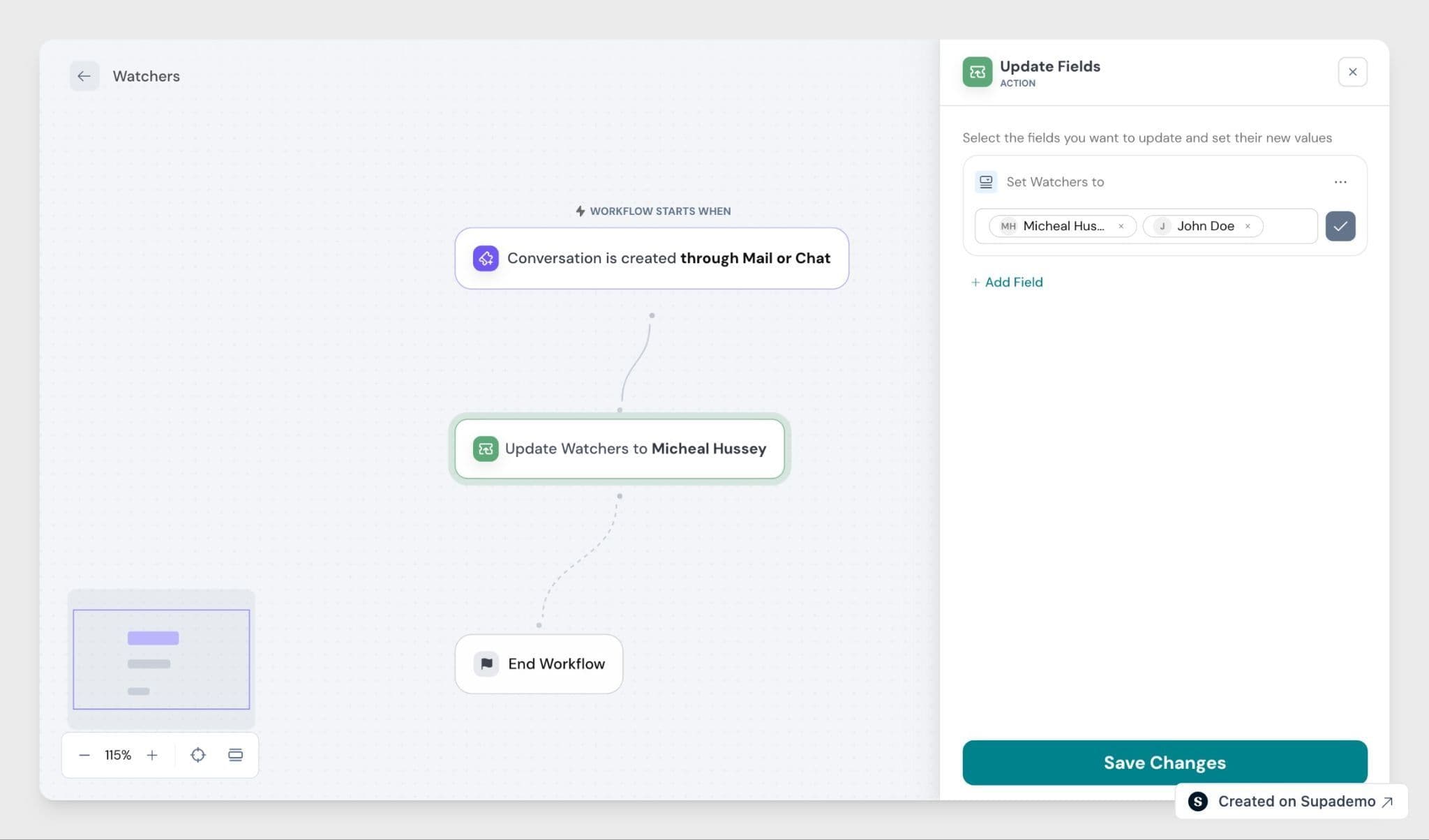
Watchers added through workflows cannot be removed by a workflow. They must be removed manually from inside the conversation.
Watcher Notifications
Watchers receive an email notification whenever there is activity on the conversation. Notifications are sent for:
- New replies from a customer or agent
- Internal notes added by an agent
- Status changes (e.g., open to resolved)
- Being added as a watcher by a workflow (with a note that the conversation was created)
For chat conversations, notifications are sent only for status changes and internal notes- not for customer or agent replies.
All updates to a conversation are grouped into a single email thread, so watchers can follow the full history without opening the ticket each time.
When a conversation was created from a form, the notification email includes the submitted form fields in a table, so watchers can see the details without opening the conversation.
FAQ
1. Can a watcher reply to the conversation?
Yes. Watchers can reply or add internal notes just like an assigned agent. Being a watcher does not restrict what you can do in a conversation.
2. What happens if I reply to a watcher notification email?
Your reply is added to the ticket as an internal note. It is not sent to the customer.
3. Why didn't I receive a notification after updating a ticket I'm watching?
SparrowDesk suppresses notifications for actions you take yourself. If you add a note or reply to a ticket you're watching, you won't receive a notification for that specific action.
4. Does the customer see who is watching?
No. Watchers are only visible to your team inside SparrowDesk.
5. How many watchers can a conversation have?
There is no limit. You can add as many teammates as needed.