
Attio Integration

This integration connects Attio with SparrowDesk, so customer support tickets from SparrowDesk are visible directly under People records in Attio.
Once connected, Attio becomes the shared place where teams can see who the customer is and what support conversations they’ve had, without switching between tools.
What this integration is used for
After installing and connecting the SparrowDesk app in Attio:
- Customers from SparrowDesk are added to People in Attio
- Incoming support tickets are linked to the correct Person
- Ticket updates appear as notes or activities under that Person
- Sales and success teams can see support history directly inside Attio
SparrowDesk continues to manage conversations.
Attio shows the complete customer context.
Installing the SparrowDesk app in Attio
The integration setup begins inside Attio.
From your Attio workspace:
- Open Settings
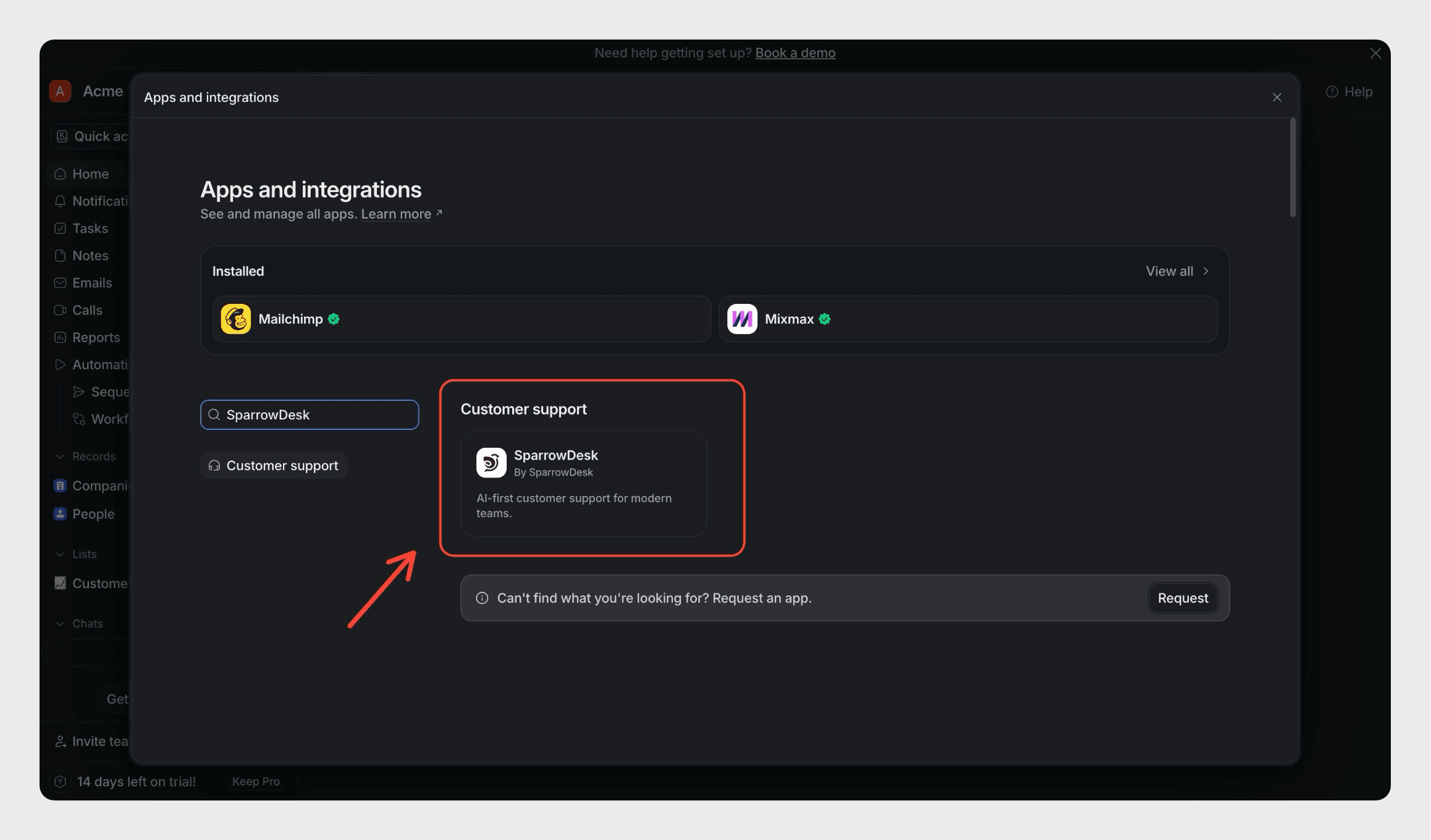
- Go to Apps & Integrations
- Search for SparrowDesk
- Select the SparrowDesk app
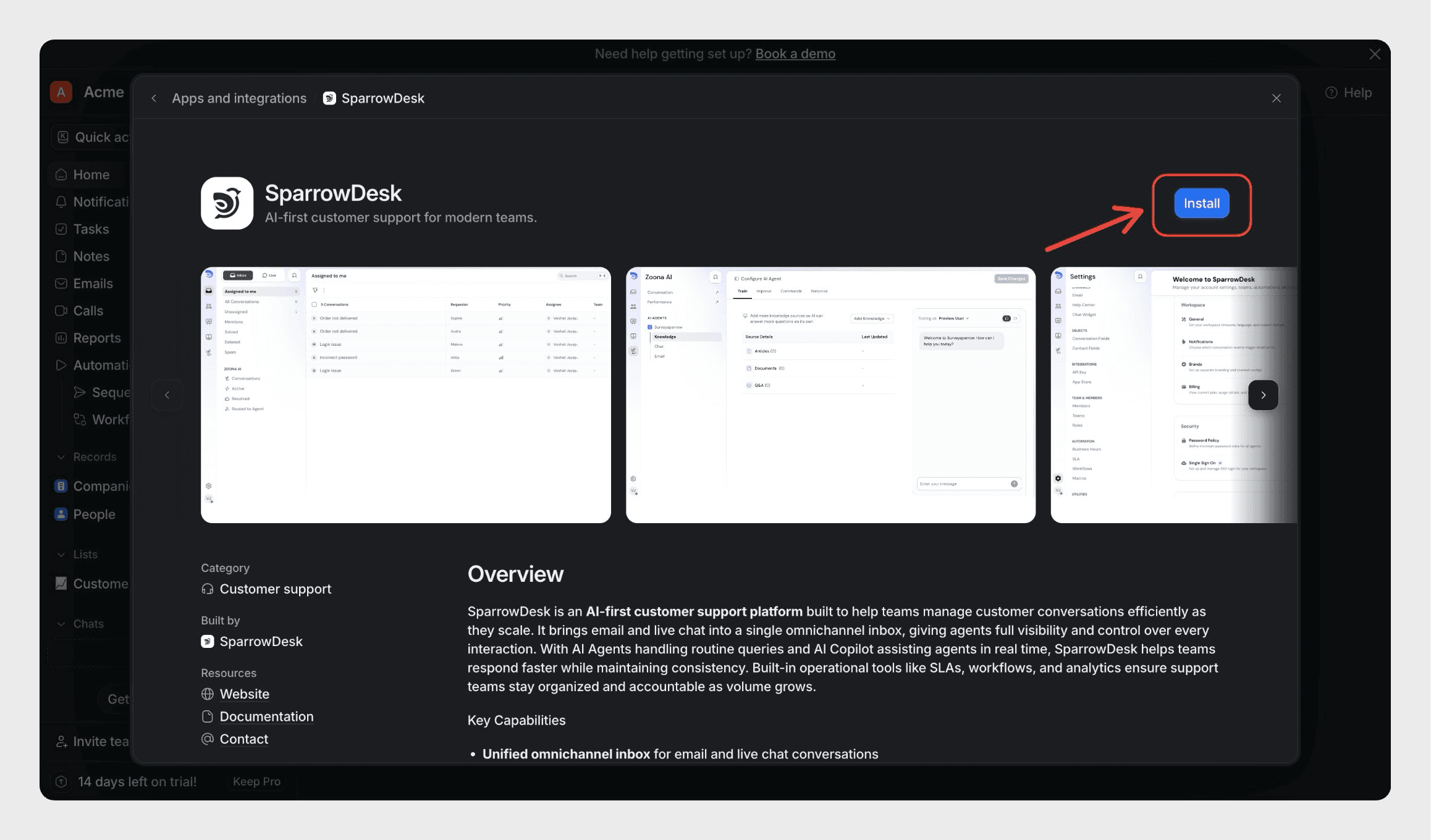
- Click Install
This starts the connection flow.
Connecting your Attio workspace to SparrowDesk
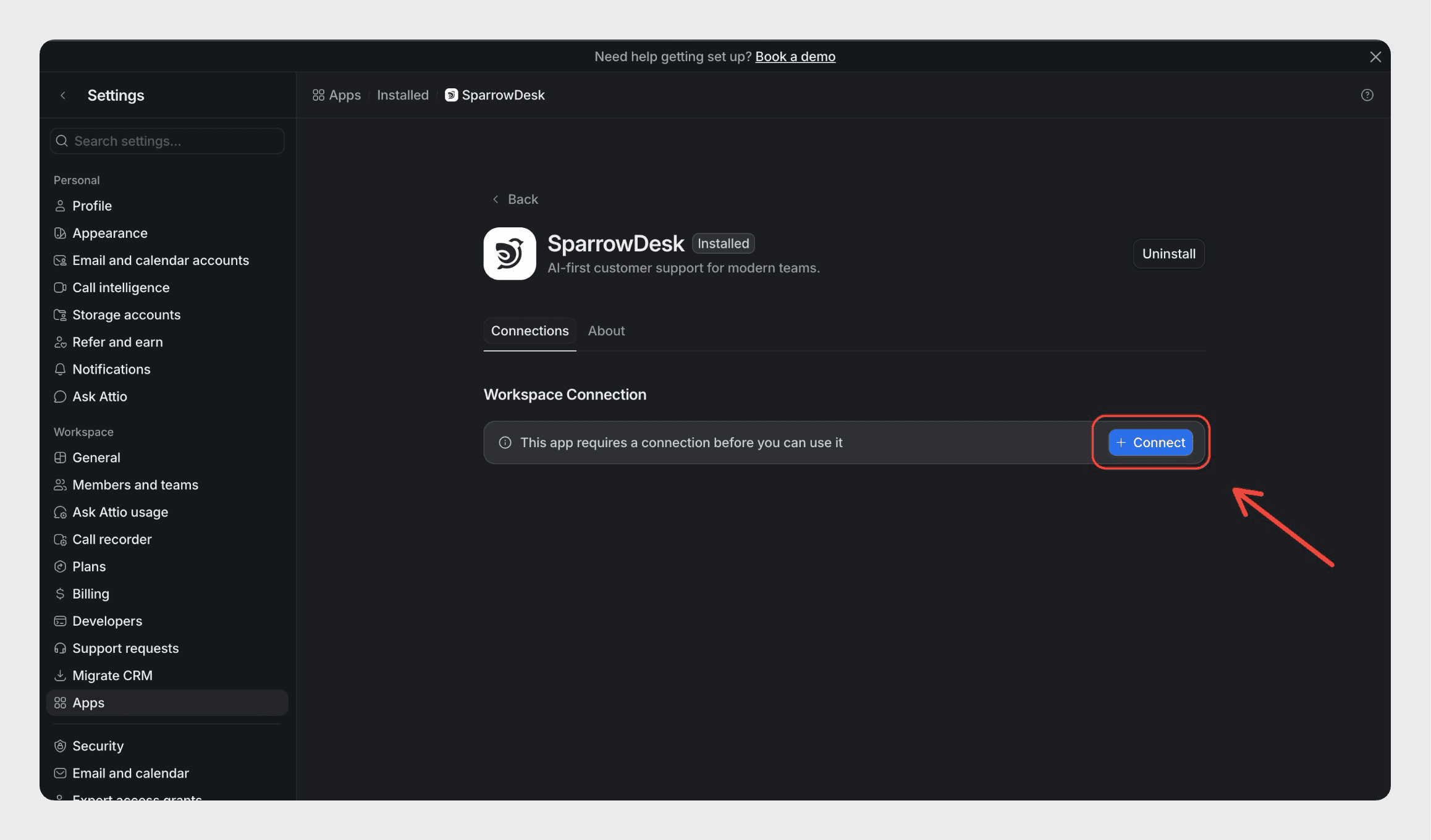
Once SparrowDesk is installed, the final step is to connect it to your SparrowDesk account.
On the SparrowDesk app page in Attio, you’ll see a Workspace Connection section with a Connect button.
Click Connect to link your current Attio workspace with SparrowDesk.
Click authorize
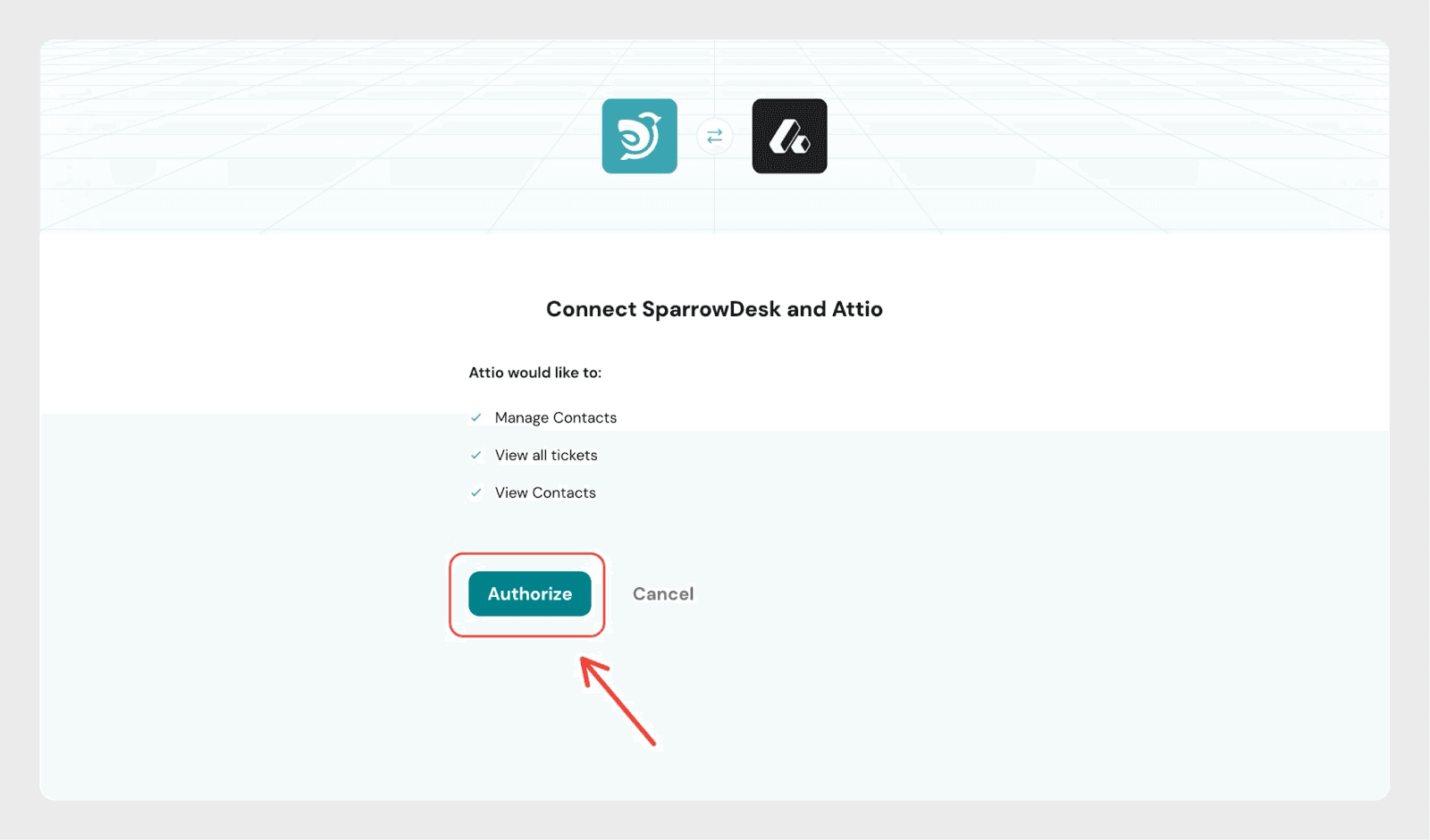
This establishes a secure, workspace-level connection and enables SparrowDesk to start sending customer and ticket data into Attio.
What happens after the connection is complete
Once the workspace is connected:
- Your Attio workspace is ready to receive ticket data from SparrowDesk
- Existing contacts in People are used to associate support tickets
- SparrowDesk starts sending ticket activity automatically
- No additional setup is required for standard syncing
From here on, the integration runs silently in the background.
How contacts and tickets are handled in Attio
For tickets to appear in Attio, customer contacts must already exist in the People list (for example, imported via CSV or added through other sources).
Attio uses the email address or phone number to match incoming tickets to contacts.
When a ticket is created in SparrowDesk:
- Attio checks the People list for a matching email or phone number
- If a matching Person is found, the ticket is linked to that contact
- Tickets are not shown globally- they appear within the customer’s profile
This ensures tickets are always tied to the correct person and remain grouped under a single contact.
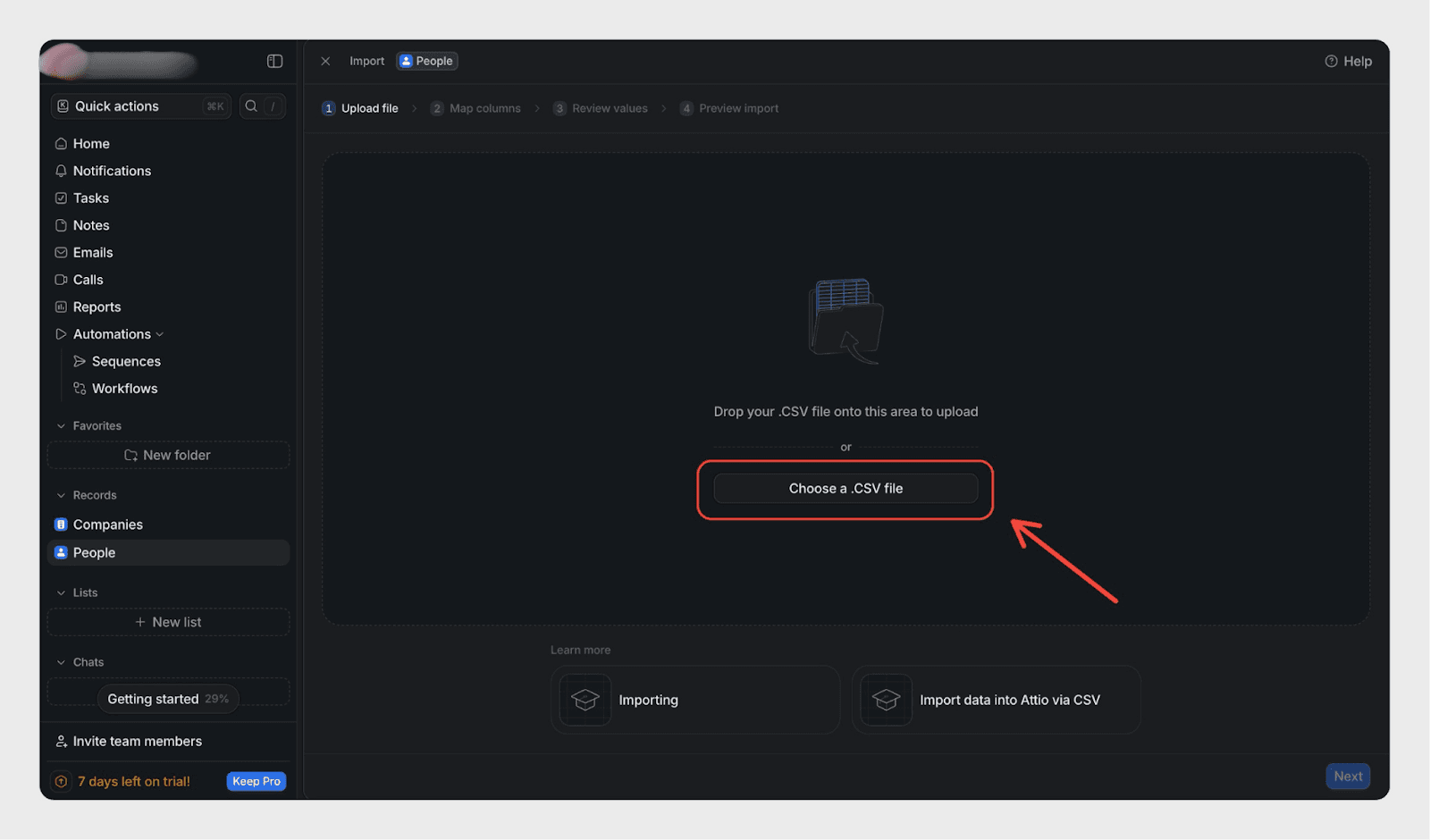
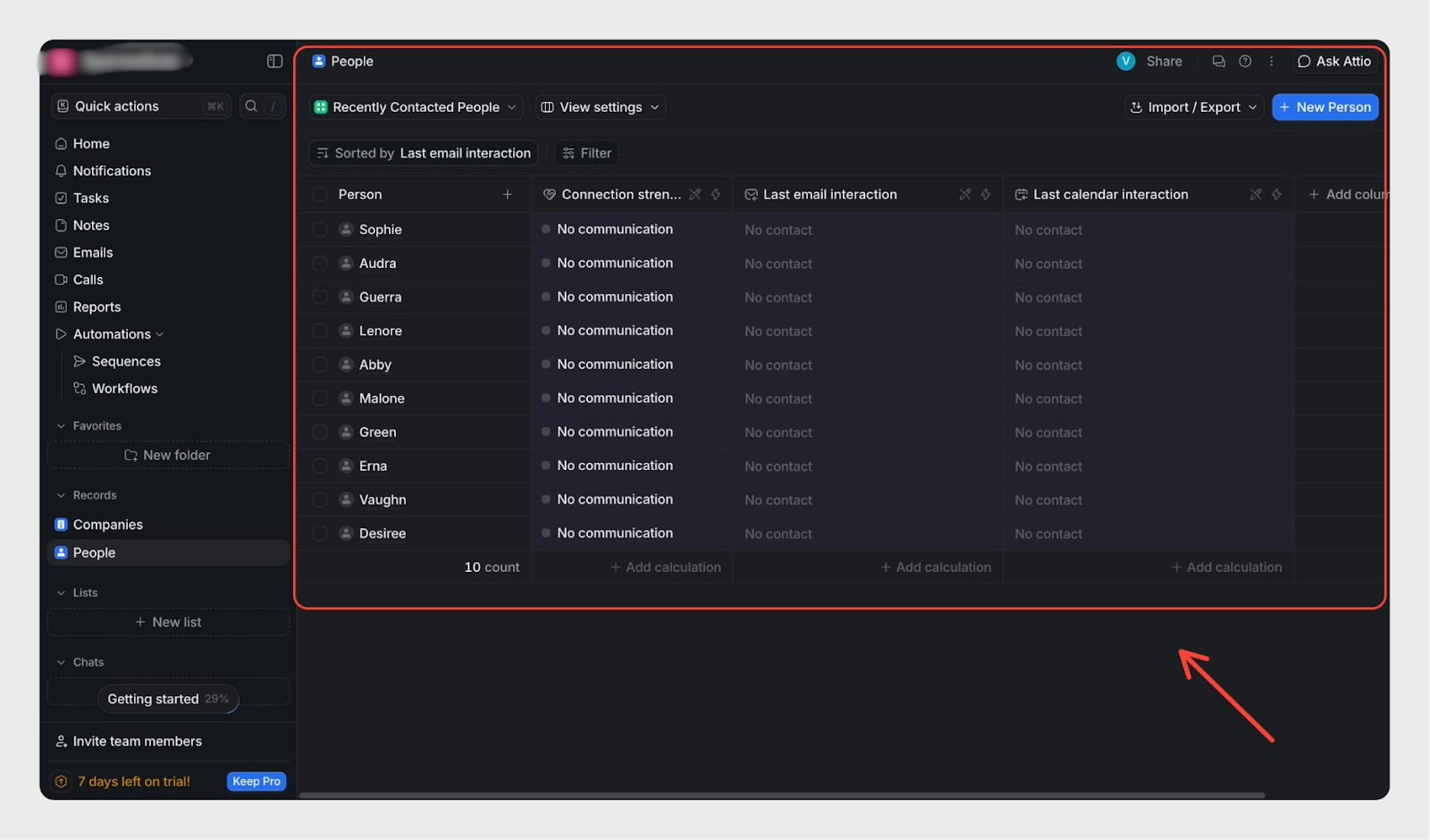 How tickets appear under a contact
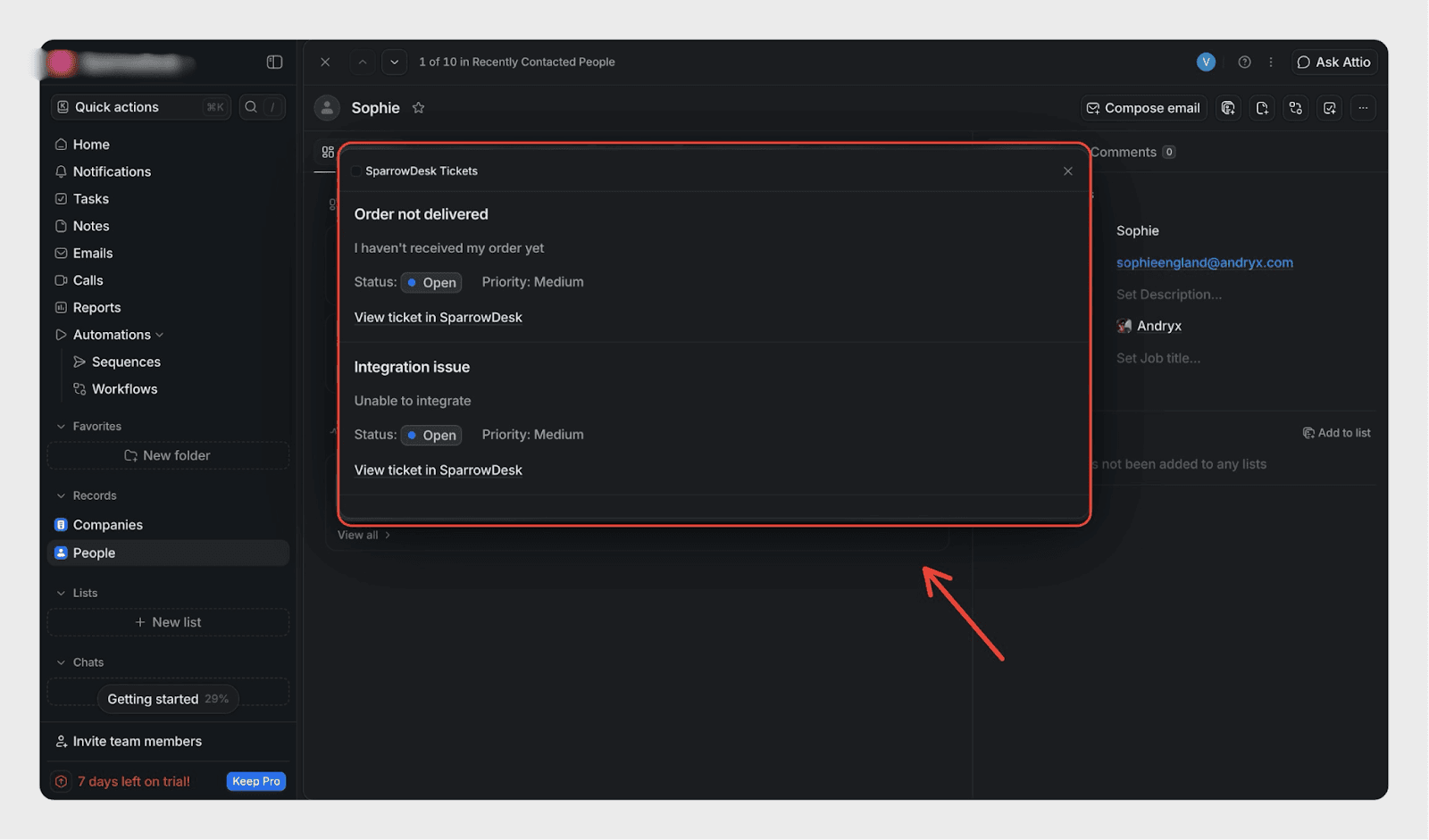
Once a contact exists in Attio, any SparrowDesk ticket raised by that customer appears under their Person profile.
Tickets are shown as notes or activities and include only the following details:
- Subject
- Ticket status
- Ticket body (customer message or conversation content)
- Reference back to SparrowDesk
This keeps the view clean and focused, while still allowing teams to jump back into SparrowDesk when deeper action is needed.
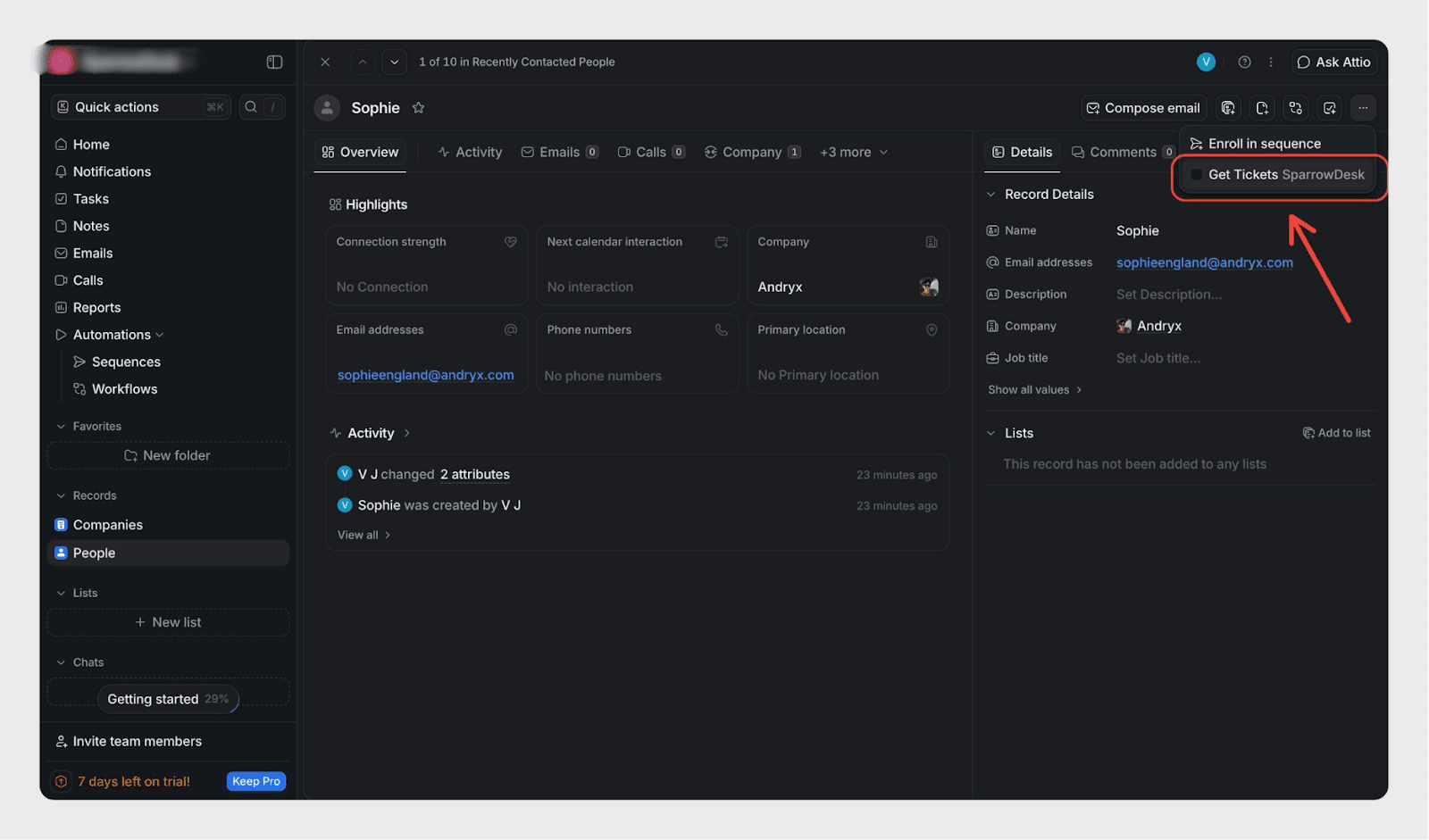
Viewing support tickets for a contact
To view tickets linked to a specific customer:
- Open Attio
- Go to People
- Select a contact
- Open the Person profile
- Select Get Tickets
What syncs and what doesn’t
What Syncs
- Contacts: contacts created in SparrowDesk are added to Attio.
- Conversations: when Sync conversations is turned on, each conversation is added to Attio as a note once it's resolved. The note holds the conversation transcript.
Each note is linked to the matching person in Attio. If that person's company also exists in Attio, the note is linked to the company too. If it doesn't, the note is linked to the person only.
What doesn't sync:
- Conversations that are still open. A note is created only when the conversation is resolved.
- Conversations resolved while Sync conversations was off.
- Edits made to a note in Attio. They don't change the conversation in SparrowDesk.
Why this integration is useful
- Support teams continue working in SparrowDesk
- CRM teams review support activity inside Attio
- Customer conversations are always visible in the right place
Summary
The Attio–SparrowDesk integration is designed to work with your existing contacts:
- Import or manage contacts in People (CSV or other sources)
- Connect SparrowDesk from Attio → Apps & Integrations
- Open any contact to view their support tickets
- See all SparrowDesk conversations under that person’s profile
Once connected, everything stays in sync automatically-keeping support and CRM aligned without extra effort.
Frequently Asked Questions (FAQ)
1. Can tickets show up in Attio if the contact is added after the ticket is created?
No. SparrowDesk links tickets to contacts using the customer’s email address or phone number. If a ticket is created before the contact exists in Attio, the ticket will automatically appear under that person’s profile once the contact is added to People.
2. Where can I see SparrowDesk tickets in Attio?
Tickets are not shown globally.
They are visible only when you open a specific Person in People and select Get Tickets. This ensures tickets are always viewed in the context of the correct customer
3. What ticket details are visible inside Attio?
Each SparrowDesk ticket shown in Attio includes:
- Ticket subject
- Ticket status
- Ticket body (message content)
- A reference link back to SparrowDesk
Replies and ticket actions continue to happen inside SparrowDesk
4. Does this integration create or update contacts automatically?
No.
The integration does not manage contact creation logic beyond matching. It relies on existing People records in Attio and uses the customer’s email address to associate tickets with the correct contact
5. Is this a two-way sync between Attio and SparrowDesk?
No.
This is a one-way sync from SparrowDesk → Attio.
This integration lets you view SparrowDesk tickets inside Attio. All ticket actions still happen in SparrowDesk.