
Customize Customer Email Notifications

You can edit the subject line and body of the emails your customers receive — like request confirmations and resolution notices to add your business name, support hours, contact details, or your own wording.
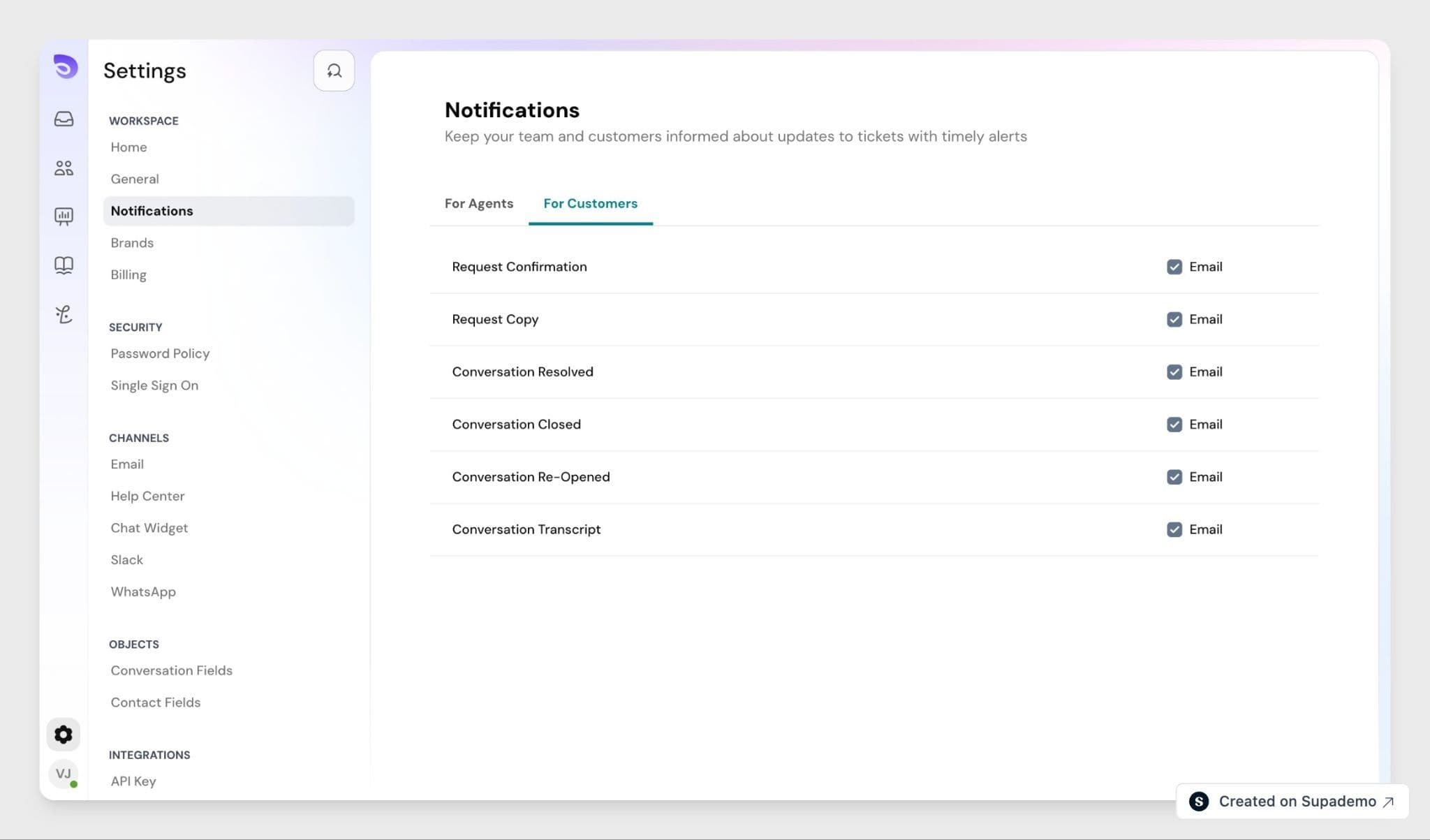
Open the Template Editor
- Go to Settings → Notifications
- Find the For Customers section.
- Click the notification type you want to edit (for example, Request confirmation).
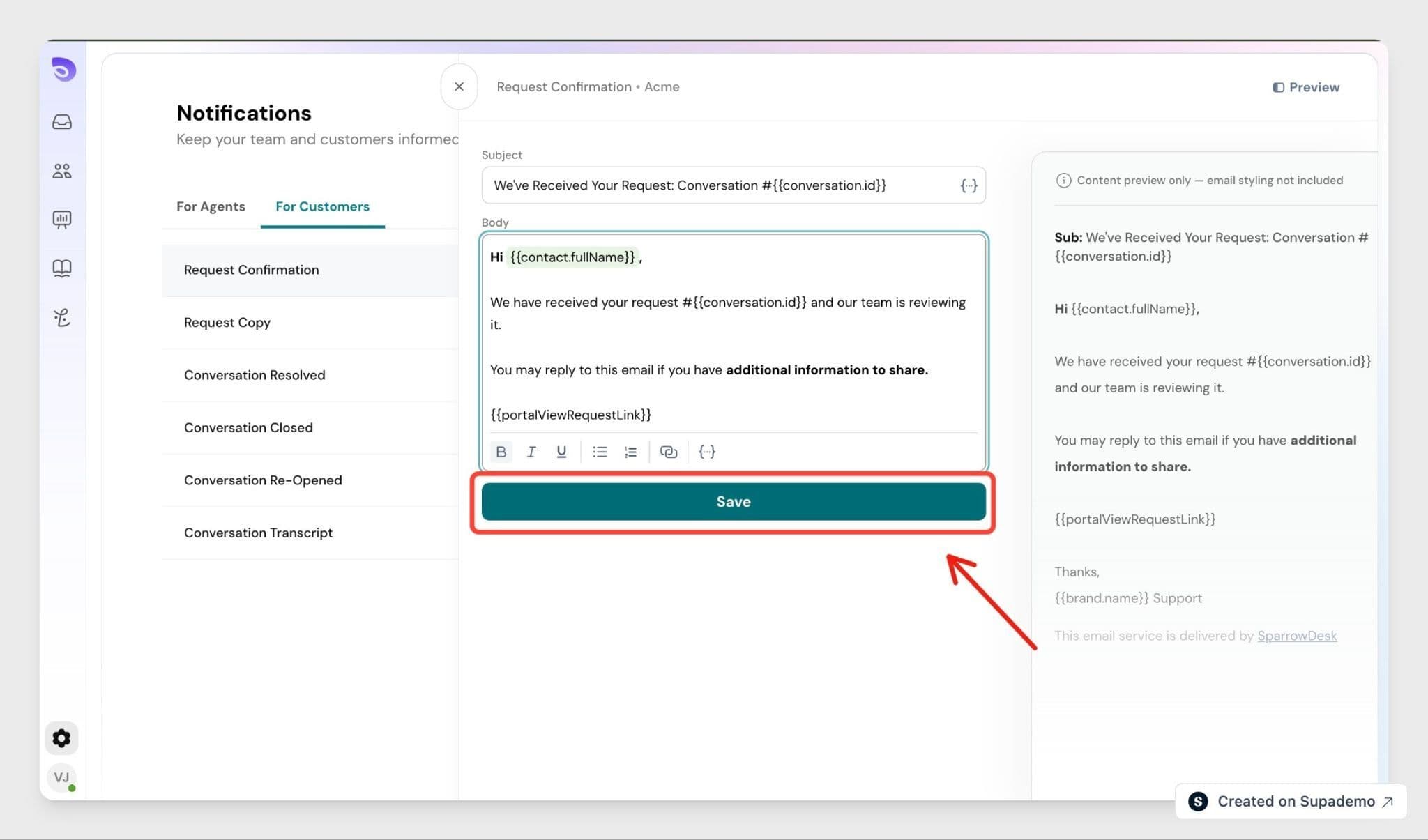
The editor opens with the current subject line and body.
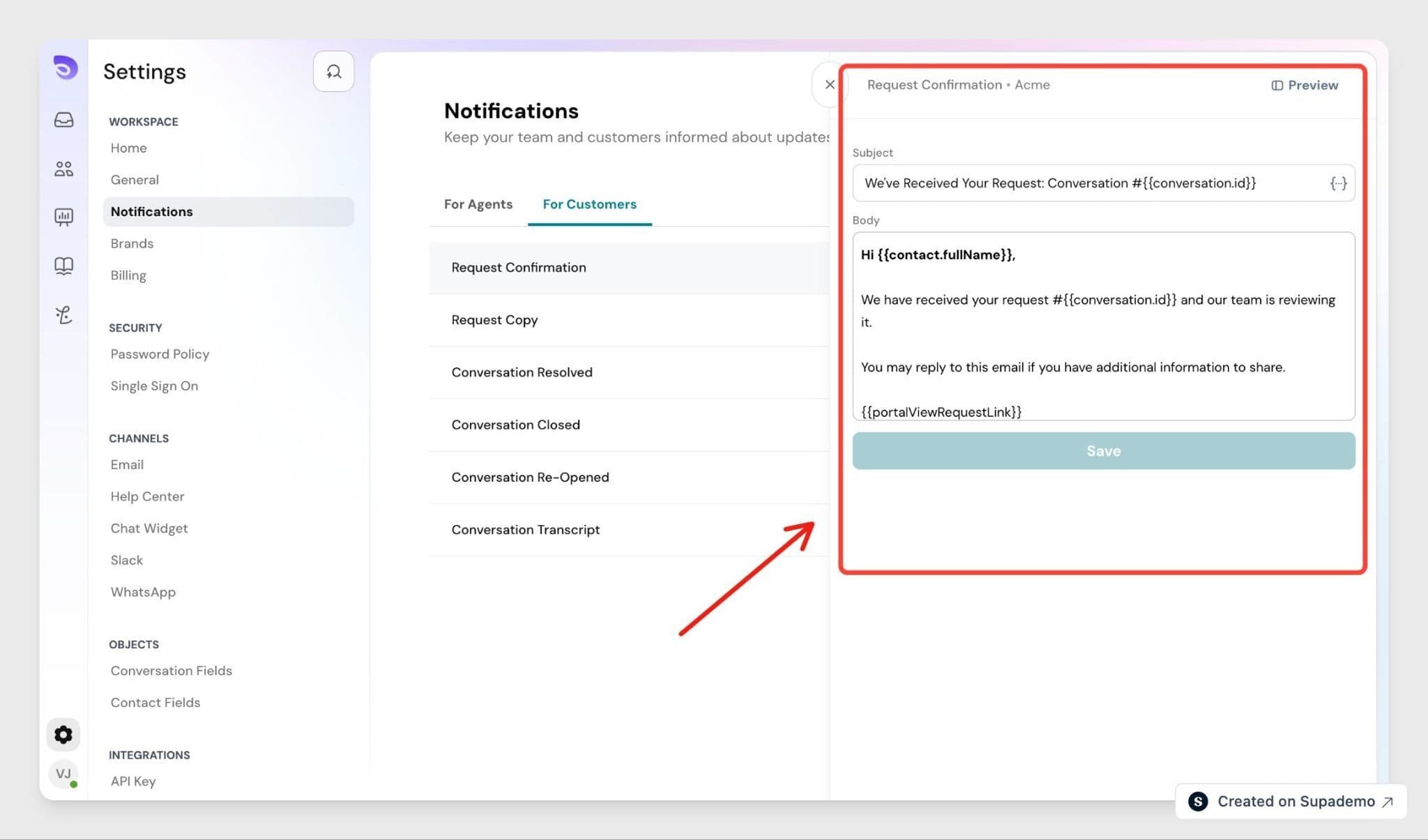
Edit the Subject and Body
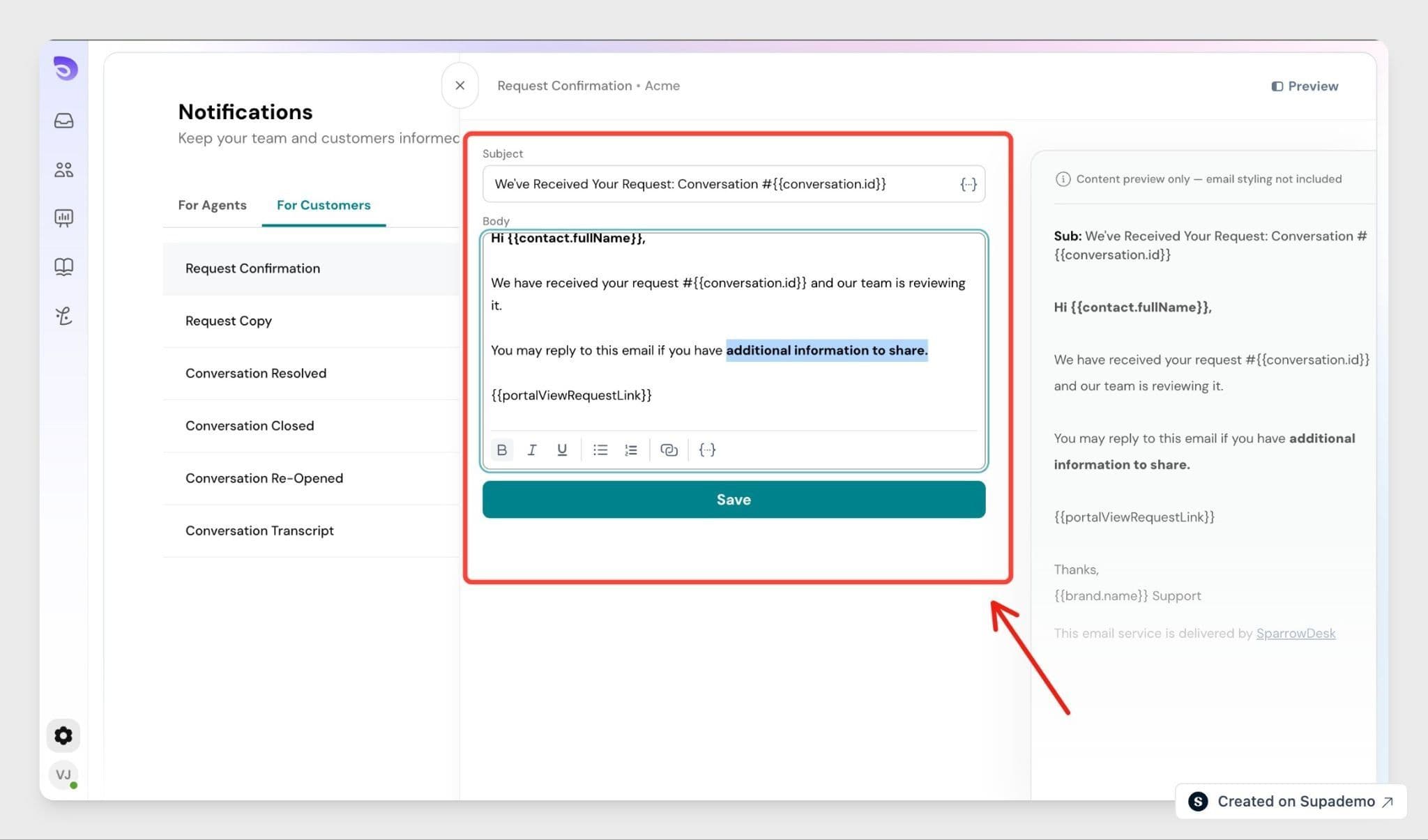
Use the editor to change the text in either field. You can format the body with bold, italic, links, numbered lists, and bullet lists.
Both the subject line and the body are editable.
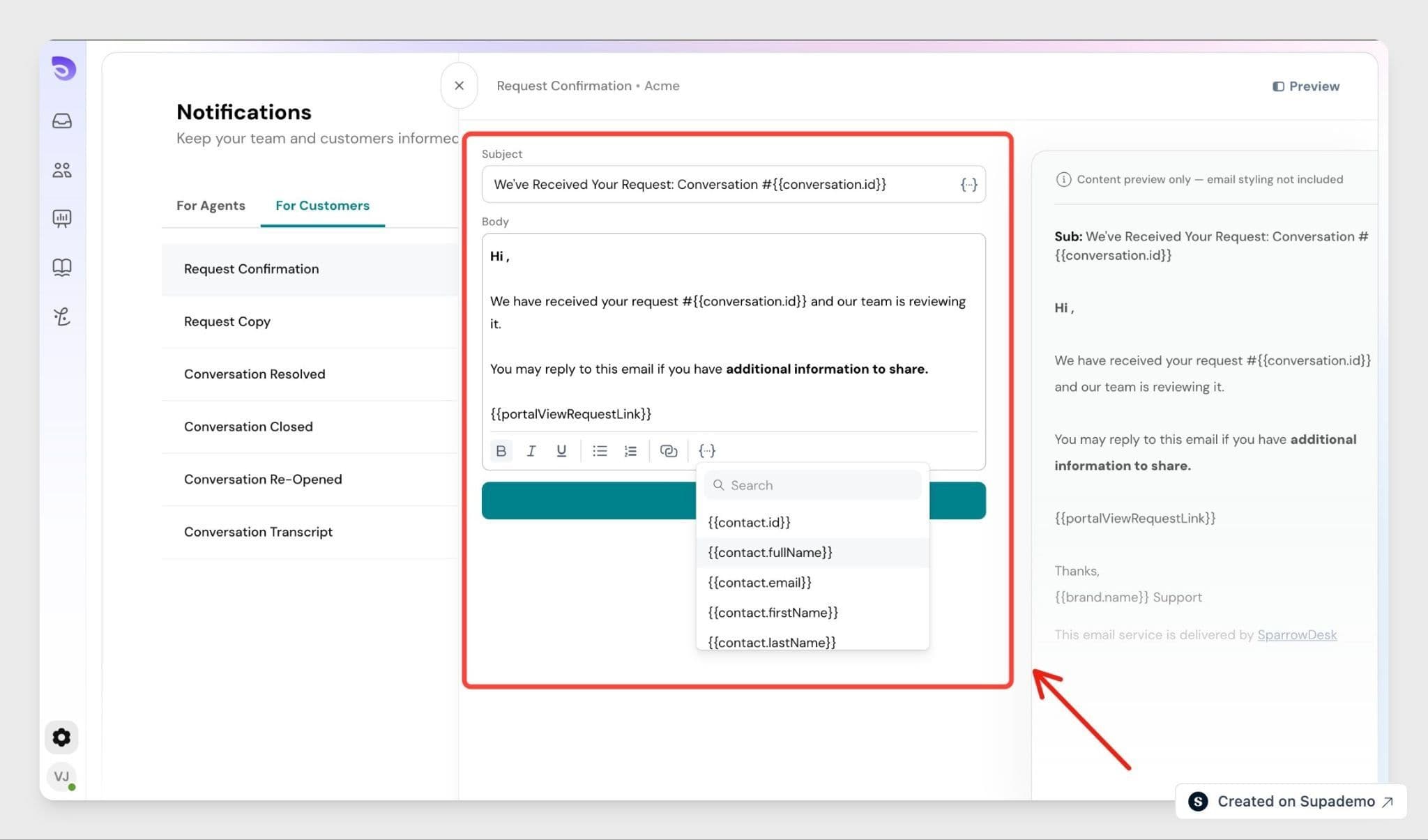
Add a Variable
To pull in dynamic information- like the customer's name or ticket number- type {{ where you want it to appear. A variable picker opens. Select the one you need.
Variables work in both the subject line and the body, and use the same set available across your inbox.
Save Your Changes
Click Save. The template applies to all future emails of that type.
Important: There's no reset to default. Once you save a template, the original platform wording can't be restored from the editor- you'd have to re-enter it manually.
Translate a Notification into Other Languages
You can send notification templates in more than one language. First choose which languages you want, then translate each template.
Step 1- Turn on your languages
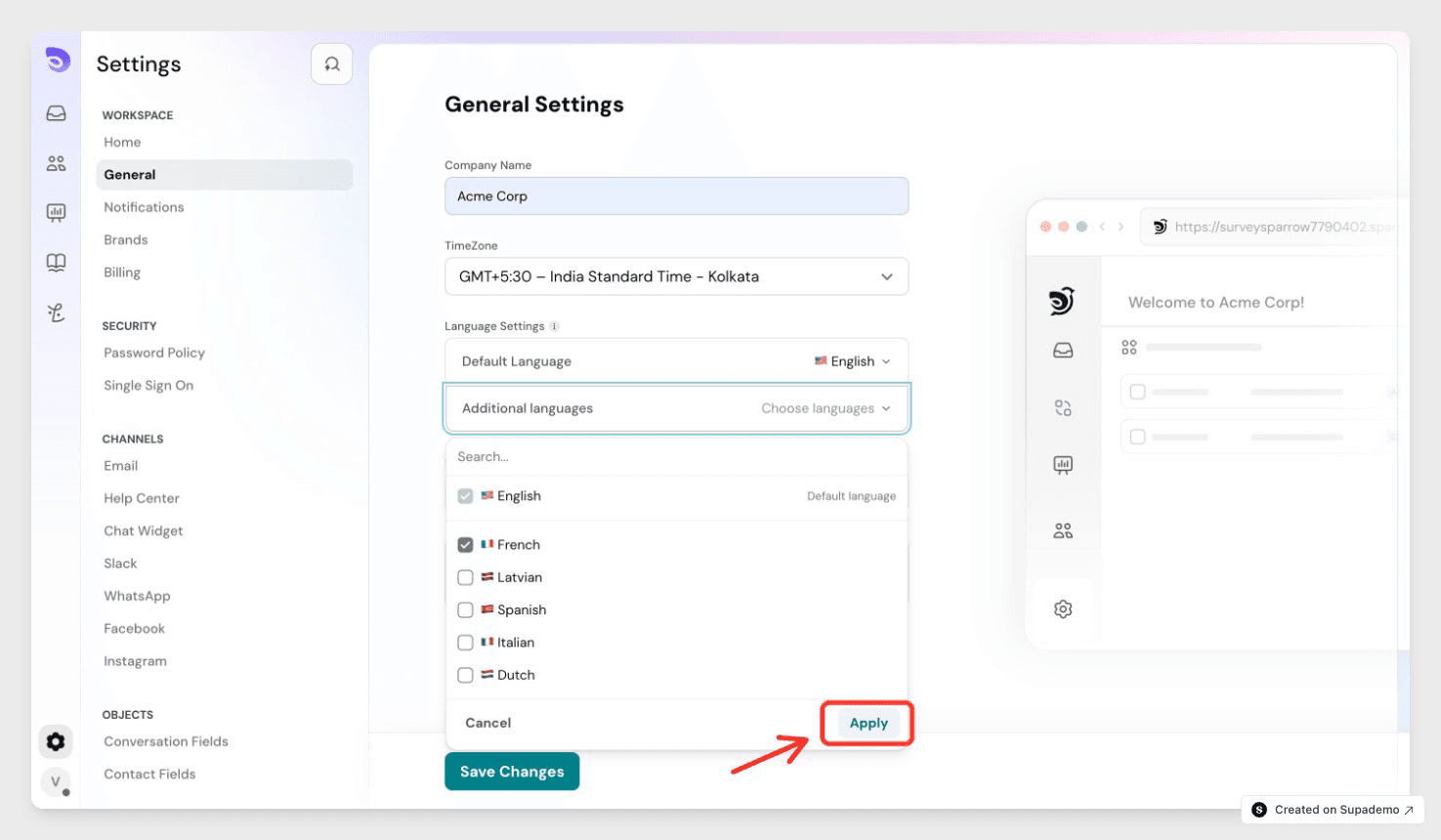
Go to Settings → General Settings → Language Settings. Your Default Language is already set. Open Additional languages, tick the ones you want to offer, and click Apply.
Step 2- Translate a template
- Open the notification template you want to translate.
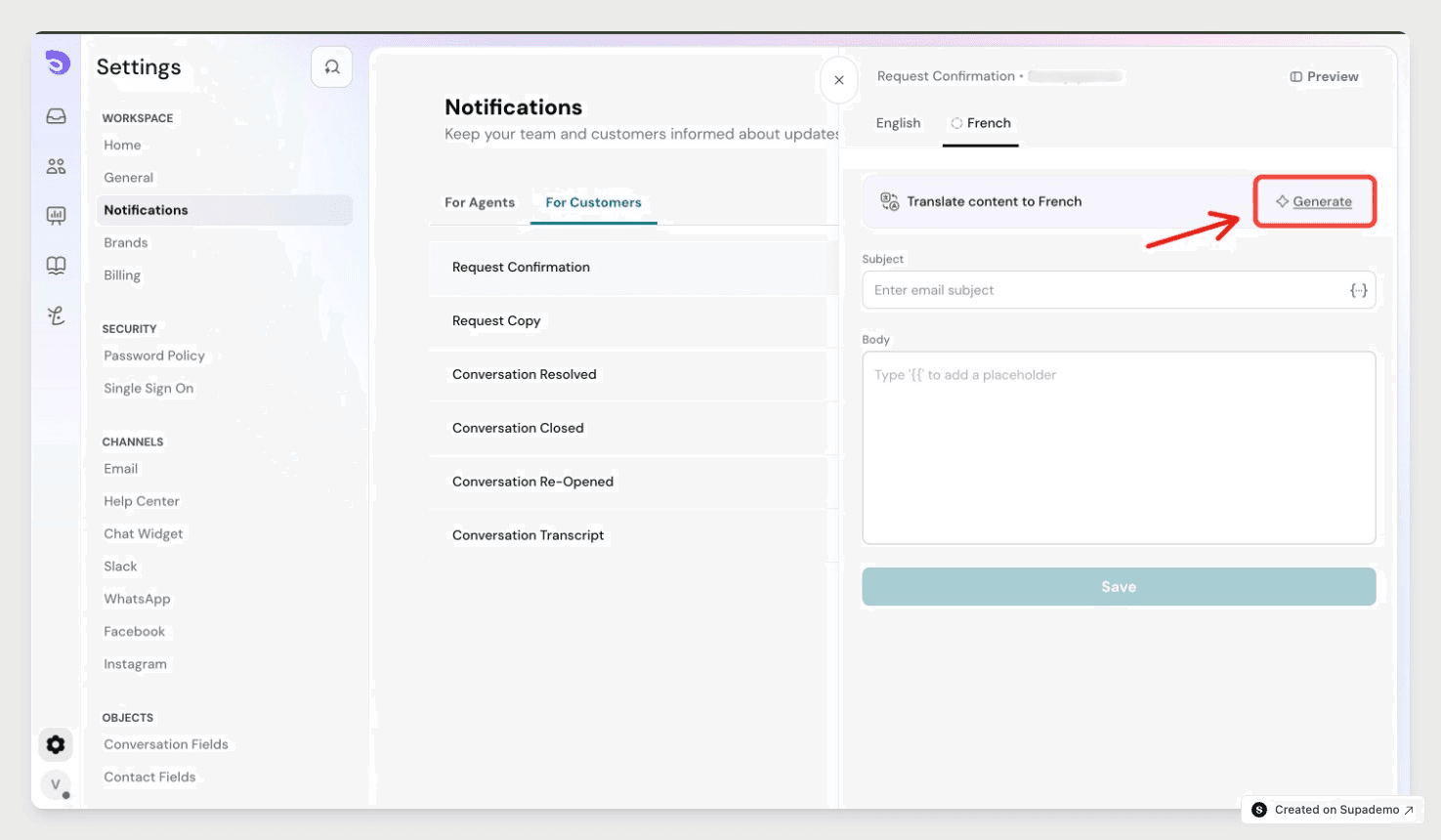
- At the top, click the tab for the language you're adding — for example, French. The languages you turned on in Step 1 appear here.
- Click Generate to have SparrowDesk translate the English version for you. The subject and body fill in automatically.
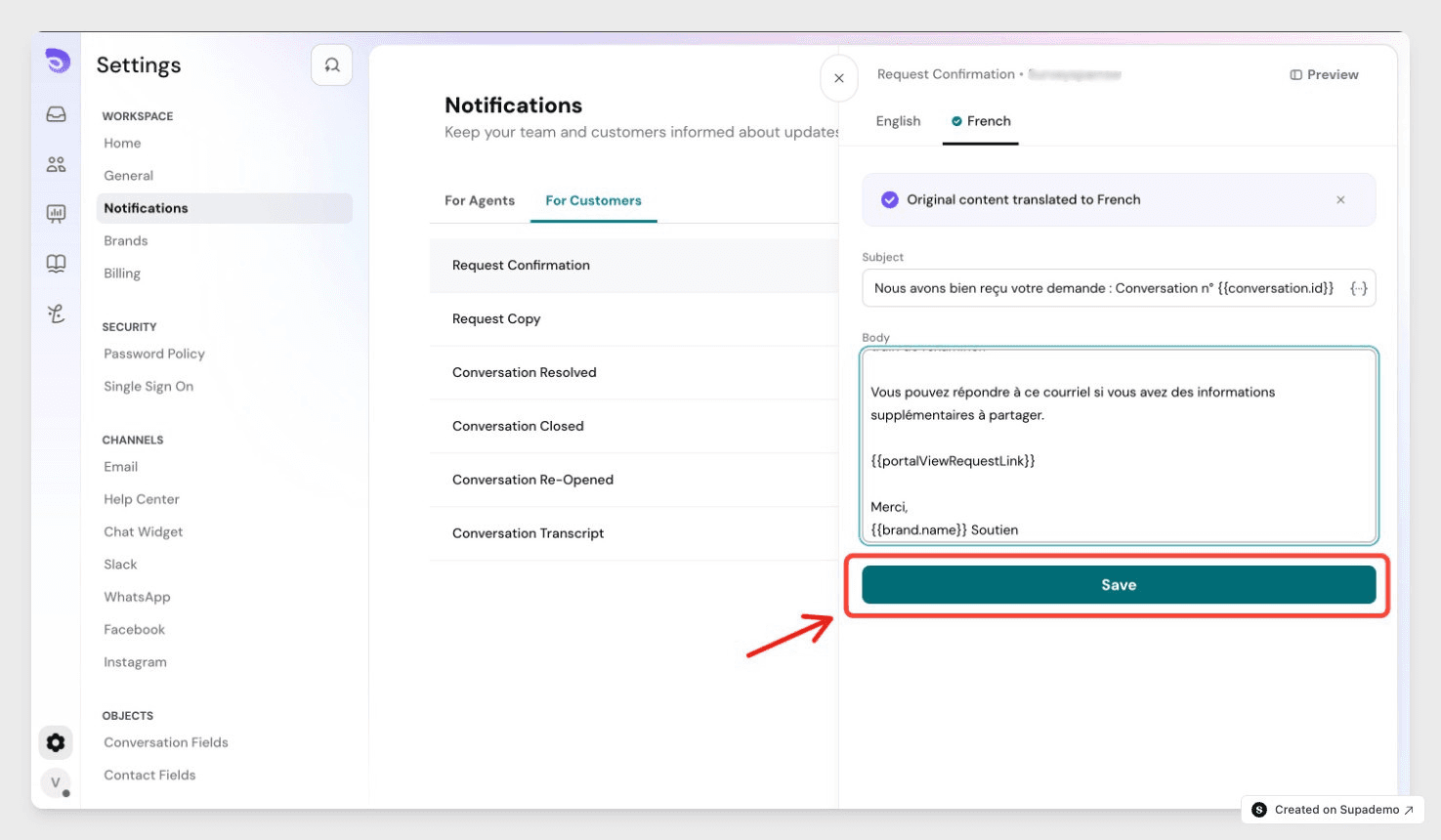
- Review the translation, edit anything you want to change, and click Save.
Things to Know
- The subject line and body can't be left blank. Save is blocked until both have content.
- Changes apply to future emails only. Anything already sent or queued isn't affected.
- Editing customer notification templates is available on all plans.
FAQ
1. What happens if a variable has no value for a customer?
It renders as empty in the sent email, and the surrounding text stays as written. If you use an optional variable like a phone number, write the copy so it still reads well when that value is missing.
2. Can I undo my changes and go back to the original template?
No. Once a template is saved, the original default can't be recovered through the editor. Keep a copy of the original wording before you edit if you might want it back.
3. Can I remove the "This email service is delivered by SparrowDesk" line?
Not right now. Every customer email includes this branding line. The option to remove it may be added in a future update for higher plans.
4. Can I edit the emails my own team receives?
No. This editor only covers customer-facing emails in the For Customers section. Internal and agent notifications aren't editable here.
5. Who can edit these templates?
Admins and Super Admins who manage workspace settings.