
sparrowdesk-logo-transparent-1.png
Go to sparrowdesk.com
Home
SparrowDesk Overview
  • Overview of SparrowDesk
  • Feature Overview in SparrowDesk
  • SparrowDesk Glossary
Getting Started
  • Setting Up Account Details
  • Default Business Hours
  • Understanding and Creating Teams
  • Inviting Team Members to the Platform
  • Roles and Permissions
  • Single Sign-On
  • Brands in SparrowDesk
  • Getting Started FAQs
  • Use a custom domain for your support portal
  • Customize Customer Email Notifications
Inbox
  • Understanding the Inbox in SparrowDesk
  • Managing Custom Views in Inbox
  • Live Chats in Inbox
  • Staying on Top of New Messages from Customers
  • Conversation Fields in SparrowDesk
  • Merging Conversations in SparrowDesk
  • Round Robin assignment explained
  • Export Conversations as CSV
  • Bulk update fields
  • Forward a Conversation to an External Contact
  • Common Email Delivery Errors
  • Add Watchers to a Conversation
Channels
  • Slack as a Channel
  • WhatsApp as a Channel
  • Facebook Messenger as a Channel
  • Setting Up Email as a Support ChannelConnect your custom email address How do I send and receive emails via SMTP and IMAP ? How do I find my SMTP/IMAP server address and port number? Common Errors while Connecting through SMTP/IMAPHow to Prevent Emails From Going to Spam Email Signatures
  • Installing Chat Widget Chat Widget Installation on WordPressInstall the Chat Widget on ShopifyCustomising Chat WidgetEmbedding and Configuring the SparrowDesk Chat WidgetChat Widget SettingsWhy End Users Don’t Always See Their Chat HistoryTrack page visits in SparrowDesk
Contacts
  • Contacts in SparrowDesk
  • How to manage contact segments
  • Deleting and Blocking Contacts in SparrowDesk
  • Contact Fields in SparrowDesk
Reports
  • Conversation Report
  • Team Performance Report
  • Understanding the AI Agent Report in SparrowDesk
  • Viewing CSAT reports in SparrowDesk
  • Reports FAQ
  • Exporting Reports as PDF
  • Help Center Reports
Automation
  • Macros
  • Business Hours
  • Service-Level Agreements (SLAs)
  • Setting up CSAT (Customer Satisfaction) in SparrowDesk
Zoona AI
  • AI Suggested replies in your Inbox
  • AI-Generated Chat Subjects
  • Zoona AI Knowledge Improvements
  • Introduction to AI AgentAI Agent - Configure PersonaTraining your AI AgentZoona AI Agent CommandsAI Agent - Deploying on chatAI Agent - Deploying on EmailHow to Create a Command Zoona AI Agent - FAQUnderstanding AI resolutions in SparrowDesk
Workflows
  • Automate repetitive tasks through Workflows
  • How to Create a Workflow
  • Workflow Blocks Library
  • Notify a Slack Channel from a Workflow
Help Centre
  • Write Knowledge Articles for your Help Centre and AI Agents
  • Setting Up and Customizing Your Help Center
  • Use a Custom Domain for Your Help Center
  • Make Your Help Centre Discoverable in Search results
  • Adding Google Tag Manager to your Help Center
  • Creating a Ticket Form Setting up Customer Portal
Billing
  • How does SparrowDesk pricing work?
  • What is Seat ?
  • Manage your Billing and Invoices
  • About Sales Tax
  • How to cancel your subscription
  • Frequently Asked Questions
  • AI Co-pilot and AI Resolution billing
  • SparrowDesk Startup Program
Apps and Integrations
  • Okta Integration
  • HubSpot Integration
  • SurveySparrow Integration
  • Zapier Integration
  • Attio Integration
  • Linear Integration
  • Jira Integration
  • Gmail Integration
  • Notion Integration
  • Shopify Integration
  • Migrating from Freshdesk
  • Zoho CRM integration

Manage your Billing and Invoices

Timer2 min read
SebinSebin

SparrowDesk accounts have a self-serve billing page, where you can view your plan or payment details, manage licenses, and view your invoices.


Manage your current plan

Step 1

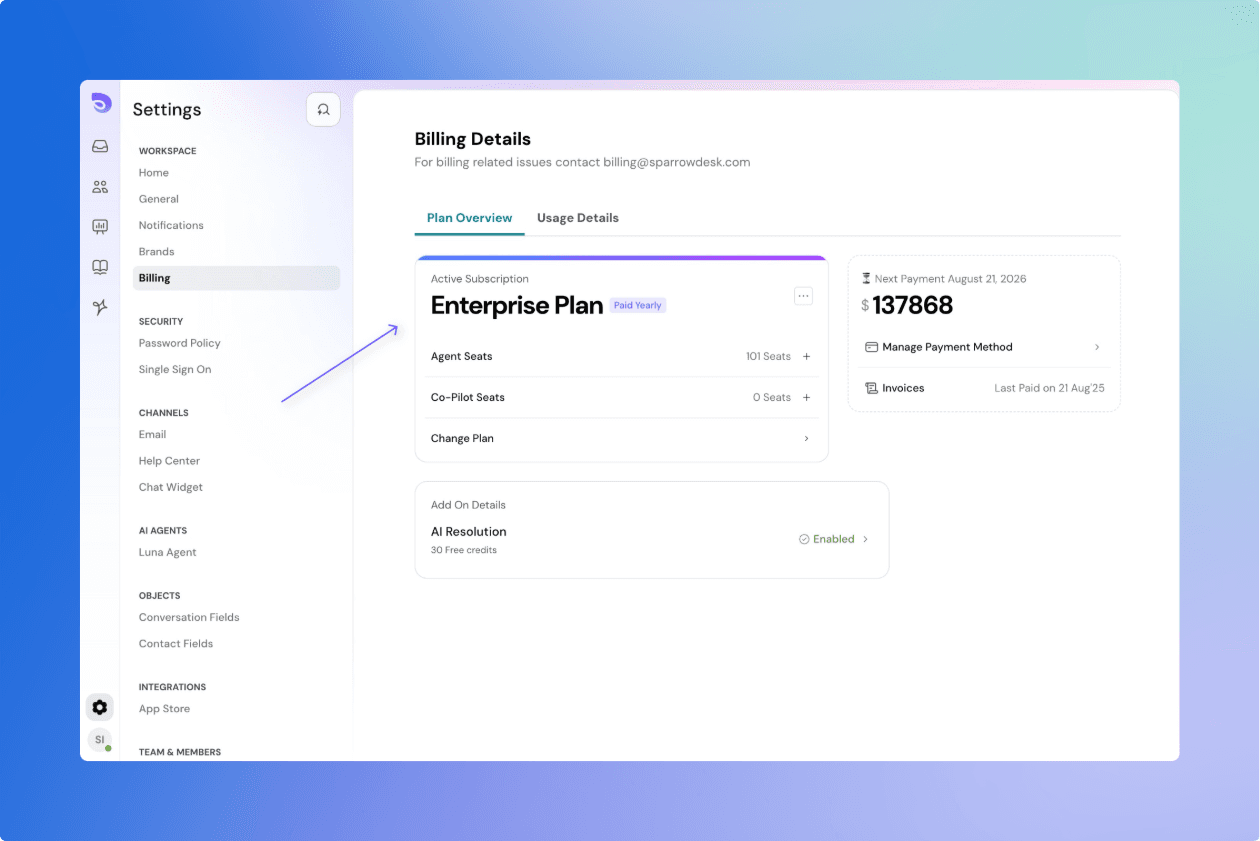
Click the gear icon, navigate to the company Settings , then select Billing.

You can also use the Compass (command + k ) s to navigate to the Billing tab.

Step 2

By default, you'll see your current subscription information in the Active Subscription tab. This includes seats and co-pilot seats.
Billing Details Interface.png

Step 3

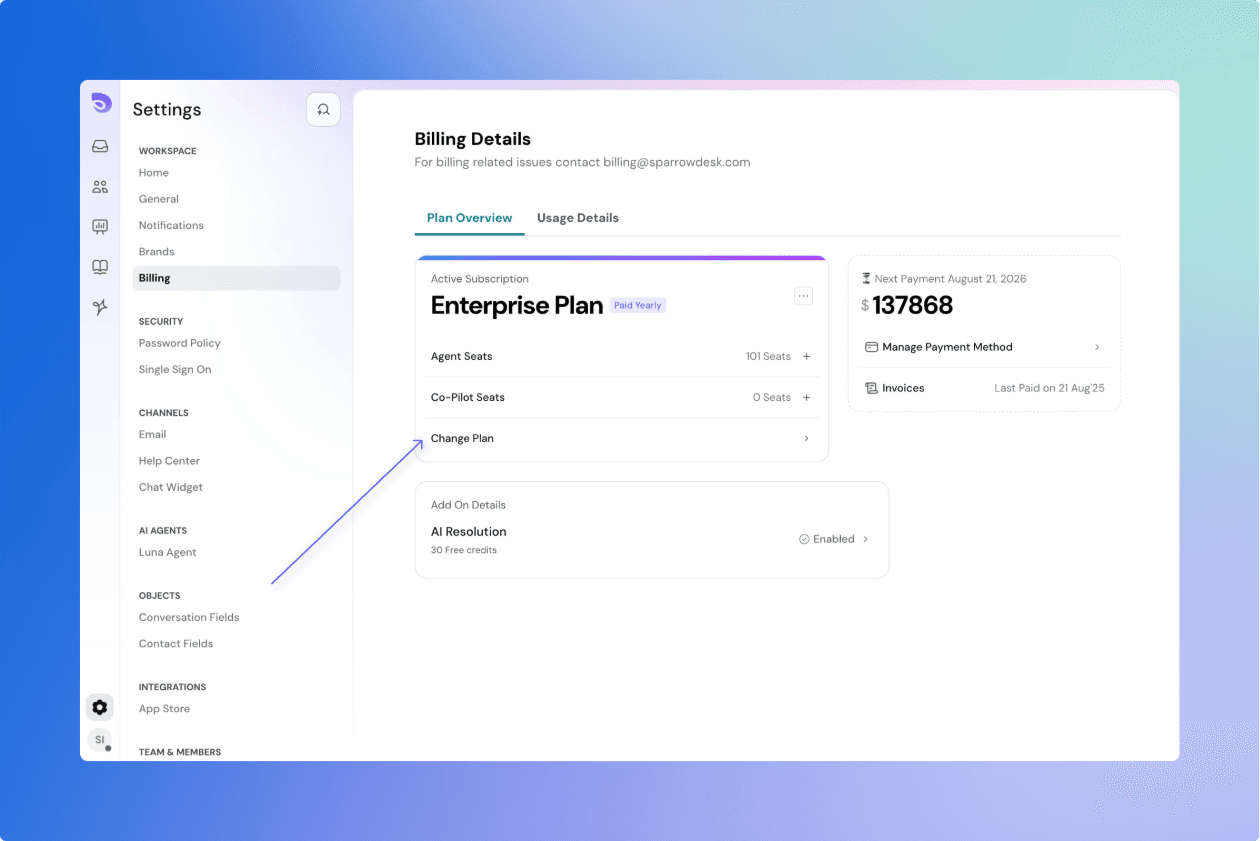
If you want to update your plan, you can edit your current subscription directly on this page.This includes upgrading your plan type or recurrence, increasing seats, and copilot-seats.

If you are actively talking with your SparrowDesk account representative, you can contact us if you'd like to make a mid-term change to your subscription or update your upcoming plan.

Software Billing Details Interface.png

If you need to cancel your subscription, follow these steps.


Remove deleted team members from your bill

When you delete a user , you may also want to reduce the number of seats on your account, so that your bill reflects your number of desired seats for your next renewal.For this you will need take action in Billing page.

When seats or co-pilot seats are removed, the unused value will not be refunded in cash.

Instead, it will be credited to your account and can only be applied toward future invoices.

You can only remove unoccupied seats.For example if you have 10 seats purchased and you have 10 members occupying the seats then you cannot remove any seats. When all seats are taken, you have remove team members first from the Members page.

Follow the steps below to reduce the number of seats on your account after removing team members.

Step 1

  • Click the gear icon, navigate to the settings, then select Billing.

Step 2

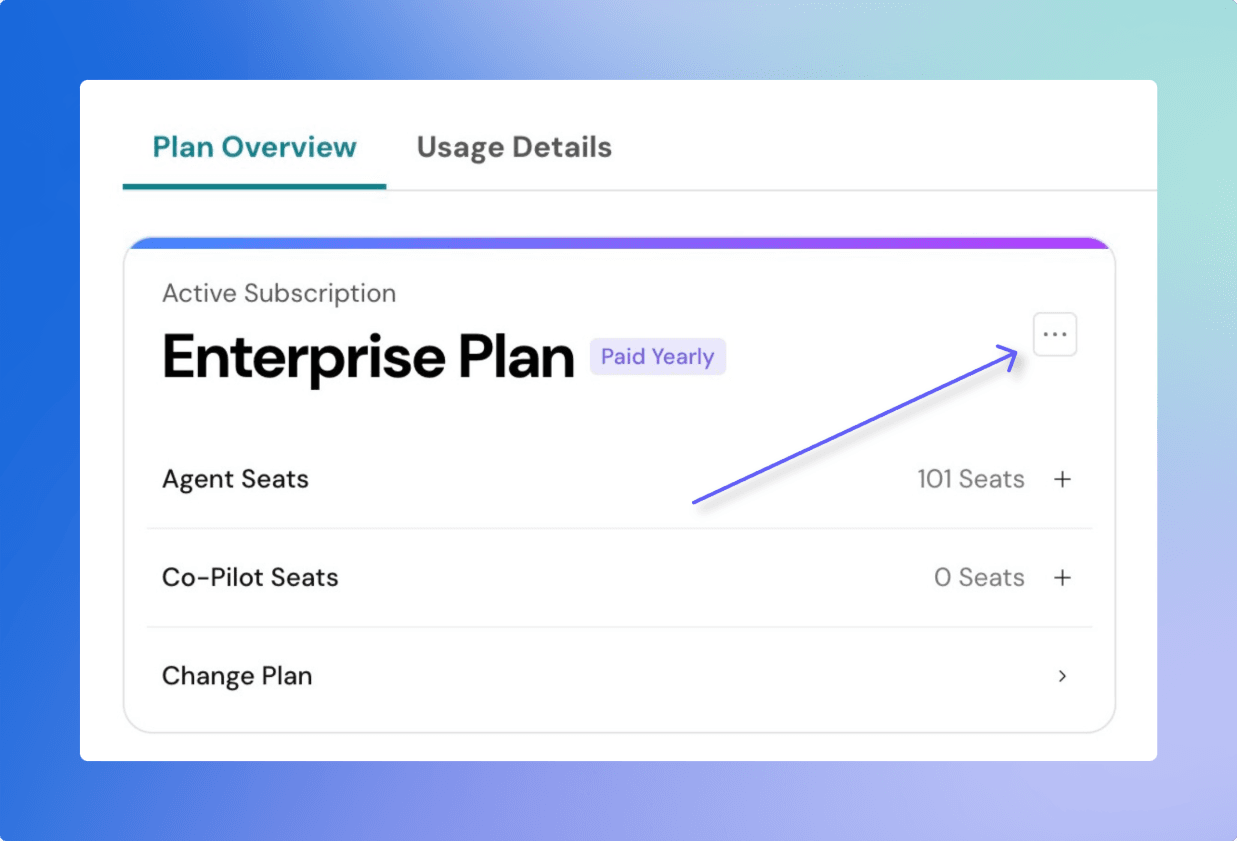
  • Click on the 3 dots under Active Subscription.

Step 3

  • Click on the Reduce Seat Counts from the 3 dots.
Screenshot of Active Subscription Plan Overview.png

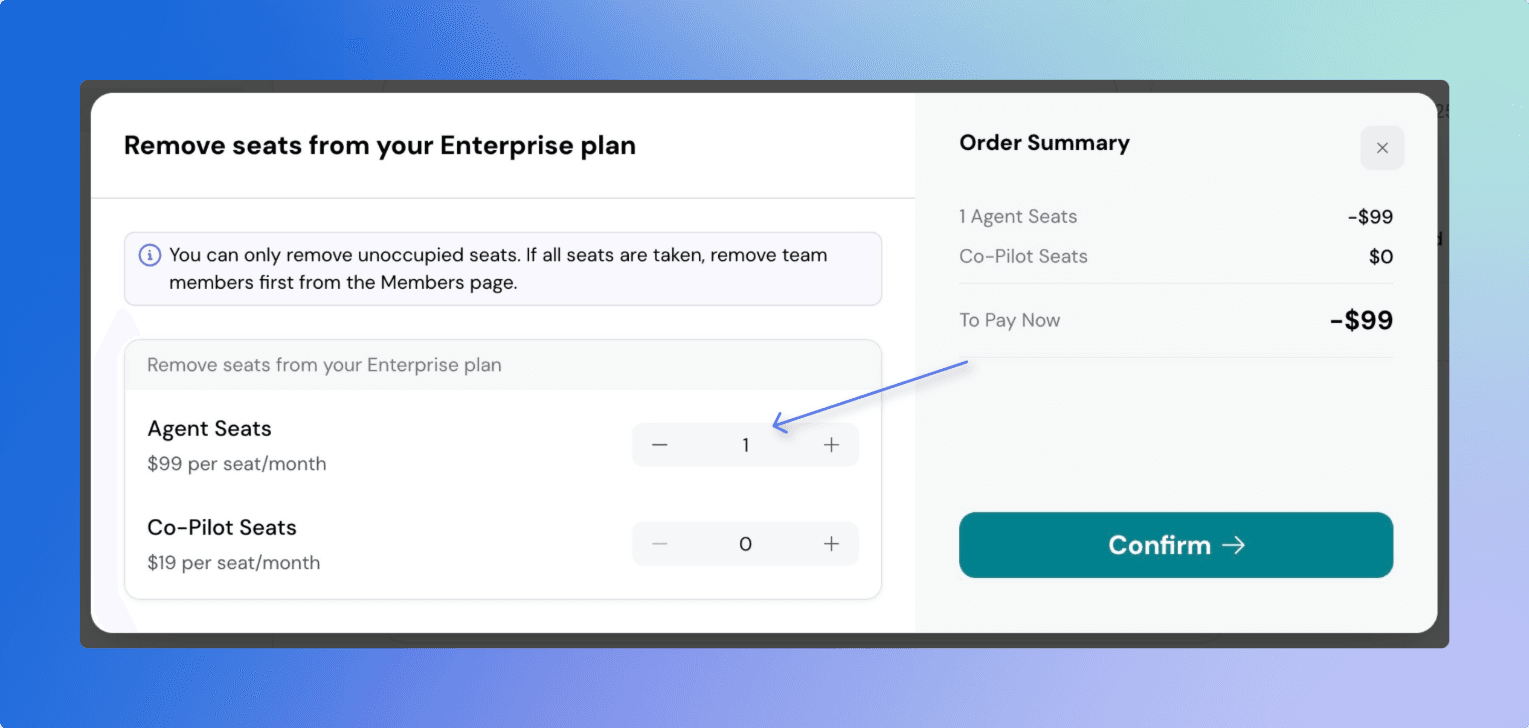
Use the plus button or type the number of seats you need to remove. Remember , here you have to input the number of seats you wish to remove.

Subscription Plan Seat Removal Interface.png

You will see the Order summary on the right side show the un-used credit to your account (negative value means credit to you) which can be only used for future payments.


Update your billing information

If you need to adjust the email address that SparrowDesk sends invoices to, the contact information displayed on the invoice, or your Tax ID, get in touch with us through [email protected] .

Powered By SparrowDesk

Table of ContentsOn this page