
Facebook Messenger as a Channel

Facebook Messenger is a channel in SparrowDesk that lets your team receive, manage, and reply to customer messages from Facebook Messenger DMs- all inside the same inbox your team already uses.
Before you start
Make sure you have:
- Admin access in SparrowDesk
- A Facebook Business Page you manage
- Admin access to that Page's connected Facebook account
This channel supports Facebook Messenger direct messages only. Public comments and Instagram DMs are not supported yet.
Connect a Facebook Page
- Go to Settings in SparrowDesk.
- Under Channels, select Facebook Messenger.
- Click Connect your account.
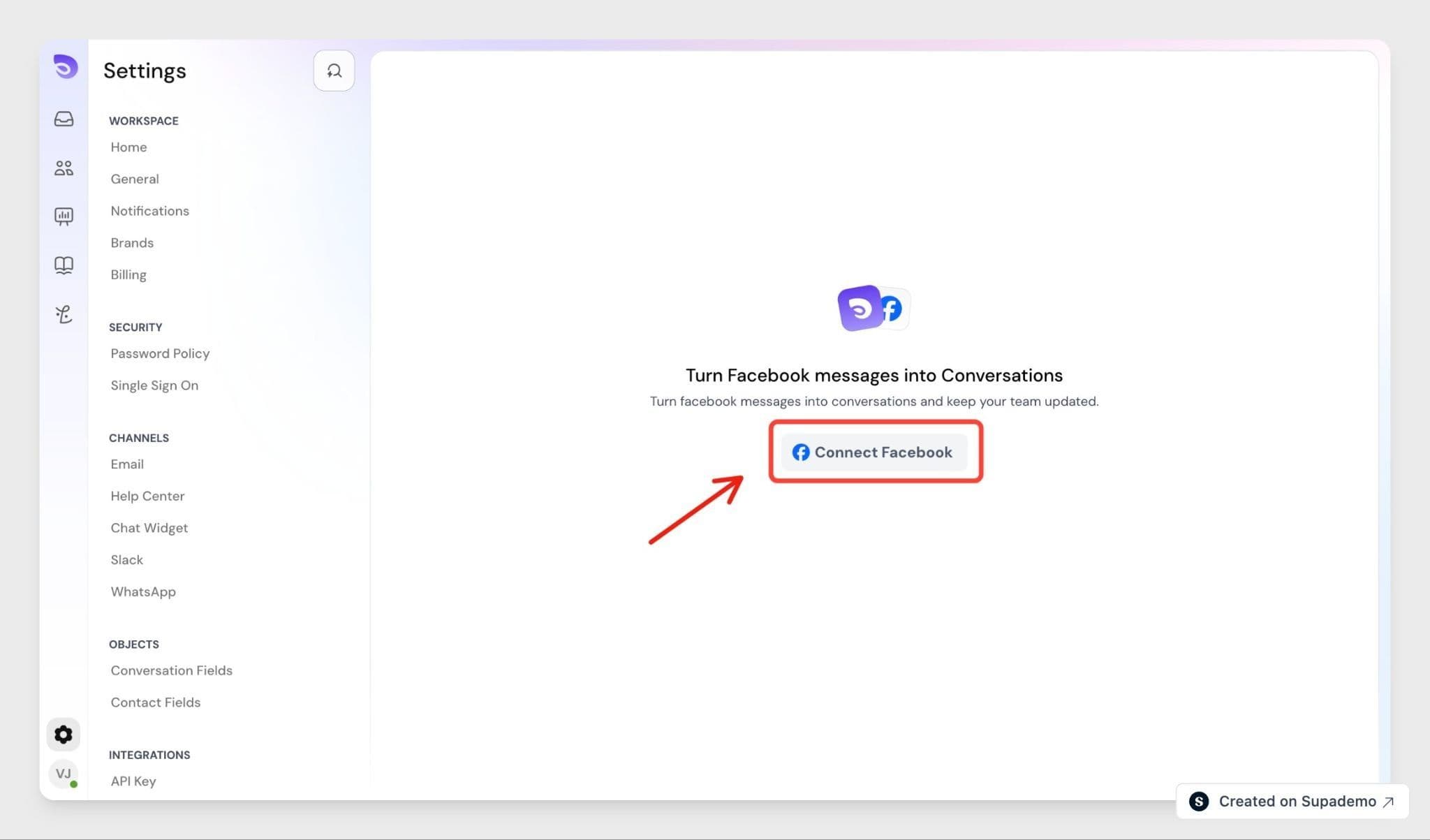
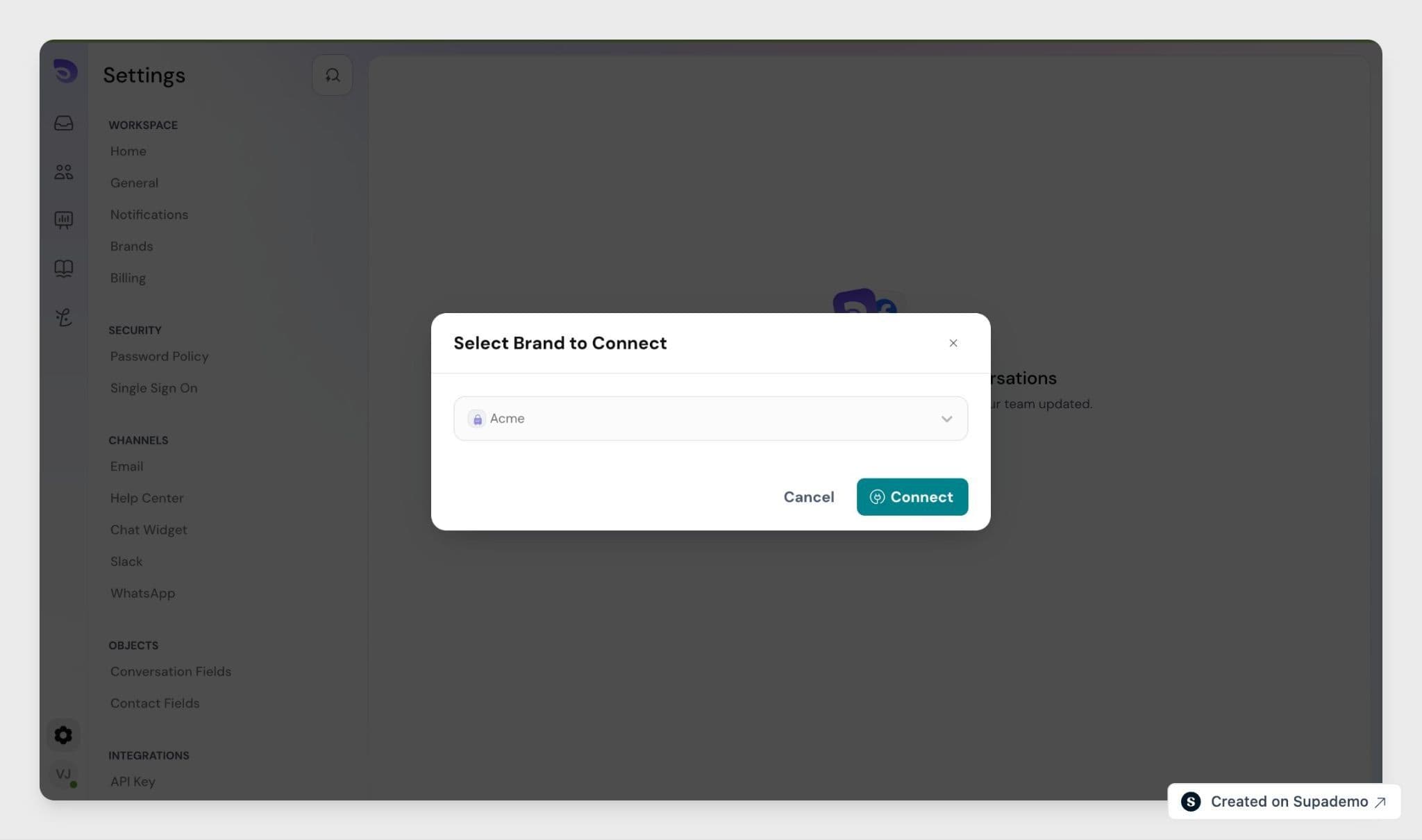
- Select the Brand you want to connect this Page to. This is auto-selected if your account has only one brand.
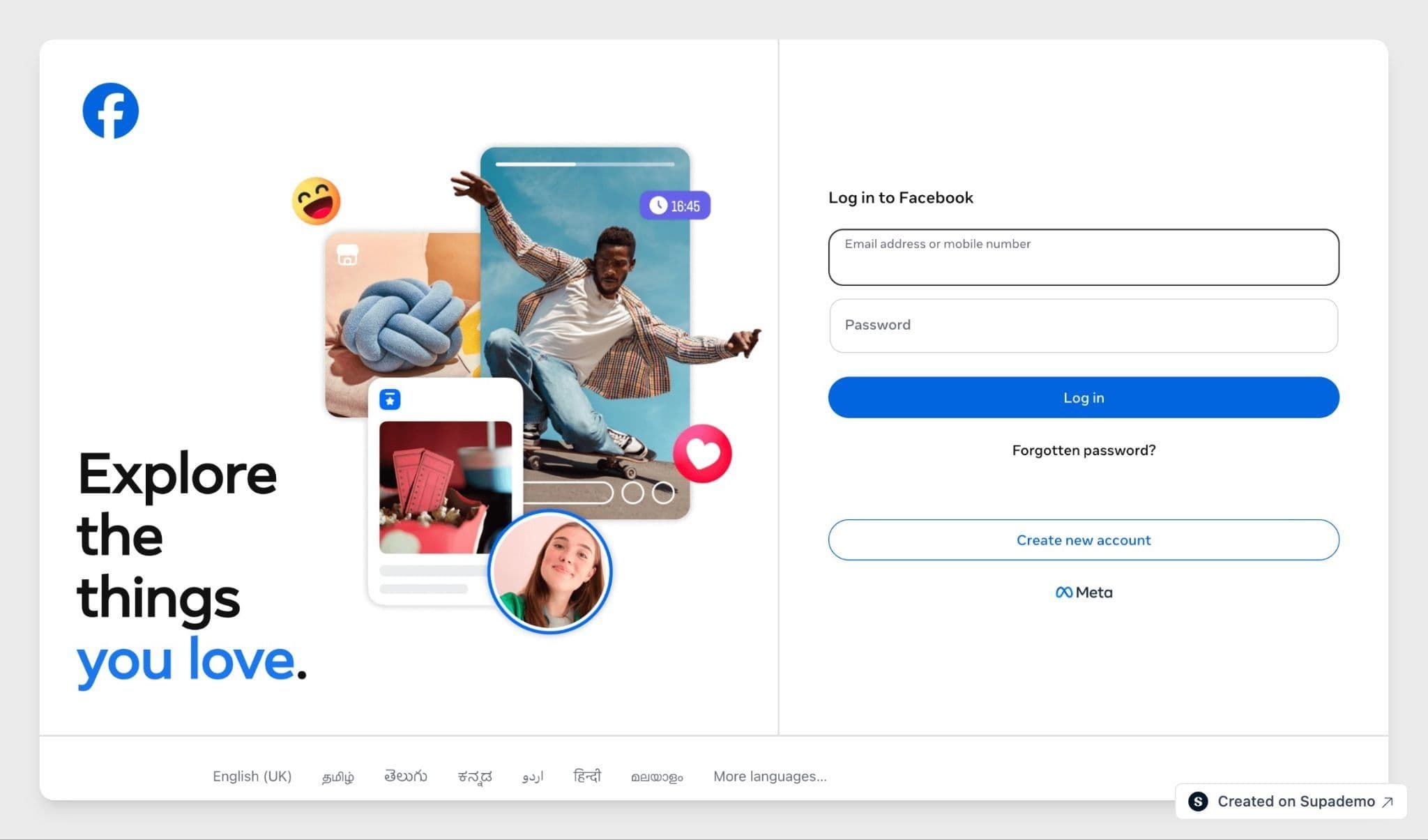
- Click Continue with Facebook and log in when prompted.
- Select the Facebook account that manages your Page.
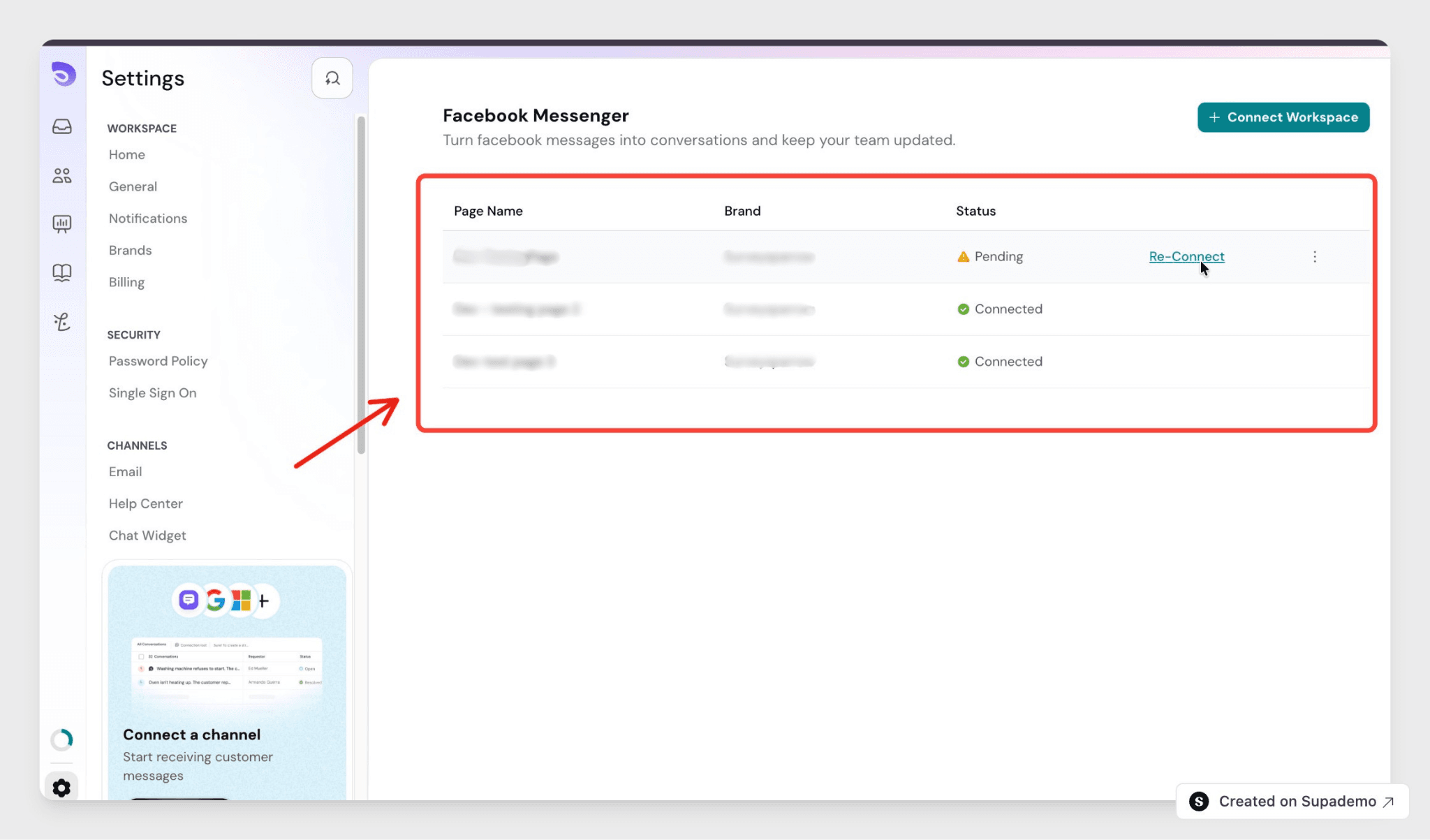
SparrowDesk checks the account for any Pages and connects all of them automatically. Every Page appears in the listing view under Settings > Channels > Facebook Messenger.
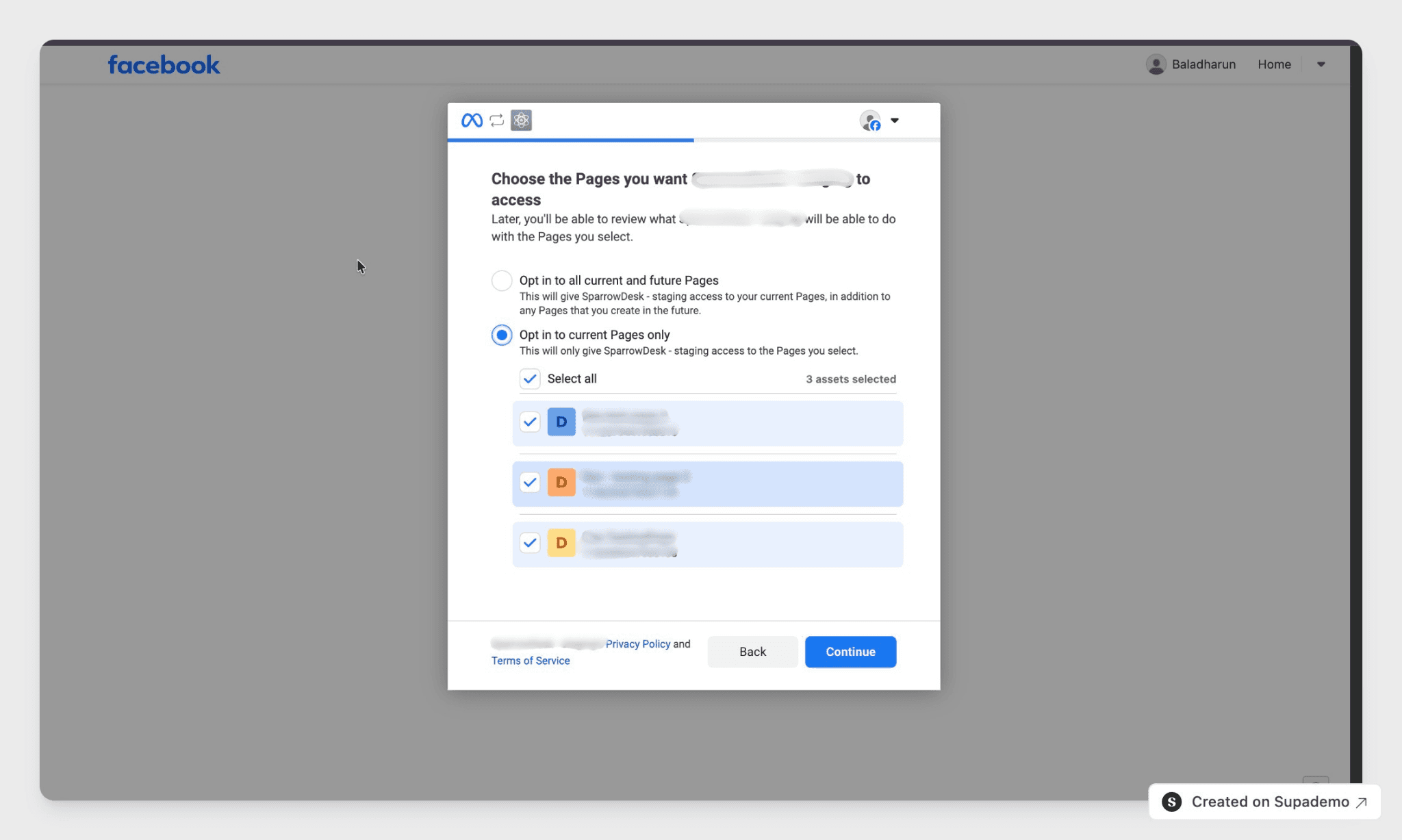
One Facebook account can have multiple Pages, and all of them get connected. Each Page can only belong to one brand- it cannot be shared across brands.
Connection status
Each connected Page shows one of two statuses:
Status | What it means |
Connected | The Page is added and working normally. |
Not Connected | The Page was added but isn't working- usually because of a password change on the Facebook side. Click Reconnect to fix it. |
How tickets work
Scenario | What happens |
No existing ticket | A new ticket is created with status Open |
Existing ticket is Open or Pending | The message is added to that ticket |
Existing ticket is Resolved | The ticket reopens with status Open |
Existing ticket is Closed | A new ticket is created |
Same customer, different Page | A new ticket is created- no cross-Page linking |
A contact can only have one active conversation at a time. If they already have one open, new messages go there instead of starting a second one.
Replying to a conversation
Agents can only reply in a contact's latest active conversation. If a contact has older, closed conversations, those stay visible for reference but the reply box is disabled with a note explaining why.
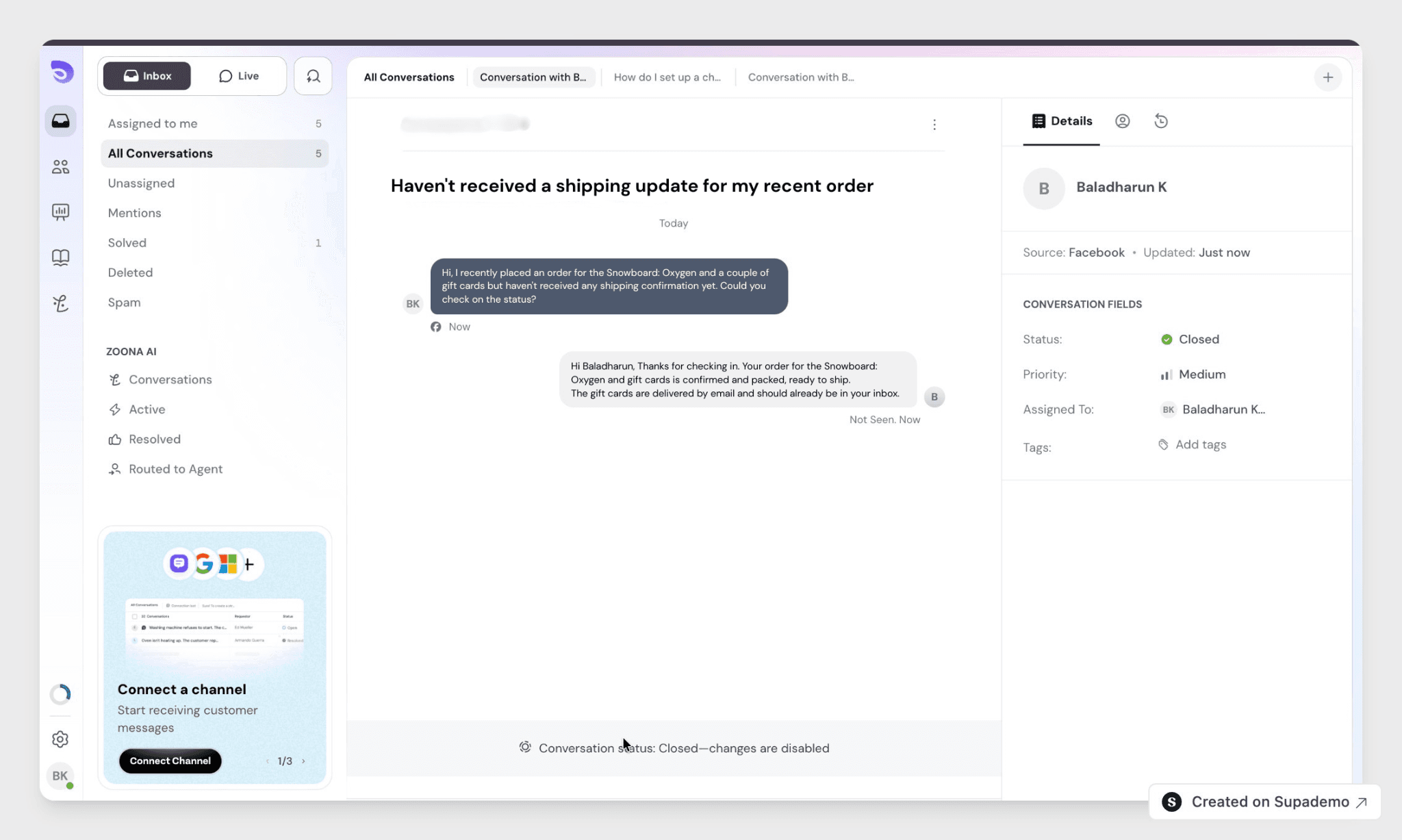
Closed conversations are read-only. You can scroll through the full history, but you can't add new messages to them.
Sending messages: time limits
Facebook controls how long after a customer's last message your team can keep replying.
Time since last customer message | What agents can send |
Within 24 hours | Free text, media, emojis- automated and human replies |
24 hours to 7 days | Free text, media, emojis- human replies only, no automated messages |
Once 7 days pass without a reply from the customer, sending is no longer available until they message again. Passing either time limit doesn't change the ticket's status.
Supported message formats
Agents can send and receive:
- Text with bold and italics
- Hyperlinks
- Images
- PDFs and most common file attachments
- Emojis
@mentions are automatically removed before a message is sent. Location sharing and audio files are not supported yet.
Message delivery status
If a message fails to send, SparrowDesk shows an inline error next to that message and lets you retry. Messages never fail silently.
How contacts are matched
SparrowDesk identifies a Facebook contact using an ID that Facebook creates for that person on your Page. This ID is different for every Page a customer messages- so if they message Page A and later message Page B, SparrowDesk treats them as two separate contacts, one for each Page.
Disconnecting a Page
Disconnecting a Page stops new messages from being sent or received on it, but it doesn't remove the Page from your settings- it just shows as disconnected. Any tickets already in progress stay open, and agents can still view their full history.
Workflows
Facebook Messenger tickets work with your existing workflows. You can trigger workflows on ticket creation, new inbound messages, assignment rules, SLAs, and tagging. Facebook is also available as a channel option when setting up a new message trigger.
For more on combining tickets from different channels, see Merging Conversations in SparrowDesk.
FAQ
- Can one Facebook Page be connected to multiple brands? No. Each Page maps to exactly one brand. A brand can have multiple Pages connected to it.
- What happens if I disconnect a Facebook Page? The Page stays in your settings list but shows as disconnected. In-flight tickets stay open and remain viewable, but no new messages can be sent or received on that Page.
- Can I reply in an older, closed conversation? No. Replies are only allowed in a contact's latest active conversation. Older conversations are visible for reference but the reply box stays disabled.
- Does this channel support Instagram or Facebook comments? No, not yet. Facebook Messenger as a channel currently covers direct messages only. Comments and Instagram support are planned for a future release.
- Who can connect a Facebook Page to SparrowDesk? Admins set up the connection, selecting the brand and authorizing the Facebook account. Once connected, any agent with access to that brand's inbox can view and reply to Facebook conversations.