
Understanding the AI Agent Report in SparrowDesk

The AI Agent Report helps you understand how your AI Agent contributes to customer conversations.
It shows how often the AI Agent engages with customers, how many conversations it resolves independently, and when conversations are handed over to human agents.
This report is designed to help you track AI adoption, measure automation impact, and improve AI performance over time.
Where to find the AI Agent Report
- Go to Reports
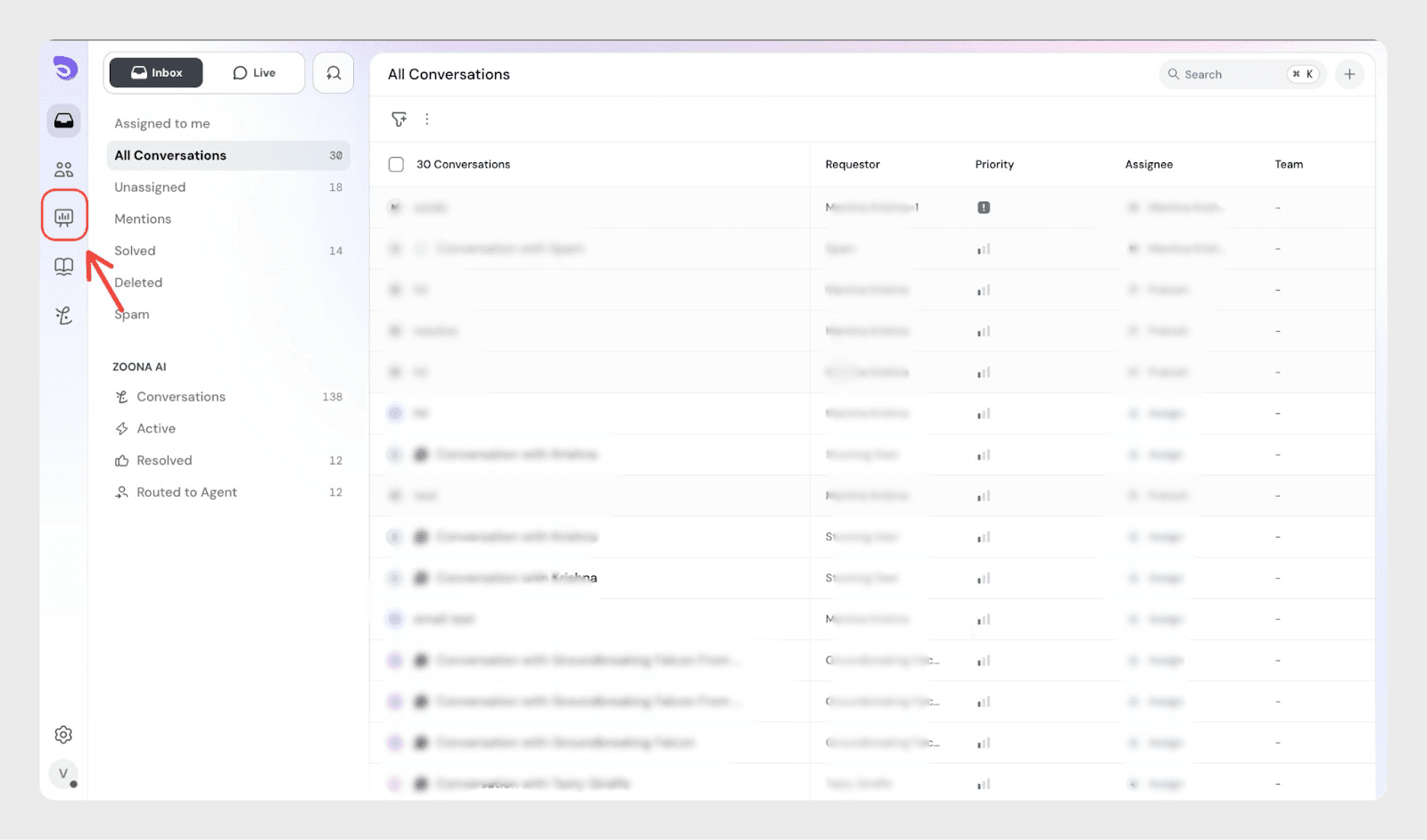
- Select AI Agent
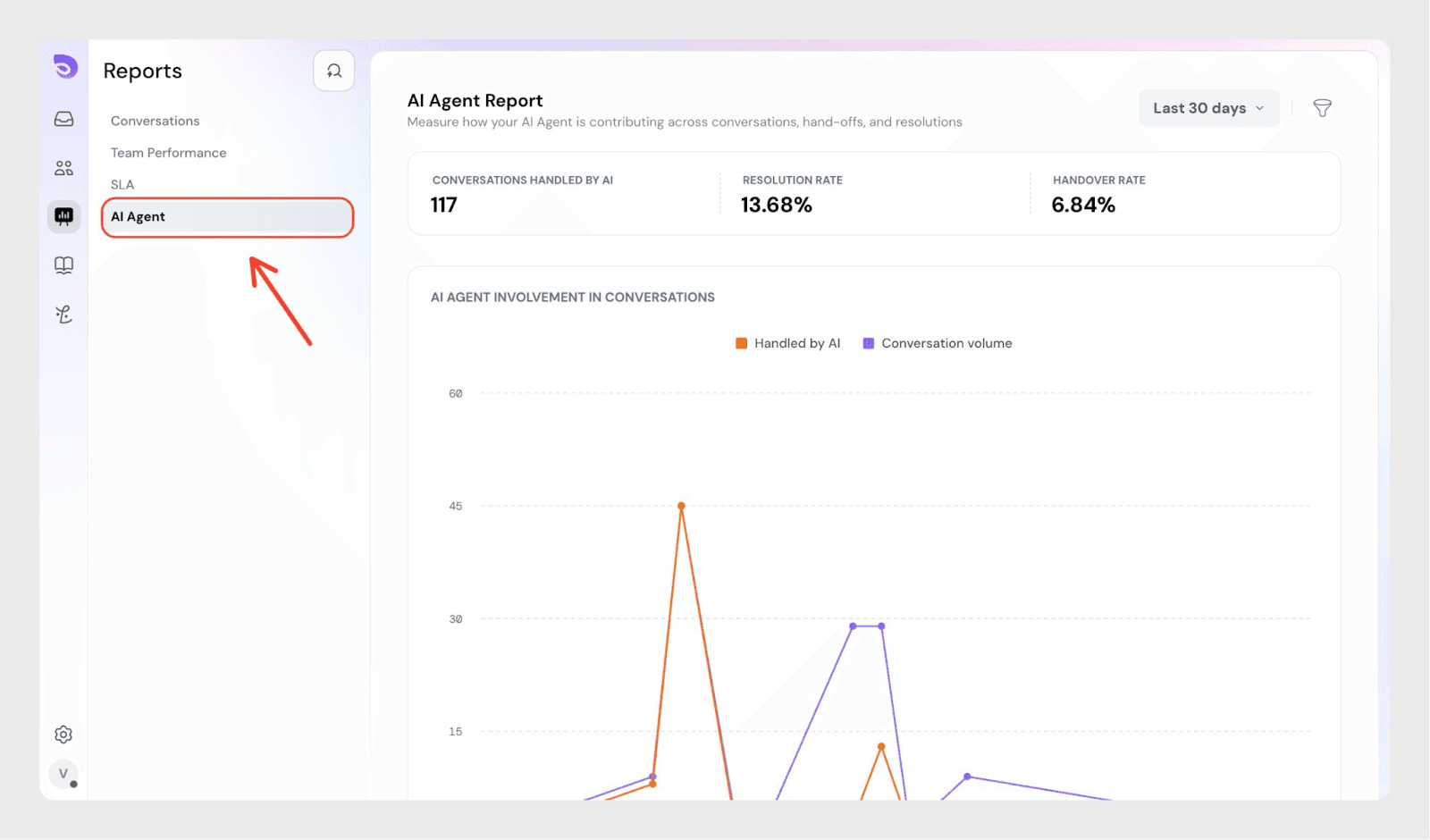
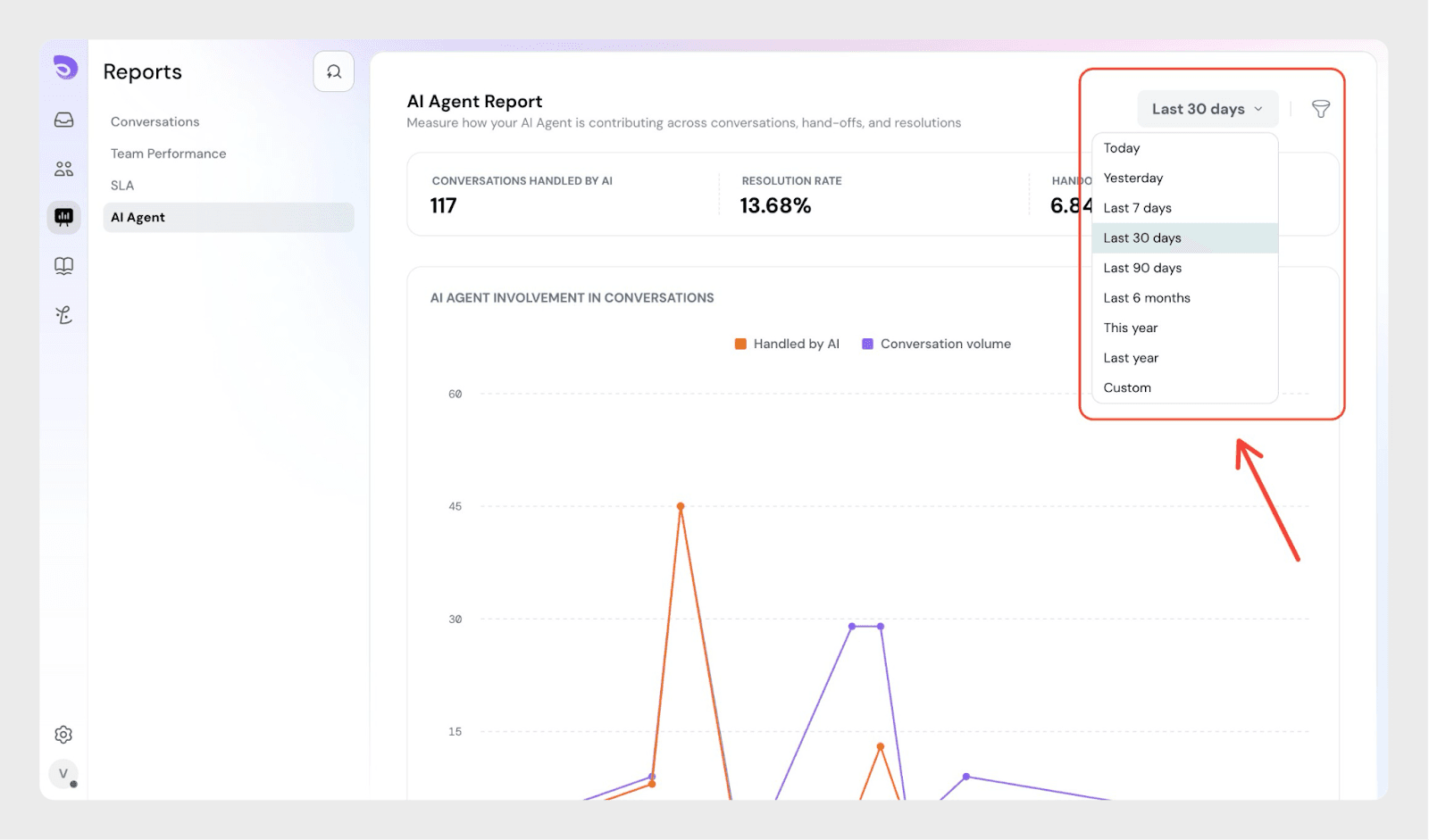
By default, the report shows data for the last 30 days.
You can update the date range using the filter in the top-right corner.
Overview metrics in the AI Agent Report
At the top of the report, you’ll see a summary of key AI performance metrics.
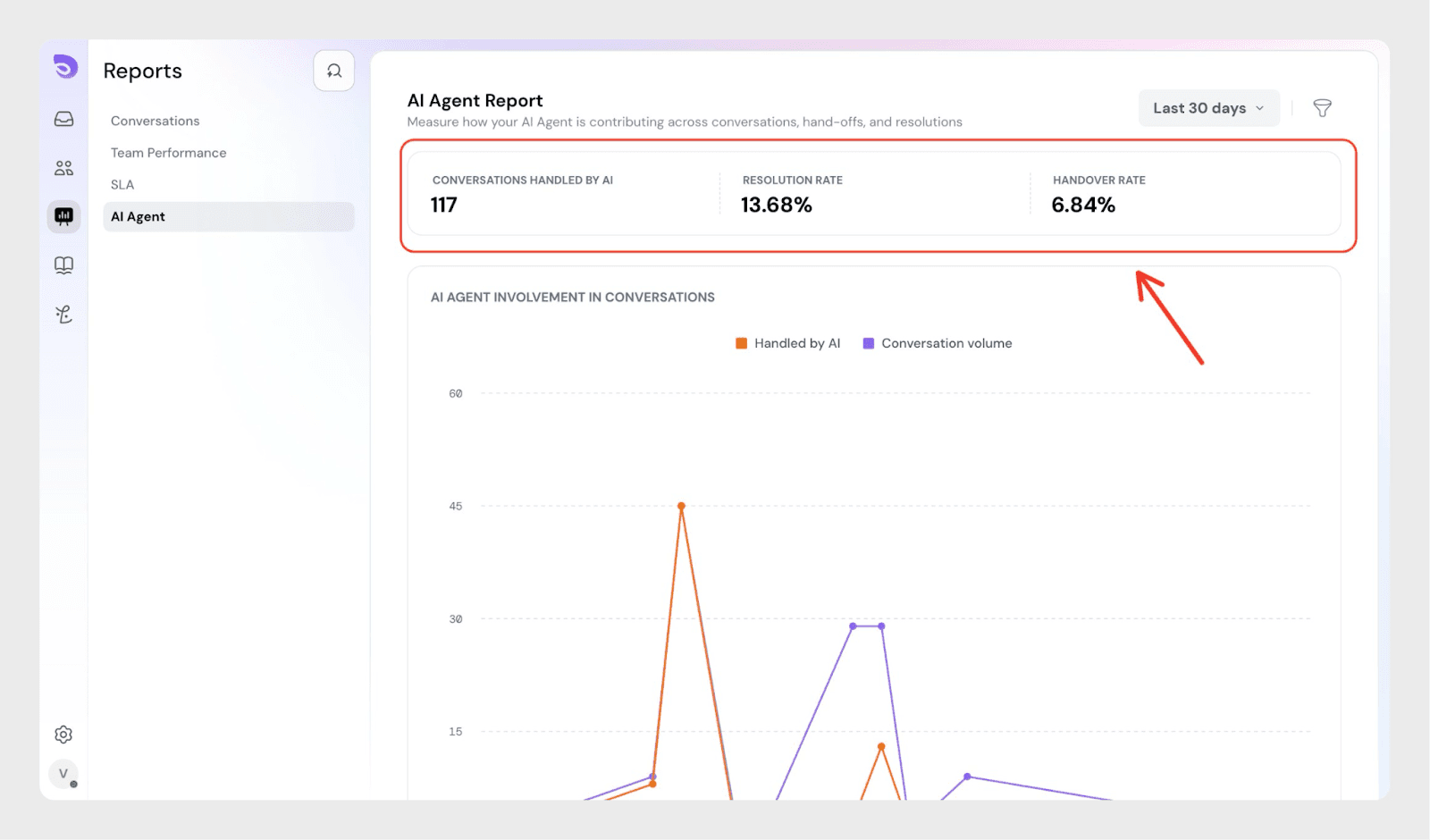
These metrics provide a quick snapshot of how your AI Agent is contributing to customer support.
Conversations handled by AI
This metric shows the number of conversations where the AI Agent actively responded to a customer.
A conversation is counted as handled by AI when:
- The AI Agent sends at least one response, and
- The conversation is not bypassed or ignored
This includes both:
- Conversations fully resolved by the AI Agent
- Conversations later handed over to a human agent
Resolution rate
The resolution rate represents the percentage of AI-handled conversations that were resolved without human involvement.
A conversation is considered resolved by the AI Agent when:
- The AI Agent answers the customer using available knowledge, and
- The conversation is closed without being assigned to a human agent
A higher resolution rate typically indicates:
- Strong knowledge base coverage
- Clear customer intent detection
- Well-configured AI Agent rules
Handover rate
The handover rate shows the percentage of AI-handled conversations that were transferred to a human agent.
A handover may occur when:
- The AI Agent is not confident in its response
- The customer requests human assistance
- The conversation meets predefined handover rules
This metric helps you identify where additional knowledge or rule tuning may be needed.
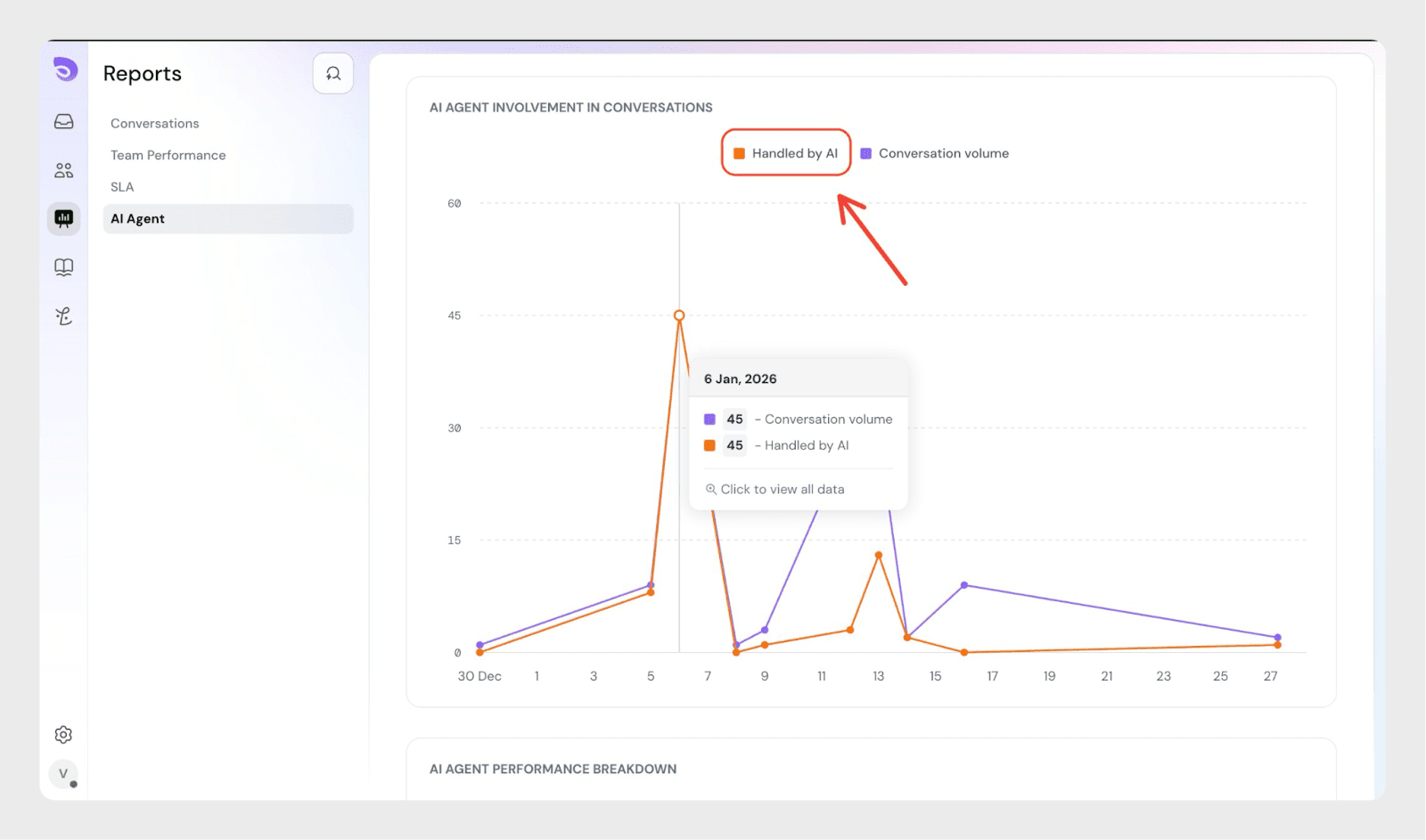
AI Agent involvement in conversations
This section visualizes how the AI Agent participates in conversations over time.
The graph compares:
- Conversation volume- total incoming conversations
- Handled by AI- conversations where the AI Agent responded
Use this view to:
- Monitor AI engagement trends
- Understand how AI scales with support volume
- Measure the impact of knowledge base updates on AI usage
Improving AI Agent performance
To improve AI performance and increase resolution rates:
- Add clear, structured articles to your knowledge base
- Keep existing articles up to date
- Cover common customer questions and issues
- Review AI Agent confidence and handover rules periodically
The AI Agent Report helps you track how your AI Agent is being used across conversations and how effectively it resolves customer queries. Monitoring these metrics over time allows you to fine-tune knowledge coverage, adjust AI rules, and improve the overall support experience.
FAQ
- What counts as a conversation handled by the AI Agent?
A conversation is counted as handled by the AI Agent when the AI Agent sends at least one response to a customer. This includes conversations that are fully resolved by the AI Agent and conversations that are later handed over to a human agent.
- What does “resolved by AI” mean in this report?
A conversation is considered resolved by the AI Agent when the AI Agent answers the customer using available knowledge and the conversation is closed without being assigned to a human agent.
- Does a handover mean the AI Agent failed?
No. A handover simply means the conversation required human involvement. Handovers can occur due to low confidence, customer requests, or predefined handover rules.
- How can I improve the AI Agent’s resolution rate?
You can improve resolution rates by adding clear, structured knowledge base articles, keeping content up to date, covering common customer questions, and reviewing AI Agent confidence and handover rules.
- Does updating the knowledge base affect this report?
Yes. Changes to your knowledge base can directly impact how the AI Agent responds to customers and may influence resolution and handover rates shown in this report.