
Notify a Slack Channel from a Workflow

The Notify Slack action sends a message to a Slack channel automatically when a workflow trigger fires, so urgent tickets, SLA breaches, and other time-sensitive events get noticed right away.
This is different from the full Slack integration, which creates SparrowDesk tickets from Slack messages. Notify Slack sends an alert from SparrowDesk to Slack, and you can reply directly in the Slack thread to respond to the customer. No need to switch back to SparrowDesk. For turning Slack messages into tickets, see Integrating SparrowDesk with Slack
Connect Your Slack Workspace
This is a one-time setup and only admins can do it.
- Go to Settings > Channels > Slack.
- Click Connect Slack workspace.
- Sign in to Slack and authorize the SparrowDesk app.
- Add the channels you want to notify, and assign each one to a brand. Search for public channels directly.
- For private channels, invite the SparrowDesk app inside Slack first. It then appears in your channel list automatically.
If you support more than one brand, notifications only go to channels assigned to the matching brand. A channel assigned to Brand A won't receive notifications for a Brand B conversation, even if the workflow's trigger applies to both. If none of your connected channels match a conversation's brand, the notification is skipped and nothing posts.
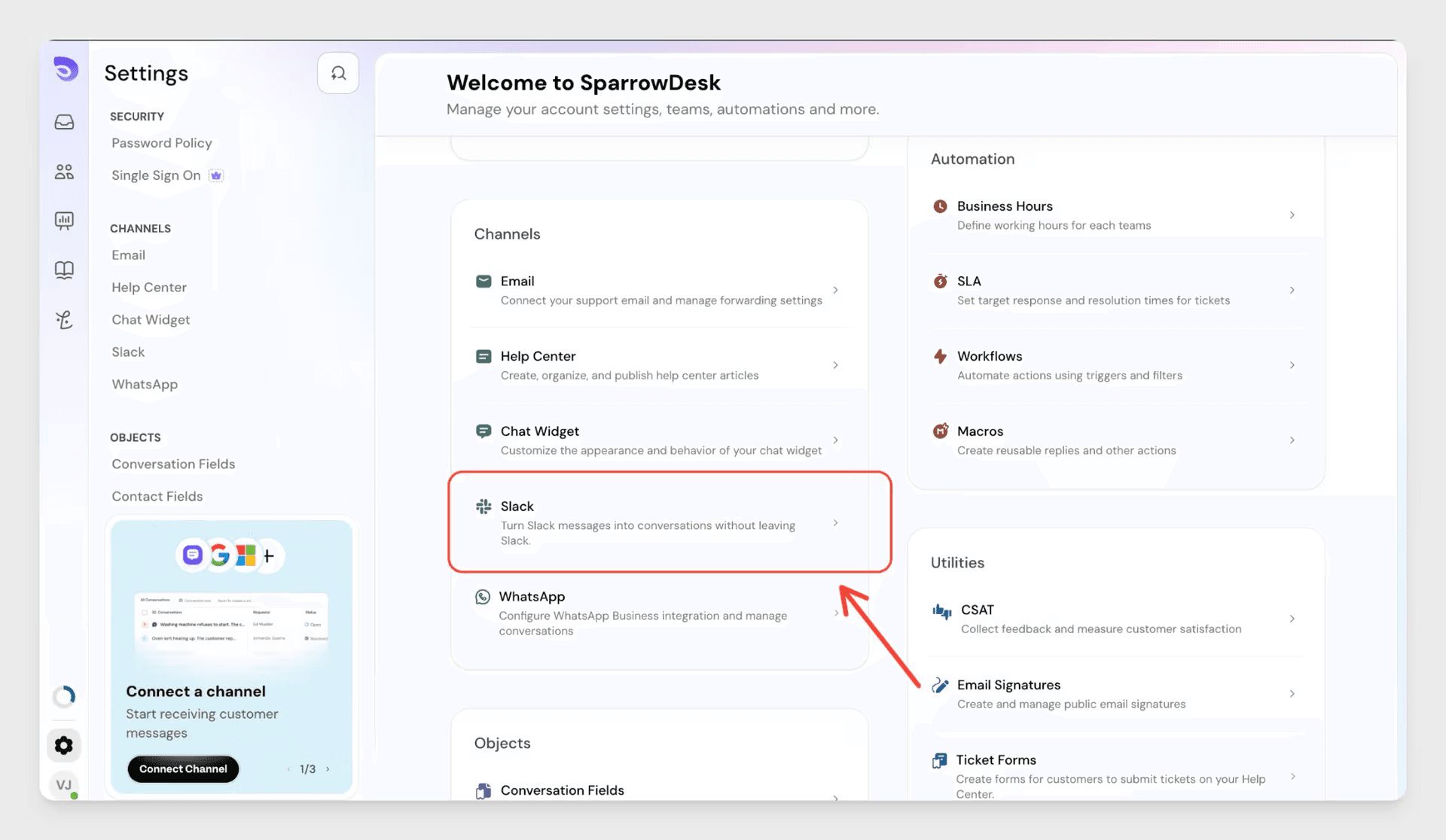
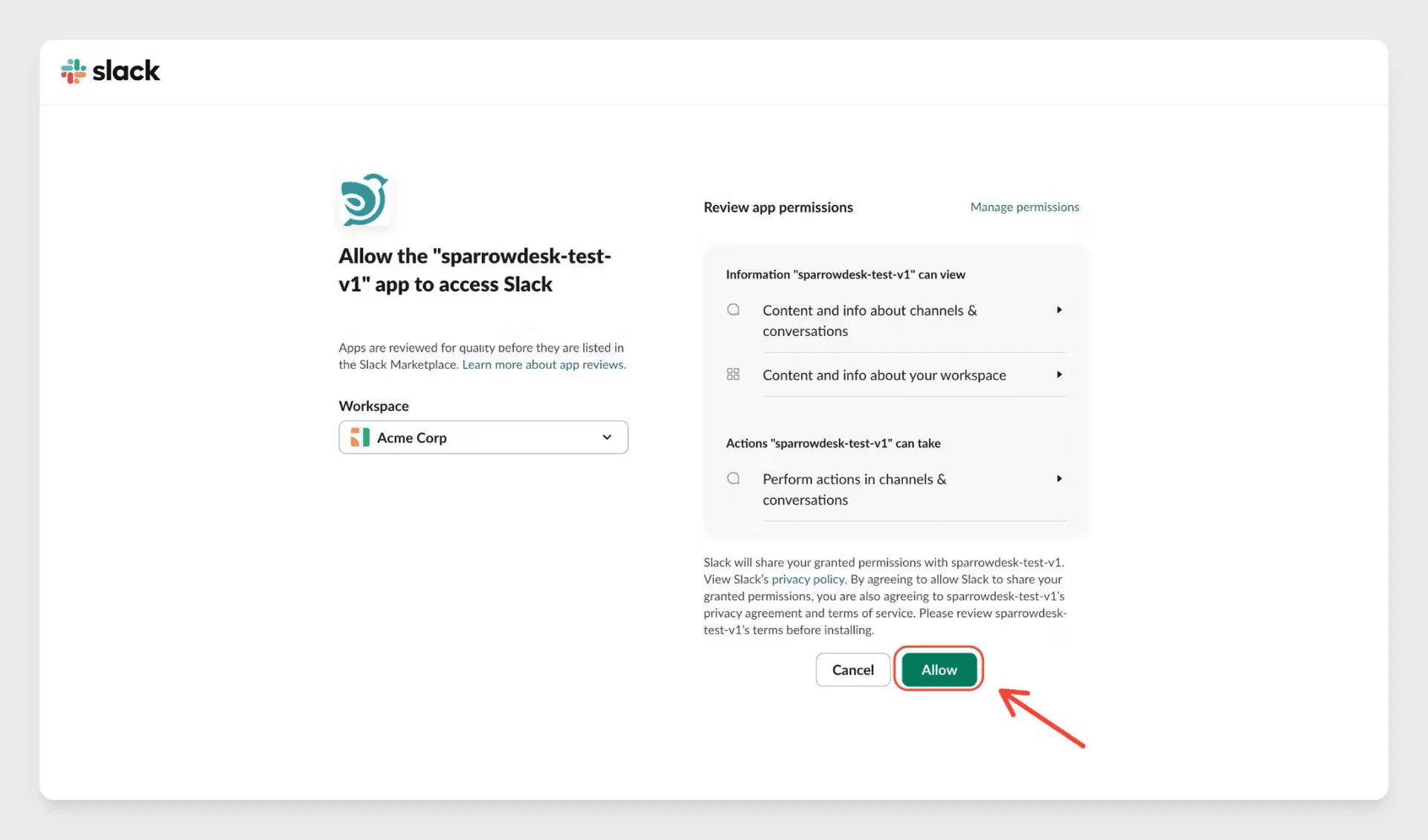
Connected channels appear in a list under your workspace name. Workflows keep running if you remove a channel, but any Notify Slack block pointing to it stops sending until you pick a new one.
Add a Notify Slack Block to a Workflow
- Open the workflow builder and create or edit a workflow.
- Add a trigger, for example Conversation is created.
- Add a Notify Slack action block after the trigger.
- Select a channel from the dropdown. Channels are grouped by workspace name.
- Click Done and save the workflow.
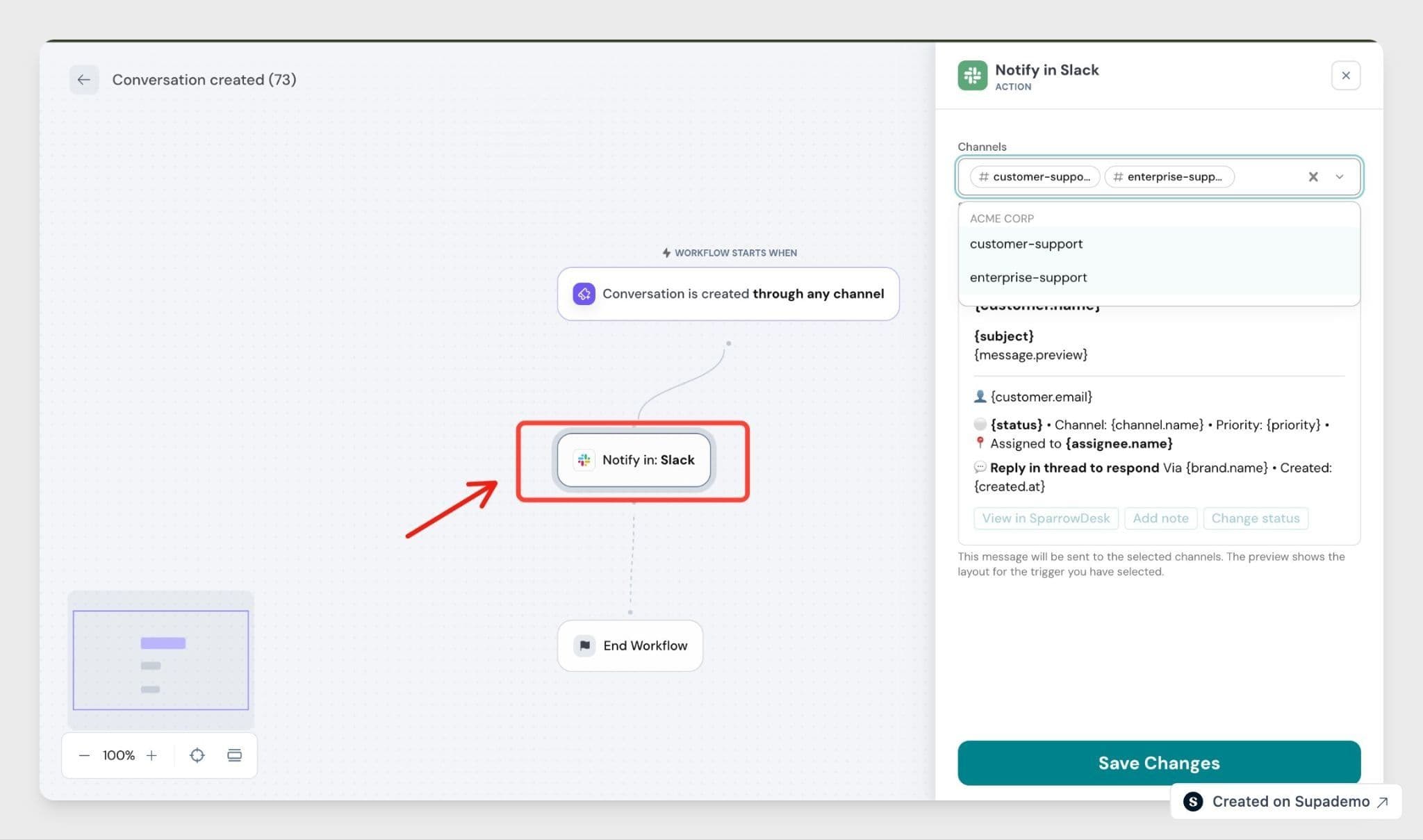
Add more than one Notify Slack block to alert several channels from the same workflow. Each block sends independently. If one channel fails, the others still go through.
You can also reply directly in the Slack thread under the notification to respond to the customer, without switching to SparrowDesk. SparrowDesk matches your Slack email address to your agent account and posts the reply back to the conversation as an agent reply. This only works if your Slack email matches an agent's email in SparrowDesk. Replies from any other email are silently ignored and never reach the conversation.
This works for email and chat conversations only. Replies typed under a WhatsApp or Facebook notification aren't picked up. If your email matches an agent account but you don't have reply permission, Slack shows you a private message saying you can't reply from here. Only truly unmatched emails are ignored without any message. Files you attach to your Slack reply are carried over to the conversation too, and a reply or note with no text and no files isn't sent.
Act on Conversations Without Leaving Slack
Every notification includes three buttons: View in SparrowDesk, Add note, and Change status. The last two open right in Slack, so you can update a conversation without switching tabs.
Every notification for the same conversation posts into one thread per channel. The first notification starts the thread, and later updates, like replies, notes, or status changes, are added underneath it. If the conversation was also brought into that channel through the full Slack integration, notifications join that existing thread instead of starting a new one.
Replies and notes you send from Slack post under your name with a "(via SparrowDesk)" label and your Slack avatar. Updates from agents working in SparrowDesk post under the agent's name too, using their SparrowDesk profile picture. If the agent hasn't added one, the message uses the default SparrowDesk app icon. The opening notification for a conversation always posts as the SparrowDesk app.
Triggers You Can Use
Notify Slack works with every trigger in the workflow builder:
- Conversation is created
- Conversation is updated
- Customer sends the first message
- Customer sends any message
- Agent sends a reply
- Agent adds an internal note
- Customer is unresponsive
- Agent is unresponsive
- Agent updates an internal note
Unresponsive triggers show how long the wait has been, for example "Customer has been unresponsive for 2 hours."
What to Know
- The Slack message uses a fixed format set by SparrowDesk: subject and message preview, status, channel, priority and assignee, requester, brand, creation time, and the action buttons. You can't choose which details it shows yet.
- If your Slack workspace gets disconnected, workflows keep running as normal. The Notify Slack step is just skipped. No alert is sent when this happens.
- If a connected channel is deleted in Slack, SparrowDesk shows a warning next to it in Settings > Channels > Slack the next time a notification tries to send to it.
- Notify Slack is included on every SparrowDesk plan, with no limits on how many blocks or notifications you use.
- If more than one workflow would notify the same channel for the same event, for example a "Conversation is created" workflow and a "Customer sends first message" workflow, the opening notification only posts once. A reply you send from a Slack thread also isn't echoed back into that same channel, though other channels the workflow notifies still get it.
FAQ
- Who can add a Notify Slack block to a workflow?
Anyone with access to the workflow builder can add the block. Only admins can connect a Slack workspace or manage which channels are available. - Can I send notifications to a private Slack channel?
Yes. Invite the SparrowDesk app to the channel from inside Slack first, then it shows up in your channel list when you go to add it. - What happens if I add two Notify Slack blocks to one workflow?
Both send independently. If one channel fails to receive the notification, the other still does. - Can I customize what the Slack message shows?
Not yet. The notification uses a fixed message format. Custom fields are planned for a future release. - What happens if I reply in Slack but my email isn't linked to an agent account?
If your email doesn't match any agent account, the reply is silently ignored. If it matches an agent without reply permission, Slack shows you a private message explaining you can't reply from there.