
Exporting Reports as PDF

SparrowDesk allows you to export any report as a PDF file directly from the platform. This is useful for sharing performance data with stakeholders, keeping records outside the platform, or reviewing reports offline.
Accessing Reports
To get started, navigate to the reports section by clicking the reports icon on the left sidebar of the SparrowDesk platform. This will open the reports page where all available report types are listed.
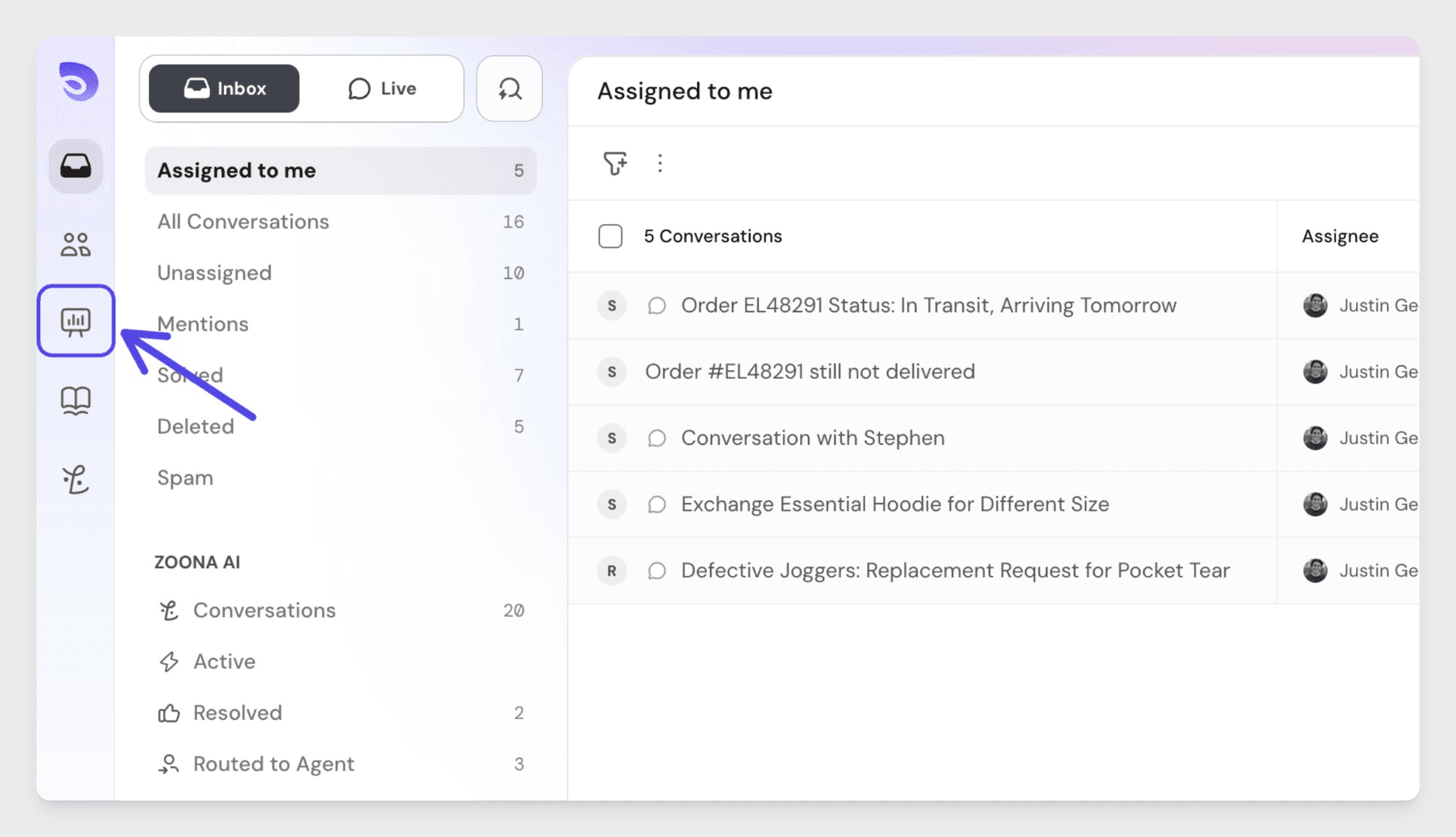
Downloading a Report as PDF
Once you are on the reports page, locate the download button on the right side of the page. Clicking it will automatically trigger the PDF generation process.
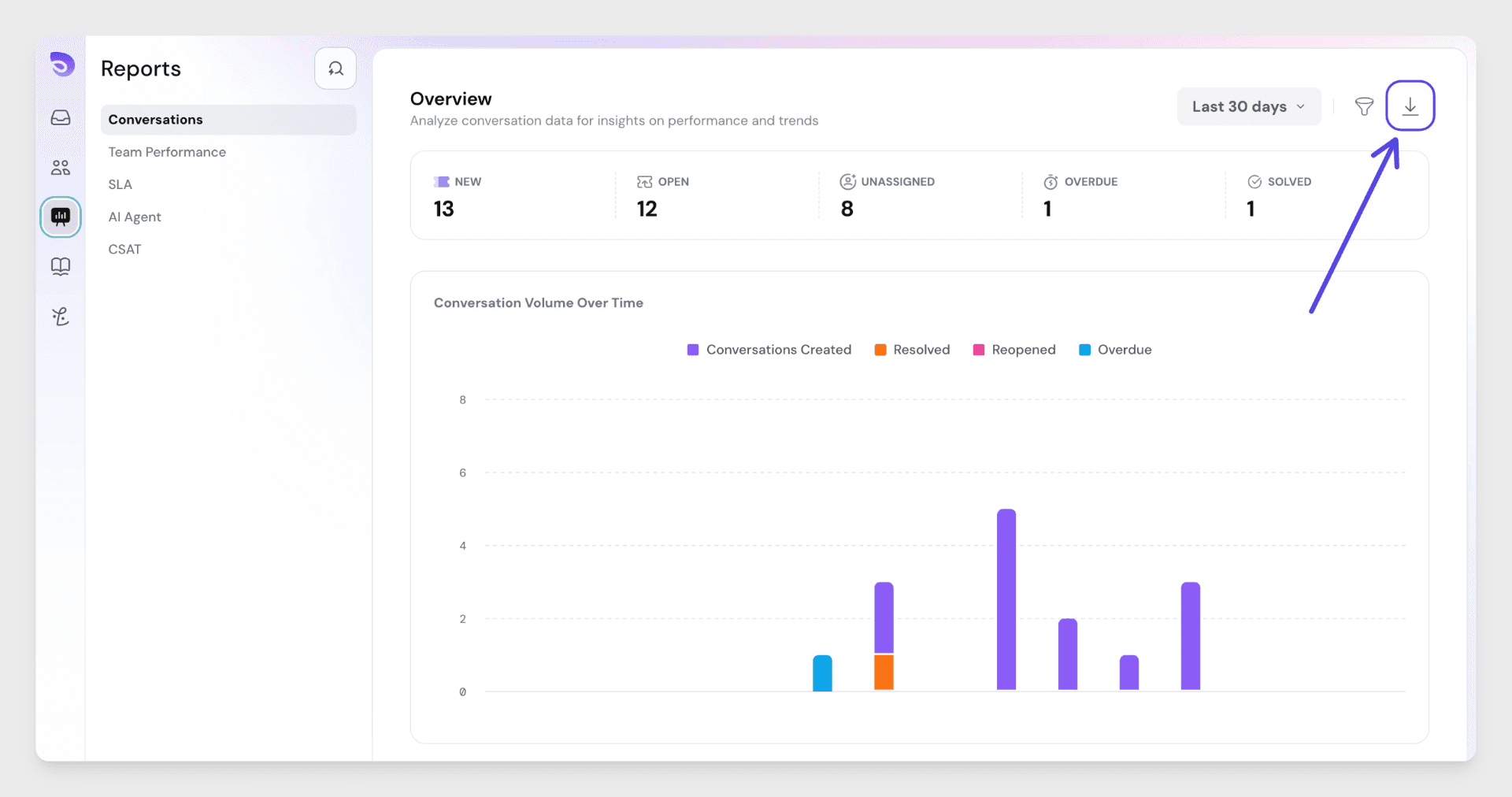
The report will download directly to your device once it is ready - no additional steps are needed.
Downloading a Filtered Report
If you need a PDF that reflects a specific subset of data, you can apply filters before downloading. This is helpful when you want to focus on a particular time range, team, or any other available parameter without exporting the full dataset.
To download a filtered report:
On the reports page, click the filter icon to open the filter options.
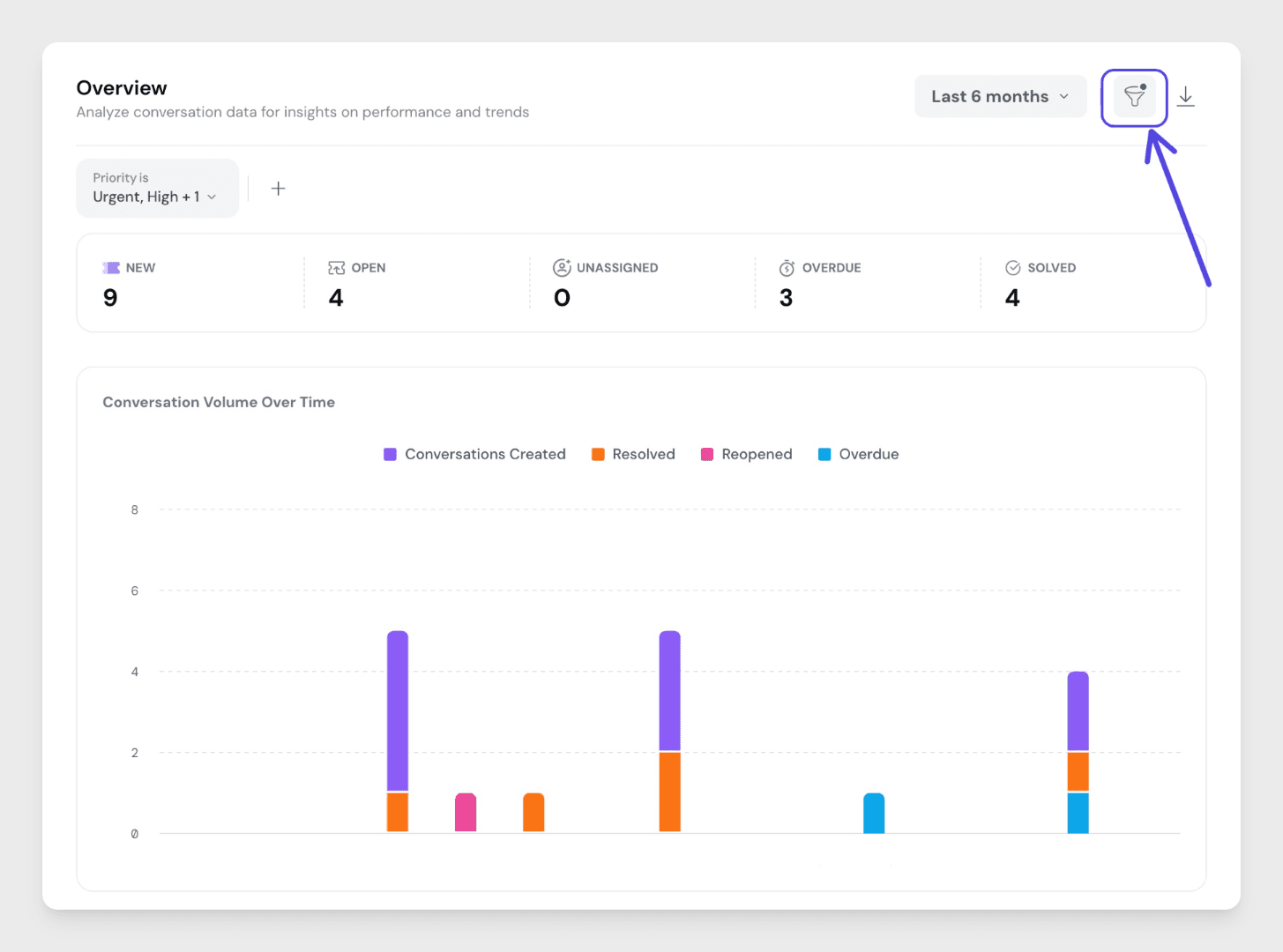
Set your conditions based on the data parameters available for that report type.
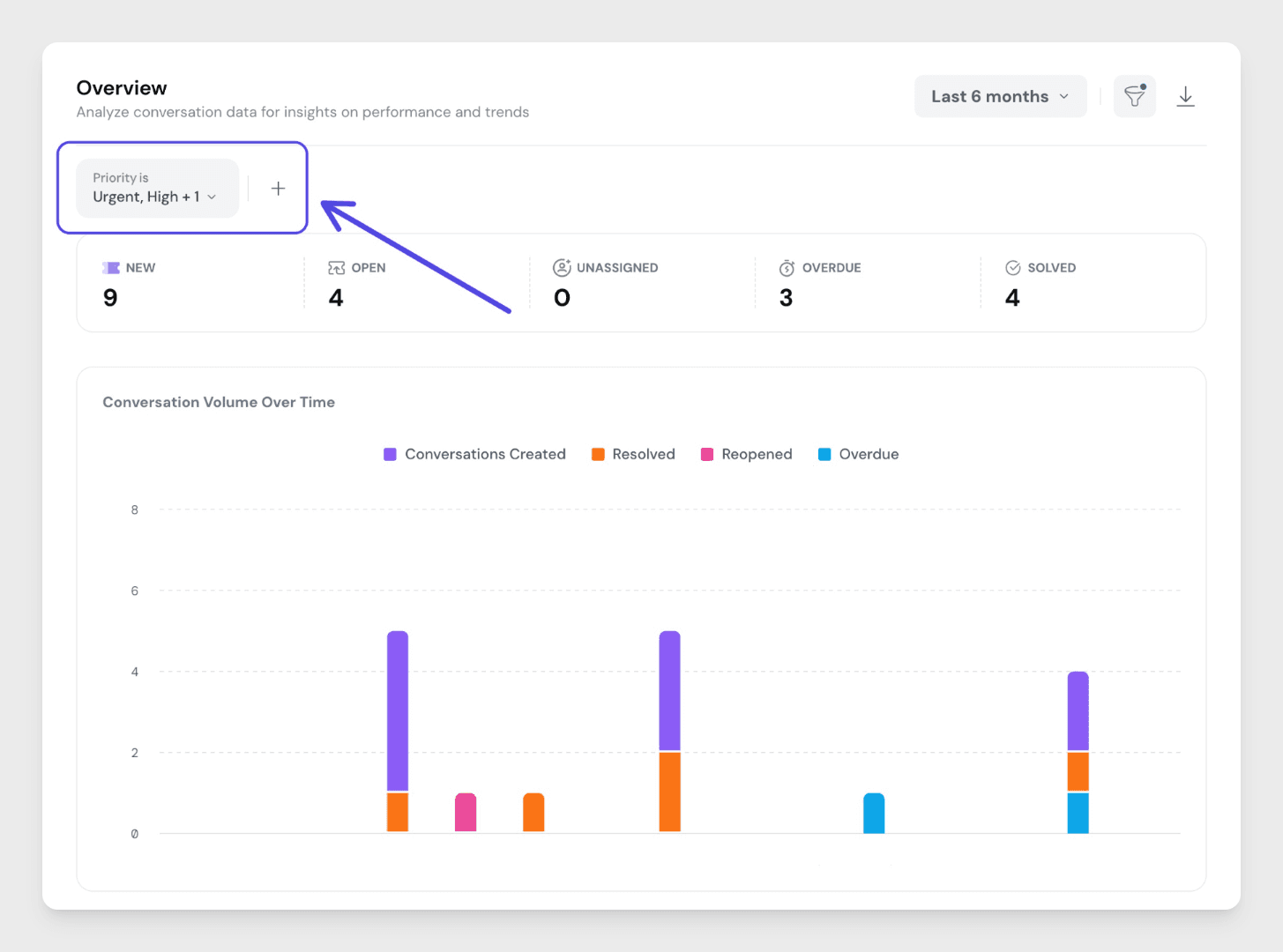
Once your filters are applied, click the download button on the right side of the page.
The filtered data will export as a separate PDF file. The format and download process are the same as a standard report download.