
Track page visits in SparrowDesk

Overview
SparrowDesk automatically keeps track of the pages people open on your website where the chat widget is active. Every time someone visits a new page, SparrowDesk adds it to their record as a “page visit.”
This helps you see what your visitors looked at, so you can follow their journey and understand what they were interested in.
What’s captured in a page visit
- For every page visit, SparrowDesk notes:
- The time the visitor opened the page
- The page link (URL) they visited
Any UTM details, like where they came from (for example, an ad, email, or campaign).
SparrowDesk captures the following UTM parameters:
- utm_source — where the visitor came from (e.g., Google, newsletter)
- utm_medium — the type of channel (e.g., email, social, CPC)
- utm_campaign — the specific campaign name or promotion
- utm_term — any search keywords or paid ad terms
- utm_content — identifies specific links or creatives used in the campaign
If the visitor was chatting at that time, the visit is also linked to that conversation
Understanding page visit tracking
Page visits are recorded automatically as visitors browse your website with the chat widget active. Each page they open is logged in order, creating a clear timeline of their browsing journey.
Before a chat starts, these visits stay linked to the visitor’s browser session. Once they begin a conversation, all earlier page visits are connected to their contact profile and shown in the chat view.
At the contact level, every visit is stored chronologically in the visitor’s activity timeline. This gives your team a complete view of all pages the visitor has opened — even those viewed after a chat has ended.
At the conversation level, page visits appear alongside the chat, helping agents see what the visitor was exploring before and during the conversation. If the visitor continues browsing after the chat closes, those pages are still added to their visit history automatically.
Together, these views keep every visitor’s journey organized, visible, and always up to date – without any manual setup.
Tracking visitors before they identify themselves
SparrowDesk can track visitors even before they start a chat or share their details.
Once the visitor identifies themselves — for example, by starting a chat or providing their name and email — all their previous visits are automatically linked to their contact profile.
This gives your team the full picture of what they explored before reaching out, helping you understand their intent and provide more relevant support.
Currently, SparrowDesk doesn’t track how long a visitor stays on each page.
What you’ll see in the UI
The Page Visit History and Recent Page Views panels show all the pages a visitor opened, along with timestamps and chat events like “Started a Chat.”
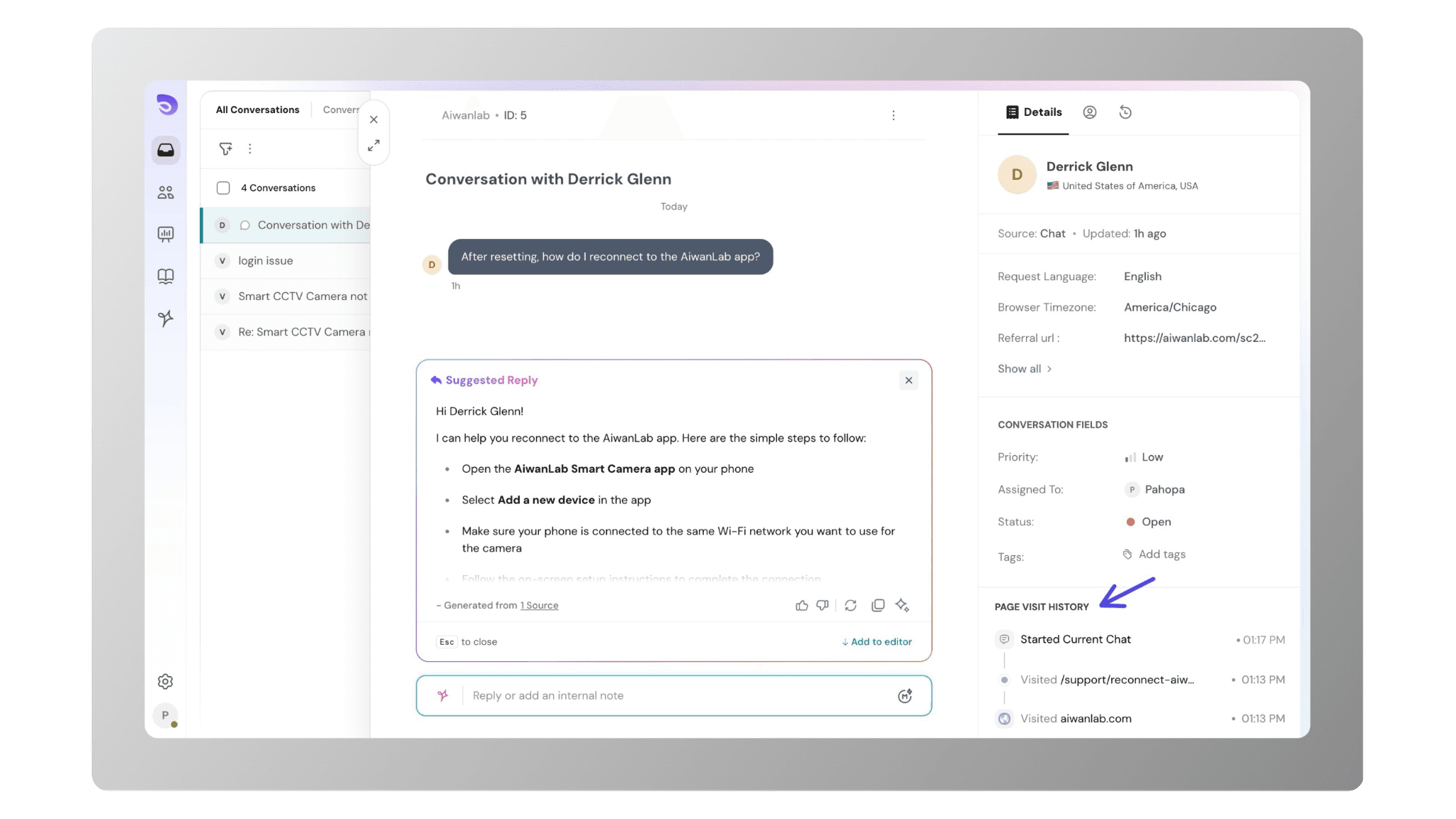
The interface looks like the image above — a clean, chronological list with small icons marking each event.
Each page link and chat entry is clickable, opening in a new browser tab for quick reference.
While the visitor is browsing, this data is temporarily stored in the browser using session storage. This helps SparrowDesk load visit details instantly during the session. Once the visitor starts a chat or identifies themselves, the visit history is automatically synced to their contact profile and visible to your team in real time. The focus is on showing which pages were viewed and when, so your team can follow every step of the visitor’s journey with clarity and context.
Common Questions
1. Can I filter or search the page visit history (e.g. by URL, date, or campaign)?
Not right now. Page visits are displayed in order of when they happened and can’t be filtered or searched yet
2. Does this tracking work across multiple domains or only on the main website where the widget is installed?
Tracking works only on the websites where the SparrowDesk chat widget is installed.
3. What happens if a visitor clears storage or uses incognito mode — will SparrowDesk still track their visits?
SparrowDesk uses session storage to save visit data locally in the browser.
If the visitor closes the tab, clears storage, or uses incognito mode, the data from that session won’t carry over or link to future visits.
4. How quickly do new page visits show up in the contact’s timeline? Is it real-time or delayed?
New page visits appear instantly once the visitor is identified or starts a chat. The data syncs to their contact profile in real time.
5. Can I export or download the page visit history for a contact?
Not at the moment. Visit history is viewable inside the contact and conversation views only.
6. If a contact has multiple sessions (e.g., mobile and desktop), does SparrowDesk merge those visits?
No. Each browser session is tracked separately. Session stitching across devices or browsers is not supported.
7. Does SparrowDesk track page titles, or just URLs?
Currently, it tracks URLs and UTM parameters like source, medium, and campaign — not page titles.
8. Can I disable page visit tracking for certain pages (like checkout or admin pages)?
No, not yet. Tracking is active on all pages where the chat widget is embedded.
9. Are there any privacy or consent requirements for this tracking under GDPR or similar laws?
Yes. Since SparrowDesk tracks visitor activity, you should mention it in your privacy policy and collect user consent where needed.
10. Can I view page visit history in reports or analytics, or only per contact/conversation?
Page visits are visible only in the contact activity timeline and conversation view, not in reports or analytics dashboards.
11. Who can see page visit data inside SparrowDesk?
Page visit history is visible only to your internal team — agents and admins who have access to the contact or conversation view. Visitors or end customers cannot see this information.