
Round Robin assignment explained

Round robin is a ticket distribution method that ensures new conversations are assigned to agents in a fixed, repeating sequence. This approach helps maintain fairness by cycling through the list of currently online team members consistently, so that no single person is overloaded while others remain idle.
Important: Round robin only operates when a ticket or conversation is assigned to a team via a Workflow. If you manually assign a ticket to a team or an individual agent, the round robin process will not run.
How to enable Round Robin for a team
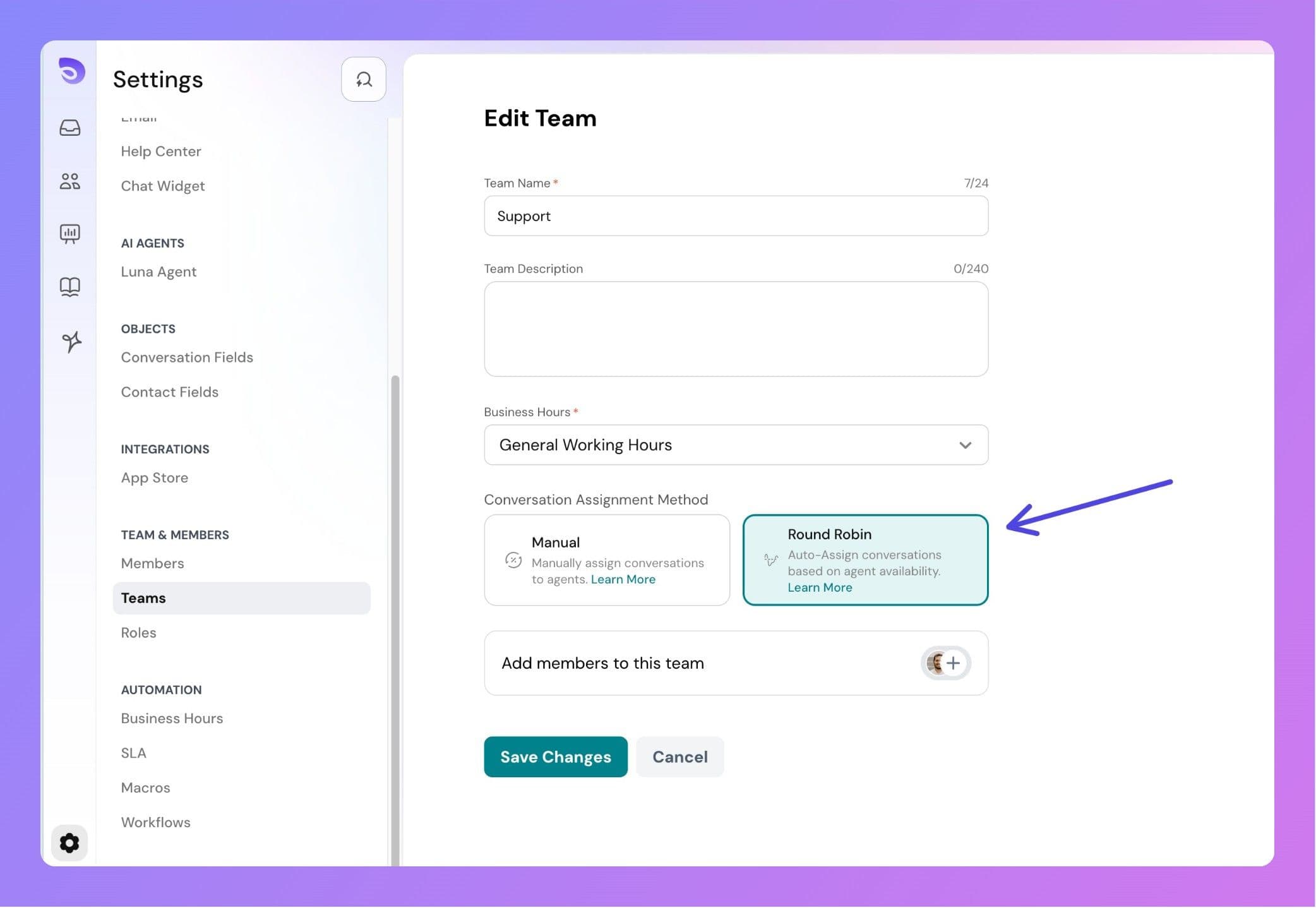
- Go to Settings → Teams → Select a Team.
- Under "Conversation Assignment Method", click on Round Robin
- To cap how many conversations each agent can hold at once, enter a number in the Capacity limit field. Leave it blank for no limit.
- Click Save Changes.
New teams switched to round robin start with a suggested limit of 20. You can change it or clear it. Existing round robin teams keep unlimited assignment until an admin sets a value.
When Round Robin Triggers
Round robin is triggered only when all of the following are true:
- A Workflow assigns the ticket to a team.
- The target team has Round Robin enabled.
- At least one team member is online.
If any of these conditions are not met, the ticket will not be automatically assigned to an agent.
How It Works
When a new ticket arrives, SparrowDesk first looks at which team members are online. It then arranges their names in alphabetical order to create a simple list. The system remembers who received the last ticket, and the next one is given to the following person on that list. If someone is offline or already at their capacity limit, they are skipped. When the end of the list is reached, the cycle starts again from the top, making sure tickets keep moving fairly between agents.
Assignment Process
- Check if the team has Round Robin enabled.
- Refresh the list of online agents (A → Z order).
- Start after the last assigned agent and move to the next agent.
- Skip any agent who is offline or at their capacity limit.
- Assign the conversation to the next eligible agent.
- If no agent is online, or every online agent is at capacity, the conversation goes to the routing queue. It stays assigned to the team, shows in the Unassigned view, and is assigned automatically once an agent becomes available.
Preparing agent list for assignment
- The round robin list only includes team members who are currently online.
- After identifying who is online, their names are placed in alphabetical order (A to Z) by display name.
- Even though the list looks alphabetical, SparrowDesk keeps track of assignments using each agent’s unique ID.
- This approach ensures accuracy and fairness, even if two or more agents share the same display name.
The agent list is rebuilt for each ticket. If an agent comes online after the last assignment, they are immediately eligible for the next ticket.
Assignment limit Per Agent
Set a capacity limit
You can cap how many conversations round robin assigns to each agent at a time. This stops one available agent from absorbing everything when teammates are offline.
Capacity is a single number set for the whole team. It applies to every agent in that team the same way. Per-member limits aren't available yet.
How it behaves:
- When an agent reaches their limit, round robin skips them and moves to the next agent in the rotation. It does not wait for them to free up.
- When every agent is at their limit or offline, the conversation goes to the routing queue. It stays assigned to the team and appears in the Unassigned view.
- Queued conversations are assigned automatically as soon as an agent drops below their limit or comes online. Agents can still pick them from the Unassigned view by hand.
- The limit only stops automatic assignment. It never blocks manual assignment, and it doesn't affect a returning visitor's chat reopening to the agent who already handled it.
What counts toward an agent's limit
An agent's count is the number of conversations assigned to them where the SLA clock is running. This is one pooled number across every channel (email, chat, WhatsApp, Facebook, Instagram).
- Open conversations count, unless their SLA is paused by a status set to pause SLA. An Open conversation with no SLA policy still counts.
- Pending conversations don't count while their SLA is paused, which is the default for Pending.
- Solved and Closed conversations never count.
Example
Here’s a single scenario that shows how round robin works with different situations:
- Normal cycle: Online agents are Alice, Brian, and Clara. Tickets go Alice → Brian → Clara → Alice, and so on.
- One goes offline: If Clara goes offline and the last ticket went to Brian, the next one will move to Alice.
- One comes back online: If Clara comes online again after being offline, she is added back into the cycle. If the last ticket went to Alice, the next goes to Brian, then Clara.
- Everyone offline: If all team members are offline at the time of assignment, the ticket stays Unassigned in the team inbox.
- Everyone at capacity: Alice, Brian, and Clara are all online but each has hit the team's limit. The next conversation waits in the routing queue and goes to whichever of them frees up first.
Unassigned Tickets
Tickets remain unassigned when:
- All agents are offline.
- All agents are at their capacity limit.
- The team has no members.
- Round robin is disabled.
When agents are offline or at capacity, the conversation waits in the routing queue and is assigned automatically as soon as one comes online or drops below their limit. Agents can also pick conversations from the Unassigned view by hand.
FAQ
When does round robin trigger?
It triggers only when a Workflow assigns the ticket to a team that has the Round Robin toggle enabled and at least one team member is online.
What if a ticket is assigned manually?
Round robin does not run on manual assignments.
How is the agent list made?
We include only team members who are currently online and sort them alphabetically by display name. Internally, the sequence is tracked with each agent’s unique ID for accuracy.
Do display names need to be unique?
No. Even if two agents share the same name, assignments remain correct because they’re tracked by unique IDs.
How often is the list refreshed?
On every new assignment event. This ensures online/offline changes are applied immediately.
What if the last assigned agent is now offline?
The system skips that person and moves to the next online agent in the alphabetical sequence.
What happens if all agents are offline?
The ticket remains unassigned in the team’s inbox (assigned to the team, not an agent) until someone picks it up or agents come back online.
Are there capacity limits per agent?
Yes. You can set a capacity limit per team so round robin stops assigning to an agent once they reach it. It counts an agent's active conversations across all channels, and you can leave it blank for no limit.
Does the cycle wrap around?
Yes. After reaching the end of the list, the next assignment starts again from the top to keep distribution even.
Can round robin be configured per team?
Yes. This can be configured in the team settings.
Does the capacity limit block manual assignment?
No. You can always assign a conversation to an agent by hand, even if they're at their limit. The limit only applies to automatic round robin assignment.
What counts toward an agent's capacity?
Conversations assigned to them with the SLA clock running. Open conversations usually count, Pending ones don't while their SLA is paused, and Solved or Closed never count.