
Install the Chat Widget on Shopify

Adding the SparrowDesk chat widget to your Shopify store lets customers reach your team while they browse or shop.
This involves editing your store's theme code. If that sounds unfamiliar, ask someone on your team to help.
Copy Your Widget Code
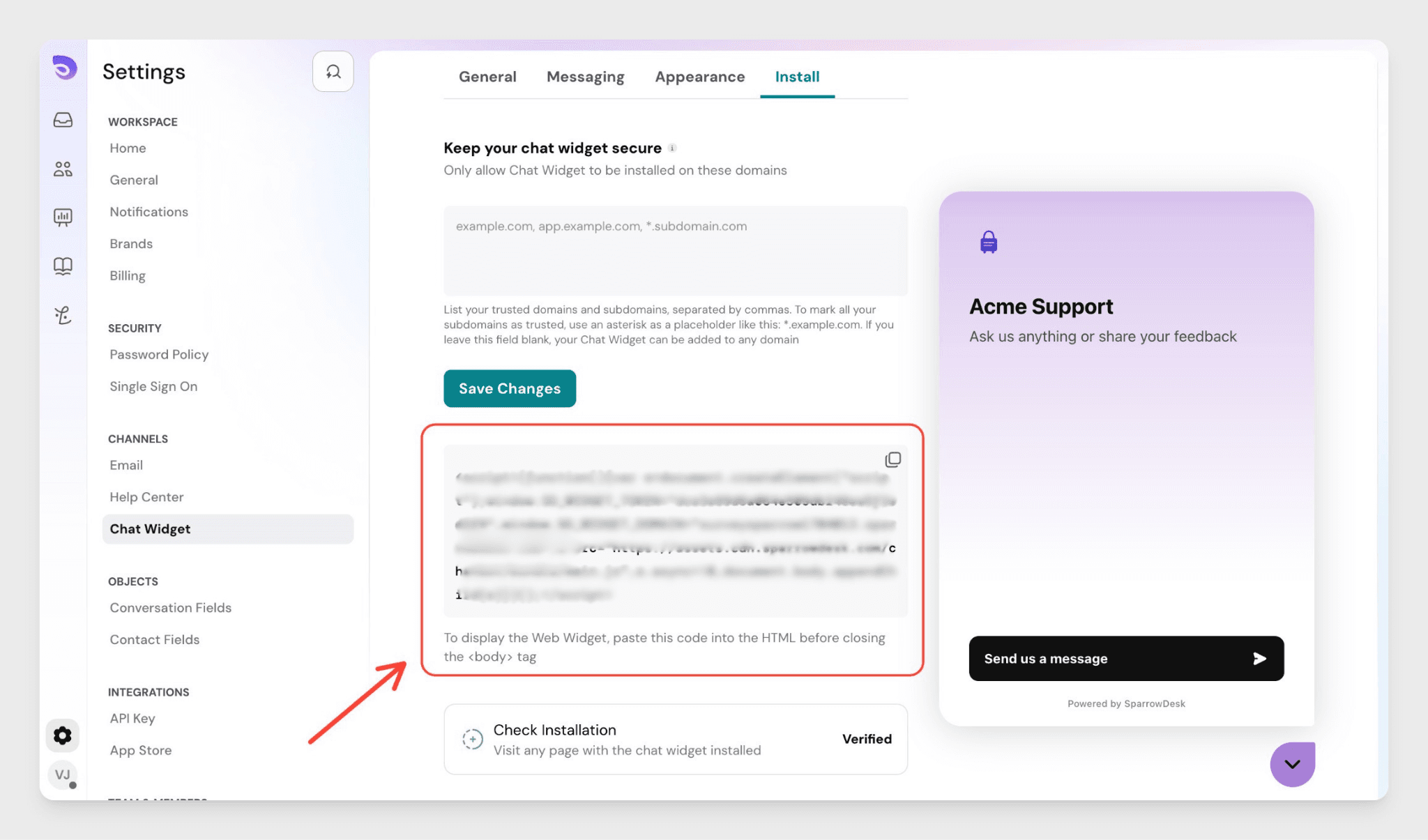
- In SparrowDesk, go to Settings → Chat Widget → Installation
- Click Copy Code to copy the snippet to your clipboard
Add the Code to Your Shopify Store
- Log in to your Shopify Admin
- Go to Online Store → Themes
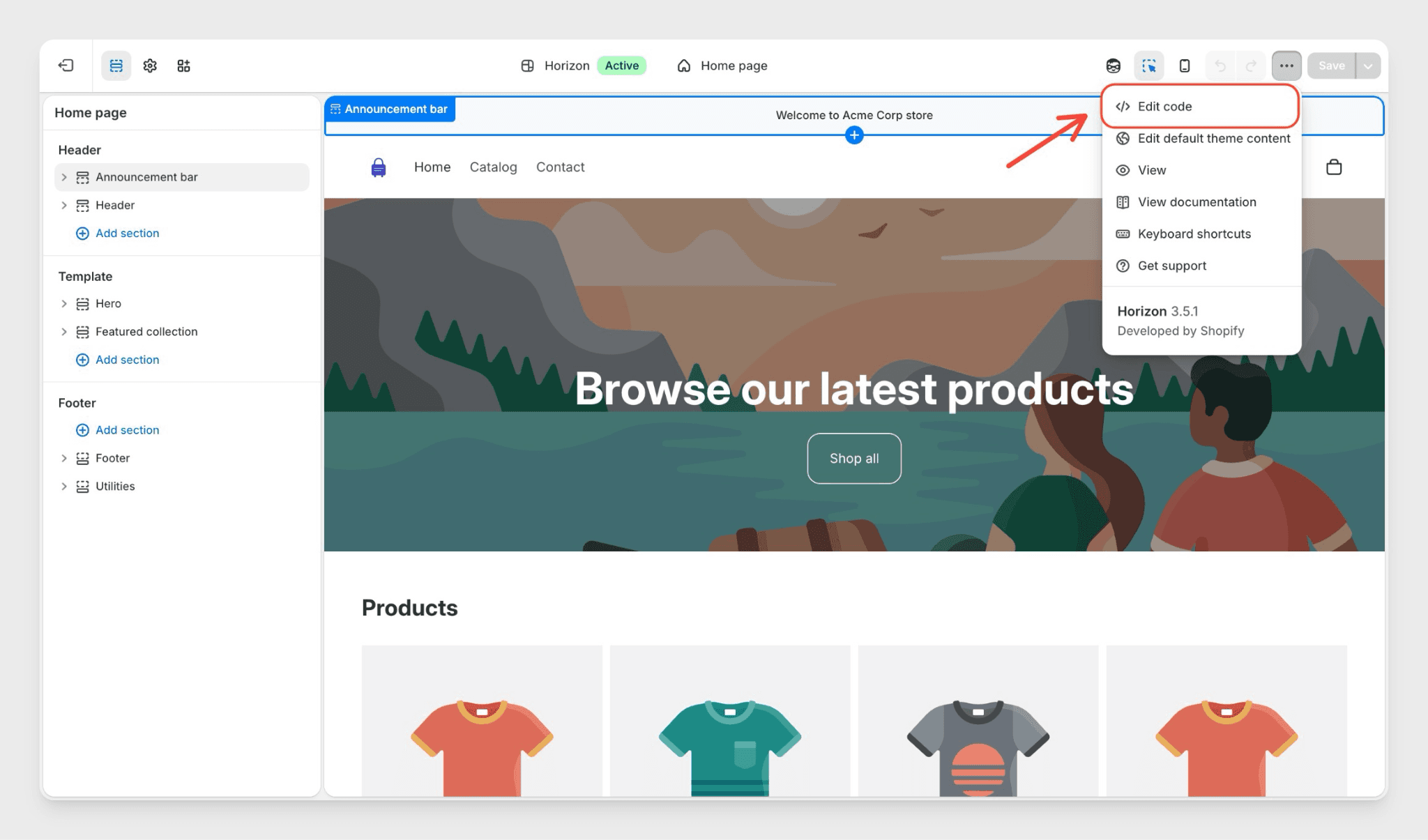
- Click Edit code on your active theme (this may appear under a menu or directly as a button, depending on your theme)
- In the left panel, open the Layout folder and click theme.liquid

- Find the closing </body> tag near the bottom of the file
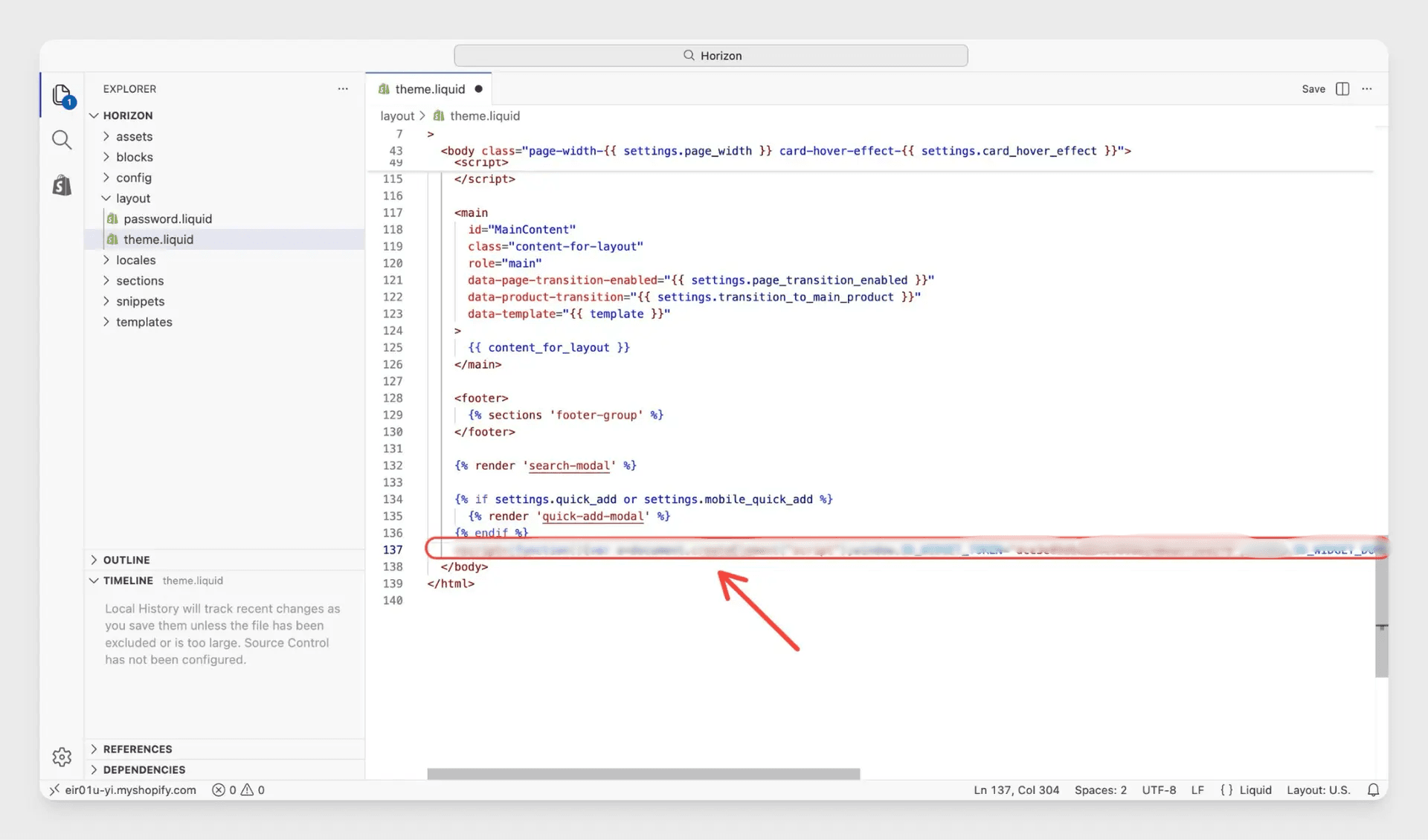
- Paste the SparrowDesk code on the line directly above </body>
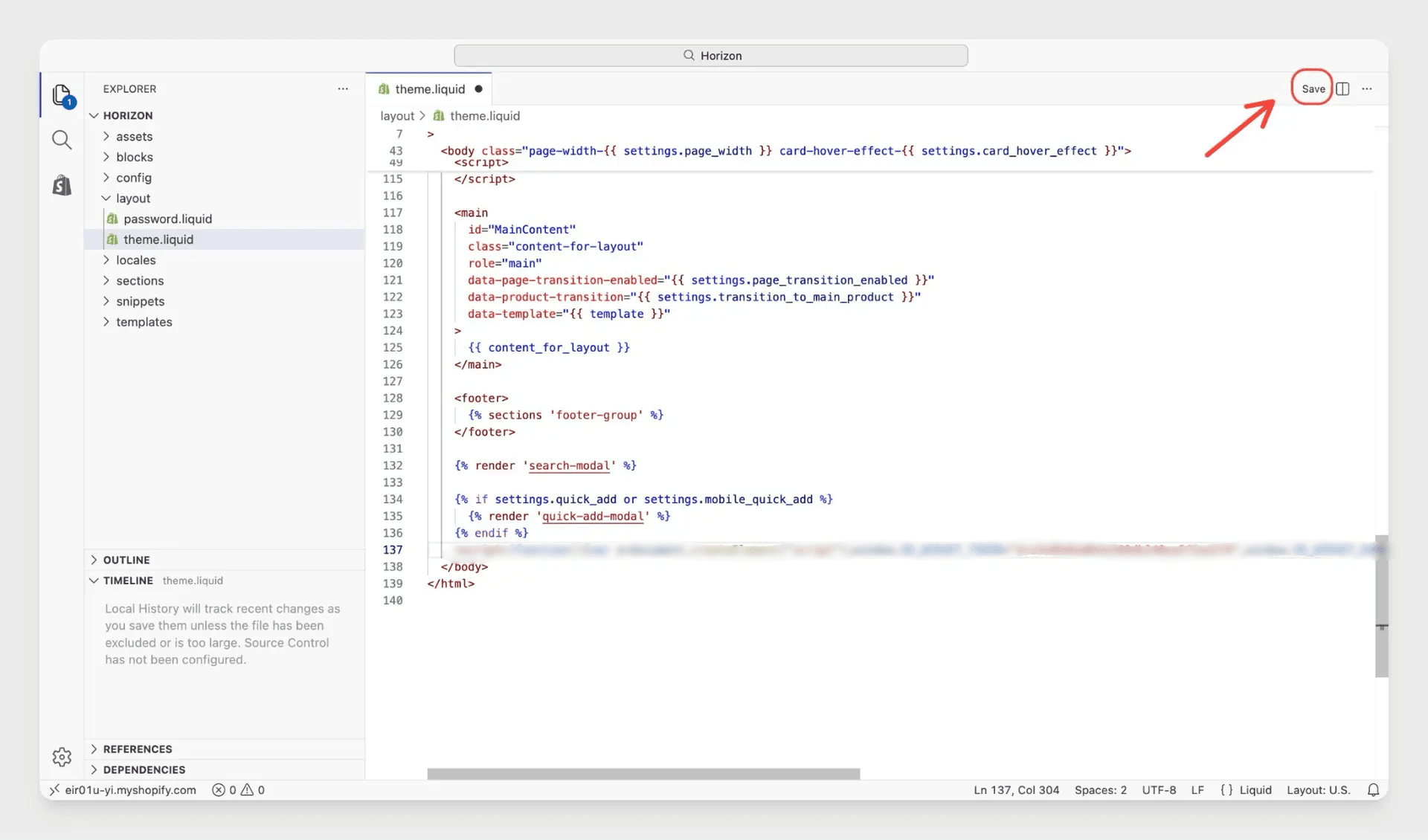
- Click Save
The widget will appear on every page of your store. The theme.liquid file acts as the site-wide layout, so you only need to add the code once.
Tip: Not sure if you found the right spot? The snippet is a <script> tag. It should sit directly above </body> with nothing between them.
Check the Installation
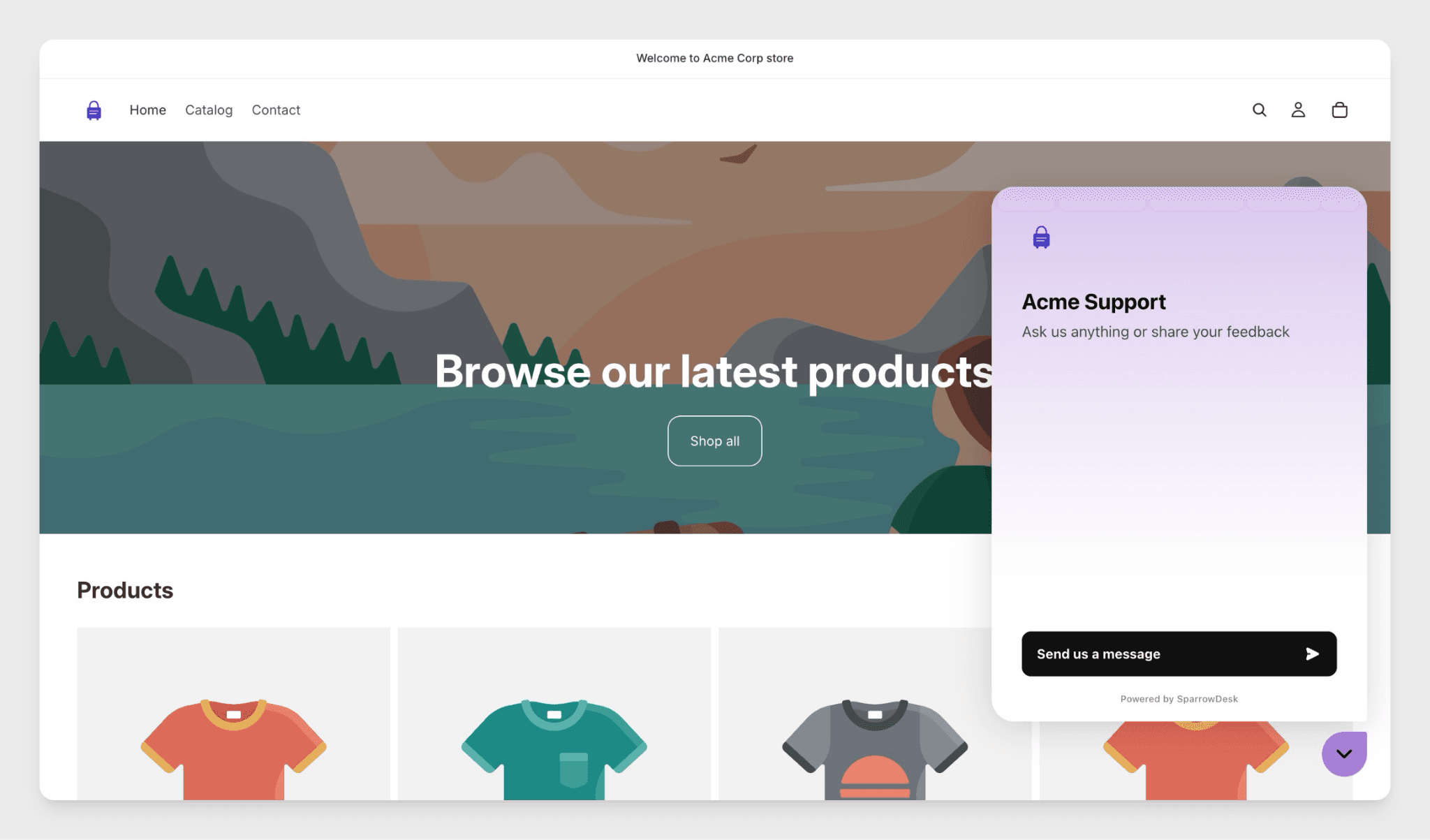
- Open your store in a browser- the chat widget should appear in the corner
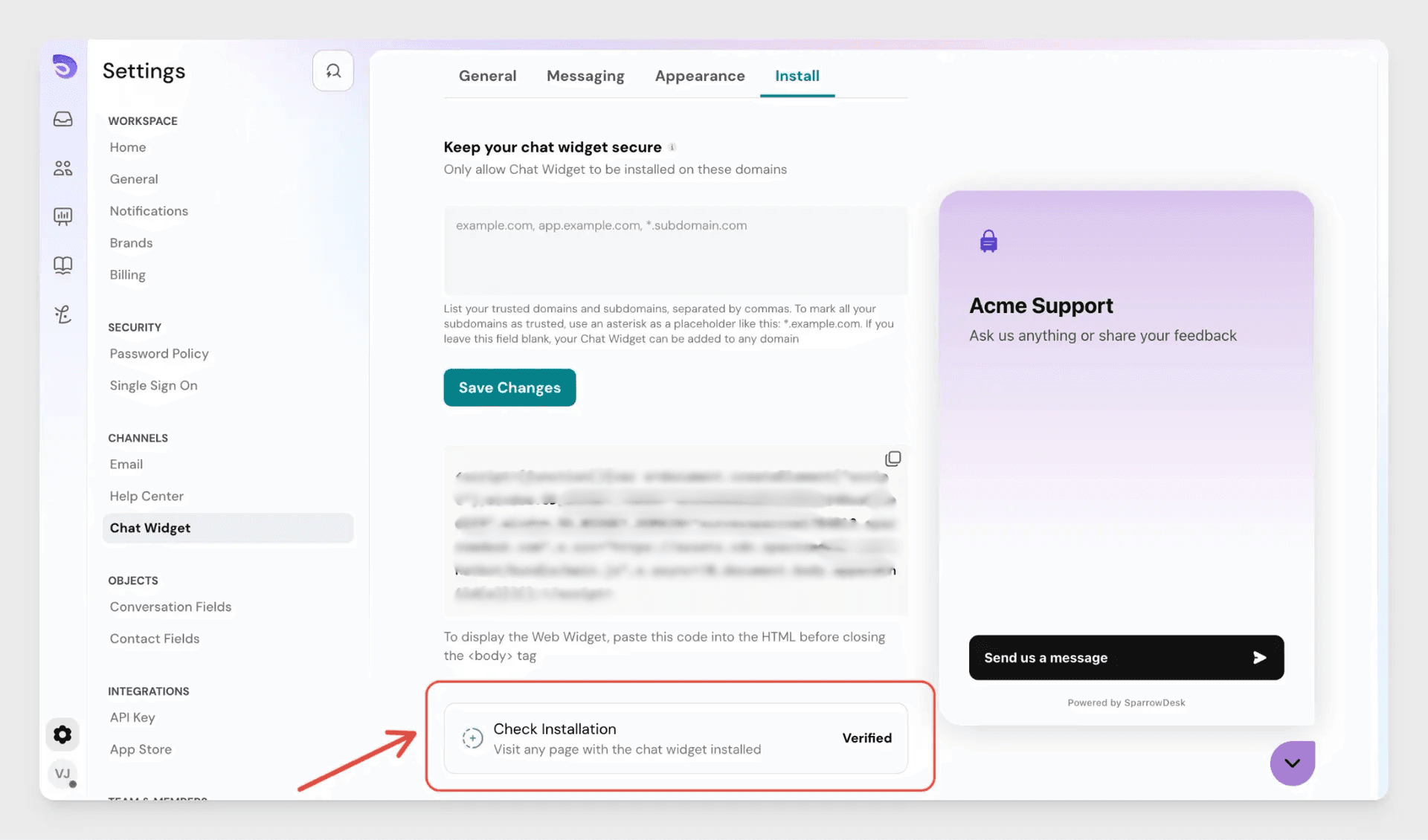
- Go back to Settings → Chat Widget → Installation in SparrowDesk
- If the widget is detected, you'll see Widget Installed
Restrict Your Widget to Your Store (Recommended)
By default, your widget code works on any website. To lock it to your store only:
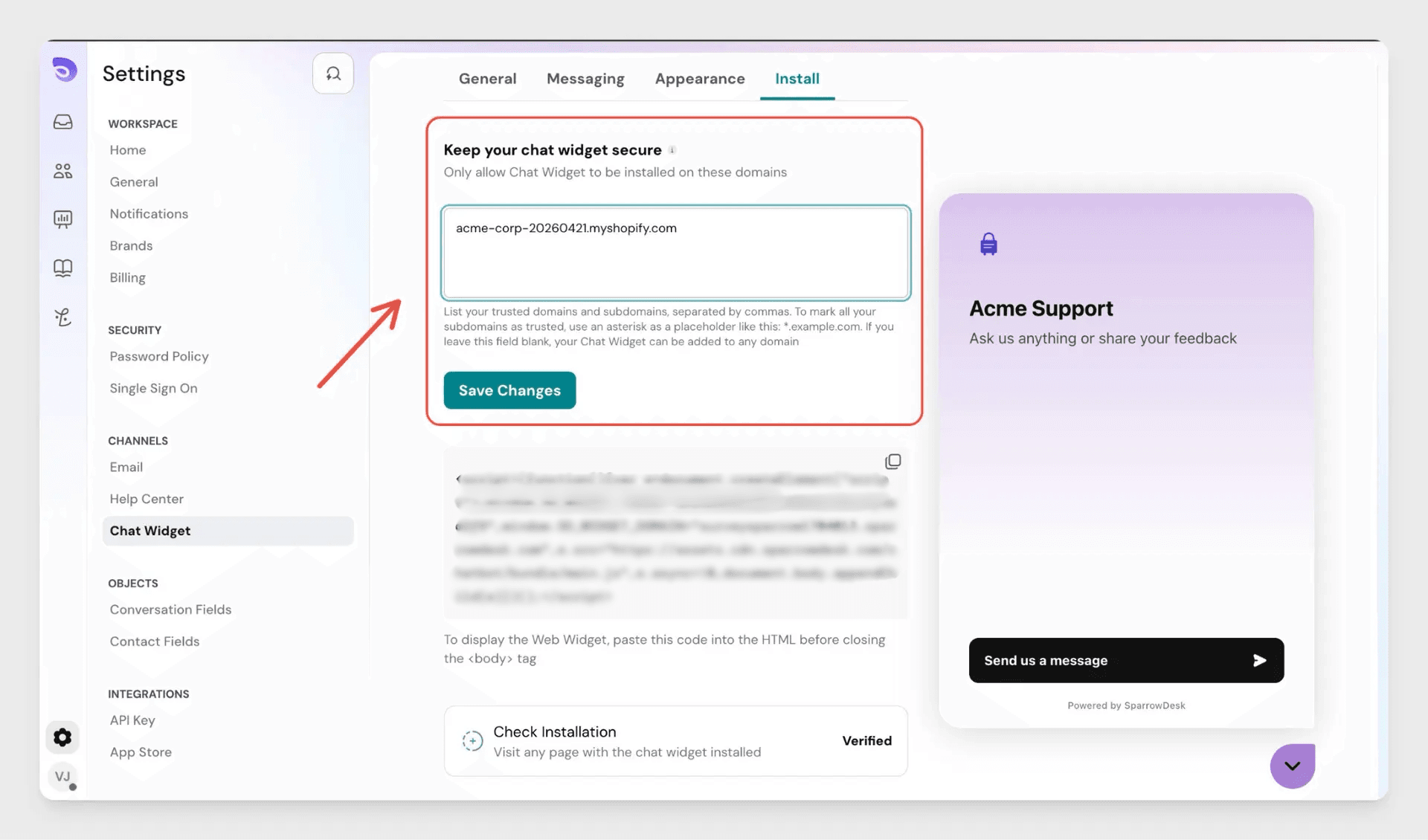
- Go to Settings → Chat Widget → Make your Chat Widget Secure
- Add your store's domain — e.g. yourstore.myshopify.com or www.yourstore.com
- If you use both a Shopify domain and a custom domain, add both separated by a comma
- Click Save
- Leave out https:// and any trailing slash
- Use *.yourstore.com to cover all subdomains at once
- There is no limit on how many domains you can add
Troubleshooting
Widget not showing after saving?
Check that the snippet is placed before </body> in theme.liquid and that the file was saved. Unsaved files show a dot or asterisk next to the filename in Shopify's editor.
Widget showing on some pages but not others?
The snippet is in the right file- theme.liquid covers every page. If a page is missing the widget, it may be using a separate layout file. Check with your theme developer.
Can't find the Edit code option?
Some Shopify plans restrict code editing. Check your plan or contact Shopify support.
FAQ
- Do I need a Shopify developer account to do this?
No. Any Shopify store owner or staff member with theme permissions can edit the theme code. If you're unsure about your permissions, check under Settings → Users in your Shopify Admin. - Will this slow down my store?
The widget script loads asynchronously, meaning it doesn't block your pages from loading. Your store speed is not affected. - Can I add the widget to only one page, like the product page?
Yes, but it requires editing a page-specific template instead of theme.liquid. Ask your theme developer to place the snippet in the correct template file for that page. - What if I switch Shopify themes later?
You'll need to add the snippet again to your new theme's theme.liquid file. The widget code itself stays the same - just repeat adding the code. - Can I use the same widget code on another website too?
Yes. The same code works across multiple sites. If you've allowlisted domains, add the new domain to your list in Settings → Chat Widget → Make your Chat Widget Secure.