
Single Sign-On

Single Sign-On (SSO) allows users to log in to SparrowDesk using their existing Identity Provider (IdP), such as Okta, OneLogin, or Azure AD. This means users do not need to create or remember a separate SparrowDesk password.
How to enable Single Sign-On
1. Go to Settings and select Single Sign-On.
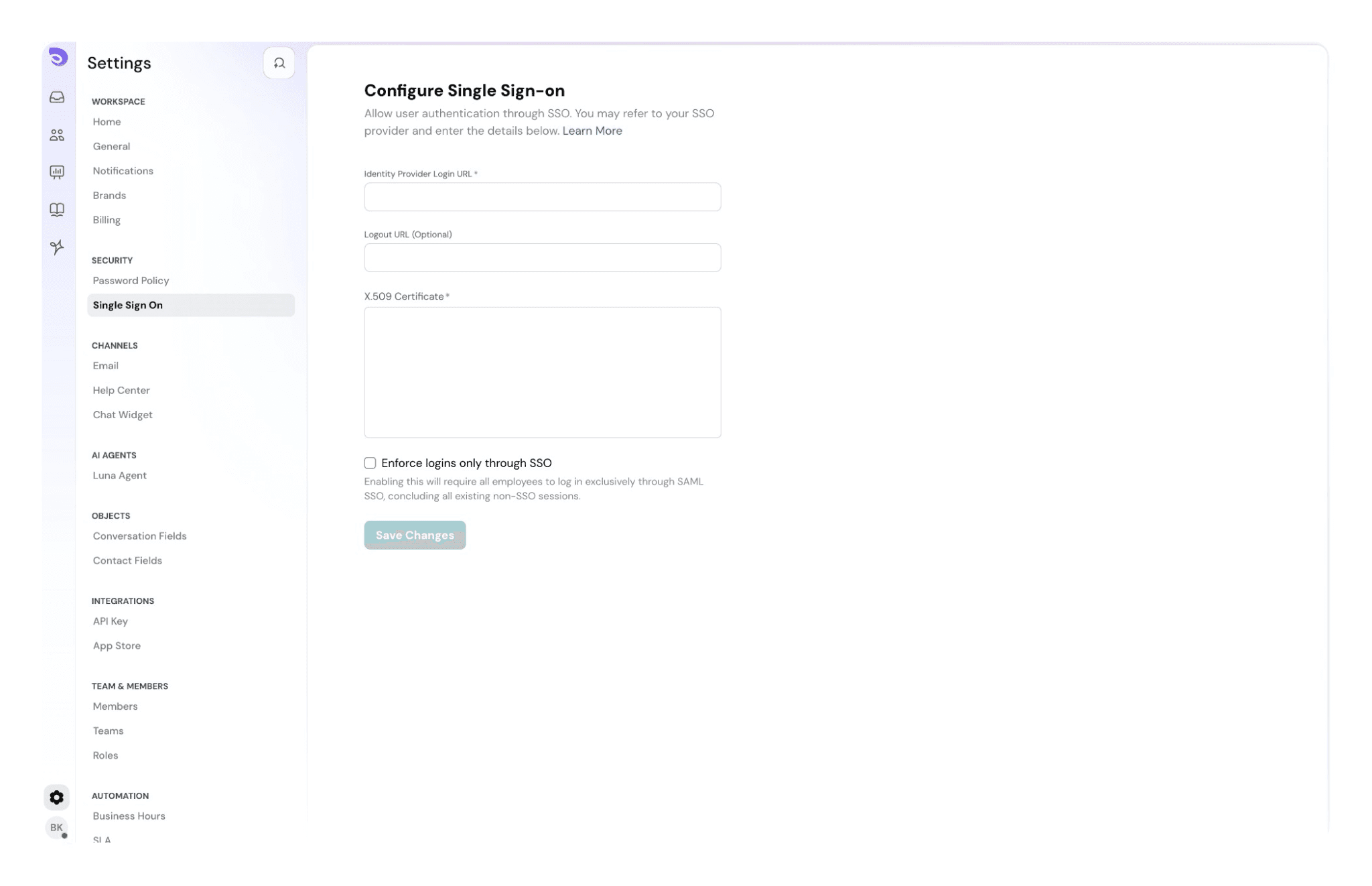
- Login URL
- Certificate
2. After filling in the fields, click on Update.
How Single Sign-On works
When a user attempts to log in using SSO, SparrowDesk sends an authentication request to the configured Identity Provider.
If the user is already authenticated with the Identity Provider, access to SparrowDesk is granted automatically.
On the login page, users will see a Login with SSO option, which they can use to sign in instead of entering a SparrowDesk password.
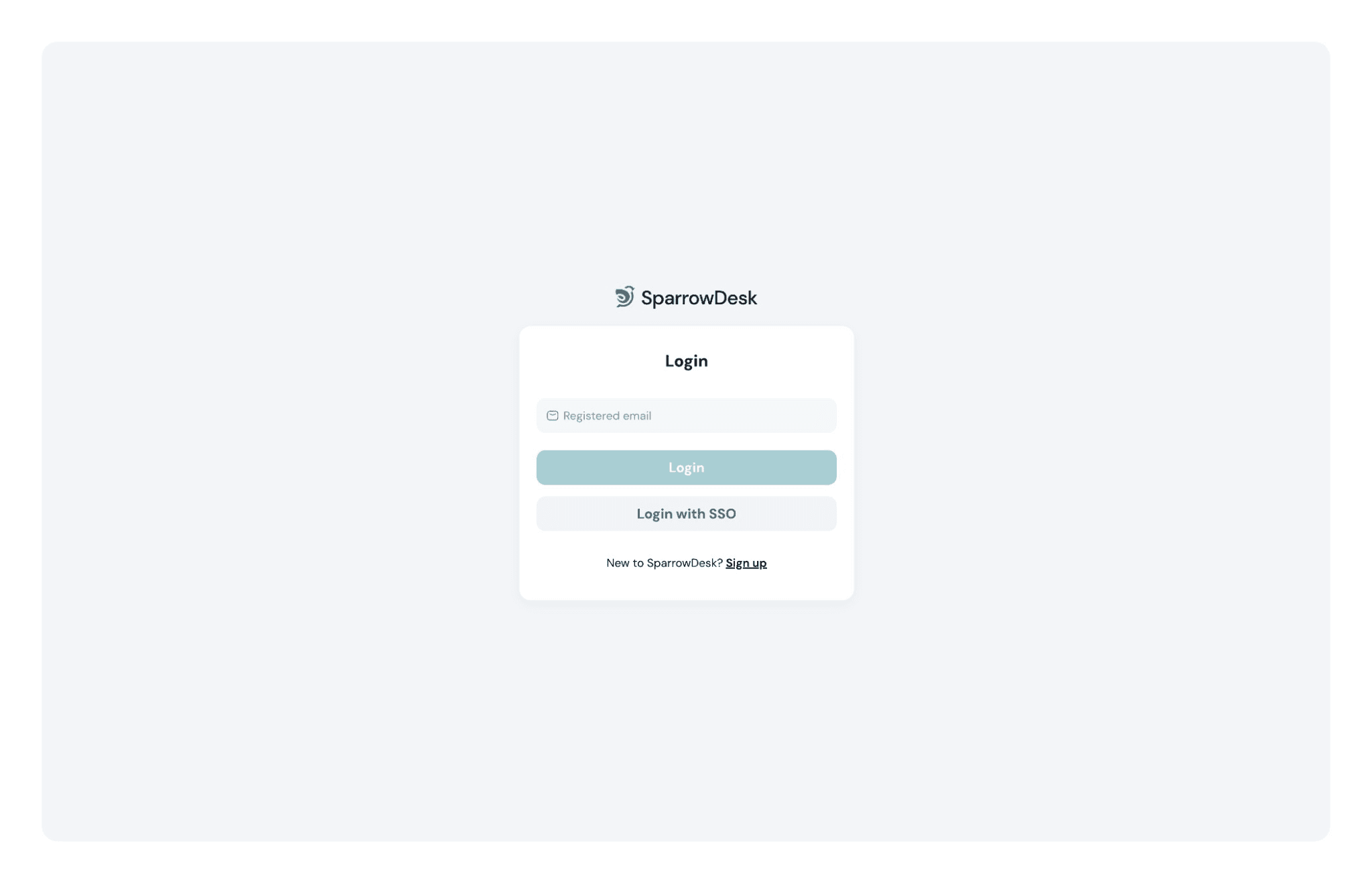
Sign in with Google
Users can sign up and log in to SparrowDesk with their Google account instead of a SparrowDesk password. On the login and signup screens, they click Continue with Google and authenticate with Google.
Google sign-in is separate from SAML SSO above. There's no Login URL or certificate to configure - the option appears on the login and signup screens for everyone.
Managing login methods
You can turn Email & Password login on or off independently of SSO. This lets you decide exactly how your team signs in.
- Keep both SSO and Email & Password enabled to give users a choice.
- Turn off Email & Password to route everyone through SSO.
At least one login method must stay enabled. SparrowDesk blocks you from disabling the last active method so no one is locked out.
Accounts created on first SSO login
When a user signs in through SSO for the first time, SparrowDesk creates their account automatically. You don't need to invite them separately before they log in.
Frequently Asked Questions
What does “Enforce logins only through SSO” mean?
When this option is enabled, all users in your SparrowDesk account must log in using the configured Single Sign-On (SSO) provider (SAML).
- Email + password login is disabled for regular users
- Existing non-SSO sessions are logged out
- Users must authenticate through the Identity Provider (IdP) to access SparrowDesk
This is typically used by teams that want all access to be managed centrally through their IdP.
What happens if the Identity Provider (IdP) is down?
If the Identity Provider is unavailable, regular users will not be able to log in using SSO.
However, account admins are not locked out.
- Admins can still log in using email and password
- Admins can disable SSO from Settings → Single Sign-On
- Once disabled, users can log in again using email and password
This ensures account access is always recoverable, even if the IdP is temporarily unavailable.
Who should enable “Enforce logins only through SSO”?
This setting is recommended if:
- You want to centrally control user access through your IdP
- You want to prevent password-based logins entirely
- Your organization already enforces SSO across internal tools
If you want to allow both SSO and email/password login, leave this option disabled.
What is the Logout URL in SSO?
The Logout URL is the endpoint provided by your Identity Provider (IdP) that handles user sign-out.
When a Logout URL is configured:
- Logging out of SparrowDesk also logs the user out of the Identity Provider
- The user’s SSO session is fully terminated
- This helps prevent automatic re-login when the user tries to sign in again
This is commonly referred to as Single Logout (SLO).
Is the Logout URL mandatory?
No. The Logout URL is optional.
If it is not configured:
- Logging out of SparrowDesk ends only the SparrowDesk session
- The user may still remain logged in to the Identity Provider
- On the next login attempt, the user may be automatically signed in again via SSO.
When should I configure a Logout URL?
You should configure a Logout URL if:
- Your IdP supports Single Logout (SLO)
- You want logout behavior to be consistent across all tools
- You want to ensure users are fully signed out from their IdP session
If your IdP does not support SLO, you can leave this field empty.