
Zoho CRM integration

This integration connects Zoho CRM with SparrowDesk, so agents can see CRM context without leaving a conversation, and contact and conversation data can stay in sync between both tools.
Once connected, agents see a contact's Zoho CRM details right inside the SparrowDesk inbox. If a contact doesn't exist in Zoho CRM yet, agents can create one without switching tools. From the same settings screen, you can also turn on contact sync and conversation sync to keep both tools updated automatically.
What this integration is used for
After connecting Zoho CRM to SparrowDesk, your team can:
- View a contact's Zoho CRM details inline- name, email, phone and account, shown in the conversation and on the contact profile
- Create a Zoho CRM contact directly from SparrowDesk if no match exists yet
- Sync new and updated SparrowDesk contacts to Zoho CRM automatically
- Sync closed conversations to Zoho CRM as notes so sales and CS teams see support history on the contact record.
SparrowDesk continues to manage support conversations. Zoho CRM continues to manage the contact record and CRM data.
Before you start
Make sure you have the following before connecting Zoho CRM:
- Admin access in SparrowDesk
- A Zoho CRM account with permission to authorize connected apps
- Access to the contacts you want synced in Zoho CRM
Note: Zoho CRM runs across separate data centers (.com, .in, .eu, .com.au, and others). Sign in to the account that holds the contacts you want to sync, so SparrowDesk authorizes against the correct region.
Connecting Zoho CRM to SparrowDesk
The integration setup begins inside SparrowDesk Settings.
From your SparrowDesk account:
- Open Settings
- Click App store
- Find Zoho CRM in the list of integrations
- Click Connect Zoho CRM
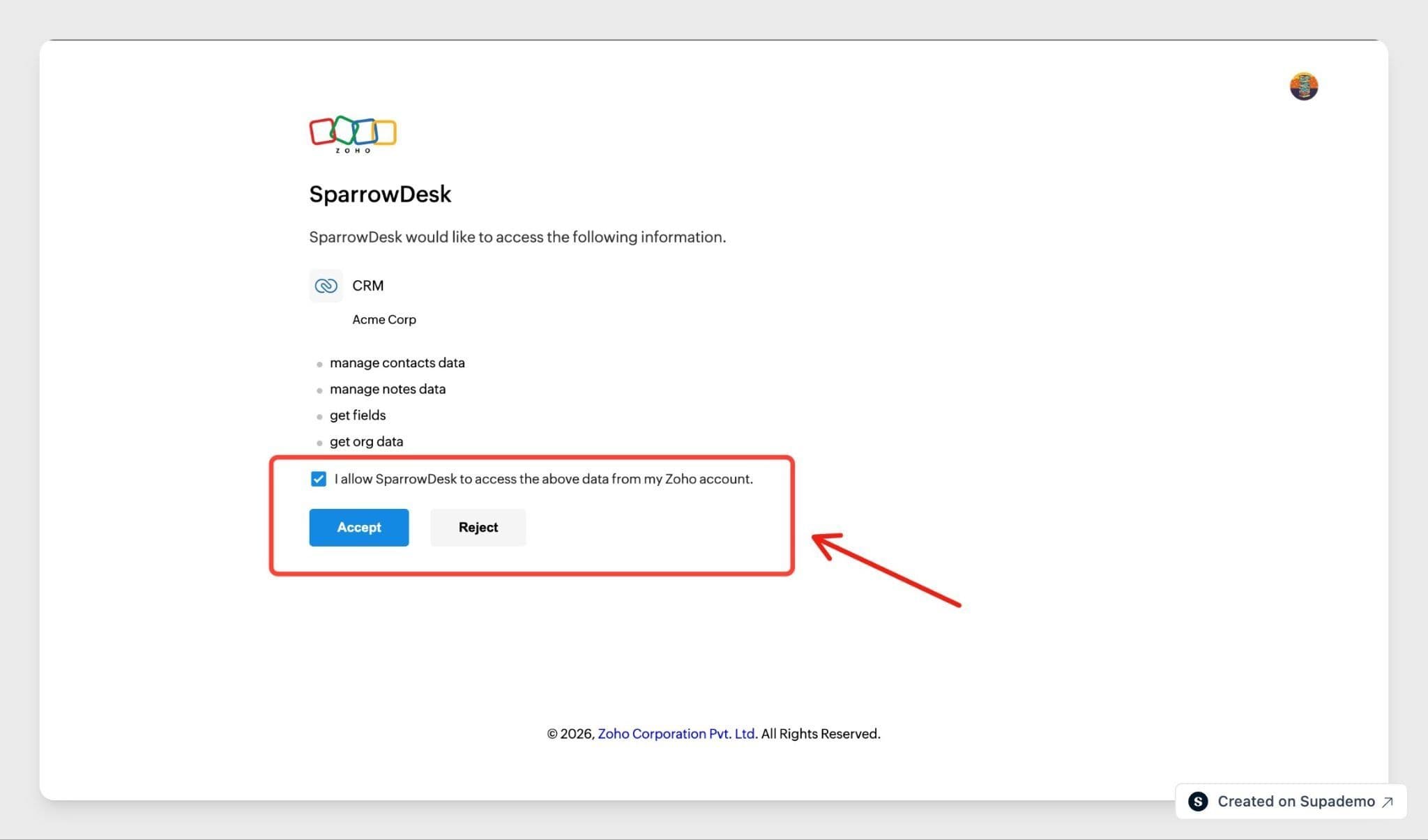
- Sign in with your Zoho account when prompted
- Authorize SparrowDesk to access your Zoho CRM account

Syncing contacts to Zoho CRM
Turn on Sync Contacts to Zoho CRM on the Setup tab to automatically push new and updated SparrowDesk contacts to your Zoho CRM.
Turning on the toggle opens the Zoho CRM Contact Sync-up modal. Map each SparrowDesk field to its corresponding Zoho CRM field, then click Configure to save.
- Click Select a SparrowDesk field and choose the field you want to sync
- Click Select a Zoho CRM field and choose its matching field
- Click Add field to map additional fields
- Click Configure once all fields are mapped
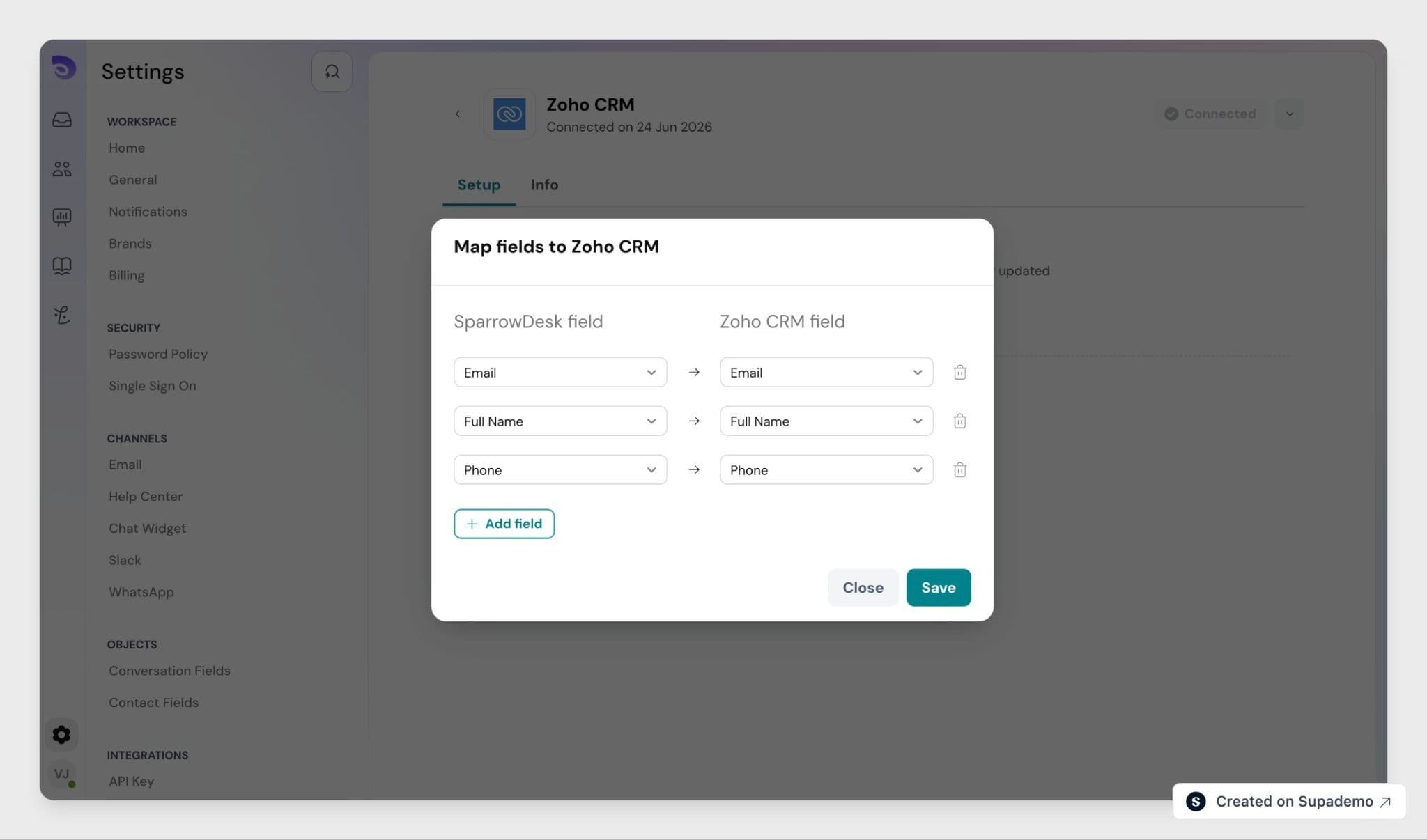
If your team tracks where leads come from, map SparrowDesk's utm_campaign, utm_content, and utm_medium fields to their matching Zoho CRM fields. These are usually custom fields you create in Zoho CRM, or you can map a single source field to Lead Source. This gives your sales team lead source context on the Zoho CRM contact record without anyone manually copying it over.
Once saved, contact sync is active. You can return to this mapping anytime by clicking Edit configuration on the Setup tab.
Syncing conversations to Zoho CRM
Turn on Sync conversations to Zoho CRM on the same Setup tab so closed conversations are added to the matching Zoho CRM contact as a note.
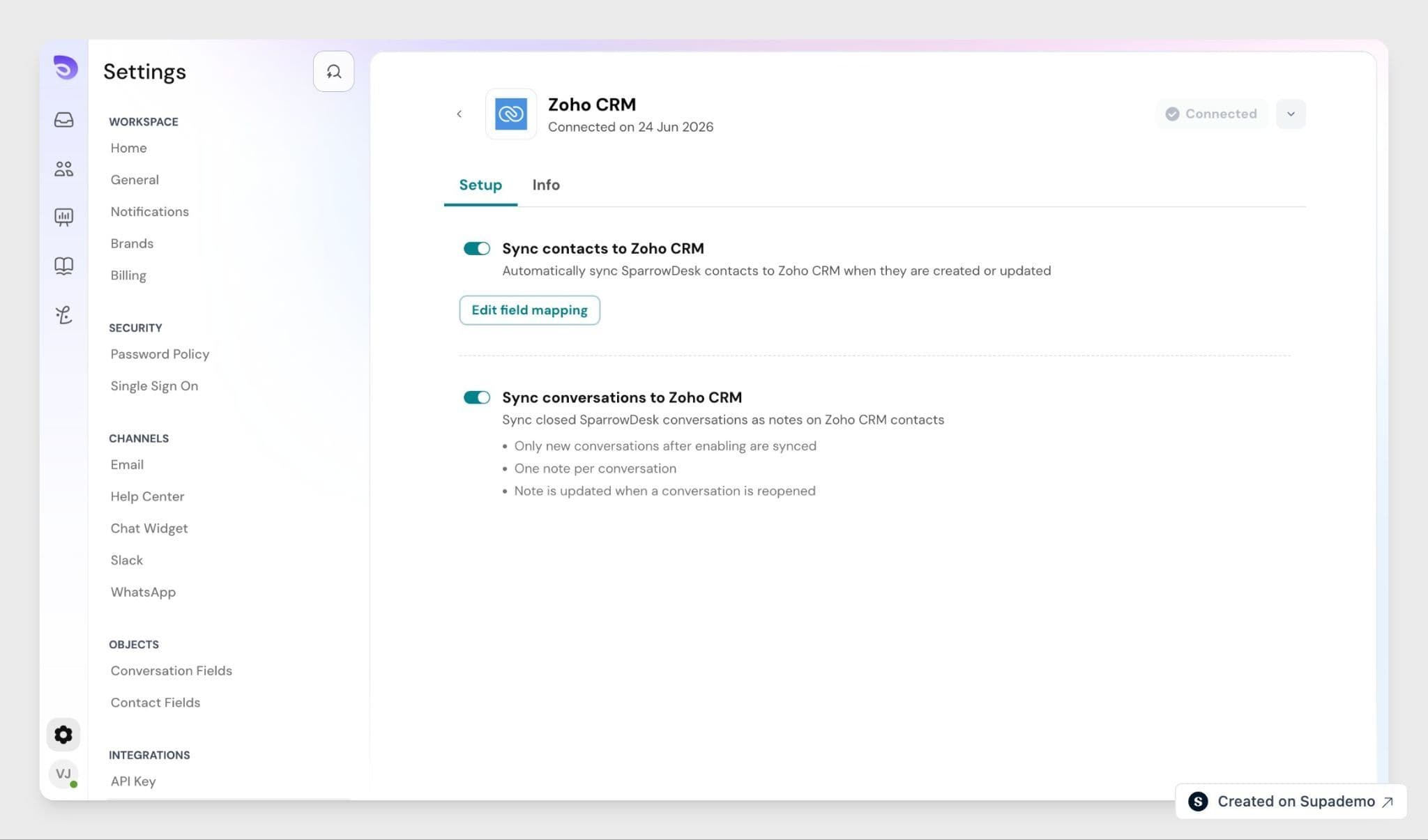
Once enabled, only conversations started after this point are synced. Earlier conversations are not synced retroactively, even if a contact replies after sync is turned on.
How conversation sync works
- When a conversation is closed, SparrowDesk adds a note to the matching Zoho CRM contact with the full transcript and a link back to the conversation in SparrowDesk
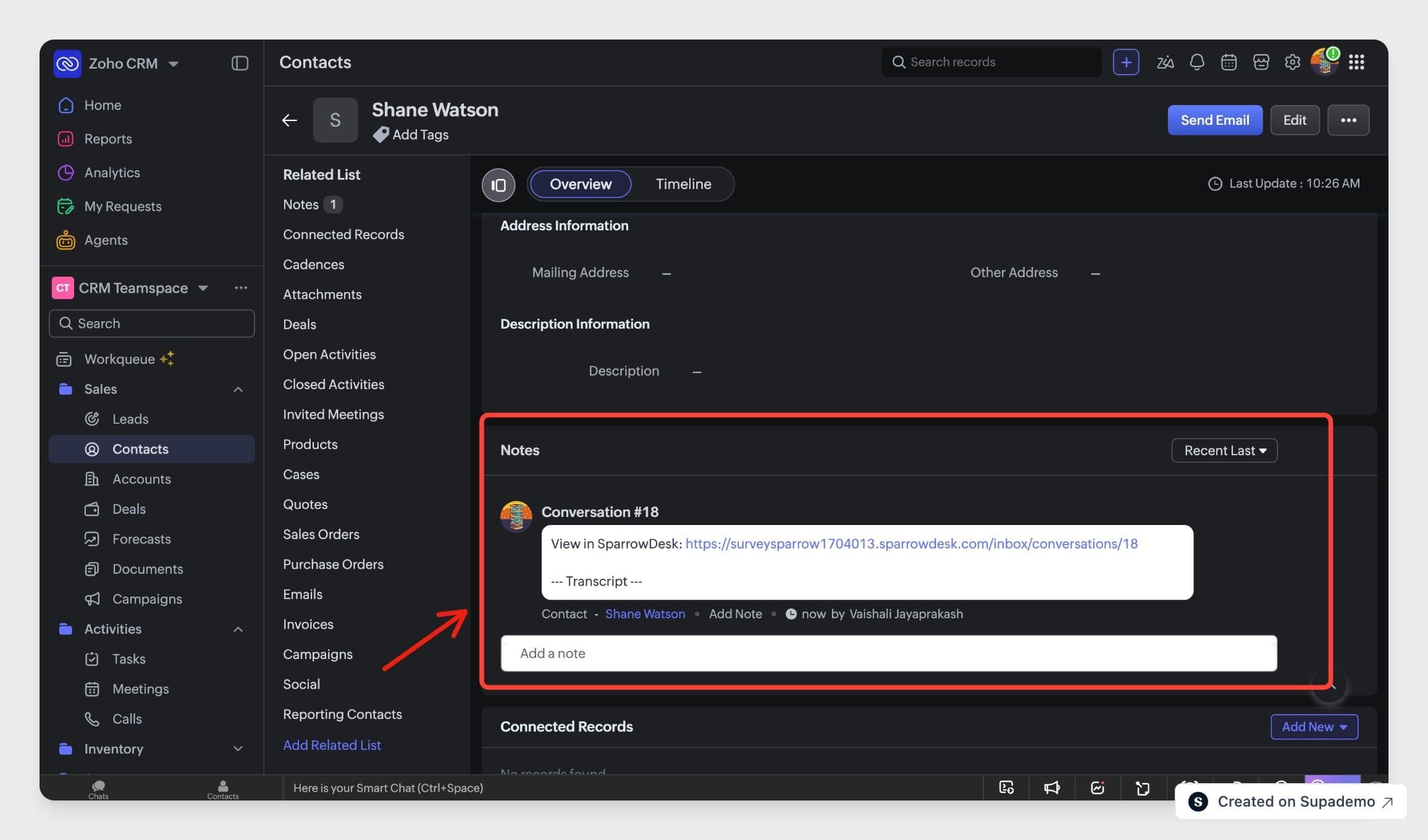
- Each conversation gets one note in Zoho CRM
- If the conversation is reopened and closed again, SparrowDesk updates the same note with the full, updated transcript
- If a conversation has no matching Zoho CRM contact when it closes, no note is created, and it isn't synced later even if a match is added afterward
Note: Turning off conversation sync only stops syncing from that point forward. Conversations already synced are not removed from Zoho CRM.
Viewing Zoho CRM details in a conversation
The Zoho CRM sidebar panel works independently of contact sync and conversation sync- agents see CRM context in conversations whether or not either toggle is turned on.
- Open a conversation in your Inbox
- SparrowDesk looks up the contact in Zoho CRM using the Zoho CRM contact ID, or the contact's email if no ID is available
- The sidebar shows the contact's name, email, phone and account.
- Click View in Zoho CRM to open the full contact record in a new tab
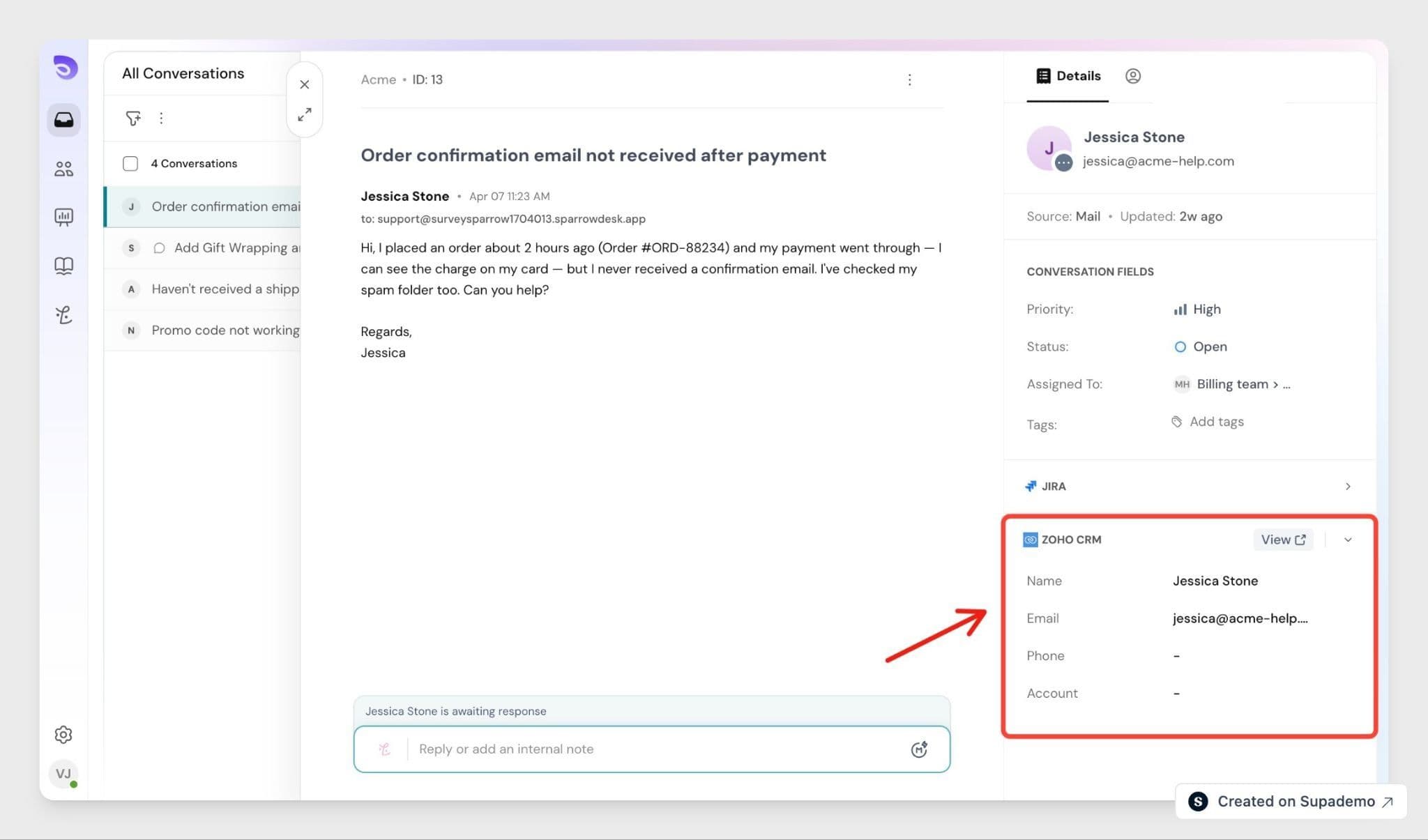
The same panel appears on the contact's profile page and in the contact side panel, so agents see the same Zoho CRM details no matter where they're viewing the contact.
Creating a Zoho CRM contact from SparrowDesk
If no matching Zoho CRM record is found, the sidebar shows an empty state instead.
- Open the conversation or contact profile
- In the Zoho CRM panel, click Create contact in Zoho CRM
The contact is created in Zoho CRM immediately using the contact's name and email, and the sidebar refreshes automatically to show the new record.

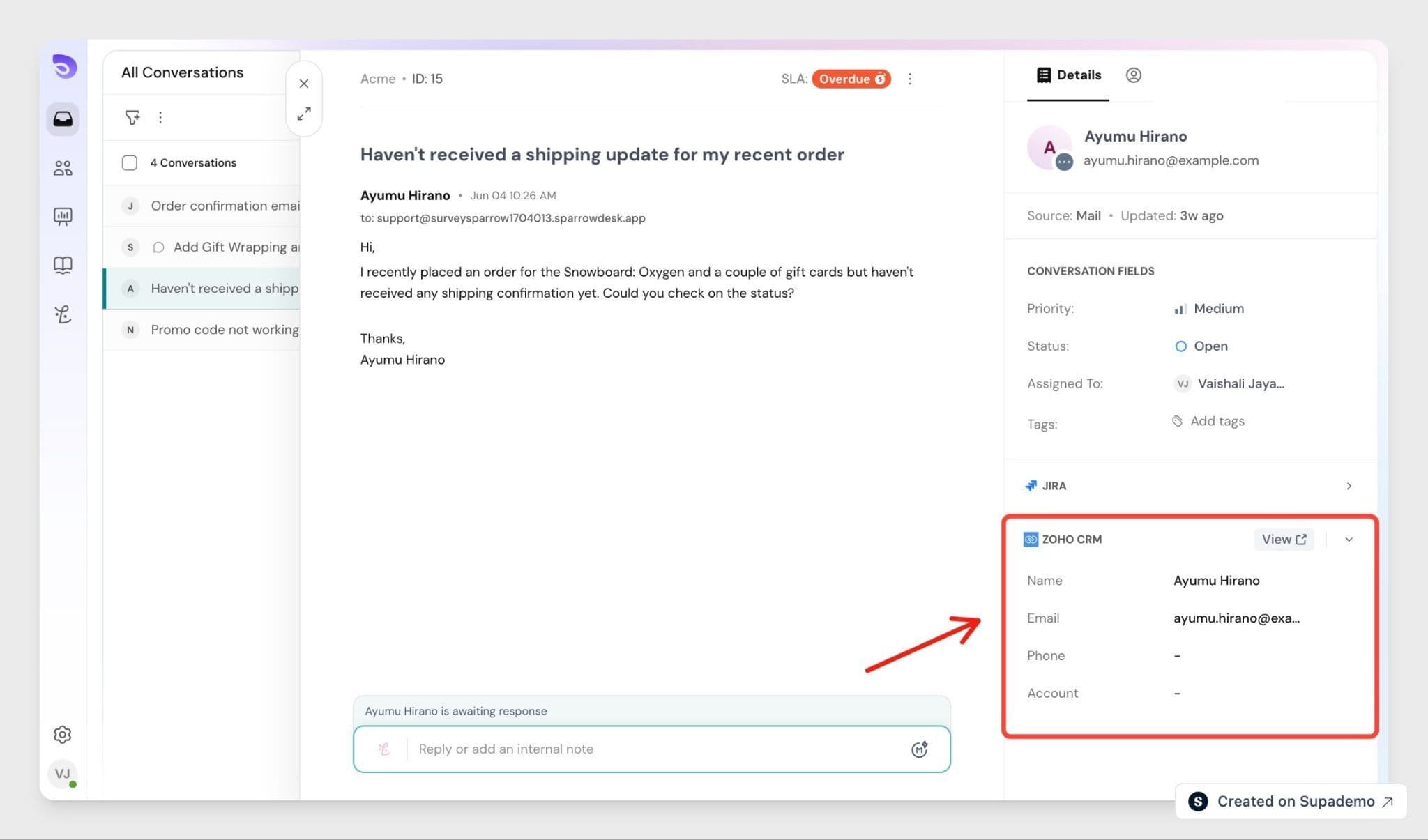
Note: Zoho CRM requires a last name on every contact. If a SparrowDesk contact has only a single-word name, SparrowDesk uses it as the last name so the record can be created.
What syncs
- Zoho CRM contact details shown in the SparrowDesk sidebar (name, account, lead source, contact owner)
- Contacts created in Zoho CRM from SparrowDesk
- New and updated SparrowDesk contacts, when contact sync is turned on
- Closed conversation transcripts, when conversation sync is turned on
What doesn't sync
- Conversations started before Zoho CRM was connected or before conversation sync was turned on
- Real-time updates to a Zoho CRM note after it's created, outside of a reopen-and-reclose
- Conversations with no matching Zoho CRM contact at the time they're closed
SparrowDesk remains the source of truth for support conversations. Zoho CRM remains the source of truth for contact and CRM data.
Disconnecting Zoho CRM
If you no longer want to use the integration, you can disconnect it from SparrowDesk Settings at any time.
- Go to Settings
- Open App store
- Select Zoho CRM
- Click the dropdown next to Connected and select Disconnect
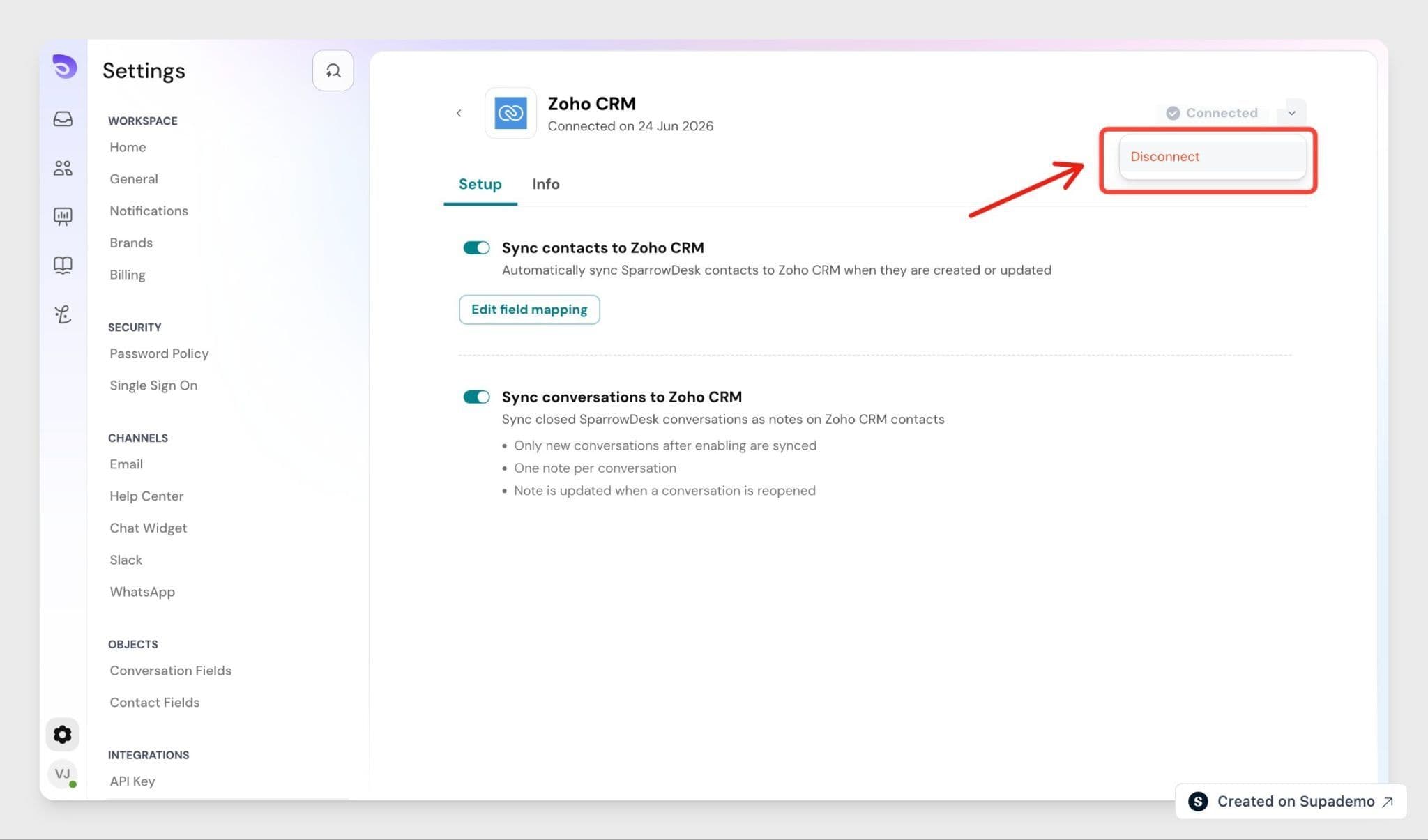
Once disconnected, SparrowDesk stops looking up Zoho CRM contact details and stops syncing contacts and conversations. Notes and contacts already created in Zoho CRM are not removed.
Summary
The Zoho CRM- SparrowDesk integration keeps support and CRM context connected:
- Connect Zoho CRM from SparrowDesk → Settings → App store
- Map contact fields and turn on contact sync and conversation sync from the Setup tab
- View contact details inline in conversations and contact profiles
- Create missing contacts in Zoho CRM without leaving SparrowDesk
Once connected, agents get CRM context without switching tools, and sales and CS teams see support history on the contact record.
FAQ
- Does the Zoho CRM panel show up for every agent, or only admins?
No- the Zoho CRM panel is only visible to members with App store access. The Agent role doesn't have this by default, so regular agents won't see it. - What's the difference between contact sync and conversation sync?
Contact sync pushes new and updated SparrowDesk contacts into Zoho CRM. Conversation sync adds closed conversations to Zoho CRM contacts as notes. You can turn either one on independently. - I have contacts in both the Leads and Contacts modules- which one does SparrowDesk use?
SparrowDesk syncs and looks up records in the Contacts module. Records that still sit in the Leads module aren't matched until they're converted into contacts in Zoho CRM. - Does disconnecting Zoho CRM remove contacts or notes already created there?
No. Disconnecting stops new lookups and syncing, but contacts and notes already added to Zoho CRM stay in Zoho CRM.