
AI Agent - Deploying on Email

Configure how your Zoona AI Agent behaves on the Email channel- who it replies to, how it signs off, and what happens when it can't resolve an issue.
Open Email settings
- Select your AI Agent from the left sidebar.
- Click Email under the agent name.
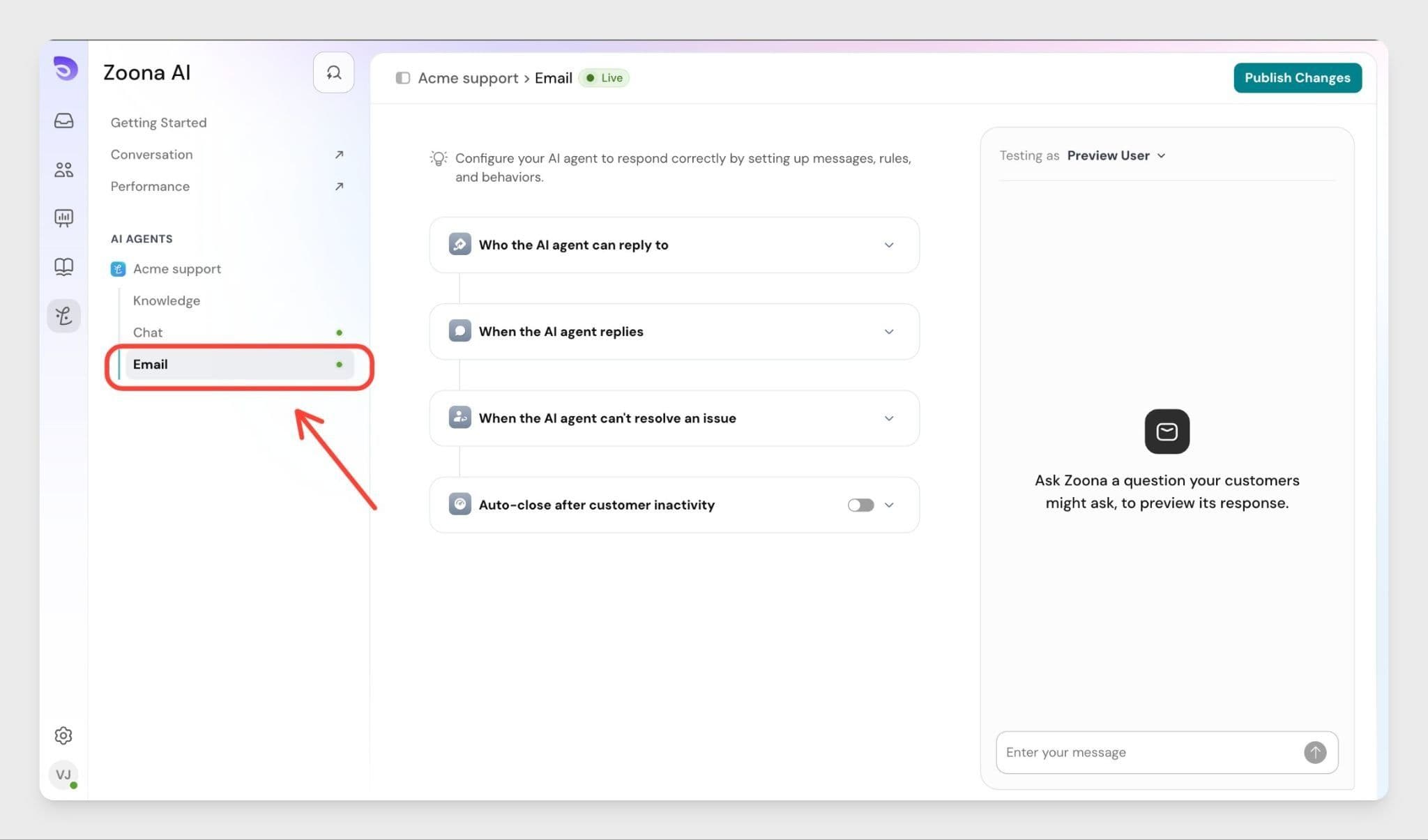
Who the AI Agent can reply to
Choose which contacts the AI Agent responds to on Email.
- Everyone — The AI Agent replies to all incoming emails.
- Specific contacts — The AI Agent only replies to contacts that match the conditions you define.
Setting up conditions for Specific contacts
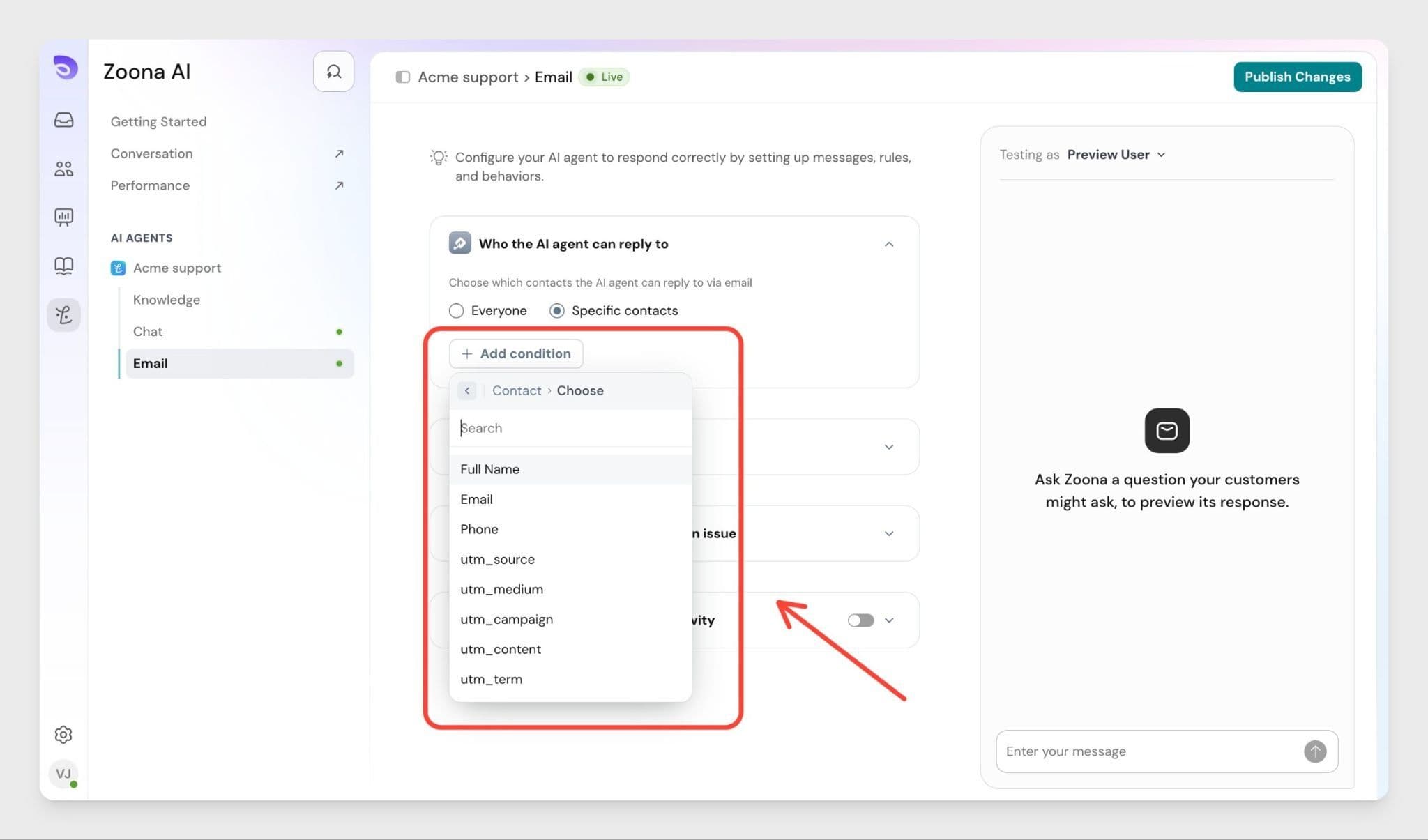
- Select Specific contacts.
- Click + Add condition.
- Choose one of the two condition categories:
- Contact - Filter by contact attributes. Expand this to pick from:
- Full Name
- Phone
- utm_source, utm_medium, utm_campaign, utm_content, utm_term
- Any custom contact property you've set up
- Support Email- Filter by the support email address the message was sent to. Useful if you run multiple support inboxes (e.g., [email protected]om vs [email protected]) and want the AI Agent to reply on only some of them.
- Set the match value for that condition.
- Add more conditions to narrow the audience further.
Use this when you want the AI Agent to handle only a subset of your email audience — for example, only emails sent to your general support address, or only contacts from a specific campaign.
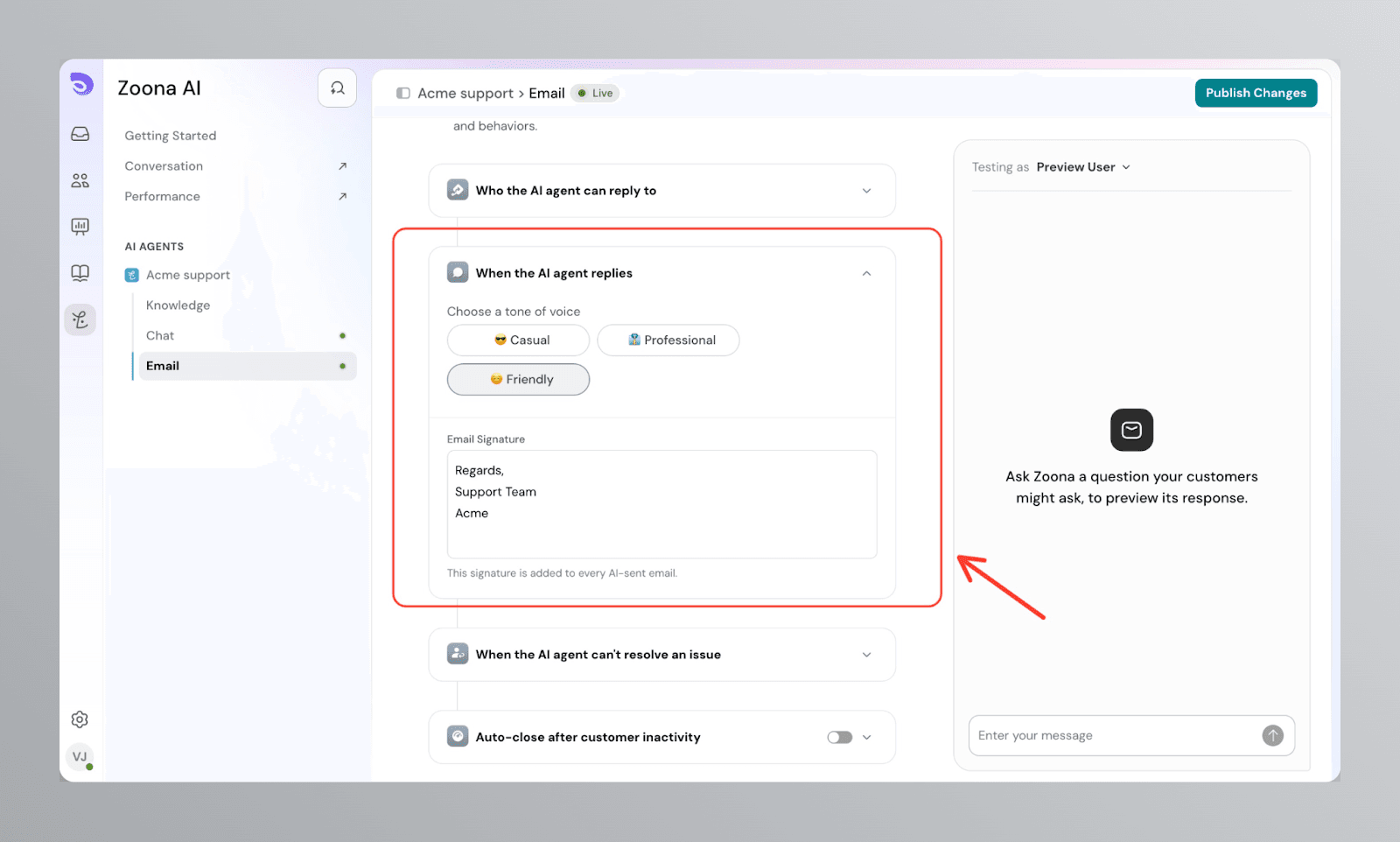
When the AI Agent replies
This section controls how every AI-sent email sounds and signs off.
Choose a tone of voice:
- 😎 Casual — Relaxed and easygoing, suitable for informal brands.
- 👔 Professional — Clear, polite, and business-like.
- 🤗 Friendly — Warm, conversational, and approachable.
Add an email signature:
This signature is added to the end of every email the AI Agent sends. Use it to close the message in a consistent, on-brand way.
Example:
Regards,
Support Team
Acme
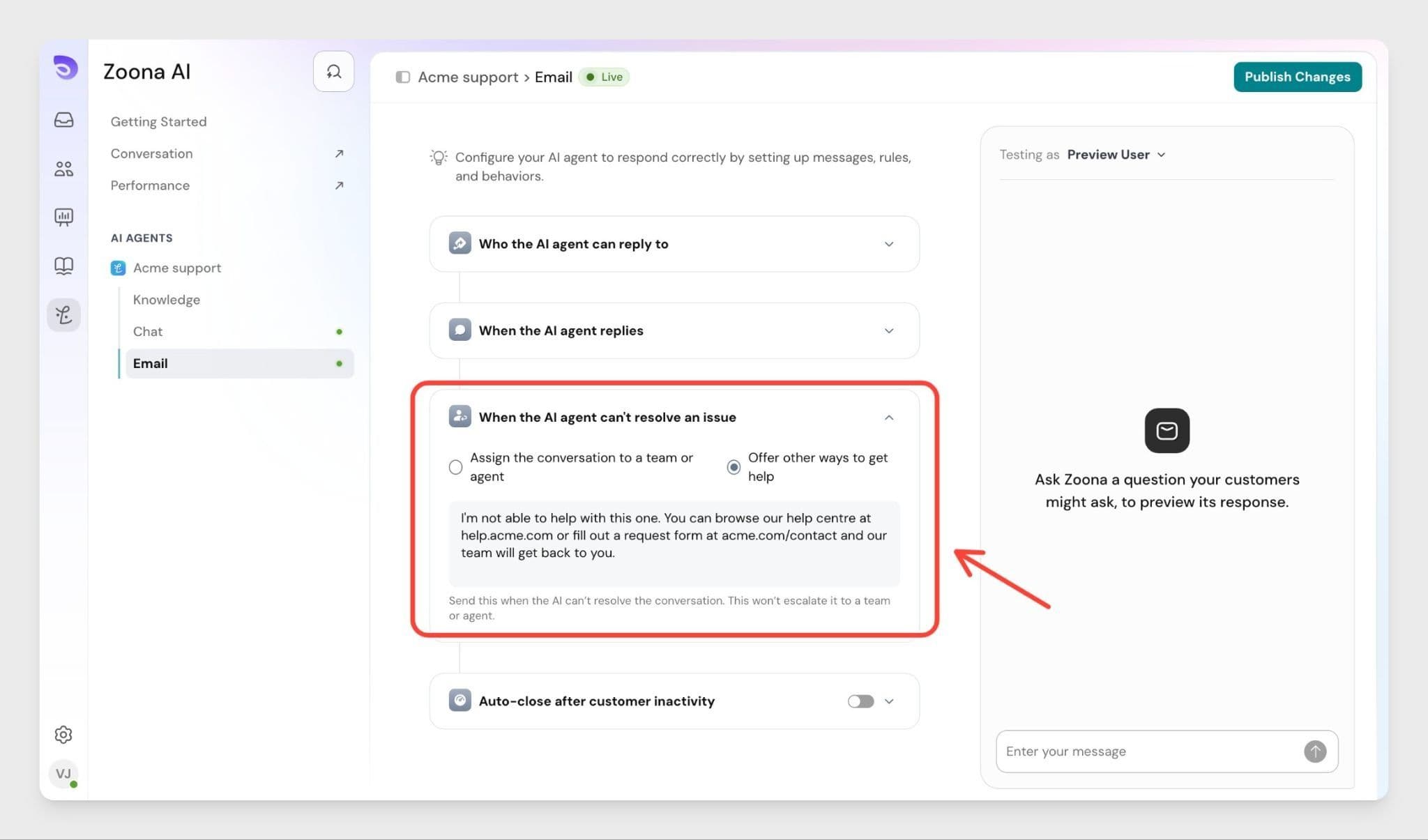
When the AI Agent can't resolve an issue
Set what happens when the AI Agent can't answer a customer's question.
- Assign the conversation to a team or agent — The email is routed to a specific agent or team for follow-up.
- Offer other ways to get help — The AI Agent sends a custom message pointing the customer to other support options. Enter this message in the text field provided.
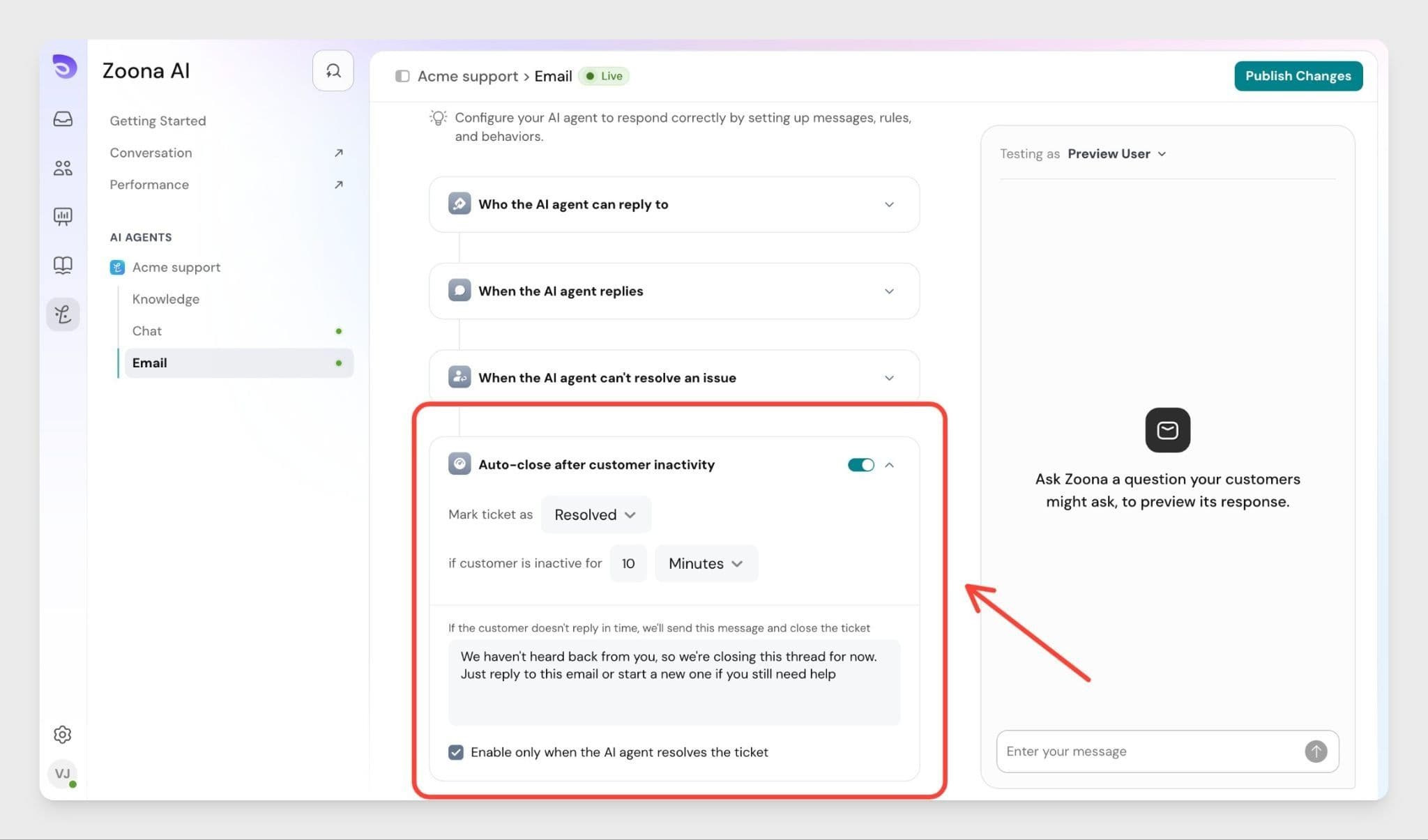
Auto-Close After Customer Inactivity
Enable this to close an email thread automatically after the customer has been inactive for a set period. This keeps your Inbox clean and prevents threads from staying open indefinitely.
This setting is off by default. When enabled, you can:
- Set the status the conversation is marked as (e.g., Resolved).
- Set the inactivity duration (e.g., 10 minutes).
- Add a closing message- If the customer doesn't reply in time, this message is sent before the thread closes.
Example: "We haven't heard back from you, so we're closing this thread for now. Just reply to this email or start a new one if you still need help."
- Enable only when the AI Agent resolves the conversation- Tick this to limit auto-close to emails the AI Agent resolved on its own. Leave unticked to auto-close any inactive thread, including those handled by human agents.
Save or publish your changes
When you finish configuring the Email channel, you have two options in the top-right corner:
- Save keeps your changes as a draft. Your settings are stored, but the live AI Agent keeps running on its last published version, so nothing customers experience changes yet. Use this to park a part-finished setup and come back to it.
- Publish Changes makes your saved configuration live. The AI Agent starts handling emails based on the new settings immediately.
FAQs
- Why is there a signature field on Email but not on Chat?
Email is a formal, stand-alone message — a signature closes it cleanly. Chat is a continuous conversation, so a signature after every reply would feel repetitive. - Can I filter by which support email address received the message?
Yes. Under Specific contacts, add a condition using Support Email to scope the AI Agent to one or more of your support inboxes. This is useful if you want the AI Agent to reply on general support emails but not on billing or sales inboxes. - Can I include links or formatting in the email signature?
Yes. You can add plain text lines like company name, team name, or contact details. Keep it short so it doesn't overwhelm the reply. - Should I assign to a team or offer other ways to get help?
Use Assign to a team or agent if you have a support team ready to take over unresolved emails. Offer other ways to get help if you'd rather point customers to a help centre article, a contact form, or business-hours info — useful for teams without 24/7 coverage. - Does auto-close affect conversations handled by human agents?
It depends on the Enable only when the AI Agent resolves the conversation checkbox. If ticked, auto-close applies only to AI-resolved threads. If unticked, any inactive thread will close after the set duration - including ones assigned to human agents. - Do my changes go live as soon as I save them?
No. Save keeps your changes as a draft. They only affect live conversations once you select Publish Changes.