
Slack as a Channel

If your team gets support requests directly in Slack, the Slack integration lets you convert those messages into SparrowDesk tickets without leaving the channel- so Slack stays in your team's workspace and SparrowDesk stays in the system of record.
What you can do with the Slack integration
Once Slack is connected, your team can:
- Turn any Slack message into a SparrowDesk ticket using an emoji reaction or automatically for every message in a channel
- Sync replies between the Slack thread and SparrowDesk conversation in both directions
- Let non-agent Slack users participate in threads without consuming agent seats
- Keep all ticket data, history, and assignments managed inside SparrowDesk
- Create a ticket on demand by mentioning the SparrowDesk AI Agent on a message
Note: This article covers Slack as a two-way support channel (Slack messages become tickets, replies sync both ways). If you just want SparrowDesk to post notifications into a Slack channel- no ticket creation, no reply sync- see Notify a Slack Channel from a Workflow instead.
Before you start
Make sure you have:
- Admin access in SparrowDesk
- Admin access to the Slack workspace you want to connect
- The Configure Slack Channel permission in SparrowDesk (Account owners and admins have this by default)
Note: The Slack integration is available on the Starter plan and above.
Connecting your Slack workspace
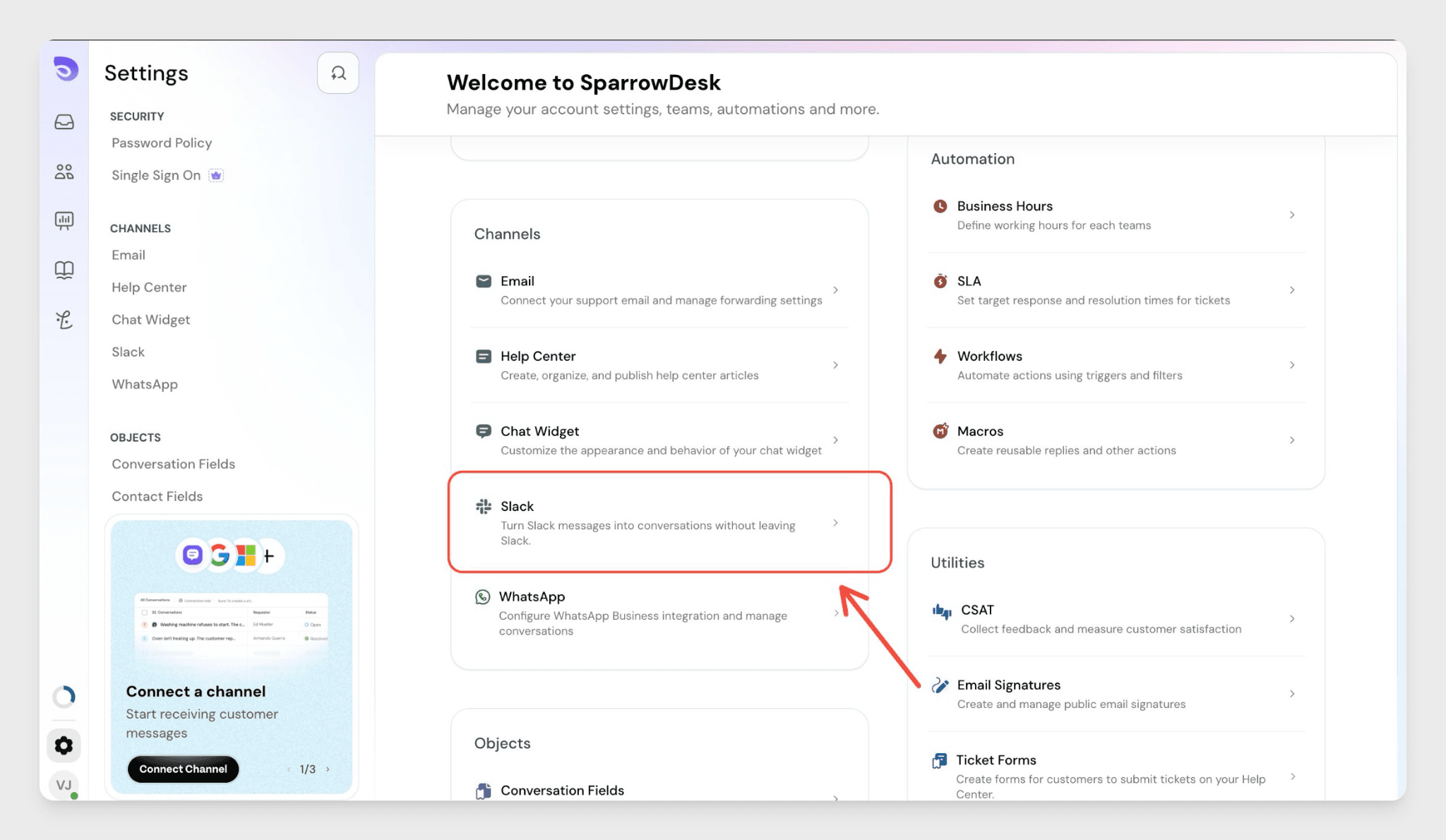
- Go to Settings in SparrowDesk.
- Under channels
- Find Slack in the list.
- Click Connect Slack.
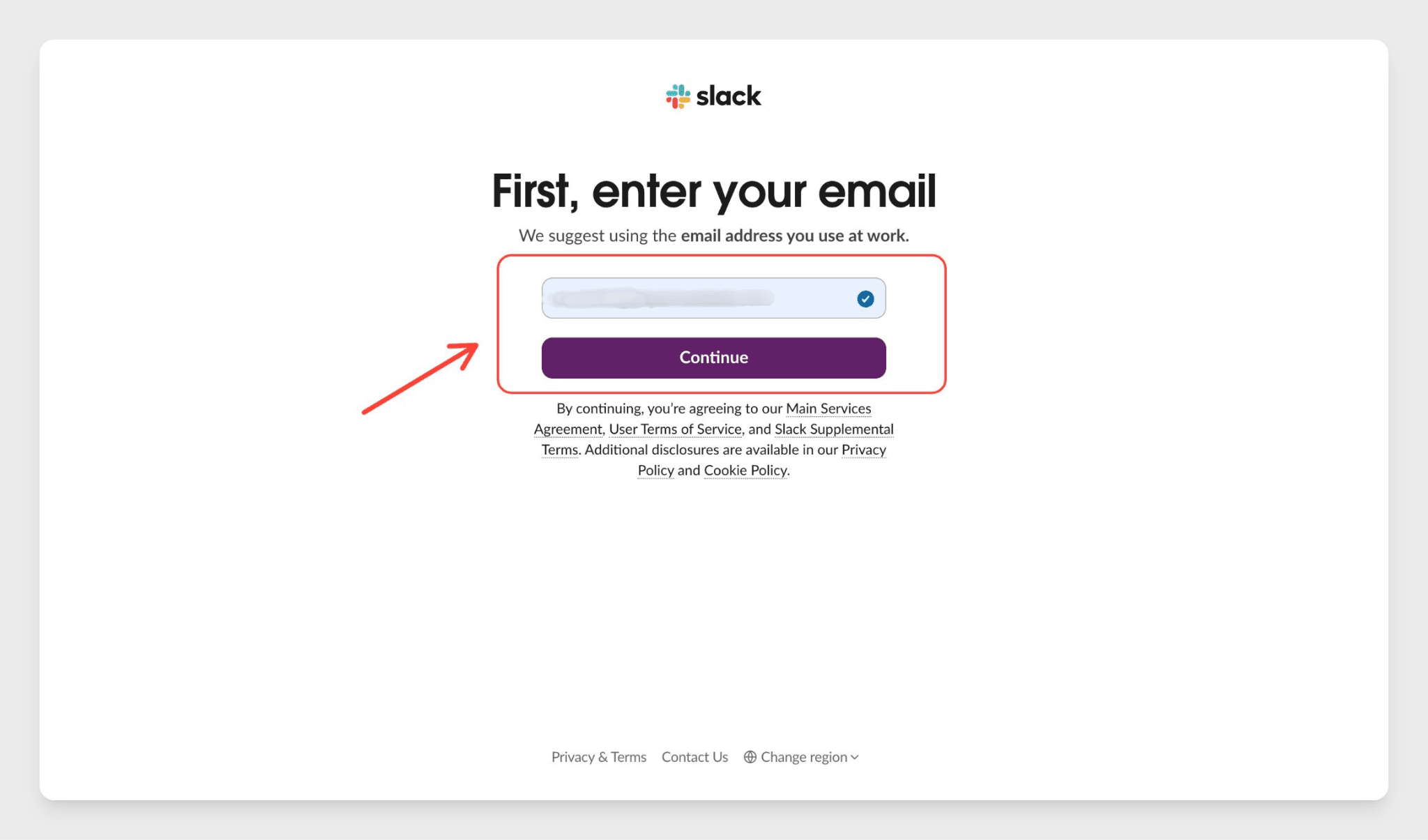
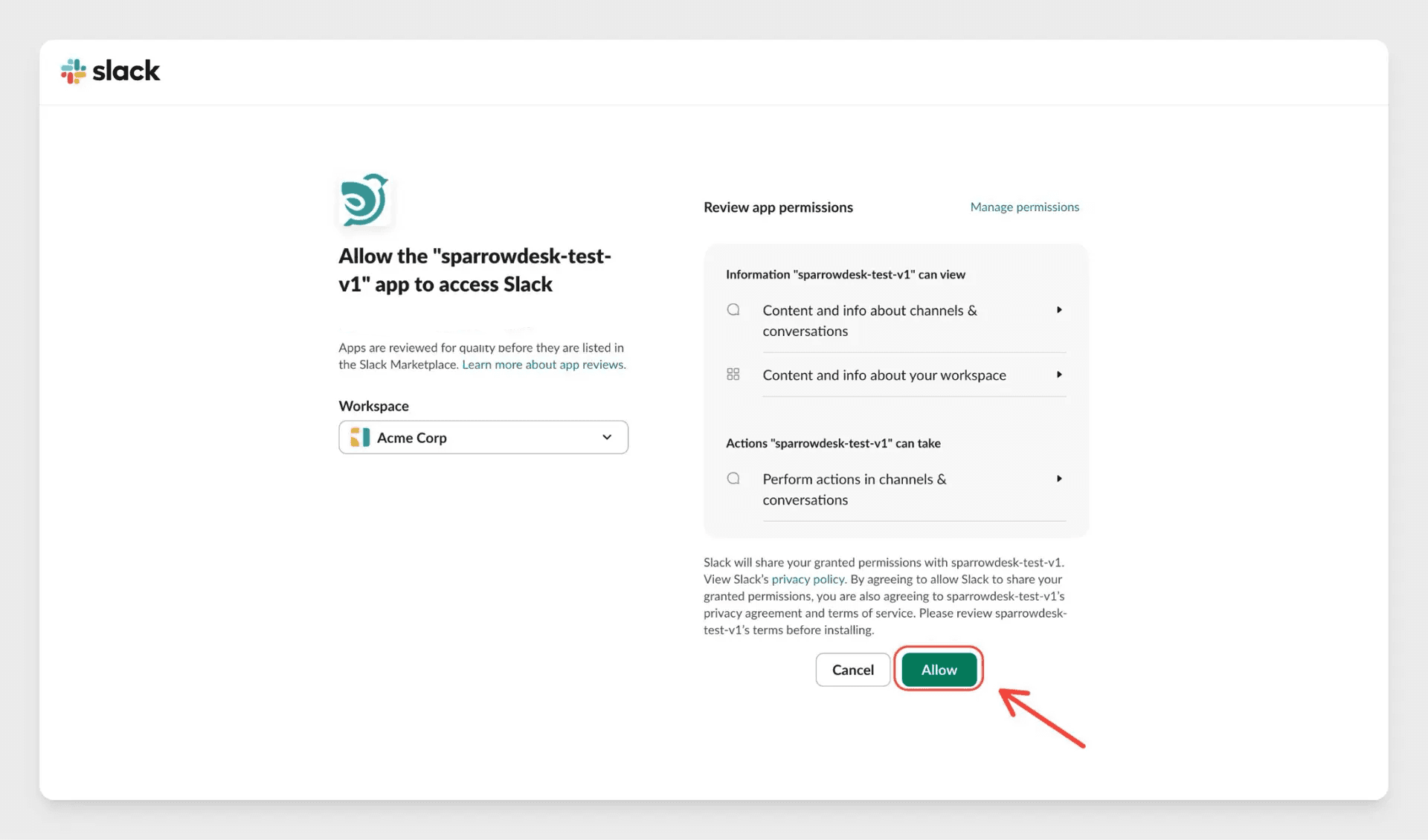
- Sign in with your Slack account and authorise the required permissions.
- Once connected, the SparrowDesk app is installed in your Slack workspace.
After connecting, add the SparrowDesk app to any channel where you want tickets to be created. Private channels require you to manually invite the app inside Slack first.
Note: SparrowDesk can only act in channels where the app has been explicitly added. It does not have workspace-wide access.
Connecting a channel to a brand
Each channel must be mapped to one brand in SparrowDesk before ticket creation begins.
- Go to Settings → Slack.
- Select your connected workspace.
- Click Add channel.
- Choose the channel from the list.
- Select the brand to map it to.
- Choose a ticket creation mode (see below).
- Click Save.
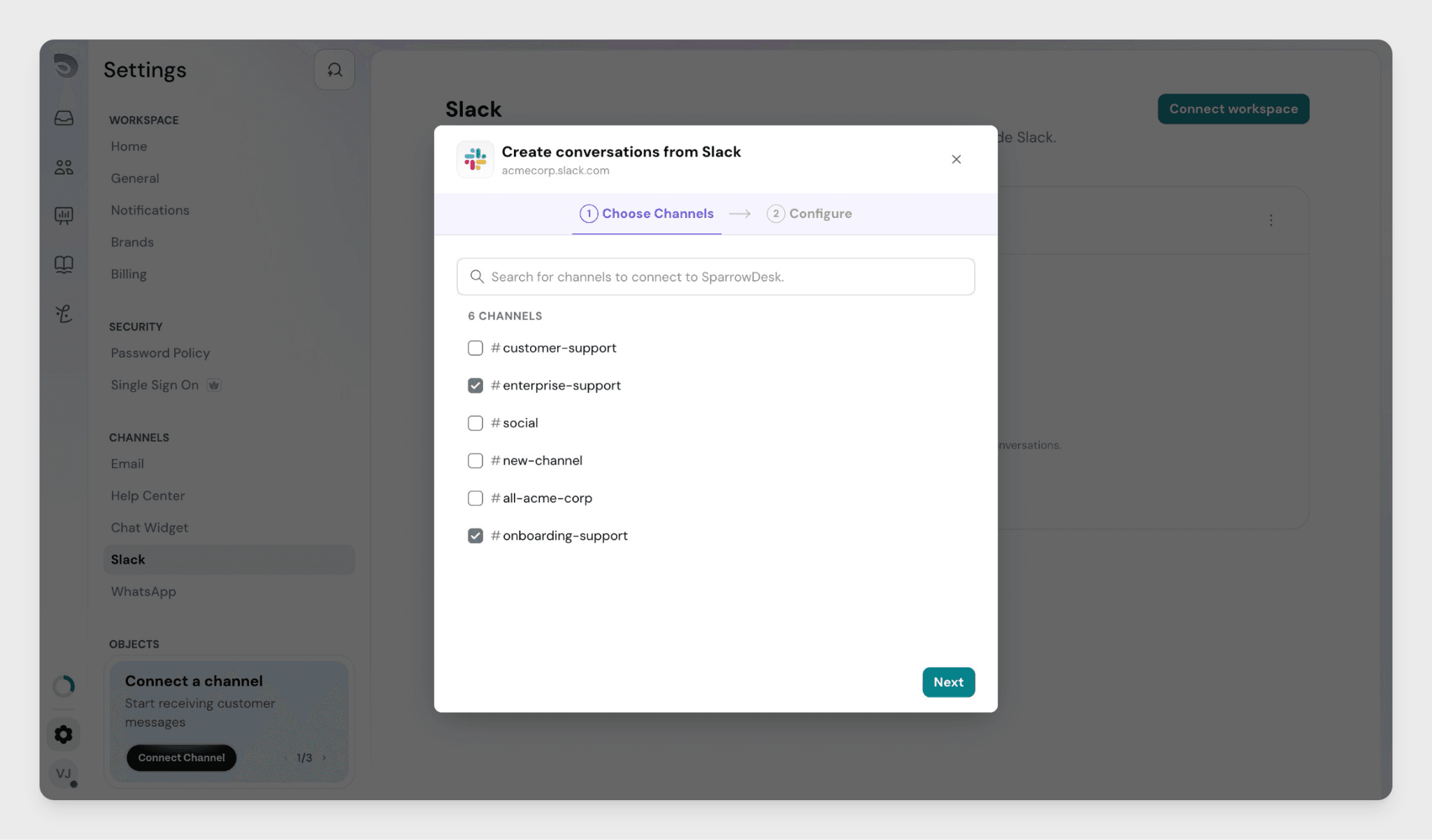
One channel maps to one brand only. One brand can be connected to multiple channels. To change a channel's brand, update the existing mapping.
Ticket creation modes
Each channel is set to one of two modes when you configure it.
Mode | How it works |
Every Message | Every top-level message in the channel creates a new ticket. Replies inside the thread sync into that ticket. |
Emoji Reaction | An agent adds a specific emoji to a message to trigger ticket creation. Only agents with permission to create tickets can trigger this. |
Beyond these two modes, anyone can create a ticket on demand by mentioning the SparrowDesk AI Agent on a message. This works in any connected channel, whatever mode it is set to.
Every Message mode excludes bot messages- messages from Slack-native bots or the SparrowDesk bot itself do not create tickets.
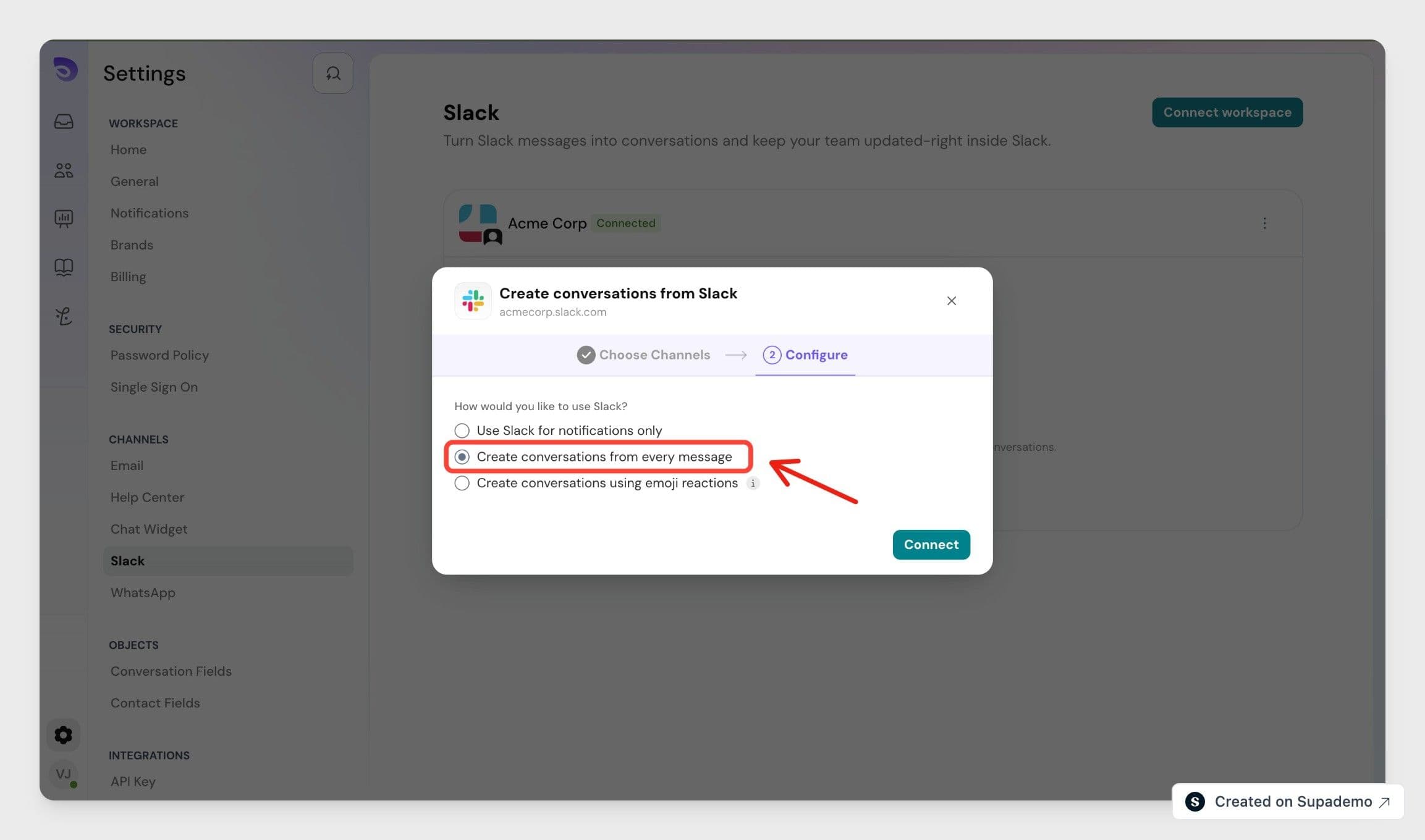
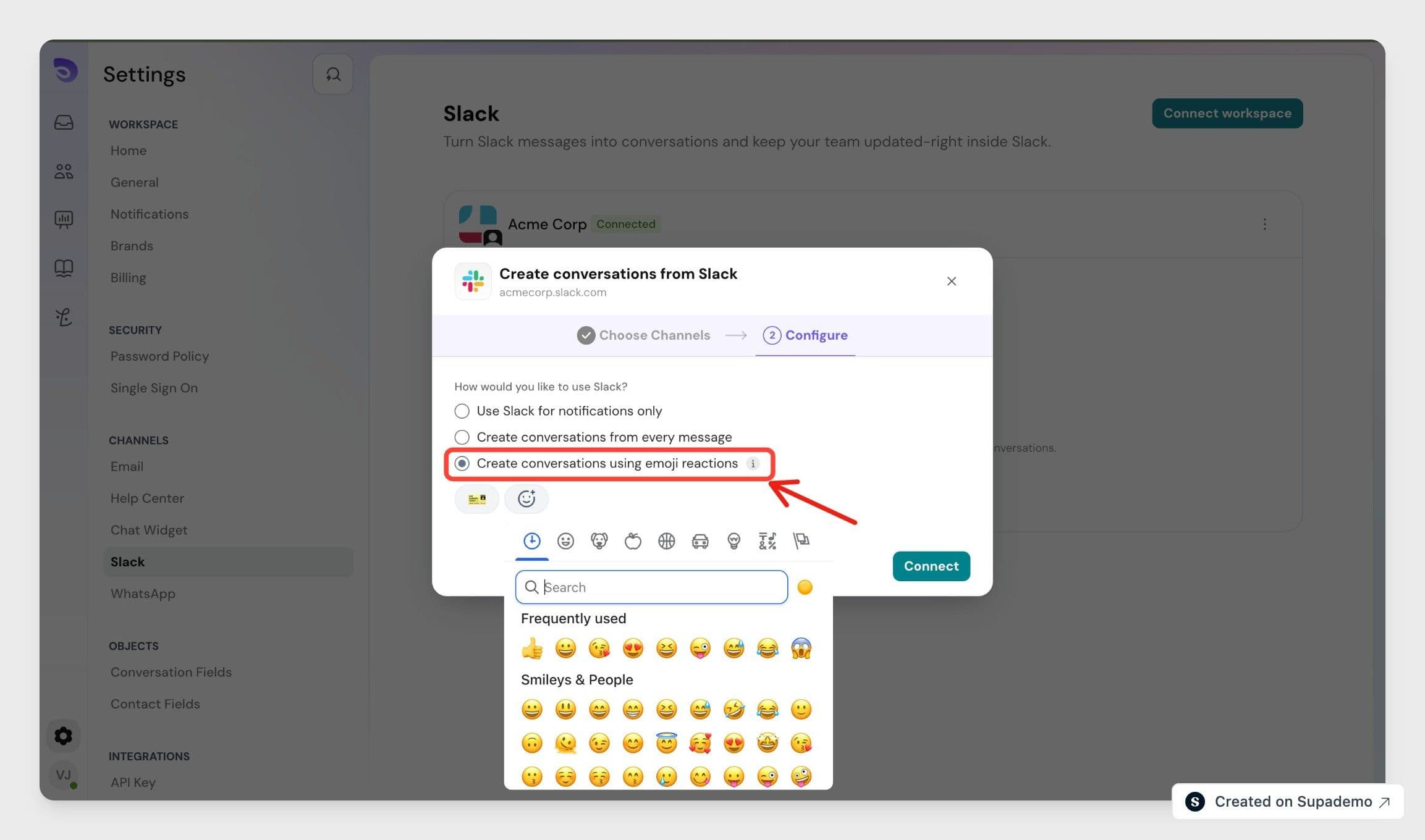
Select the desired mode and click connect.
Each slack channel can be configured according to your requirement.
How conversation sync works
One Slack thread maps to one SparrowDesk conversation. How that conversation starts depends on the ticket creation mode set for the channel.
Every Message mode
Every message posted in the channel creates a ticket in SparrowDesk automatically. No agent action is needed.
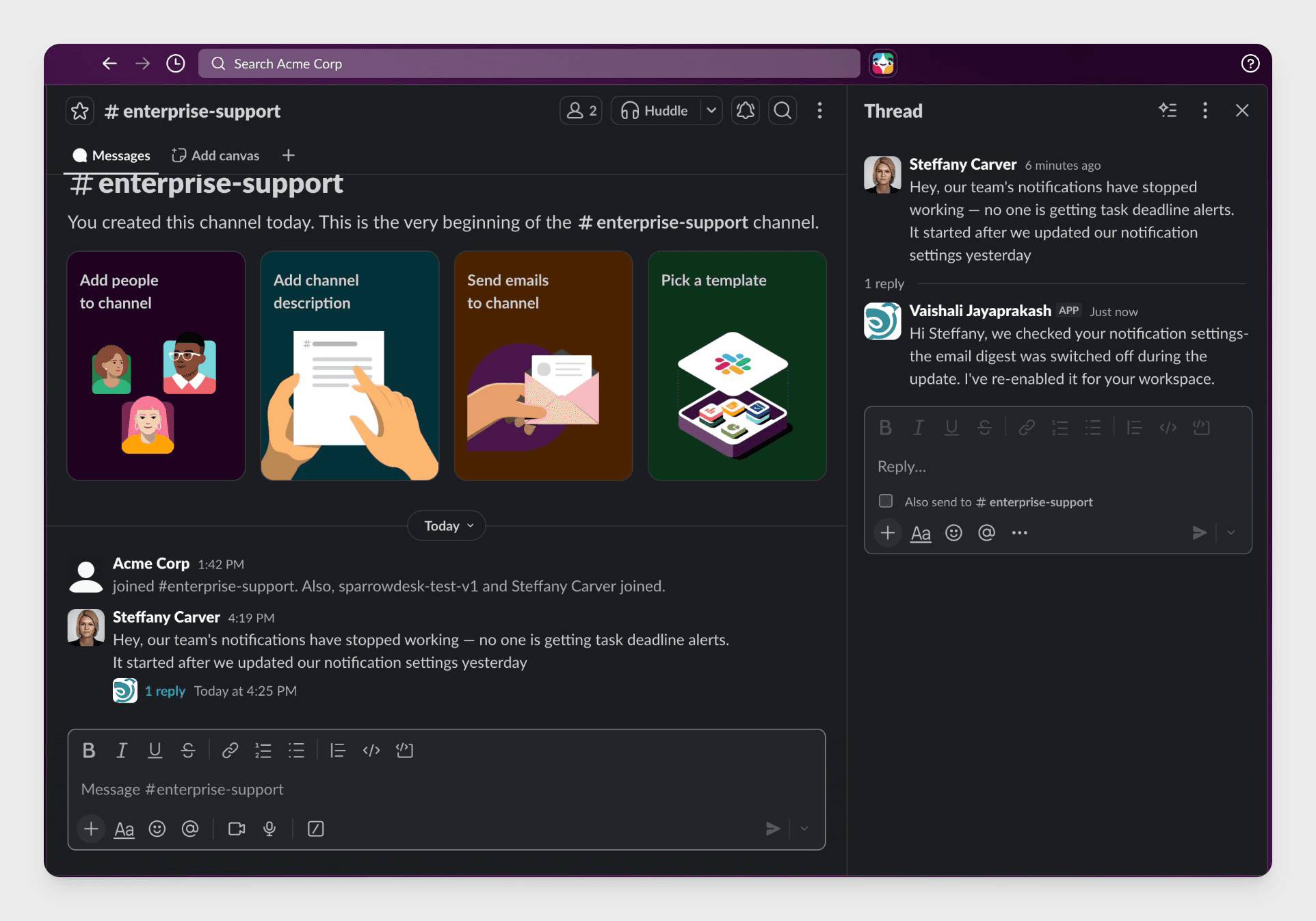
Once the ticket is created, all replies in that Slack thread sync into the SparrowDesk conversation in order.
Emoji Reaction mode
An agent reacts to a message with the configured emoji to trigger ticket creation. Only agents with permission to create tickets can do this.
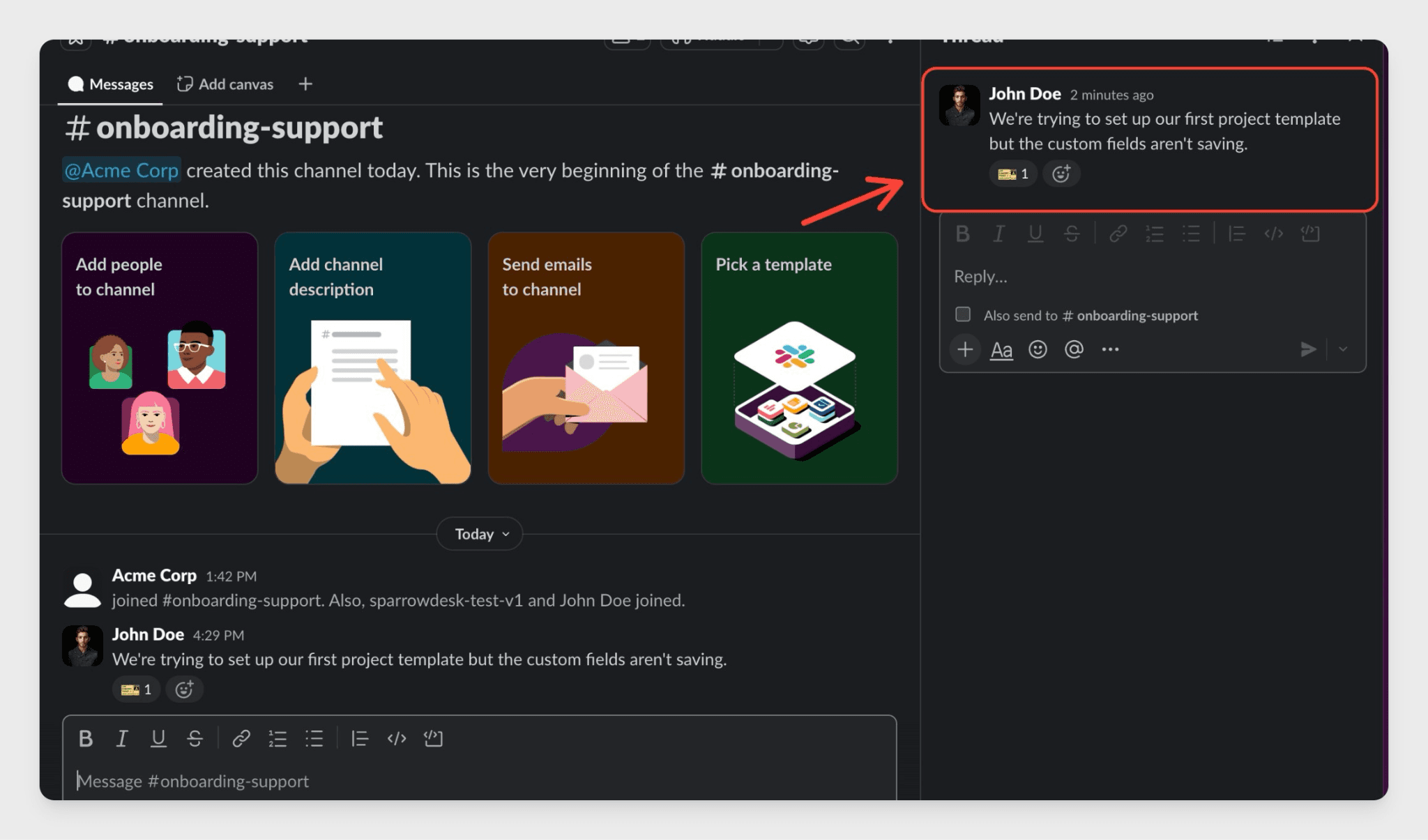
The message that was reacted to becomes the ticket root. All replies in that thread sync into SparrowDesk from that point.
Regardless of mode:
- Agent replies in SparrowDesk post back to the Slack thread automatically
- Internal notes in SparrowDesk are not synced to Slack
- Message order is preserved
- Attachments and links sync as read-only metadata
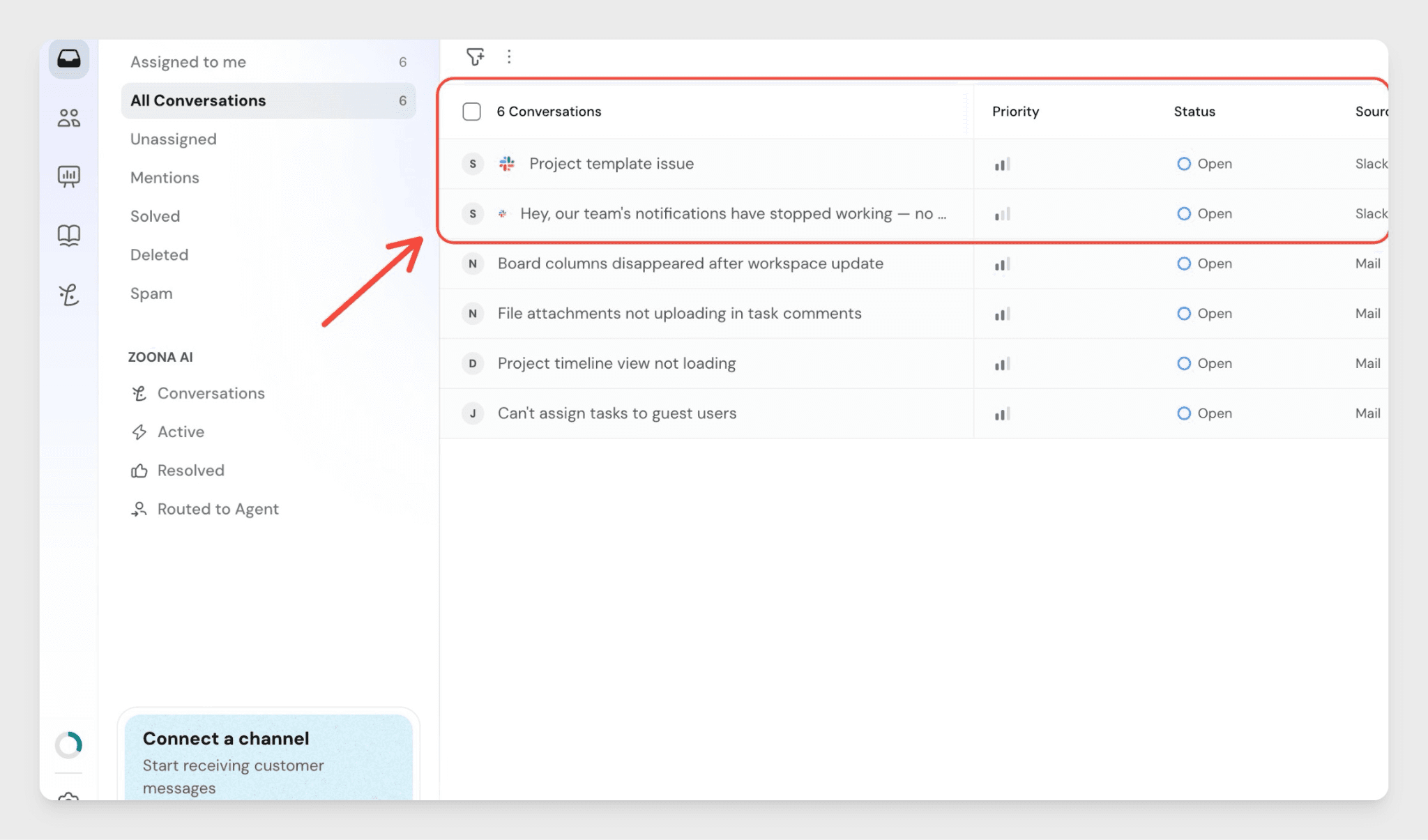
If a ticket is resolved and someone replies in the linked Slack thread, the ticket reopens automatically.
Mention the AI Agent
Mention the SparrowDesk AI Agent on a message, or in a reply to it, to create a ticket from that message. The mentioned message becomes the ticket root, and all replies in that thread sync into SparrowDesk from that point. This does not require the channel to be in a specific mode.
Requesters and Slack Participants
The requester on a ticket is the author of the message that triggered ticket creation. You can change the requester from inside SparrowDesk after the ticket is created.
Other Slack users who reply in the thread appear as Slack Participants — a non-billable participant type that does not consume agent seats. Slack Participants cannot log in to SparrowDesk but their messages sync into the conversation alongside agent replies.
FAQ
- Can non-agents create tickets using the emoji reaction?
No. Only SparrowDesk agents with an active seat and permission to create tickets can trigger ticket creation via emoji reaction. Reactions from non-agents are ignored. - What happens if the SparrowDesk app is removed from a Slack channel? SparrowDesk stops syncing new messages from that channel. Existing tickets remain intact with all history preserved.
- Can the same Slack channel be connected to more than one brand?
No. Each channel maps to one brand only. To use a channel for a different brand, update the existing mapping for that channel. - What happens if a Slack user's account is deactivated?
The ticket remains open and the deactivated user stays as the requester. All message history and attribution are preserved. - Does editing a Slack message after ticket creation update the ticket?
No. SparrowDesk stores a snapshot of the message at the time the ticket is created. Edits made in Slack afterwards are not reflected in SparrowDesk.