
Understanding the Inbox in SparrowDesk

The Inbox is the first screen you see after logging in, where every customer conversation lands and where your team reads, organizes, and replies to them.
Default views
- Assigned to me- conversations assigned to you.
- All Conversations- every active conversation in the workspace.
- Unassigned- conversations not yet assigned to an agent.
- Mentions- conversations where you've been tagged.
- Closed- conversations marked as completed.
- Deleted-conversations that have been soft-deleted.
- Spam- conversations marked as spam.
Team views
If you belong to one or more teams, each team gets its own view in the sidebar.
Custom views
Custom views are folders you or your teammates create to group conversations by conditions or filters for example, high-priority tickets, conversations from one customer, or overdue cases.
- Drag and drop to reorder your sidebar views- including default and team views, not just custom ones. The order applies only to you
If reordering is scoped within each group rather than across all views, use this instead:
- Drag and drop to reorder views within the default, team, and custom groups. The order applies only to you
For how to build one, see Managing Custom Views in Inbox.
Table layout and split layout
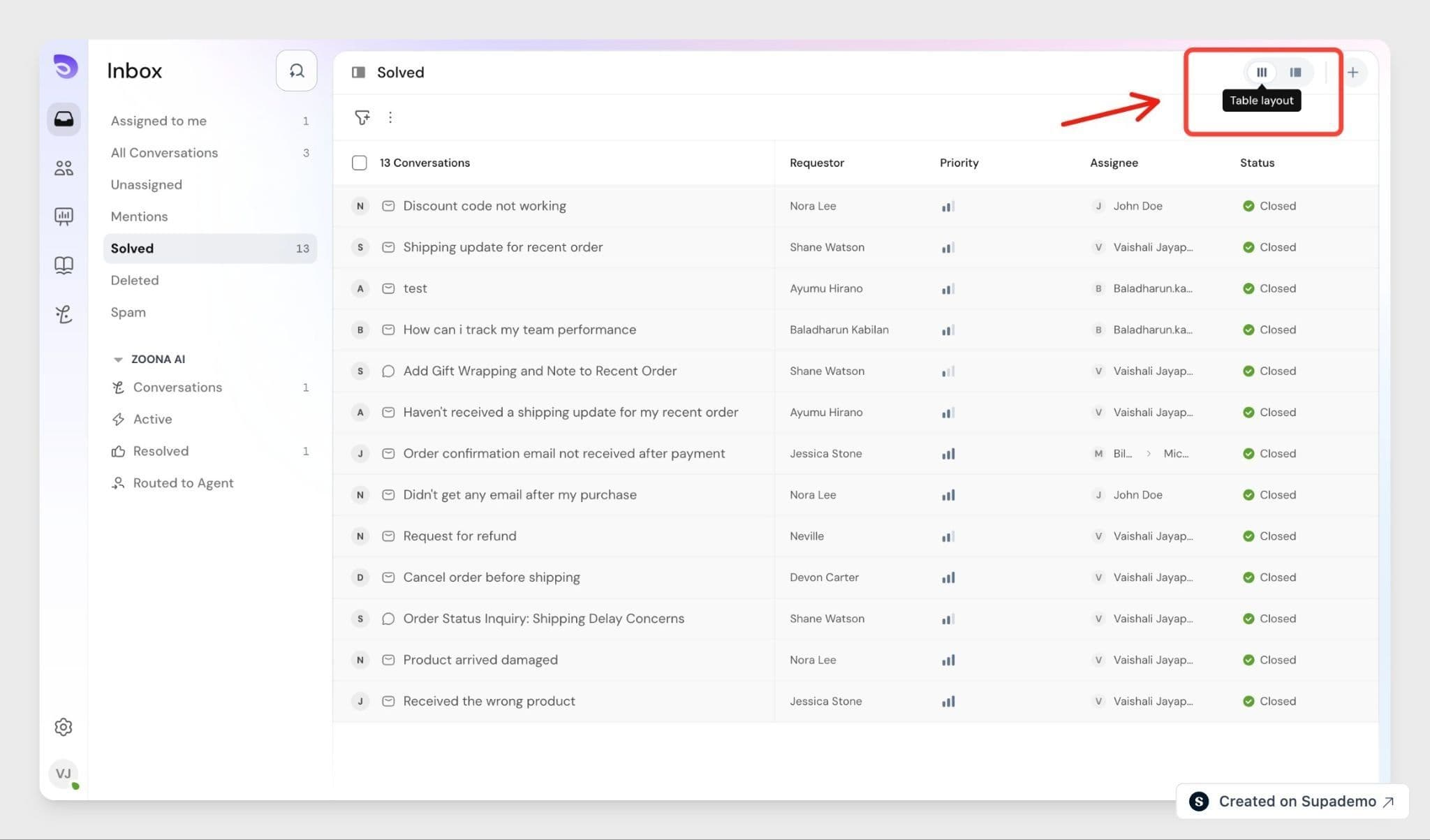
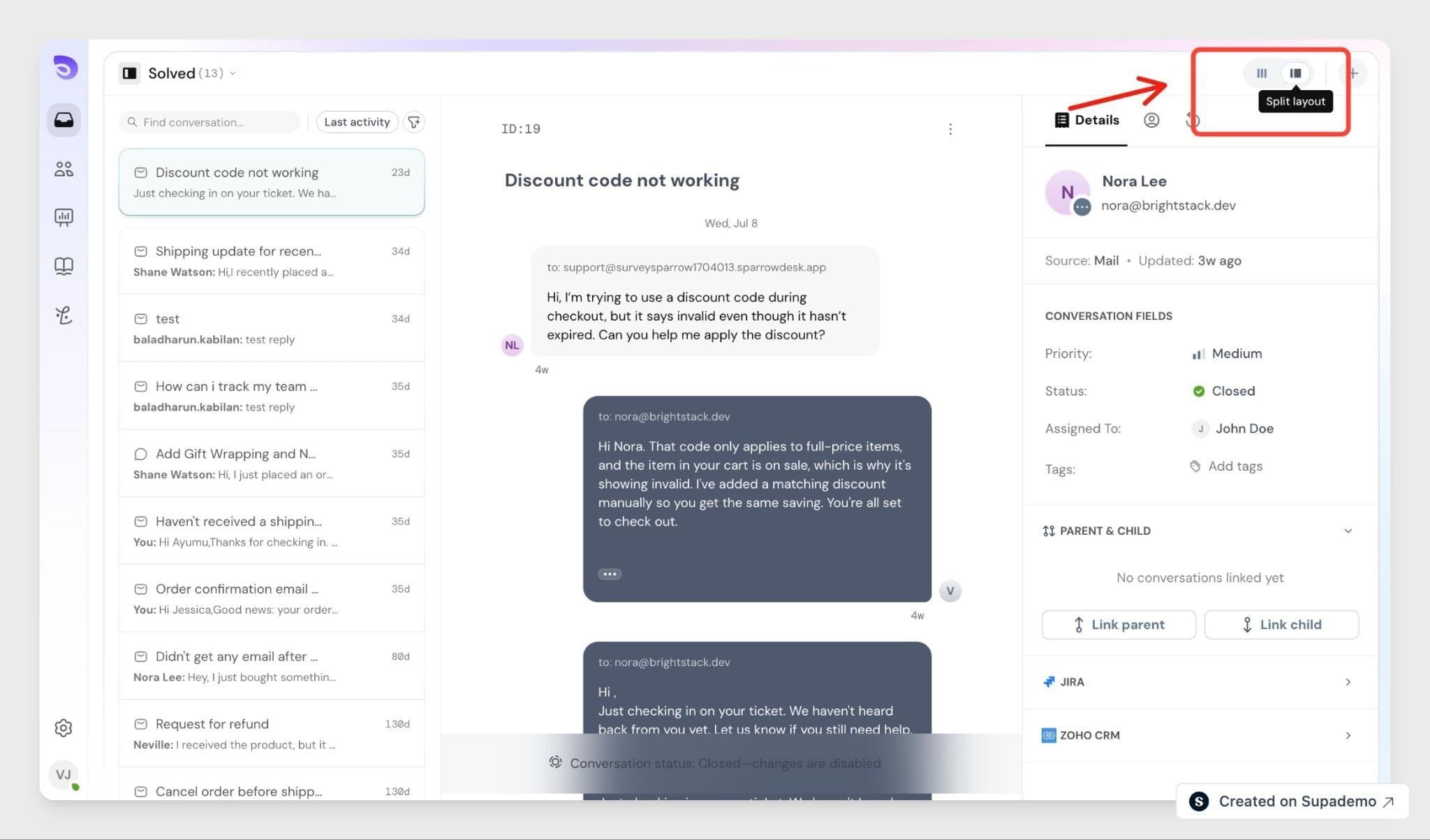
The Inbox has two layouts, and you switch between them with the toggle in the top-right corner.
- Table layout shows your conversations as a full-width table. Click a conversation to open it on its own.
- Split layout keeps the conversation list beside the open conversation, so you can read, reply, and move through the list without going back and forth.
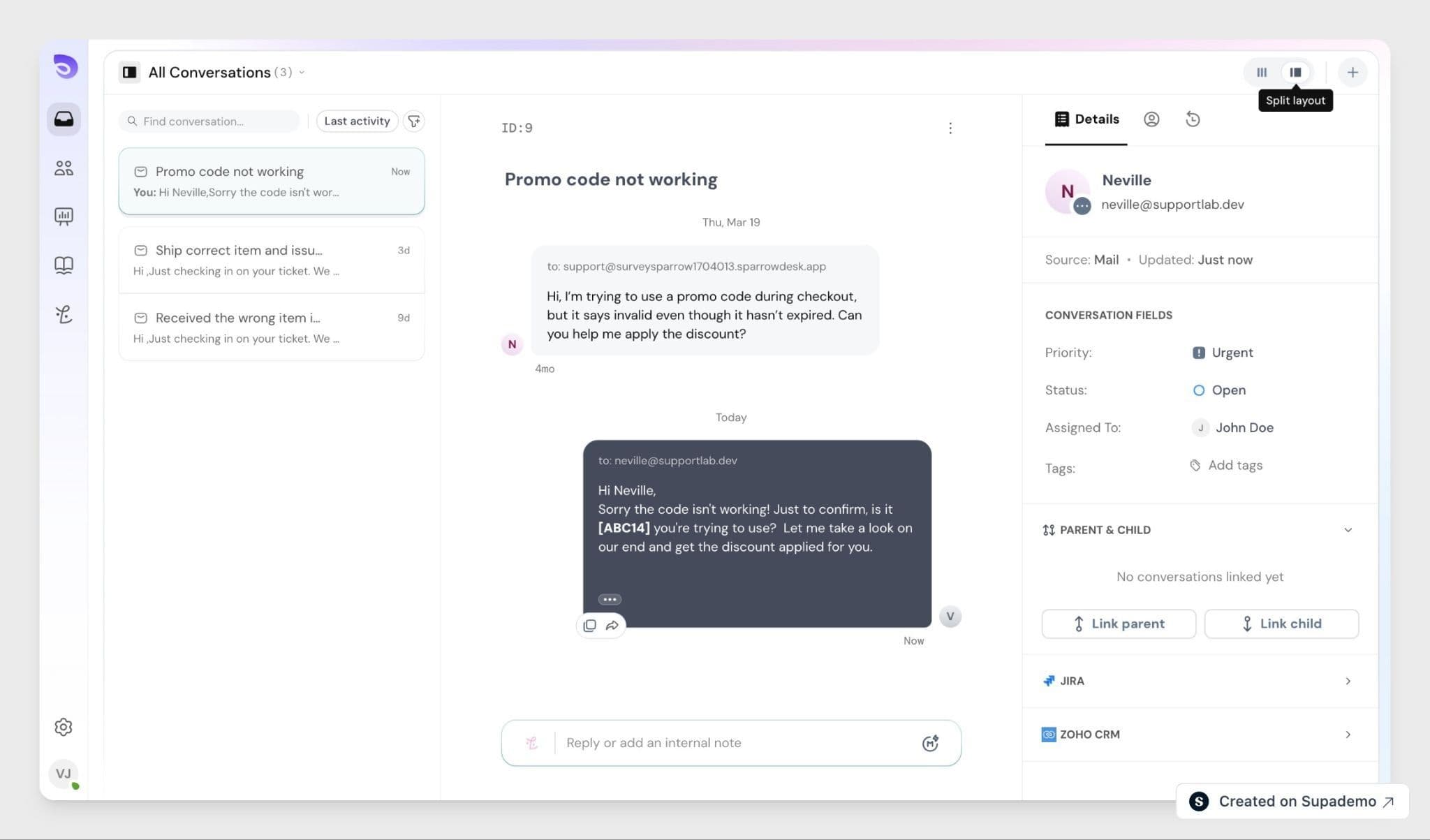
The conversation table
On the right, conversations appear in a table. Each row is one conversation and shows details like subject, priority, requester, status, assignee, and any other conversation fields.
Sort conversations
Conversations sort by Last updated by default, newest at the top.
To sort by another column, hover over its header, then click the arrow that appears to switch between ascending and descending.
Sorting is available on these default fields:
- Status- by your workspace's configured order.
- Priority- Low → Medium → High → Urgent.
- Overdue- by time pending.
- Last updated- by timestamp.
- Subject, Requested by, Assigned to not sortable.
Custom fields support sorting when they are single-line text, dropdown, email, number, or date.
Manage columns
Adjust the table columns to fit how you work.
To move a column, drag its header to a new position.
To add a column:
- Hover over a column header and click the arrow.
- Choose Insert column left or Insert column right.
- Pick the column to place.
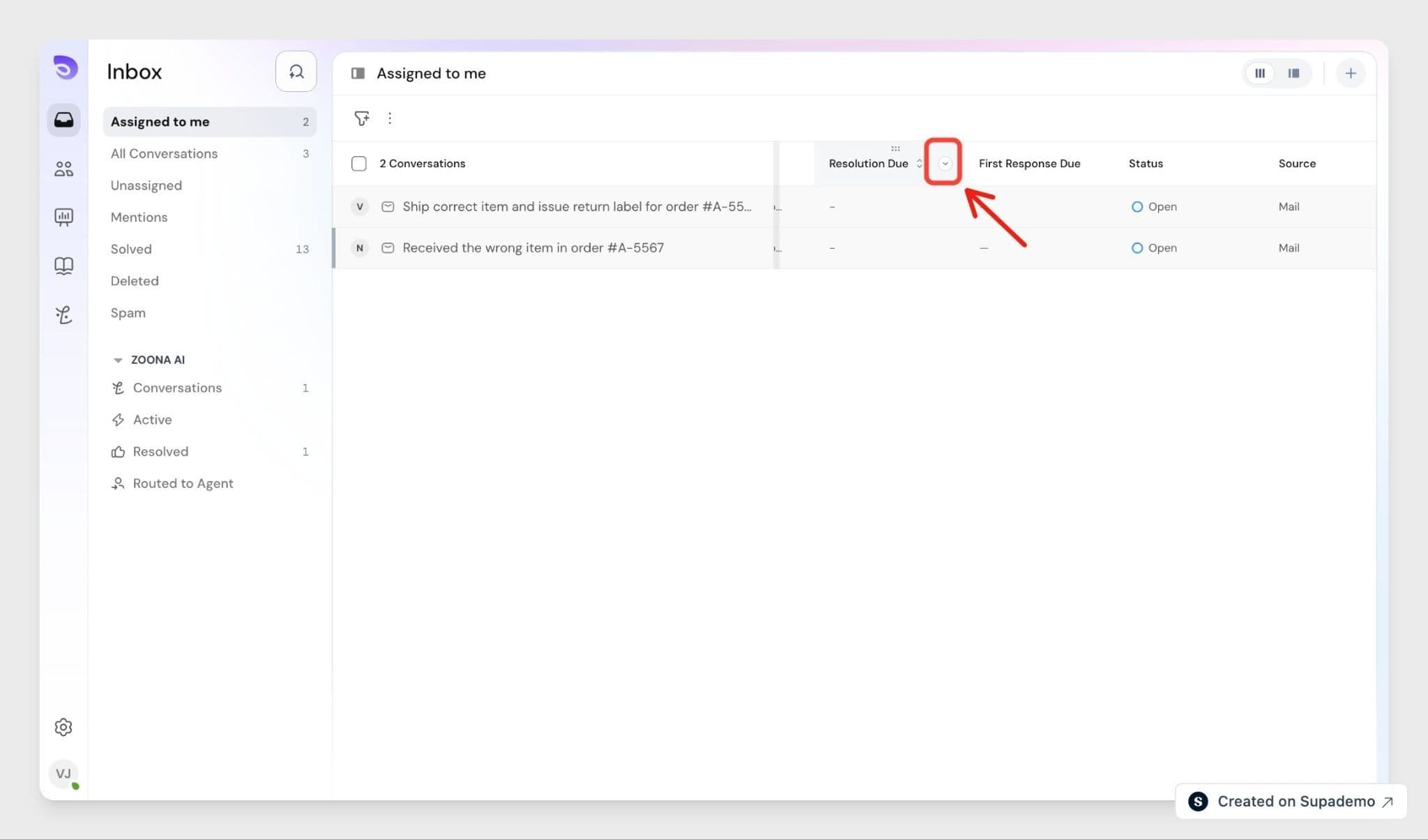
The Subject column always stays first. Column changes apply only to your account and don't affect teammates.
Open and respond to a conversation
Click a conversation to open the full view, where you read messages, reply, and act on the ticket. Messages appear in order with the newest at the bottom, and customer and agent messages look distinct so you don't reply by mistake.
Draft a reply
At the bottom of the conversation is the reply box, where you can reply to the customer or add an internal note for your team.
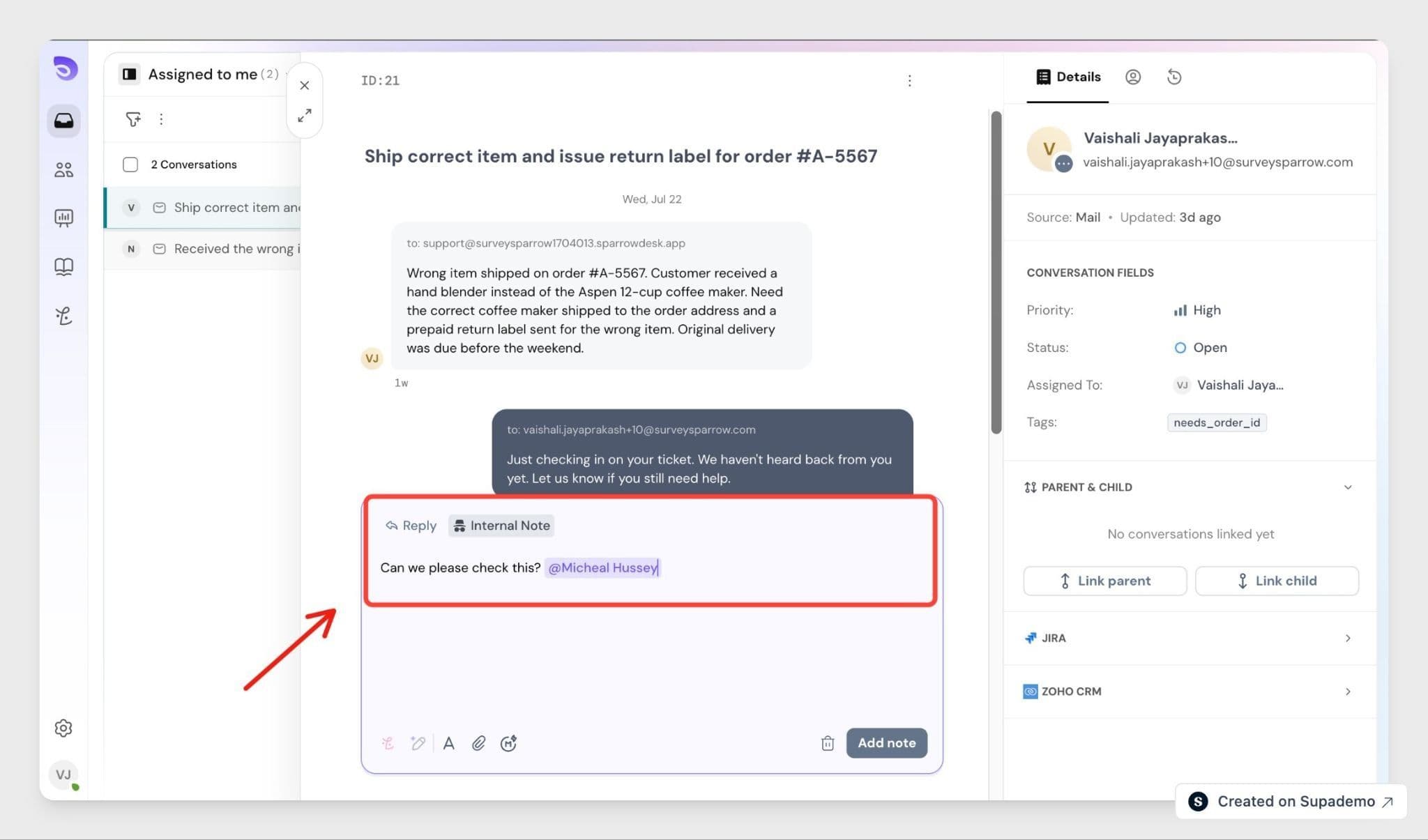
SparrowDesk saves your reply as a draft while you type, so you can step away and come back without losing it. Drafts are saved per agent only when you see your own, and they stay until you send or clear them.
You can add an image inside the reply itself, so a screenshot or diagram appears in the message body rather than as a separate attachment.
You can also add a code block from the reply toolbar, so code or logs keep their formatting instead of collapsing into plain text.
Update conversation and contact fields
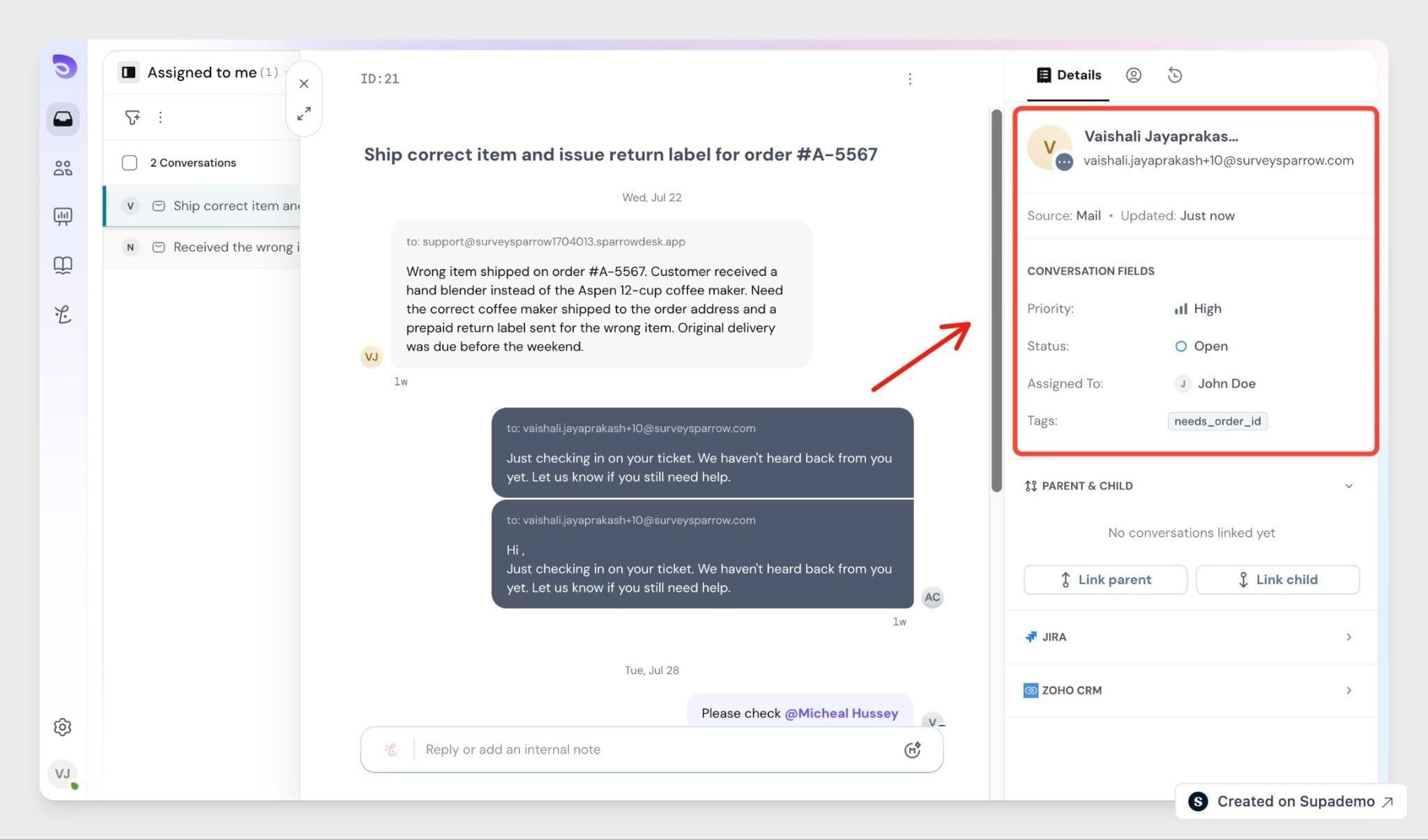
You can update ticket details from the same view without leaving the conversation status, priority, assignee or team, tags, and other fields. Updates happen in real time and are recorded in the ticket's activity.
Assign a conversation to your AI Agent
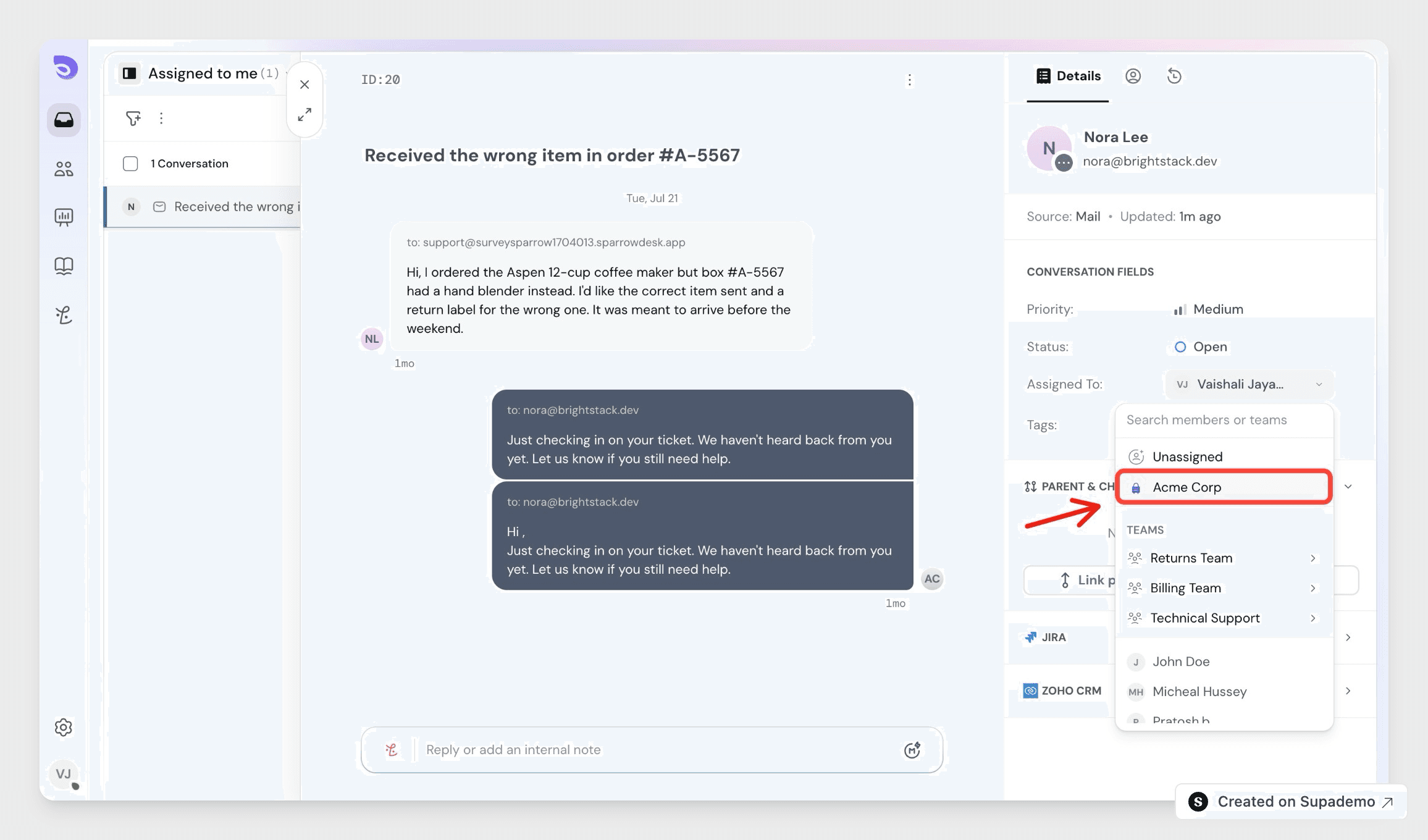
You can hand a conversation to your AI Agent straight from the assignee dropdown, the same way you assign a teammate. This works on every channel.
- Open the conversation.
- Click the Assignee field.
- Pick your AI Agent from the list.
The AI Agent picks up the conversation and replies from your knowledge base. It escalates back to your team when it can't resolve the request. The assignee change is recorded in the conversation's activity, like any other assignment.
Your AI Agent appears in the picker only where it's set up. For how it works and how to train it, see Introduction to AI Agent.
See the activity history
Every conversation keeps a running history so you can see its full context, even on first open replies sent, internal notes, and changes to status, priority, assignee, or tags.
FAQ
- How do I create a custom view?
Custom views are built from filters you choose, then saved to your sidebar. For the full steps, see Managing Custom Views in Inbox. - How do I make sure I don't miss new messages?
Set up notifications so new and updated conversations reach you. See Staying on Top of New Messages from Customers. - Can I export the conversations I'm looking at?
Yes, you can export conversations to CSV for reporting or sharing. See Export Conversations as CSV. - How do I merge two conversations?
Merging combines two conversations into one so the history stays together. See Merging Conversations in SparrowDesk. - Can I follow a conversation without being assigned it?
Add yourself or a teammate as a watcher to get updates without owning the ticket. See Add Watchers to a Conversation. - Can I put an image inside a reply?
Yes. Add the image inline in the reply body and it appears within the message instead of as an attachment.