
Setting up CSAT (Customer Satisfaction) in SparrowDesk

CSAT lets you collect quick feedback from customers after a support conversation is completed. In SparrowDesk, CSAT can be configured separately for Email and Live Chat, giving you full control over when and how feedback is collected.
This article walks you through how to enable and configure CSAT in SparrowDesk.
Who can configure CSAT?
Only users with admin access or users granted CSAT permissions through the custom role builder can configure CSAT settings.
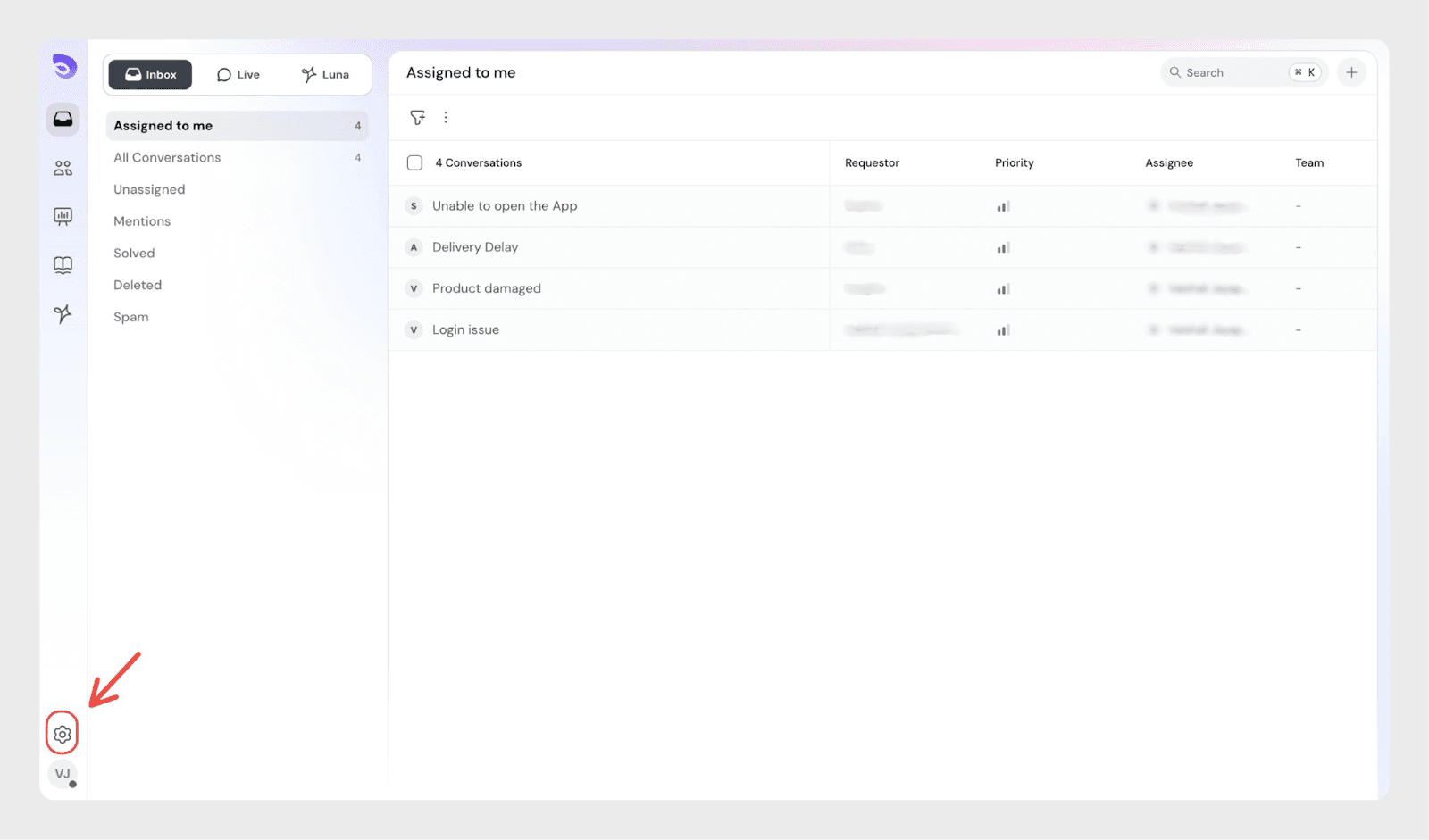
Navigate to CSAT settings
To get started:
- Go to Settings
- Select Utilities and Click CSAT
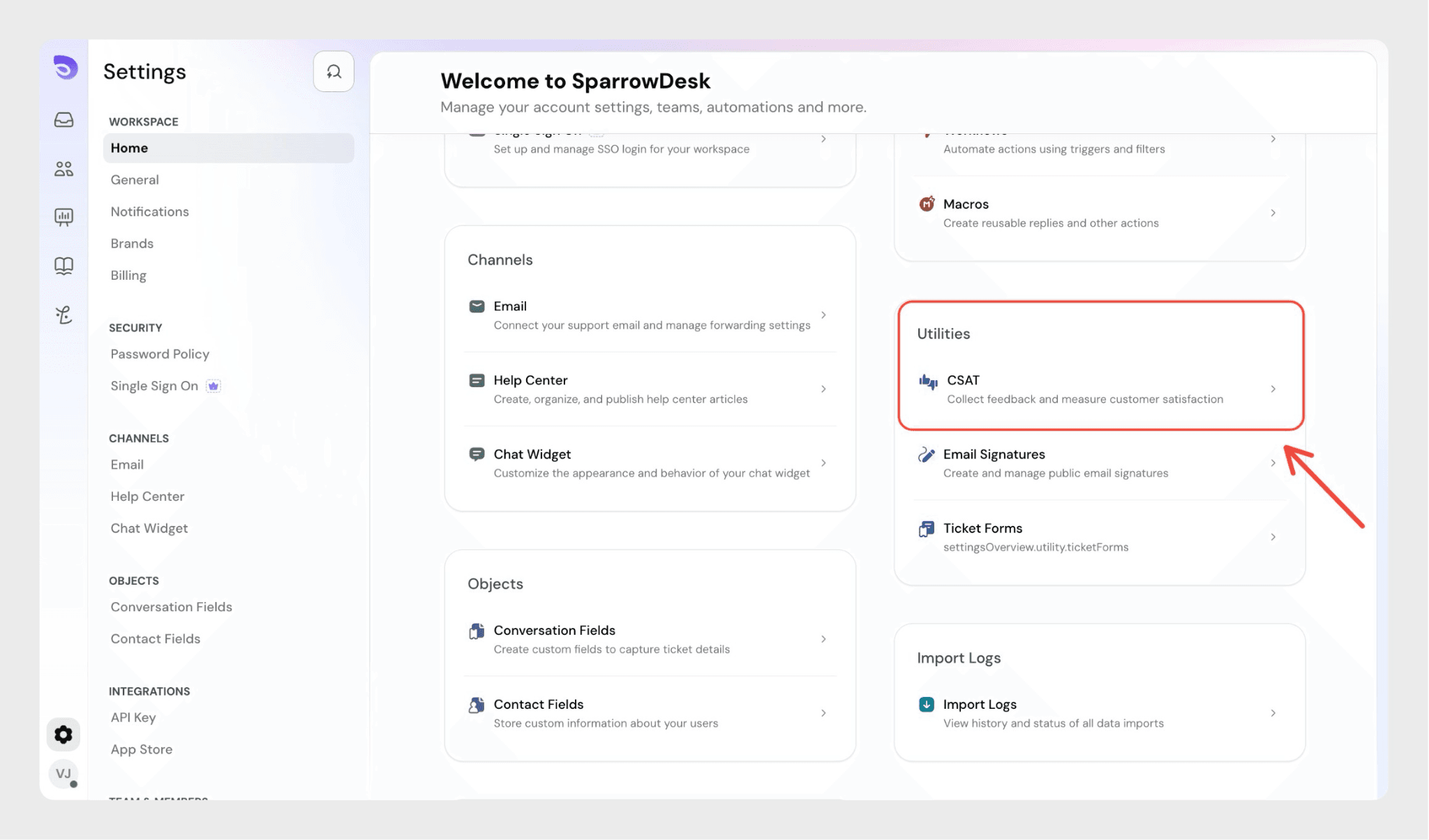
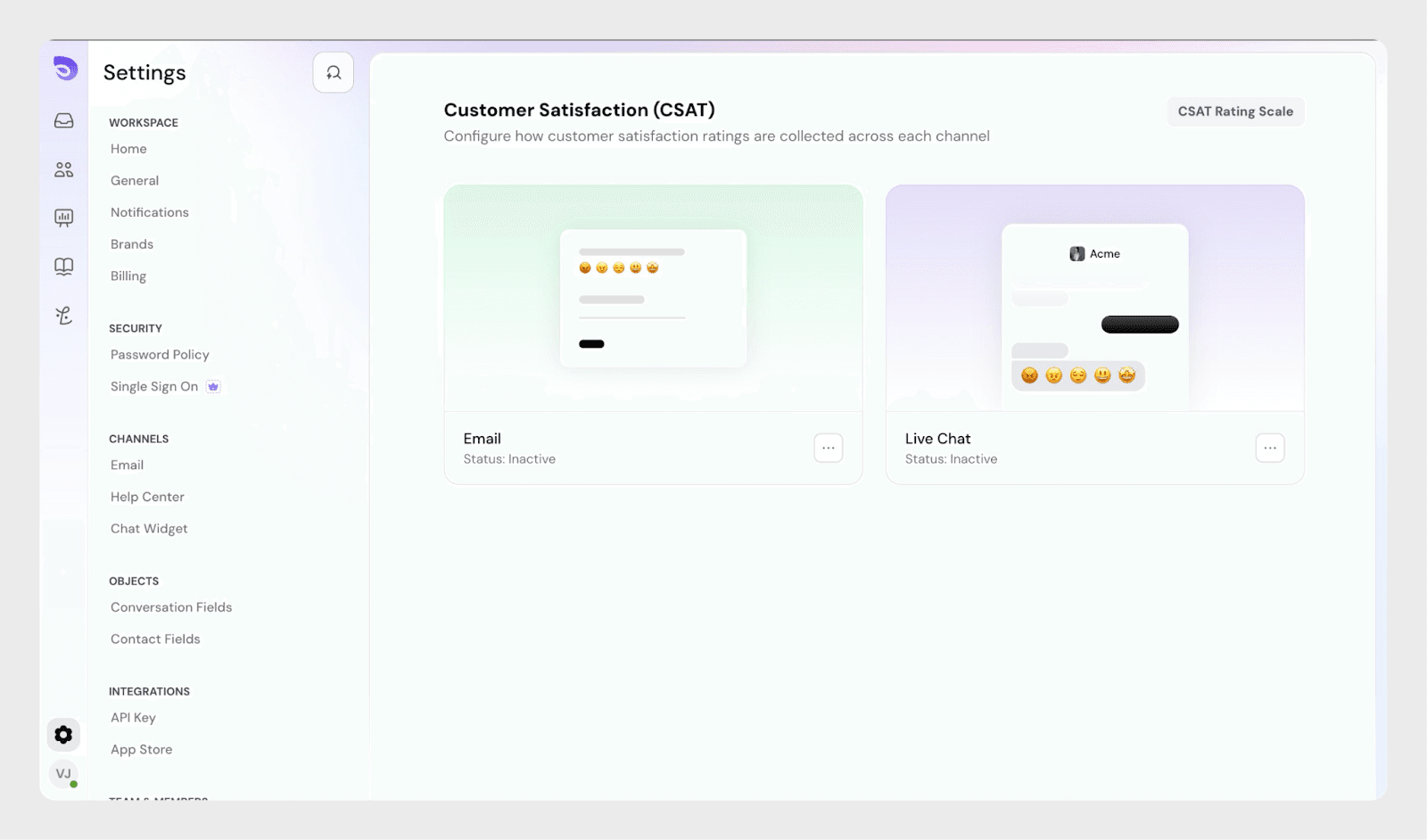
This opens the CSAT configuration page, where you can manage CSAT for different channels.
CSAT rating scale
SparrowDesk lets you control how customers rate their support experience.
Click CSAT Rating Scale on the CSAT settings page to customize the scale used for both Email and Live Chat.
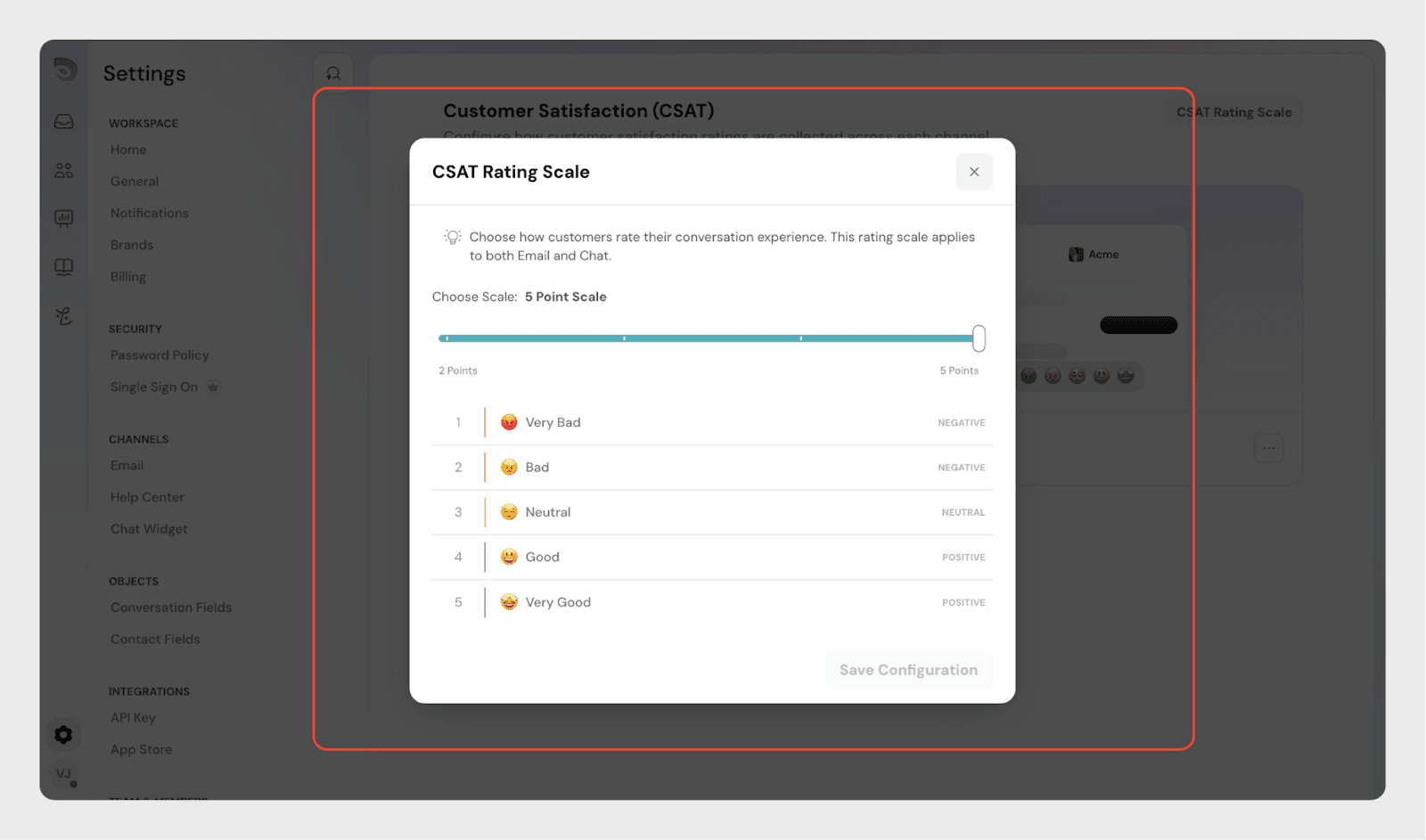
Customize the rating scale
You can:
- Choose how many rating points to use (for example, 2-point to 5-point scale)
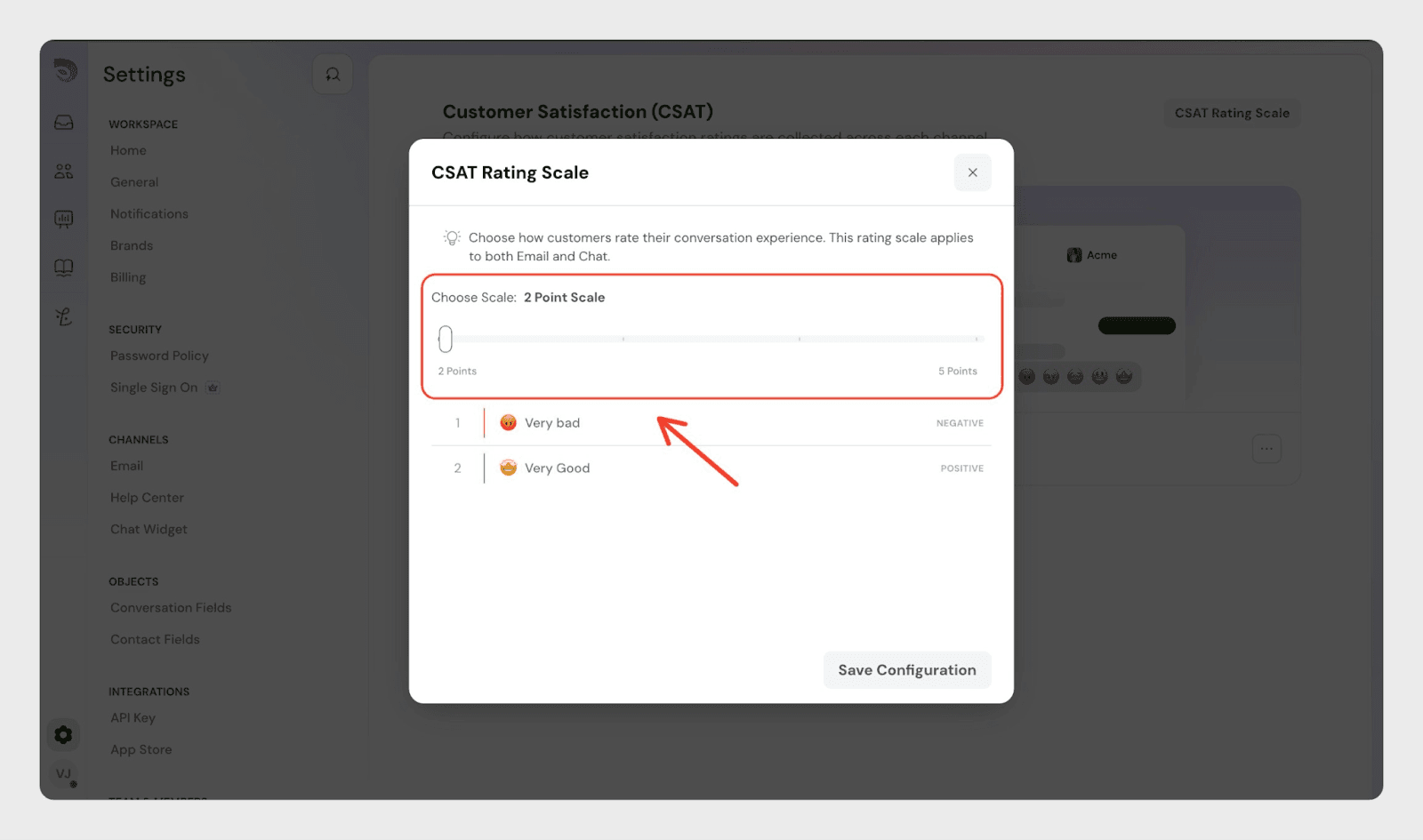
- See how each rating maps to positive, neutral, or negative feedback
- Use labels that best match your support experience
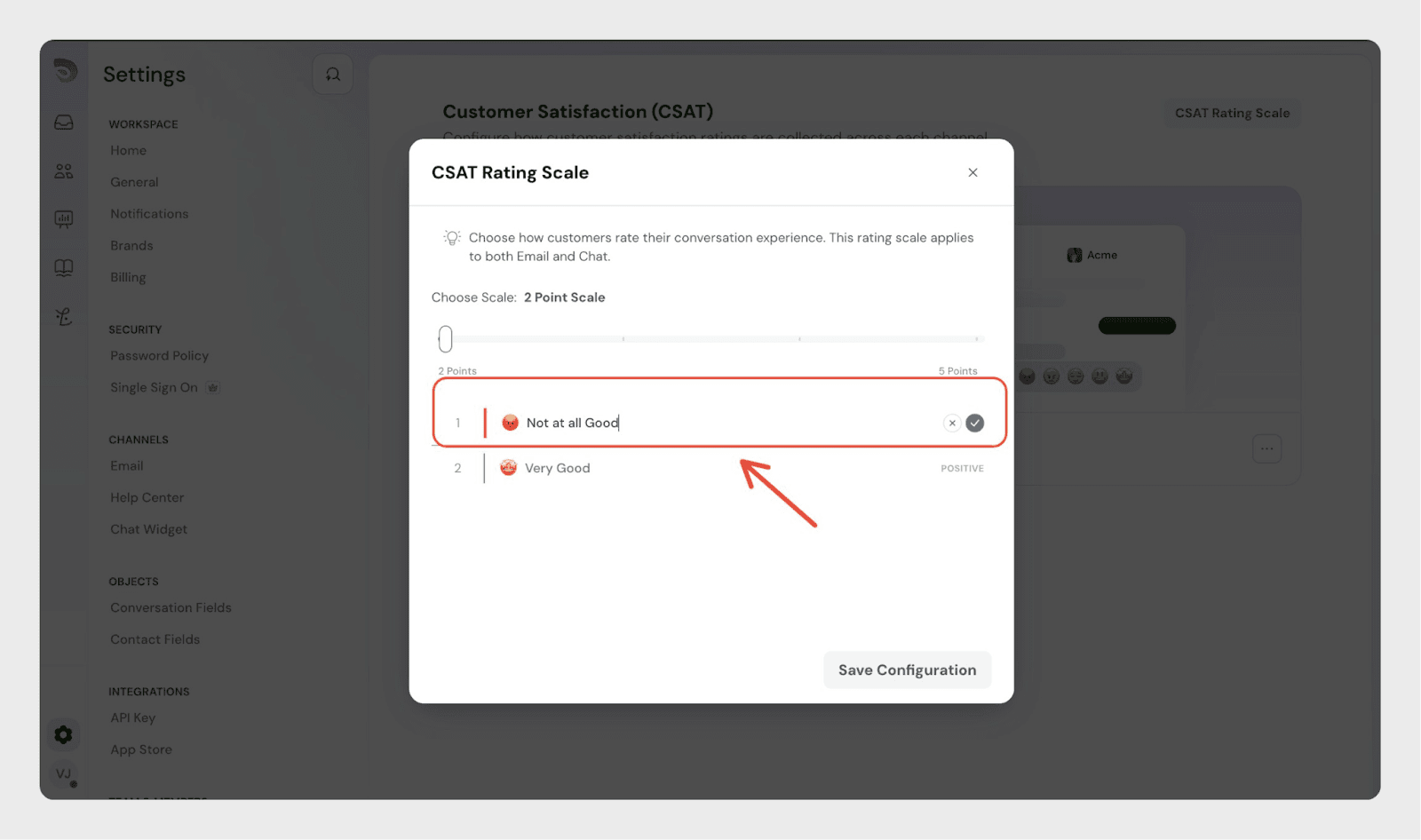
Save configuration.
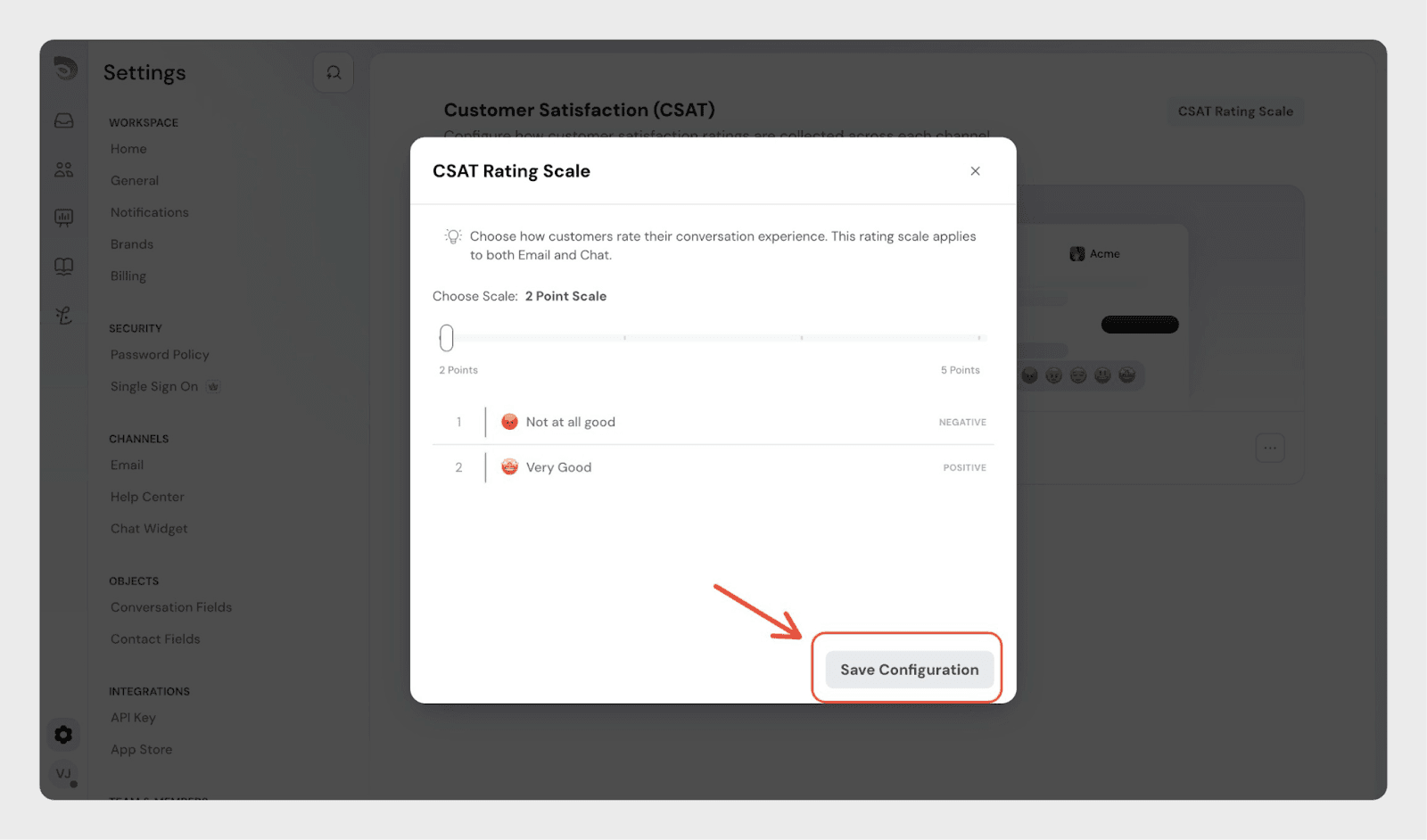
Any changes made here apply across all CSAT surveys.
How the rating scale affects follow-up questions
Each rating in the scale is grouped as:
- Positive
- Neutral
- Negative
When editing the survey page:
- Select a rating type (positive, neutral, or negative)
- Enter the follow-up question that will be shown when a customer chooses that rating
This allows you to ask different questions based on how customers rate their experience.
Understanding the CSAT settings page
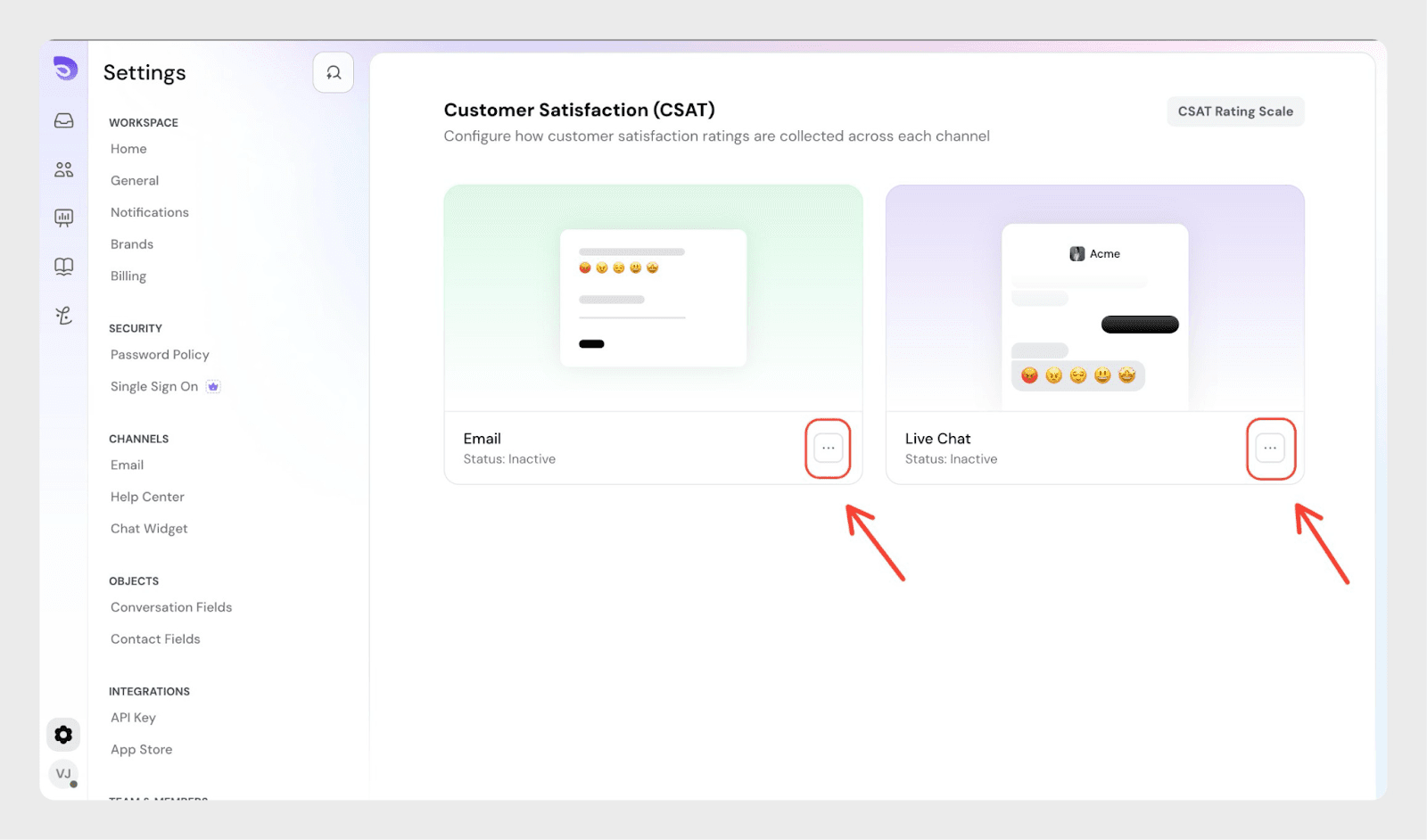
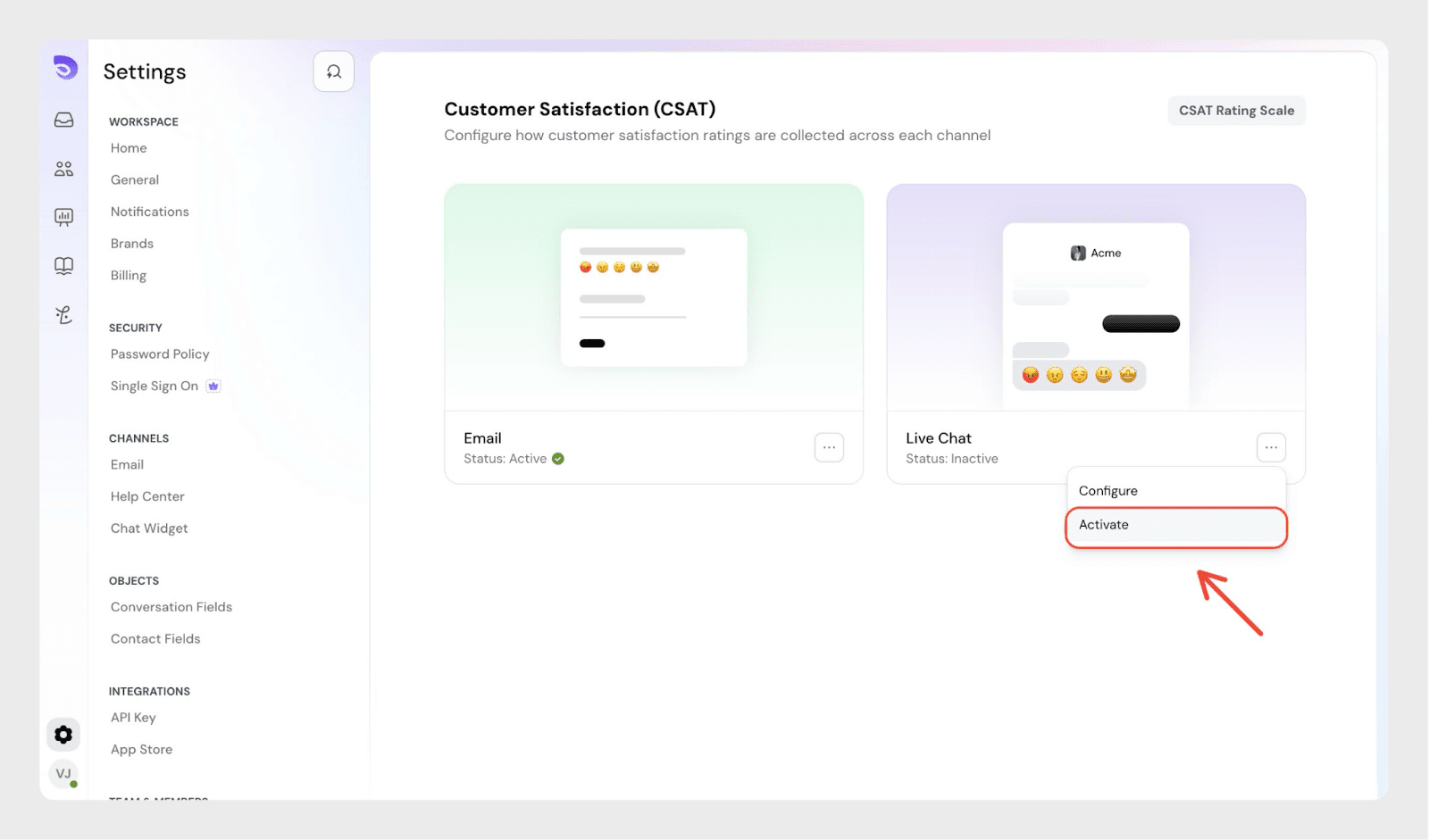
On the CSAT page, you’ll see separate cards for:
- Live Chat
Each card shows:
- The channel name
- Current CSAT status (Active or Inactive)
- A three-dot menu to configure settings
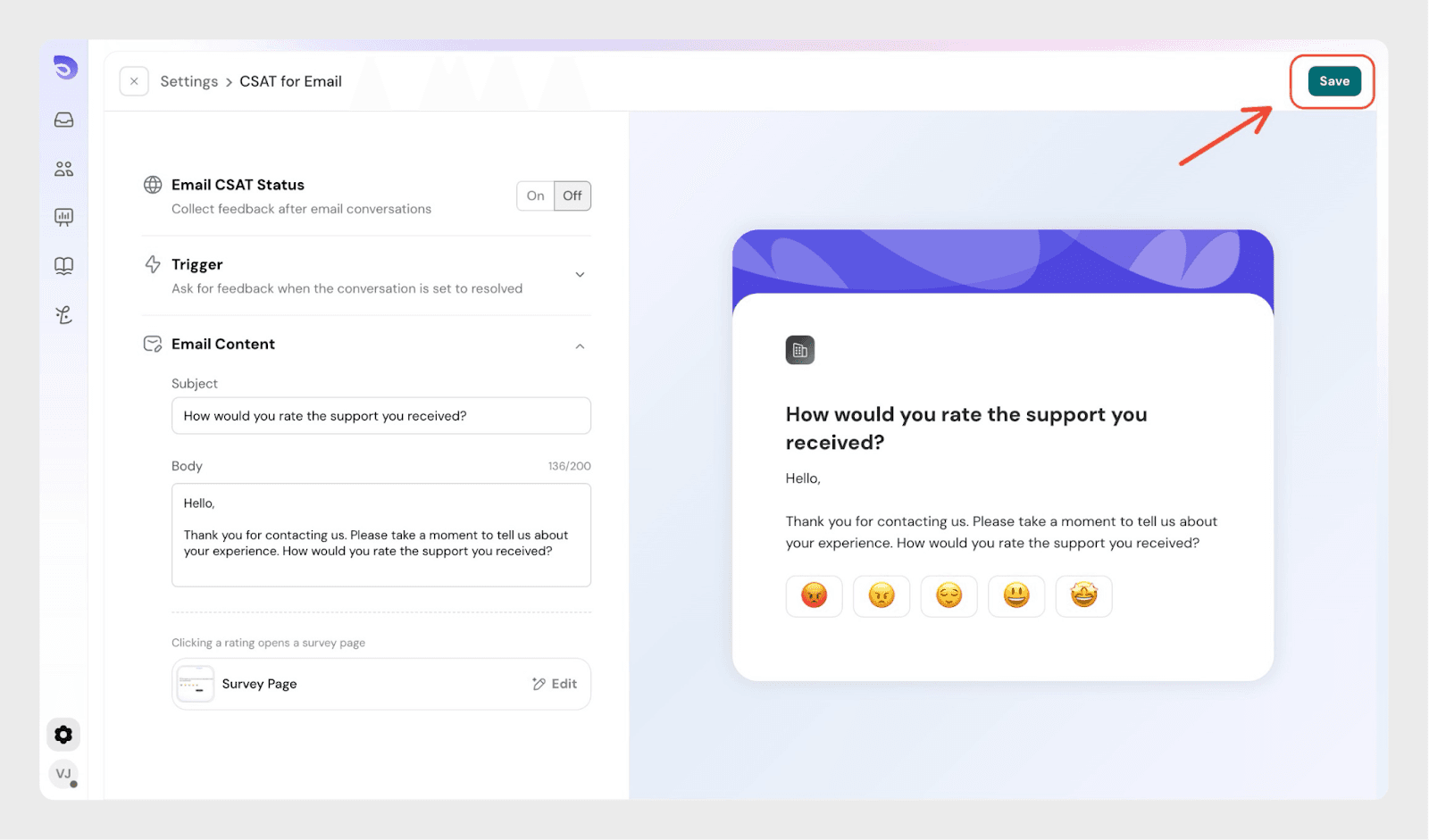
Email CSAT configuration
In the Email CSAT settings:
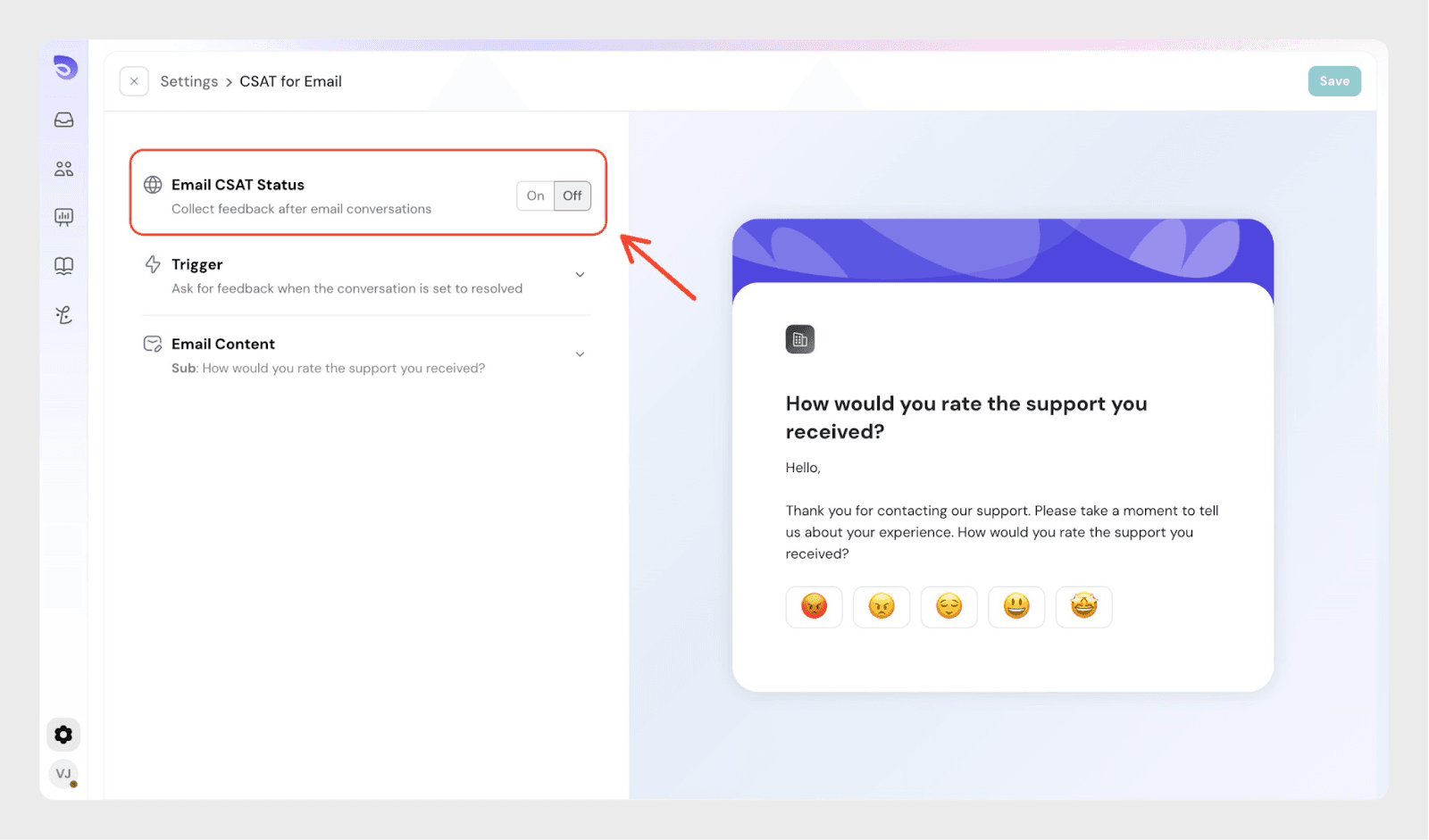
- Use the On / Off toggle to enable CSAT
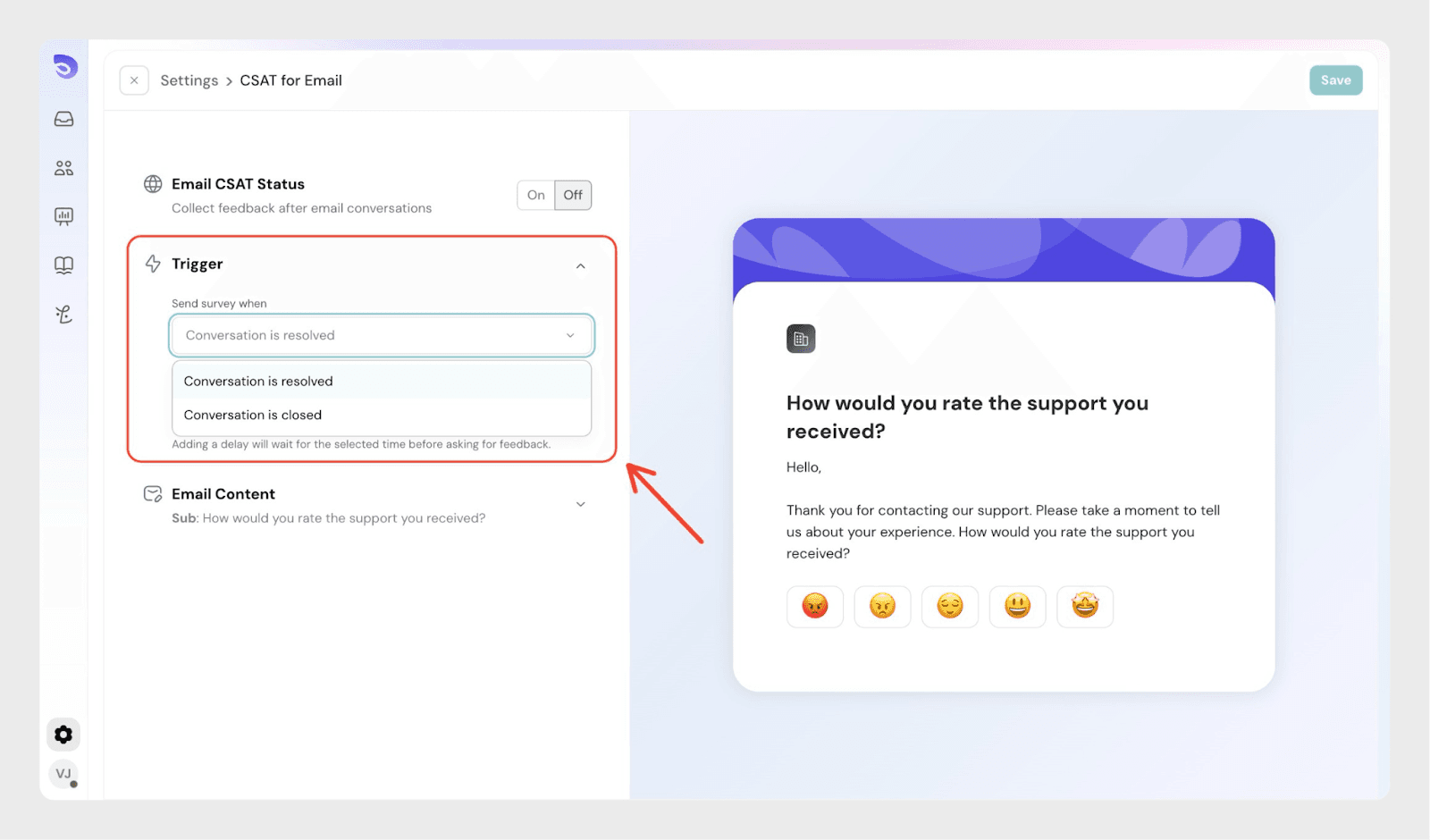
- Choose when CSAT is sent:
- Conversation is resolved
- Conversation is closed
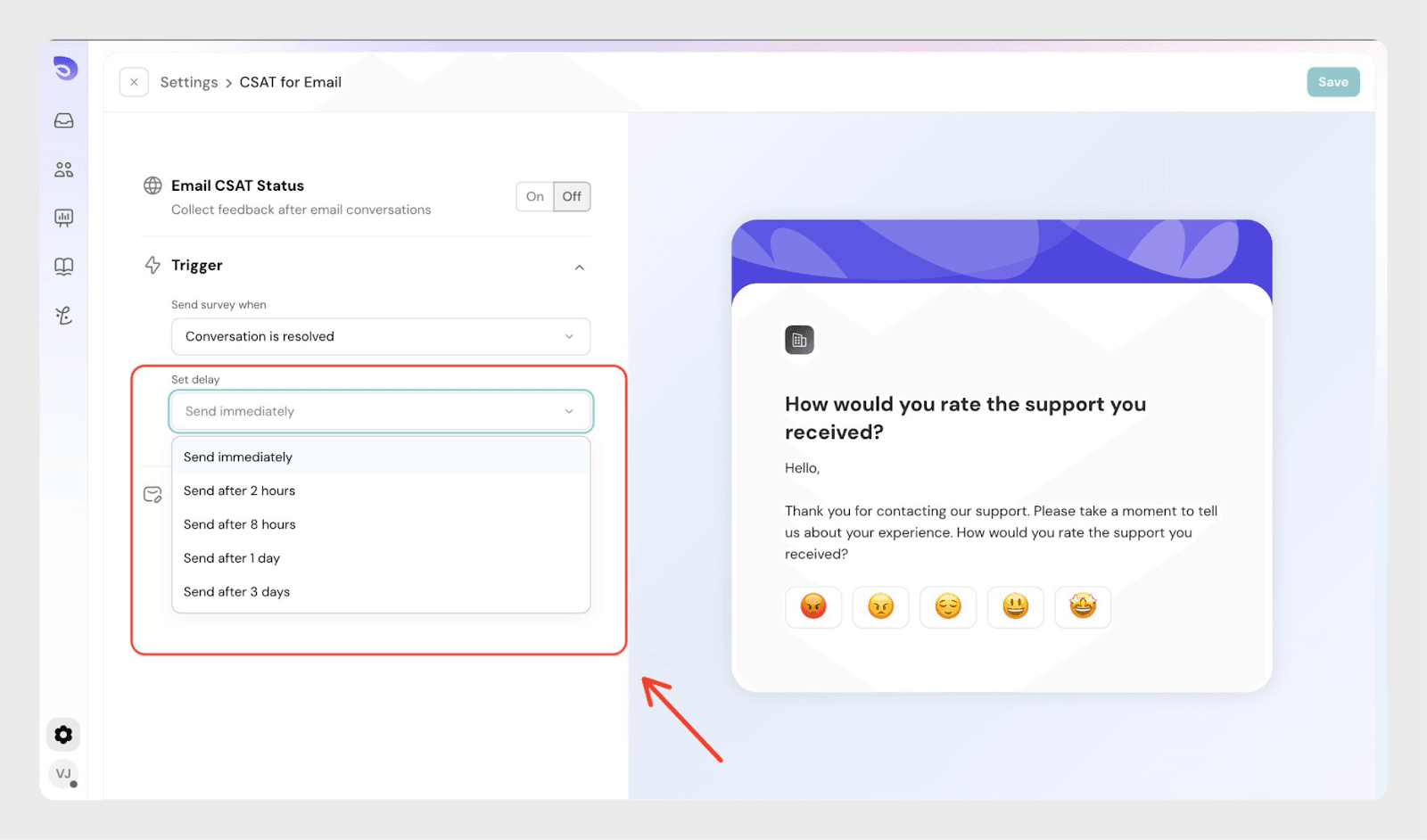
- You can also choose how soon the CSAT email is sent after the trigger event.
- Customize the email subject and message
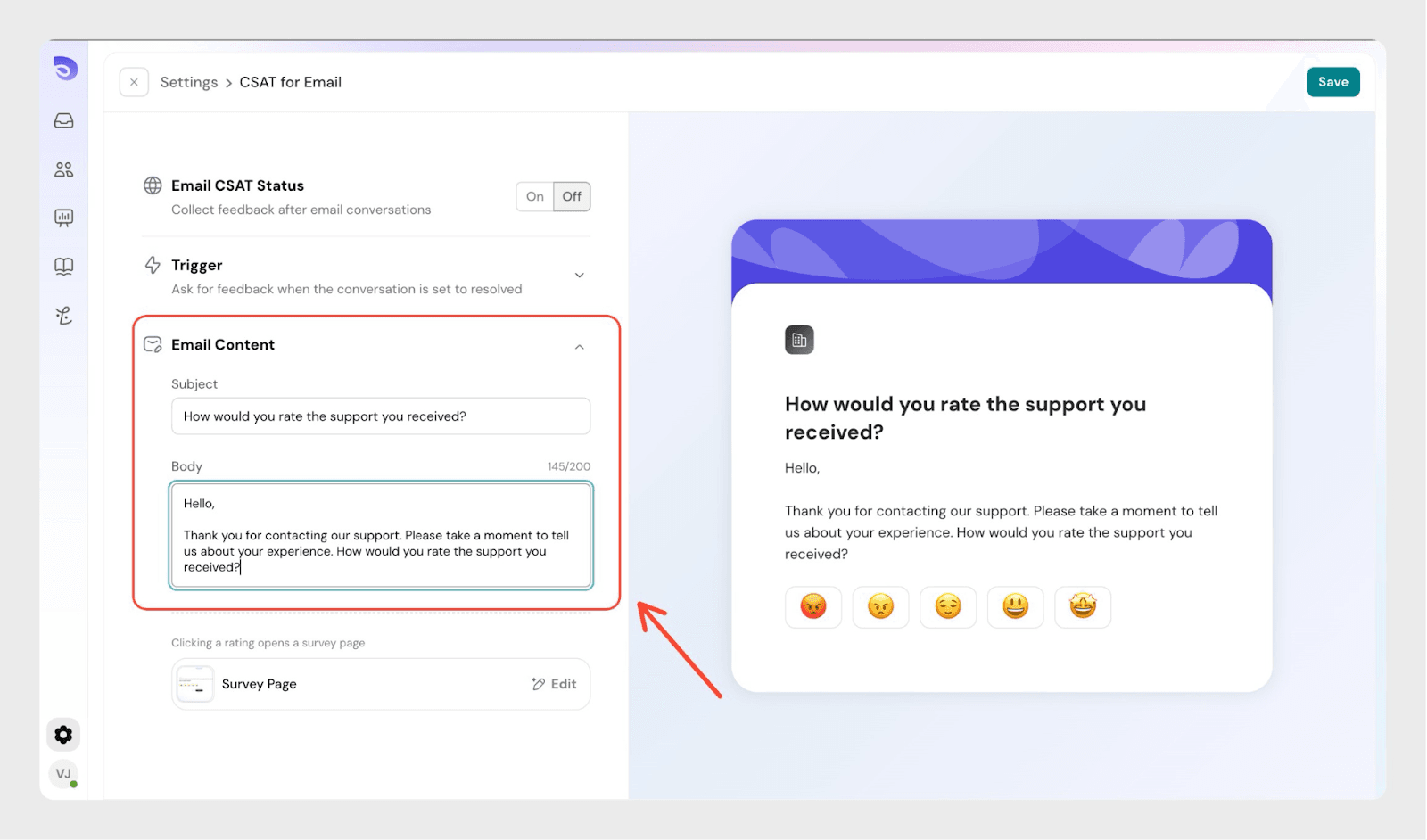
- Preview how the CSAT email appears to customers
Edit the survey page
When a customer clicks a rating, SparrowDesk opens a survey page to collect feedback.
You can click Edit under Survey Page to customize the questions shown on this page.
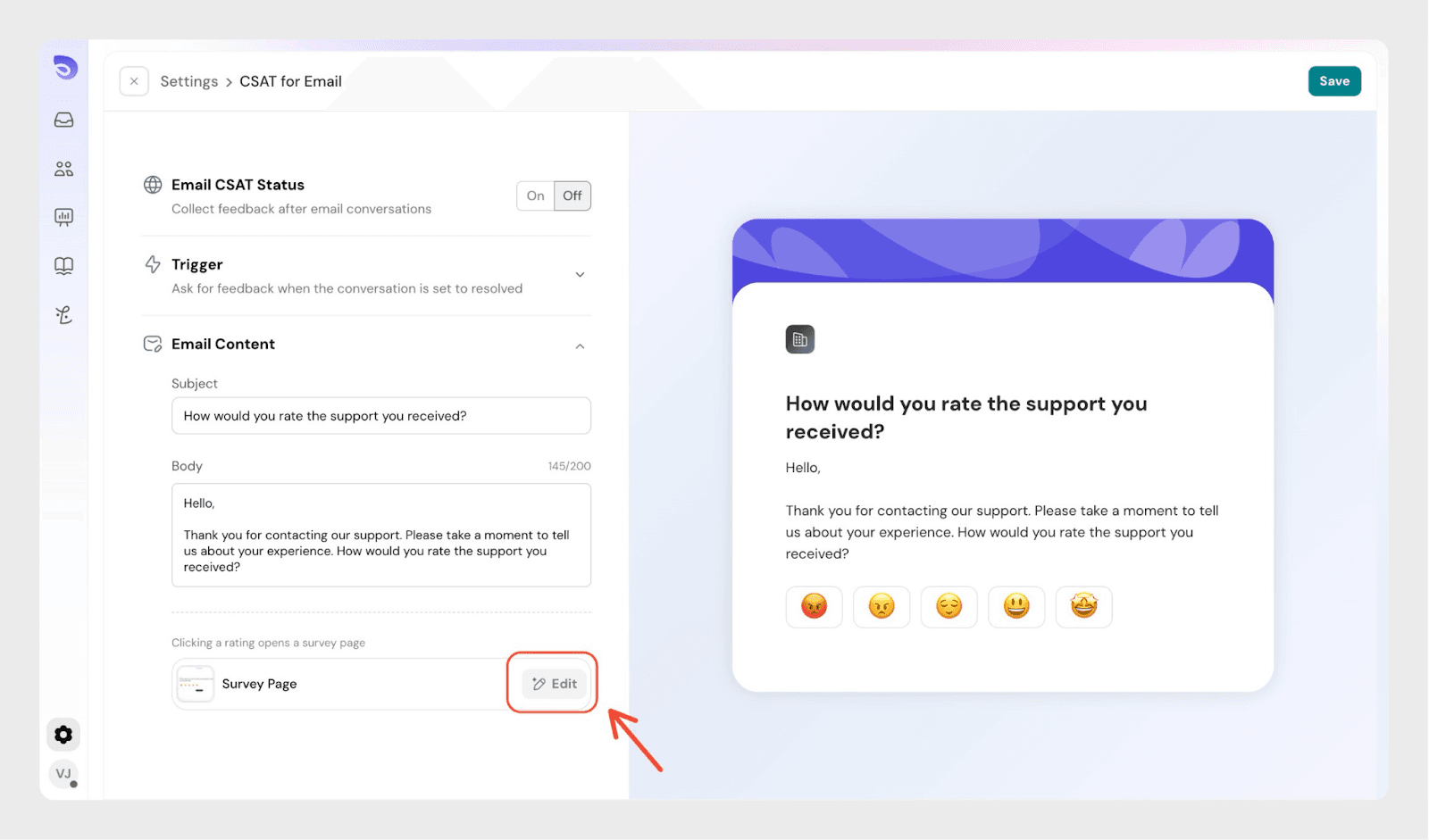
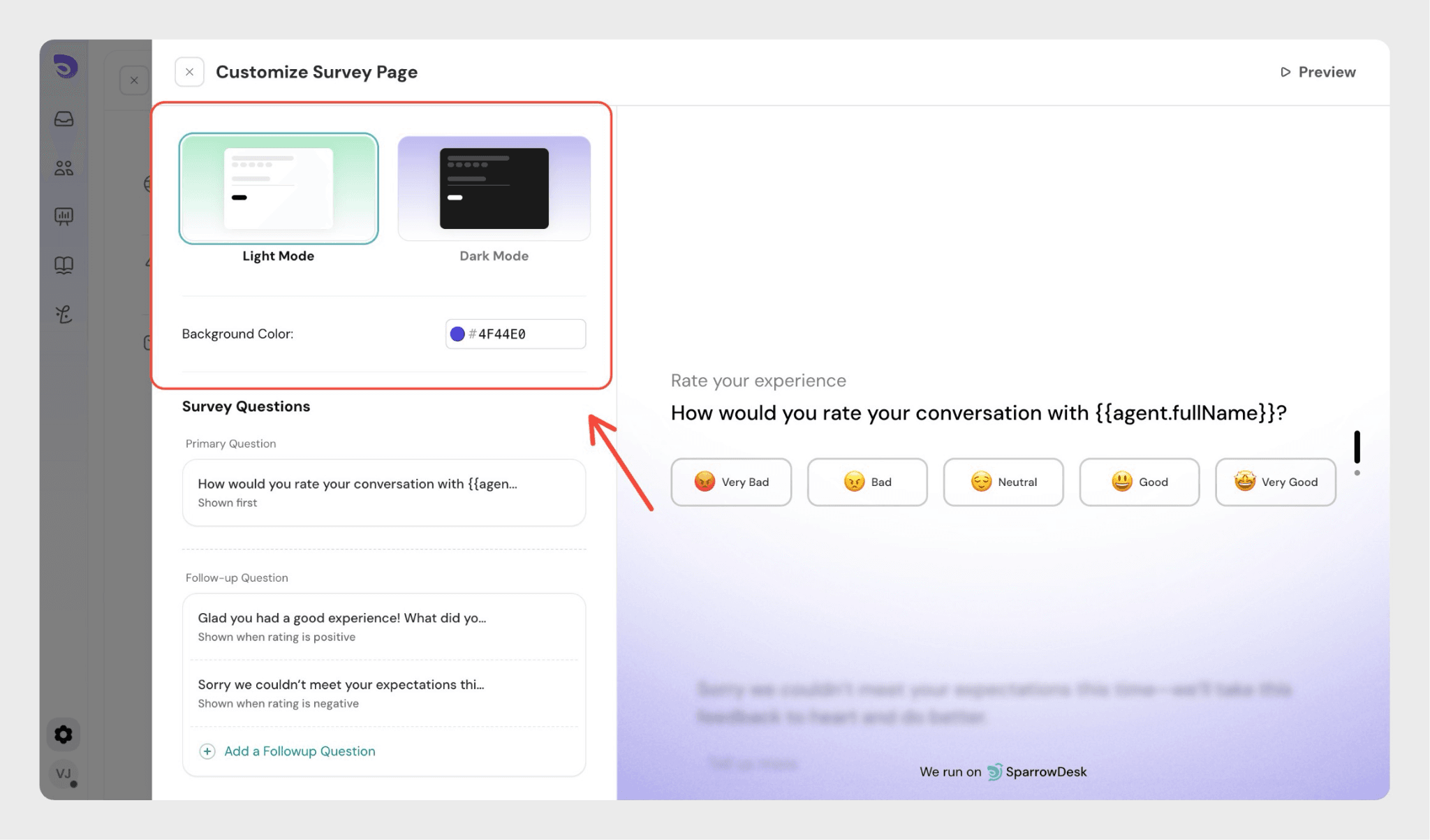
On the survey page, you can:
- Update the background color and theme of the survey page.
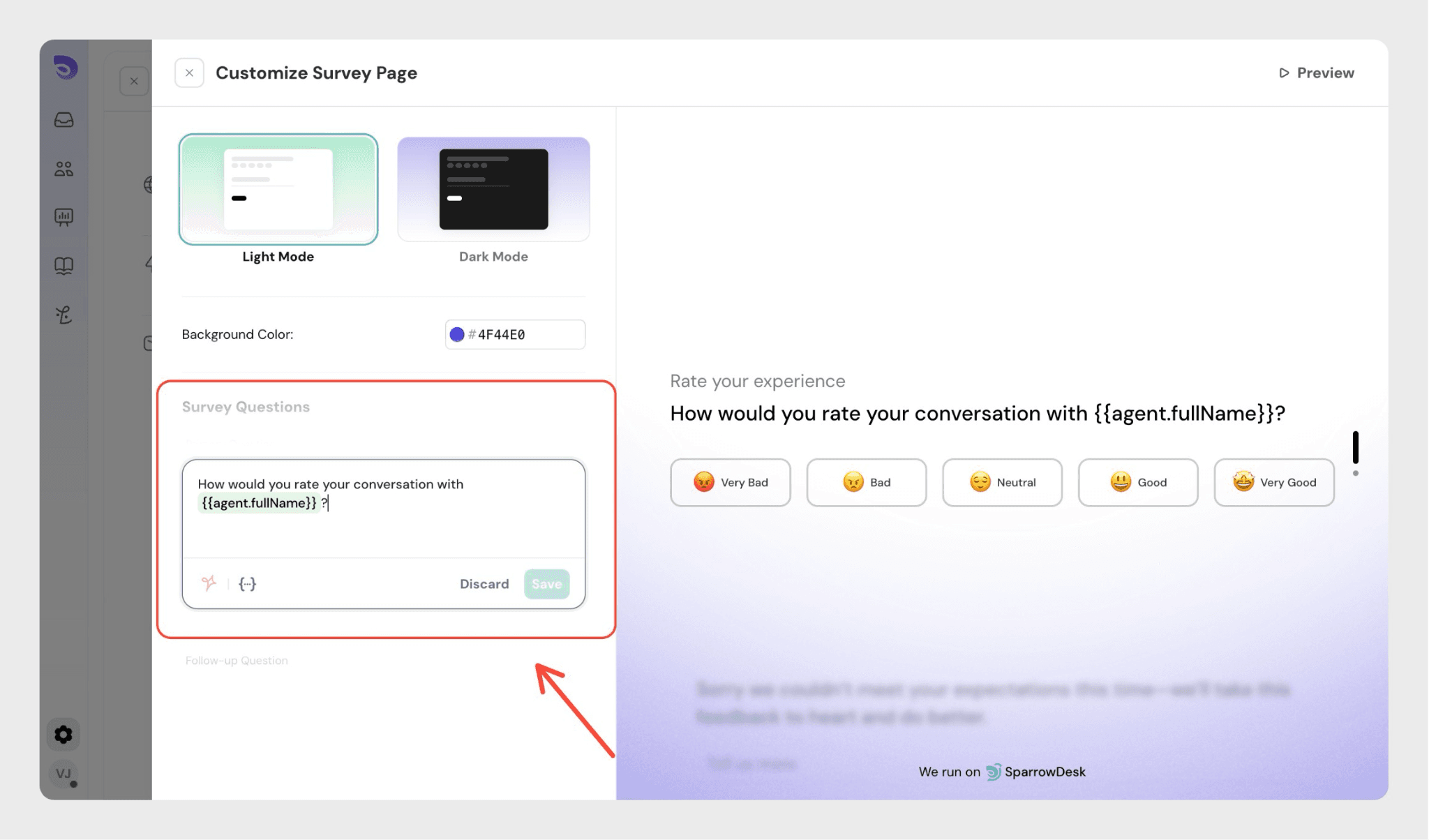
- Change the primary question
- Add different follow-up questions based on the selected rating
- Positive ratings → ask what went well
- Neutral ratings → ask what could be improved
- Negative ratings → ask what went wrong
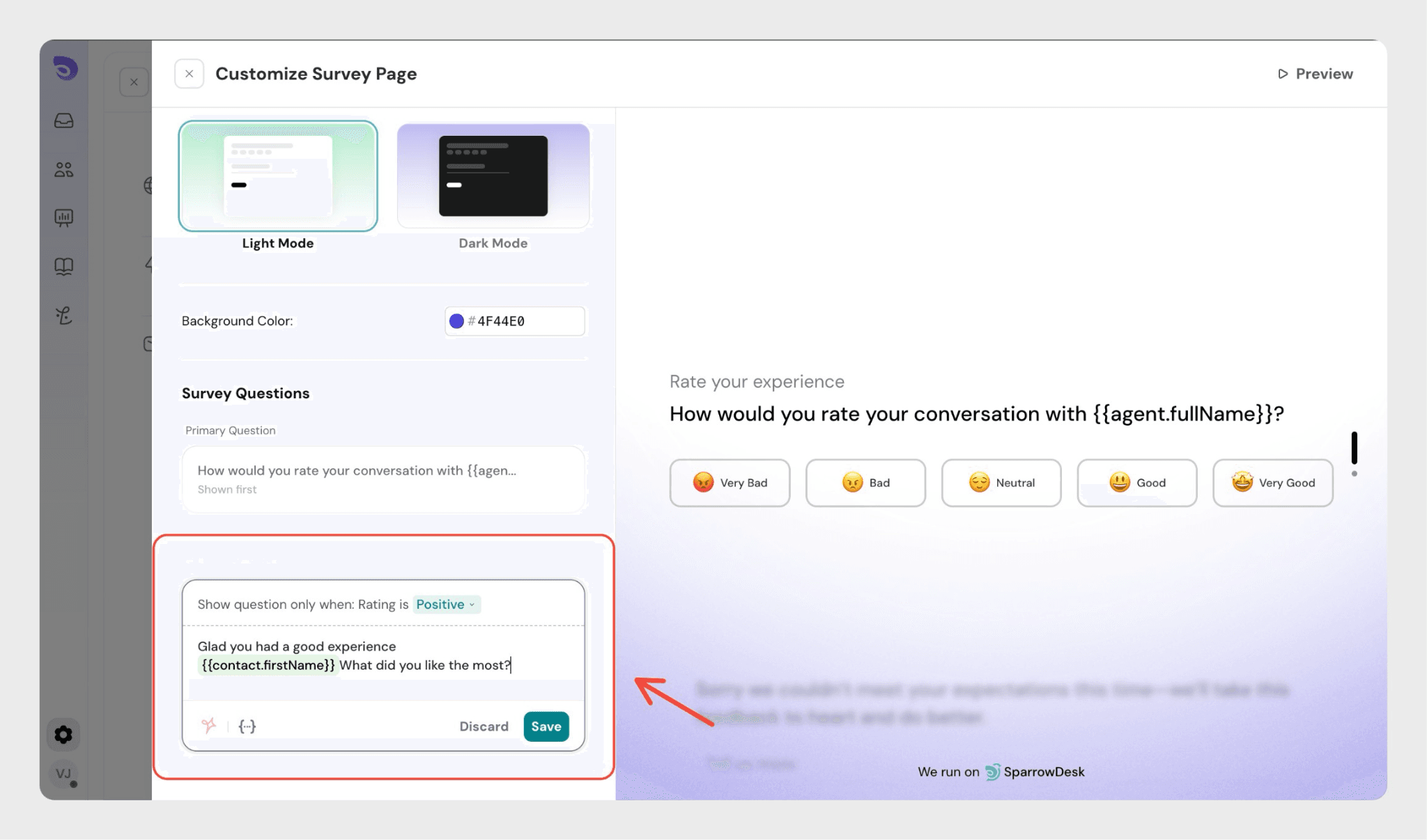
Click a positive, neutral, or negative rating to customize the follow-up question for that specific response.
Email CSAT experience
When customers click an emoji rating:
- A survey page opens with the selected rating already applied
- Follow-up questions can be shown based on the rating
- Editing the rating after submission is not allowed
You can preview the setup and save it.
Live Chat CSAT configuration
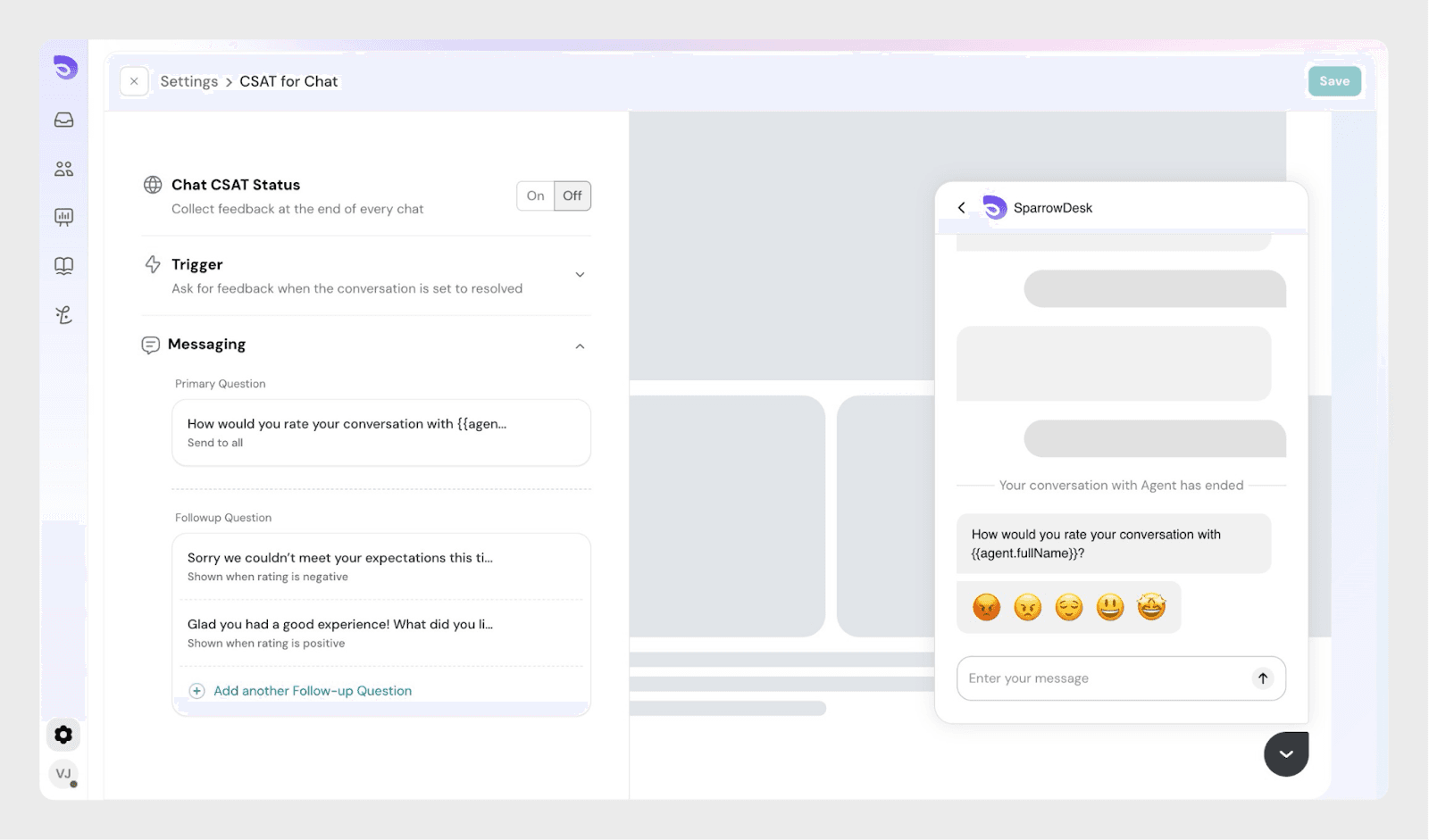
Live Chat CSAT follows the same setup flow.
In the Live Chat CSAT settings:
- Enable or disable CSAT
- Choose when CSAT is triggered
- Customize the CSAT message shown in the chat widget
Live Chat CSAT experience
- CSAT appears directly inside the chat widget
- Customers can rate using emojis or continue the conversation
Follow-up questions based on ratings
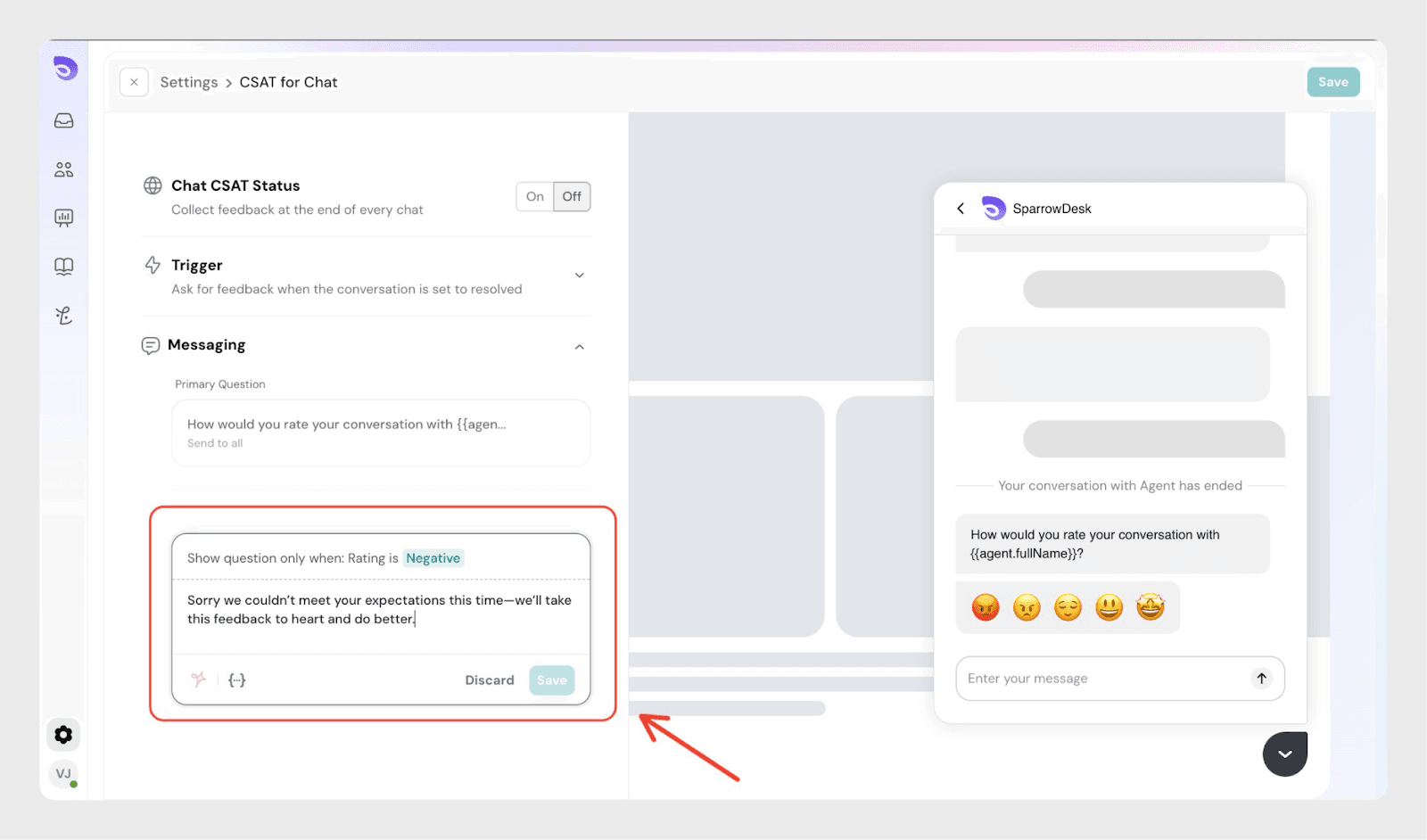
You can show different follow-up questions based on the selected rating.
For example:
- Good → What did we do well?
- Neutral → What could we improve?
- Bad → What went wrong?
These questions are optional and help you collect more meaningful feedback.
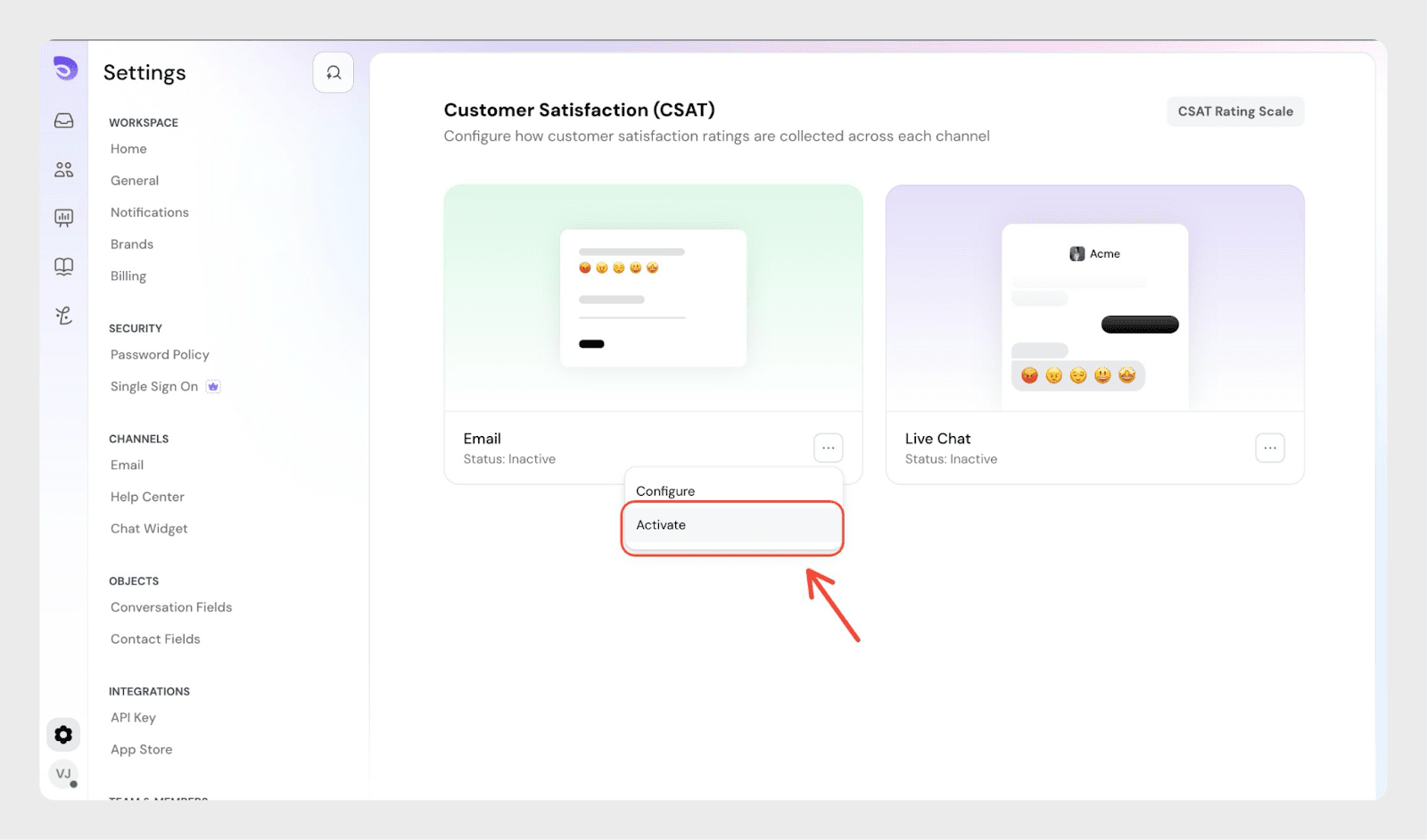
Once you’ve saved your configuration, activate CSAT from the channel menu.
Viewing CSAT ratings in the Inbox
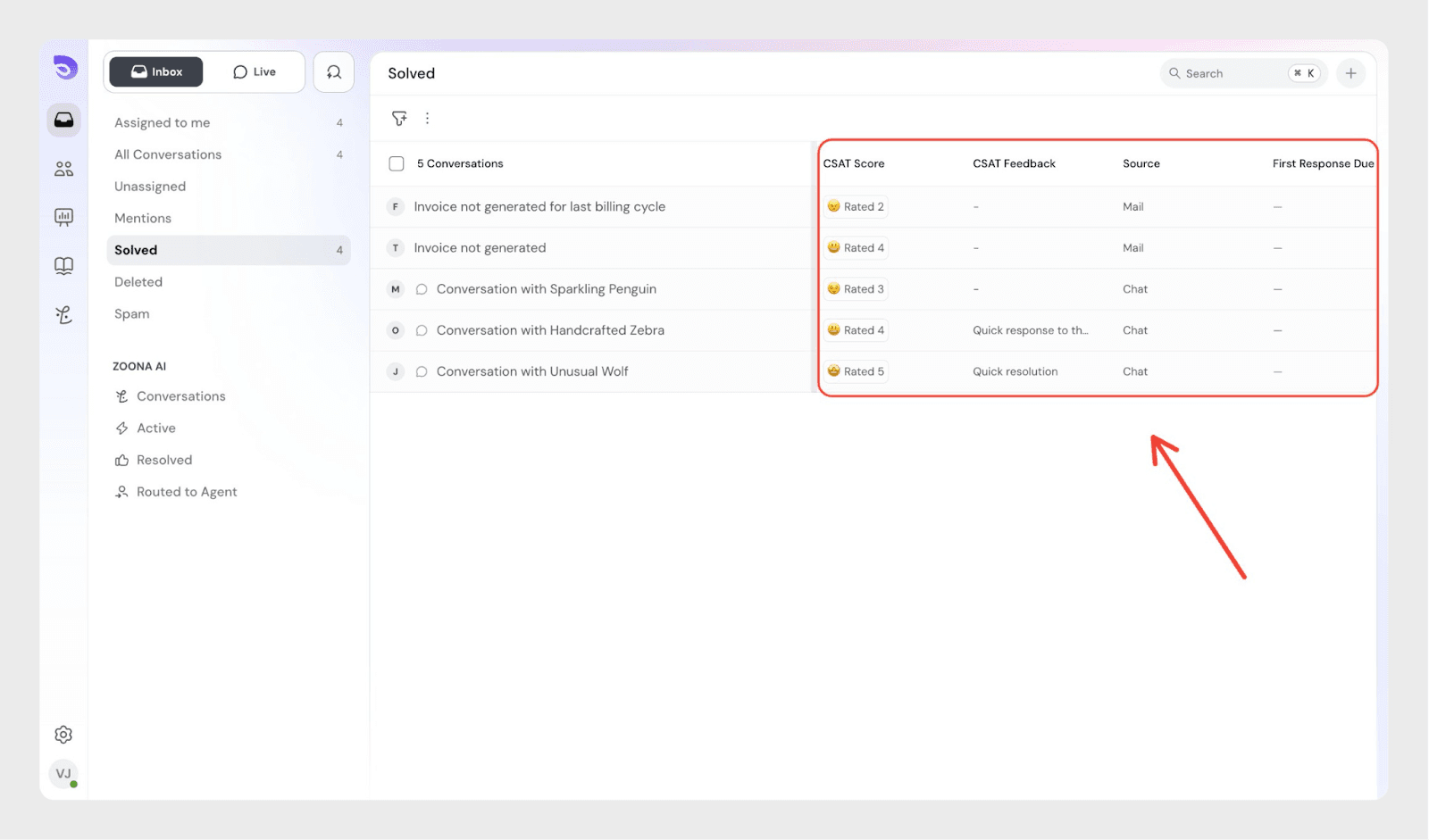
Agents can view CSAT ratings directly in the Inbox for the conversations they handle. Each rating is linked to the conversation, making it easy to understand how customers felt about the support provided.
How CSAT appears for agents
For agents:
- CSAT ratings are displayed on the conversation
- Any comments left by customers appear alongside the rating
- Ratings reflect customer sentiment for that specific support interaction
This helps agents quickly review feedback without leaving the Inbox.
Multiple CSAT ratings for a conversation
A single conversation can have more than one CSAT rating.
This happens when:
- A conversation is resolved or closed
- The customer reopens the conversation
- The agent replies again
- The conversation is resolved or closed once more
Each completed support cycle generates a separate CSAT rating.
How to interpret multiple ratings
- Each CSAT rating represents feedback for a specific interaction
- Earlier ratings reflect previous resolutions
- The most recent rating reflects the latest customer experience
This helps teams understand how satisfaction changes over time.
Using CSAT feedback
Agents can use CSAT feedback to:
- Review their support performance
- Identify what’s working well
- Spot areas for improvement
Admins can also use CSAT ratings in Inbox filters and reports.
CSAT in SparrowDesk helps you collect timely and relevant feedback after support conversations.
With flexible rating scales, channel-specific settings, and customizable follow-up questions, you can understand customer sentiment without disrupting the support experience.
Once configured and activated, CSAT works quietly in the background, helping you improve support quality with every response.
Frequently Asked Questions (FAQs)
- Who can configure CSAT in SparrowDesk?
Only users with admin access and custom role builder can configure and manage CSAT settings.
- Does the CSAT rating scale apply to both Email and Live Chat?
Yes. The CSAT rating scale is shared across both Email and Live Chat. Any changes to the scale apply to all CSAT surveys.
- Can I use different follow-up questions for different ratings?
Yes. You can add different follow-up questions for positive, neutral, and negative ratings. These questions are optional and help collect more detailed feedback.
- Can customers change their CSAT rating after submitting it?
No. Once a CSAT rating is submitted, it cannot be edited.
- Can I control when the CSAT email is sent?
Yes. For Email CSAT, you can choose:
- When CSAT is triggered (Resolved or Closed)
- How soon the CSAT email is sent after the trigger
- What happens if CSAT is configured but not activated?
CSAT will not be sent until it is activated from the channel’s three-dot menu. Make sure to activate CSAT after saving your configuration.