
Classify Conversations with a Custom Prompt

The Classify action in a workflow sorts each conversation into a category automatically, so later steps can route, prioritize, or tag it. Alongside the ready-made Sentiment and Intent options, you can now write your own Custom prompt in plain-language instructions that tell the AI how to sort conversations into categories you define.
Use a custom prompt when your categories are specific to your business product areas, refund vs. cancellation, VIP vs. standard and the built-in Sentiment and Intent options don't fit.
Set up a custom classification
1. Open the Classify action
The custom prompt is part of the Classify action, which runs inside a workflow. If you haven't built a workflow before, see How to Create a Workflow first.
- Go to Settings → Workflows.
- Open the workflow you want, or create a new one.
- Add the Classify action to the workflow, at the point where you want conversations classified.
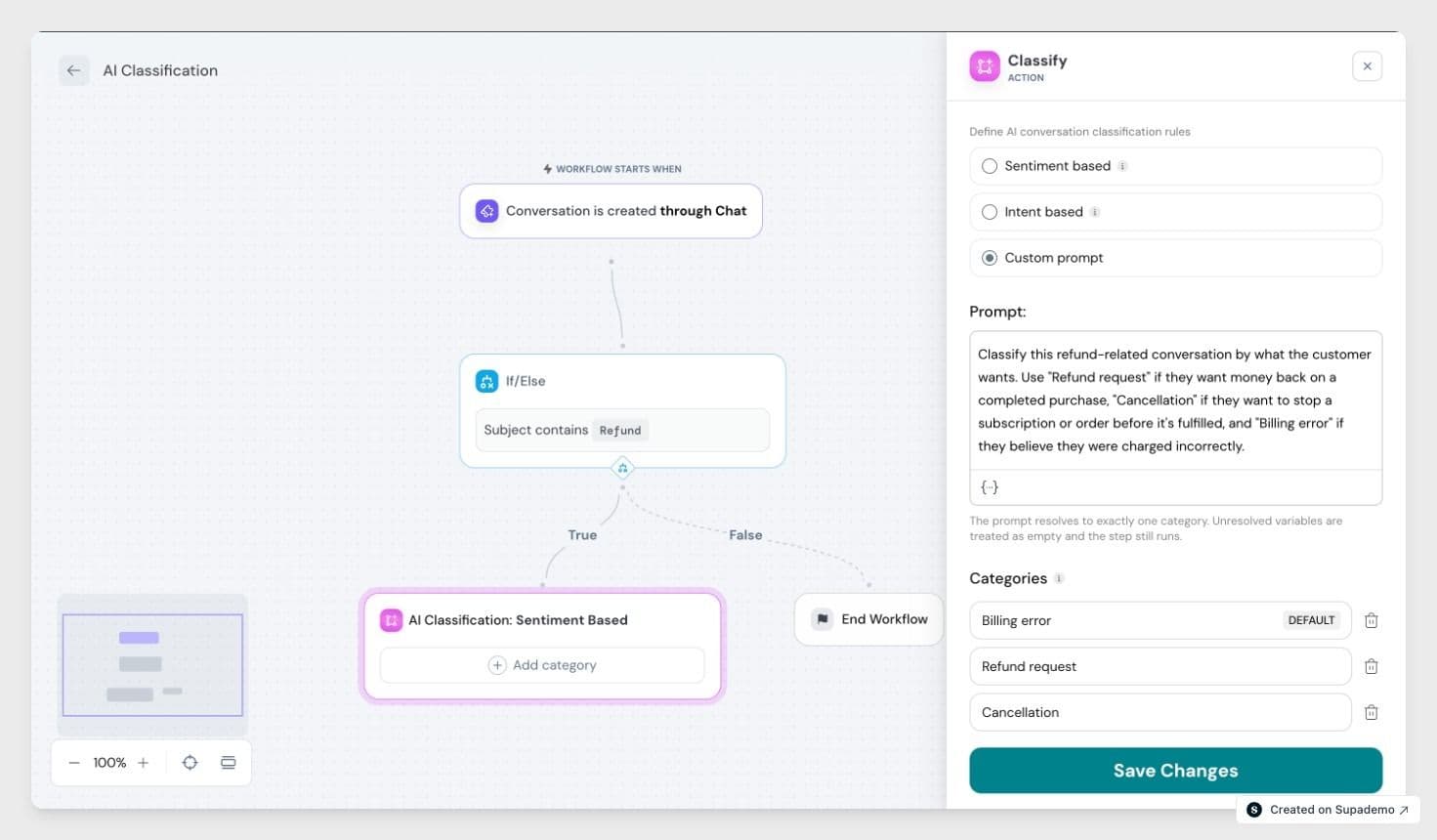
- In the Classify panel, choose Custom prompt.
The prompt box and category list appear below the mode options.
2. Write your prompt
In the prompt box, describe how the AI should sort each conversation the way you'd explain the task to a new teammate. Name what you want to sort by, and the categories you have in mind.
A simple prompt might be:
Sort each conversation by which product area it's about: Billing, API, Mobile App, or Onboarding.
You can make it richer by telling the AI what to weigh. For example, to judge urgency by who the customer is, not just what they say:
Decide how urgent this conversation is. Treat conversations from enterprise customers as high priority even if the tone is calm. Company: {{contact.company}}, Account tier: {{contact.account_tier}}.
Whatever you write, the prompt resolves to exactly one of the categories you define below. If a variable has no value, it's treated as empty and the step still runs.
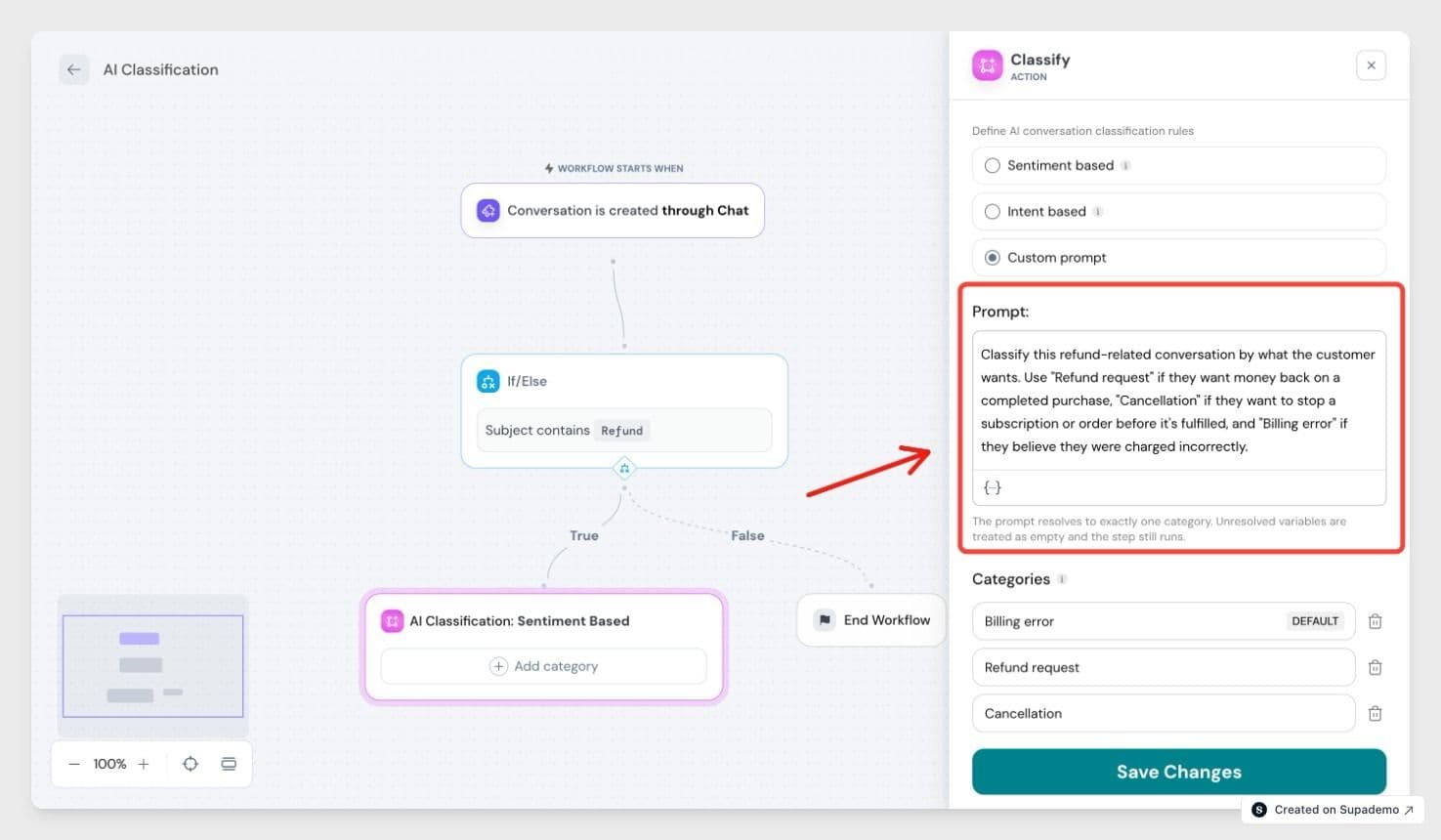
The {{ }} parts are variables live details pulled from the conversation or contact. Type @ to insert one and pick a field: the customer's email, the conversation's priority, a custom field, and more. The field shows as a token in your prompt and is filled with the real value when the workflow runs. If a field is empty for a conversation, classification still runs the empty field is just skipped.
3. Define your categories
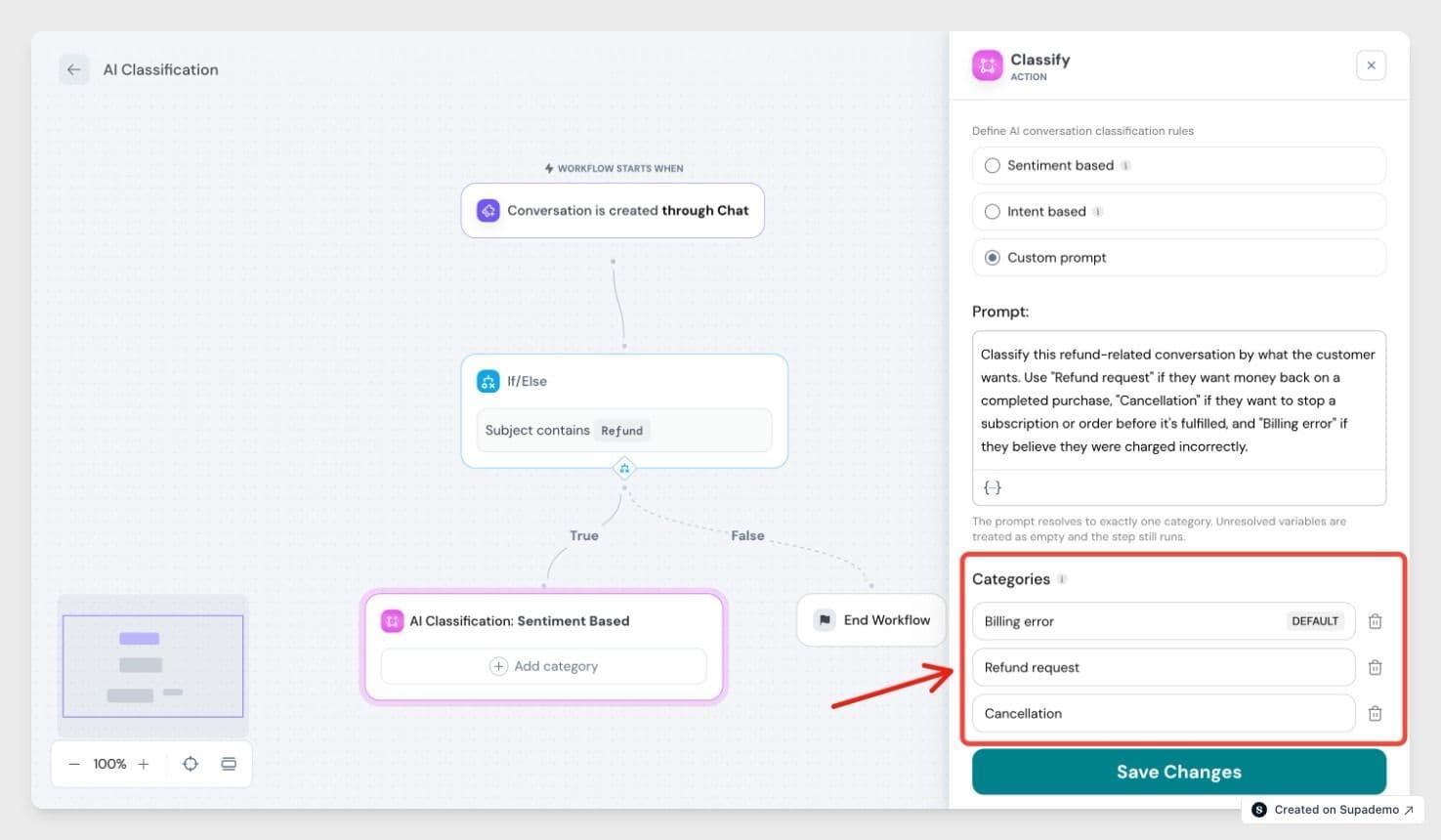
List the categories the AI can choose from. Each one needs a name and a short description explaining what belongs in it the description helps the AI match accurately, so it's required.
- You can have between 2 and 10 categories.
- Mark one category as the default. If the AI can't confidently match a conversation, or there's no customer message to read yet, it uses the default.
4. Test before you go live
Use Test to check your setup before turning the workflow on. Paste in sample text, or pick a recent real conversation to see how it's classified. Testing a real conversation also shows which field values were filled in, so you can confirm your variables work. Testing never changes the conversation it runs against.
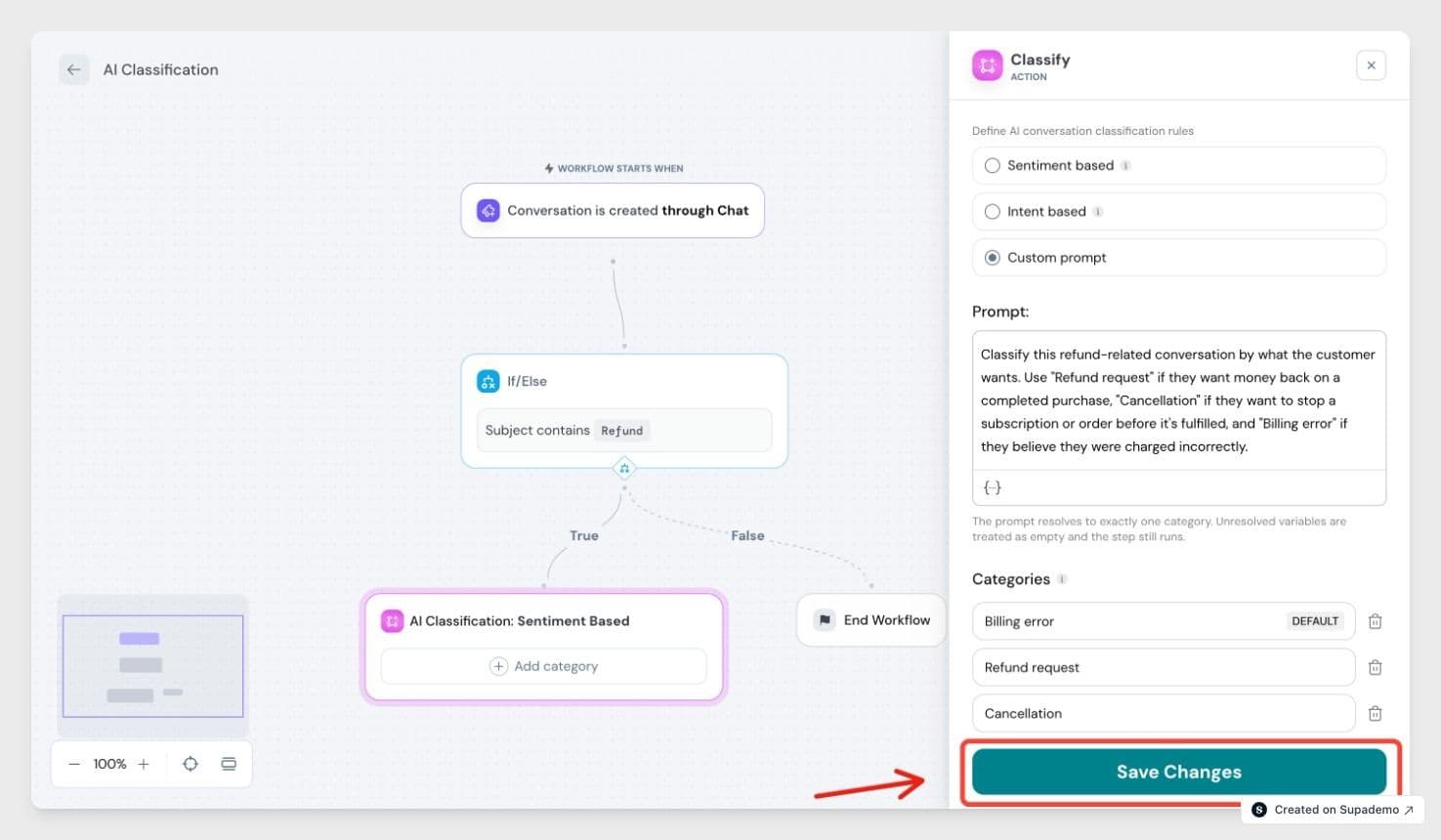
When you're happy with the result, save the action and turn on your workflow.
Things to know
- Classification can change over time. If the workflow runs the Classify step more than once on a conversation, the category is re-evaluated each time and may change as the conversation develops.
- Very long conversations are shortened to their most recent messages before the AI reads them.
- Who can set this up: anyone who can build workflows (Admin or Manager).
- Plan: available on Professional and above.
FAQ
- How is a custom prompt different from Sentiment or Intent?
Sentiment and Intent use fixed categories built into SparrowDesk. A custom prompt lets you write your own instructions and define your own categories, so you can classify by anything that matters to your business. - What happens if the AI can't decide on a category?
It uses the category you marked as default. The same applies if the step runs before there's any customer message to read. - Do I have to use variables in my prompt?
No. Variables are optional- they let the AI take things like priority or contact details into account, but a prompt written in plain words works on its own. - Will classifying a conversation in a test change it?
No. Testing only shows you the result. It never writes a category back to the conversation or alters it in any way. - Can the category of a conversation change later?
Yes. If your workflow runs the Classify step again, the conversation is re-classified based on the latest context, so its category can change.