
Set Up a Webhook

A webhook tells SparrowDesk to send information to another system the moment something happens in your workspace- a new conversation, a reply, a status change. Instead of your systems asking SparrowDesk for updates, SparrowDesk sends them as they happen.
What You Need First
- The Manage Webhooks permission. Admins have it by default.
- A Professional or Enterprise plan.
- A web address (starting with https://) where the information should be sent. Your development team will usually set this up.
Create a Webhook
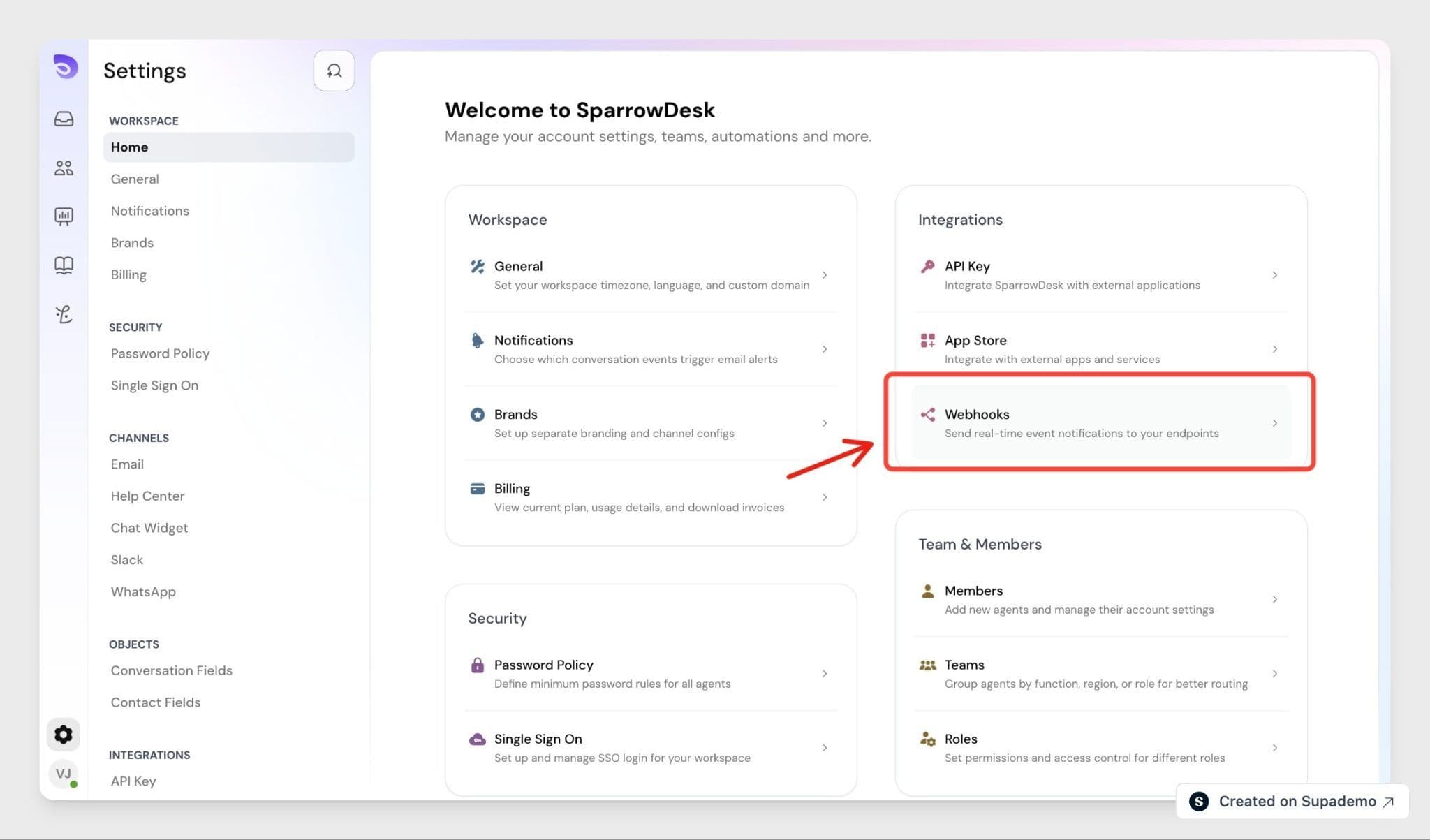
- Go to Settings → Webhooks.
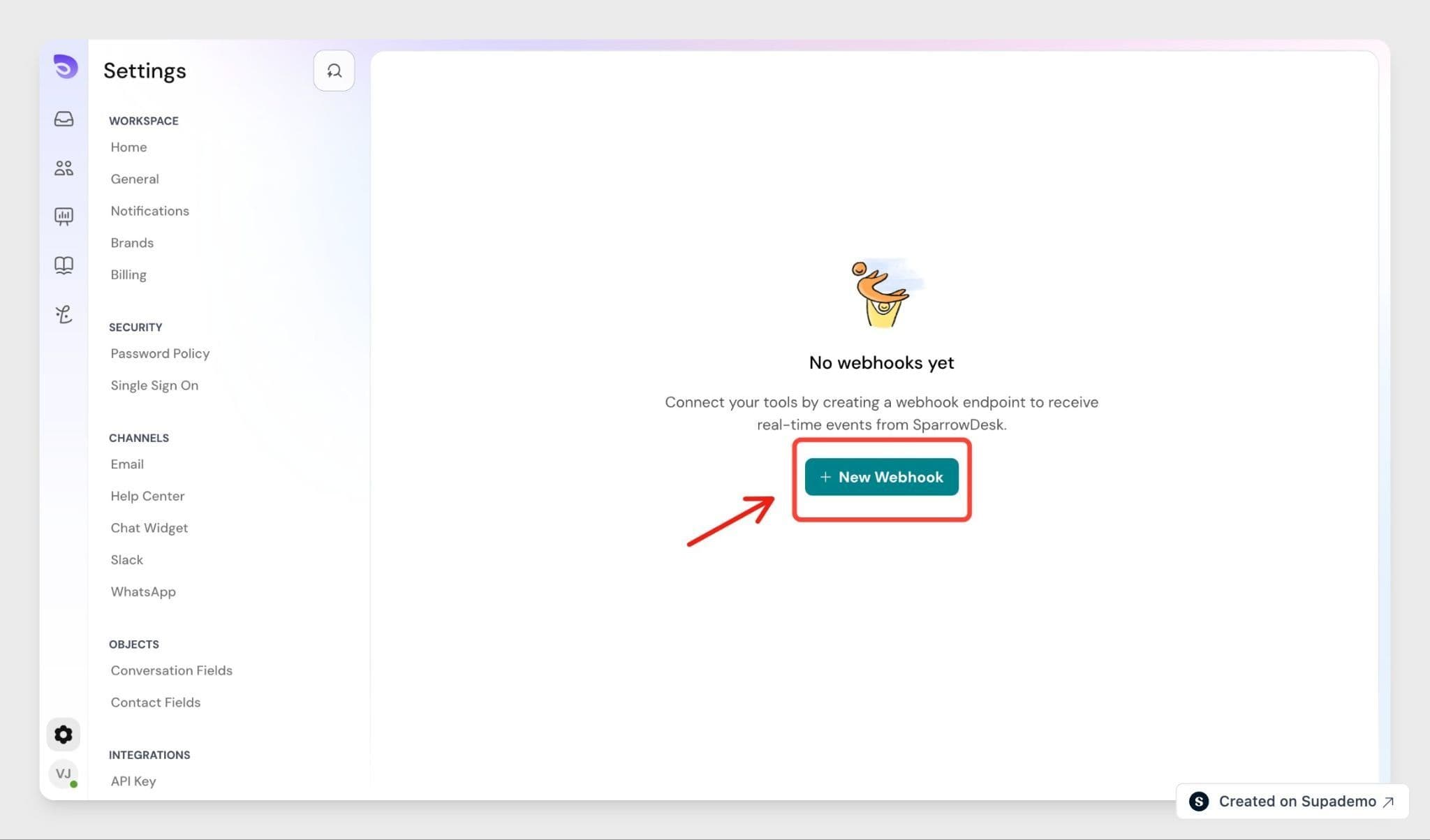
- Click Create Webhook.
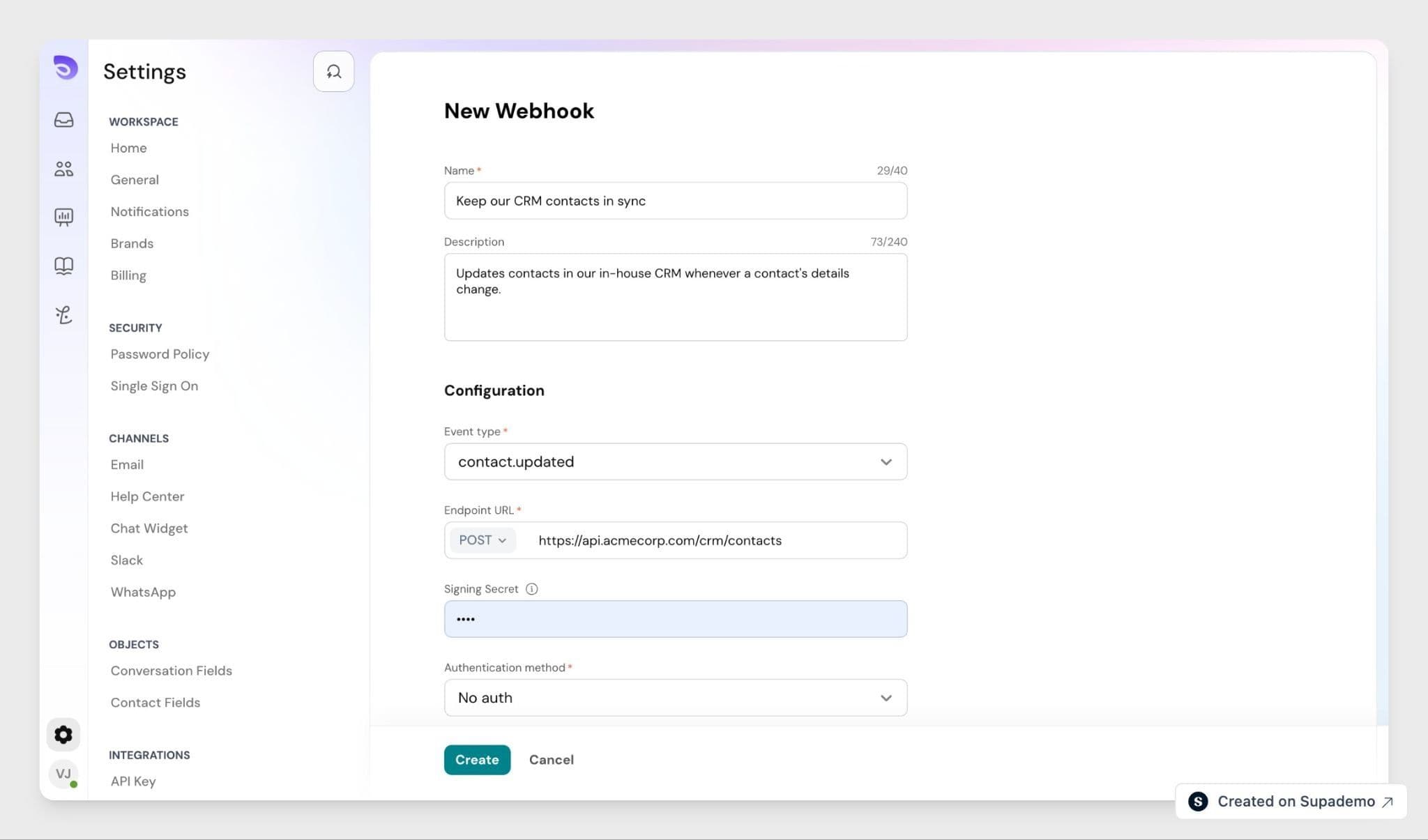
- Give it a Name so your team knows what it's for. Add a Description if you want.
- Enter the URL where SparrowDesk should send the information. It has to start with https://.
- Choose the event you want to be notified about — for example, when a conversation is created or a contact is updated. Each webhook listens for one event; to react to more than one, create a separate webhook for each
- Turn the webhook On.
- Click Save.
Save Your Secret Key
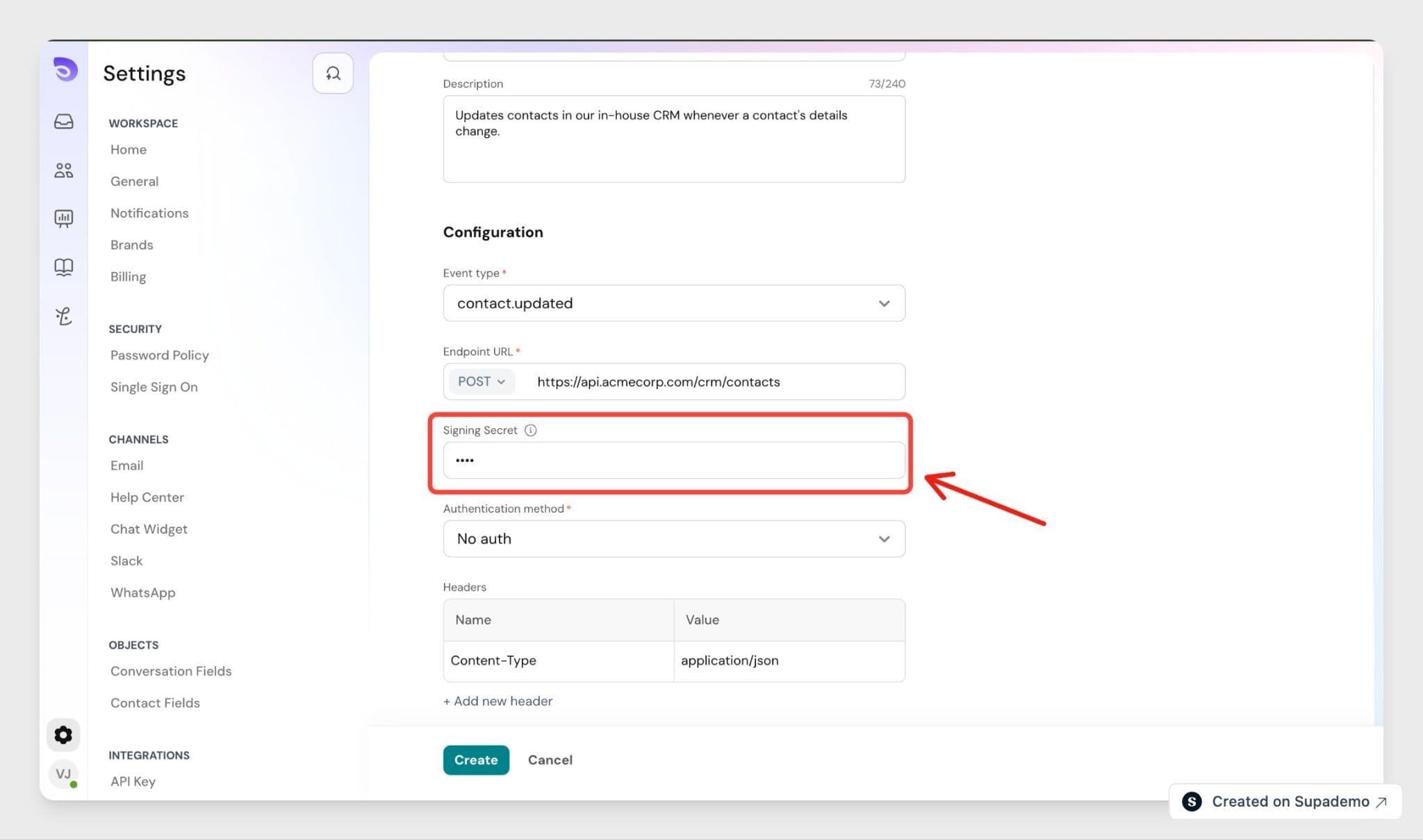
Each webhook uses a secret key so the system receiving your messages can confirm they genuinely came from SparrowDesk. Enter your own secret in the Signing Secret field, and use that same value in the system that receives the messages. Keep it private- treat it like a password.
Add Custom Headers
If the system receiving your messages needs a specific piece of information sent with every message like a login token add it under Custom Headers as a name and a value. SparrowDesk includes it with every message to this webhook.
Custom headers are kept private. They're hidden after you save and never appear in your logs.
Edit, Pause, or Remove a Webhook
From the Webhooks list you can:
- Turn a webhook off to stop messages without losing its setup. Turn it back on any time.
- Edit its description, URL, headers, and other settings. The event a webhook listens for can't be changed, to use a different event, create a new webhook.
- Delete it to remove it completely.
You can have up to 25 webhooks in a workspace. If you need more, contact the sales team.
Note: Webhooks are set up here in Settings. There's no way to create or manage them through the API in this version.
Check Your Delivery Logs
Each webhook keeps a record of what it has sent. Open a webhook to see its recent deliveries- each message SparrowDesk sent, when it was sent, and how your URL responded. Logs are kept for 14 days.
FAQ
- What happens if my URL is down when an event fires?
If a webhook fails to deliver 5 different events, SparrowDesk turns it off automatically and notifies you. Fix the problem at your URL, then switch the webhook back on. - Can I change a webhook after creating it?
You can update its description, URL, headers, and other settings at any time. The event it listens for can't be changed — to react to a different event, create a new webhook. - Can I change the secret key later?
Yes. Open the webhook, enter a new value in the Signing Secret field, and save. Update the same value in the system that receives your messages, so the two still match. - Can I choose what information each message contains?
No. You choose which event a webhook is notified about, but the details in each message are set by SparrowDesk. - Who on my team can set up webhooks?
Anyone with the Manage Webhooks permission. Admins have it by default, and on Enterprise plans you can give it to a custom role.