
sparrowdesk-logo-transparent-1.png
Go to sparrowdesk.com
Home
SparrowDesk Overview
  • Overview of SparrowDesk
  • Feature Overview in SparrowDesk
  • SparrowDesk Glossary
Getting Started
  • Setting Up Account Details
  • Default Business Hours
  • Understanding and Creating Teams
  • Inviting Team Members to the Platform
  • Roles and Permissions
  • Single Sign-On
  • Brands in SparrowDesk
  • Getting Started FAQs
  • Use a custom domain for your support portal
  • Customize Customer Email Notifications
  • View the Audit Log
Inbox
  • Understanding the Inbox in SparrowDesk
  • Managing Custom Views in Inbox
  • Live Chats in Inbox
  • Staying on Top of New Messages from Customers
  • Conversation Fields in SparrowDesk
  • Merging Conversations in SparrowDesk
  • Round Robin assignment explained
  • Export Conversations as CSV
  • Bulk update fields
  • Forward a Conversation to an External Contact
  • Common Email Delivery Errors
  • Add Watchers to a Conversation
  • Set Up Parent-Child Ticketing
Channels
  • Slack as a Channel
  • WhatsApp as a Channel
  • Facebook Messenger as a Channel
  • Instagram Channel
  • Setting Up Email as a Support ChannelConnect your custom email address How do I send and receive emails via SMTP and IMAP ? How do I find my SMTP/IMAP server address and port number? Common Errors while Connecting through SMTP/IMAPHow to Prevent Emails From Going to Spam Email Signatures
  • Installing Chat Widget Chat Widget Installation on WordPressInstall the Chat Widget on ShopifyCustomising Chat WidgetEmbedding and Configuring the SparrowDesk Chat WidgetChat Widget SettingsWhy End Users Don’t Always See Their Chat HistoryTrack page visits in SparrowDesk
Contacts
  • Contacts in SparrowDesk
  • How to manage contact segments
  • Deleting and Blocking Contacts in SparrowDesk
  • Contact Fields in SparrowDesk
Reports
  • Conversation Report
  • Team Performance Report
  • Understanding the AI Agent Report in SparrowDesk
  • Viewing CSAT reports in SparrowDesk
  • Reports FAQ
  • Exporting Reports as PDF
  • Help Center Reports
  • Build a Custom Report
Automation
  • Macros
  • Business Hours
  • Service-Level Agreements (SLAs)
  • Setting up CSAT (Customer Satisfaction) in SparrowDesk
Zoona AI
  • AI Suggested replies in your Inbox
  • AI-Generated Chat Subjects
  • Zoona AI Knowledge Improvements
  • Introduction to AI Copilot
  • Introduction to AI AgentAI Agent - Configure PersonaTraining your AI AgentZoona AI Agent CommandsAI Agent - Deploying on chatAI Agent - Deploying on EmailHow to Create a Command Zoona AI Agent - FAQUnderstanding AI resolutions in SparrowDesk
Workflows
  • Automate repetitive tasks through Workflows
  • How to Create a Workflow
  • Workflow Blocks Library
  • Notify a Slack Channel from a Workflow
  • Classify Conversations with a Custom Prompt
Help Centre
  • Write Knowledge Articles for your Help Centre and AI Agents
  • Setting Up and Customizing Your Help Center
  • Use a Custom Domain for Your Help Center
  • Make Your Help Centre Discoverable in Search results
  • Adding Google Tag Manager to your Help Center
  • Creating a Ticket Form Setting up Customer Portal
Billing
  • How does SparrowDesk pricing work?
  • What is Seat ?
  • Manage your Billing and Invoices
  • About Sales Tax
  • How to cancel your subscription
  • Frequently Asked Questions
  • AI Co-pilot and AI Resolution billing
  • SparrowDesk Startup Program
Apps and Integrations
  • Okta Integration
  • HubSpot Integration
  • SurveySparrow Integration
  • Zapier Integration
  • Attio Integration
  • Linear Integration
  • Jira Integration
  • Gmail Integration
  • Notion Integration
  • Shopify Integration
  • Migrating from Freshdesk
  • Zoho CRM integration
  • Set Up a Webhook

View the Audit Log

Timer3 min read
VaishaliVaishali

The audit log gives admins a time-stamped record of configuration and account changes across your SparrowDesk account, so you can see who changed what, and when.

The audit log is available on the Enterprise plan, to account admins and super admins.

What the Audit Log Tracks

The audit log records configuration and account-level changes, not day-to-day ticket activity. It covers:

  • Logins and logouts, for both agents and admins
  • Agent and team changes, including team membership
  • Workflows and automation: ticket rules, hourly triggers, SLA policies, and business hours
  • Canned responses and their folders
  • Knowledge base categories, folders, and articles
  • Channel integrations: email, WhatsApp, Facebook, Instagram, and SMS
  • Company records
  • Account and subscription: plan changes, billing contact, and API keys
  • Security settings: SSO, IP allowlist, session timeout, and password policy

Changes made automatically by a rule or system process are logged too, with the actor shown as System. The log does not record actions on individual tickets, such as who replied to or closed a specific ticket.

Open the Audit Log

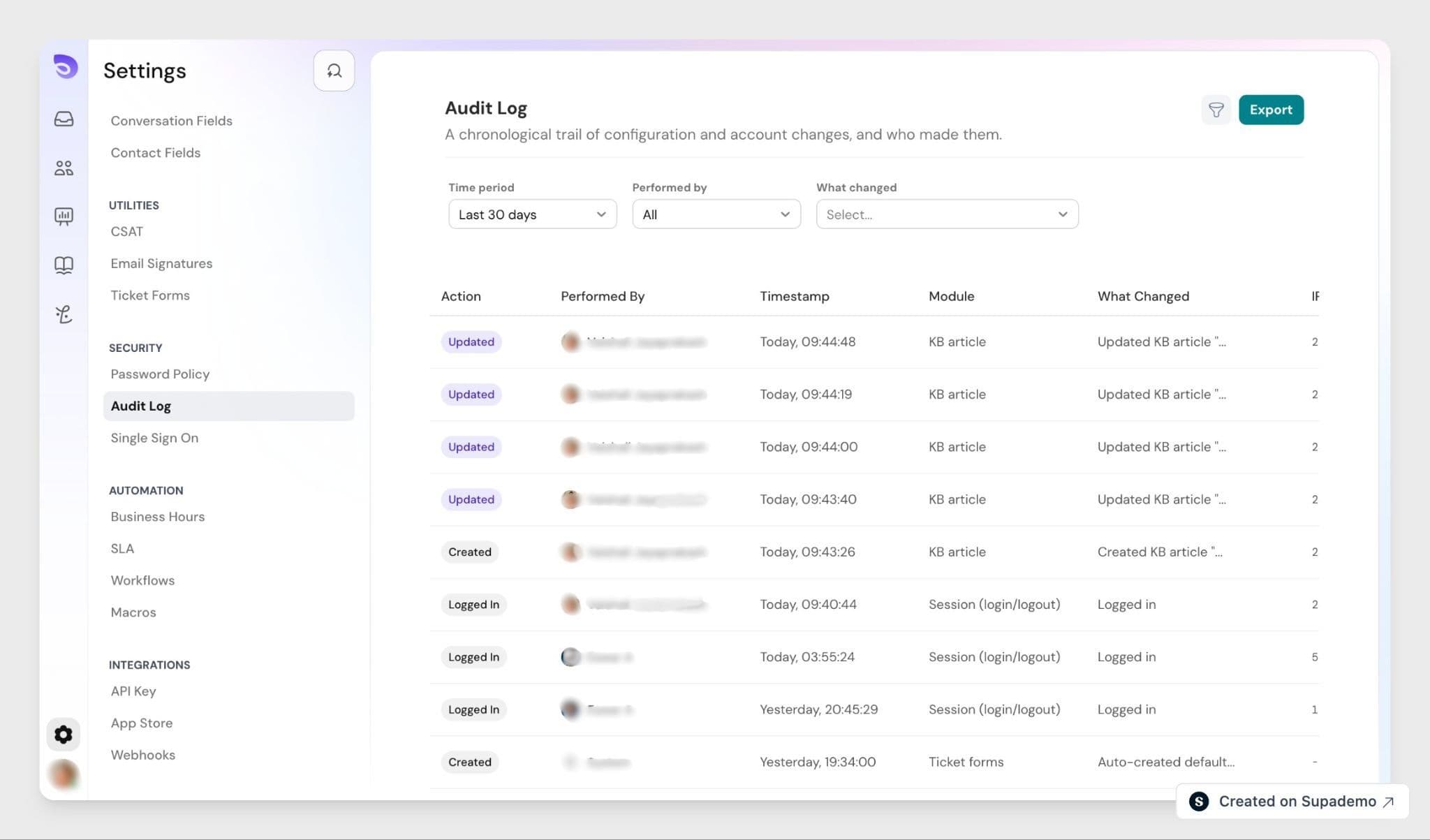
Go to Settings → Security → Audit Log. The log opens on the last 30 days, the newest first. Each row shows the timestamp, who performed the action, their actor type, the module, the action taken, and a short summary of what changed.
Image

Read an Entry

Each row describes a single change in plain language. The What Changed column summarises what happened, such as a knowledge base article being created or updated, and names the item affected. Alongside it, each entry shows the action taken, who performed it, the timestamp, the module the change belongs to, and the IP address the person acted from.

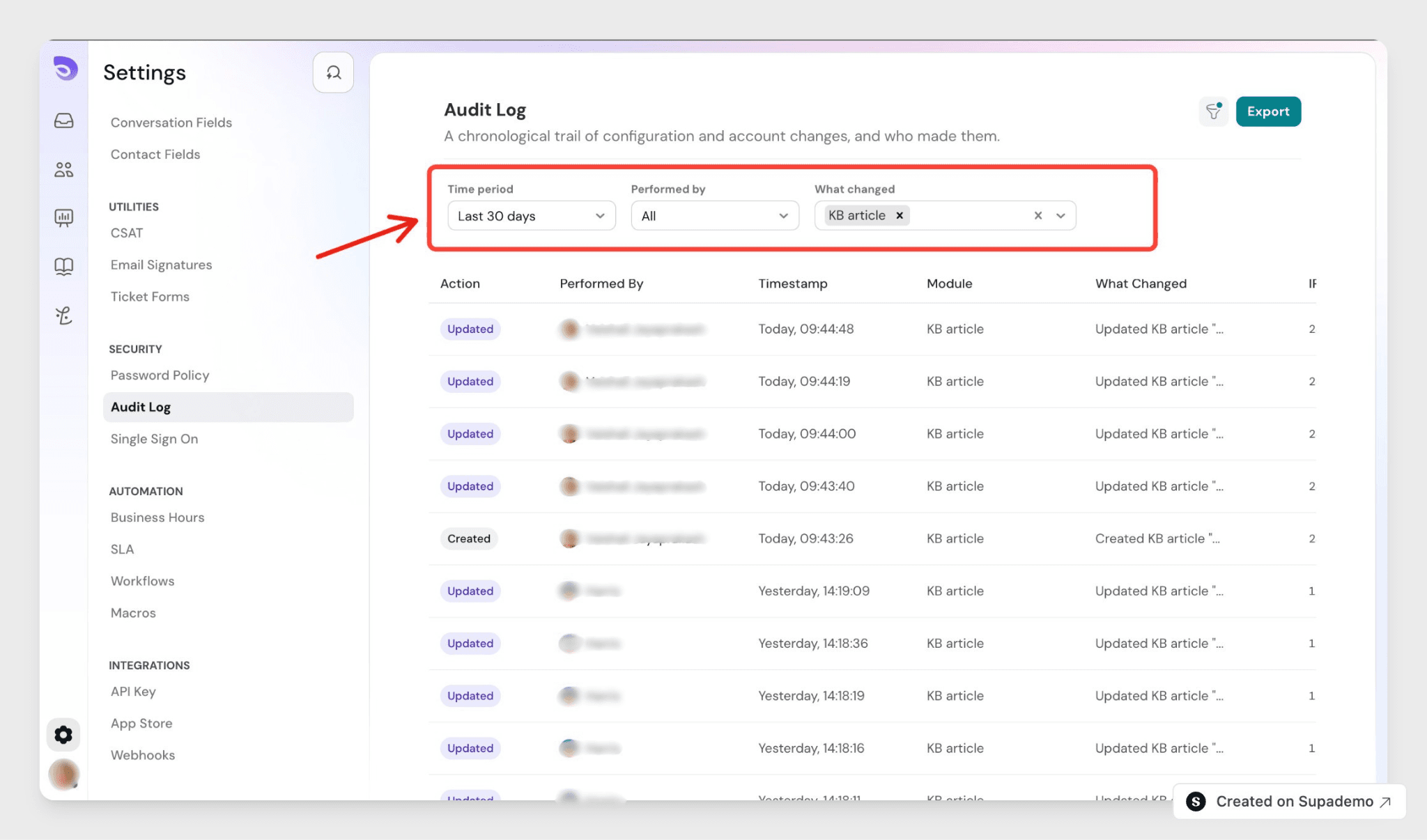
In the example below, the What changed filter is set to KB article, so the log shows only knowledge base changes.
Image

Filter the Log

Select Filter in the top-right to narrow the list by:

  • Time period: the last 7, 30, or 90 days, the last 12 months, or a custom range
  • Performed by: any agent or admin, or System for automated changes
  • What changed: one or more modules from the list above

Export the Log

Select Export in the top-right to download the log as CSV or Excel. Choose a time period and at least one module, then export. Timestamps in exported files use UTC.

How Long Entries Are Kept

The audit log keeps the last 12 months in the app. Older history stays available through the audit log API with no time cap, and any file you export is a permanent snapshot.

FAQ

  1. Can I see the IP address behind a change?
    Yes. Each entry made by a person includes the IP address they acted from. Entries made by the System have no IP address.
  2. What time zone are the timestamps in?
    The in-app log uses your account time zone. Exported files and the API use UTC.
  3. Why do some entries show "System" as the actor?
    When an automation or system process makes a configuration change, the log records the actor as System. Filter by System to see only those changes.
  4. Can the audit log alert me when something changes?
    No. The audit log is a record you review, not an alerting tool. It does not send notifications when a change happens.
  5. How do I get history older than 12 months?
    The in-app view holds 12 months. For older records, use the audit log API, which keeps the full history, or keep the files you export, which do not expire.


Powered By SparrowDesk

Table of ContentsOn this page