
Set Up Two-Factor Authentication

Two-factor authentication (2FA) adds a second step at login, so your account stays protected even if your password is leaked, reused, or stolen.
2FA is available on every plan. It is optional, and you turn it on for your own account.
What 2FA Adds
After you enter your password, SparrowDesk asks for a one-time code from an authenticator app before it lets you in. A stolen password on its own is then not enough to reach your account. Each person controls 2FA for their own account, so you can turn it on even if your teammates have not.
Turn On 2FA
You set up 2FA from your own account settings.
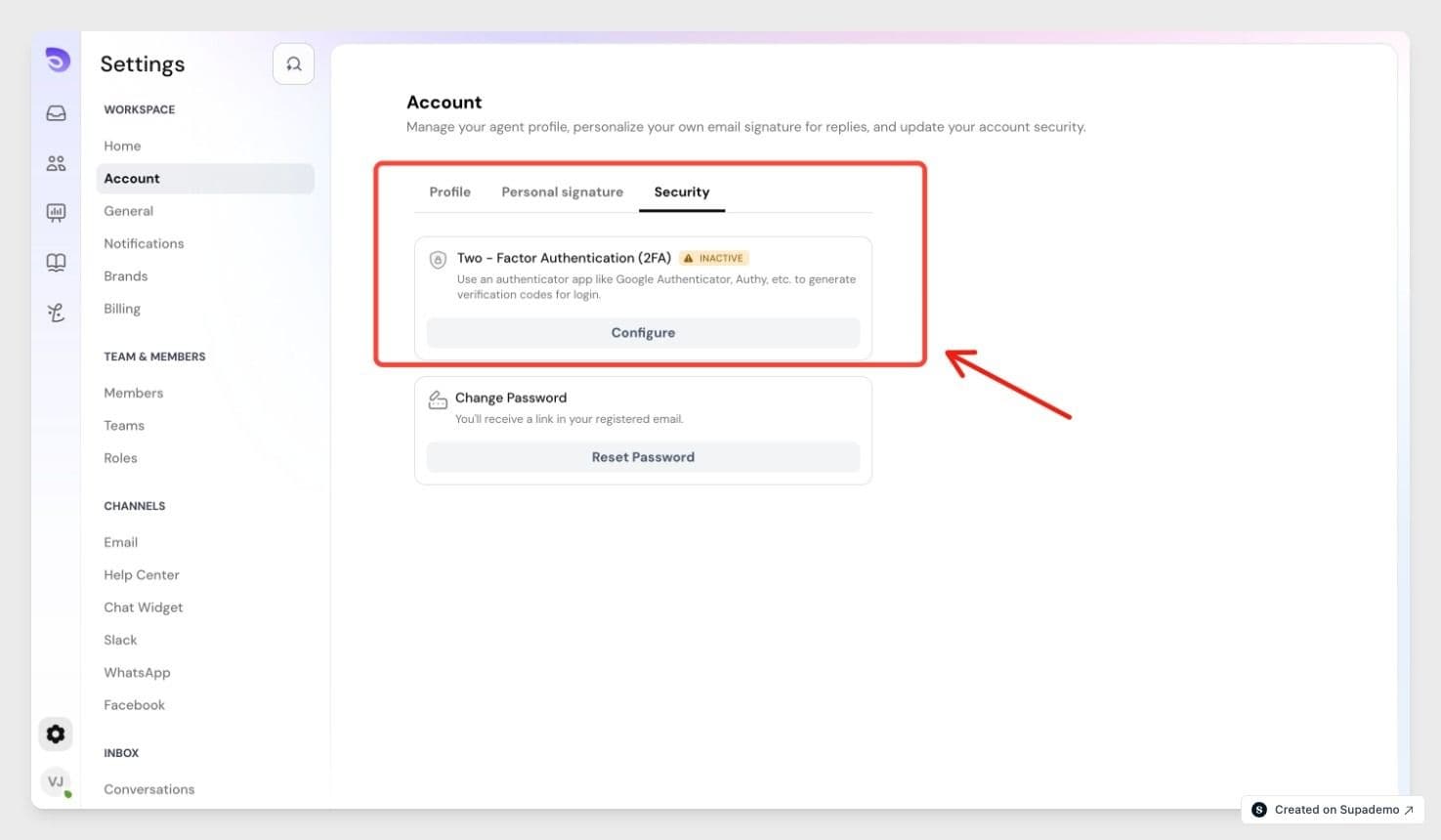
- Go to Account → Security. Under Two-Factor Authentication (2FA), which shows as Inactive, select Configure.
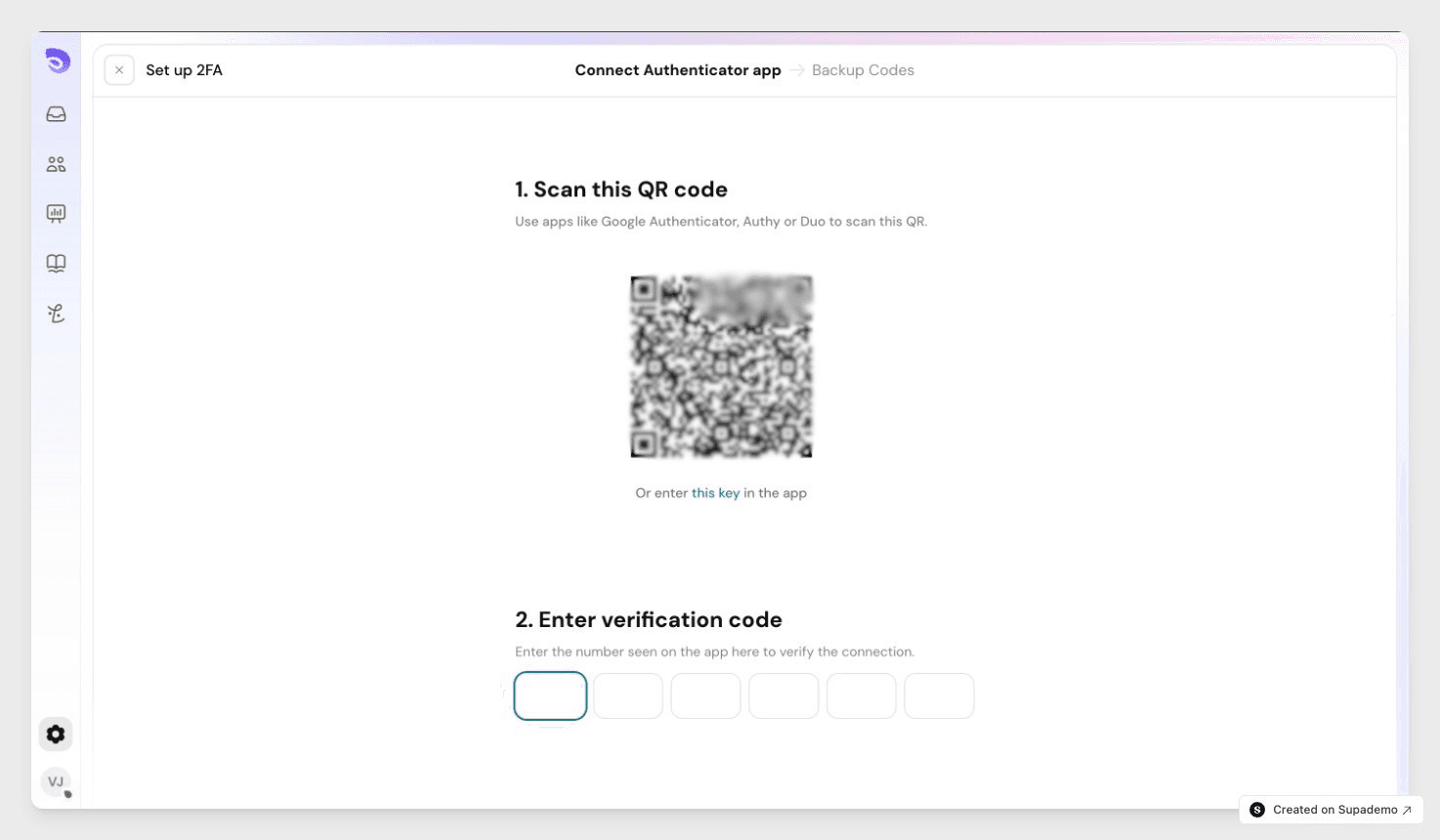
- Scan the QR code with an authenticator app such as Google Authenticator or Authy, then enter the code it shows to confirm.
- Save your backup codes when they appear (see below).
- Confirm to finish.
SparrowDesk emails you to confirm 2FA is on. You are also asked to verify your identity whenever you enable or disable 2FA, or view your backup codes.
Save Your Backup Codes
During setup, SparrowDesk gives you 9 backup codes. Use one in place of your authenticator code if you cannot reach your app, such as when you lose your phone.
- Each code works only once.
- You can copy or download the codes, and generate a fresh set at any time.
- SparrowDesk warns you when fewer than 3 codes are left.
Keep them somewhere safe and private.
Log In with 2FA On
- Enter your email and password.
- Enter the code from your authenticator app, or one of your backup codes.
- You are signed in.
If your team signs in through SSO, your identity provider already handles this second step, so SparrowDesk doesn't ask for a 2FA code as well. For more on single sign-on, see Single Sign-On.
If You Lose Access
If you lose both your authenticator app and your backup codes, you cannot sign in on your own. Ask an admin or account owner to turn off 2FA for your account from the Members page. You can then sign in and set it up again. SparrowDesk emails you whenever an admin turns off your 2FA.
FAQ
- Which authenticator apps can I use?
Any standard authenticator app that generates time-based codes works, such as Google Authenticator, Microsoft Authenticator, or Authy. - Can an admin require everyone to use 2FA?
No. In this release 2FA is optional and set per person. An admin cannot turn it on for someone or enforce it across the account. They can only turn it off for a member who is locked out. - What happens if I enter the wrong code too many times?
After 3 wrong codes you see a warning. After 5, SparrowDesk locks your account for 10 minutes, then unlocks it automatically. - Can I turn 2FA off later?
Yes. Turn it off from the same security settings after verifying your identity. If you turn it off and want it again later, you set it up from the start. - Does 2FA cost extra?
No. 2FA is included on every plan, including trials.