
Migrate from Intercom

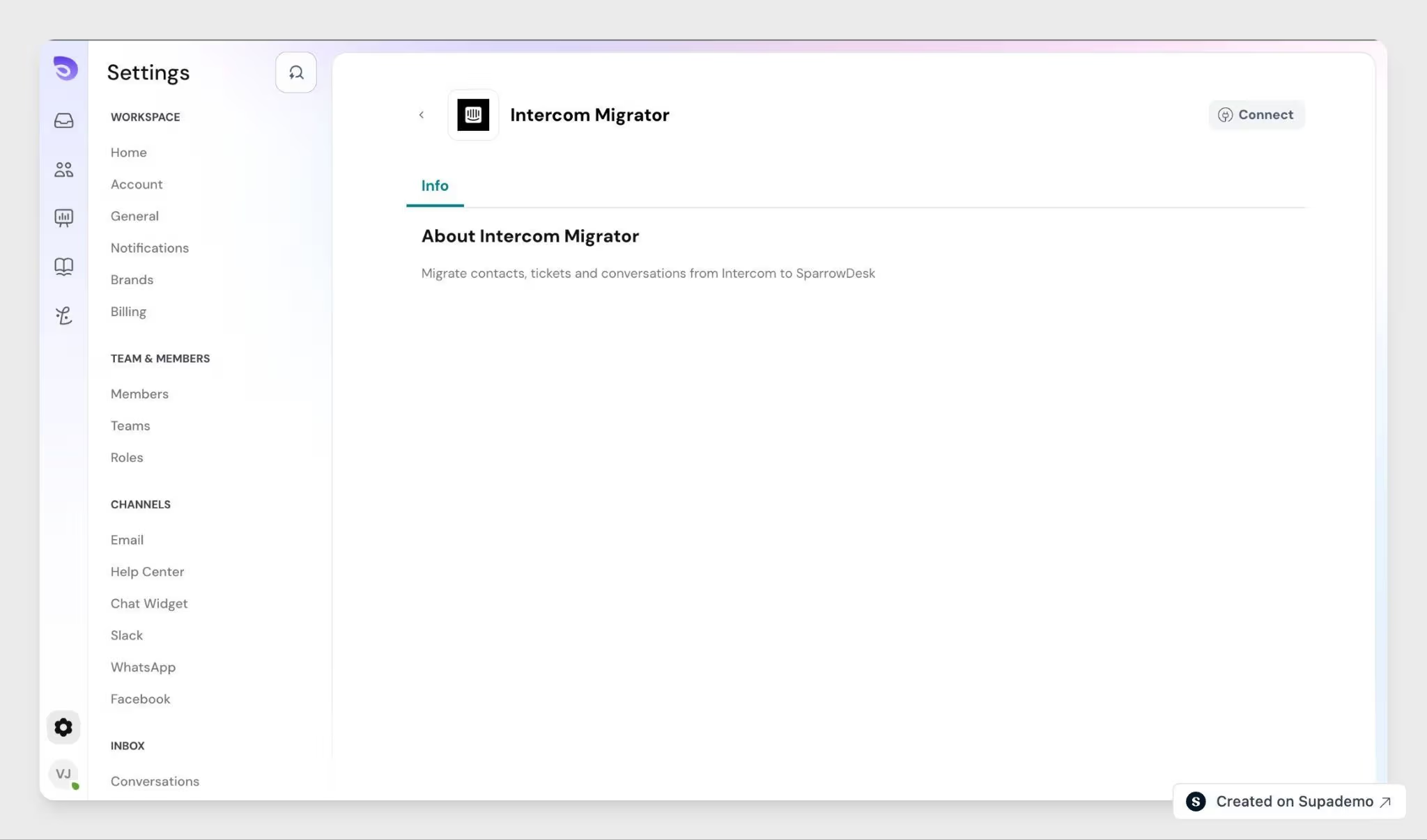
The migration app copies your contacts and conversations from Intercom into SparrowDesk, including the full reply and note history on every ticket.
Moving from a different tool? See Migrating from Zendesk or Migrating from Freshdesk.
Before you start
Gather these first- the app asks for them during installation.
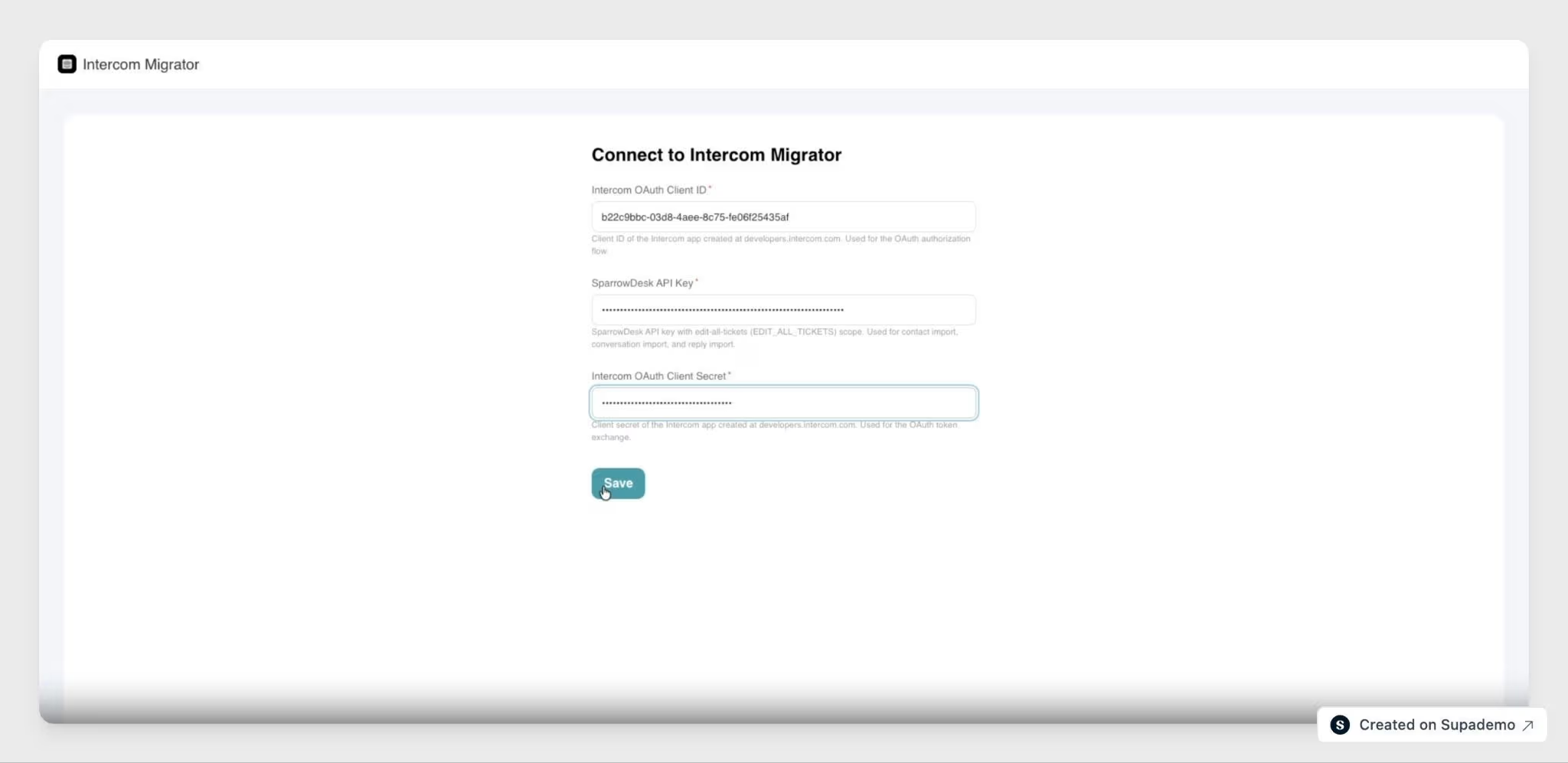
- An Intercom OAuth app- create one at developers.intercom.com, then copy its Client ID and Secret. This is how the app asks Intercom for permission to read your data.
- A SparrowDesk API key- it needs Edit All Tickets permission, since the app writes new contacts and tickets into your workspace. Ask your SparrowDesk admin if you can't find yours.
Also decide roughly what you want to bring over contacts, tickets, or both, and whether you want everything ever created or only conversations from a certain date onward.
Migrate your data
- Install and connect- Install the app from the SparrowDesk marketplace. Paste in your SparrowDesk API key and your Intercom Client ID and Secret. The app then walks you through authorizing Intercom you'll see Intercom's own login and consent screen, not a SparrowDesk form.
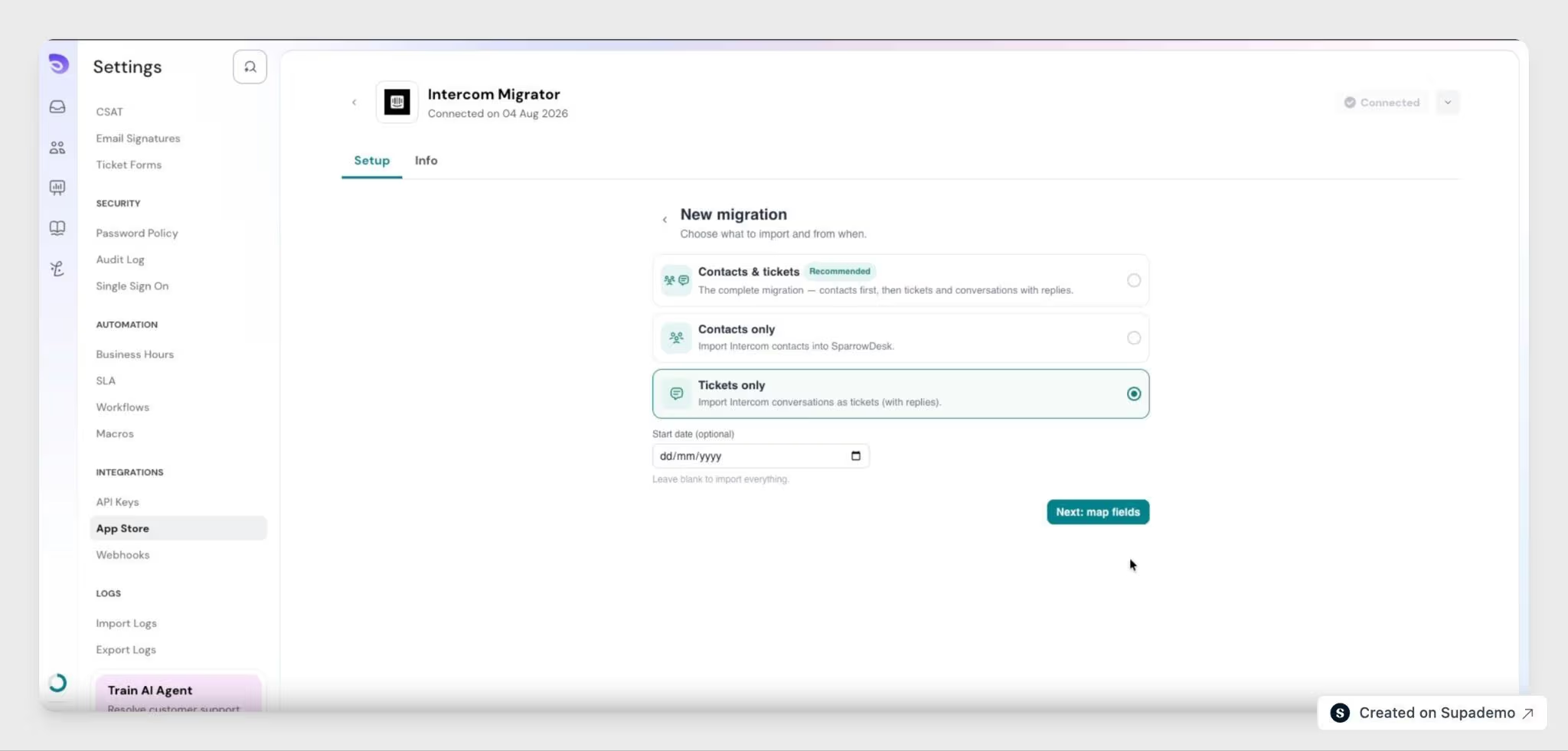
- Choose what to migrate- Pick Contacts only, Tickets only, or Both. To limit how far back you go, set a start date. Leave it blank to bring over everything from the beginning.
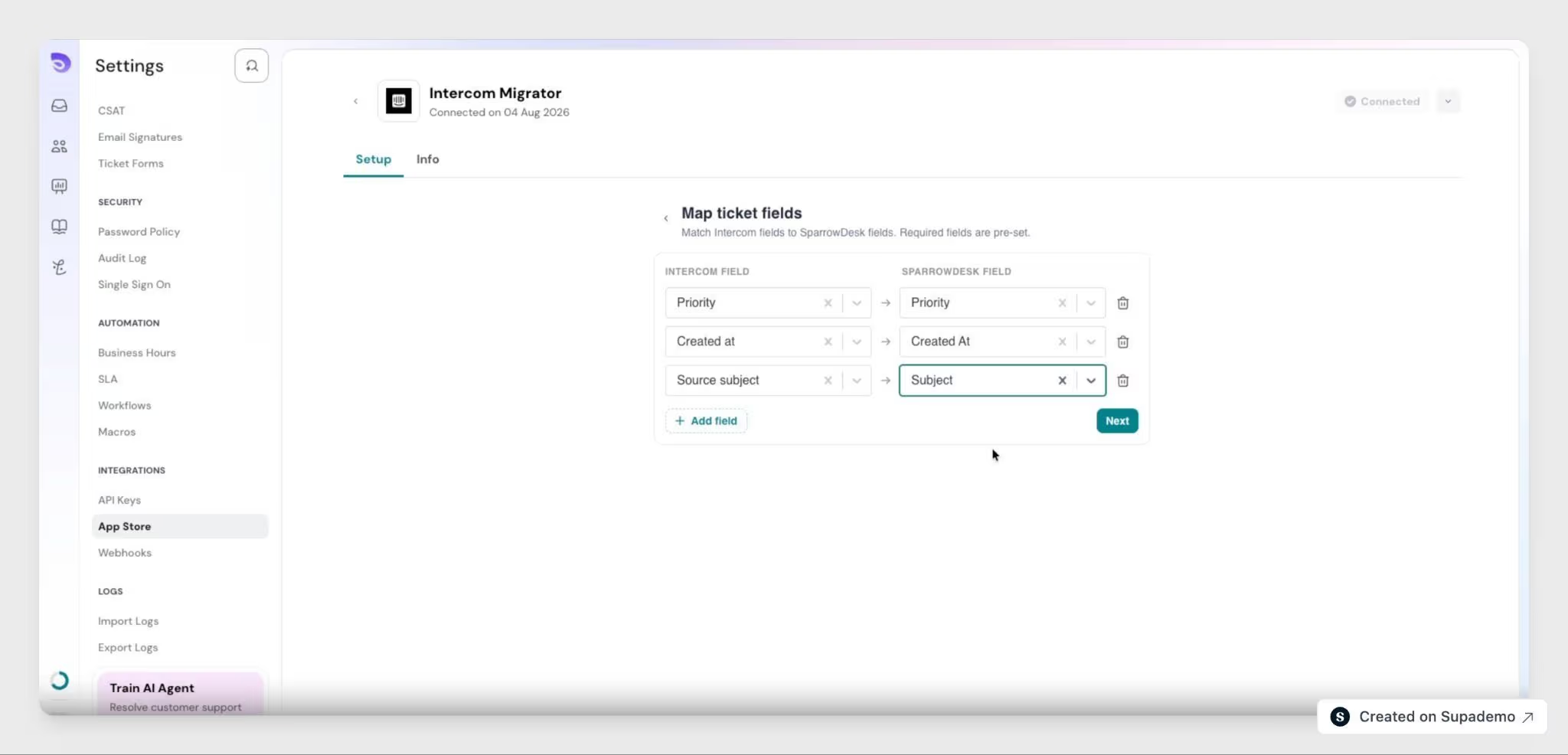
- Map your fields- For each SparrowDesk field, choose which Intercom field fills it. You map contacts and tickets separately, based on the mode you picked. This mapping decides how your data lands, so take your time here.
- Review the count and name the run- The app shows an estimate, for example "You're about to import 4,210 contacts and 1,830 tickets." Give the run a unique name, then click Start migration.
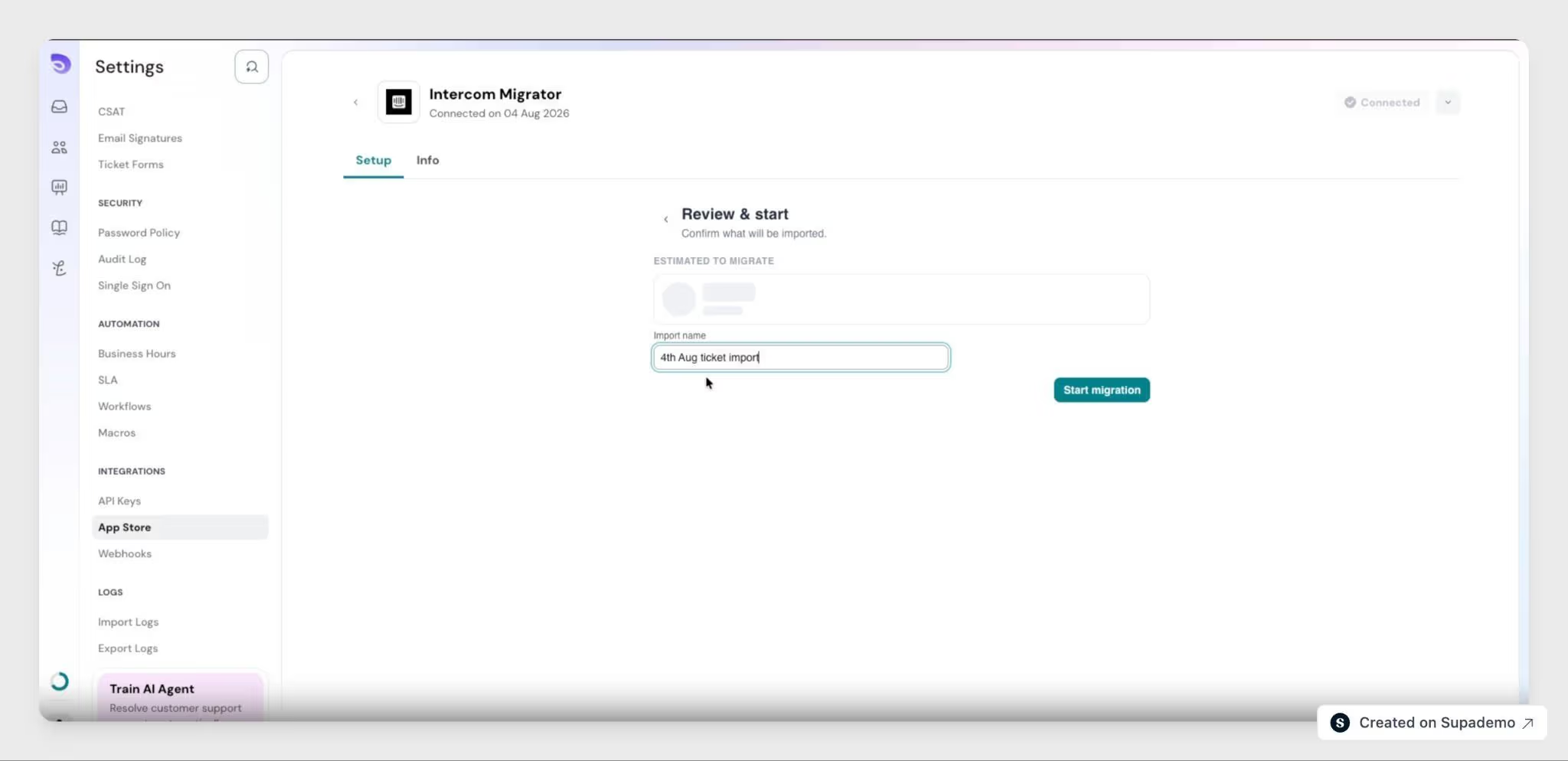
- Let it run- The migration continues in the background, so you can close the tab and come back later. The Progress screen shows live counts of what's been created, updated, and failed.
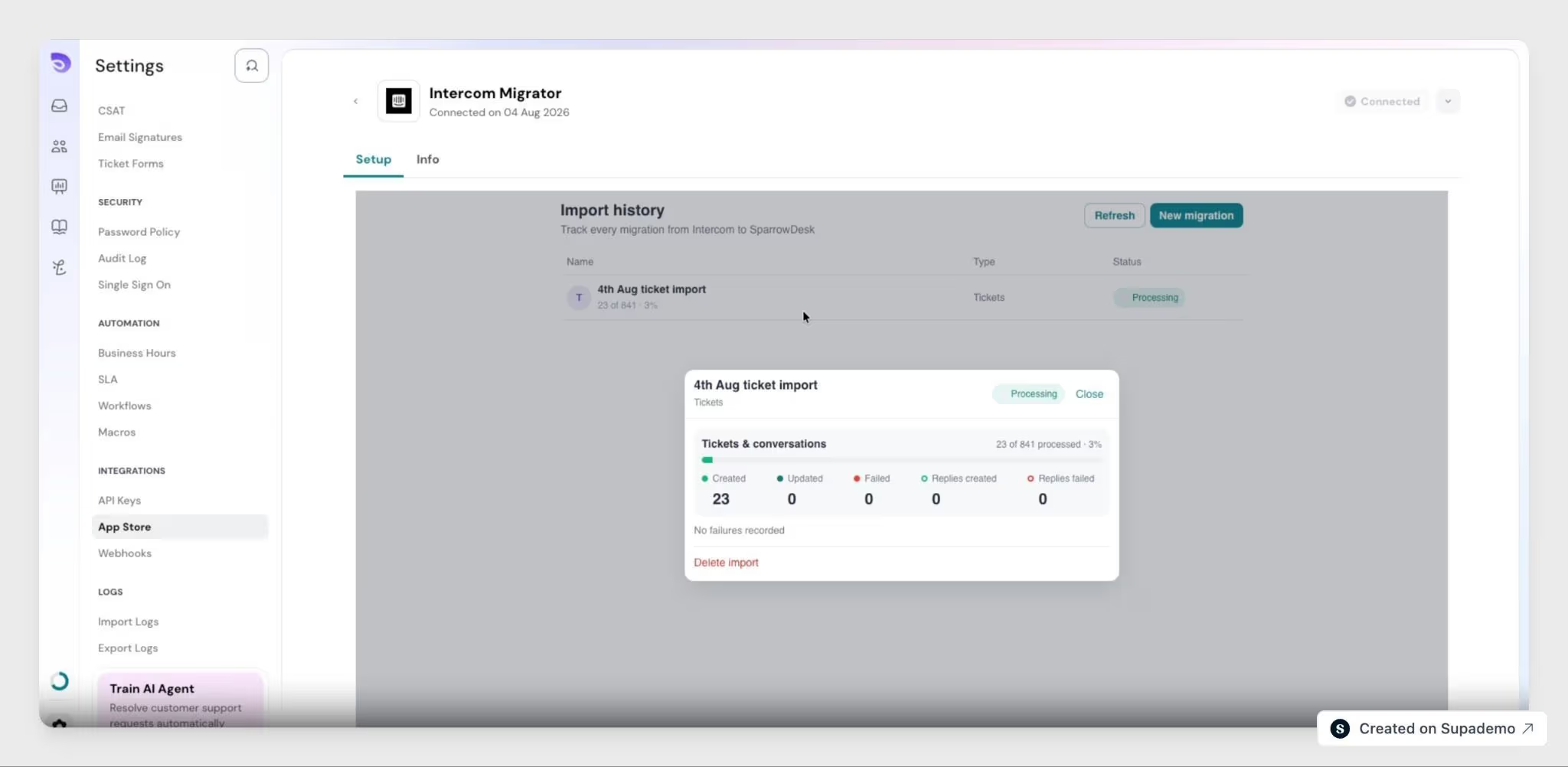
- Check the error report- When the run finishes, download the CSV error report. It lists every record that didn't make it across and why, so you know exactly what to check.
What comes across
Comes across:
- Contacts, with the fields you mapped
- Tickets (Intercom conversations)
- The full reply and note thread on every ticket
Does not come across:
- Companies, help center articles, tags, and macros
- Anything added in Intercom after the migration finishes
If a run gets interrupted
You don't need to do anything. If the run is interrupted your browser closes, your wifi drops- the app tracks exactly where it left off and resumes automatically the next time it runs, without skipping or double-counting.
Important: This is a one-time copy, not a live sync. Run it when you're ready to switch over. Anything added in Intercom after the migration finishes won't appear in SparrowDesk on its own; run the migration again for the later date range to bring it across. There's no undoing once a migration completes.
FAQ
- Can I run the migration more than once?
Yes. Each run needs its own unique name, and re-running is safe- a contact or ticket that already came across is recognized and updated, not duplicated. - Is my Intercom login shared with SparrowDesk?
No. Access uses OAuth: you approve it on Intercom's own screen, and SparrowDesk only holds a revocable access token- never your password. - How long does a migration take?
Anywhere from several minutes to a few hours, depending on how much data you're bringing over. It all runs in the background, so you don't need to keep the tab open. - Field list won't load on the mapping screen- what do I do?
Use the retry option in the error banner. If it keeps failing, check that your Intercom connection is still authorized. - What happens to records that fail to import?
They're listed in the CSV error report with the reason for each failure, such as a required field being empty. Fix the record in Intercom and include it in a later migration.