
Migrate from Zendesk

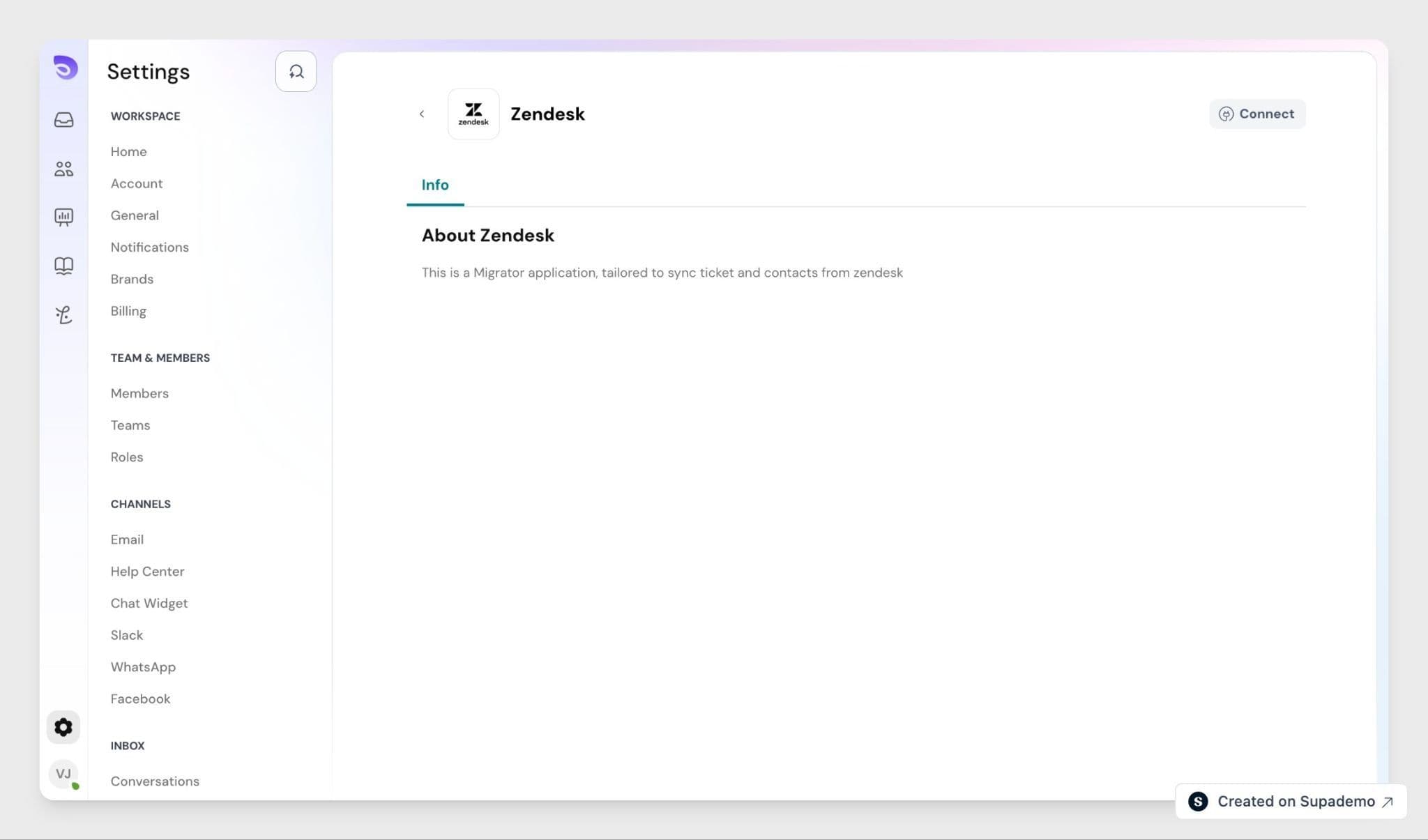
The migration app copies your end-users and tickets from Zendesk into SparrowDesk, including archived tickets, every reply and note, and every attachment.
Before you start
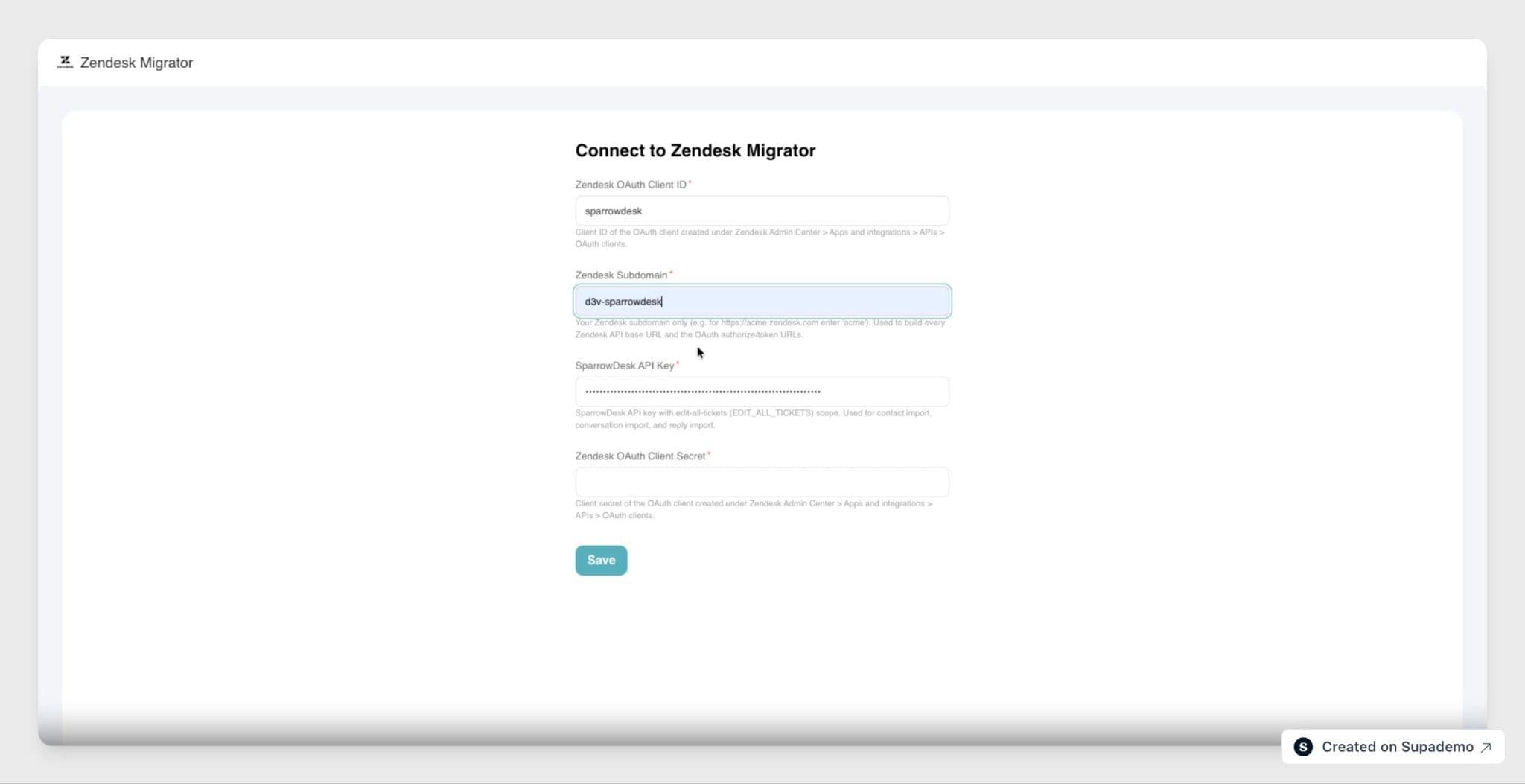
Gather these first the app asks for them during installation.
- Your Zendesk subdomain- just the subdomain part. For acme.zendesk.com, that's acme.
- A Zendesk OAuth client- create one under Admin Center → Apps and integrations → APIs → OAuth clients, then copy its Client ID and Secret.
- A SparrowDesk API key- it needs Edit All Tickets permission, since the app writes new contacts and tickets into your workspace. Ask your SparrowDesk admin if you can't find yours.
Also decide roughly what you want to bring over contacts, tickets, or both, and whether you want everything or only tickets from a certain date onward.
Migrate your data
- Install and connect. Install the app from the SparrowDesk marketplace. Enter your SparrowDesk API key, your Zendesk subdomain, and your Zendesk OAuth Client ID and Secret. The app then takes you through Zendesk's own sign-in and consent screen to authorize access.
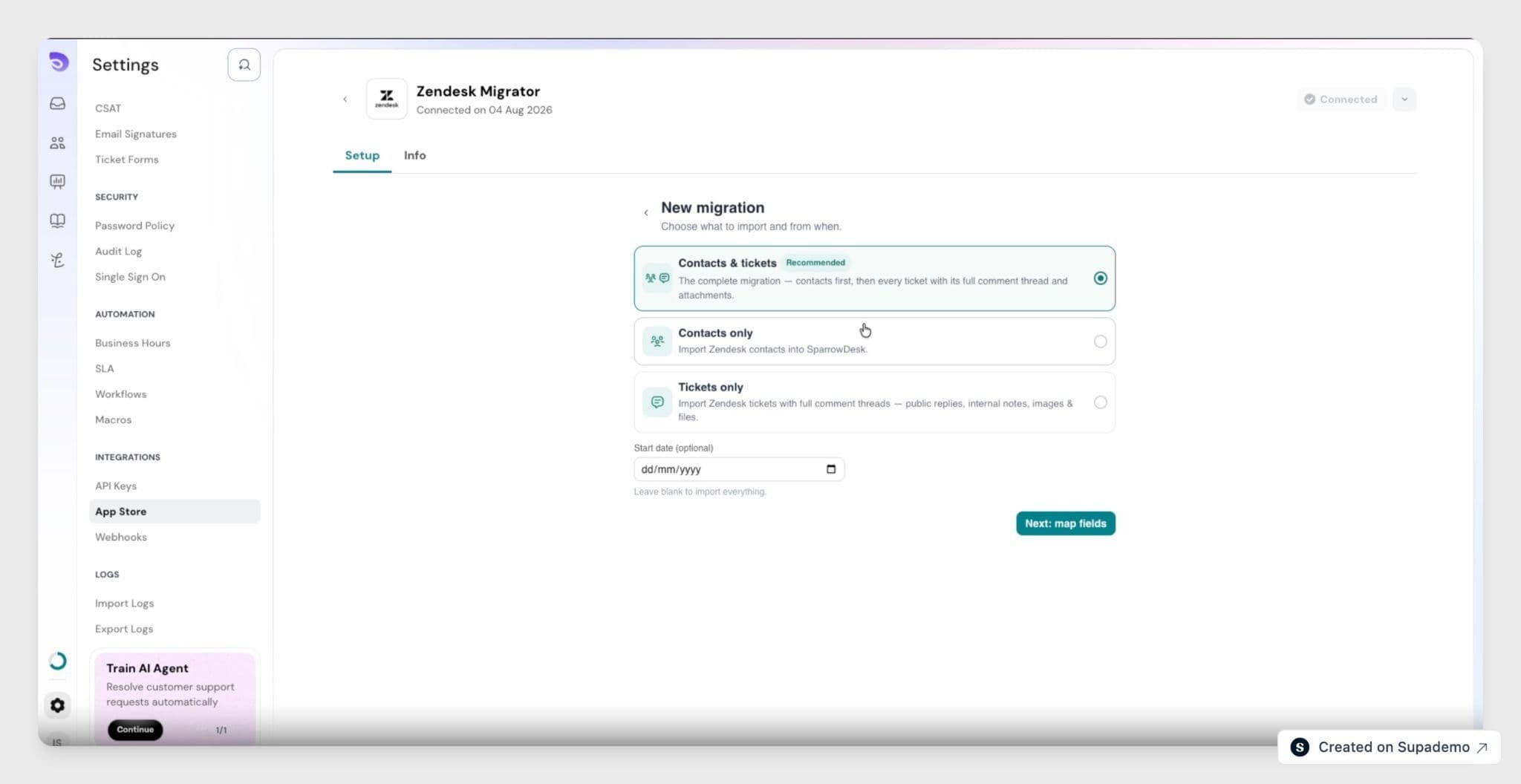
- Choose what to migrate. Pick Contacts only, Tickets only, or Both. To limit how far back you go, set a start date. Leave it blank to bring over everything, including archived tickets.
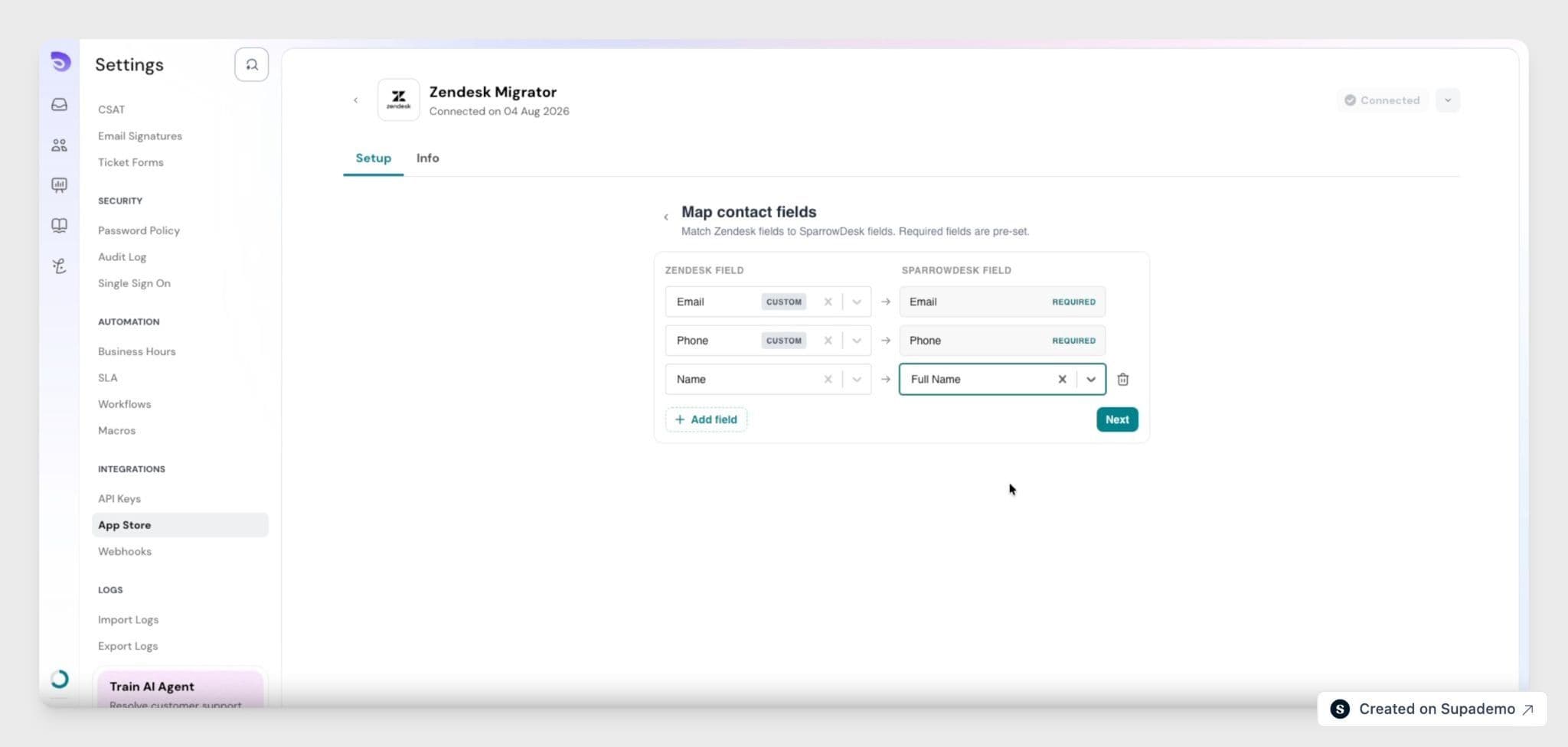
- Map your fields. For each SparrowDesk field, choose which Zendesk field fills it. You map contacts (Zendesk end-users) and tickets separately, based on the mode you picked. This mapping decides how your data lands, so take your time here.
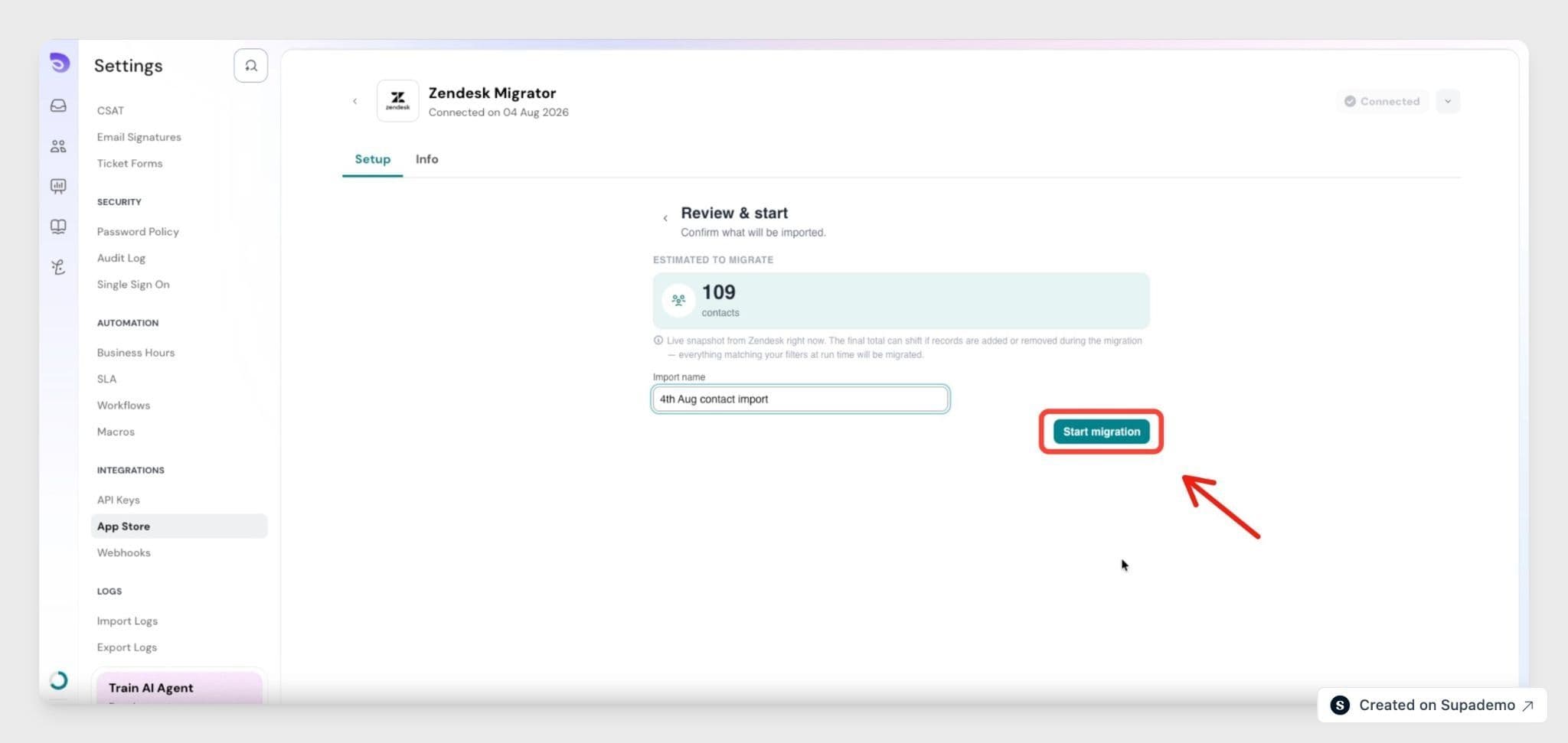
- Review the count and name the run. The app shows an estimate, for example "You're about to import 6,050 contacts." Give the run a unique name, then click Start migration.
- Let it run. The migration continues in the background, so you can close the tab and come back later. The Progress screen shows live counts of what's been created, updated, and failed.
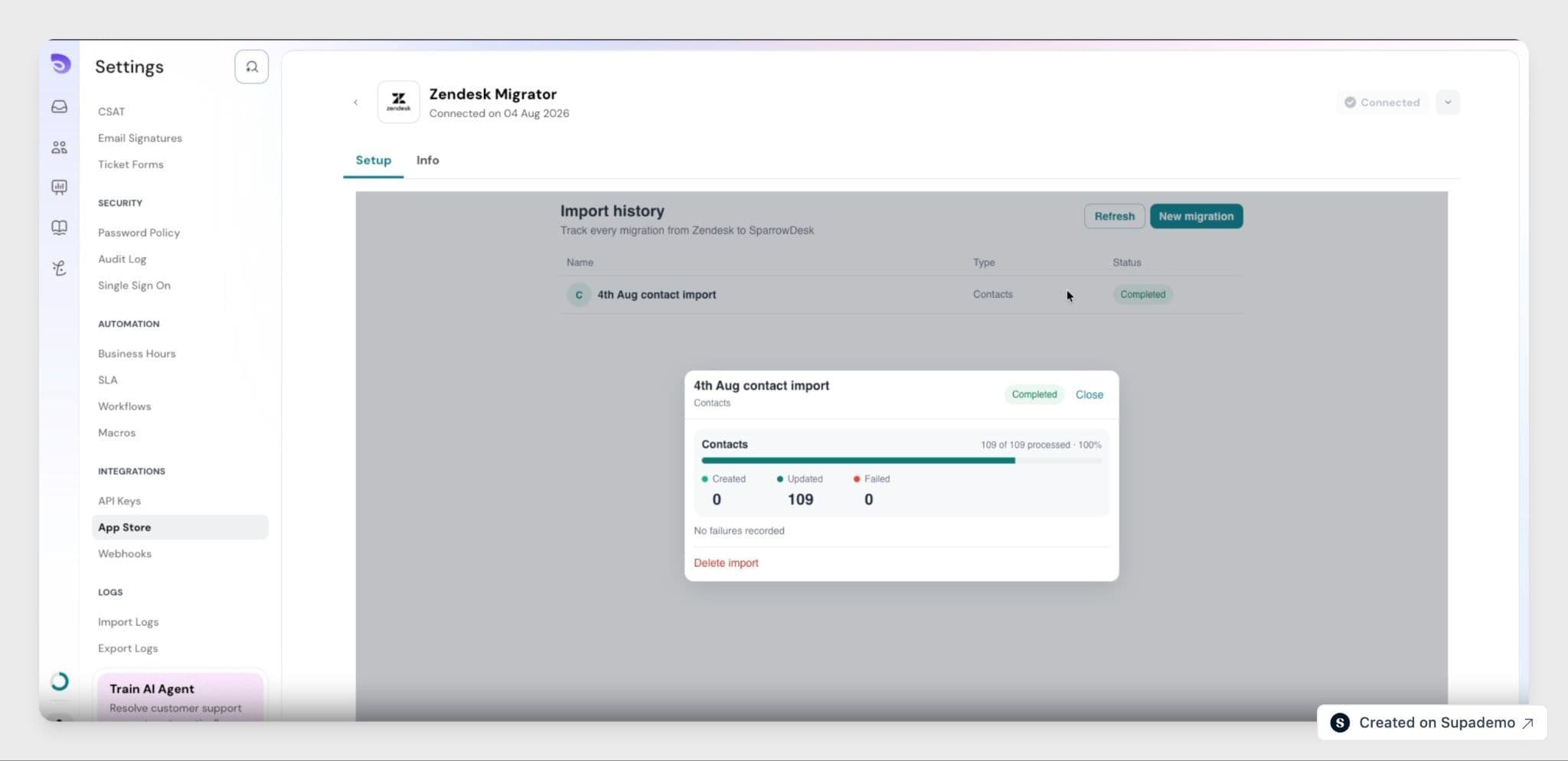
- Check the error report. When the run finishes, download the CSV error report. It lists every record that didn't make it across and why, so you know exactly what to check.
What comes across
Comes across:
- Contacts (Zendesk end-users), with the fields you mapped
- Tickets, including archived ones
- Every public reply and internal note on each ticket
- All attachments images and files on those threads
Does not come across:
- Organizations, Guide articles, macros, triggers, groups, and side conversations
- Anything added in Zendesk after the migration finishes
If a run stalls
You don't need to restart anything. The app checks its own progress every couple of minutes. If a step goes quiet without finishing, it restarts that step from where it left off. A step is only reported as failed after repeated automatic restarts don't get it moving.
Important: This is a one-time copy, not a live sync. Run it when you're ready to cut over. Anything added in Zendesk after the migration finishes won't appear in SparrowDesk on its own- run the migration again for the later date range to bring it across. There's no undoing once a migration completes.
FAQ
- Can I run the migration more than once?
Yes. Each run needs its own unique name, and re-running is safe; records already migrated are recognized by their Zendesk ID and updated, not duplicated. - Is my Zendesk password shared with SparrowDesk? No. Access uses OAuth: you approve it on Zendesk's own screen, and SparrowDesk only holds a revocable access token, never your password.
- How long does a migration take?
Anywhere from several minutes to a few hours, depending on how much data you're bringing over. It all runs in the background, so you don't need to keep the tab open. - Can I delete a migration I no longer need?
Yes, from the Imports list. Deleting clears the run along with its stored progress and error report, but it does not undo anything already written into SparrowDesk. - What happens to records that fail to import?
They're listed in the CSV error report with the reason for each failure, such as a required field being empty. Fix the record in Zendesk and include it in a later migration.