
Schedule a Report to Send by Email

Scheduled reports send a report as a PDF to the people you choose, on a repeating schedule, so your team gets the numbers without opening SparrowDesk.
Schedule a report
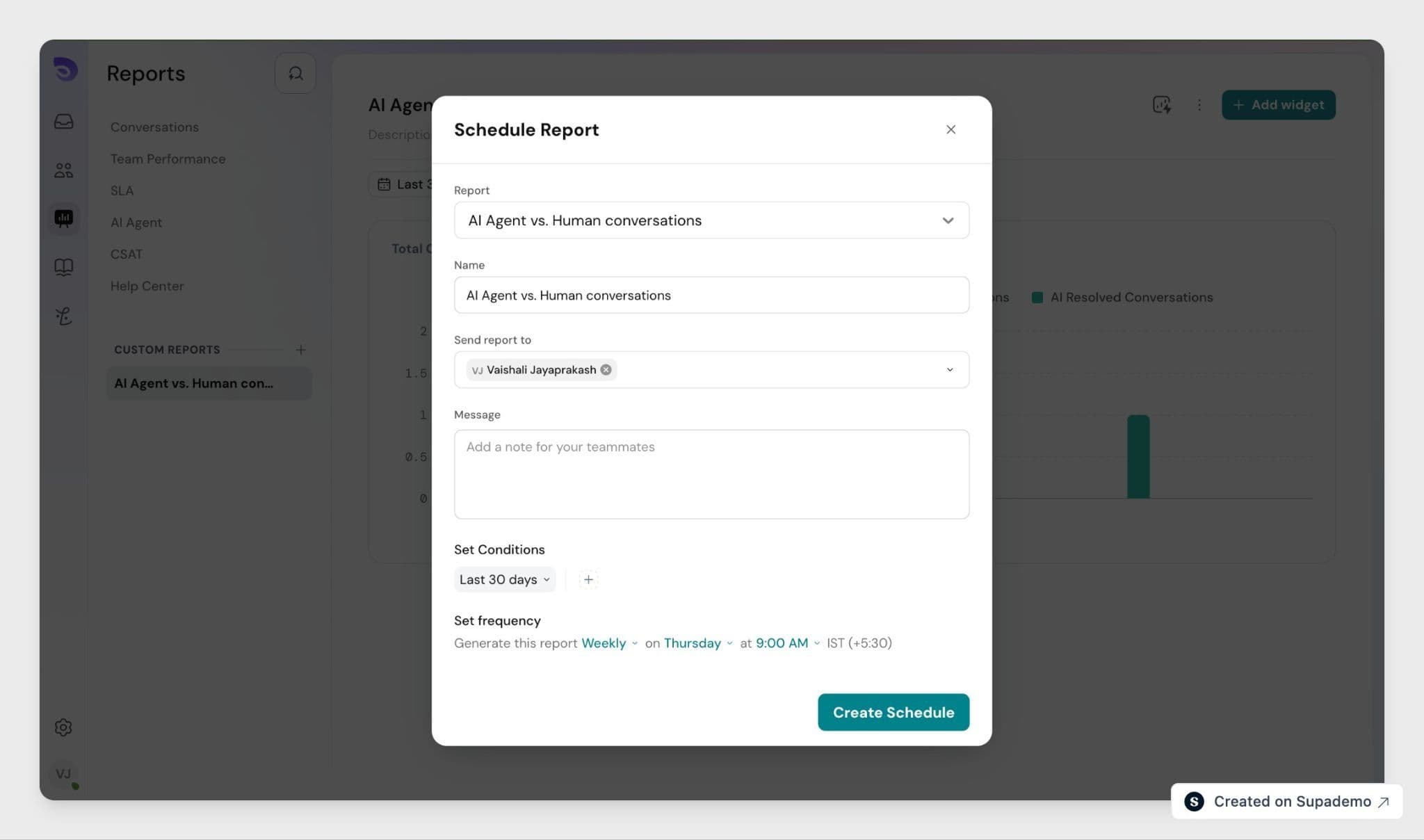
- Open Reports and select the report you want to send.
- Click Schedule.
- Set the frequency daily, weekly, or monthly and the send time.
- Add recipients by email address.
- Click Save. The first PDF goes out at the next scheduled time.
The report runs on your schedule and every recipient gets the same PDF by email.
What the PDF contains
The PDF includes only the data the report is authorized to access. If a report is scoped to a specific team, agent, or account, the emailed PDF stays within that scope.
Every recipient receives the same PDF. The file reflects the report's own scope, not each recipient's individual permissions, so only add recipients who are allowed to see that data.
Change or stop a schedule
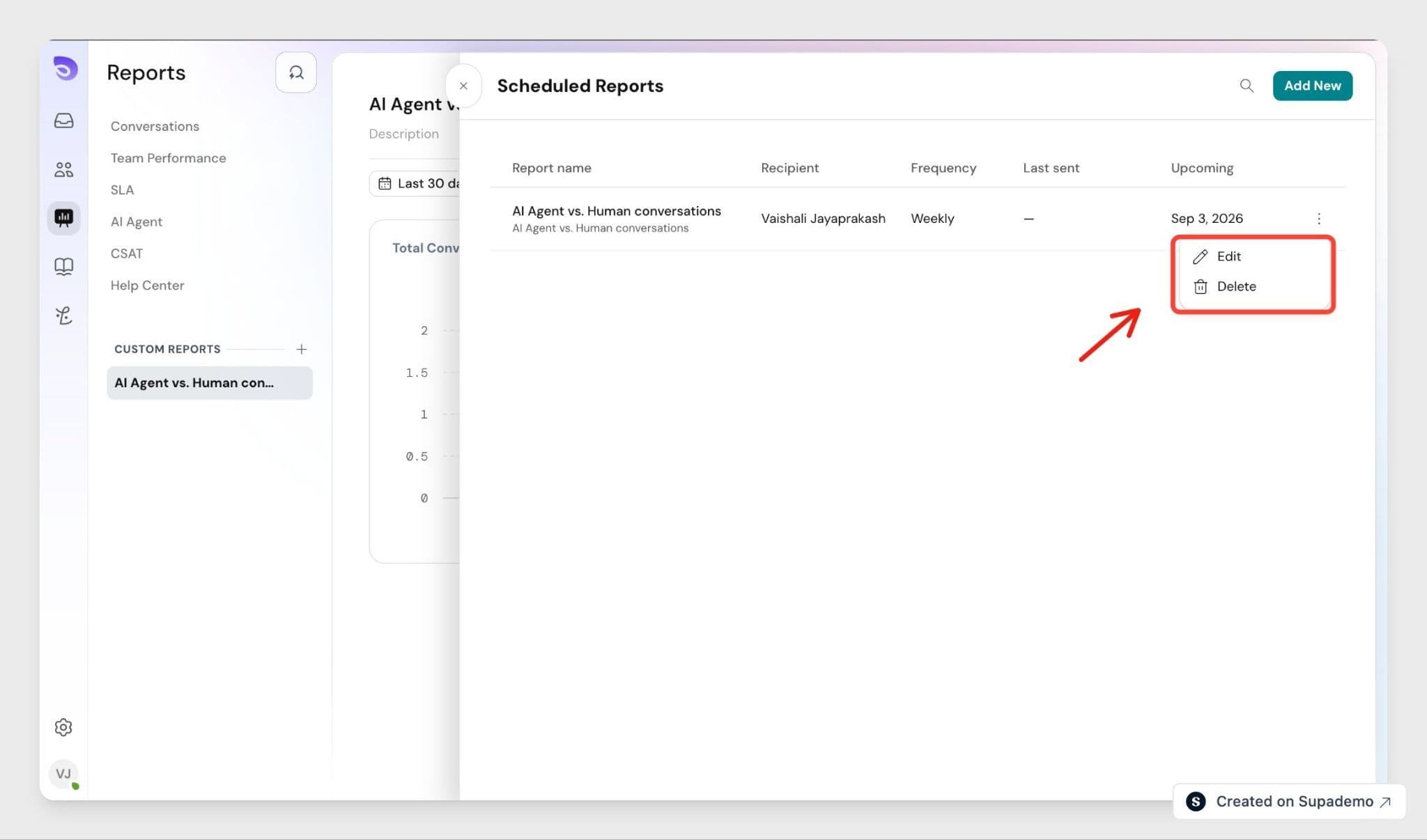
To change the frequency, recipients, or send time, reopen the report, click Schedule, edit, and save.
To stop delivery, delete the schedule.
Important: Deleting a report also deletes any scheduled delivery tied to it. There is no separate step to cancel the schedule.
FAQ
- Who is the scheduled email from?
Scheduled-report emails come from the same sender address used for your PDF export logs. Replies go to that same address. - Does SparrowDesk keep a copy of the PDF?
SparrowDesk keeps the PDF only long enough to generate, retry, and deliver it, following the same retention and deletion rules as Export to PDF. It does not store extra copies. - What happens if a scheduled send fails?
SparrowDesk retries delivery and records whether the run failed while generating the PDF or while sending the email. An admin can review scheduled-report activity in the Audit Log. - Can I stop someone from forwarding the PDF after it is sent?
No. Once a PDF is delivered, downloaded, or forwarded, how that copy is stored and shared is up to the recipient. SparrowDesk cannot recall a delivered PDF. - Can each recipient get a version filtered to their own access?
No. The PDF is the same for everyone on the schedule and matches the report's scope. To send different data to different people, set up a separate report and schedule for each.