
Discord Channel

Connect your Discord server to SparrowDesk so community and support messages become conversations in your Inbox, alongside email and chat.
Before You Start
- You need Admin access in SparrowDesk to connect a server, and an admin role on the Discord server itself.
- The Discord channel is available on Professional and Enterprise plans.
- Connecting multiple servers and mapping them to different brands is Enterprise only.
Connect Your Discord Server
- Go to Settings → Channels → Discord.
- Click Connect Discord and authorize the SparrowDesk bot through Discord.
- Select the server you want to connect.
- Map the server to a brand. Each server maps to one brand.
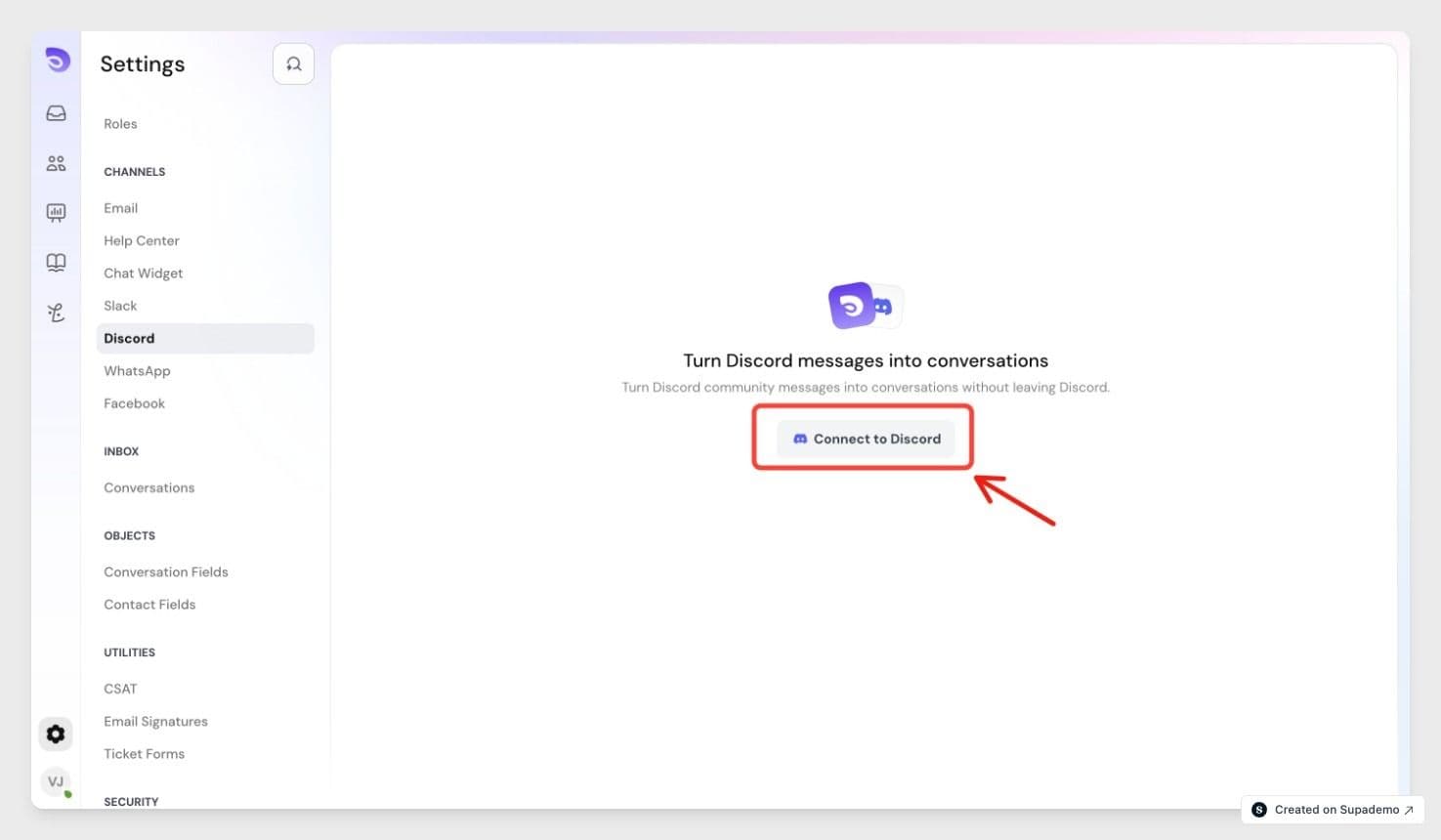
The bot joins your server but stays off in every channel until you turn channels on.
Turn On Channels
- In Discord settings, open the list of channels and forums.
- Toggle on each channel you want SparrowDesk to cover.
- In Discord, give the bot View Channel permission for any private channel.
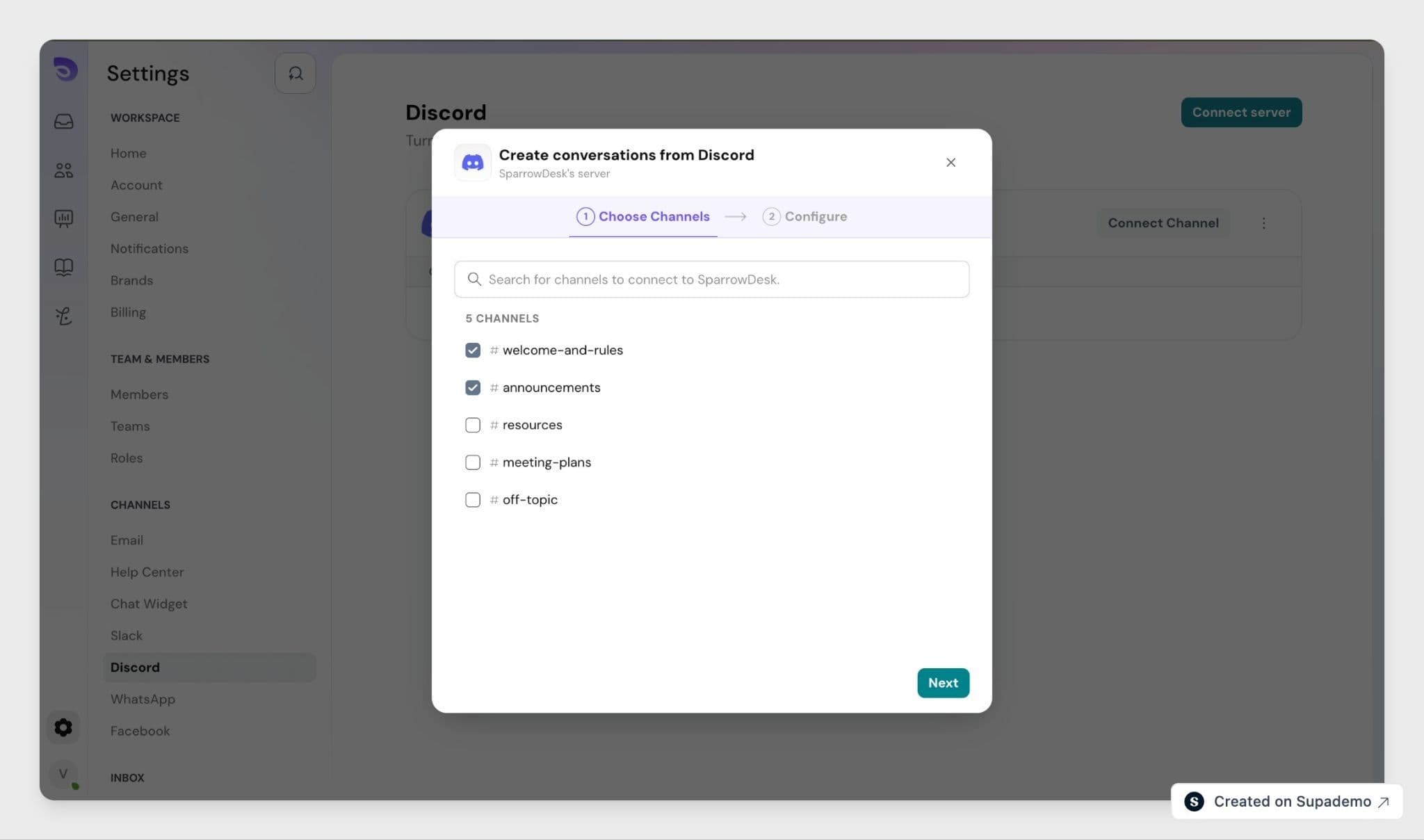
Important: Discord allows 10 webhooks per channel. If a channel already has 10, SparrowDesk warns you and blocks the channel until you free one up.
Choose How Conversations Are Captured
Set this per channel.
- Forum channels capture automatically. Each new post becomes one conversation, and replies append to it.
- Emoji trigger (regular channels): an agent reacts with the ticket emoji (default 🎫) to turn a message into a conversation. This is the recommended setting for busy channels.
- Every message (regular channels, off by default): every message becomes or joins a conversation. Consecutive messages from the same person within 5 minutes group into one.
- Mention the AI Agent (regular channels): mention the SparrowDesk AI Agent in a channel message, or in a reply to an existing message, to turn that message into a conversation. Use this when a single message needs to become a conversation without changing the channel's capture mode.
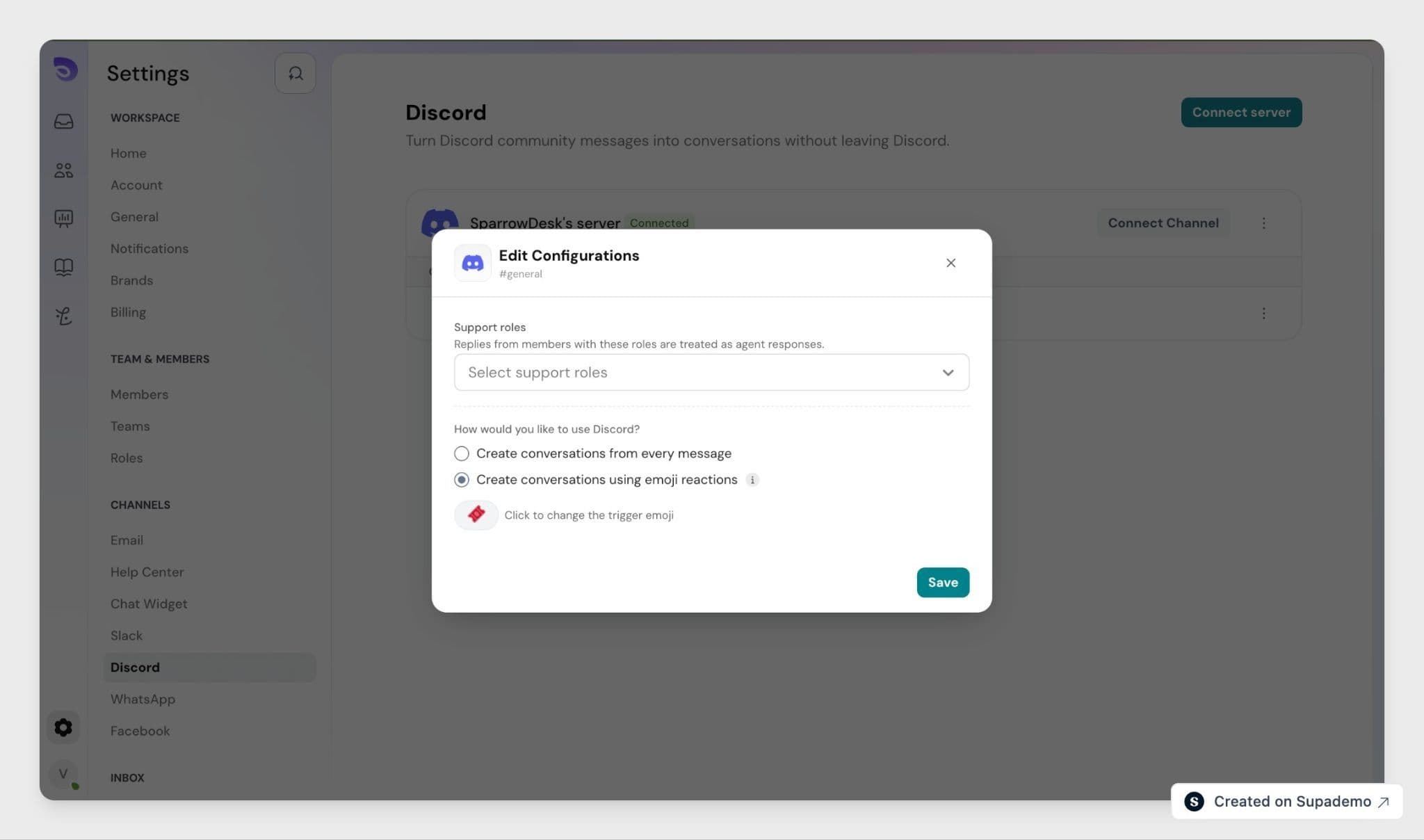
Designate Support-Agent Roles
Pick which Discord roles count as your support team. SparrowDesk stores these by role ID, not name, so renaming a role in Discord does not break the setup.
Holding a designated role lets someone trigger emoji tickets and marks their messages as agent replies. To tie those replies to a specific person, that agent also links their profile.
Link Agent Profiles
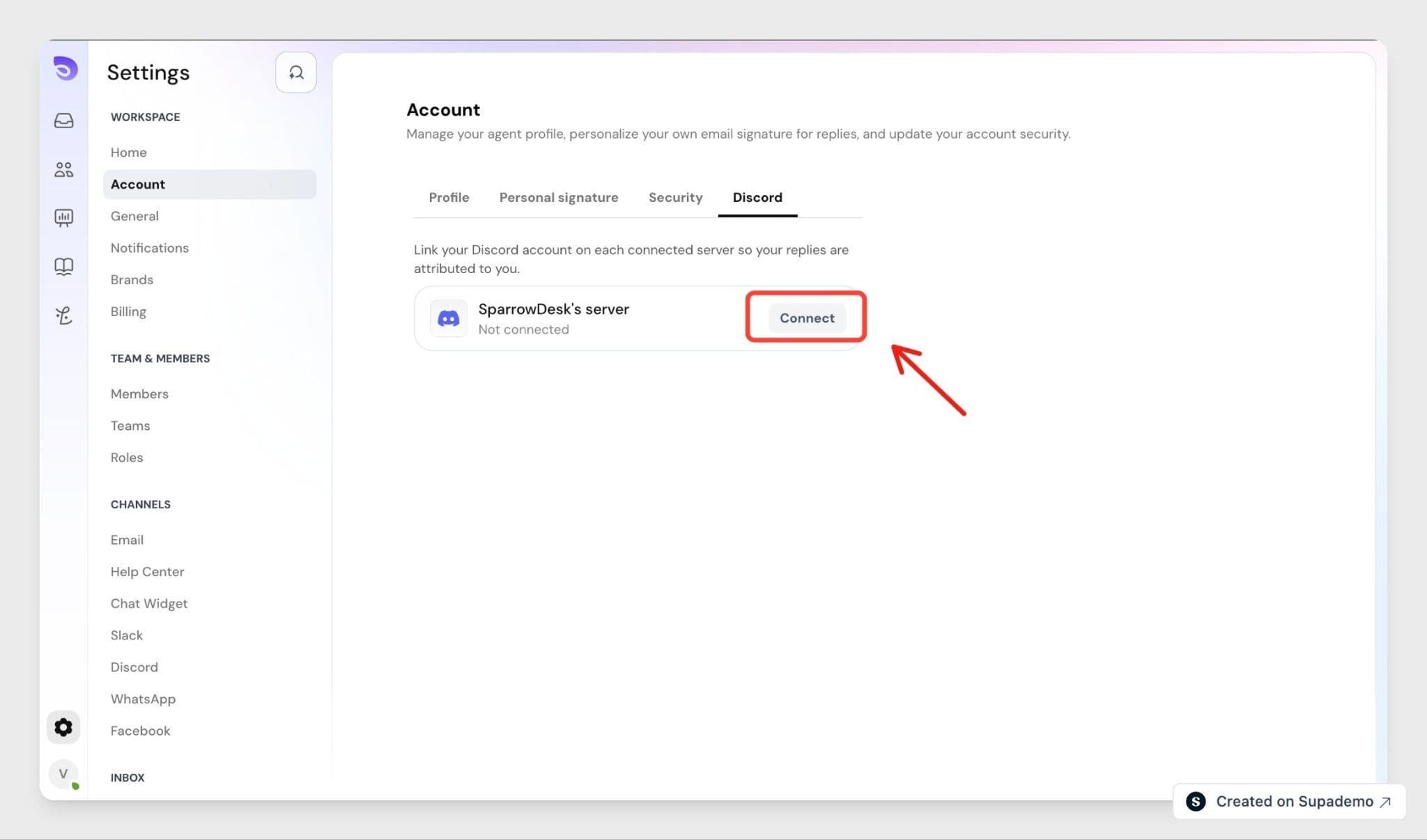
Each agent links their Discord account once so their replies post back under their own name and avatar.
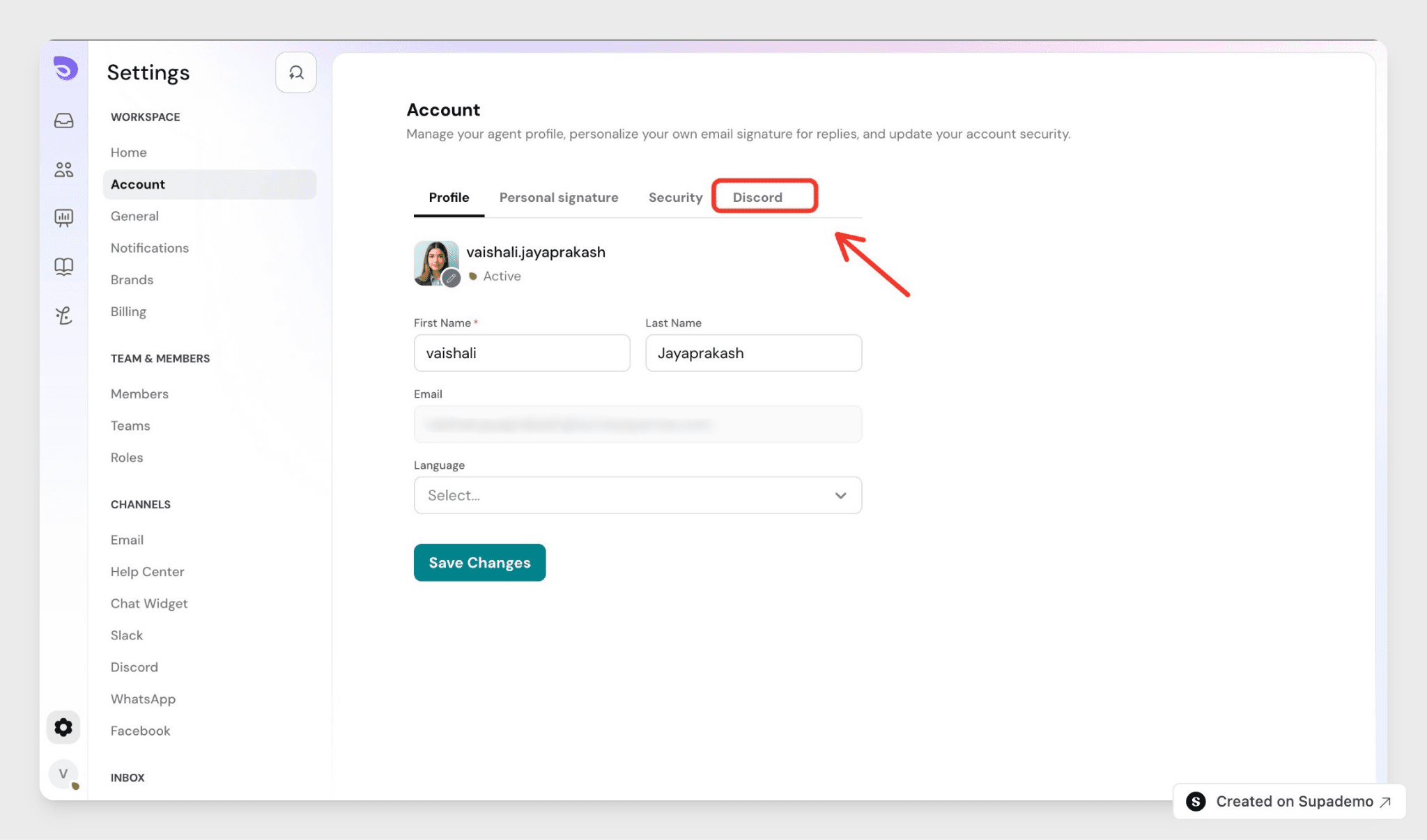
- Go to your Account Settings.
- Open the Discord section.
- Click Connect and authorize the Discord profile for the relevant server.
Once connected, SparrowDesk treats that Discord profile as this agent across the account, so replies and reactions from it are recognized as agent activity.
Reply to Discord Conversations
Open a Discord conversation in your Inbox and reply as you would on any channel. Your reply posts into the original Discord thread, and files and edits sync both ways.
For more on filtering, routing, and reporting by channel, see "Understanding the Inbox in SparrowDesk."
FAQ
- Do my customers need a SparrowDesk login?
No. They keep chatting in Discord and receive your replies in the same thread. There is no new portal or account for them to set up. - What happens if the bot is removed from a channel?
Syncing stops and the channel is marked disconnected. SparrowDesk alerts your admin and flags any open conversations as "delivery unavailable”- nothing is dropped silently. - Can agents reply from inside Discord instead of SparrowDesk?
Yes. A linked agent's native Discord reply is attributed to them by name. A reply from an unlinked agent who holds a support role is recognized as an agent reply but shown with generic attribution, with a prompt to link. - Is a customer's email captured?
No. Discord does not share user emails with bots. Contacts are keyed to the Discord user ID, so repeat messages from the same person attach to one contact instead of creating duplicates. - What happens to a message a customer edits or deletes?
The originally synced content stays in SparrowDesk. An edit may be appended and marked "edited in Discord," and a deleted message is retained for audit and marked "deleted in Discord."