
Similar Conversations in SparrowDesk

Similar conversations shows other conversations about the same issue while you work on one. When a customer writes in about a problem your team has already handled, SparrowDesk lists those earlier conversations in the conversation sidebar, including resolved ones, so you can see how it was answered before.
Similar conversations is available as an early-access feature. To turn it on for your account, contact support.
How It Works
Each time you open a conversation, SparrowDesk compares it with the other conversations in your account and uses AI to pick the ones about the same issue. It looks at what the customer wrote, such as the subject, the description, and their first messages.
- You see up to 5 similar conversations, the closest match first.
- Matches include open, pending, and resolved conversations.
- Matches can come from any channel, including email, live chat, WhatsApp, Facebook, and Instagram, so a chat can surface an earlier email conversation and the other way round.
- Matches come from the same brand as the conversation you're viewing, and from conversations created in the last 90 days.
- Internal notes are never used to find matches.
- When nothing is close enough, the section shows No similar conversations found rather than a weak guess.
Suggestions refresh as the conversation changes, for example when the customer sends a new message.
Turn On Similar Conversations
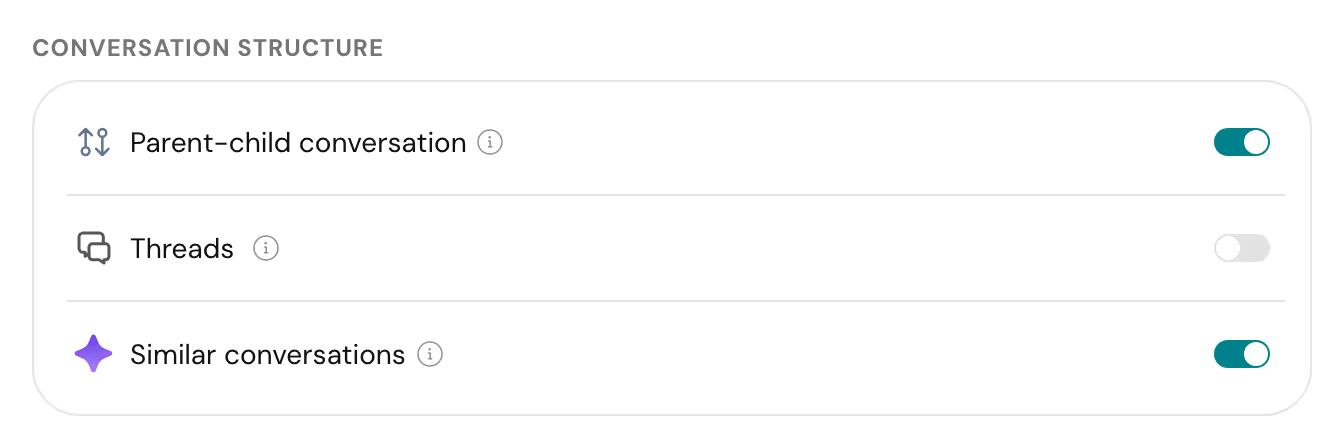
Similar conversations is an account-level setting. It is on by default, and an admin can turn it off or back on for the whole account.
To change the setting, you need the Overview permission. Admins have it by default.
- Go to Settings → Inbox → Conversations.
- Under Conversation structure, turn Similar conversations on or off.
The change applies to every agent in the account.
Find Similar Conversations in a Conversation
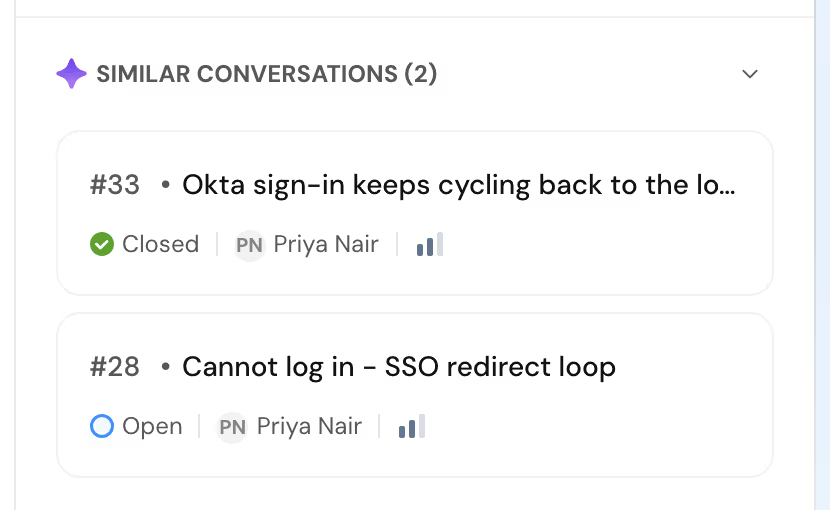
Open any conversation and look for the Similar conversations section in the right sidebar. The heading shows how many were found, for example Similar conversations (3).
Each card shows the conversation ID, subject, status, assignee, and priority.
- Click a card to open that conversation in a side panel, without leaving the one you're working on.
- Read how it was handled, then close the panel to return to your reply.
If a similar conversation belongs to a team or view you can't access, its card is locked and shows You don't have permission to access this conversation. You can see that it exists, but you can't open it.
The Hint Above the Reply Box
When SparrowDesk finds similar conversations, a hint appears just above the reply box, for example 2 similar conversations found. Click View to expand the Similar conversations section and jump to it in the sidebar.
The hint only appears when there's at least one match.

FAQ
- Who can see similar conversations?
Any agent who can view conversations. Suggestions you don't have access to appear as locked cards that you can't open. - Who can turn the feature on or off?
Anyone with the Overview permission, from Settings → Inbox → Conversations. The setting applies to the whole account and is on by default. - How many similar conversations are shown?
Up to 5, ordered from the closest match. - Why does a conversation show no similar conversations?
SparrowDesk only lists conversations it is confident are about the same issue, from the same brand and the last 90 days. A new kind of question, or a message with very little detail, may have no close match. Suggestions refresh as the customer adds more detail. - Are internal notes used to find matches?
No. Internal notes are never used to find or rank similar conversations. - Which plans include similar conversations?
Similar conversations is available on the Starter plan and above. It's currently in early access, so contact support to turn it on for your account.