
Attio Contacts in SparrowDesk

This integration brings Attio customer data into SparrowDesk, so agents see who they are talking to without opening the CRM.
The Attio Integration article covers the other direction, where SparrowDesk conversations appear under a Person record in Attio. The two run independently, and you can use both.
What this integration is used for
Once Attio is connected to your SparrowDesk account:
- Contact name, company, and job title from Attio appear in the SparrowDesk contact sidebar
- The same details appear while an agent is replying to a conversation in the Inbox
- Agents can open the full Attio record in one click when they need more context
- Agents can add a missing contact to Attio without leaving the conversation
Attio stays the source of truth for CRM data. SparrowDesk shows where the work happens.
Before you start
- You need an Account Owner or Admin role to connect or disconnect the integration. Agents cannot.
- You need an Attio API key
- Available on Starter, Professional, and Enterprise plans.
There is no cap on how many integrations an account connects, and no usage limit tied to Attio.
Connecting Attio to SparrowDesk
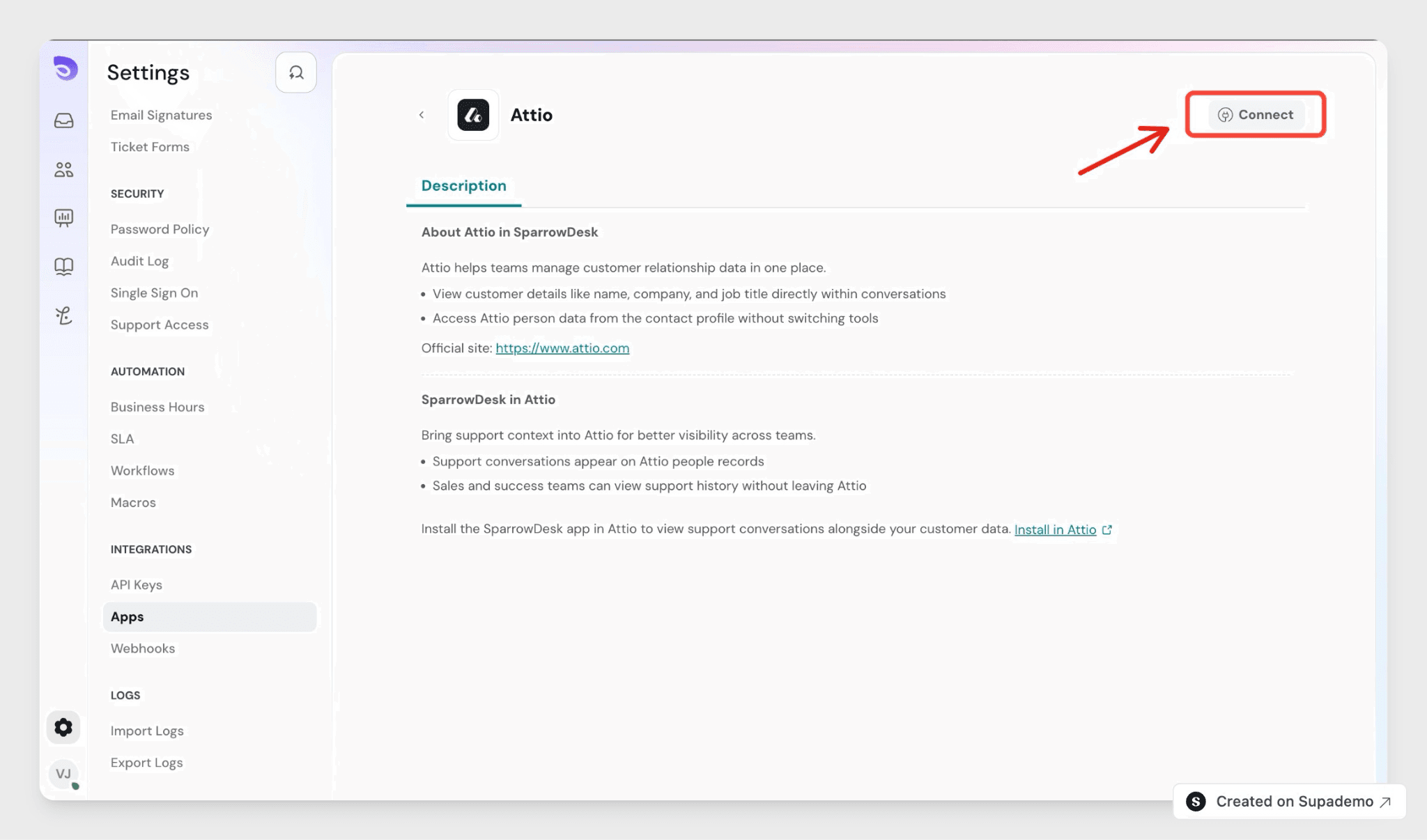
- Go to Settings → Integrations.
- Find Attio and click Connect.
- Paste your Attio API key and save.
The connection is account wide. Every agent with contact access sees Attio data from the next page load.
How contacts are matched
SparrowDesk looks up the contact's email address against Attio. Email is the only lookup key, so a contact with a phone number but no email will not match.
In an Inbox conversation, only the primary contact is looked up. People on CC are excluded, even if they exist in Attio.
Where Attio data appears
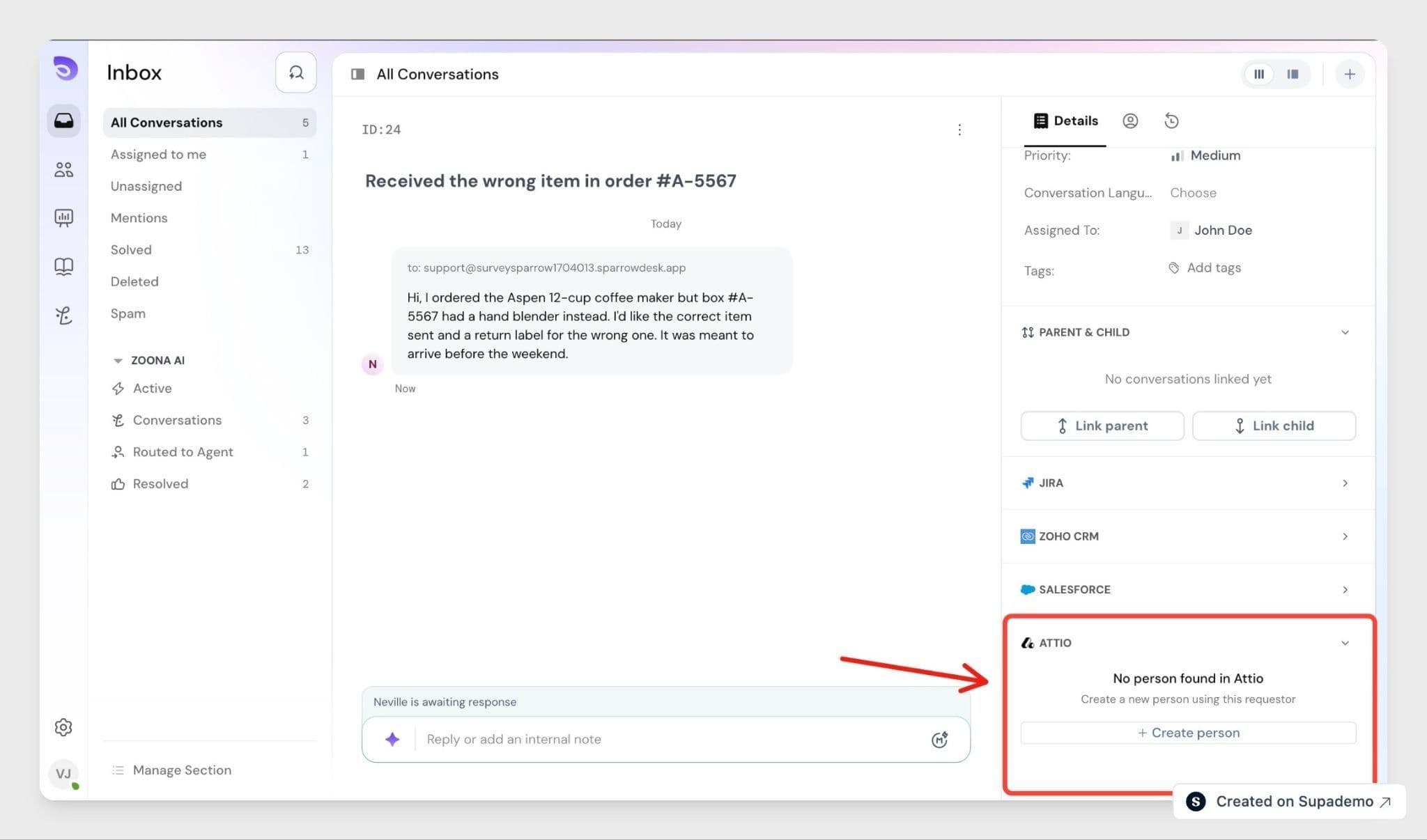
The Attio section sits in the right panel and can be collapsed. You will see it in two places:
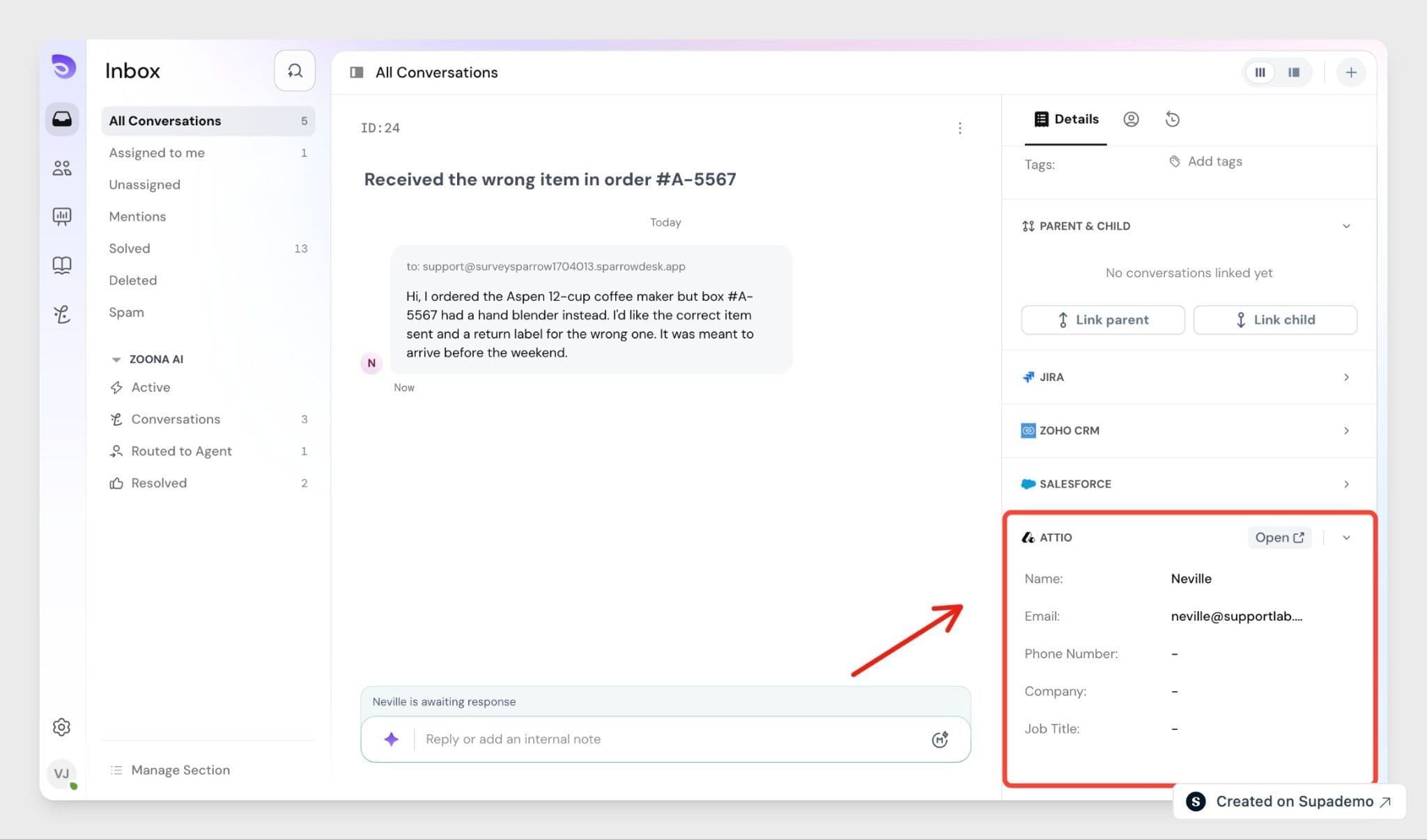
- In the Inbox. Open any conversation and the panel shows the primary contact's Attio details beside the reply composer.
- In Contacts. Click any row in the contacts list and the panel appears alongside the existing SparrowDesk contact details.
When a match is found, the panel shows the contact name, company name, job title, and a link that opens the record in Attio in a new tab.
All of it is read only. To change any value, open the record in Attio.
Creating a missing Attio contact
If no Attio record matches the email, an agent can create one from the panel.
- In the Attio panel, click Create contact.
- The modal opens with the email pre-filled. The email field is locked and cannot be changed here.
- Edit the name if needed, then add a job title and description.
- Click Create.
On success, the modal confirms it and the panel refreshes to show the new record.
If it fails, an error appears and the modal stays open, so nothing you typed is lost and you can submit again.
What syncs and what doesn't
What syncs
- Attio name, company, and job title, read into the SparrowDesk panel
- Contacts created from SparrowDesk, written into Attio
- Later changes to a linked contact's details in SparrowDesk
What doesn't sync
- A bulk import of your existing Attio contacts into SparrowDesk
- Edits made to Attio data from inside SparrowDesk, since the panel is read only
- Deletions. There is no way to delete an Attio record from SparrowDesk
- Contacts with no email address, since email is the only match key
Who can do what
Action | Account Owner | Admin | Agent |
Connect or disconnect Attio | Yes | Yes | No |
View the Attio panel | Yes | Yes | Yes |
Create an Attio contact from SparrowDesk | Yes | Yes | Yes |
Edit Attio data from SparrowDesk | No | No | No |
Agents need no extra role setup. Panel visibility follows their existing contact and conversation access.
Disconnecting the integration
An Account Owner or Admin disconnects Attio from Settings → Integrations. The panel is removed from every contact and conversation the next time the page loads. Nothing in Attio is deleted.
Summary
- Connect Attio once from Settings → Integrations, using your Attio API key
- Attio matches contacts by email address only
- Agents see name, company, and job title in the Inbox and in Contacts
- Missing contacts can be created from the panel, everything else is read only
- Disconnecting removes the panel and leaves your Attio data untouched
Frequently Asked Questions
1. Can a contact be matched by phone number or name?
No. Email address is the only lookup key in this version. A contact with no email on file will not show Attio data.
2. Why is there no Attio data for someone on CC?
Only the primary contact on a conversation is looked up. People on CC are excluded, even if a record exists for them in Attio.
3. Can agents edit Attio details from SparrowDesk?
No. The panel is read only. Creating a new contact is the one write action available. For anything else, open the record in Attio using the link in the panel.
4. What happens if creating a contact fails?
An error appears and the modal stays open with your entries intact, so you can submit again. Nothing is created in Attio until it succeeds.
5. How is this different from the Attio Integration article?
That one sends SparrowDesk conversations into Attio, where your CRM team views them under a Person. This one brings Attio data into SparrowDesk for your agents. They are separate, and you can run both.
6. Do I lose anything in Attio if I disconnect?
No. Disconnecting only removes the panel from SparrowDesk. Your Attio records, including any created from SparrowDesk, stay as they are.