
Statuspage Integration

The Statuspage app shows the health of your services next to every conversation in SparrowDesk. Statuspage is Atlassian's tool for publishing service status and incidents. SparrowDesk reads your status page and shows the result in the conversation sidebar, so an agent can tell an outage is underway without leaving a reply.
How Statuspage Works in SparrowDesk
The integration answers one question while an agent replies: is something broken on our side right now?
- Agents see the status of your services in the conversation sidebar, with a View button that opens your full status page.
- Admins connect it once from the Apps page. Both public and private status pages are supported.
- Customers get faster, consistent answers during an outage, because the agent already knows about it.
SparrowDesk only reads from Statuspage. It never creates, updates, or closes incidents. The sidebar shows component status only, not incident titles or update text.
What You Need First
- Permission: the Manage Apps permission to connect, edit, or disconnect the app. Account Owners and Admins have it by default. Agents don't need any permission to see the sidebar section.
- Plan: available on all plans.
- A Statuspage page ID. You'll find it in your Statuspage management URL. In https://manage.statuspage.io/pages/kctbh9vrtdwd/incidents, the page ID is kctbh9vrtdwd.
- A Statuspage API key, only if your status page is private.
Connect Statuspage
You can connect one status page per account. The connection is account-wide and applies to every brand.
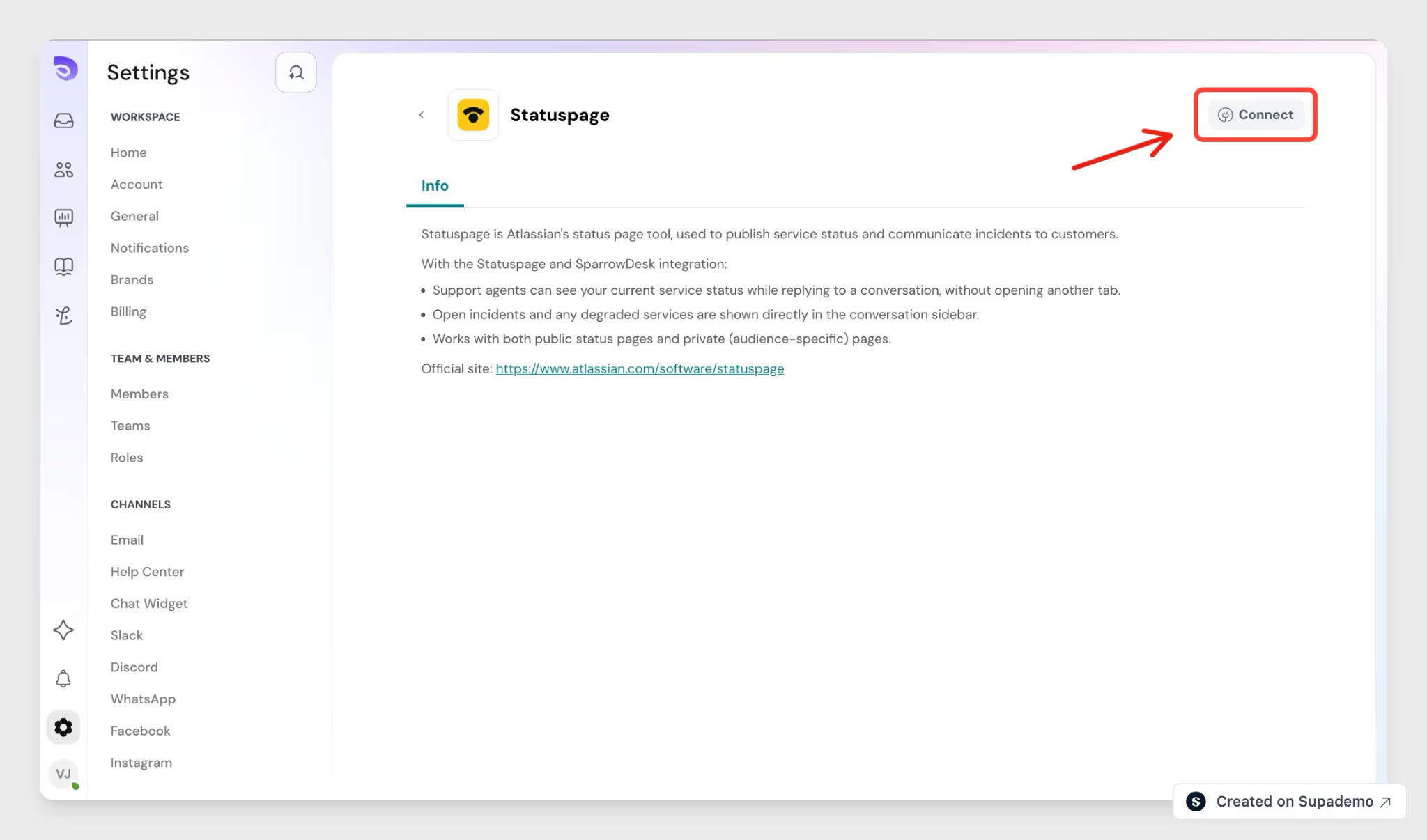
- Go to Settings → Apps.
- Find the Statuspage card and click Connect. The Connect Statuspage modal opens.
- Enter your Page ID.
- If your status page is private, tick My status page is private. The API key field appears.
- Paste your API key.
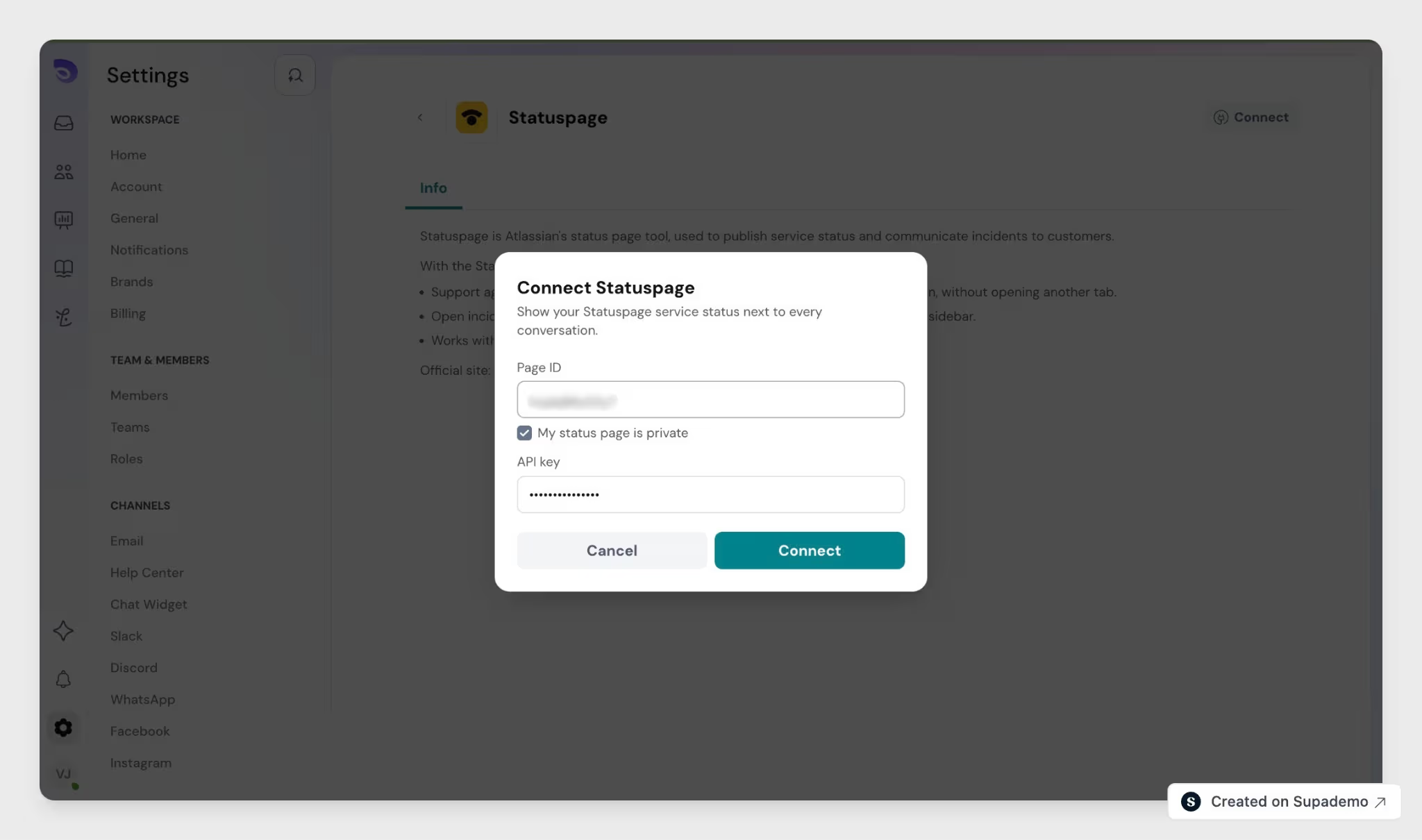
- Click Connect. SparrowDesk reads your status page once to check the connection.
- If it works, you'll see Statuspage connected and the card changes to Connected.
- If the page ID is wrong, you'll see: "We couldn't read that status page. Check the page ID, or connect with an API key if the page is private."
- If the API key is invalid or can't access the page, you'll see: "The API key is invalid or has no access to this page. Please check and try again."
See Service Status in a Conversation
Once Statuspage is connected, every agent sees a Statuspage section in the conversation sidebar, in both chats and email conversations.
- Open any conversation.
- In the sidebar, click the Statuspage section to expand it. It starts to collapse.
- Check the status:
- When everything is working, you'll see All Systems Operational and the time it was last updated.
- When something isn't working, the components with problems are listed with their status. Operational components aren't listed.
- To see the full status page, click View.
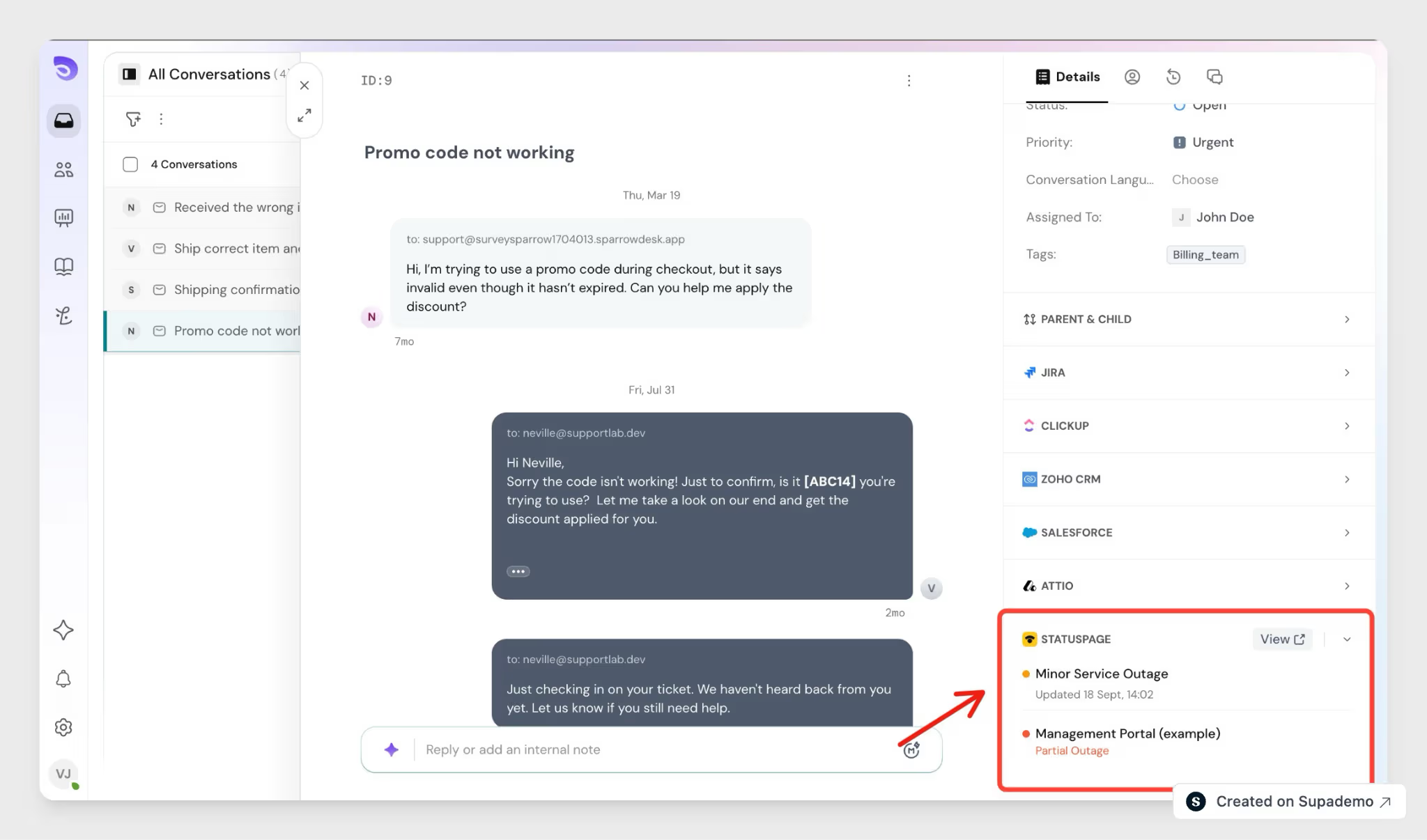
The status loads when you open the conversation and refreshes every 3 minutes while the sidebar is open. It can be up to about a minute behind your status page, so it isn't real time.
Edit or Disconnect Statuspage
To change the page ID or API key:
- Go to Settings → Apps and open the menu on the Statuspage card.
- Select Edit Configuration. The app's detail page opens on the Setup tab.
- Update the page ID or API key. To keep your current API key, leave the field blank.
- Click Save changes. You'll see Statuspage settings updated.
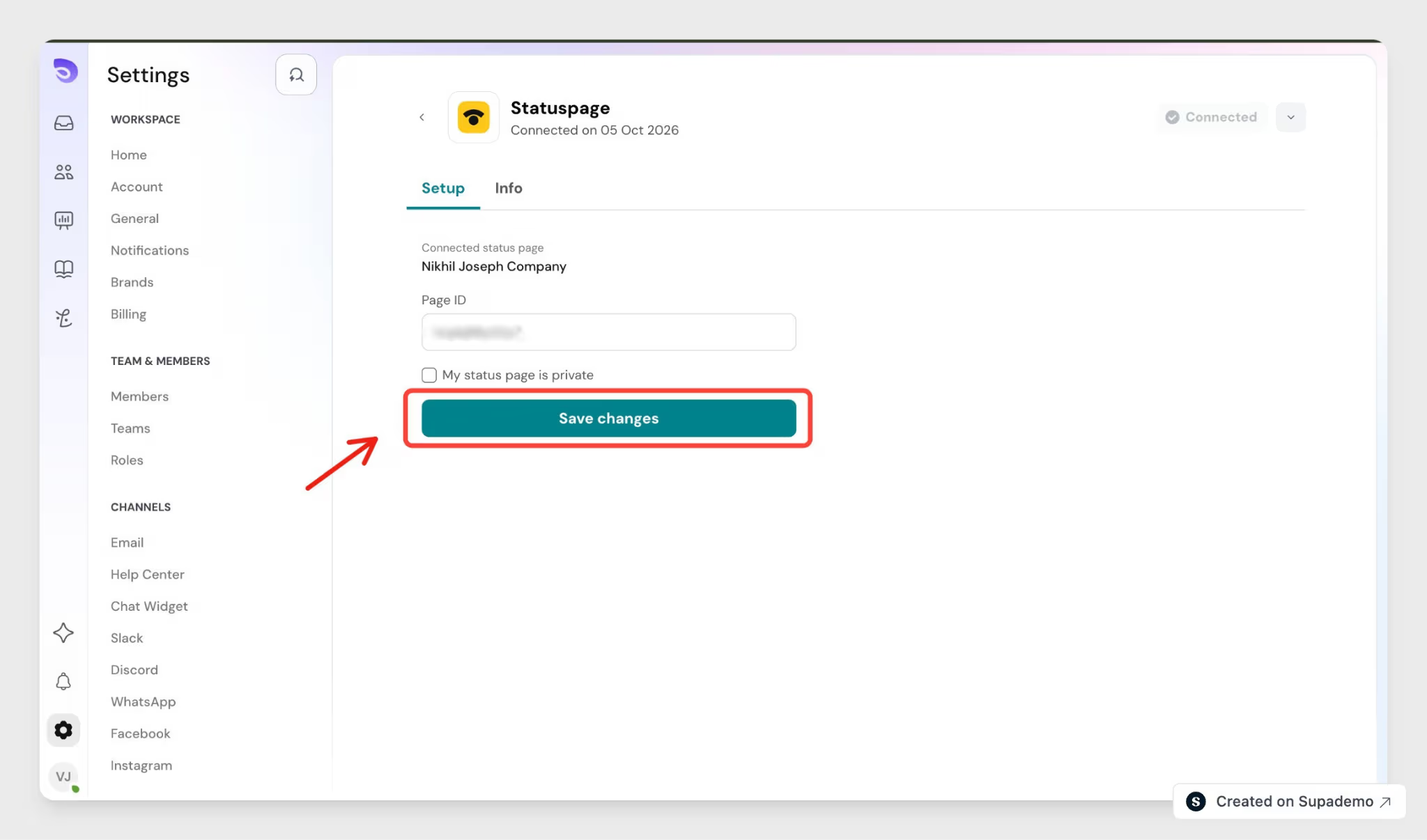
Note: Entering a different page ID replaces the connected page. An account can only have one status page connected at a time.
To disconnect
- Open the menu on the Statuspage card.
- Select Disconnect and confirm.
Disconnecting removes the stored connection and clears the status. The Statuspage section disappears from the sidebar for all agents.
What If the Sidebar Shows an Error?
If agents see Unable to load Statuspage data and There was a problem connecting to Statuspage, SparrowDesk can no longer read your status page. This usually means the API key was revoked or changed in Statuspage.
Admins don't get an alert, and the app card still shows Connected, so check the sidebar if agents report the error. To fix it, open the Setup tab, enter a new API key, and click Save changes.
FAQ
- Does SparrowDesk change anything in Statuspage?
No. SparrowDesk only reads your status page. It never creates, updates, or resolves incidents. - Can I connect more than one status page?
No. You can connect one status page per account, and it applies to every brand. Connecting a different page ID replaces the current one. - How up to date is the status?
The status loads when you open a conversation and refreshes every 3 minutes while the sidebar is open. It can be up to about a minute behind your status page, so it isn't real time. - Can agents see incident details in the sidebar?
No. The sidebar shows component status only. To read incident updates, click View to open your status page. - Who can connect or change the integration?
Only the Account Owner, Admins, or custom roles with the Manage Apps permission can connect, edit, or disconnect Statuspage. Every agent can see the Statuspage section in the sidebar, without any extra permission. - Why does the sidebar say "Unable to load Statuspage data"?
SparrowDesk can't read your status page, often because the API key was revoked. The app card still shows Connected and admins aren't alerted. An admin can fix it by entering a new API key on the Setup tab.