
Stripe Integration
If your support team answers customers in SparrowDesk while your billing lives in Stripe, agents often have to ask for Stripe access or switch tabs just to answer a simple billing question.
With the Stripe integration, agents can see a customer's Stripe subscriptions and recent payments right inside the ticket. SparrowDesk matches the contact's email to your Stripe customers, so agents can answer billing questions without leaving the conversation.
What you can do with the Stripe integration
Once Stripe is connected, agents can:
- See the matching Stripe customer and how long they have been a customer
- View the customer's recent subscriptions, with their plan, price and renewal date
- View the customer's recent payments, including failed, refunded and disputed payments
- Spot billing issues at a glance, such as past due or unpaid subscriptions
- Open the customer, a subscription or a payment directly in Stripe
Before you start
Make sure you have:
- Admin access in SparrowDesk
- A Stripe account
- Permission to install apps in that Stripe account
Note: The integration is read-only. SparrowDesk can view customers, subscriptions, payments and products in Stripe, but it cannot create, change, refund or cancel anything.
Connecting Stripe to SparrowDesk
To start using the integration, first connect your Stripe account.
Steps
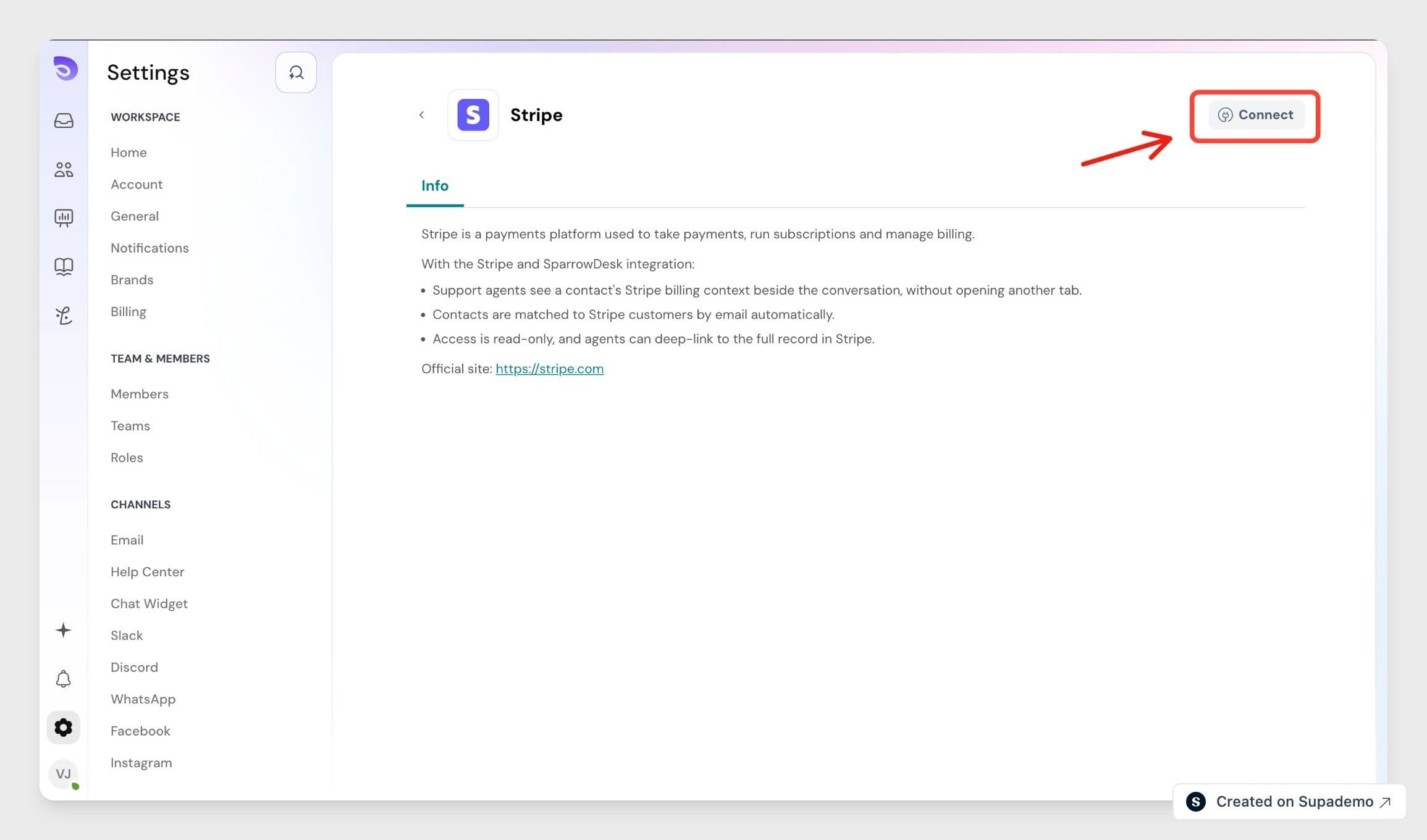
- Go to Settings in SparrowDesk
- Click Integrations
- Find Stripe in the list of integrations
- Click Connect
- Sign in to Stripe and choose the Stripe account you want to connect
- Review the permissions and install the SparrowDesk app
Once the connection is complete, you are taken back to SparrowDesk and your agents can start seeing Stripe details in their tickets.
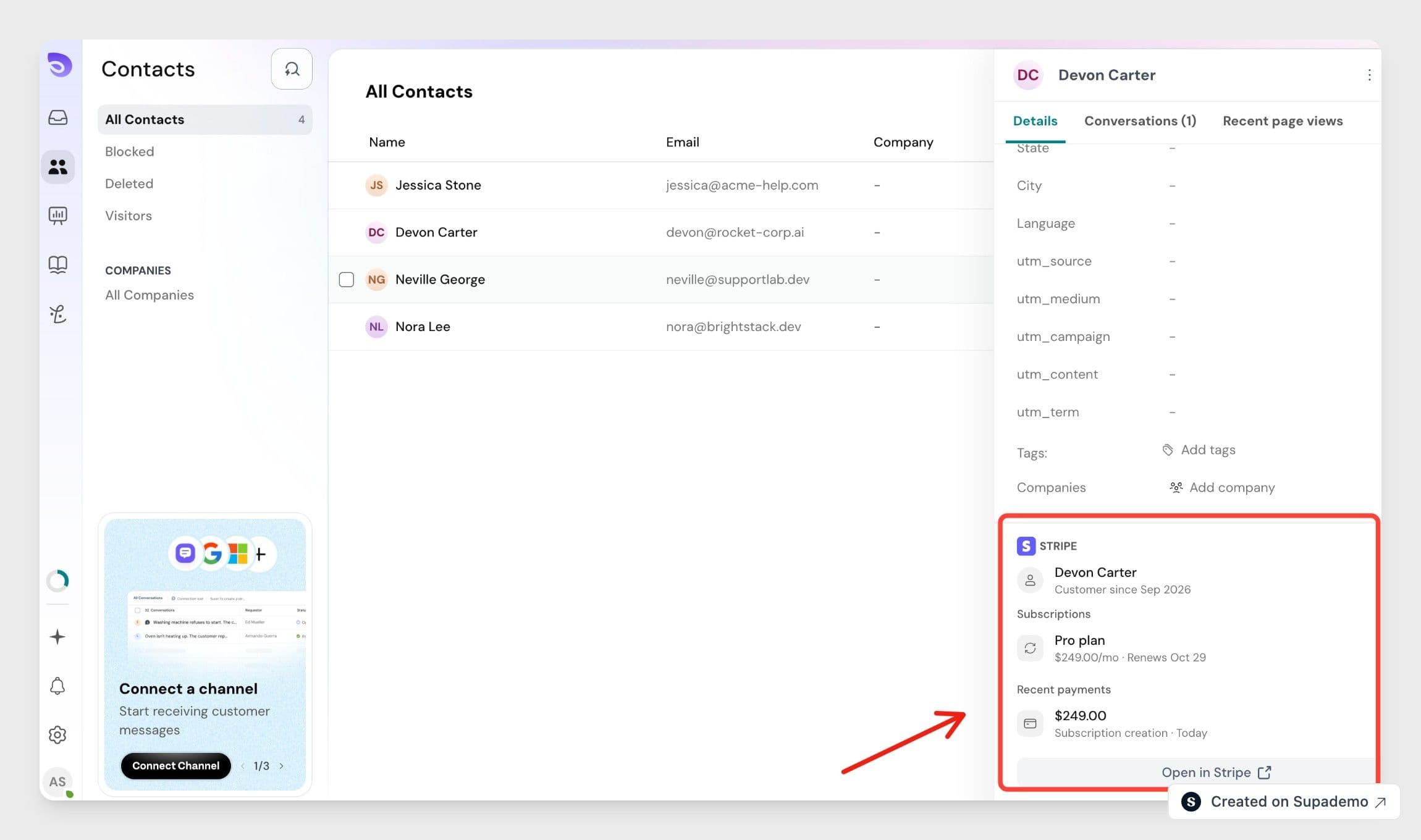
Viewing a customer's Stripe billing in a ticket
When you open a ticket, the Stripe section in the sidebar shows the Stripe customer whose email matches the contact. You can also see it on the contact's profile.
For each customer, you'll see:
- Customer since: when the customer was created in Stripe
- Subscriptions: the 3 most recent subscriptions, with the plan, price and when it renews, cancels or when the trial ends
- Recent payments: the 3 most recent payments, with the amount, what it was for and when it was made
If a customer has more than 3 subscriptions or payments, click View all subscriptions or View all payments to see the full list in Stripe.
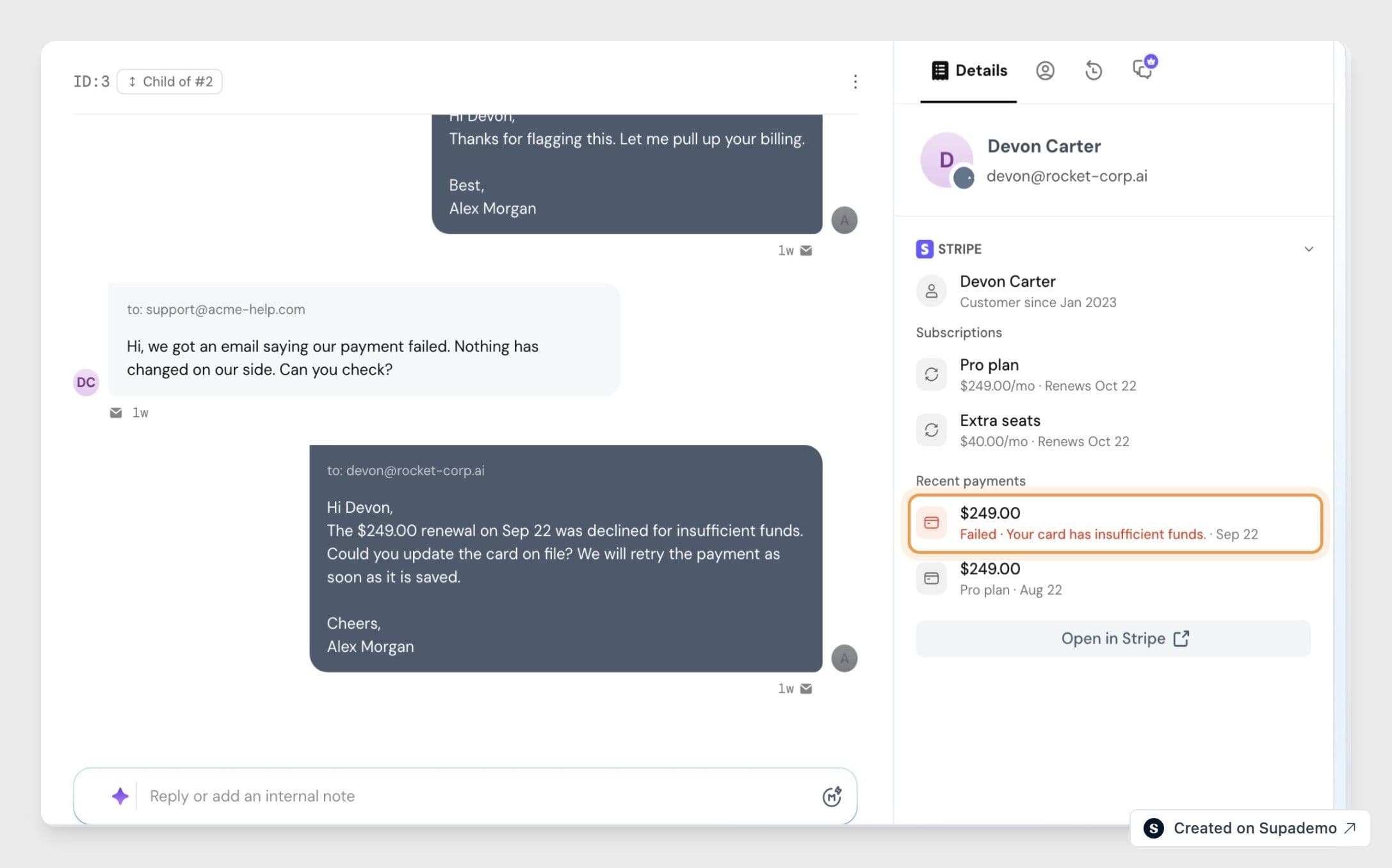
Spotting billing issues
Subscriptions and payments that need attention are labelled so agents can spot them quickly:
- Subscriptions: Trialing, Past due, Unpaid, Incomplete, Paused, Cancelled and Expired. Subscriptions set to end show Cancels with the date.
- Payments: Failed (with the reason from Stripe), Refunded, Disputed and Pending.
Past due, unpaid and failed items are highlighted, so agents know a billing problem may be behind the customer's question.
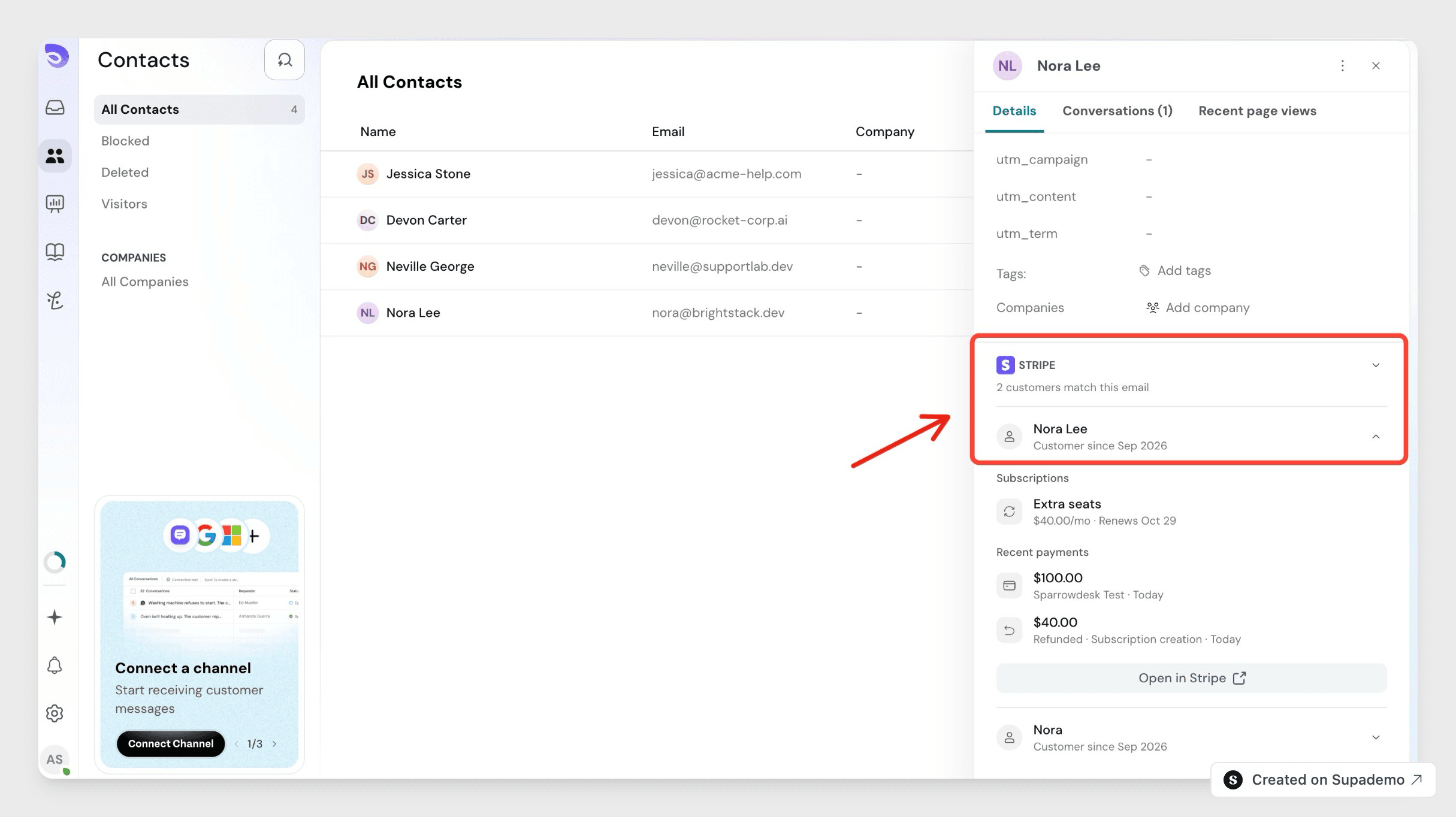
Customers who share an email
If more than one Stripe customer uses the same email, SparrowDesk shows how many match, for example 2 customers match this email. Each customer is listed separately. Click a customer to expand it and see their subscriptions and payments.
Opening records in Stripe
To see the full customer record, click Open in Stripe. To open a specific subscription or payment, click the icon next to it.
The record opens in your Stripe Dashboard.
Note: If no Stripe customer uses the contact's email, the section shows No Stripe customer found. Check that the contact's email matches the email on the customer in Stripe.
Disconnecting Stripe
If you no longer want to use the integration, you can disconnect it from SparrowDesk Settings at any time.
- Go to Settings
- Open Integrations
- Select Stripe
- Click Disconnect
Once disconnected, the Stripe section no longer appears in tickets or contact profiles.
Note: Disconnecting doesn't change anything in your Stripe account. You can reconnect at any time by following the connection steps again.
Summary
The Stripe integration gives your support team the billing context they need, right in the ticket:
- Connect Stripe from SparrowDesk → Settings → Integrations
- See a customer's subscriptions and recent payments in the ticket sidebar and contact profile
- Spot past due, unpaid, failed and disputed items at a glance
- Open any customer, subscription or payment in Stripe with one click
Once connected, agents can answer billing questions without leaving SparrowDesk or asking for Stripe access.
Frequently Asked Questions
1. Can all agents see Stripe details once it is connected?
Yes. Once an admin connects Stripe, all agents see the Stripe section in their tickets. No individual setup is needed per agent.
2. Can SparrowDesk change anything in my Stripe account?
No. The integration is read-only. It can view customers, subscriptions, payments and products, but it cannot create, update, refund or cancel anything.
3. How does SparrowDesk find the right Stripe customer?
SparrowDesk matches the contact's email with the email on your Stripe customers. If the contact has no email, add one to see Stripe details.
4. What if more than one Stripe customer has the same email?
All matching customers are shown. Click a customer to expand it and see their subscriptions and payments.
5. How many subscriptions and payments are shown?
The 3 most recent subscriptions and the 3 most recent payments. Use View all subscriptions or View all payments to see the rest in Stripe.
6. Is the Stripe data up to date?
Yes. SparrowDesk loads the details from Stripe when you open the ticket, so you always see the latest subscriptions and payments.
7. What happens if I disconnect Stripe?
The Stripe section is removed from tickets and contact profiles. Nothing in your Stripe account is changed, and you can reconnect at any time.