
Asana integration

The Asana integration connects SparrowDesk to one Asana workspace. From a conversation, you can create an Asana task, link tasks that already exist, and see whether each one is done and who owns it, without leaving the Inbox.
What You Need First
- Permission: the App Store permission. You need it to connect Asana in Settings and to create, link or unlink Asana tasks from a conversation.
- Asana account: an account that belongs to the Asana workspace you want to use.
- Asana access: the ability to approve the SparrowDesk app with Full permissions in Asana. Asana has no narrower permission that lets SparrowDesk list a project's sections.
Connect Asana
Connecting is a one-time setup for your whole account. Every task you create or search afterwards uses the workspace you pick here.
- Go to Settings → Apps.
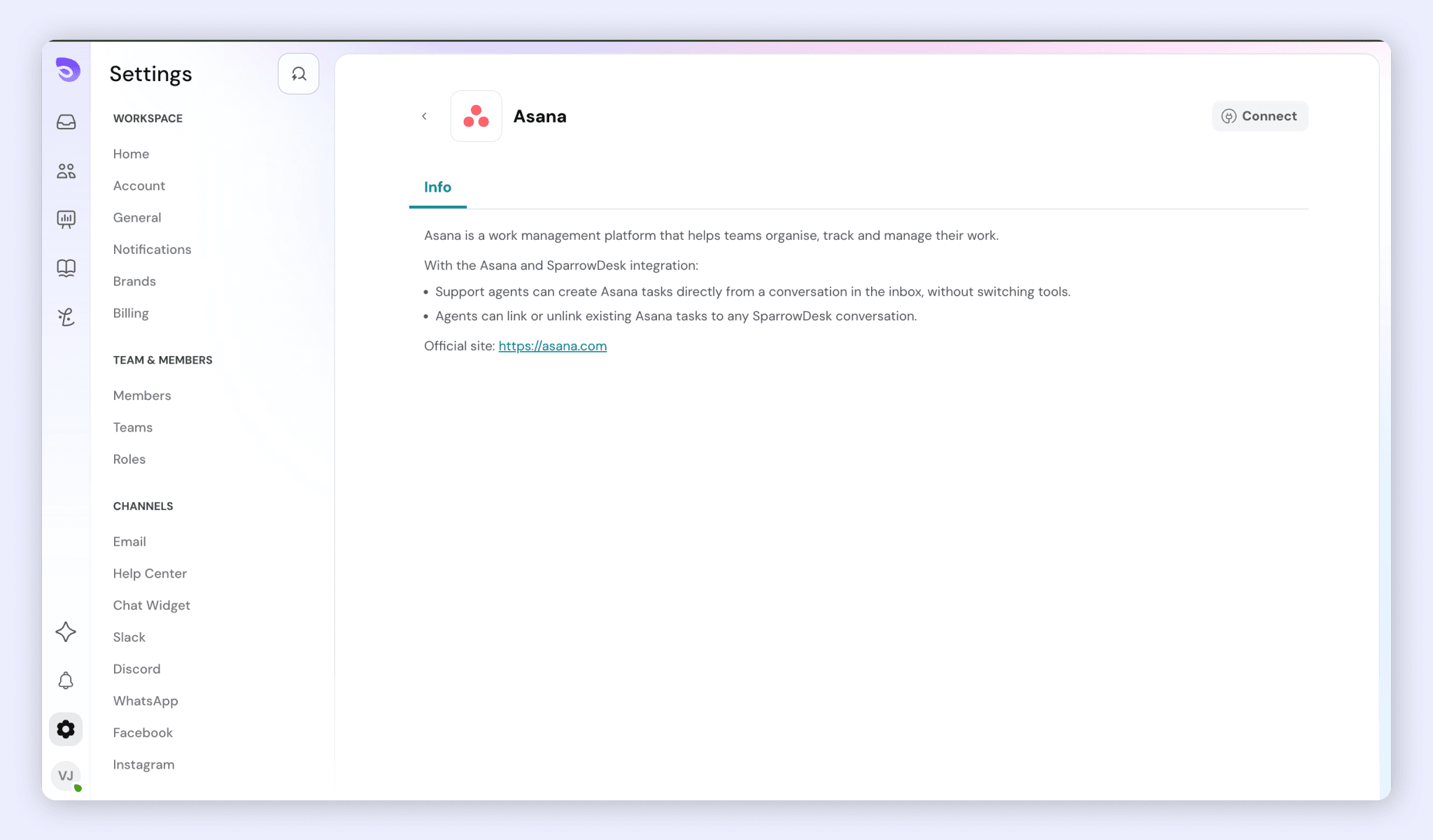
- Click Asana.
- Click Connect.
- Sign in to Asana in the window that opens.
- Approve access with Full permissions. Asana has no narrower permission that lets SparrowDesk list a project's sections.
- Choose your workspace. If your Asana account belongs to one workspace, SparrowDesk selects it for you. If it belongs to more than one, pick a workspace on the Setup tab and click Save.
The Asana settings page now shows the connection as connected. You don't need to sign in again later: SparrowDesk refreshes the connection automatically.
Create an Asana Task from a Conversation
A new task needs a project and a title. Everything else is optional.
- Open the conversation.
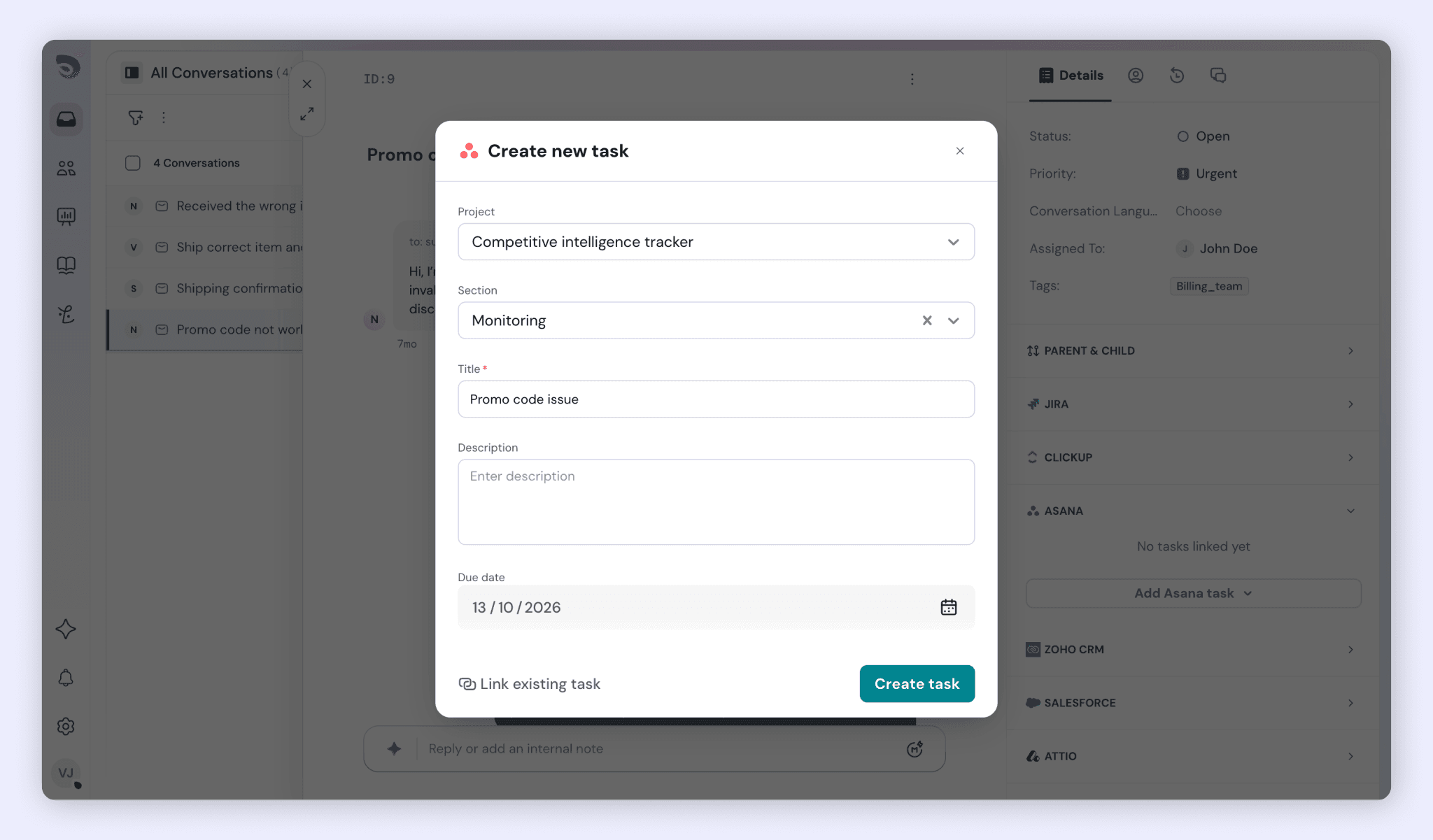
- In the conversation sidebar, click Add Asana task.
- Click Create new task.
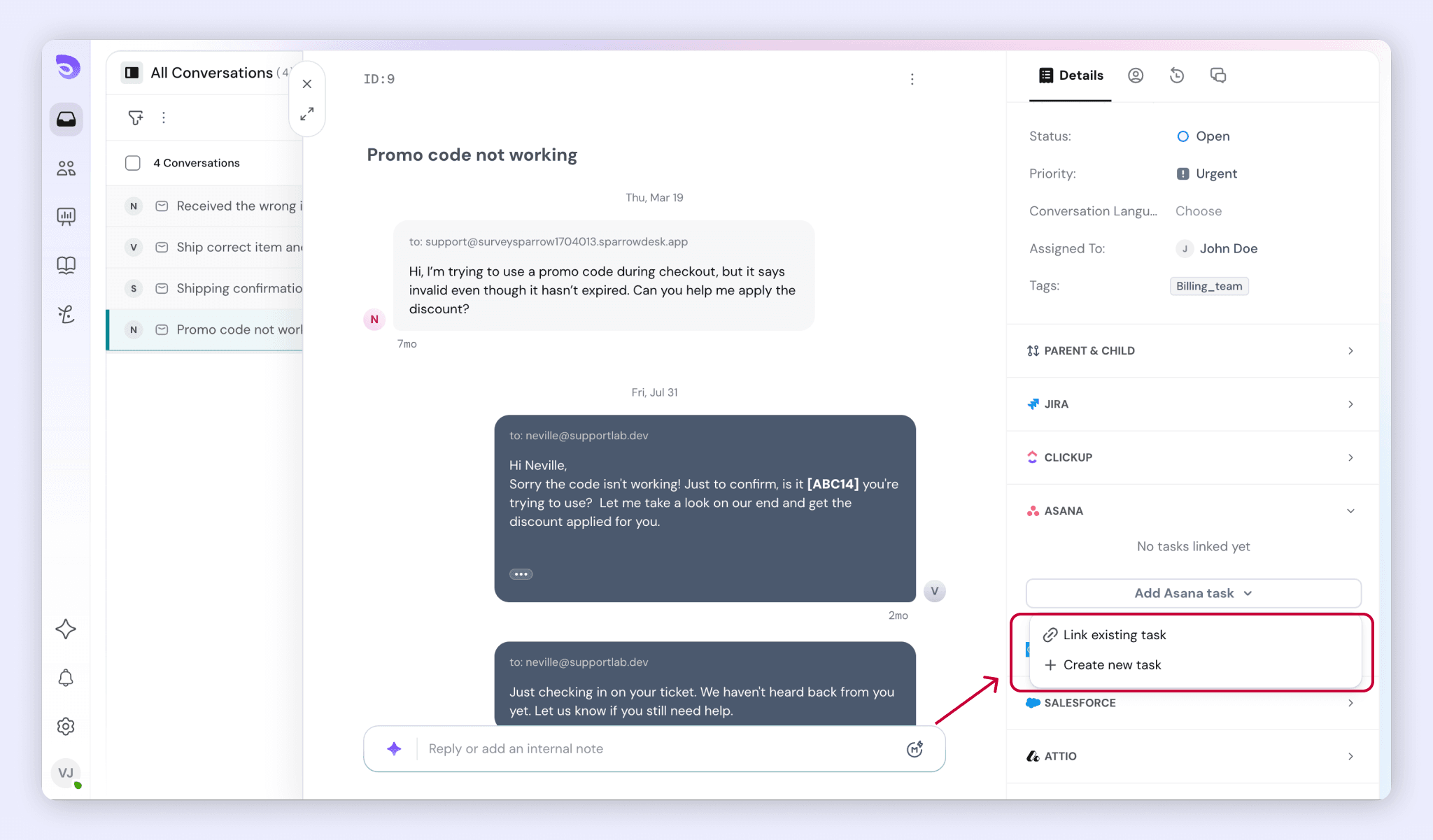
- Choose a Project. This is required.
- Choose a Section, if you want one. If you leave it blank, Asana puts the task in the project's default section.
- Enter a Title. This is required.
- Add a Description, if you want one.
- Choose an Assignee, if you want one. Asana allows one assignee per task, picked from your workspace's users.
- Choose a Due date, if you want one. It's a calendar date with no time.
- Attach files, if you need to: up to 10 files, up to 100 MB each.
- Click Create.
The task appears in Asana right away and is linked to the conversation. Attachments upload after the task is created, so they can take a moment to show in Asana.
Note: If the task is created but the link to the conversation fails, the task still exists in Asana. Use Link existing task to attach it.
Link Existing Asana Tasks
You can link several existing Asana tasks to a conversation in one go.
- In the conversation sidebar, click Add Asana task.
- Click Link existing task.
- Search for tasks by title. Search covers your whole connected Asana workspace. Tasks already linked to this conversation don't appear in the results.
- Select one or more tasks.
- Click Link.
If every task you selected was already linked, SparrowDesk tells you nothing new was linked.
Note: A task created in Asana in the last few seconds may not show up in search yet, because Asana's search takes a moment to catch up. Wait a few seconds and search again.
View Linked Tasks
Linked tasks appear in the Asana section of the conversation sidebar. Each task shows:
- Its name.
- Its state: Completed or Incomplete. Asana tasks have no workflow status, so these are the only two states.
- Its assignee, or Unassigned.
- A link that opens the task in Asana.
Task details load live from Asana each time the section loads, so a change made in Asana shows the next time you open the conversation. If a task is deleted in Asana, or you no longer have access to it, it doesn't appear in the list.
Unlink a Task or Disconnect Asana
Unlink a task from a conversation
- In the Asana section of the conversation sidebar, find the task.
- Click Unlink.
The task is removed from this conversation only. It stays in Asana.
Disconnect Asana
- Go to Settings → Apps.
- Click Asana.
- Turn off the integration.
- Confirm.
Disconnecting removes every link between conversations and Asana tasks for that account. SparrowDesk warns you before you confirm. The tasks themselves stay in Asana.
FAQ
- Who can connect Asana and work with Asana tasks? Anyone with the App Store permission. It covers both the Asana settings page and creating, linking or unlinking tasks from a conversation.
- Why does SparrowDesk need Full permissions in Asana? Asana has no narrower permission that lets SparrowDesk list a project's sections. Without it, you can't pick a section when creating a task.
- What happens to linked tasks if I disconnect Asana? Every link between conversations and Asana tasks for that account is removed. The tasks stay in Asana.
- Why can't I find a task I just created in Asana? Asana's search takes a few seconds to catch up with new tasks. Wait a moment and search again.
- How many files can I attach to a new task? Up to 10 files, up to 100 MB each. They upload after the task is created, so they can take a moment to show in Asana.
- Why did a linked task disappear from a conversation? The task was deleted in Asana, or you no longer have access to it. Linked tasks load live from Asana, so only tasks you can still open appear.