
Pipedrive Integration

Pipedrive is a CRM your sales team uses to track people, organizations, and deals. When you connect it to SparrowDesk, your contacts are kept in sync as Pipedrive Persons, closed conversations are logged as Notes on the Person, and agents see the Person's sales details right next to the conversation in the Inbox.
Support and sales work from one customer record, without copying data between two tabs.
What You Need First
- Permission: The App Store privilege. Admins have it by default, and Managers need it granted to connect or configure Pipedrive.
- Plan: A Professional or Enterprise plan. Pipedrive isn't available on Free or Starter.
- Pipedrive account: A Pipedrive login that can approve app access for your Pipedrive company. You'll sign in to it during setup.
Connect Pipedrive
You connect Pipedrive once for your whole SparrowDesk account. If you run more than one brand, all brands share the same connection.
- Go to Settings → Apps & Integrations
- Find the Pipedrive card and click it.
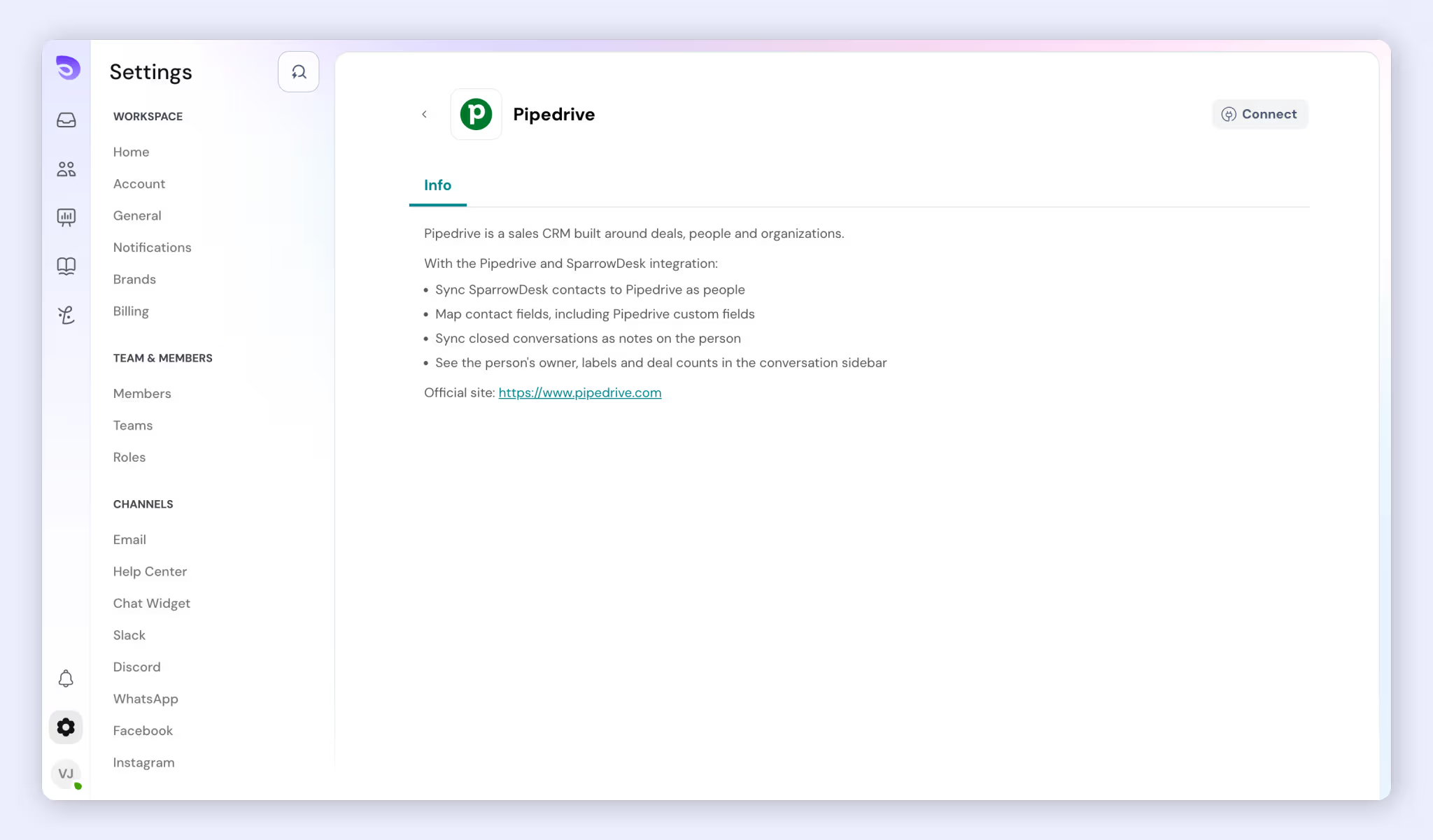
- Click Connect.
- Sign in to Pipedrive if you're asked to, then approve access for SparrowDesk on Pipedrive's consent screen.
- You return to the Pipedrive page in SparrowDesk, which now shows as connected to your Pipedrive company.
Connecting doesn't send any data to Pipedrive yet. Nothing syncs until you map your fields and turn on contact sync.
Map Contact Fields to Pipedrive
Field mapping decides which SparrowDesk contact fields are written to which Pipedrive Person fields. Only mapped fields are sent to Pipedrive.
- On the Pipedrive integration page, open the field mapping.
- In each row, pick a SparrowDesk contact field on the left and a Pipedrive Person field on the right. Both lists include custom fields, and the Pipedrive list is loaded live from your Pipedrive company.
- Add a name mapping. Map either Name, or both First name and Last name. You can't mix Name with First name or Last name, or map only one half, because Pipedrive rejects it. The first time you open the mapping, First name and Last name are filled in for you.
- Add a row for email and any other fields your sales team needs, such as a custom "Plan tier" field.
- Click Save.
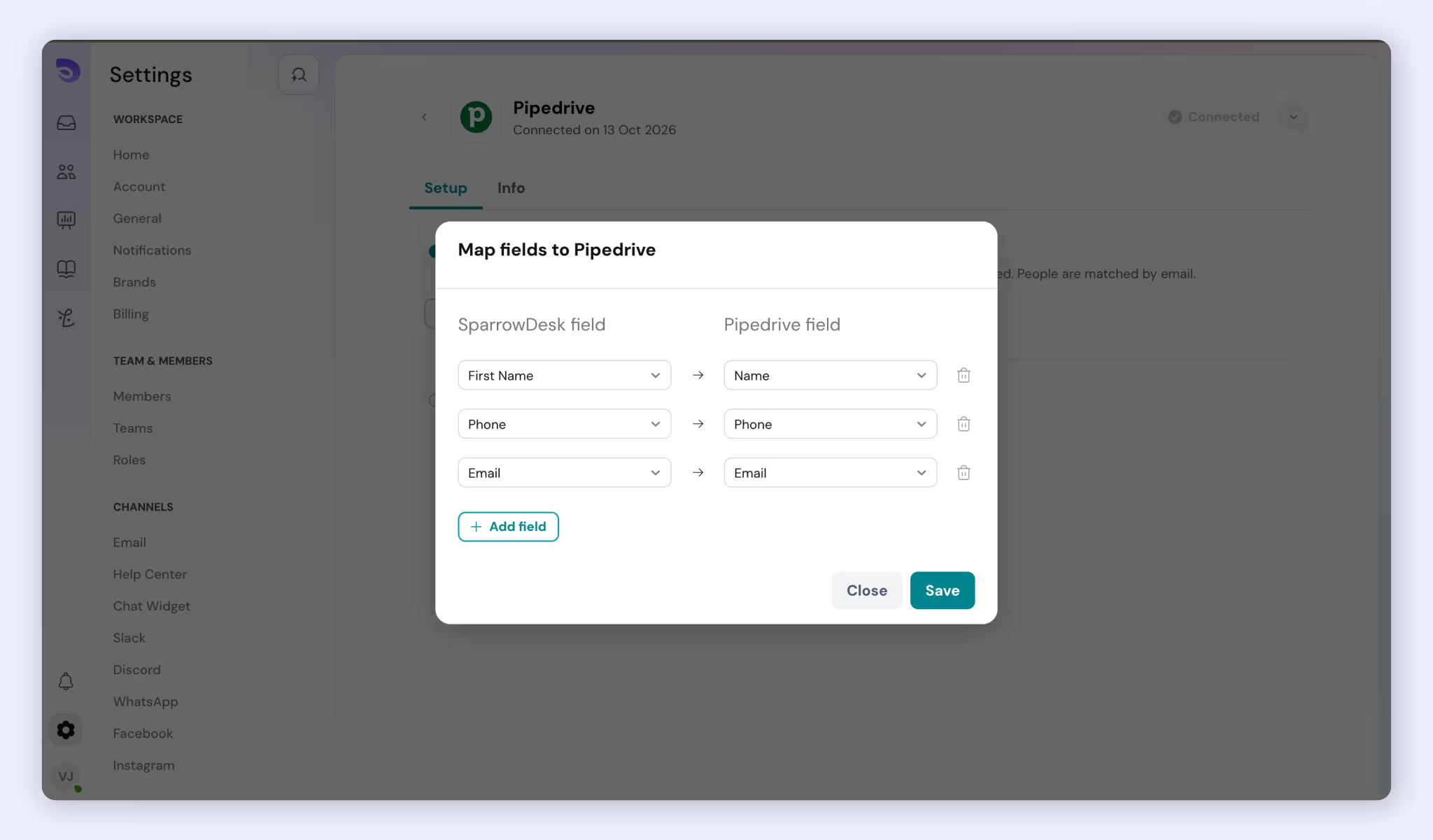
A few rules apply when you save:
- Each Pipedrive field can be the target of only one row.
- Field pairs with incompatible types can't be saved together.
- SparrowDesk's system contact fields (country, region, city, language and company) can't be mapped.
- For single-option and multiple-option Pipedrive fields, the SparrowDesk value must match one of the option labels in Pipedrive. If it doesn't, that one field is skipped and the rest of the contact still syncs.
To change the mapping later, open it again, edit, add, remove or disable rows, and click Save. If a Pipedrive field you mapped is deleted in Pipedrive, the integration page shows a warning with the number of affected rows. Those rows are skipped during sync until you fix or remove them.
If two admins edit the mapping at the same time, the last save wins.
Sync Contacts to Pipedrive
Contact sync keeps your SparrowDesk contacts up to date as Persons in Pipedrive. It runs in one direction only, from SparrowDesk to Pipedrive.
- Save a field mapping with at least one row.
- On the Pipedrive integration page, turn on Sync contacts to Pipedrive.
From then on, whenever a contact is created or updated in SparrowDesk, one at a time, in bulk, or through the API, SparrowDesk sends it to Pipedrive in the background. Your agents' work is never held up while this happens.
How contacts are matched
Email is the match key. SparrowDesk uses the value of your mapped email row, or the contact's default email if no email row is mapped, and lower-cases it before matching.
- If the contact is already linked to a Person, that Person is updated.
- If not, SparrowDesk searches Pipedrive for a Person with exactly that email. If it finds one, it links and updates it.
- If there's no match, a new Person is created.
This means the same email never creates two Persons.
What gets written
- Only mapped fields are written. On update, fields you haven't mapped are left as they are in Pipedrive.
- When a new Person is created and you haven't mapped an email row, the contact's email is still added as the Person's work email, so the Person can always be found by email.
- When a new Person is created and the mapped name fields are empty, the name falls back to the contact's first and last name, then full name, then the part of the email before the @. Pipedrive needs a name for every Person.
- Organizations are not created, matched or attached. Only Persons are synced.
What's skipped
- Contacts without an email.
- Contacts that have no value in any mapped field.
- Any single option-type field whose value doesn't match an option in Pipedrive. The rest of the contact still syncs, and the contact's last sync error names the skipped field.
Changes made in Pipedrive aren't pulled back into SparrowDesk. Agents still see current Pipedrive data in the Inbox, because the sidebar reads from Pipedrive live.
Deleting a contact in SparrowDesk doesn't delete the Person in Pipedrive. Only the link between them is removed.
Large imports sync in the background, three contacts at a time. If Pipedrive limits how many requests your company can make, SparrowDesk waits and tries again later. The import itself is never blocked.
Sync Conversations to Pipedrive
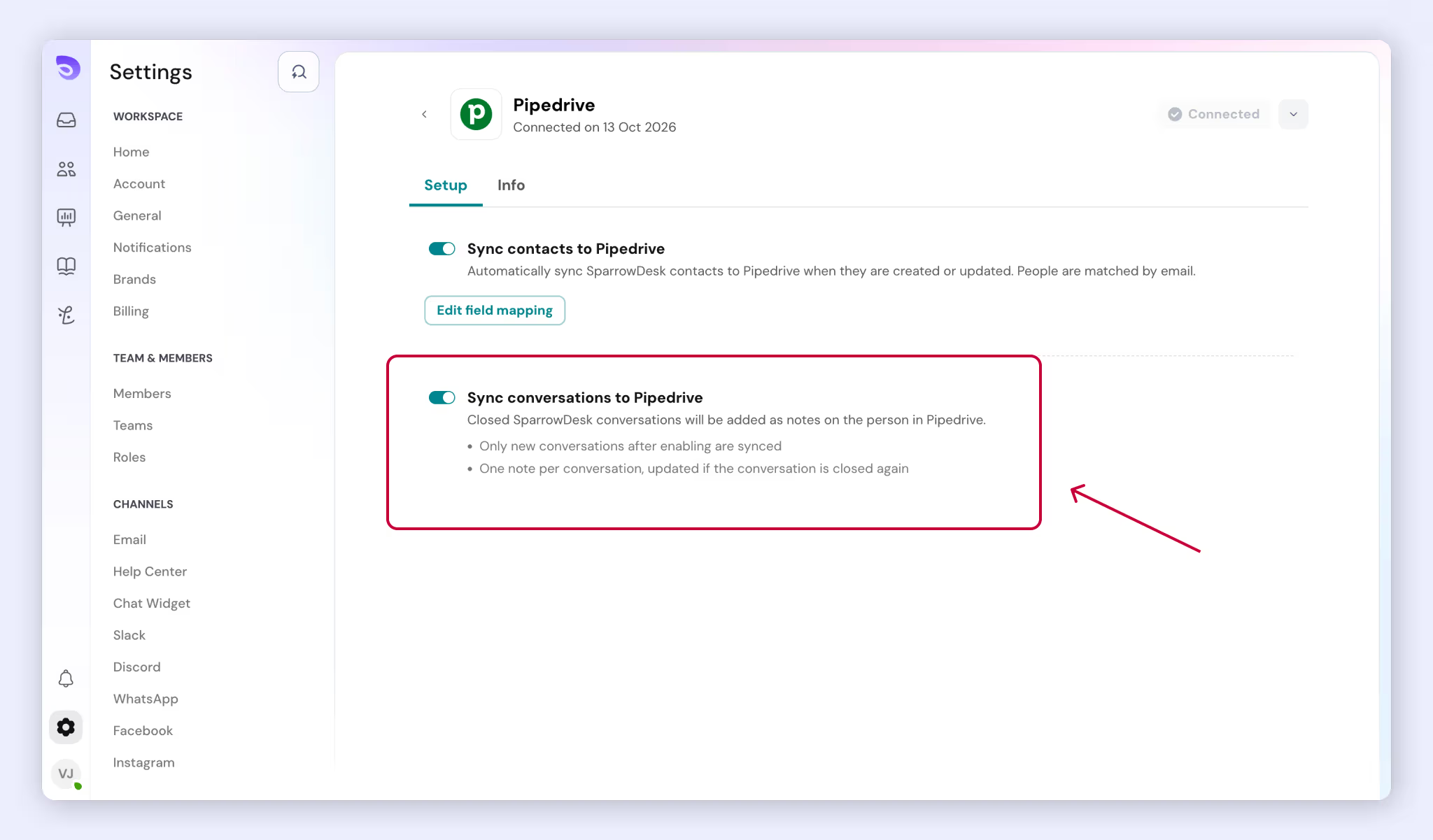
Conversation sync logs each closed conversation as a Note on the customer's Pipedrive Person, so your sales team can read the support history without leaving Pipedrive. It's off by default.
- On the Pipedrive integration page, turn on Sync conversations to Pipedrive.
From then on, when a conversation is closed, SparrowDesk adds one Note to the requester's Person in Pipedrive. This applies to email tickets, chat, WhatsApp, Facebook and Instagram conversations, including chats closed by Zoona. Each Note contains:
- The conversation transcript as plain text.
- A link back to the conversation in SparrowDesk, on your brand's domain.
- The conversation ID.
When a Note is created
- Notes are created when a conversation is closed, not when it's resolved. A resolved conversation can still get replies, so it syncs once it's closed.
- If a conversation is reopened and closed again, the same Note is updated with the full transcript. You never get two Notes for one conversation.
- Only conversations created after you turned the toggle on are synced. Older conversations are never backfilled. If you turn the toggle off and on again, the start time resets to the new on time.
- The requester must already be linked to a Person. If they aren't, no Note is created and it isn't retried later. Conversation sync never creates Persons on its own, so keep contact sync on.
- Notes attach to the Person only, not to deals or organizations.
- If you change the requester on a conversation after its Note is created, the Note stays on the original Person.
Limits
- A Note holds up to 65,000 characters. Longer transcripts are cut off with the line "[Transcript truncated due to length limit]", and the link to the full conversation is kept.
- When you close conversations in bulk, each one gets its own Note. If one fails, the others still sync.
To stop logging Notes, turn off Sync conversations to Pipedrive. Nothing more is written to Pipedrive from that moment, including Notes that were already waiting to be sent. Notes already in Pipedrive stay there.
Transcripts can include your customers' personal data. When you turn on conversation sync, Pipedrive becomes a sub-processor for that data under your own agreement with Pipedrive.
See Pipedrive Details in the Inbox
When Pipedrive is connected, a collapsible Pipedrive section appears in the conversation sidebar and on the contact profile page. It shows the requester's linked Person, read live from Pipedrive, so you see current sales details before you reply.
The section shows:
- Name
- Organization, the Person's existing organization in Pipedrive (read-only)
- Owner, the Pipedrive user who owns the Person
- Labels
- Open deals, Won deals and Lost deals, as counts
- View in Pipedrive, which opens the Person in your Pipedrive company
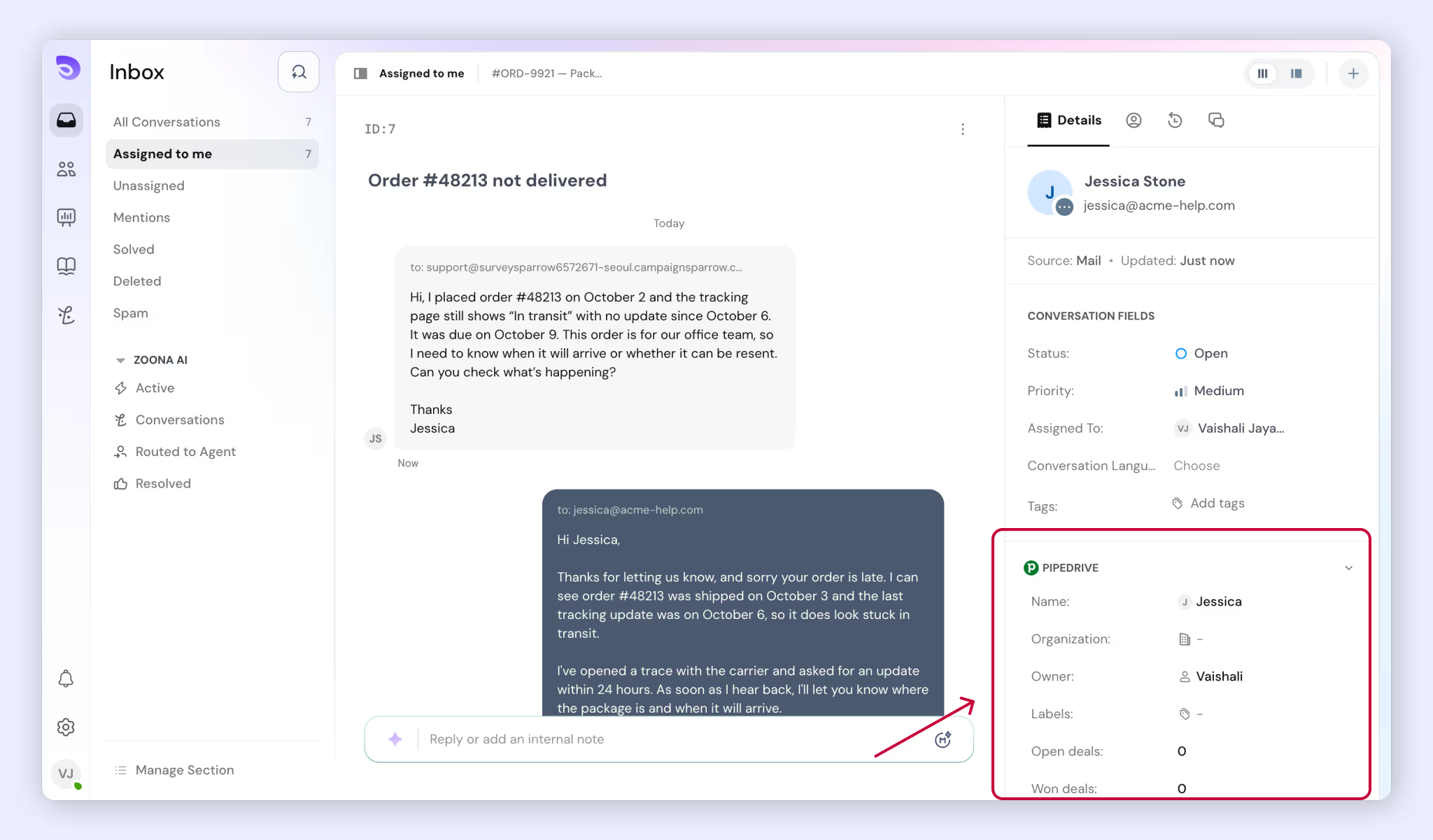
The section refreshes when you change the requester on a conversation.
You may also see these states:
What you see | What it means |
No Pipedrive section | The conversation has no requester, Pipedrive isn't connected, or you don't have the App Store privilege. |
"No Pipedrive person found" | The contact isn't linked to a Person yet. You can create one from the sidebar. If the Person was deleted in Pipedrive, the link is removed and you see this state. |
"Pipedrive is rate limiting requests for this company; please retry shortly" | Pipedrive is limiting how many requests your company can make. Wait a moment and try again. |
Reconnect required | Pipedrive rejected the connection. An admin needs to reconnect Pipedrive. |
Deal titles and values aren't listed, and you can't create a deal from the sidebar.
Create a Pipedrive Person From the Sidebar
If a requester isn't in Pipedrive yet, you can add them without leaving the conversation.
- Open the conversation or the contact's profile.
- In the Pipedrive section, click Create person.
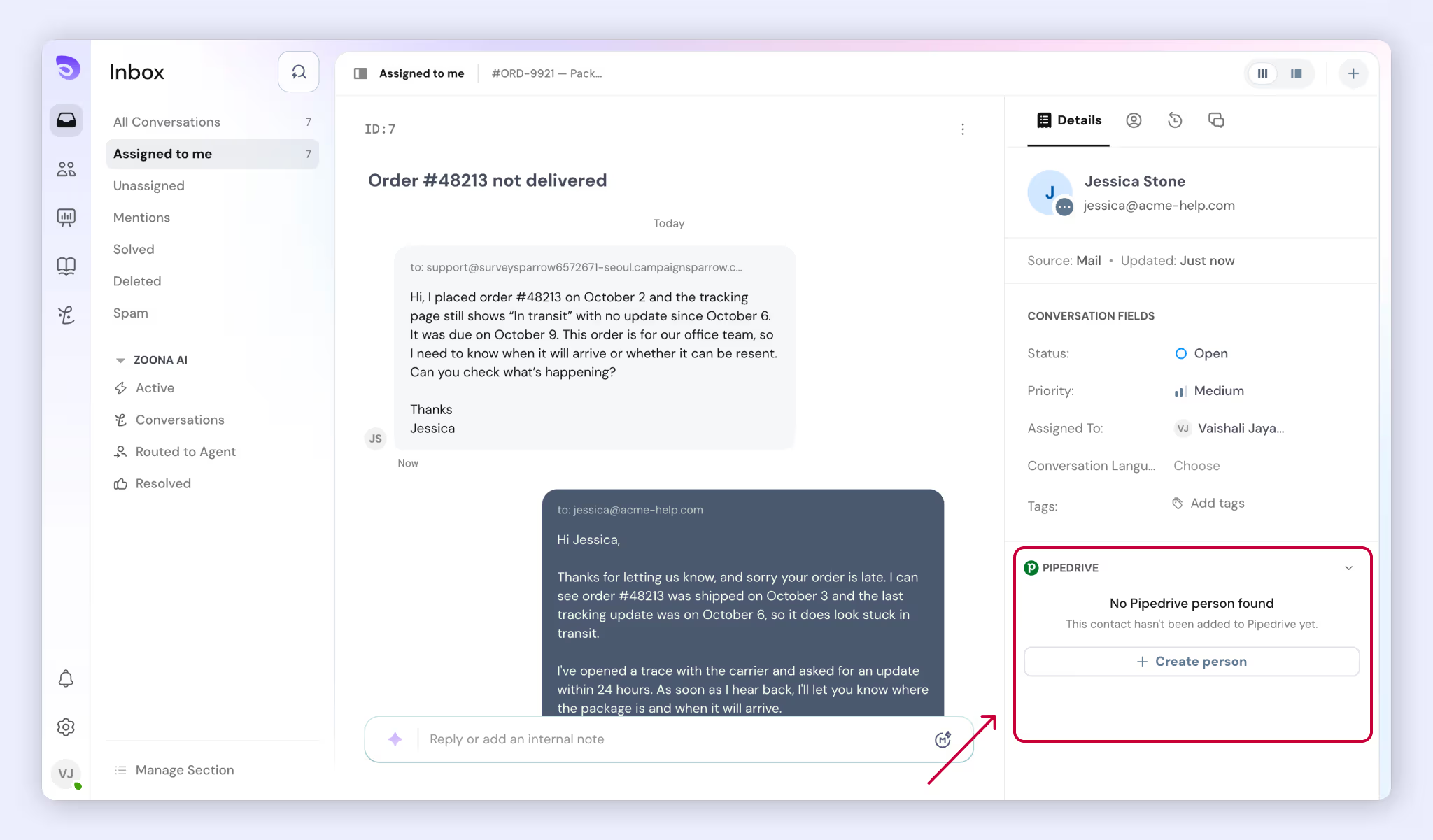
SparrowDesk first searches Pipedrive for a Person with the contact's email:
- If one exists and isn't linked to another SparrowDesk contact, it's linked to this contact instead of creating a duplicate. If contact sync is on, it's also updated with your mapped values.
- If one exists but is already linked to a different SparrowDesk contact, the action stops and shows an error.
- If none exists, a new Person is created from your mapped fields.
To create a new Person, contact sync must be on and your saved mapping must produce at least one value for this contact. Otherwise the action is refused with an error explaining why.
Create person is disabled when the contact has no email, and when the requester has been deleted in SparrowDesk. When the contact has no email, hover over the button to see a tooltip asking you to add one.
Disconnect or Reconnect Pipedrive
Disconnect
- Go to Settings → Apps & Integrations and open Pipedrive.
- Click Disconnect.
All syncing stops straight away. No contacts are sent, no Notes are written, and the Pipedrive section no longer appears in the Inbox. Any sync jobs that were waiting are dropped without writing anything.
Your field mapping and both sync toggles are kept, so reconnecting later brings your setup back. Data already in Pipedrive, including Persons and Notes, stays in Pipedrive.
Reconnect
Click Connect on the same page and approve access again. If you connect a different Pipedrive company than before, every existing link between SparrowDesk contacts and Pipedrive Persons is cleared, so nothing is written to the old company's records. Contacts are matched again by email in the new company.
If your plan changes
If your account moves below Professional, the Pipedrive card is hidden and Pipedrive requests are refused. Your mapping, toggles and links are kept. Background sync can keep running while a connection exists, so disconnect Pipedrive before you downgrade.
FAQ
- Will connecting Pipedrive create duplicate Persons?
No. Contacts are matched by email, lower-cased, before anything is created. If a Person with that email already exists, it's updated instead. If Pipedrive already has two Persons with the same email, SparrowDesk uses the first exact match and doesn't merge them. - Why aren't Organizations synced?
Pipedrive sync covers Persons only. SparrowDesk doesn't create, match or attach Organizations, and moving a contact to another company doesn't change anything in Pipedrive. The sidebar still shows the Person's existing Pipedrive organization, read-only. - Why can't I map some contact fields?
SparrowDesk's system contact fields (country, region, city, language and company) can't be mapped to any CRM. You can map every other default and custom contact field. - Do changes I make in Pipedrive come back to SparrowDesk?
No. Sync runs one way, from SparrowDesk to Pipedrive. The sidebar reads from Pipedrive live, so agents always see current Pipedrive details. - Why didn't a closed conversation show up as a Note?
Check three things: conversation sync was on when the conversation was created, the requester is linked to a Pipedrive Person, and the conversation is Closed, not just resolved. Conversations created before you turned on sync are never backfilled. - What happens if a Person is deleted in Pipedrive?
SparrowDesk removes the link the next time it syncs that contact or loads the sidebar. On the next sync, the contact is matched by email again, and a new Person is created if there's no match. - What happens to my data when I disconnect?
All syncing stops immediately. Persons and Notes already in Pipedrive stay there, and deleting a contact in SparrowDesk never deletes the Pipedrive Person. Your mapping and toggles are saved for when you reconnect. - Who can set up Pipedrive and who can see it?