
Phone Calls in SparrowDesk

With Phone, your team makes and takes calls in the browser. Every call becomes a conversation in the same inbox as your email, chat and WhatsApp, with its recording and transcript attached.
SparrowDesk provides the phone numbers and runs the calls, so you don't need an account with a separate telephony provider. Calls and number rental are paid from a prepaid Voice Wallet.
How Phone Works
The phone has five parts. You set them up in this order, and each one has its own section below.
- Phone numbers- You buy a number inside SparrowDesk. Each number works as its own voice inbox, and every number belongs to a brand.
- Call routing- A number follows default routing and business hours. To add keypad menus, languages, queues or more control, you build an IVR flow for it. A flow replaces the number's default routing, including business hours.
- The softphone- Agents answer and place calls in the SparrowDesk web app. There's nothing to install and no desk phone.
- Conversations- When a call ends, it becomes a conversation with a call card, a recording and a transcript. It gets the same assignment, tags and automations as any other channel.
- The Voice Wallet- Calls, number rental, live captions and post-call transcripts are deducted from a prepaid balance.
What You Need First
- Settings access- Admins with settings access buy numbers and build IVR flows.
- Funds in the Voice Wallet- The first month of a number's rental is charged when you buy it, so top up before you buy. See Pay for Calls With the Voice Wallet below.
- A brand- Every number must belong to a brand.
- A headset or microphone- for each agent who takes calls, with microphone access allowed in the browser.
- Regulatory details for some countries- Some countries and number types need an address or ID documents before a number can be bought.
Buy a Phone Number
You can buy local, toll-free and mobile numbers in 51 countries. Numbers are usually activated within minutes.
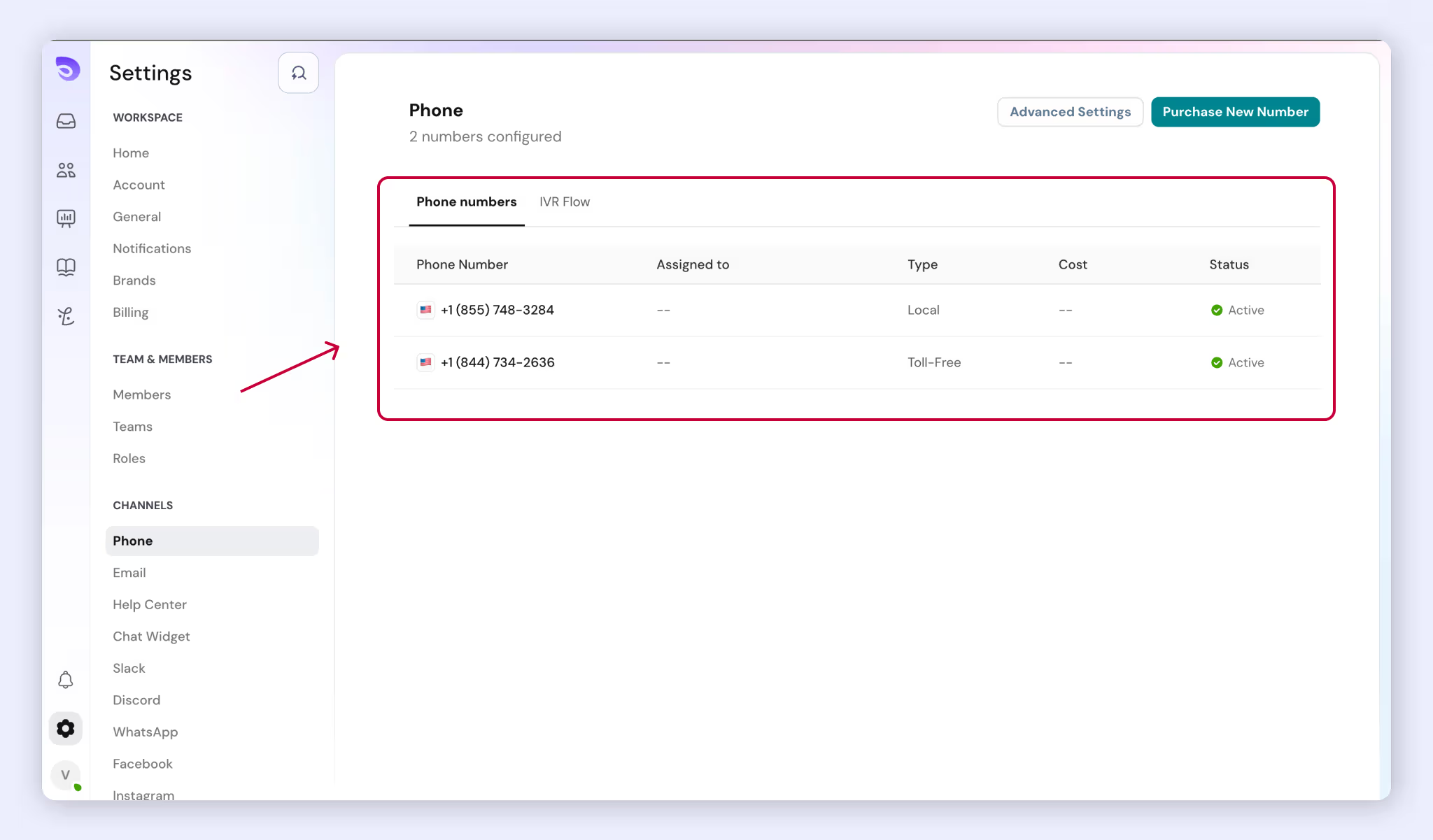
- Go to Settings → Channels → Phone. The Phone numbers tab lists your numbers with what each is assigned to, its type, cost and status.
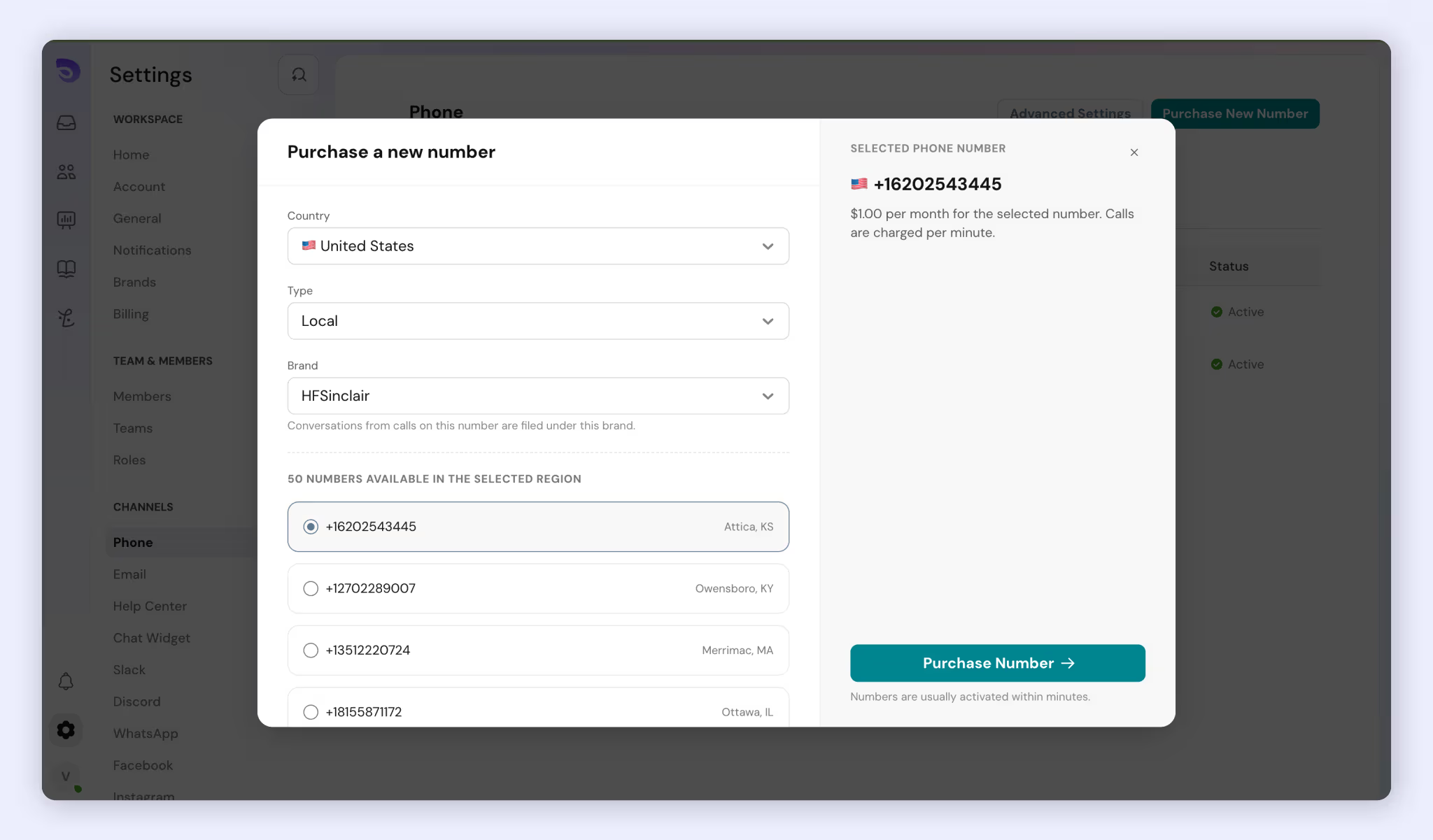
- Click Purchase New Number. The Purchase a new number window opens.
- Under Country, choose a country.
- Under Type, choose Local (the default), Toll-Free or Mobile. Toll-free and mobile numbers are available in fewer countries than local numbers.
- Under Brand, choose a brand. Conversations from calls on this number are filed under this brand. You can change the brand later.
- Pick a number from the available numbers. Each one shows its location.
- Check the monthly price in the Selected phone number panel. Calls are charged per minute on top of this.
- If the country requires regulatory details, fill in the address, fields and documents it asks for. Some countries and number types need help from support.
- Click Purchase Number.
The first month's rental is charged to your Voice Wallet right away. The number shows Activating until it's live, then Active.
Note: Number rental is charged at the carrier's monthly price with no markup.
Bring an Existing Number
To keep a number you already use, contact support to port it to SparrowDesk.
Number Settings
Each number works as its own voice inbox with its own settings:
- Brand. The brand that conversations from this number's calls are filed under.
- Routing. Without an IVR flow, calls follow the number's default routing and business hours. With a flow, the flow takes over. See Route Calls With an IVR Flow.
- Recording. On by default.
- Transcription. Live captions or a post-call transcript.
Recording
Recording is on by default for every number. When it's on, callers hear a consent notice before the call connects, and customers on outbound calls hear it before they're connected to the agent.
Where the law allows it, you can switch the notice to No consent needed. You can also turn recording off for a number.
Transcription
Transcription is set per number. Choose one option, not both.
Option | When it appears | Cost |
Live captions | During the call, then saved to the conversation | $0.0195 per minute |
Post-call transcript | Shortly after the call ends | $0.00572 per minute |
Transcripts are labeled by the speaker.
Route Calls With an IVR Flow
An IVR flow is a set of steps a call follows, such as "Press 1 for sales." You build it on a visual canvas by adding steps and connecting them, then publish it. When a number has a flow, the flow replaces that number's default routing, including business hours.
There are two kinds of flow:
- Incoming call flows run while the caller is on the line. They start with a Call started step.
- Call ended flows run after the call to tidy up, for example to add a note, update a field, close the conversation or send an email. They can wait up to 1 or 2 minutes for the recording or transcript to be ready.
Create a Flow
- Go to Settings → Channels → Phone.
- Open the IVR Flow tab.
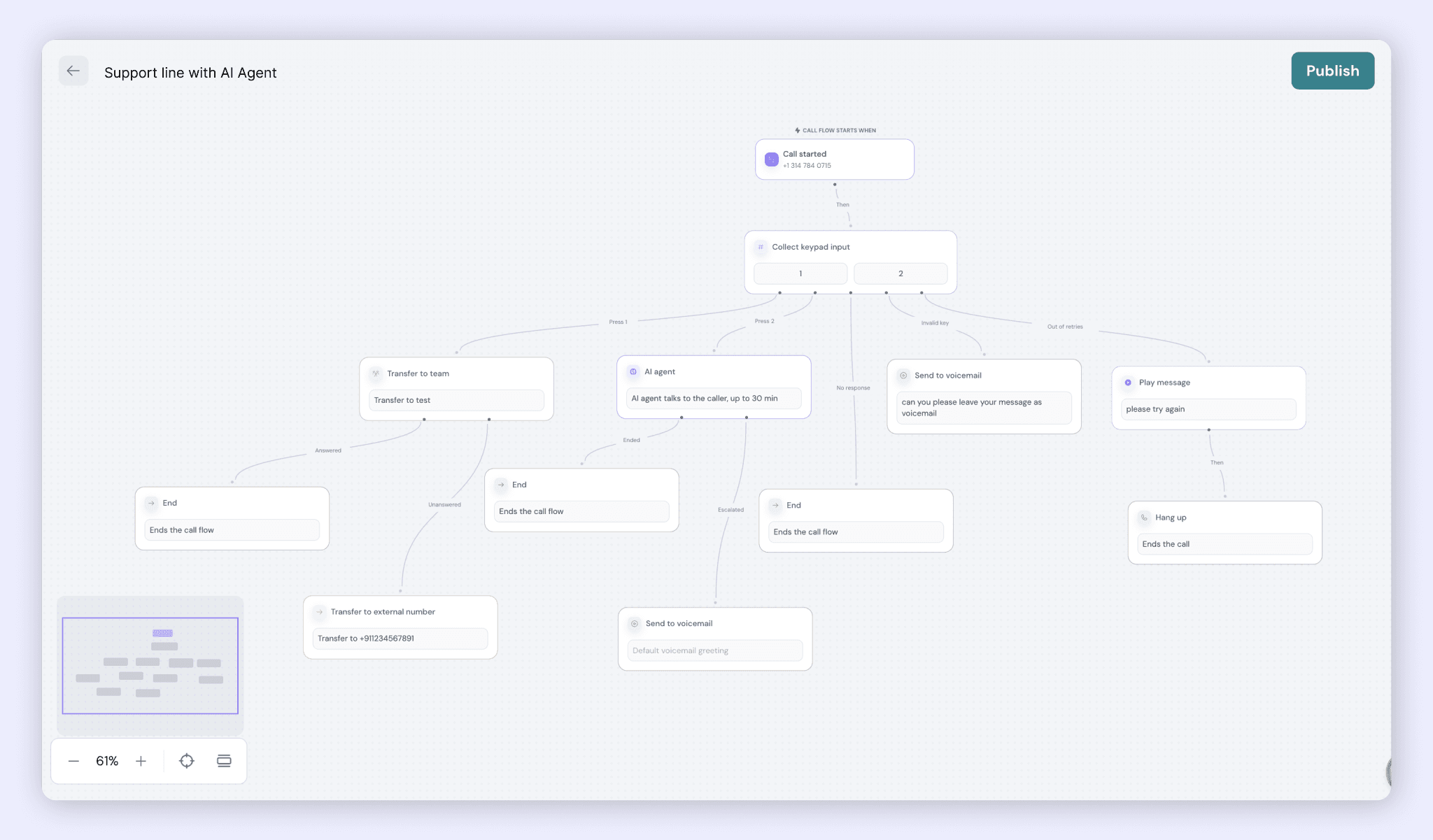
- Create a new flow. It opens on the canvas with a Call started step under Call flow starts when. This step shows the number the flow runs on.
- Add steps below it and connect them. Each connection is labelled with how the call moves on: Then for a single path, or one branch per outcome, such as Transfer and Failed.
- Click Publish.
You edit a draft and publish it when it's ready. Calls already in progress finish on the version they started with.
Steps You Can Use
Group | Steps |
Talk to the caller | AI agent, Play message, Collect keypad input, Language menu, Wait |
Route the call | Transfer to team, Transfer to agent, Transfer to external number, Place in queue |
Decide | Business hours, Contact exists, Contact field, Blocked, Saved value, Caller language. In Call ended flows also: Call outcome, Handled by, Call duration, Recording or transcript available |
Do something | Update contact field, Update conversation field, Send HTTP request, Send email, Add internal note, Close conversation |
Finish | Hang up, Send to voicemail, End |
The AI Agent Step
The AI agent step talks to the caller for up to 30 minutes. It has two outcomes, Ended and Escalated. Connect a next step to each one so every call has somewhere to go, for example Transfer to team after Escalated and End after Ended.
Languages
Callers choose a language by pressing a key in a Language menu step. 12 languages are supported: English (US, UK), Spanish (US, Spain, Mexico), French (France, Canada), German, Italian, Portuguese (Brazil), Dutch and Hindi.
Prompts are machine-translated automatically. You can review and edit each translation. The caller's chosen language is saved on the call and on the conversation.
Team Routing and Queues
A Transfer to team step can ring one available agent, or try each team member in turn until someone answers, up to 20 agents.
With Place in queue, callers wait with music and hear their position in line. If an agent misses a queued call, the caller keeps their place.
Clone and Review Flows
You can clone a flow to start a new one from a copy. Each flow has a call log that replays a call step by step, so you can see which path a caller took. Run logs are kept for 90 days.
Limits
- Up to 200 steps per flow.
- A call can spend up to 30 minutes inside a flow.
- Run logs are kept for 90 days.
Make and Take Calls
Agents make and take calls in a softphone built into the SparrowDesk web app. It stays connected as you move between pages. It needs microphone access, and you're warned if your microphone is blocked or missing.
Answer a Call
When a call comes in, the softphone shows it. You can answer it or decline it.
During a Call
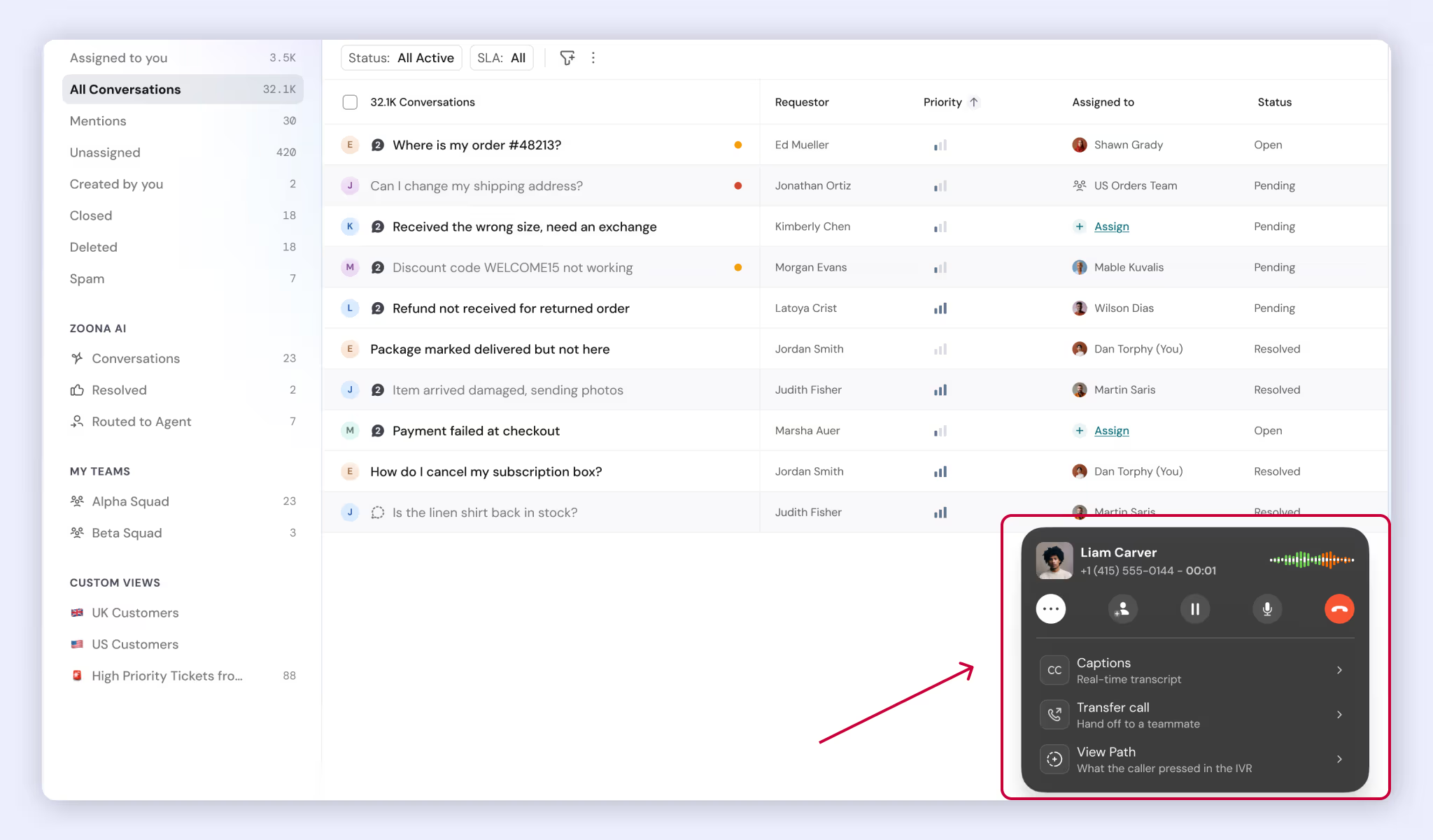
While you're on a call, you can:
- Mute yourself.
- Put the caller on hold. They hear music.
- See live captions, if they're on for the number.
- See who is on the call.
- Add a teammate or an outside number to the call.
- Transfer the call to a teammate or an outside number.
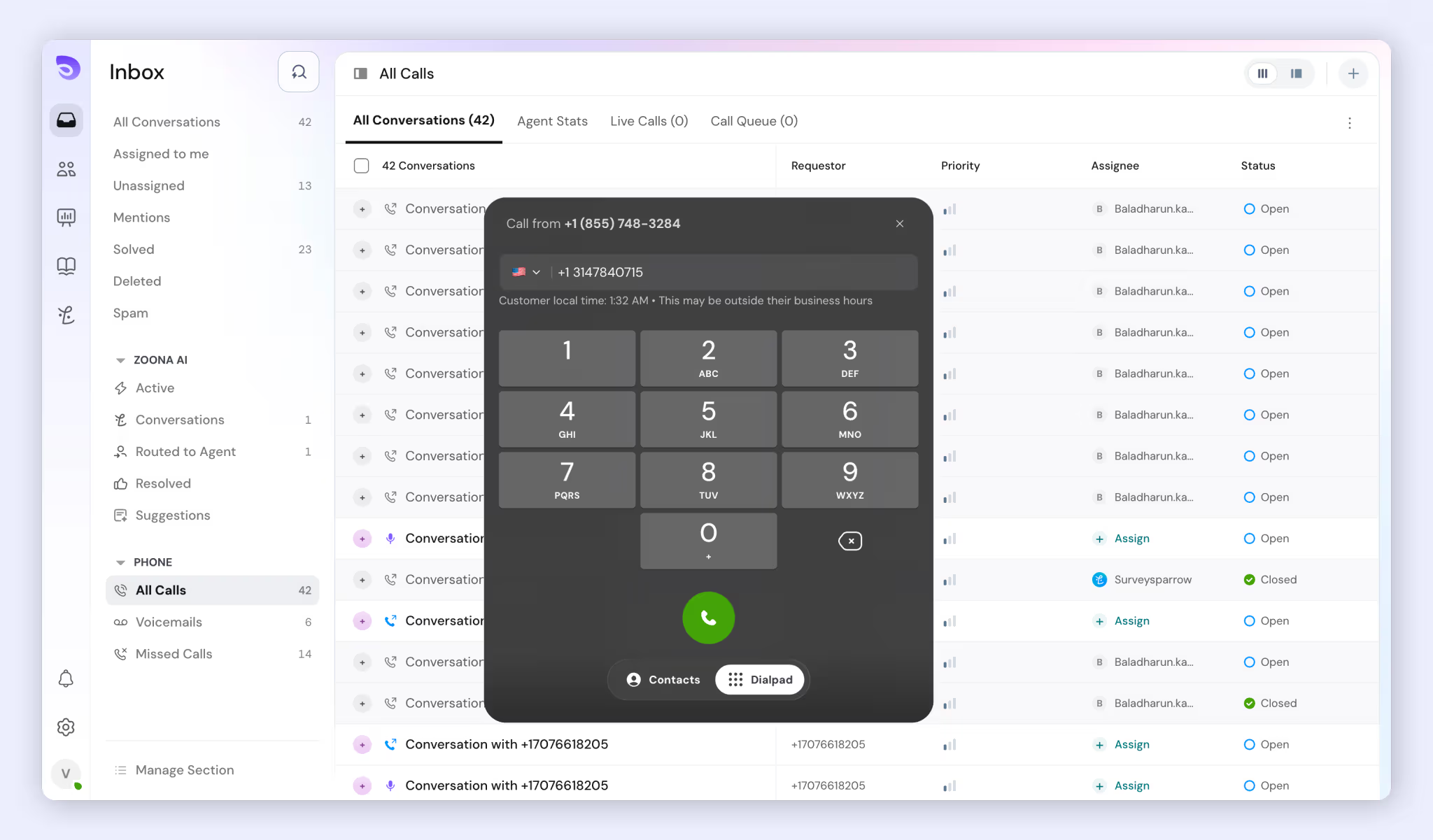
Make an Outbound Call
- Open the dialer in one of these ways:
- Press Cmd + B on Mac or Ctrl + B on Windows.
- Click the + icon in the top-right corner.
- To return a call, click Call back on a call in a conversation.
- Pick a contact from the list, or enter a number on the dialpad and choose the country.
- Choose which company number to call from.
- Start the call.
The customer hears the recording notice before they're connected.
Agent Status
Your status is set automatically. There's no manual Away or Busy option yet.
Status | When |
Available | The softphone is connected |
On call | You're on a call |
Offline | The tab is closed, or the connection is lost for 90 seconds |
Monitor Live Calls
All Calls, under Phone in the Inbox, shows each agent's live status, the calls in progress and the call queue.
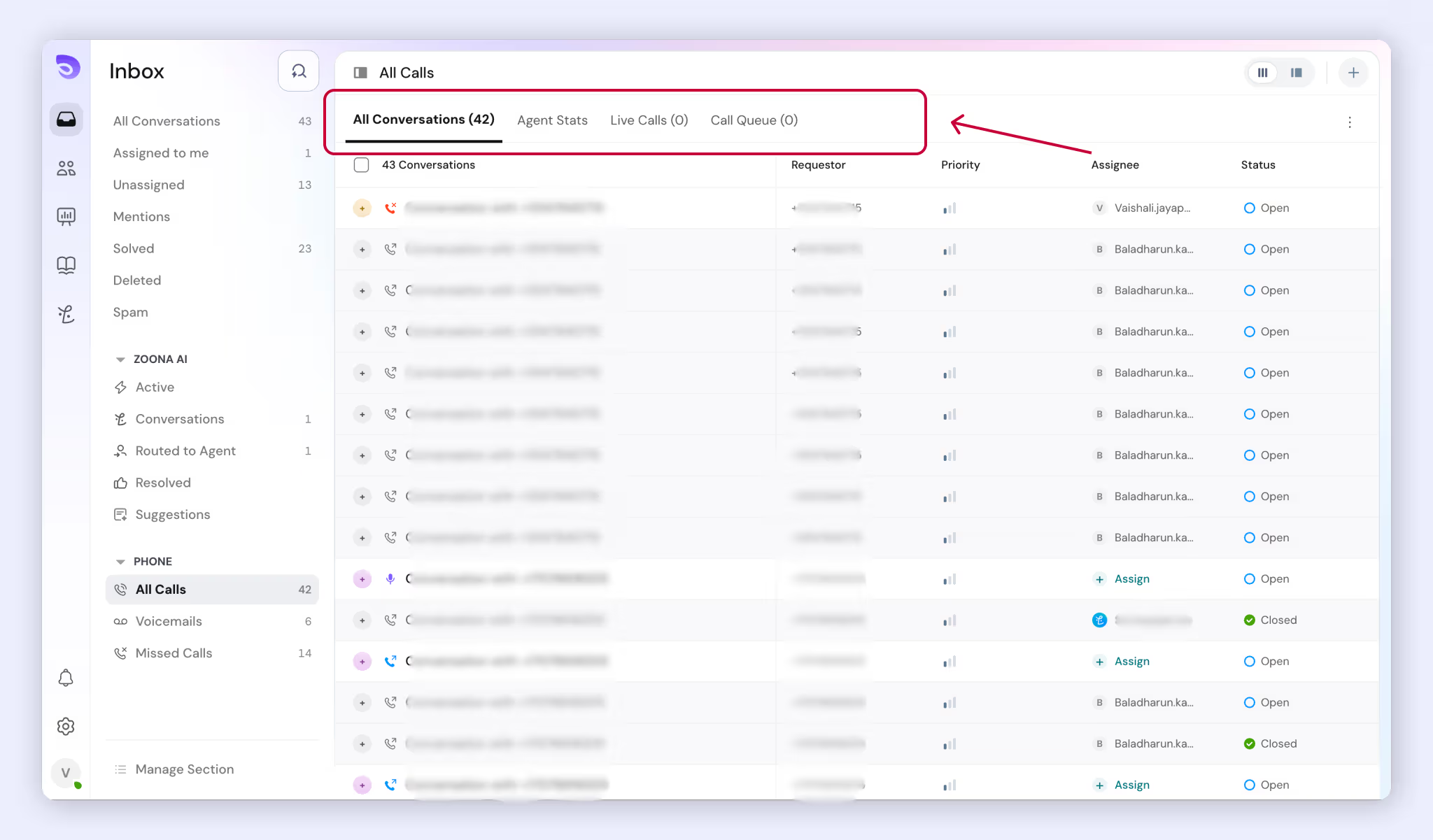
Supervisors with the right permissions can also:
- Listen in on a live call without anyone hearing them.
- Whisper to the agent without the customer hearing.
- Barge in and join the call.
Listen in, whisper and barge are separate permissions that admins grant. No role has them by default.
Calls in Conversations
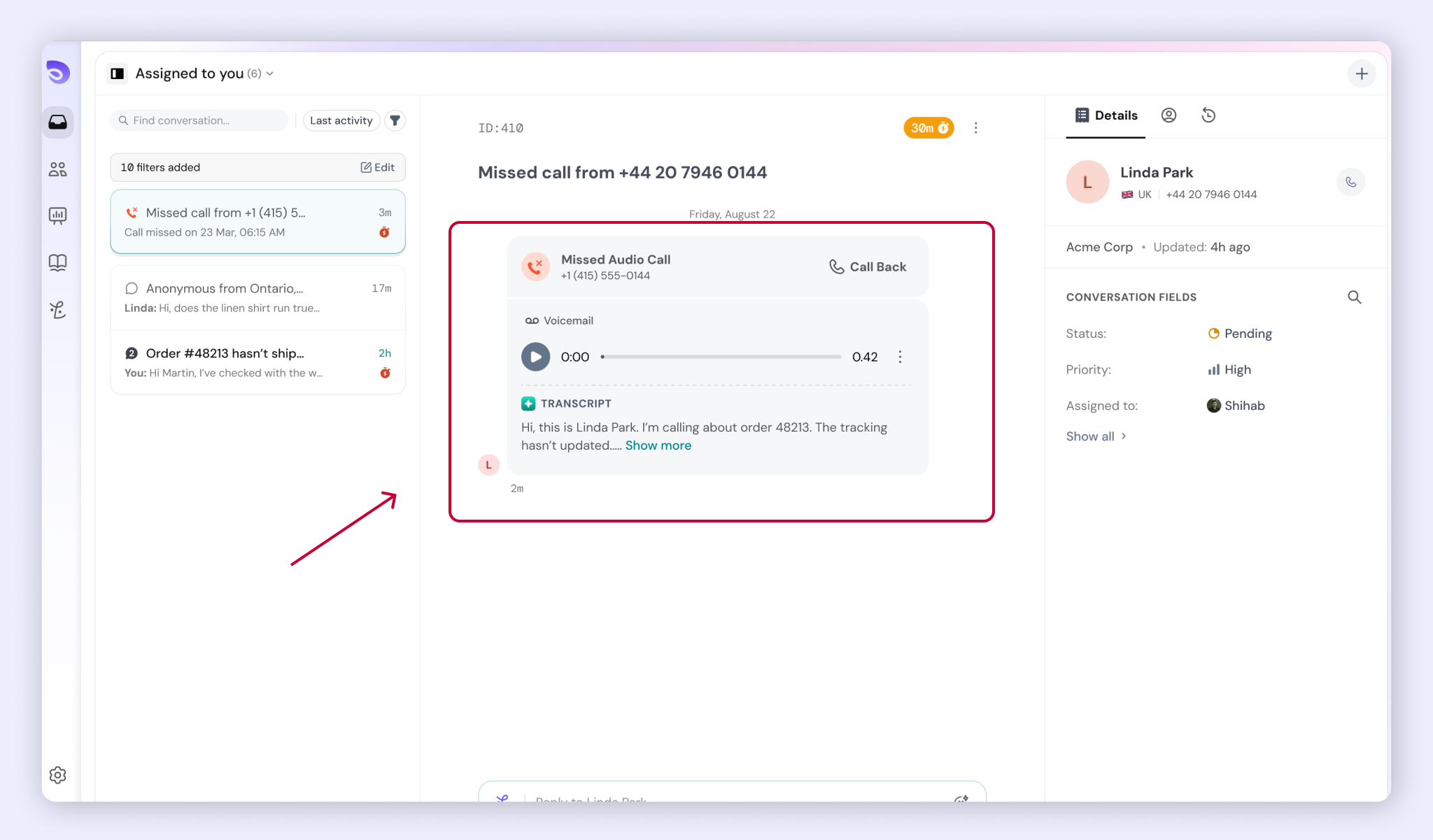
Every call becomes a conversation after it ends: inbound or outbound, answered, missed or voicemail. If the caller isn't a contact yet, SparrowDesk creates the contact automatically, so calls get the same assignment, tags and automations as any other channel.
The conversation shows:
- A call card with the direction, outcome and duration.
- The recording, which you can play or download.
- The transcript, labelled by speaker.
New Call or Same Conversation
One account-wide setting decides what happens when a customer calls again. You can choose to:
- Add the call to the customer's open conversation. This is the default.
- Always start a new conversation.
- Ask the agent after each call. If the agent doesn't choose within 5 minutes, the call is added to the open conversation.
Call Views in the Inbox
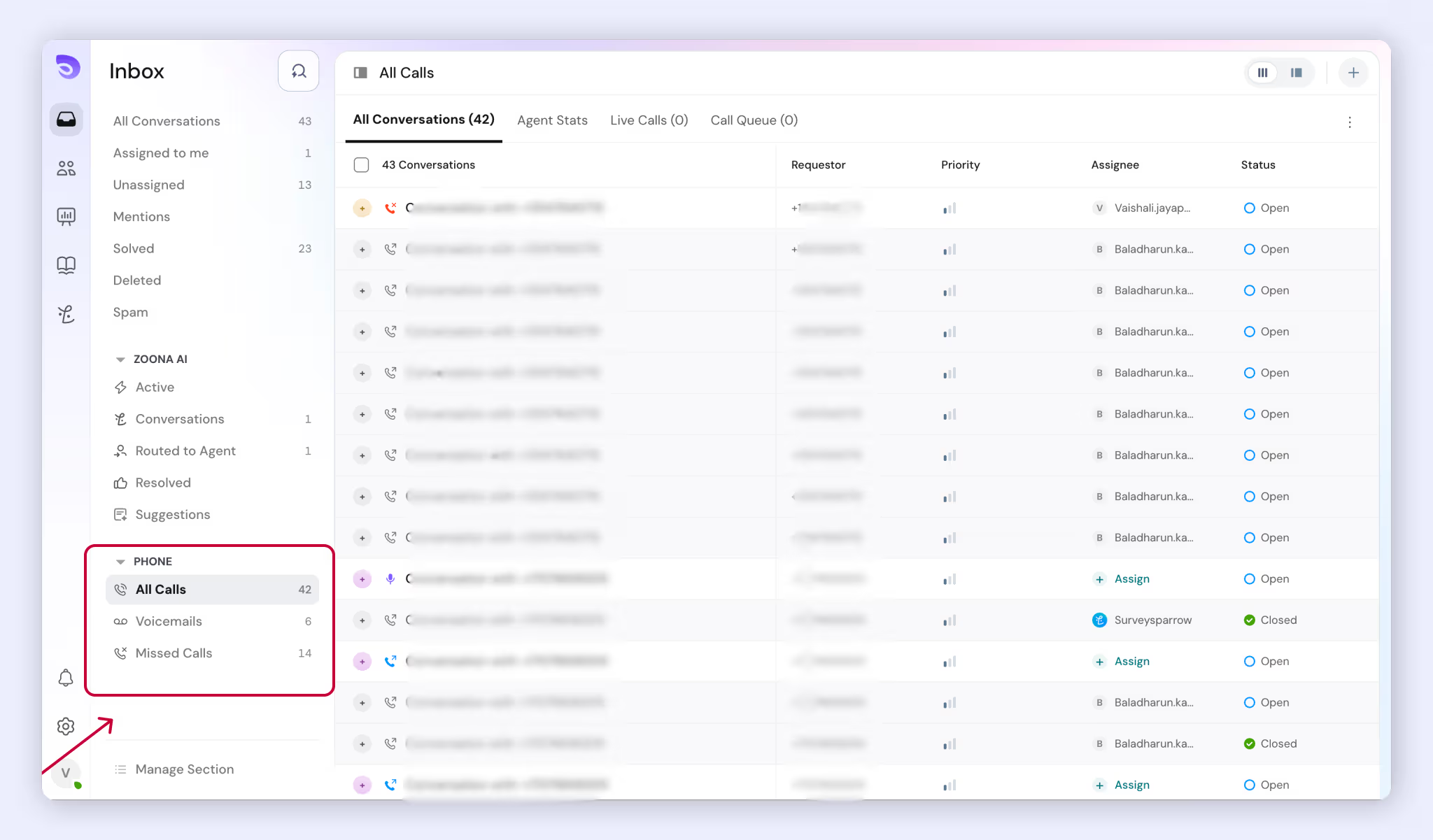
Every account gets a Phone section in the Inbox sidebar with three ready-made views: All Calls, Voicemails and Missed Calls. Each shows a count of the calls in it.
Export Call Data
Admins can export a CSV of calls covering up to 1 year. Exporting needs the Export data plan feature.
The export includes direction, times, number, contact, team, agent, outcome, wait time, duration, hold time, keys pressed, language, recording, conversation ID and cost.
Note: There are no call reports or dashboards in this version. Use the call export to analyse call volume and handling.
Pay for Calls With the Voice Wallet
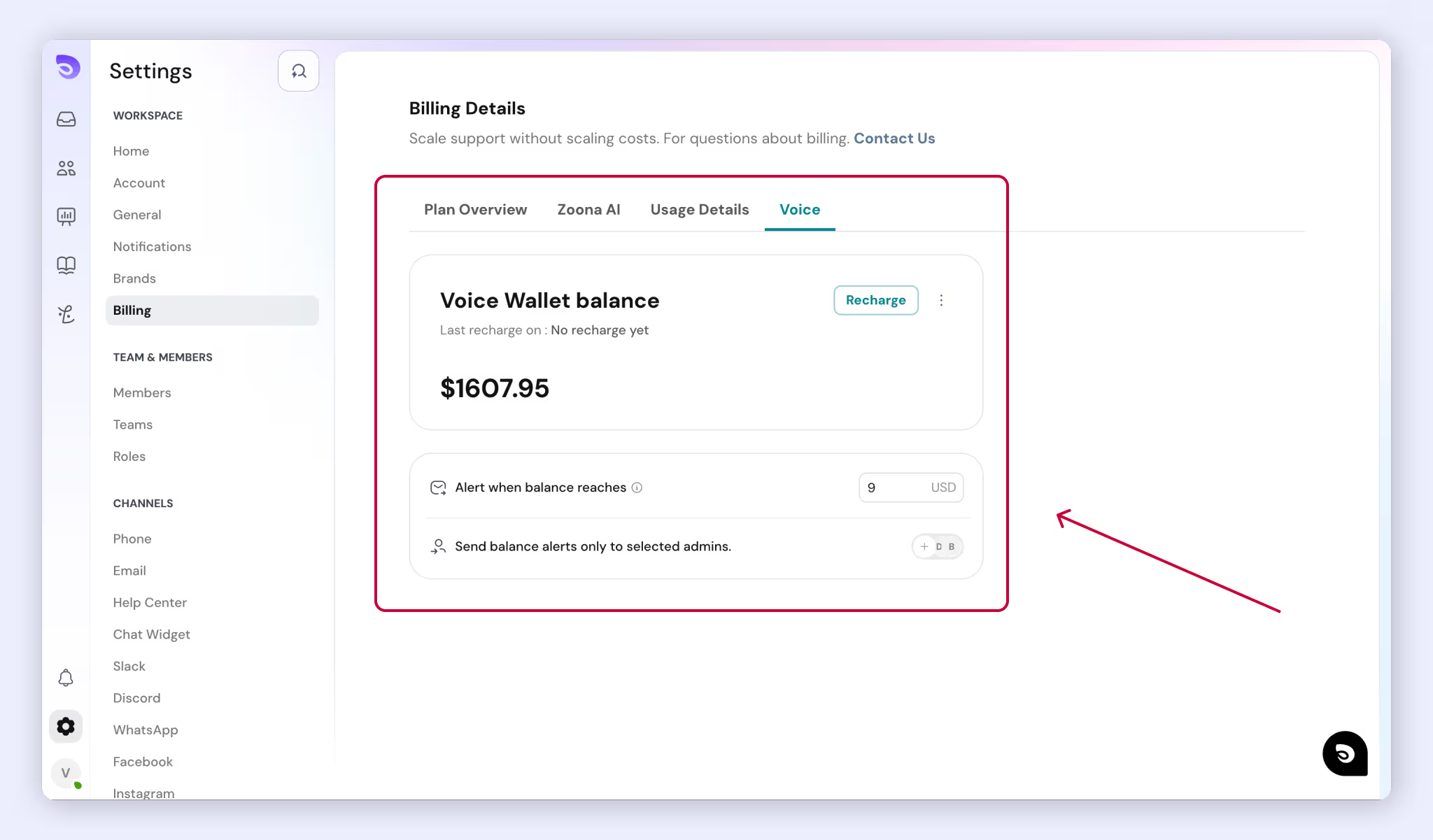
Calls are pay-as-you-go from a prepaid Voice Wallet, not a seat or plan add-on. You top up with a card, and usage is deducted as it happens. Find the wallet under Billing → Voice.
When the Balance Runs Out
- New incoming and outgoing calls are blocked.
- New numbers can’t be bought.
- A call in progress is never cut off. It’s charged after it ends.
What's Charged
Charge | How it's priced | When |
Calls, inbound and outbound | Per minute. Recording and call handling are included. | After each call, as one line per call |
Number rental | The carrier's monthly price, no markup. Shown before you buy. | First month at purchase, then monthly |
Live captions | $0.0195 per minute of call | After each call |
Post-call transcript | $0.00572 per minute of call | After each call |
Add Funds
- Go to Billing → Voice.
- Choose a top-up amount: $100, $500, $1,000 or $1,500, or enter your own. The minimum is $10.
- Pay with your card.
You can see every transaction in the wallet's history and export it as a CSV.
Set Up Auto-Recharge
Auto-recharge is optional and uses a saved card. When your balance runs low, it adds a set amount, $25 by default.
Low-Balance Alerts
An email goes to up to 5 admins you choose when the balance falls below a level you set. The default level is $10.
Note: If you don't choose any recipients, no low-balance alert is sent. Pick at least one admin when you set up the phone.
When the Balance Runs Out
- New outbound calls are blocked.
- New numbers can't be bought.
- Incoming calls still connect.
- A call in progress is never cut off. It's charged after it ends.
FAQ
- Do I need an account with a telephony provider?
No. SparrowDesk provides the phone number and runs the calls. You pay for usage from your Voice Wallet. - Do agents need a desk phone or an app?
No. Agents make and take calls in a browser with microphone access. - What happens when the Voice Wallet runs out?
New calls in and out are blocked, and you can’t buy new numbers until you top up. A call in progress is never cut off. Low-balance alerts only go out if you’ve chosen up to 5 admins to receive them - Are calls recorded?
Yes, by default, with a consent notice played to the caller. You can turn recording off per number, or switch the notice to No consent needed where the law allows. - Can I keep my existing number?
Yes. Contact support to port it to SparrowDesk. - Can callers choose a language?
Yes. Add a Language menu step to an IVR flow. 12 languages are supported. Live captions and transcripts are in English only for now.