
Topics in SparrowDesk

Topics sort your closed conversations by what customers actually contacted you about, such as order cancellations, refund requests or delivery delays. SparrowDesk reads each conversation, assigns it a topic, and shows volume, CSAT and AI resolution for every topic in the Topics report. You don't build or maintain the list. SparrowDesk works it out from your own conversation history.
How Topics Work
- Built from your history. SparrowDesk groups your past conversations to find your account's topics, each with its own subtopics. A subtopic needs at least 15 conversations before it appears.
- Closed conversations only. A conversation is classified once it is closed. Conversations in any other status don’t have a topic yet.
- Updated once a day. Classification runs overnight, so a conversation closed today shows its topic in the report the next day.
- The whole conversation counts. SparrowDesk reads the subject, the description and the customer's replies. Agent replies and attachments aren't used.
- Up to three topics, one primary. A conversation can match up to 3 topics, and one is marked primary. Volume counts the primary topic only, so topic volumes add up to your total.
- Unclassified when unsure. A conversation that doesn't clearly match any topic goes to Unclassified instead of being forced into the nearest one. Very short conversations, such as a greeting or a one-word test, also go here.
- The first topic sticks. If a conversation is reopened and closed again, it keeps the topic it was first given.
Note: A new kind of request lands in Unclassified until SparrowDesk refreshes your topic list. A growing Unclassified share usually means customers are contacting you about something new.
What You Need First
- Plan & Activation: An Enterprise plan Being on the Enterprise plan doesn’t turn Topics on by itself. Contact SparrowDesk support to have it switched on for your account.
- Role: Any role with the View report permission, including Agents.
- Activation: Topics is turned off by default. Contact SparrowDesk support to have it switched on for your account.
- Enough history: Topics appear once your account has enough closed conversations to group. Until then, the report shows an empty state explaining this.
Open the Topics Report
- Go to Reports in the left sidebar.
- Click Topics.
- Choose a date range at the top of the report.
Read the Topics Overview
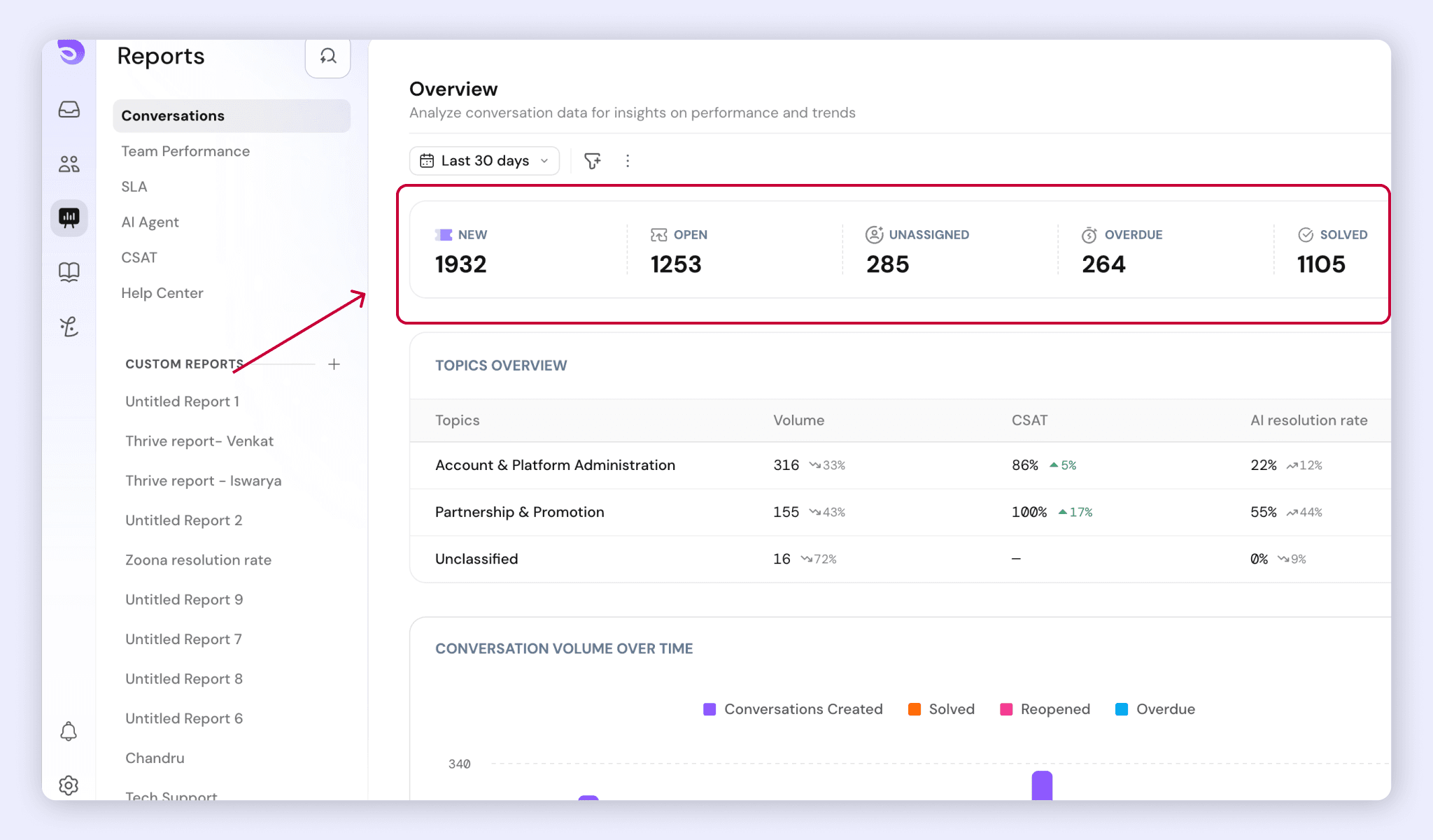
The top of the report shows four totals for the date range you picked, each with its change from the previous period of the same length:
- Total tickets
- Overdue
- Resolved
- Reopened
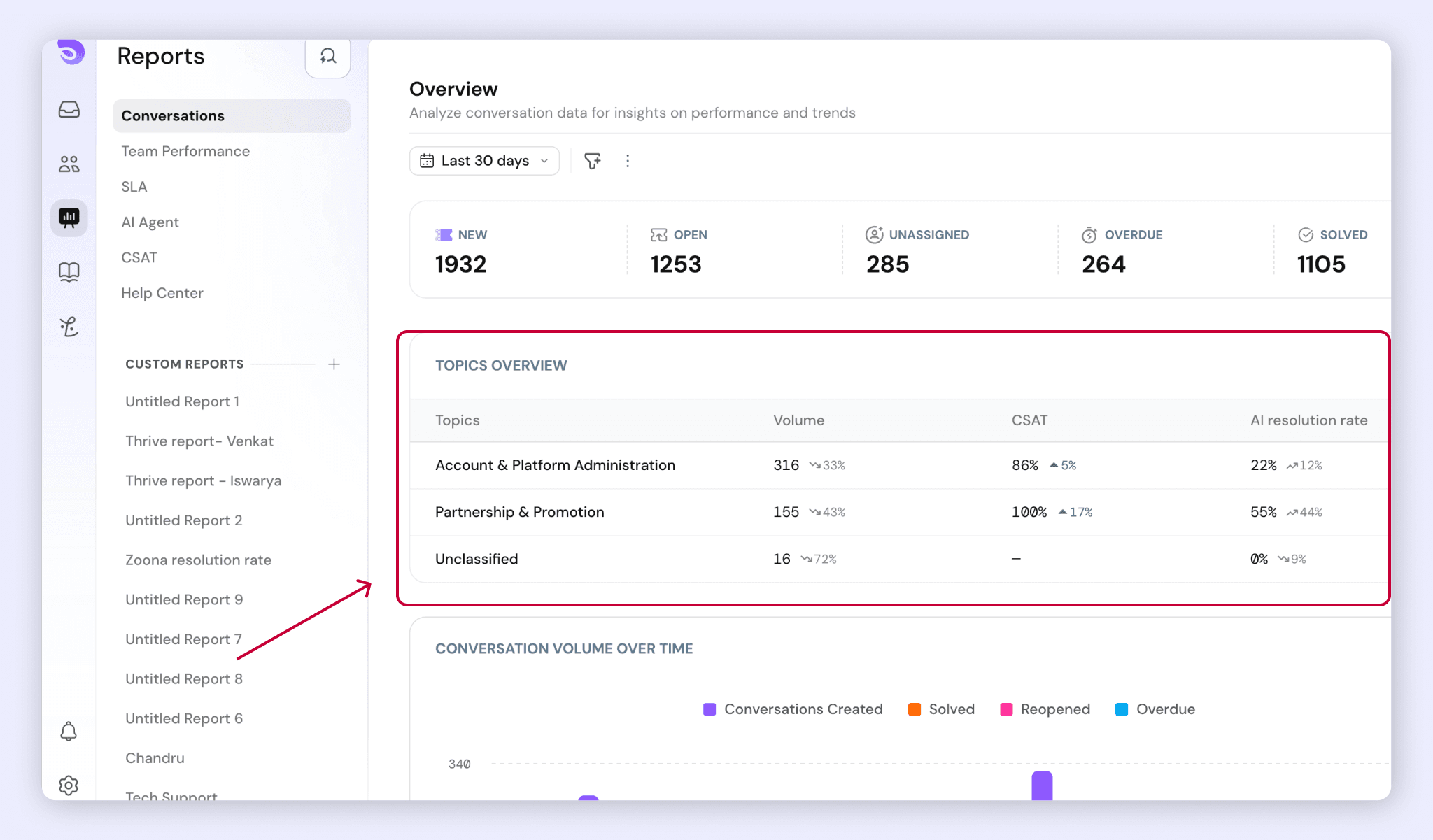
Below them, the topics table lists one row per topic:
- Topic: the topic name.
- Volume: conversations with this as their primary topic, and the change from the previous period.
- CSAT: customer satisfaction for this topic, and its change.
- AI resolution rate: the share of this topic's conversations resolved by your AI Agent, and its change.
Every comparison is against the previous period of the same length. If you pick the last 30 days, you see it against the 30 days before that.
See Subtopics
Each topic breaks down into subtopics. For example, Order cancellation might split into cancellations by email and cancellations through a web form.
- In the topics table, click the arrow next to a topic.
- Review the subtopic rows that appear under it.
Subtopic rows show Volume and the subtopic's share of its parent topic. They don't show CSAT or AI resolution rate, because the numbers at that level are usually too small to be reliable.
Drill Into a Topic's Conversations
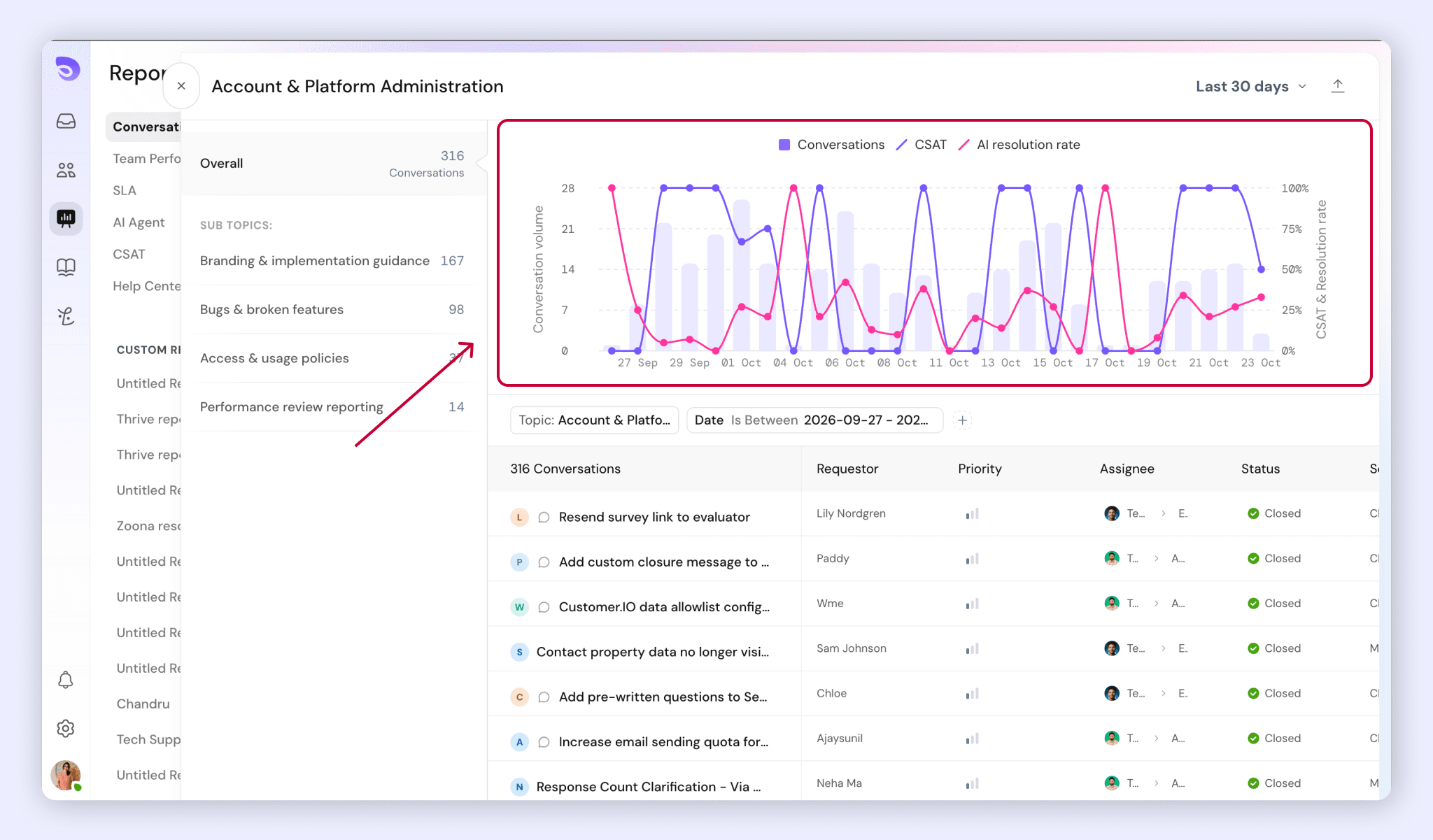
Open the conversations behind any topic to see what customers wrote.
- In the topics table, click a topic or subtopic name.
- In the panel that opens, narrow the list with the Topic, Subtopic and date range filters.
- Click a conversation to open it.
- To take the list elsewhere, click Export to download it as a CSV file.
For accounts with more than one brand, you can also filter by brand. Topics are found across the whole account, not separately for each brand.
What Topics Doesn't Do Yet
In this version, topics appear only in the Topics report and its drill-down.
- Topics don't show on a conversation in the Inbox.
- Topic isn't available as a filter or grouping in Custom Reports.
- You can't rename, merge, delete or create topics, or change the topic on a conversation.
- Topics aren't assigned while a conversation is open, so they can't be used for routing, SLAs or workflows.
- The report is a table only. There are no charts for topics.
FAQ
1. Why don't I see any topics yet?
Topics need enough closed conversations to group, and each subtopic needs at least 15 conversations. Topics also has to be switched on for your account. Until both are true, the report shows an empty state.
2. Why hasn't a conversation I closed today got a topic?
Topics are assigned overnight, once a day. A conversation closed today shows its topic in the report the next day. If a night's run fails, those conversations are picked up the following night.
3. Why are there so many conversations in Unclassified?
Conversations go to Unclassified when they don't clearly match a topic, or when they're too short to classify. A rising share usually means customers are contacting you about something new that your topic list doesn't cover yet.
4. Why doesn't a conversation count under more than one topic?
A conversation can have up to 3 topics, but Volume counts only its primary topic. That way, topic volumes add up to your total conversations.
5. Can I edit topics or change a conversation's topic?
Not in this version. SparrowDesk creates topics from your history, and you can't rename, merge, create or override them. A reopened conversation keeps the topic it was first given.
6. Who on my team can see the Topics report?
Anyone with the View report permission, including Agents. Topics don’t appear on conversations in the Inbox yet.
7. What happens to topics if we change plans?
If your account moves off a plan that includes Topics, existing topic data is kept but hidden, and new conversations stop being classified. Moving back resumes classification without starting over.