
Smart Reopen in SparrowDesk

When a customer replies to a resolved conversation, SparrowDesk normally reopens it. Smart reopen uses AI to read the reply first. If the customer only said thanks, or the reply was sent automatically, such as an out-of-office message, the conversation stays resolved. Anything your team needs to act on still reopens it.
Plan: Starter, Professional, or Enterprise. Smart reopen isn't available on the Free plan.
How Smart Reopen Works
Each time a customer replies to a resolved conversation, SparrowDesk sorts the reply into one of three kinds:
- Needs a response: a question, a problem, a change request, new information, or a message saying the issue isn't fixed. The conversation reopens, as it always has.
- Thanks or confirmation: only thanks, a confirmation that the issue is solved, or a closing pleasantry such as "thanks, that worked" or "all good now". The conversation stays resolved.
- Automatic reply: a message sent by a system rather than typed by the customer, such as an out-of-office reply, a bounce, another helpdesk's "we received your request" email, or a newsletter. The conversation stays resolved.
The reply is always added to the conversation, so nothing the customer sends is lost. Only the status stays the same.
Smart reopen only keeps a conversation resolved when it's confident. If it's unsure, or it can't reach a decision, the conversation reopens, just as it would with Smart reopen off.
Smart reopen works on every channel: email, live chat, WhatsApp, Facebook, Instagram, Slack, Discord, and replies from your help centre.
See Why a Conversation Stayed Resolved
Every time Smart reopen keeps a conversation resolved, it adds an entry to the conversation's Activity Log, with the reason:
- Smart reopen didn't reopen the conversation: the customer only said thanks or confirmed it's fixed
- Smart reopen didn't reopen the conversation: the reply was automatic
To check, open the conversation and select the Activity Log tab in the right sidebar.
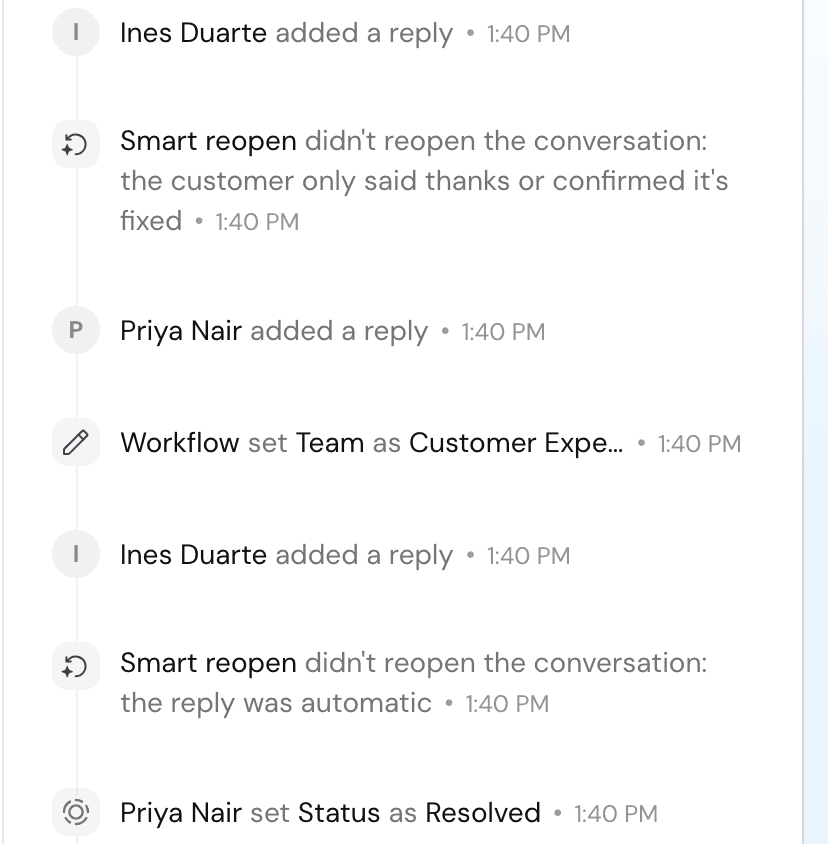
If a conversation should have reopened, change its status to Open. The customer's reply is already in the conversation.
Turn Smart Reopen On or Off
Smart reopen is on by default for your whole account. To change it, you need the Overview permission. Admins have it by default.
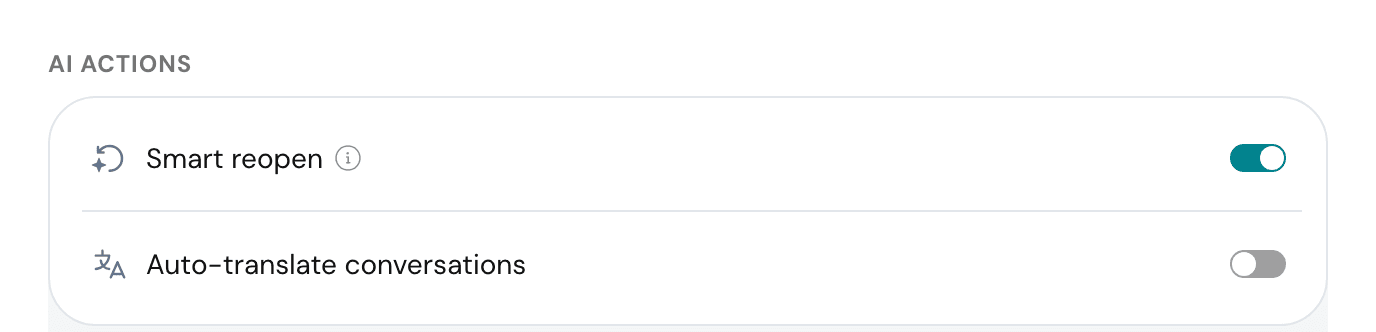
- Go to Settings → Inbox → Conversations.
- Under AI actions, turn Smart reopen on or off.
The setting applies to every brand and every channel in your account. With it off, every reply to a resolved conversation reopens it.
Note: Smart reopen isn't available on accounts with HIPAA compliance turned on.
Smart Reopen and Detect Automated Replies
For email, Detect Automated Replies in Settings → Email → Settings moves automated emails to Spam before they reach a conversation. Smart reopen covers the rest: thank-you replies, automatic replies that get through, and every other channel. You can use both at the same time.
AI Credits
Each reply Smart reopen checks uses a small amount of Account intelligence credits. Only replies to resolved conversations are checked. To see how many it has used:
- Go to Settings → Billing → Copilot.
- Click View detailed usage.
- In Credit usage, set Type to Account intelligence credits. Smart reopen has its own row.
FAQ
- Is the customer's reply lost when the conversation stays resolved?
No. The reply is added to the conversation as usual. Only the status stays resolved. - What if a customer says thanks and asks something new in the same message?
The conversation reopens. Smart reopen only keeps a conversation resolved when the reply is nothing but thanks, a confirmation, or an automatic message. - What if Smart reopen keeps a conversation resolved by mistake?
Change the status to Open. The Activity Log shows why it stayed resolved. When Smart reopen is unsure, it reopens the conversation. - Does it work on open or pending conversations?
No. Smart reopen only checks replies to resolved conversations. Replies to open or pending conversations are added as usual. - Which channels does it cover?
Email, live chat, WhatsApp, Facebook, Instagram, Slack, Discord, and help centre replies. - Who can turn Smart reopen off?
Anyone with the Overview permission, from Settings → Inbox → Conversations. It's on by default and applies to the whole account. - Which plans include Smart reopen?
Starter, Professional, and Enterprise. It isn't available on the Free plan, or on accounts with HIPAA compliance turned on. - Does Smart reopen use AI credits?
Yes, a small amount of Account intelligence credits for each reply to a resolved conversation. You can see it under Settings →