
Set Up Zoona for Zendesk Email and Web Form Tickets

Zoona for Zendesk lets Zoona, the AI agent you set up in SparrowDesk, answer and solve your Zendesk email and web form tickets while your team keeps working in Zendesk. Zoona replies using the same guidelines, knowledge and commands you use in SparrowDesk, and hands the ticket to your team when it needs a person.
How Zoona for Zendesk Works
Zendesk stays your helpdesk. You connect it to SparrowDesk once, and from then on:
- A customer emails your support address or submits a Zendesk web form.
- Zendesk notifies SparrowDesk.
- Zoona answers using the guidelines, knowledge and commands set up in SparrowDesk.
- Zoona's reply, its zoona-* tags and any status change are written back to the Zendesk ticket, posted by a dedicated Zoona agent user.
- If Zoona can't help, it tags the ticket zoona-handover and your own Zendesk rules route it to the right team.
Zendesk has a system of record. SparrowDesk keeps a copy of each conversation for Zoona's reporting and billing, but Zendesk conversations never appear in your SparrowDesk Inbox, views, SLAs or agent reports.
Zoona only handles tickets created after you connect. Tickets that were already open stay with your team.
What You Need First
SparrowDesk shows this list before setup starts, so you can check it first.
- In SparrowDesk: the Admin role. Only admins can connect, disconnect or change the Zendesk setup.
- SparrowDesk plan: the Starter plan or higher, with the Zoona AI Agent add-on. Zoona for Zendesk uses Zoona’s resolution billing.
- In Zendesk: admin access to the Zendesk account you're connecting to.
- A Zendesk seat: one Zendesk seat with admin rights for the Zoona user.
- For more than one Zendesk brand: a SparrowDesk Enterprise plan.
Connect Zendesk
You connect to Zendesk once. SparrowDesk then sets up everything Zoona needs inside Zendesk.
- Go to Settings → Apps → Zendesk. You can also start from your Zoona agent's channel settings. Both open the same setup.
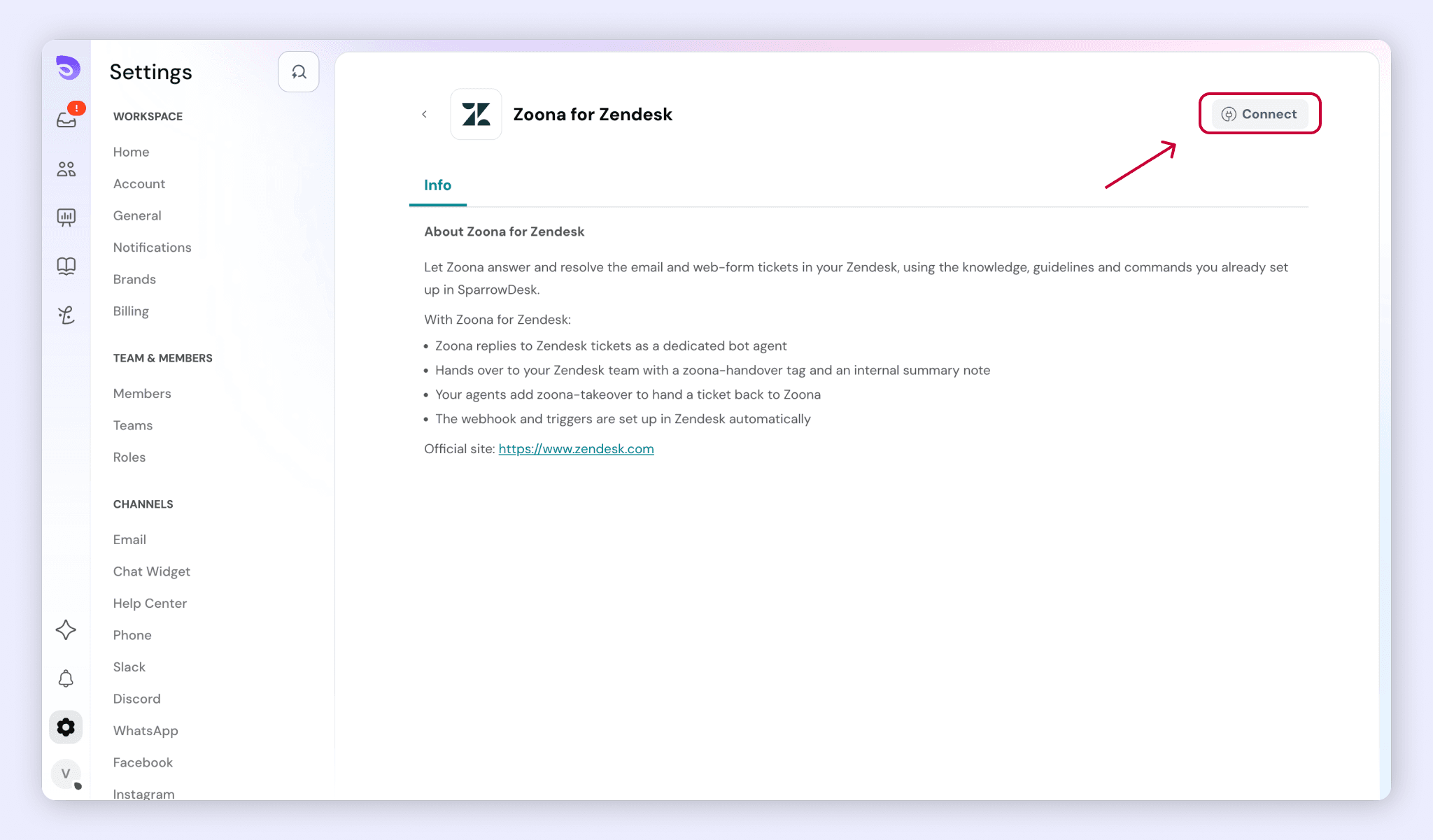
- Check the requirements list and click Connect.
- Sign in to Zendesk and approve access. SparrowDesk uses Zendesk's official sign-in, so there are no API keys to copy.
- Pick an existing Zendesk admin user for Zoona, or create a new one.
- Map your Zendesk brands and channels. See Map Zendesk Brands and Channels below.
- Click deploy.
When setup finishes, SparrowDesk creates the Zendesk rules Zoona needs, each named "Zoona – …". You don't build any Zendesk rules by hand. One of these rules is a safety net: if Zoona is unavailable for more than an hour, it hands waiting tickets to your team.
Note: One Zendesk account can connect to only one SparrowDesk account. If a second SparrowDesk account tries to connect to the same Zendesk, the connection is blocked.
Map Zendesk Brands and Channels
Each Zendesk brand is mapped to a SparrowDesk brand and the Zoona agent that answers it. Zoona ignores tickets from Zendesk brands you haven't mapped.
- For each Zendesk brand, choose the SparrowDesk brand it maps to.
- Check the Zoona agent that will answer that brand.
- Turn on the channels Zoona handles for that brand: Email, Web form or both.
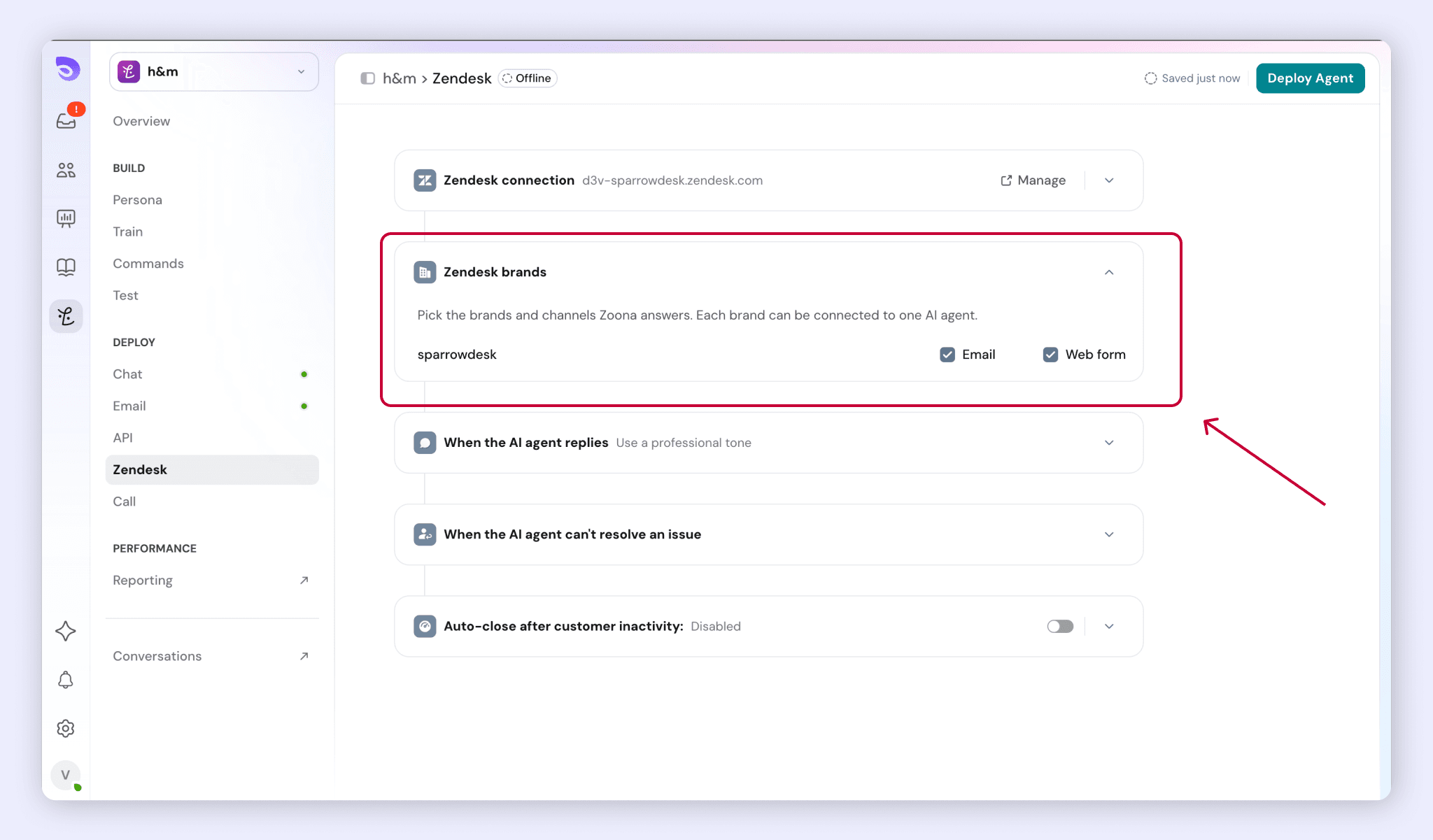
You don't have to turn everything on at once. Many teams start with one brand's email tickets, check the activity log for a week, then turn on web forms or the next brand.
Mapping more than one Zendesk brand needs a SparrowDesk Enterprise plan.
What Zoona Answers on Email and Web Form
Zoona answers new tickets and customer replies on the brands and channels you turned on.
- Zoona replies in the customer's language, with links, formatting and images.
- If a customer sends several messages in quick succession, Zoona answers once, to the latest.
- If a human agent replies first, or the ticket is solved or closed while Zoona is working, Zoona stays silent.
- If a ticket is merged, deleted or marked as spam before Zoona replies, Zoona doesn't reply.
- Zoona ignores internal notes, tickets your agents create, and tickets from unmapped brands.
- You choose what happens to the ticket status after Zoona replies. Under When the AI agent replies, set After Zoona replies, set the ticket status in Zendesk to either Pending, so the ticket leaves your agents’ queues while it waits on the customer, or Unchanged, to keep its current status.
Try It Out
Click Send test ticket in the Zendesk app settings. Zoona's reply shows in the activity log, so you can check its answer before real customers write in.
Tone, Knowledge and Commands on Zendesk
You set up Zoona for Zendesk in SparrowDesk, the same way you set it up for SparrowDesk conversations. Admins can do this, and so can Managers with the AI agent permission.
Tone and answer length. The tone and answer length you set for Zoona apply to Zendesk tickets unchanged.
Knowledge. Every existing Zoona training source works on Zendesk: websites, files, your knowledge base, Notion, and Q&A.
You can also add your Zendesk Help Center as a source. Zoona imports your published Zendesk articles and syncs them daily.
Commands. On Zendesk, commands work as plain written instructions that Zoona follows. Commands with actions, and commands that depend on ticket field values (for example “if the priority is High, hand over”), aren’t supported on Zendesk in this version.
Command type | On Zendesk email and web form |
Plain instructions, no actions | Supported |
Conditions on ticket fields (status, priority, type, tags, custom fields) | Not supported yet |
Actions (tags, fields, custom HTTP request, requester or organization fields) | Not supported yet |
SparrowDesk-only actions (assign a SparrowDesk member or team) | Not supported |
If a command has Zendesk selected as a channel and includes an action, the Publish button is disabled with the message “Actions aren’t supported on Zendesk yet. Remove the actions or deselect Zendesk to publish”. Commands with actions keep working on your other channels. Zendesk isn’t selected for new commands by default.
Tags Zoona Adds in Zendesk
Zoona marks every ticket it touches with zoona-* tags. Use them in your Zendesk routing rules and Explore reports.
Tag | What it means |
zoona-involved | Zoona replied at least once |
zoona-processing | Zoona is working on the ticket right now |
zoona-resolved | Zoona solved the ticket |
zoona-handover | Zoona handed the ticket to your team. Use it in routing rules |
zoona-takeover | Added by an agent to give the ticket back to Zoona |
zoona-off | Added by an agent or a rule to keep Zoona off the ticket |
Zendesk agents and admins can add zoona-takeover and zoona-off.
Handing over a ticket
Zoona hands a Zendesk ticket to your team when:
- The customer asks for a human.
- Zoona can’t answer confidently.
- One of your commands tells Zoona to hand it over.
On handover, Zoona adds the zoona-handover tag and posts an internal note summarising the conversation and the reason for the handover. Your own Zendesk rules decide who gets the ticket. Zoona doesn’t route inside Zendesk, so build a Zendesk trigger on zoona-handover that sends these tickets to the right group.
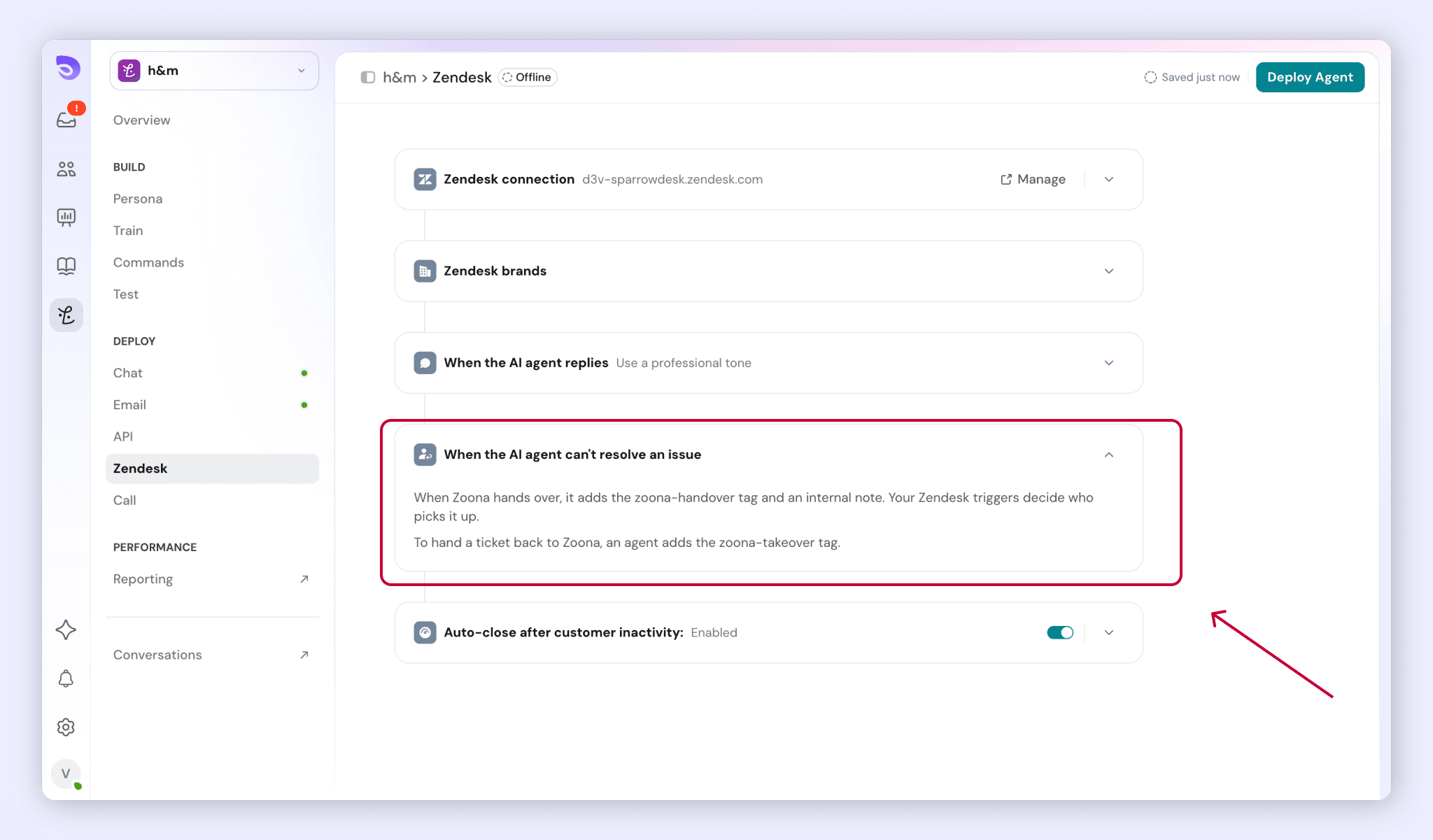
After handover, Zoona doesn't reply on that ticket again unless an agent gives it back.
- Give a ticket back to Zoona: add the zoona-takeover tag. Zoona answers the customer's next message.
- Keep Zoona off a ticket: add the zoona-off tag. An agent or a Zendesk rule can add it.
How Zoona Solves Tickets
Zoona solves a Zendesk ticket and adds zoona-resolved when:
- The customer confirms the issue is fixed.
- The customer doesn't reply within Zoona's auto-close window. This is the same auto-close window Zoona uses in SparrowDesk.
If the customer replies after that, the ticket reopens and Zoona picks it up again. If Zoona then hands over, the earlier resolution is reversed.
If the customer replies to a ticket that's already Closed, Zendesk opens a follow-up ticket, and Zoona treats it as a new ticket.
How Resolutions Are Counted for Billing
Zoona for Zendesk uses Zoona's resolution billing.
- A resolution is counted 24 hours after Zoona's last reply.
- It isn't counted if a Zendesk agent has taken over by then: the ticket has the zoona-handover or zoona-off tag, or an agent replied after Zoona.
- A human taking over after those 24 hours doesn't reverse the resolution.
If your Zoona credits run out or the add-on is removed, new Zendesk tickets go straight to your team with the reason "Zoona unavailable".
Track Zoona on Zendesk
Billed resolutions- Go to Billing and open the Zoona drawer to see the resolution credits billed for your Zendesk tickets.
Reporting in Zendesk- In Zendesk Explore, you can report on email and web form tickets using the zoona-* tags.
Pause, Repair, or Disconnect Zendesk
Pause Zoona on a channel. Admins and Managers can pause or resume Zoona for each channel.
Check the connection status. The Zendesk app settings show the status (Connected, Needs attention or Disconnected), the last activity, and any problem in plain words.
- If Zoona's Zendesk user is deactivated or access is revoked, tickets go to your team and admins get an email and an in-app warning.
- If someone edits or deletes one of the "Zoona – …" rules in Zendesk, the status flags it. Click Repair to restore the rule.
- If Zoona can't process a ticket, for example because of an AI error, the ticket goes to your team straight away with the reason.
Disconnect Zendesk
Only admins can disconnect.
- Go to Settings → Apps → Zendesk.
- Click Disconnect.
FAQ
- Which Zendesk tickets does Zoona answer?
New email and web form tickets, and customer replies on them, for the Zendesk brands and channels you turned on. Zoona doesn't answer tickets that were already open when you connected, internal notes, tickets your agents create, or tickets from unmapped brands. This article covers email and web form tickets only. - Who decides which team gets a ticket Zoona hands over?
Your own Zendesk rules. Zoona adds the zoona-handover tag and an internal summary note, but doesn't route inside Zendesk. Build a Zendesk trigger on zoona-handover to send these tickets to the right group. - Can my commands take actions on Zendesk tickets?
Not in this version. On Zendesk, commands work as plain instructions only. Actions, such as setting tags or fields or running a custom HTTP request, and conditions on ticket fields aren't supported. A command with Zendesk selected can't be published if it includes an action. - What happens if Zoona or SparrowDesk is unavailable?
A safety-net rule in Zendesk hands waiting tickets to your team within an hour. If Zoona can't process a ticket, it goes to your team straight away with the reason. If your Zoona credits run out, new tickets go to your team with the reason "Zoona unavailable". - Am I billed if an agent takes over a ticket Zoona answered?
Not if they take over within 24 hours of Zoona's last reply. A resolution is counted 24 hours after Zoona's last reply, and only if no agent has taken over by then (a zoona-handover or zoona-off tag, or an agent reply after Zoona's). - Who on my team can set up Zoona for Zendesk?
Only admins can connect, disconnect or change the Zendesk setup, and map brands and channels. Admins, and Managers with the AI agent permission, can configure Zoona's guidelines, knowledge and commands, import the Zendesk Help Center, pause Zoona per channel, and view the activity log and analytics.