
Sending Addresses in SparrowDesk

Every email SparrowDesk sends to a customer goes out from one of your brand's email addresses. Which one depends on whether the address is verified for sending. An address that only receives mail can't send yet, so SparrowDesk sends from another address and the customer's replies still come back to the one they wrote to.
How Sending Addresses Work
For each email to a customer, SparrowDesk uses the first address in this list that is verified for sending:
- The address the conversation came in on, the one the customer wrote to.
- Your brand's primary email address.
- Your brand's SparrowDesk address, for example
[email protected]. This address can always send.
Conversations that didn't start by email (a form, live chat, or a conversation an agent created) start from your brand's primary email address.
This applies to every email a customer receives about a conversation:
- Replies from agents
- Replies from Zoona, your AI Agent
- Replies sent by a workflow
- Replies added through the API
- Customer notifications, such as a conversation being created, resolved or closed, and approval updates. These start from your brand's primary email address, not the address the conversation came in on.
SparrowDesk picks the address when the email is sent. Verifying an address later doesn't change emails that have already gone out.
Where Customer Replies Go
When SparrowDesk skips an address that isn't verified for sending, it sets that address as the email's Reply-To, as long as the address can still receive mail. When the customer replies, their email goes to the address they originally wrote to and lands on the same conversation.
If the skipped address can't receive mail either, no Reply-To is set and the customer's reply goes to the address the email was sent from.
Spot a Reply Sent From the Default Sender
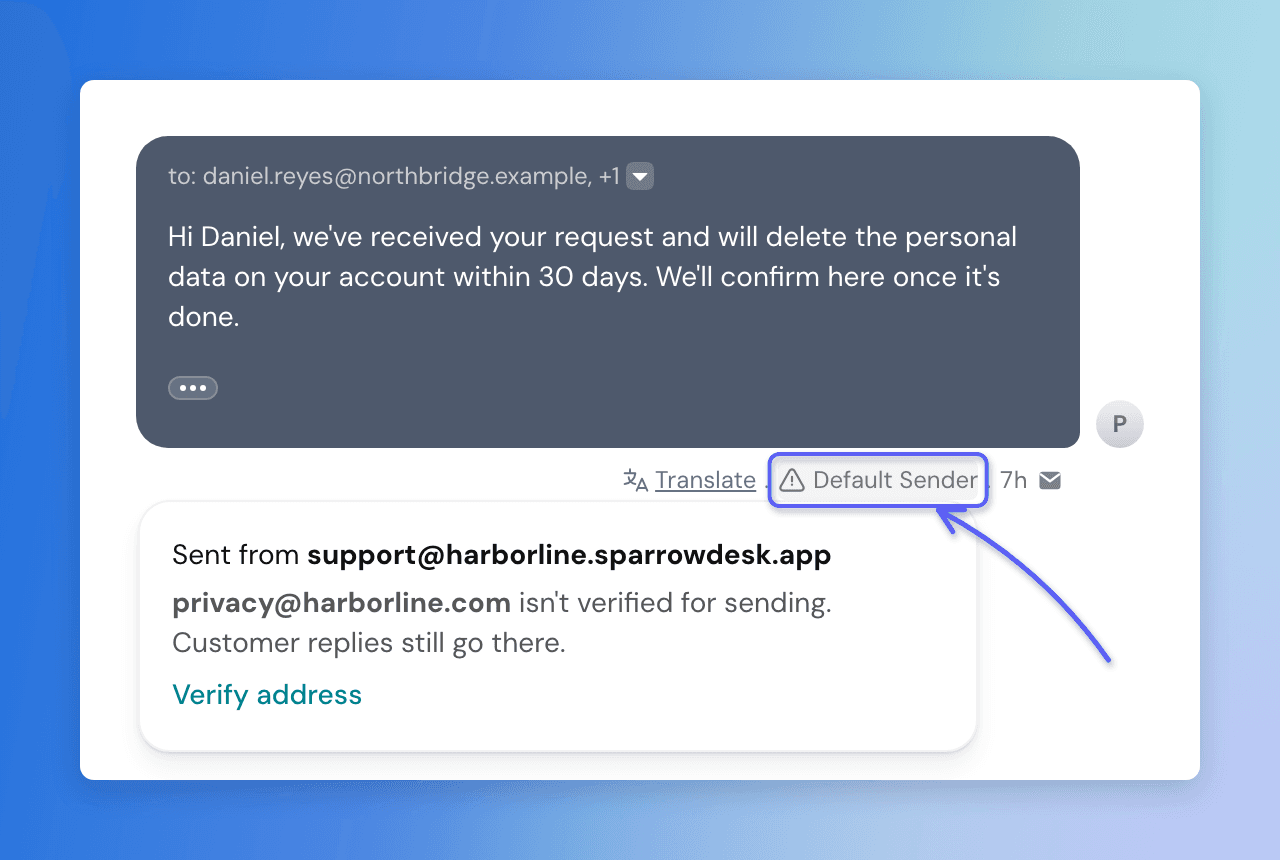
When a reply goes out from a different address than the one the conversation came in on, Default Sender appears under the reply, next to the time it was sent.
Hover over Default Sender to see:
- The address the reply was sent from.
- The address that isn't verified for sending, and whether customer replies still go to it.
- Verify address, which opens that address's settings. Only members with the Configure email permission see this link. Admins have it by default.
Note: Default Sender appears on replies only. Customer notifications don't show it, and neither do replies sent before this indicator was added.
See Who an Email Was From and To
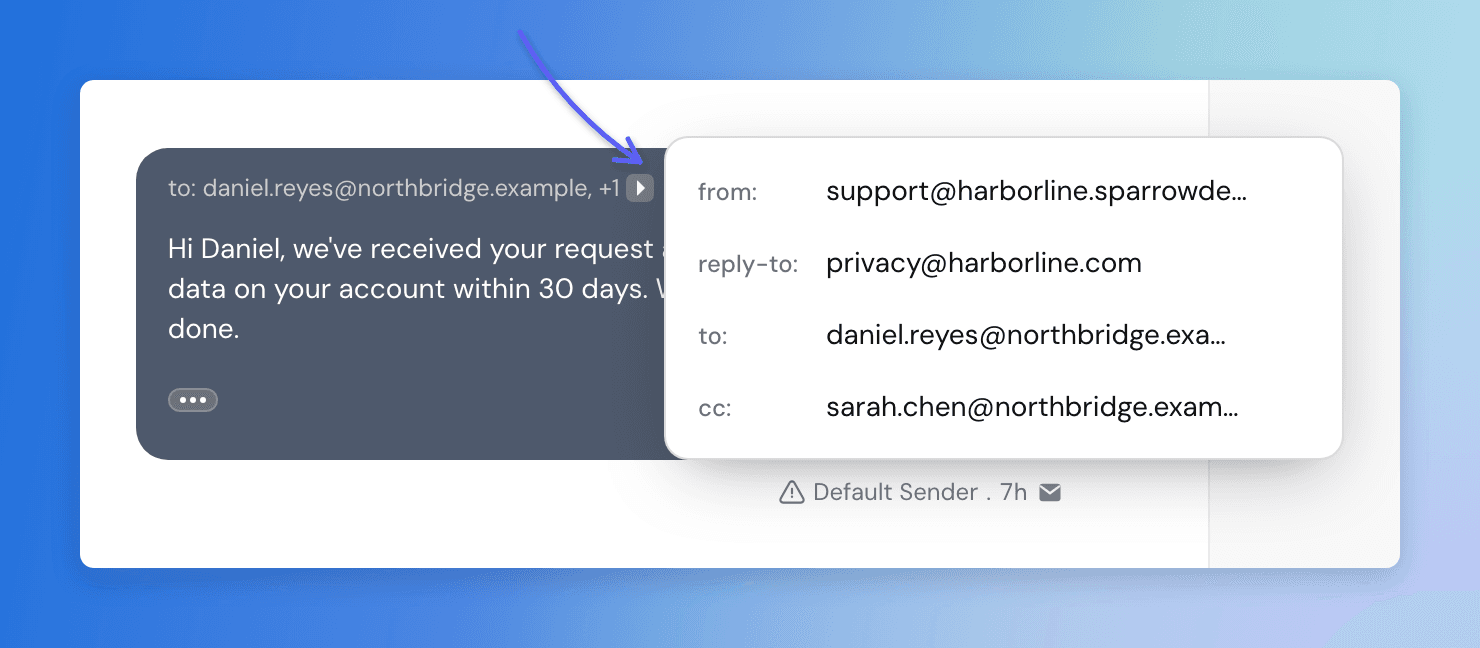
Every email message in a conversation shows its main recipient next to to:. To see the full list:
- Open the conversation.
- On the message, click the arrow next to the recipients.
The list shows from, reply-to, to and cc, the same way an email client does. Rows with no addresses are left out.
Verify an Address for Sending
When one of your addresses receives mail but isn't verified for sending, members with the Configure email permission see a Review email connection banner at the top of SparrowDesk.

To verify the address:
- Click Verify email in the banner. You can also go to Settings → Email and click Verify next to the address.
- Finish the outgoing setup: add the DNS records SparrowDesk shows, or connect the mailbox through SMTP. See Connect your custom email address for each option.
- Once the address is verified for sending, new emails on its conversations go out from it again.
If more than one address needs attention, the banner shows the first and lists the rest under +N more. Addresses with a broken connection are listed before addresses that only need verifying.
FAQ
- Why did a reply go out from my SparrowDesk address instead of my own?
The address the customer wrote to isn't verified for sending, and neither is your brand's primary address, so SparrowDesk used your SparrowDesk address. Hover over Default Sender under the reply to see which address was skipped, then verify it. - Will the customer's reply still reach the same conversation?
Yes, as long as the skipped address can still receive mail. SparrowDesk sets it as the Reply-To, so the customer's reply goes back to the address they wrote to and lands on the same conversation. - Who can see Default Sender and the Review email connection banner?
Anyone who can view the conversation sees Default Sender. The Verify address link and the banner only appear for members with the Configure email permission. Admins have it by default. - Does this apply to Zoona, workflows and the API?
Yes. Replies from agents, Zoona, workflows and the API use the address the conversation came in on, then your brand's primary address, then your SparrowDesk address. Customer notifications, such as a conversation being resolved, start from your brand's primary address and fall back to your SparrowDesk address. - My address is verified, but emails from it are failing. Why doesn't SparrowDesk switch addresses?
SparrowDesk decides based on whether an address is verified, not on whether recent emails from it were delivered. If the connection breaks, for example after an SMTP password change, SparrowDesk keeps using that address and shows a Review email connection banner with Reconnect email. Reconnect the address to start sending again. - Do I need to turn this on?
No. It works automatically, on every plan.
Was this helpful?