
Threads: Side Conversations With Your Team

A thread is a private conversation with your teammates, attached to a customer conversation. Use it to ask a colleague a question, such as whether a refund already went out or whether a bug is known, without any risk of the customer seeing it. Threads sit in their own panel, apart from the reply box, so internal discussion can't be sent to the customer by mistake.
What You Need First
- A Professional or Enterprise plan.
- An Admin can turn threads on or off for the whole account.
How Threads Work
- One thread per conversation- Every teammate working on the conversation uses the same thread.
- Never visible to the customer- Thread messages aren't added to emails, the help centre, the chat widget, transcripts or CSAT surveys.
- No status or owner- A thread doesn't need to be resolved. For work that needs its own owner and status, create a child conversation. To bring in someone outside your team, forward the conversation. See Set Up Parent-Child Conversations and Forward a Conversation to an External Contact.
- Doesn't change the conversation- Thread messages don't affect SLAs, status, assignment, CSAT or the conversation's last-updated time, and don't reopen a solved conversation.
- Not used by Zoona- Zoona and AI Copilot never read thread messages.
Choose Where the Thread Happens
Every thread is held in one of two places. Pick the one that suits the people you need to involve.
| - | SparrowDesk | Slack |
Best for | Questions for teammates who work in SparrowDesk, such as another agent or a team lead | Questions for colleagues who work mainly in Slack, such as engineering, finance or operations |
Where the discussion happens | In the Thread tab, next to the customer’s messages | In your Slack workspace |
Setup needed | None | Slack must be connected to SparrowDesk |
Before you use Slack threads, an admin connects your Slack workspace to SparrowDesk and installs the SparrowDesk app. If Slack isn’t connected yet, the Thread tab shows Connect to Slack, which opens the setup. For the full setup, see Slack Integration.
You can switch until you post. Choose an option, then click Change next to the thread name if you change your mind. Once the first message is sent, the thread stays where it started.
Whichever you choose, the customer never sees the discussion, and it doesn’t change the conversation’s status, SLA or assignment.
Start a Thread
- Open the conversation.
- In the right sidebar, click the Thread tab.
- Choose SparrowDesk or Slack.
- Click Start Thread.
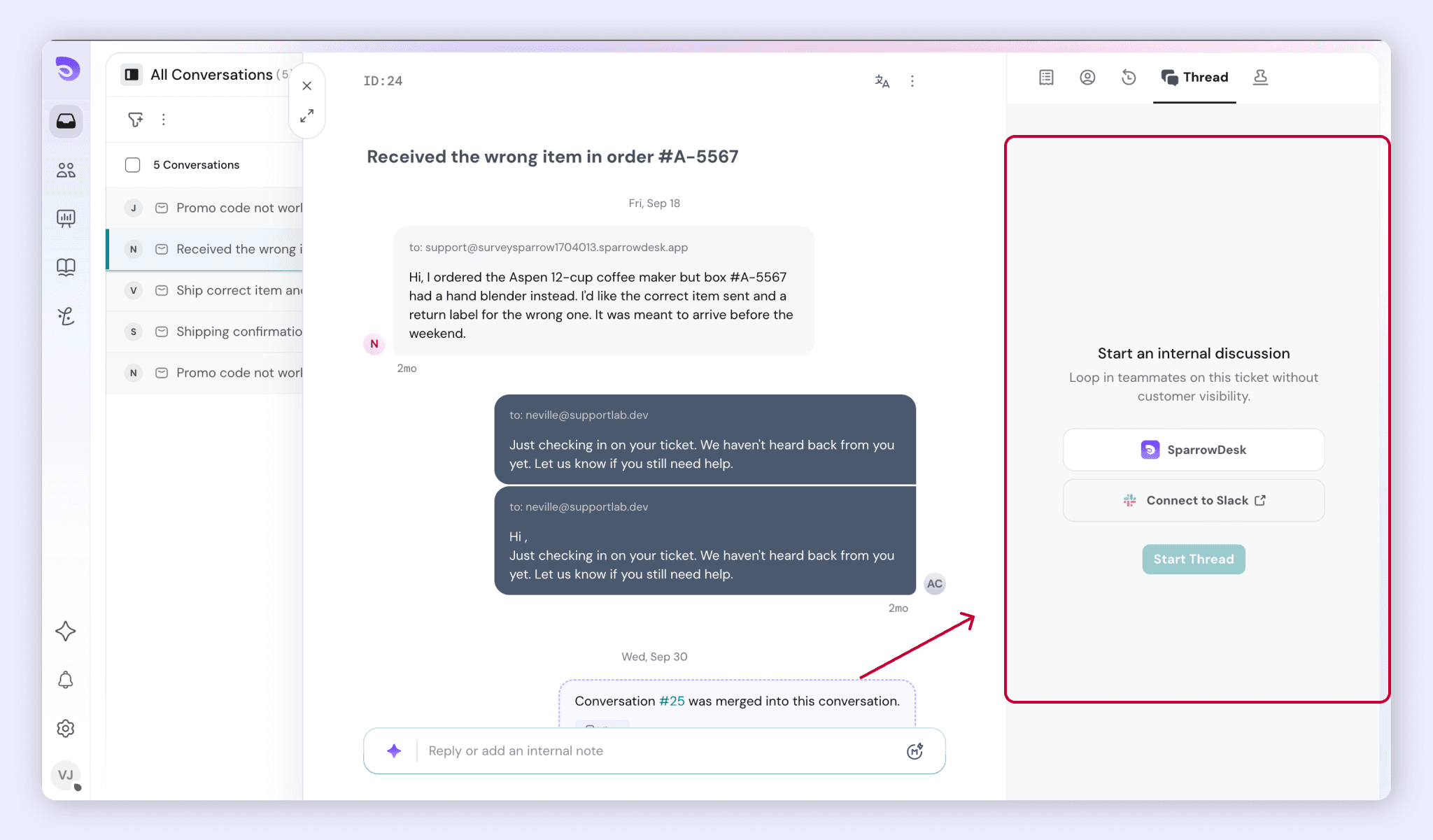
- To change your choice before posting, click Change next to the thread name.
- In the Send message to the team box, type your message. To bring someone in, @mention them.
- Click Send.
The thread is created with your first message. There's no title to add.
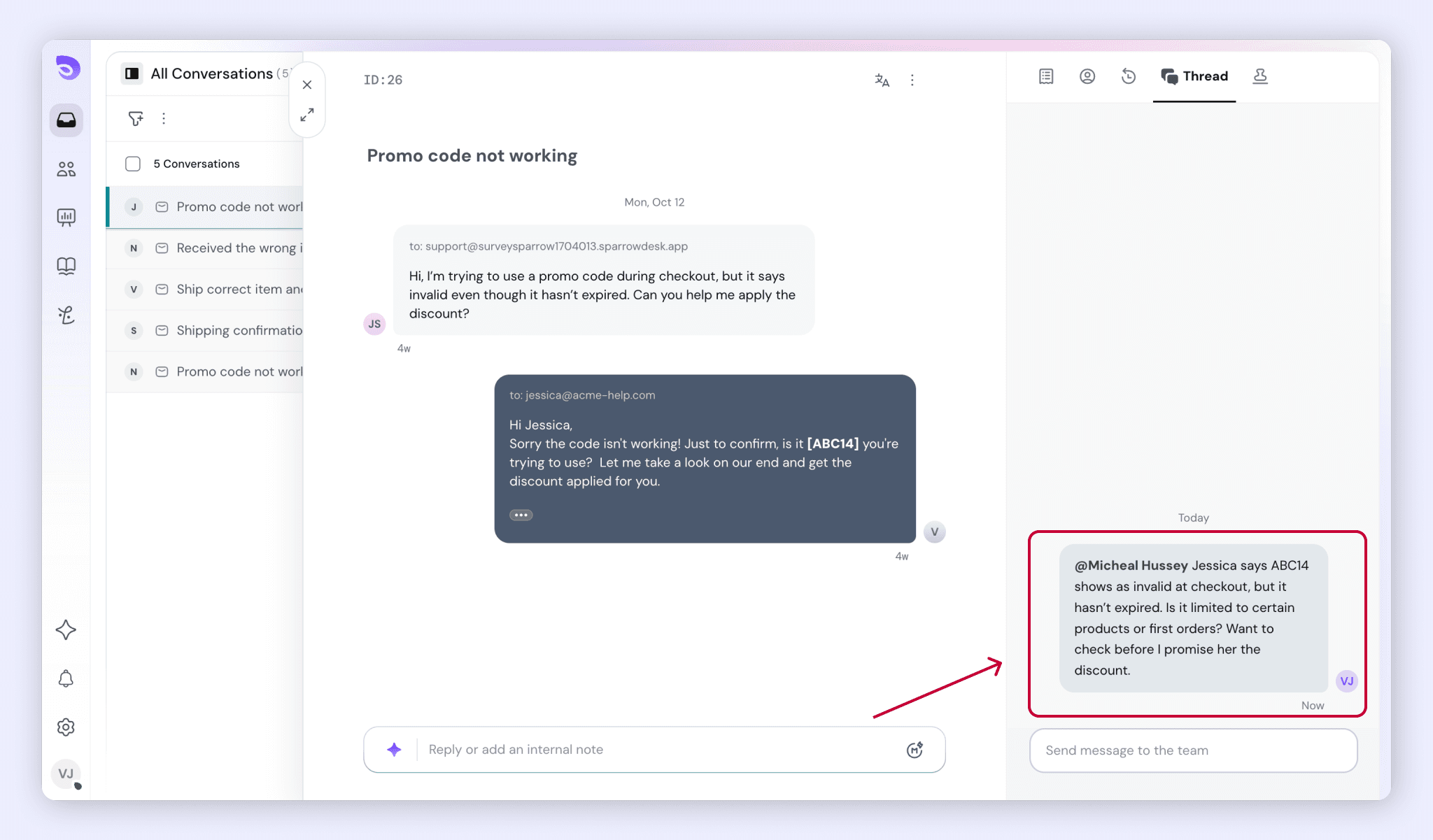
The composer supports @mentions, attachments, and basic formatting: bold, italic, underline, strikethrough, lists, links and inline code. Attachments follow the same file type and size limits as customer messages.
Unsent text isn't saved as a draft. If you close the panel before sending, it's gone.
Who Can See and Reply
- Anyone with access to the conversation can read its thread.
- Anyone you @mention can read and reply, even if they can't open the conversation itself. This includes Lite users, who only see the thread, not the conversation or the customer's details.
- Only Admins, Managers and Agents can start a thread. Lite users can reply where they're mentioned.
The mention list only shows teammates. Customers and contacts can't be mentioned.
Stay Up to Date
You're a participant in a thread if you've posted in it, been mentioned in it, or are assigned the conversation. Participants are notified of every new message in the app, and the conversation shows an unread marker that's different from a new customer message.
Thread notifications are in-app only. No emails are sent.
Edit or Delete a Message
Thread messages follow the same edit and delete rules as internal notes. Admins and Managers can delete other people's messages.
FAQ
- Can a customer ever see a thread?
No. Threads are excluded from every customer-facing place: emails, the help centre, the chat widget, transcripts and CSAT surveys. - Can I have more than one thread on a conversation?
No. Each conversation has one thread. - Can I move a thread from SparrowDesk to Slack, or the other way?
Only before the first message. Click Change next to the thread name to switch. Once a message is sent, the thread stays where it started. - Do I need Slack to use threads?
No. SparrowDesk threads work without Slack. To hold threads in Slack, connect Slack first. See Slack Integration. - Can I mention someone who can't open the conversation?
Yes. They can read and reply in the thread, but they still can't open the conversation or see the customer's details. - Does posting in a thread reopen a solved conversation?
No. Threads don't change the conversation's status, SLA or assignment. - Does Zoona read threads?
No. Zoona and AI Copilot never use thread messages. - Which plans include threads?
Professional and Enterprise.
Was this helpful?