
Instatus Integration

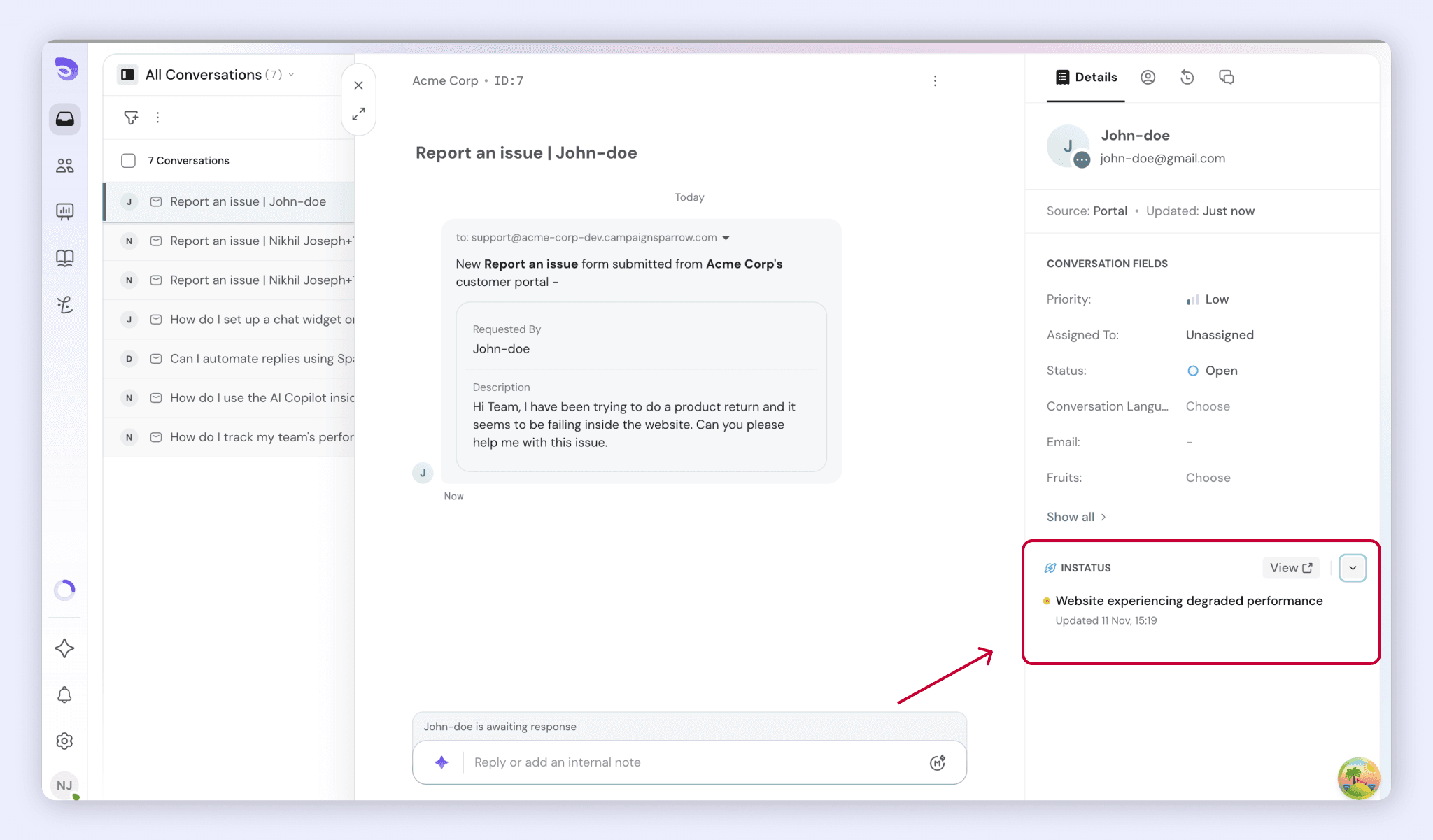
Instatus is a tool for publishing your service status and incidents. When you connect it to SparrowDesk, agents see the health of your services in the conversation sidebar, so they know an outage is underway without leaving the conversation.
How Instatus Works in SparrowDesk
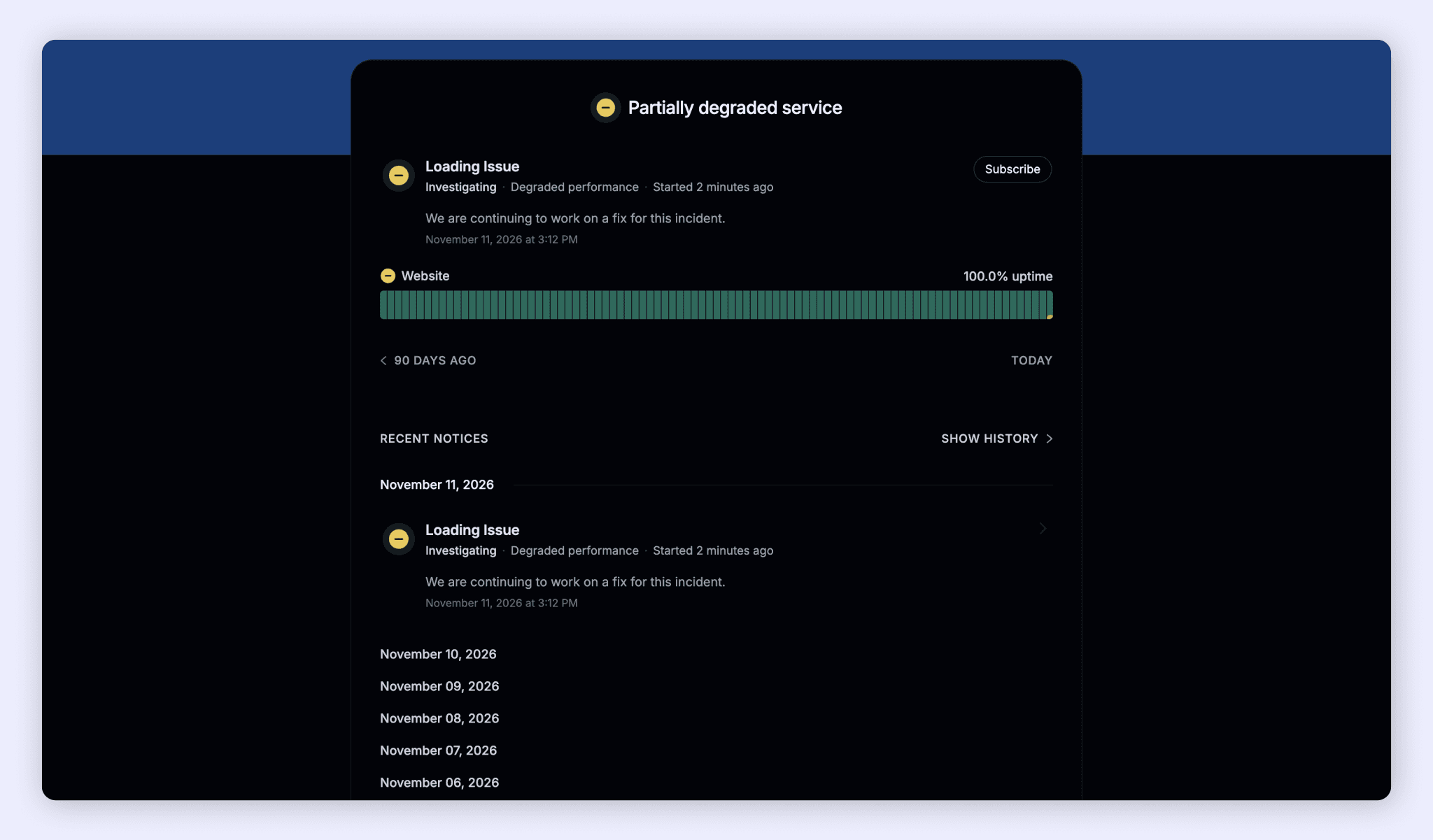
- Agents see the status of your services in the conversation sidebar, with a link to your full status page.
- Admins connect a status page for each brand from the Apps page.
- Customers get faster, consistent answers during an outage, because the agent already knows about it.
SparrowDesk only reads from Instatus. It doesn't create, update or close incidents.
What You Need First
- The Manage Apps permission. Account Owners and Admins have it by default.
Connect Instatus
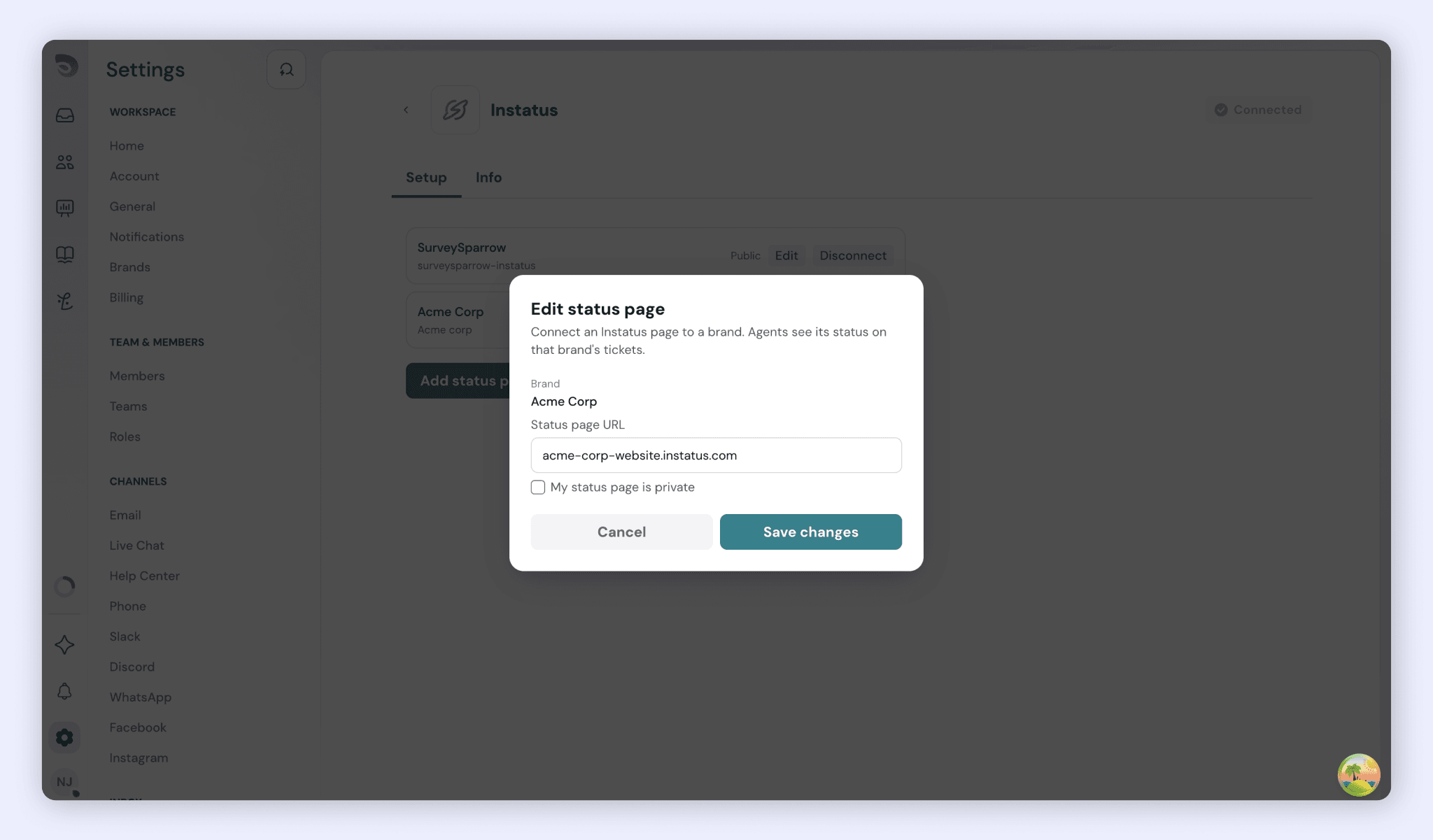
You can connect one Instatus page for each brand.
- Go to Settings → Apps.
- Find the Instatus card and click Connect.
- Choose the brand.
- Enter your Instatus details.
- Click Connect.
See Service Status in a Conversation
- Open any conversation.
- In the sidebar, expand the Instatus section.
- Check the status. When everything is working, you'll see that all systems are operational. When something isn't, the affected components are listed.
Agents see the status page for the brand of the conversation they're in.
Edit or Disconnect Instatus
To change the details or the brand, open the menu on the Instatus card and select Edit Configuration. To stop using Instatus, open the same menu, select Disconnect and confirm. The Instatus section then disappears from the sidebar.
FAQ
- Can I connect more than one status page?
Yes, one for each brand. - Does SparrowDesk change anything in Instatus?
No. SparrowDesk only reads your status page.
Was this helpful?