
Use Zoona With Zendesk Messaging

Zendesk Messaging is the chat in the Zendesk Web Widget and the Zendesk mobile SDK. With Zoona connected to it, Zoona answers your customers' chats there, using the same guidelines, knowledge and commands you set up in SparrowDesk, and hands the chat to your Zendesk team when it needs a person.
What You Need First
- Zoona for Zendesk already connected for tickets. Messaging builds on the email and web form connection. See Set Up Zoona for Zendesk Email and Web Form Tickets.
- Zendesk Messaging turned on in your Zendesk account.
- In SparrowDesk: the Admin role, and the Starter plan or higher with the Zoona AI Agent add-on.
- In Zendesk: admin access to Admin Center.
How Zoona Works on Messaging
- A customer starts a chat in your Zendesk Web Widget or mobile app.
- Zoona replies under your AI agent's name and avatar, with a typing indicator and reply buttons where they help.
- If Zoona can help, it answers until the chat is resolved, then closes it and tags it zoona-resolved.
- If Zoona can't help, it hands the chat to your Zendesk team and tags it zoona-involved and zoona-handover. Your own Zendesk routing decides who gets it.
Connect Zendesk Messaging
You connect Messaging separately from tickets, and then make Zoona the responder in Zendesk.
- Go to Settings → Apps → Zendesk.
- Under General Configure, find the Messaging row and click Connect.
- Sign in to Zendesk and approve access. This is a second sign-in, separate from the ticket connection.
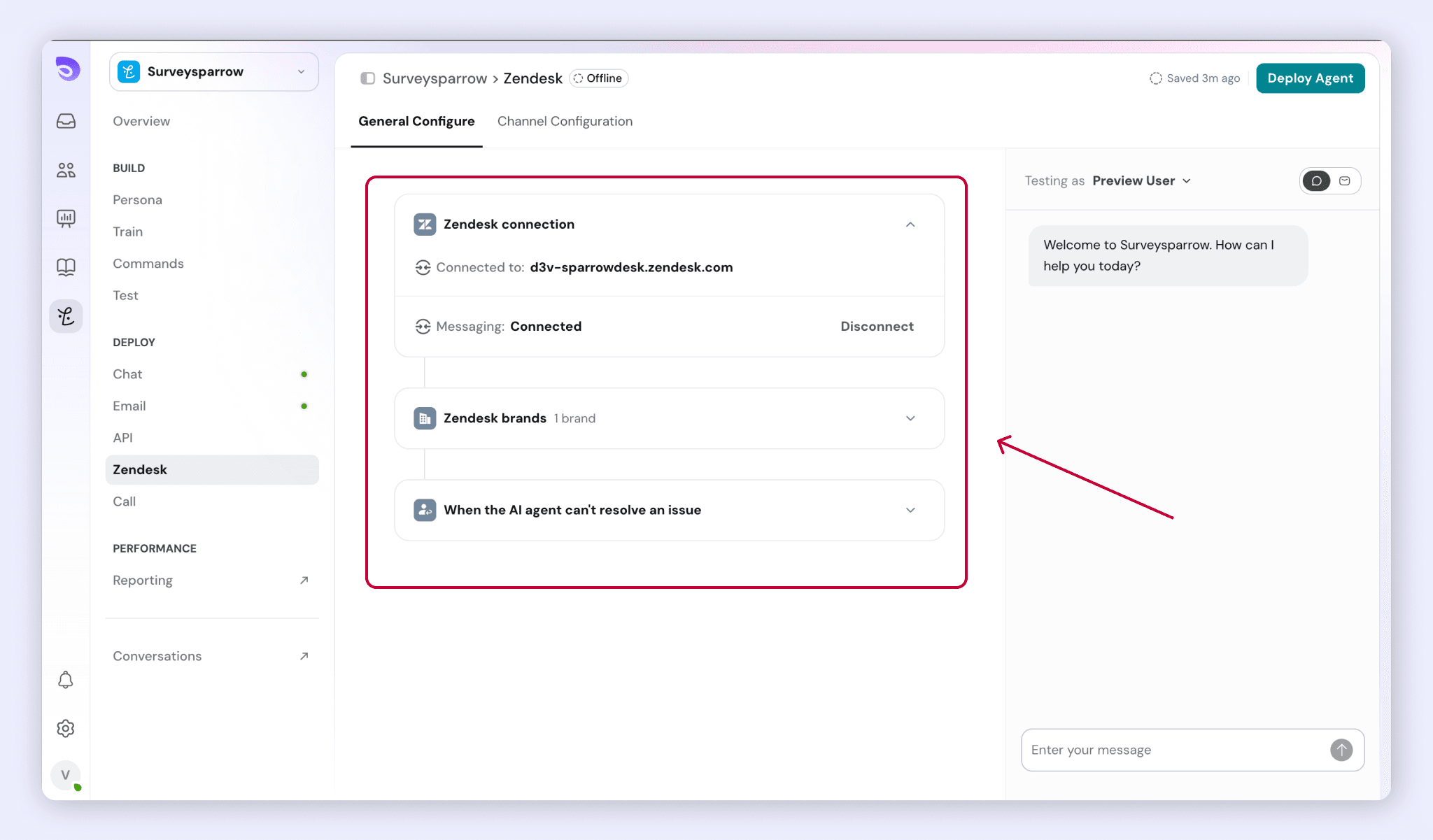
- In Zendesk, go to Admin Center → AI → AI agents, and set Zoona as the responder for Messaging.
Zoona doesn't answer any chats until it's set as the responder in Zendesk.
Configure the Messaging Channel
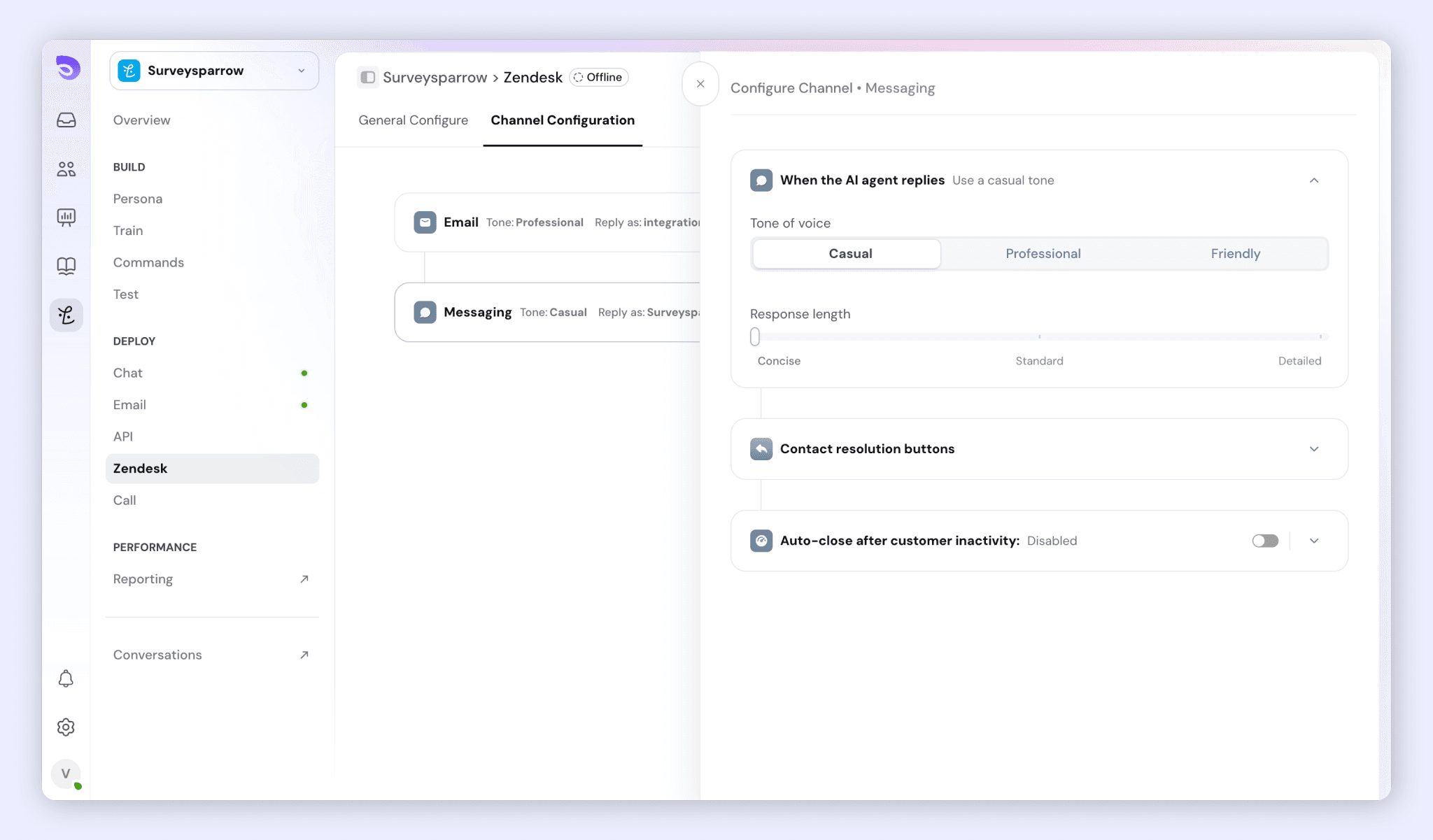
- Under Channel Configuration, turn on the Messaging row.
- Click Configure Channel. A drawer opens.
- Set the options for Messaging:
- Auto-close: how long Zoona waits for the customer before closing a resolved chat. Messaging has its own auto-close setting, separate from email.
- Tone and answer length: set per channel, so chat replies can be shorter and more casual than email.
- Save your changes.
What Zoona Answers on Messaging
- Quick bursts are answered together. If a customer sends several messages within 4 seconds, such as a photo followed by a question, Zoona answers them as one.
- Images and videos are read and used in Zoona's answer.
- Other files reach Zoona, but it can't read their contents. A message that is only a PDF isn't answered.
- Replies are plain text, sent under your AI agent's name and avatar.
Handing Over a Chat
When Zoona can't help, or the customer asks for a person, Zoona passes the chat to your Zendesk team and adds the zoona-involved and zoona-handover tags. Use these tags in your Zendesk routing.
After a handover, the chat stays with your team. Giving a Messaging chat back to Zoona isn't supported in this version.
Check the Connection
The Zendesk settings show the health of the Messaging connection. You'll see a problem if:
- Messaging isn't connected. Connect it under General Configure.
- Access was revoked in Zendesk. Connect it again.
- Zoona isn't the responder in Zendesk. Set it in Admin Center → AI → AI agents.
If the connection to Zendesk is missing a piece SparrowDesk needs, it's repaired automatically.
How Messaging Resolutions Are Billed
Messaging uses Zoona's resolution billing, the same as Zendesk tickets. A chat isn't billed if your team takes it over. In Billing, the Zoona drawer lists billed Messaging resolutions, and each row opens the chat's ticket in Zendesk.
Disconnect Zendesk Messaging
You can't disconnect Messaging while Zoona is still the responder. First change the responder in Zendesk Admin Center → AI → AI agents, then disconnect in SparrowDesk.
FAQ
- Do I need the Zendesk tickets connection first?
Yes. Messaging can only be connected after Zoona for Zendesk is connected for email and web form tickets. - Why isn't Zoona answering chats?
Check that Zoona is set as the Messaging responder in Zendesk Admin Center → AI → AI agents, and that the Messaging connection shows no problems in the Zendesk settings. - Can Zoona read images that customers send?
Yes, images and videos. Other file types reach Zoona, but it can't read their contents. - Can I give a chat back to Zoona after a handover?
Not on Messaging in this version. After a handover, the chat stays with your team. - Can I set a different tone for chat and email?
Yes. Tone, answer length and auto-close are set per channel in the Configure Channel drawer. - Why can't I disconnect Messaging?
Zoona is still the responder in Zendesk. Change the responder in Admin Center → AI → AI agents first.
Was this helpful?