
Integrating SparrowDesk with Document360

The Document360 integration imports the published articles from your Document360 knowledge base into SparrowDesk, so Zoona AI Agent and AI Copilot can answer from them. SparrowDesk keeps those articles in sync on a schedule you choose, so you don't have to re-upload content every time your documentation changes.
What You Need First
- SparrowDesk permission: the Train Zoona AI permission. Admins have it by default.
- SparrowDesk plan: Starter, Professional or Enterprise. For Zoona AI Agent or AI Copilot to answer from the articles, you also need the Zoona AI Agent or AI Copilot add-on.
- Document360 plan: Business, Enterprise or a trial. Document360 only issues API tokens on these plans.
- A Document360 API token with read (GET) access and a content role that can see the workspace you want to import.
Note: You can't connect to Document360 while your SparrowDesk account is in HIPAA mode.
Create a Document360 API Token
SparrowDesk connects to Document360 with an API token, not a sign-in.
- In Document360, go to Settings → Knowledge base portal → API tokens.
- Create a new token with GET (read) access.
- Give the token a content role that includes the workspace you want SparrowDesk to read. A token with no content role is valid but can't see any articles, so SparrowDesk can't connect with it.
- Copy the token. Keep it private, treat it like a password.
Also check which data region your Document360 project is hosted in: Europe, United States or Canada. You'll need it when you connect.
Connect Document360 to SparrowDesk
- Open your Zoona AI agent and click Train in its menu.
- Click Add new content, then select Import from Document360.
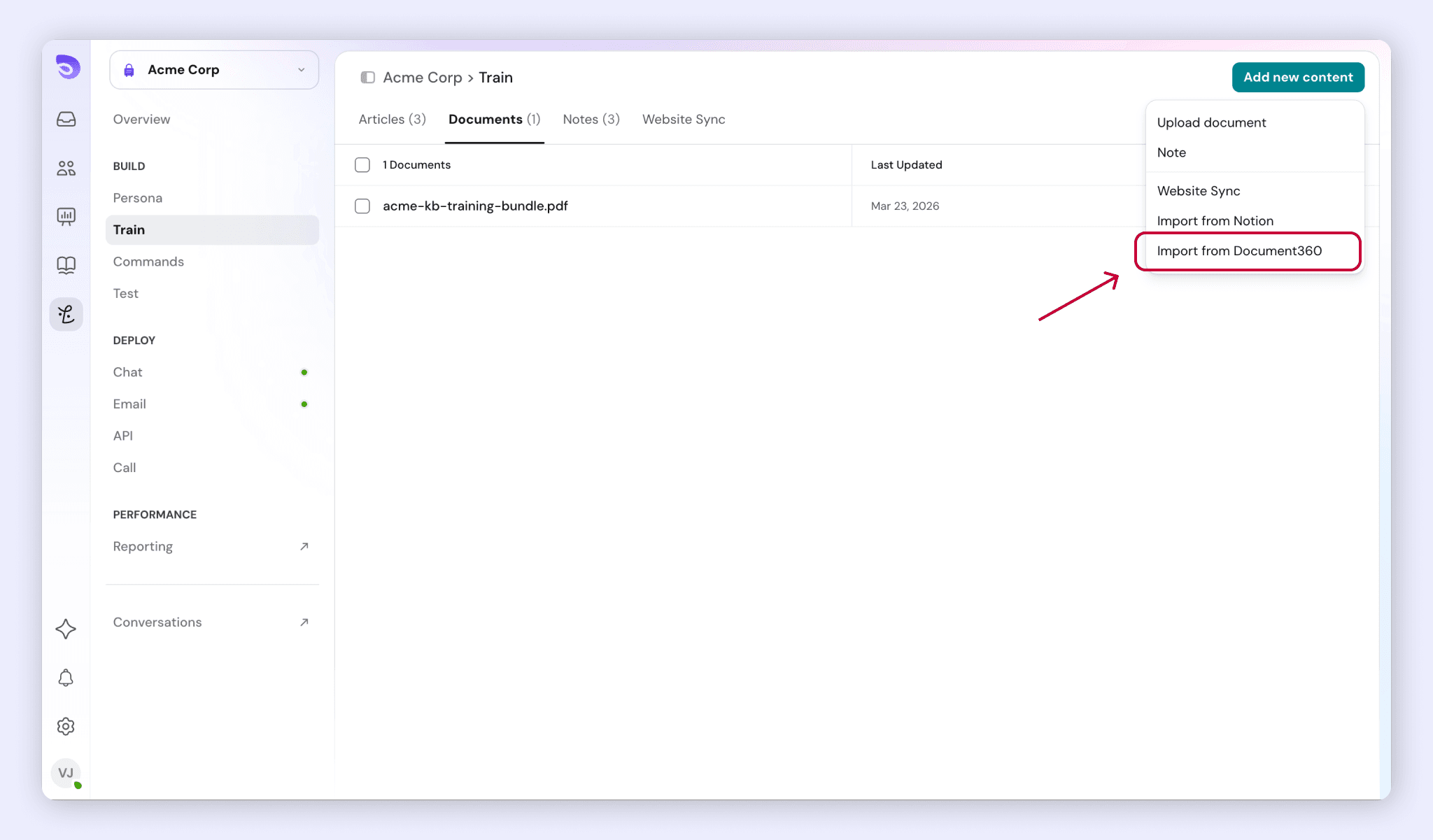
You can also start from the Knowledge page under Add new content sources, or from Improve response on the agent testing page. All of them open the same window.
- Select the Data region your Document360 project is hosted in. Europe is selected by default.
- Paste your API token and click Validate.
- When SparrowDesk shows Token verified, choose the Workspace and Language to sync. Your default workspace and its default language are preselected. API documentation workspaces aren't listed.
- If your account has more than one brand, choose the Brand whose AI should use these articles.
- Choose a Sync frequency: Weekly, Monthly or Never. With Never, SparrowDesk imports your articles once and doesn’t update them. Choose Weekly or Monthly to keep them current.
- Turn on Allow for AI Agent, Allow for AI Copilot, or both. At least one must be on.
- Click Connect.
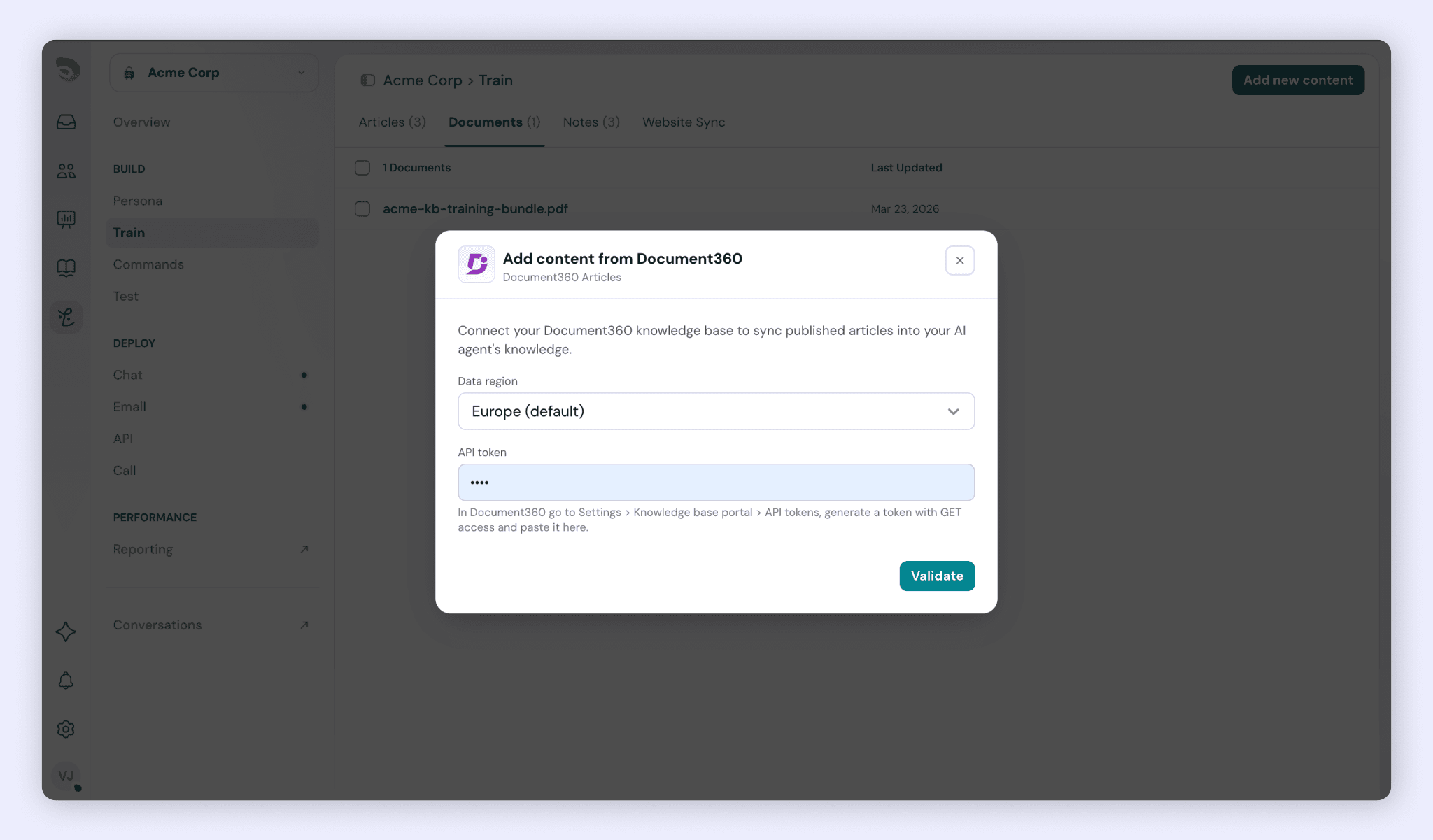
SparrowDesk starts the first import straight away. Articles appear in your knowledge base as they finish training.
The connection is labelled Project / Workspace / Language, for example Acme Help / Docs / English, so you can tell connections apart.
What SparrowDesk Imports
SparrowDesk imports articles that are published, not hidden and not archived, in the workspace and language you chose. Each connection imports up to 2,000 articles.
It doesn't import:
- Drafts
- Hidden articles
- Archived articles
- Unpublished edits. If a published article also has a pending draft, SparrowDesk imports the published version.
Articles written in any Document360 editor (Markdown, WYSIWYG or block editor) are supported. Headings, lists, tables, code, links and images are kept. Scripts, embedded frames, forms and inline styles are removed.
SparrowDesk only reads from Document360. Nothing is written back.
Keep Articles in Sync
On every scheduled sync, and whenever you click Sync now, SparrowDesk checks the workspace again:
- Articles that changed are re-imported and retrained.
- Articles that didn't change are left as they are.
- Articles that were unpublished, hidden, archived or deleted in Document360 are removed from SparrowDesk and no longer used by the AI.
If your token stops working, SparrowDesk emails you to say the scheduled knowledge base sync failed and stops the schedule for that connection. Your articles stay trained in the meantime.
To fix it, click Import from Document360 again, choose the same workspace, language and brand, and paste a new token. Your articles are kept, and the schedule starts again.
Manage Imported Articles
Open your Zoona AI agent and click Train in its menu. and open the Document360 tab. The tab appears once you have at least one Document360 connection. Articles are grouped by connection.
From here you can:
From here you can:
- Turn AI Agent or AI Copilot on or off for a single article. This overrides the connection’s setting for that article.
- Retrain one article, or select several and retrain them together.
- Delete articles in bulk.
- Retrain articles that failed. These are pinned at the top under Failed training.
Retraining uses the copy already in SparrowDesk. Edits made in Document360 are picked up on the next scheduled sync.
Deleted articles are imported again on the next sync if they’re still published in Document360. To keep an article out of the AI, turn off AI Agent and AI Copilot for it, or hide it in Document360.
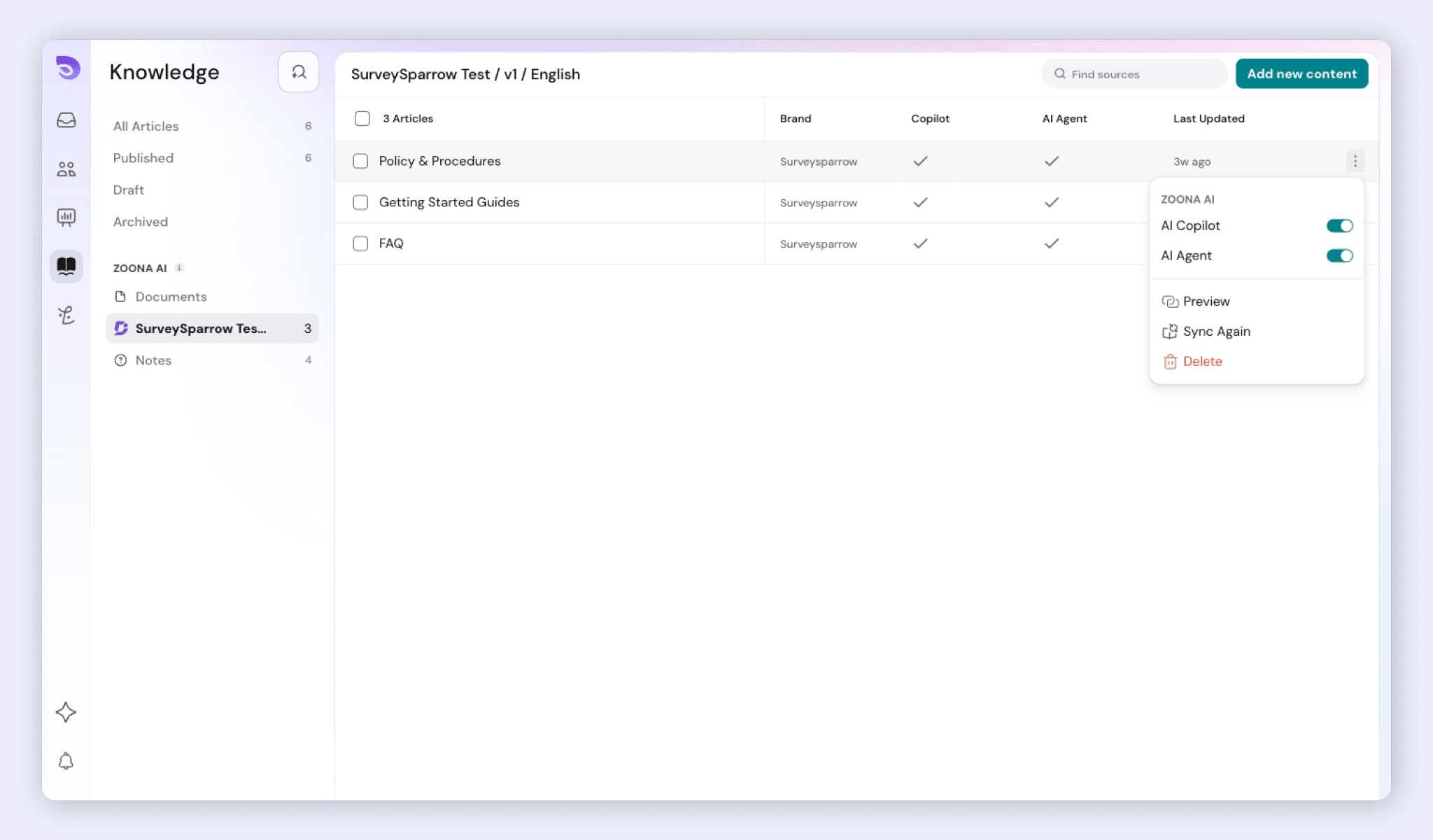
Each connection also appears in the Knowledge sidebar with the Document360 logo and an article count. Open an article to preview it. The preview shows which connection it came from, and View in Document360 opens the original article.
Connect Another Workspace or Language
Each connection covers one brand, one workspace and one language. To add another language, or another workspace, repeat the steps in Connect Document360 to SparrowDesk and choose the new workspace or language.
You can connect the same workspace to more than one brand. Each connection is synced, edited and disconnected on its own. Connecting the same brand, workspace and language twice isn't allowed.
Edit or Disconnect
Edit a connection
On the Train page, click the settings icon on a connection group to open Connection Details, then click Edit configuration.
Disconnect a workspace
In the Knowledge sidebar, hover over the connection, click …, then click Disconnect workspace.
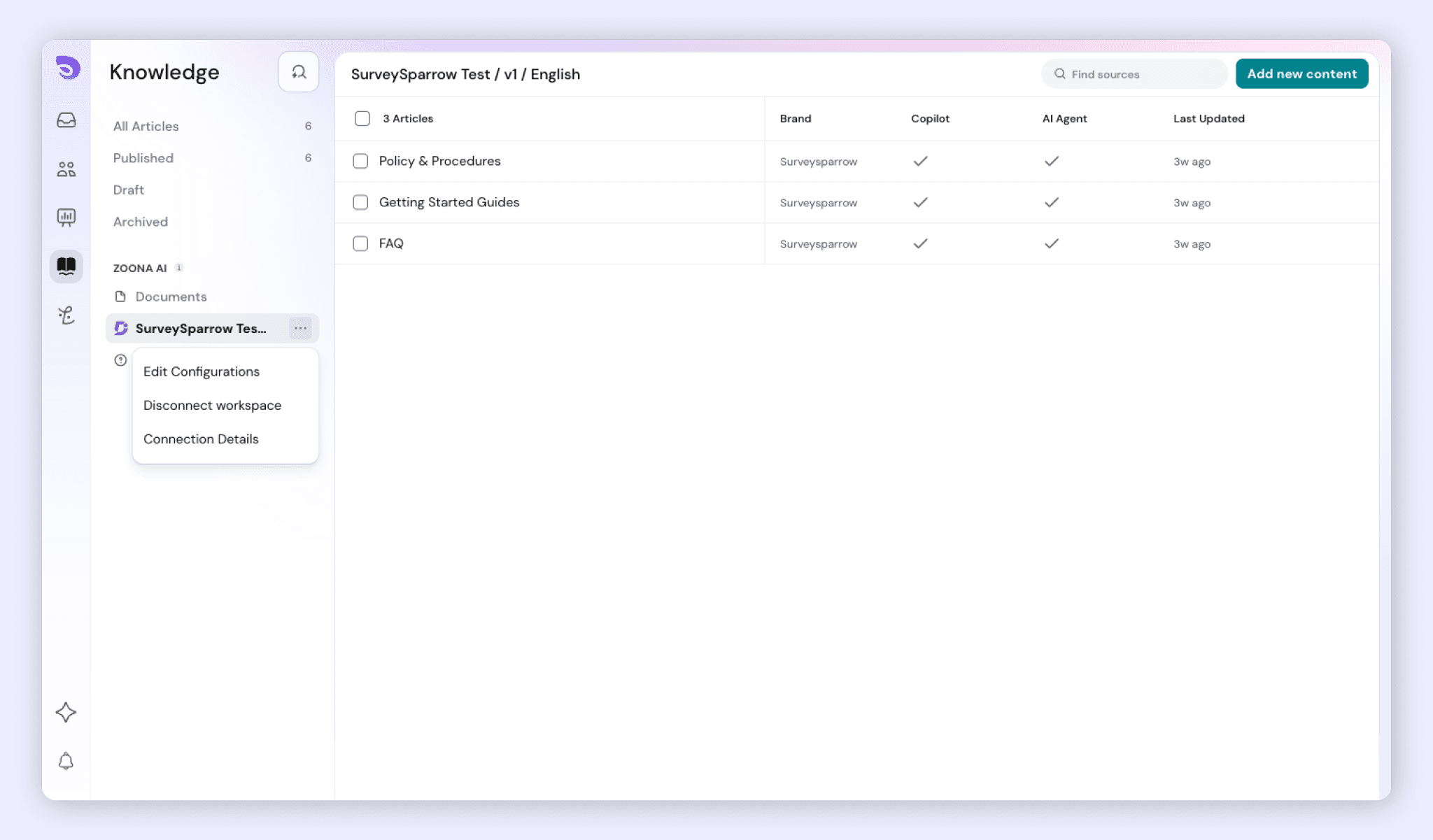
To use a new API token:
- If the old token still works: disconnect the connection, then connect again with the new token.
- If SparrowDesk has emailed you that the sync failed: click Import from Document360, choose the same workspace, language and brand, and paste the new token. Your articles are kept.
Deleting a brand also disconnects every Document360 connection on that brand.
FAQ
- Why does SparrowDesk say my token is valid but there's nothing to connect?
The token has no content role, or the project only has API documentation workspaces. In Document360, give the token a content role that includes a knowledge base workspace, then validate again. - Why does SparrowDesk say Document360 rejected my token?
Either the token is wrong or the data region doesn't match where your project is hosted. Check both and try again. Document360 only issues API tokens on Business, Enterprise and trial plans. - Why did images in the article preview stop loading?
For private Document360 projects, image links expire after a time set in Document360. This only affects the preview. The AI isn't trained on images, so answers aren't affected, and View in Document360 always opens the full article. - What happens to my articles when I disconnect?
They're removed from SparrowDesk and the AI stops using them. Nothing is deleted in Document360. - How do I connect a second language?
Add a second connection for the same workspace and choose the other language. Each language is its own connection. - Do changes in Document360 show up straight away?
No. They’re picked up on the next weekly or monthly sync. If your sync frequency is set to Never, they aren’t picked up. - Is there a limit on how many articles I can import?
Yes. Each connection imports up to 2,000 published articles.
Was this helpful?